
Currency and Points Capping
Set accrual limits to control your program expenditures
You can set a limit for the amount of regular points or currency that generates payouts a member can accrue. This serves as an automatic spending control that helps your incentive and loyalty program stay within budget.
Remember, only caps by period and applied throughout the entire program will take currencies awarded via challenges into consideration.
When a rule awards more Points or another currency that generates payout than a member's remaining limit, you can prevent the member from earning beyond the limit ("hard cap"), or allow the member to earn the full amount ("soft cap"). In either case, points and payouts records will note the amount by which the reward exceeded the cap.
You can see those details in the point or payout record page or consult it in the payouts page, through the Outcomes tab or the Member related list.
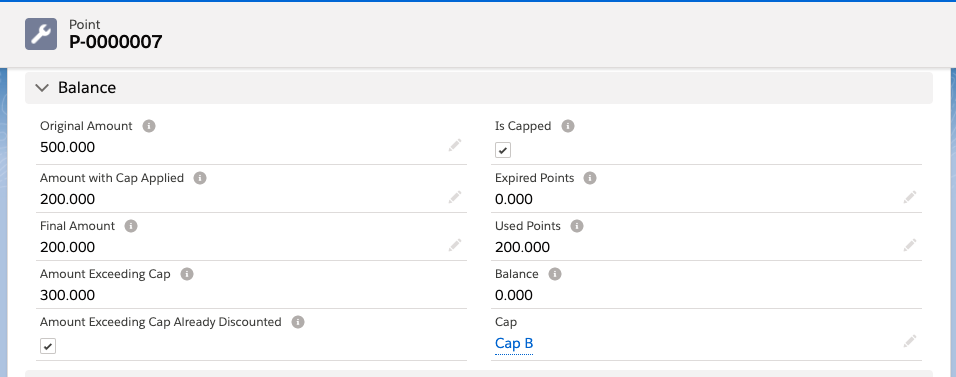
Point record page when a "hard cap" was applied.
For 'Only when it awards the most points' rules, capping will be applied before the best option is evaluated and granted to the member. This means that, even when using capping, members will always receive the greatest number of a currency (i.e. points) to which they're entitled among all 'Only when it awards the most points' rules in a promotion.
Note that, by default, the program won't consider adjustment transactions in any cap rule you create and activate, that is to say that they are created "outside" of the cap. If you want adjustments to also be inserted in the capping, you will need to Edit your program and change the Cap adjustment transactions option to true.
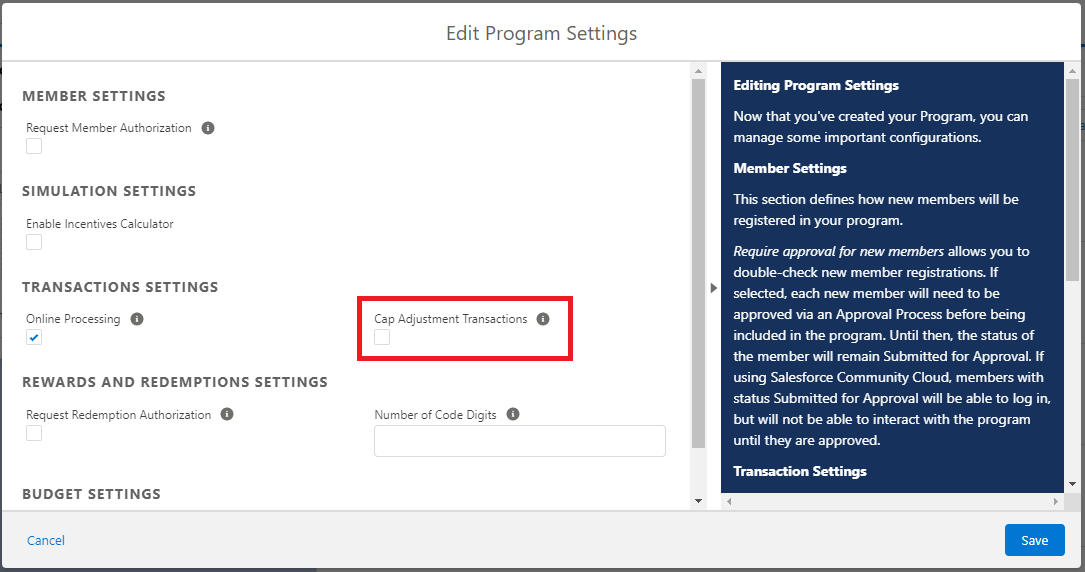
Cap Adjustment Transactions button
In addition, transaction reversions are taken into account so that those points no longer count against the member's cap: this will happen if the points were either from a Rule or from a Challenge or Mission reward.
Capping by Period
Caps can be cyclical and applied on a rolling basis (e.g. over the last 120 days) or over a calendar period (i.e. every month, every quarter or every year). You can apply currency or point accrual caps to an entire program or to specific rules.
Creating a Cap by Period
From the Programs tab, enter the program you want to create a cap for. On the Cap tab, click New.
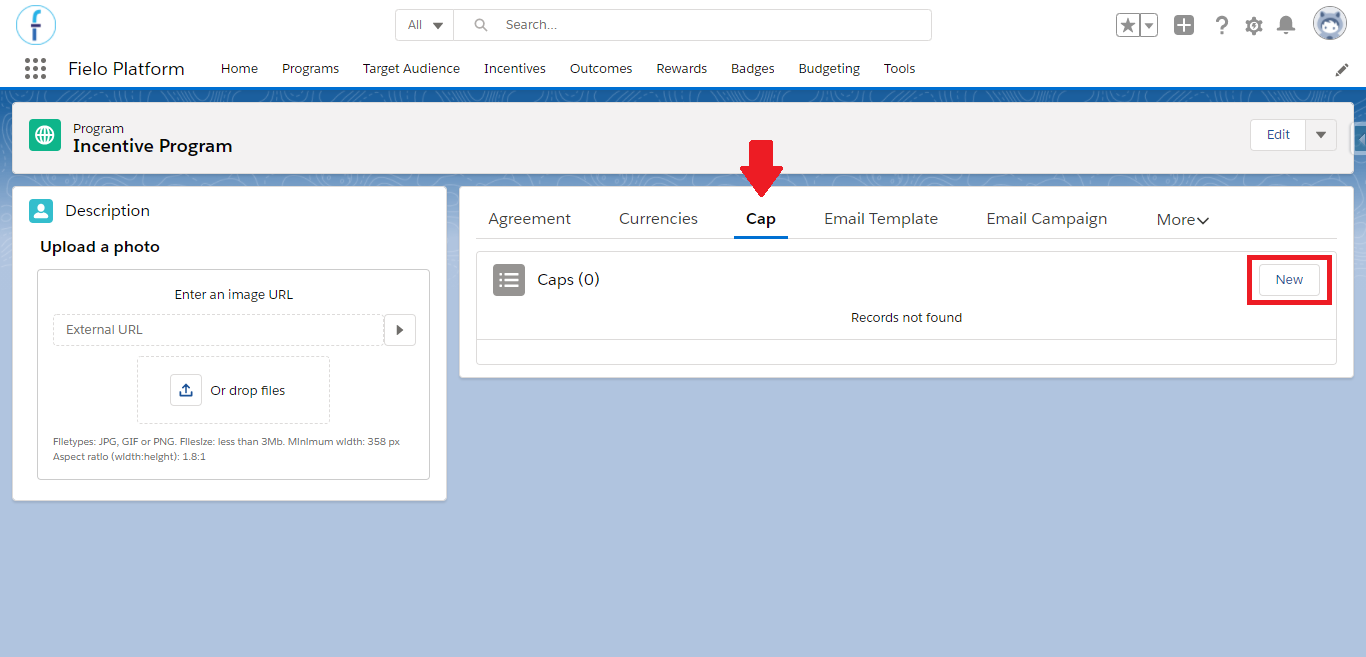
New cap button
Enter a name and description. Then, under What do you want to cap?, choose Currency/Points Accrual. Then, click on Next.
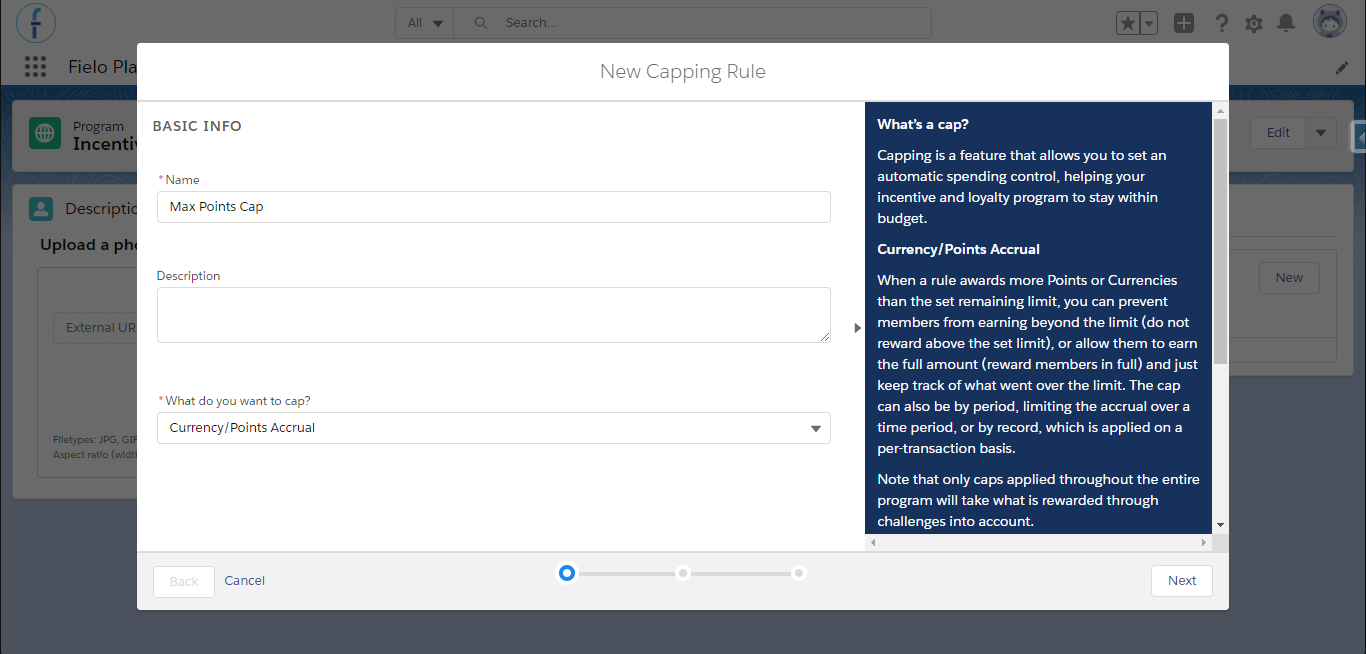
Creating a cap
Select whether you want to apply the cap throughout your entire program or only on specific rules and, then, the currency you want to limit. Next, under Limit, enter the highest amount of the currency you want a member to be able to earn in a given time period.
After that, select the cap mode, which can be do not reward above set limit or reward members in full even when they exceed the cap. The first option means that the member won't be rewarded above the limit, if exceeded. The second means he will continue receiving the reward even if it's above the limit.
In the latter case, the point record associated with the reward will have the Amount Exceeding Cap Already Discounted field unchecked .
You can also include this information in a report, if you'd like.
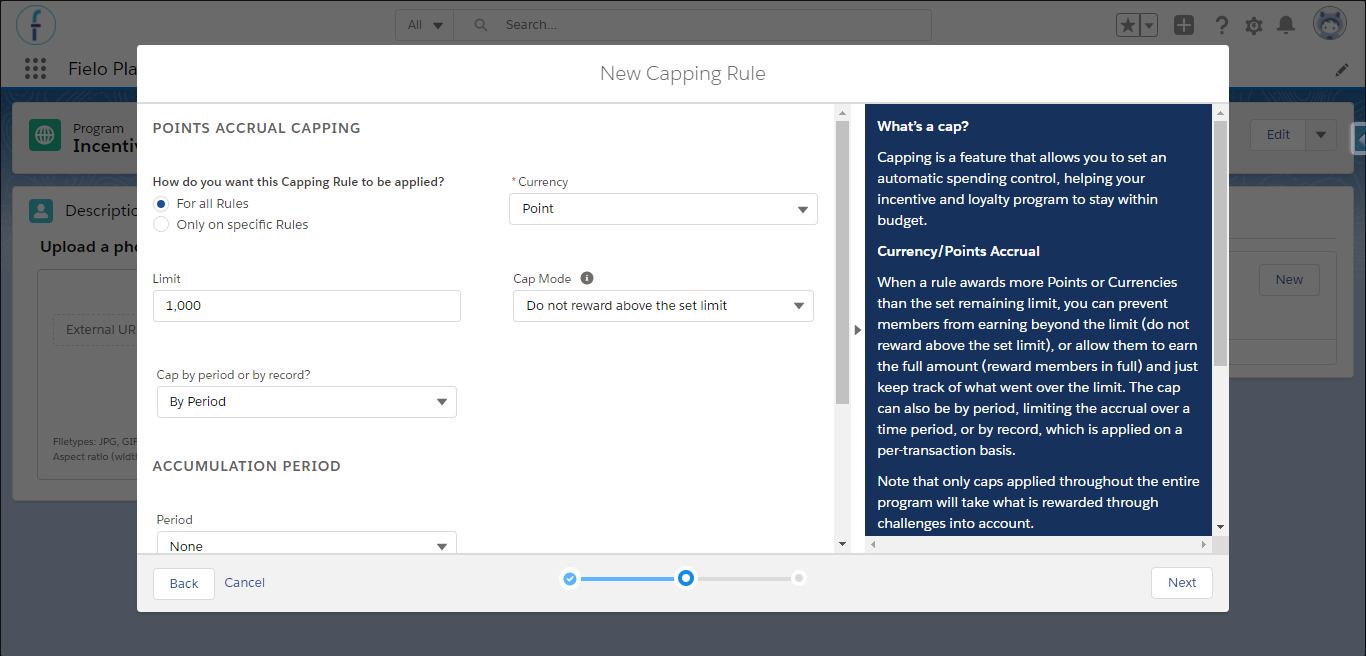
Creating a cap by period - part 2
Next, specify the time period you want the cap to cover. You can use a:
- Rolling period, a set number of days or months up to today, or;
- Calendar period, such as Every Month, Every Quarter or Every Year.
We don't recommend it, but if you leave the accumulation period on None, the limit won't be renewed or lifted while the cap is active.
The rolling period limits currencies over a specified number of days or months prior to today, meaning that the number of currencies counting toward the limit is continuously updated to reflect only the transactions that occurred in the last x days/months.
The calendar period, on the other hand, automatically follows the months, quarters and years on the calendar to determine which transactions count toward the limit (e.g. March 1st - 31st for Every Month, January 1st - March 31st for Every Quarter, etc.). At the end of the calendar period, the currencies limit is reset.
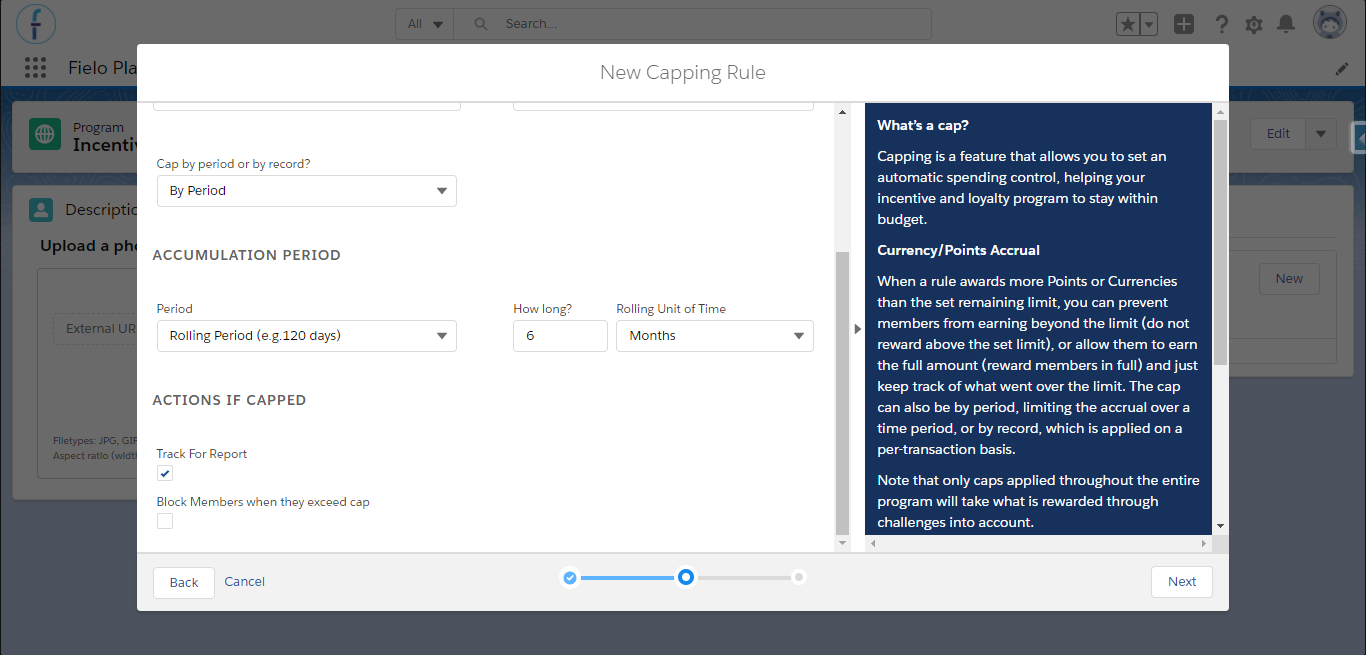
Creating a cap by period - part 3
Now, you can choose additional options for if a member exceeds the cap. For instance, if you set up your cap in order to prevent fraud, you may want to block members who exceed it. (Don't worry, you can unblock a member once the issue is resolved.)
You can also track the cap for reporting purposes. Even if the transaction is completely capped, a point record with final amount equaling zero will be created for the member. It will be displayed inside their Debits & Credits related list, making it easy to see which Rule caused its creation and which Cap was applied to it.
In case you do not check the Track For Report option, the Point record will not be created when the transaction is completely capped.
This way, the you can also create a report listing the members who exceeded the set cap, the amount of times it happened and the exceeded amount of money (if related to a payout) per member or total.
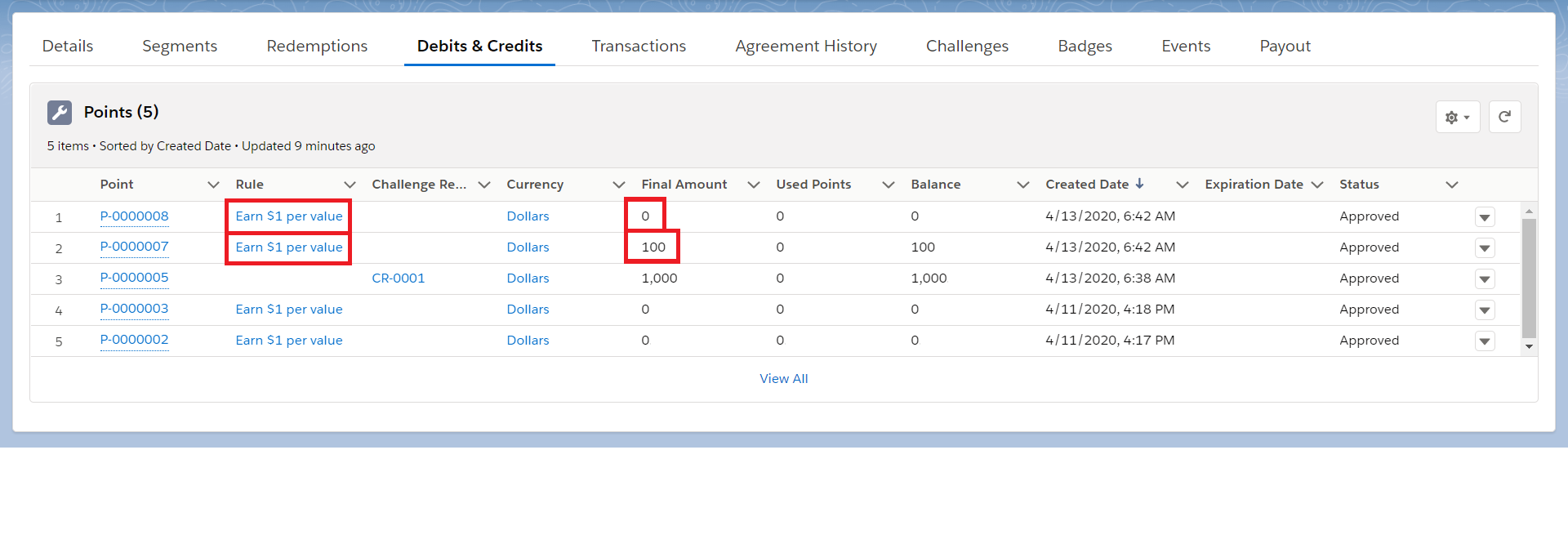
Point records when the cap limit is 100 Dollars per day
Capping by Record
Caps can also be applied on a per-transaction basis. Imagine that, for example, you need to avoid making an overly large payout to a member when more than one rule is applied to a closed/won opportunity. In this case, you can cap the each transaction so it doesn't go over a limit.
You can apply this type of cap to all rules or just certain ones.
Remember, capping by record is only for currencies awarded via Promotions! Any caps by record you set will not apply to challenges rewards.
Check the scenarios below to better understand how cap by record works:
Creating a Cap by Record
From the Programs tab, enter the program you want to create a cap for. On the Caps section, click New.
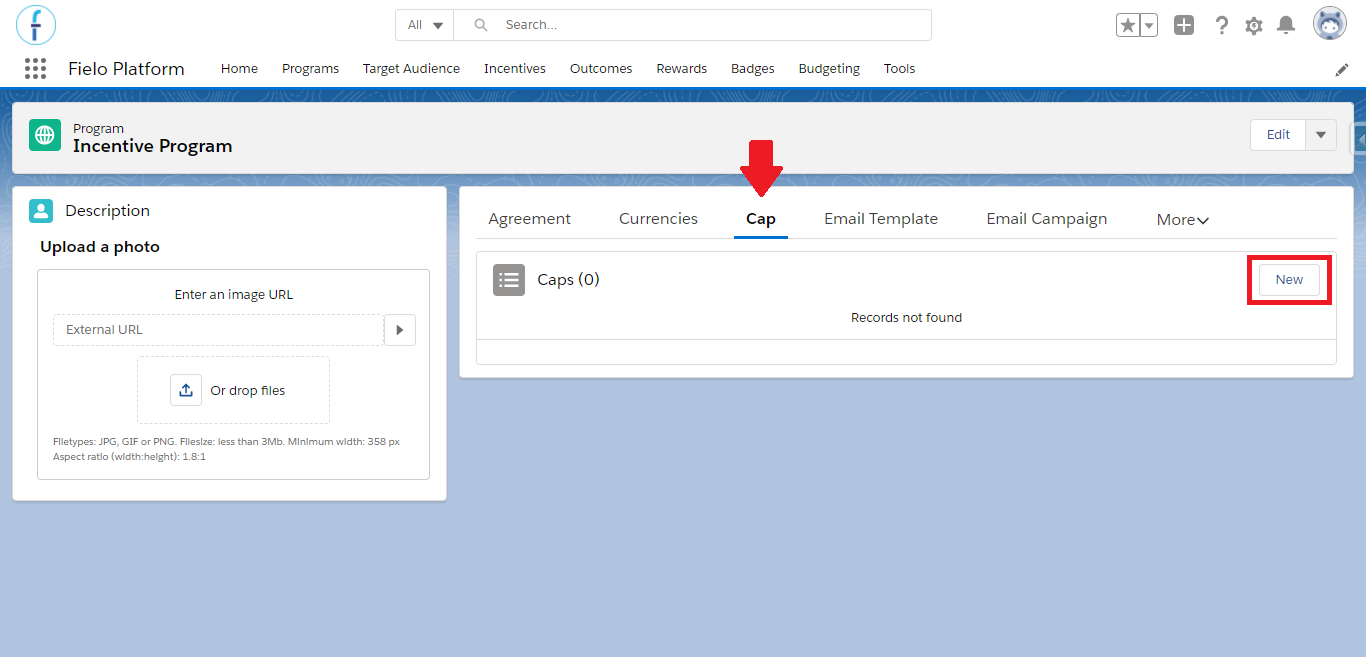
New cap button
Enter a name and description. Then, under What do you want to cap?, choose Currency/Points Accrual.
Click on Next.
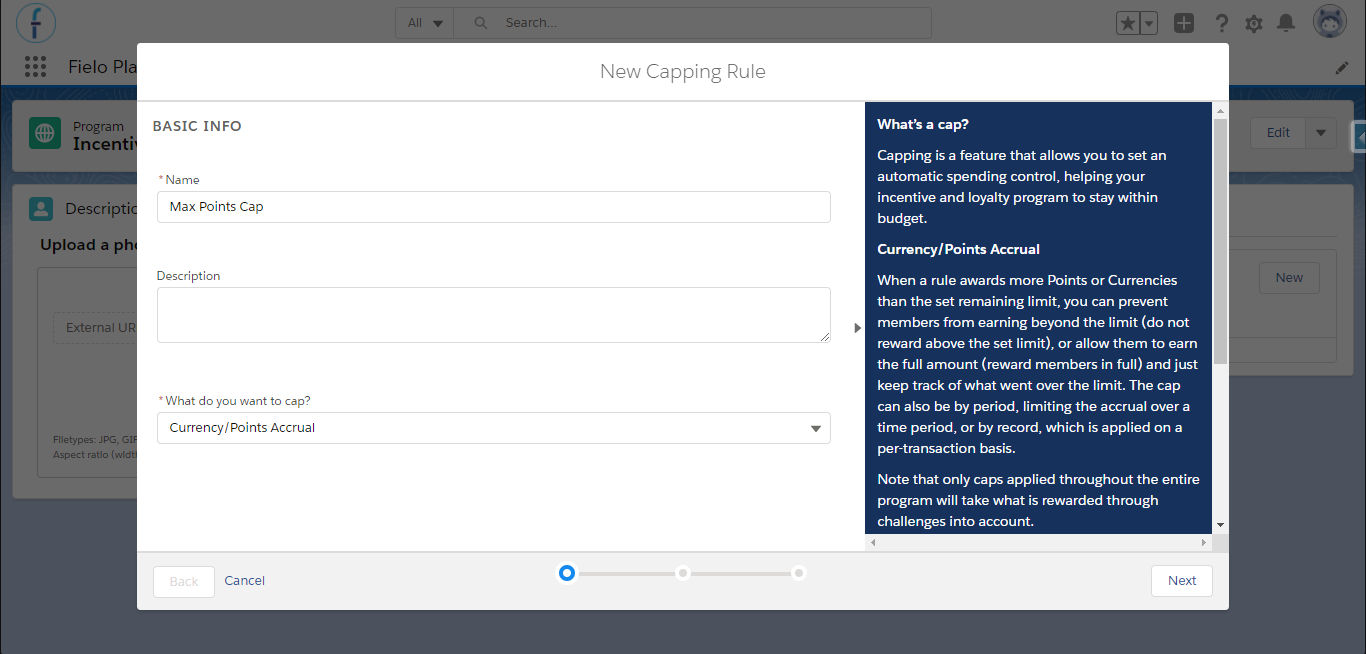
Creating a cap by record - part 1
Select whether you want to apply the cap throughout your entire program or only on specific rules and, then, the currency you want to limit.
After that, select the cap mode, which can be do not reward above set limit or reward members in full even when they exceed the cap. The first option means that the member won't be rewarded above the limit, if exceeded. The second means he will continue receiving the reward even if it's above the limit.
In the latter case, the point record associated with the reward will have the Amount Exceeding Cap Already Discounted field unchecked .
For Limit mode, you can choose Fixed value, in order to enter a maximum amount, or Percentage of value in a field, to specify a maximum percentage you'd like the member to receive, based on a value from the incentivized object's field.
Choose which incentivized action you want to cap and, if you selected Percentage of value in a field, which field should be considered when computing the percentage (e.g. 20% of the invoice amount).
At last, under Limit, enter the maximum number of a currency (that generates payout or not) or percentage you want a member to be able to earn for the incentivized action.
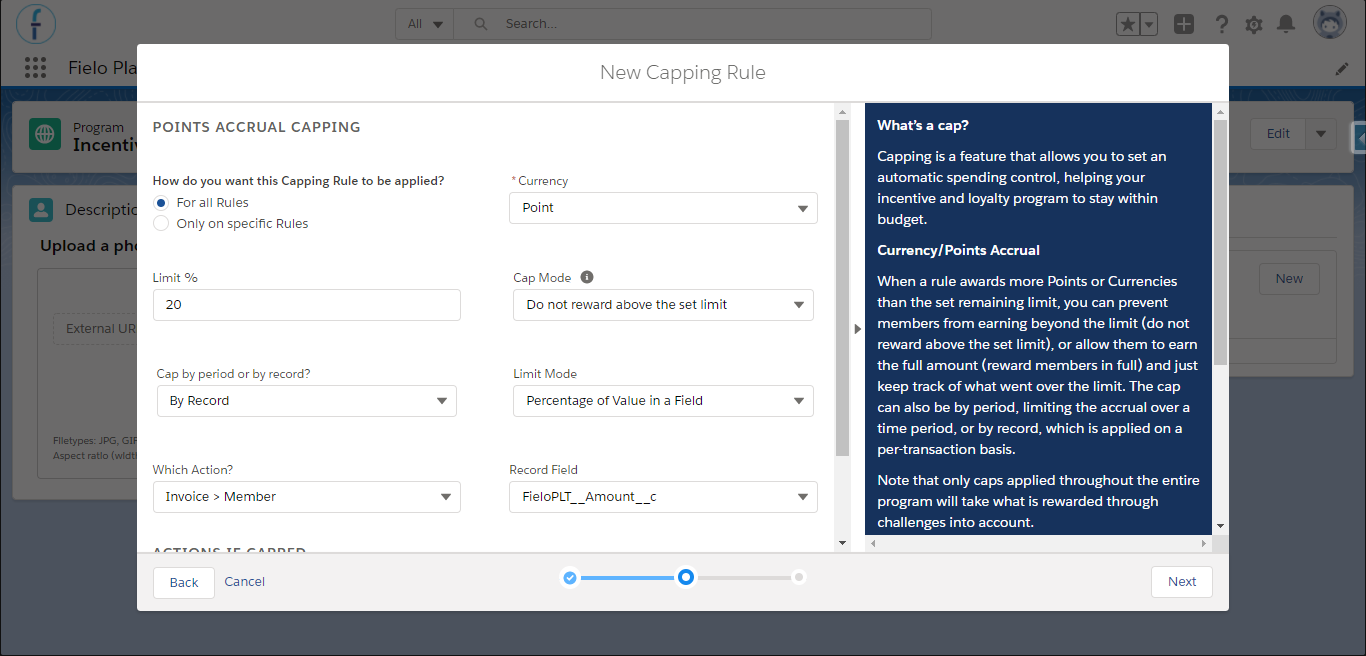
Creating a cap by record - part 2
Narrowing Down your Cap
If you chose to cap currencies only on specific rules, now's the time to select which rule(s) you want the cap to apply to. If you choose multiple rules, points awarded from all of those rules will be put into the same "bucket" subject to the limit you specified above.
Note that the rules displayed in this page will be those that have the same Program, Currency - for caps by period - and Action - if the cap is by record - that were setup in the previous page.
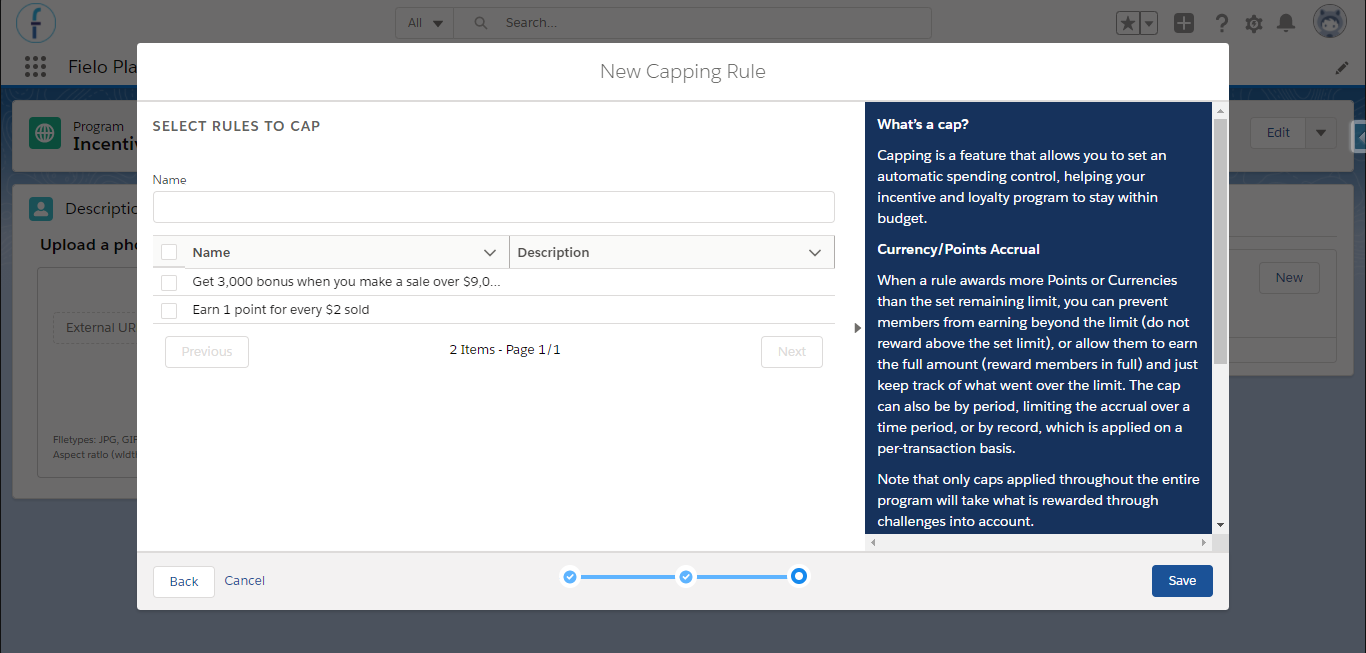
(Available only for caps on specific rules)
Otherwise, if your cap is for the entire program, you can use segmentation in order to apply it only to certain subset(s) of members.
Caps for Members with Multiple SegmentsIf a member falls under multiple caps, the cap with the lowest limit will be applied.
Within the left-hand list, you'll find all the active segments from your program. Select the ones you want to apply and click on the arrow to send them to the second list, or leave the right-hand list blank if you want your cap to apply to all members.
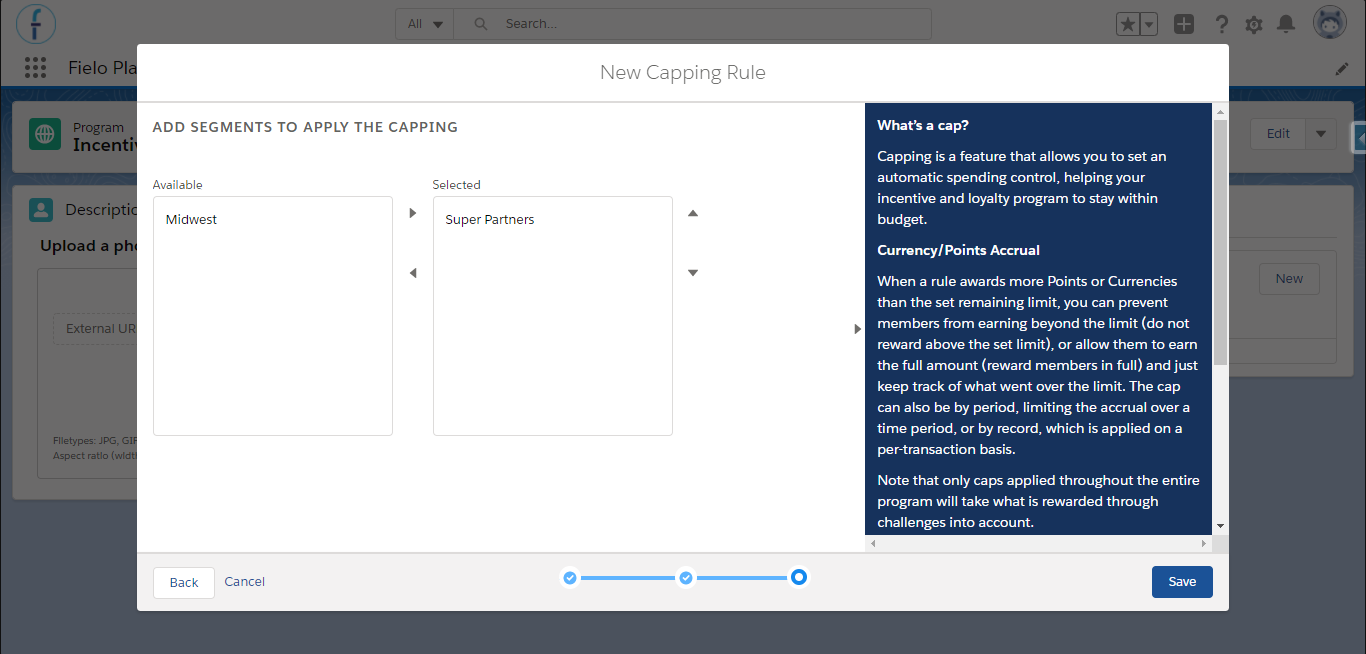
(Available only for caps on entire program)
When you're ready, click Save.
Activating a Cap
Once you've created a cap, it will be saved with the status of Draft. In order for the cap to go into effect, you'll need to activate it. Keep in mind that once you activate a cap for the first time, you will only be able to edit the Name, Description, Limit, and Track for Report fields (even after deactivating).
On the Caps tab, click on the line corresponding to the cap and choose Activate / Deactivate.
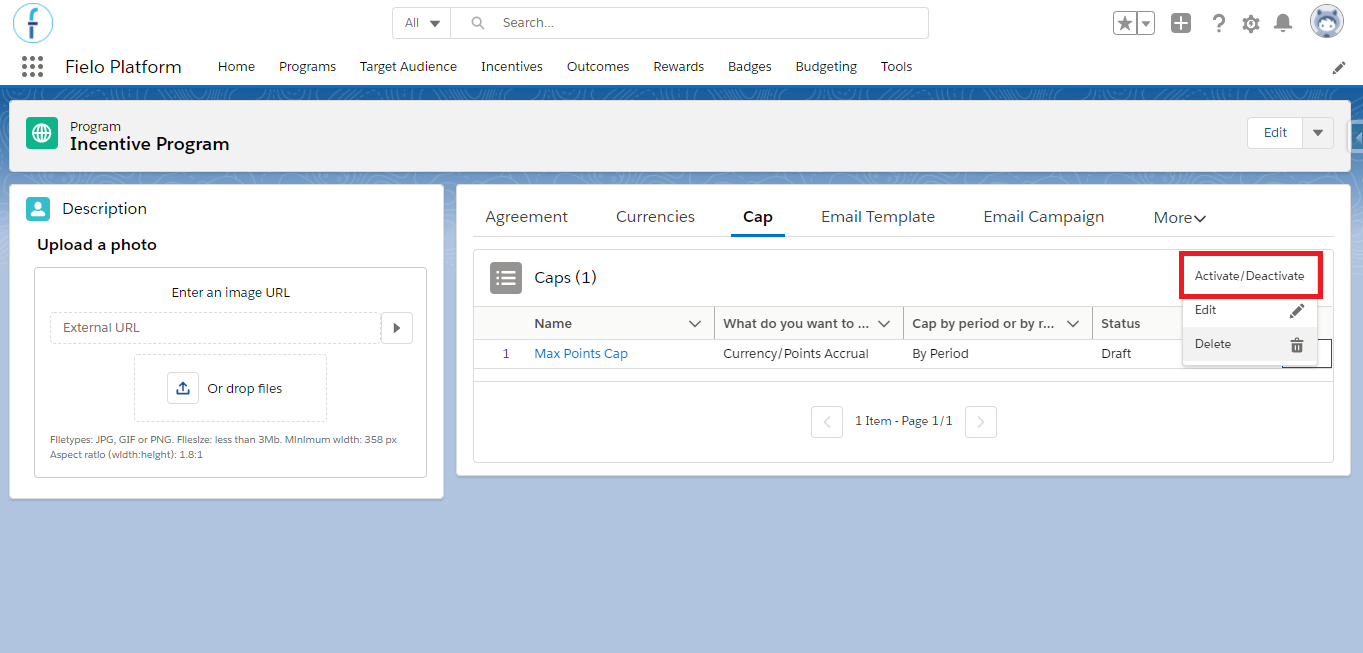
Activate/Inactivate cap option
This is also how you can edit or deactivate your cap later on.
Auditing Capped Rewards via Points Records
It may be important for you to see how capping was applied or why a member was rewarded in a certain way. You may also want to include this data in a Salesforce report to present to stakeholders and inform future decision-making.
To start, access a member's Debits & Credits related list, where you can find their points records and, within each record, the balance.
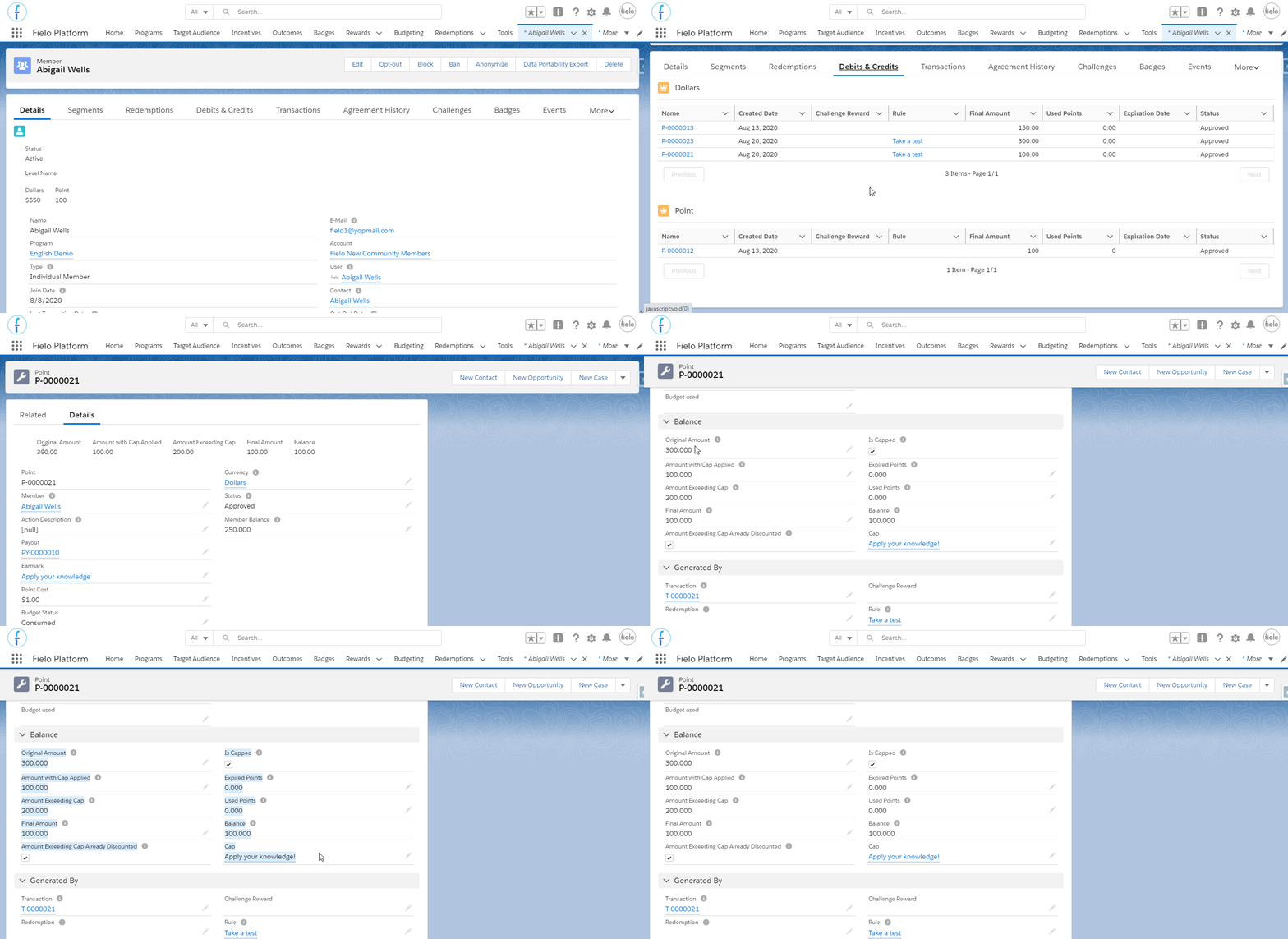
Debits & Credits record
Under Balance, you can find the following information:
- Original amount: this shows the total amount that point record should have awarded the member.
- Amount with cap applied: this shows the amount when any caps are taken into consideration.
- Final amount: this shows how much the member actually received.
- Amount exceeding cap already discounted: If the cap was actually applied and the member did not receive the full amount of a currency, this field will be checked. Otherwise, this will remain unchecked.
- Is Capped: if this point record exceeded the cap limit, this will be checked.
Final AmountNote that if you set the cap as do not reward above set limit ("hard cap"), the final amount will equal the amount with cap applied. If you set the cap as reward members in full even when they exceed the cap ("soft cap"), it will equal the original amount.
Capping in ReportsAll capping data will be stored within the Point object. You'll be able to add any cap information you might need - mentioned above - to your Reports, by extracting them from that object.
Cleaning Members' Capping History
Transactions marked as capped will not be reprocessed by Fielo until the assigned cap period has ended, even if you update the cap limit and/or period.
That means that if you edit an existing cap to increase its limit and/or period, only members who have not reached the limit yet (i.e. do not have a capped transaction) will have their transactions taken into account for the new limit and/or period.
However, if you need, it is possible to clean the member's capping history so that their next transactions will start to count to the new limit. Note that this process will delete all history related to a specific cap rule: the previous transactions will not be considered anymore, even if they apply to the cap period.
For that, go to the member's page and access the Capping tab. Once there, you will see a list of all the caps to which the member has applied, no matter if they were completely capped or not yet. Select one of the caps and click on Remove.
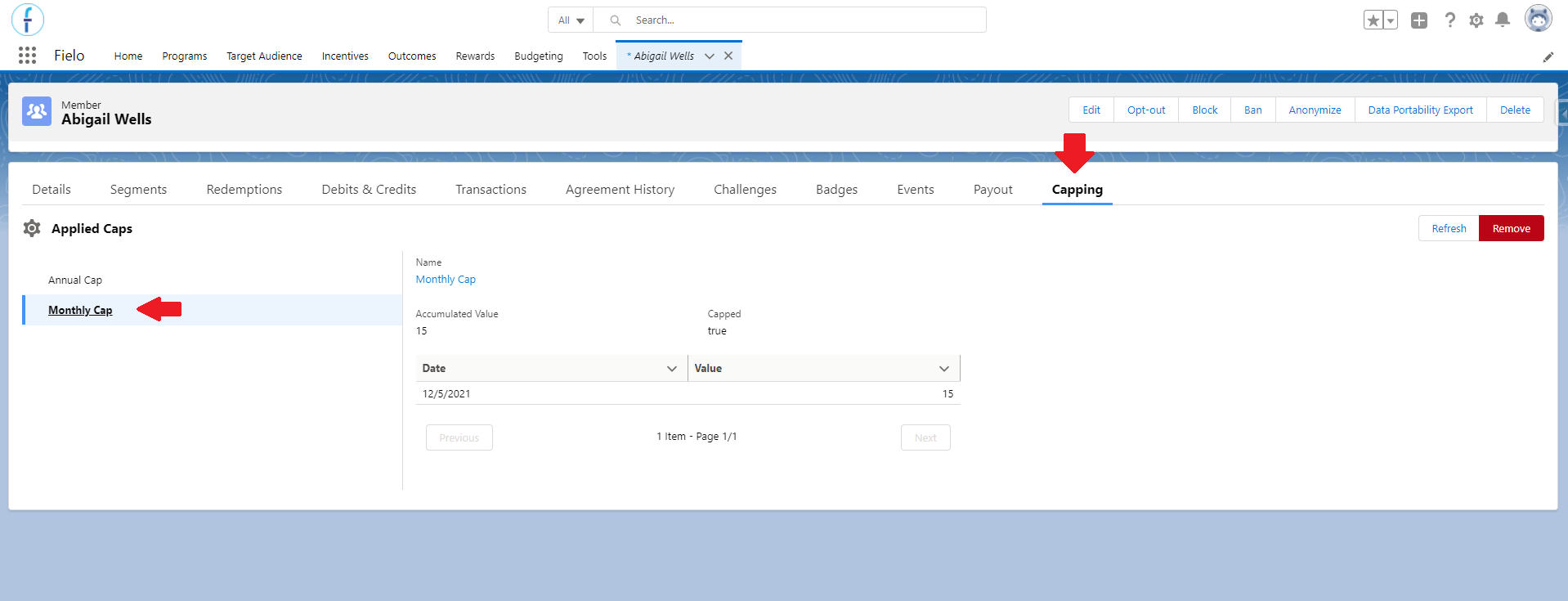
Capping tab in member's page
- Accumulated Value: how much the member has accumulated toward that cap's limit up until now.
- Capped: it will be true if the member has already reached the limit of the cap selected. Otherwise, it will be false.
Updated over 1 year ago