
Redemptions
Manage Redemptions and Redemption Items
Redemptions are the orders generated by members when they redeem their available Currencies (e.g. the standard Points) for Rewards. Redemptions include one or more Redemption Items.
Managing Redemptions
When a member makes a redemption, it will appear in the Redemptions list of the member's Program. You can access all the redemption list by clicking the Outcomes tab and selecting Redemptions in the left side of the screen.
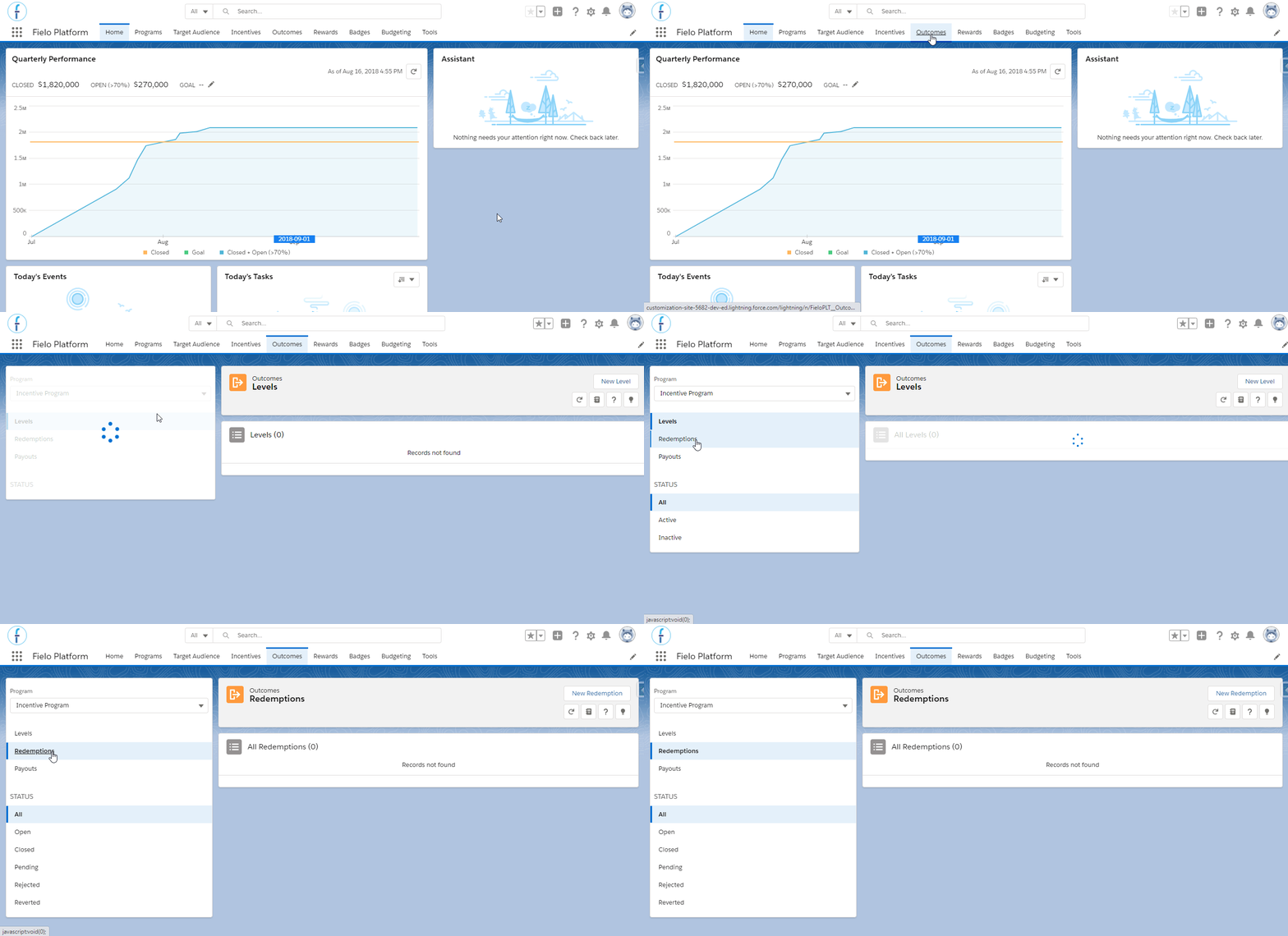
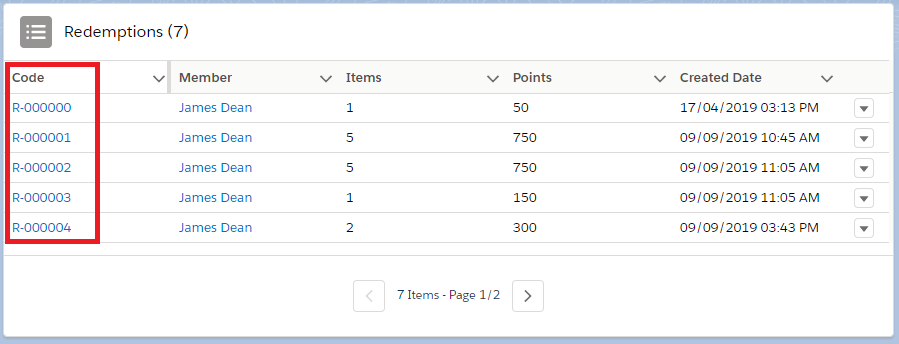
Redemptions
You'll see that all redemptions are grouped by Program. You can also see which members made each of them. By clicking on the code of a redemption, you can access its detail page.
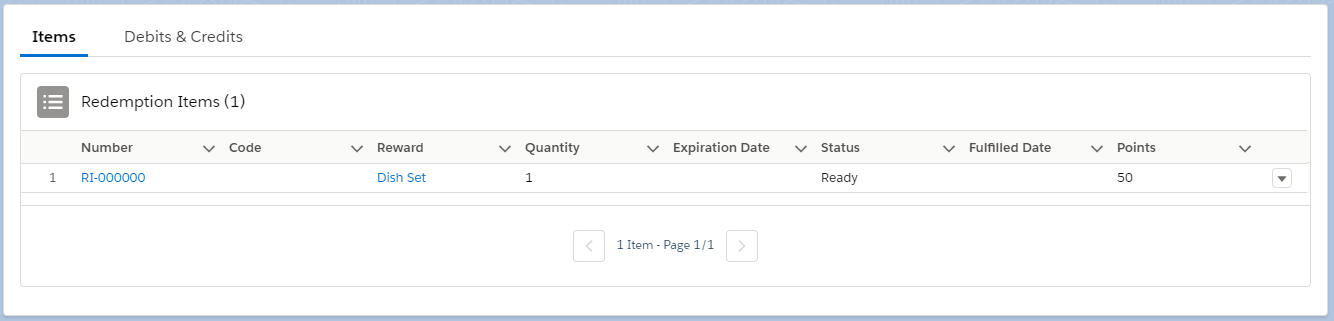
On the Redemption detail page, you can see the individual Redemption Items. Each one represents a reward redeemed by a member. You can also see the points (amount of a currency) spent by the member and any currencies refunded due to reversion on the Debits and Credits tab.
Reverting a Redemption
You may need to revert a redemption if one was made erroneously. Reversion means that all reward(s) redeemed are returned to stock and the member receives a full currency refund.
Expiration Date on Refunded CurrencyThe currency refunded as part of a reversion will NOT retain the expiration date they had when the member made the redemption. They will either have no expiration date or, if the currency has a Default Expiration Mode, the expiration date will be set according to that default.
To revert a redemption, click Revert.

Upon reverting a redemption, it and all of its Redemption Items will have their statuses changed to Reverted.
Marking a Redemption as Delivered
When a Redemption has been delivered, you may want to mark it as fulfilled. To do so, click Fulfill.

Upon being marked as delivered, the redemption will be Closed and all of its redemption Items will have their statuses changed to Delivered. Additionally, the date the redemption was closed will be recorded in the Closed Date field.
Manually Creating a Redemption
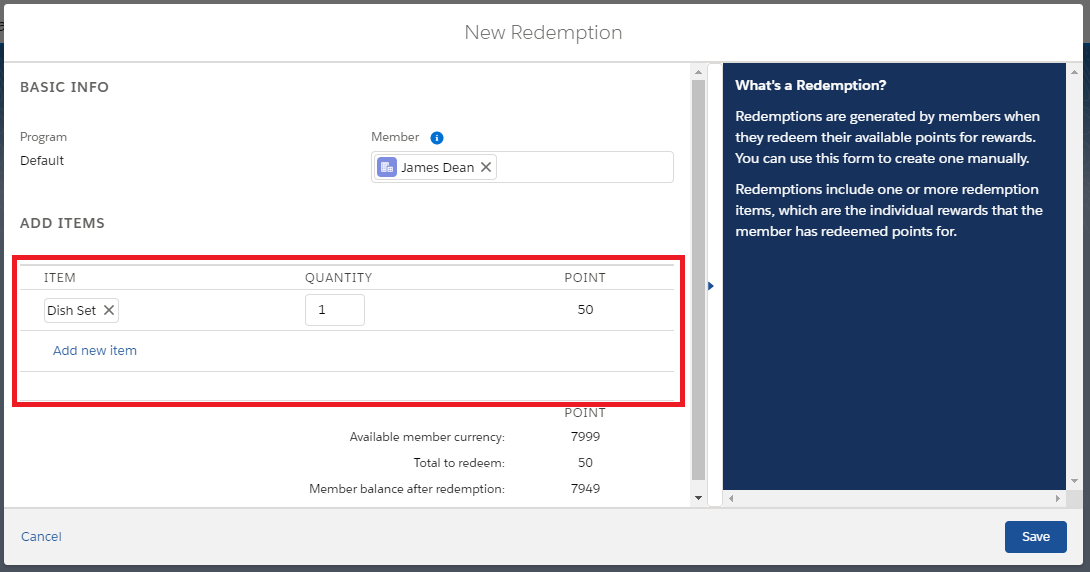
If necessary, you can create a redemption manually. To do so, navigate to the Redemptions section and click New Redemption.

Enter the name of the member making the redemption. Then, click Add Items to add one or more rewards as Redemption Items.
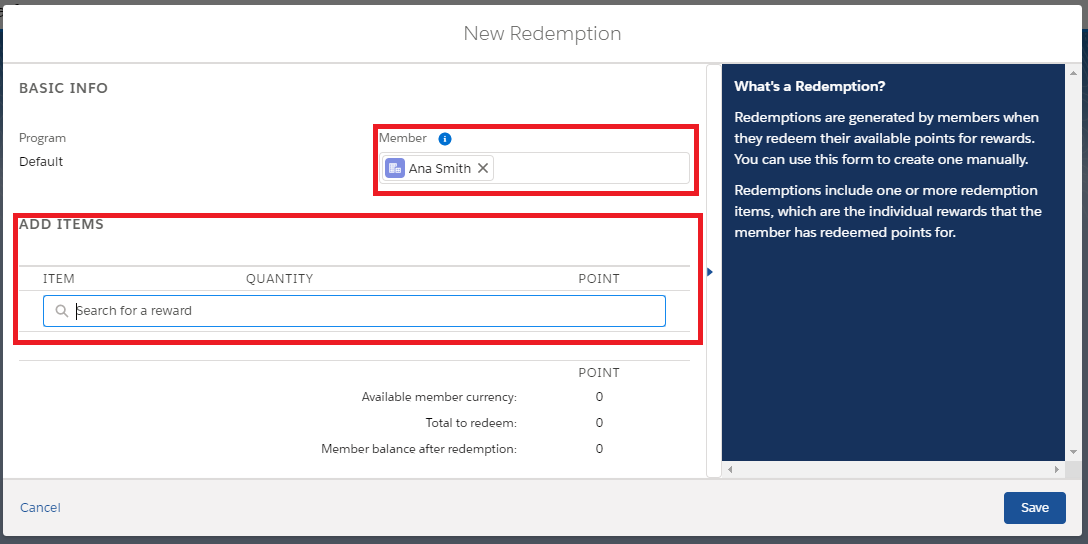
Tick the reward(s) you want to add as Redemption Item(s). You can use the search box to narrow down the rewards list.
Rewards VisibilityThe rewards shown are filtered by the selected member's Segment and available Currencies. In addition, only in-stock rewards are shown.
Select the item you wan to add and verify the quantity of each. Then, when you've added all of the Redemption Items for the Redemption, click Save.
Redemption Statuses
During a redemption life cycle, redemptions may go into a range of different status, each corresponding to different stages during the redemption process.
- Closed is the status redemptions get after being created and checked out. When Closed, currencies used in the redemption are subtracted from member's Balance. The date of closure is recorded in the Closed Date field.
- Pending can be used when the program has Request Redemption Authorization , which means that the redemption needs to be manually approved. Upon approval, status changes to Closed.
- Rejected status applies when a redemption has Request Redemption Authorization but was disapproved. Upon rejection, status changes to Rejected.
- Reverted is the status redemption gets when it's reverted. Upon reverting a redemption, all the used currencies return to the member and all rewards are taken back to stock.
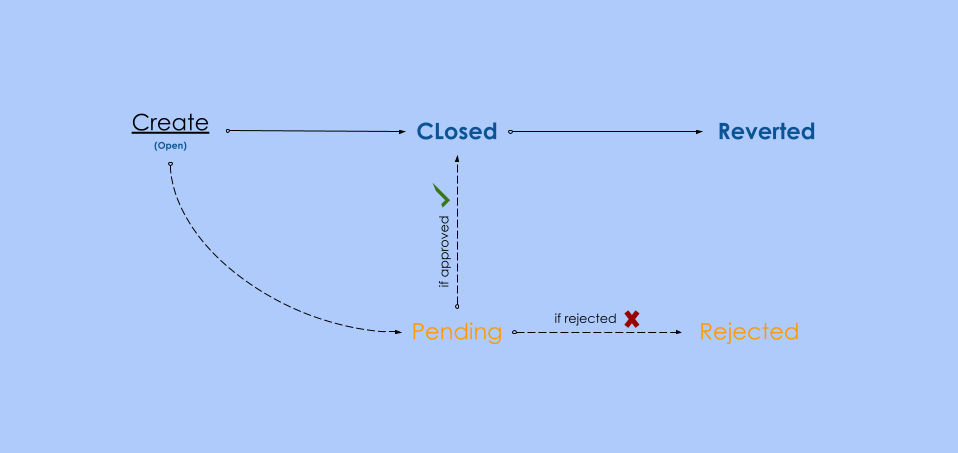
Note that Redemptions can only have one Status at a time. Correspondingly, you'll be able to perform certain specific actions associated with each of the Status.
Updated over 1 year ago