
Levels
Create and manage Member tiers
Levels rank members by including them into different groups (e.g. Bronze, Silver, Gold). Members can influence their level by engaging with the program and performing incentivized behavior types.
Creating a Level
Start by going to the Outcomes tab and select the program you want to create a level for. Go to the Levels section and click New Level.
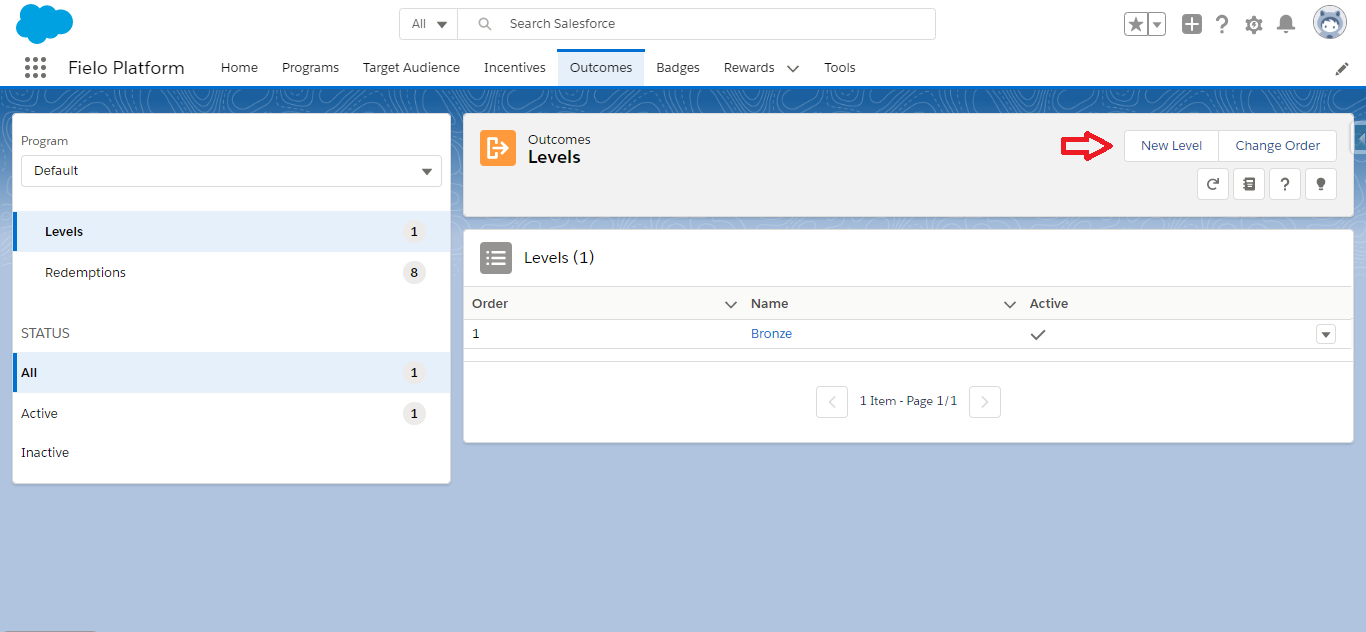
Program - Levels
Enter an appealing name for your level.
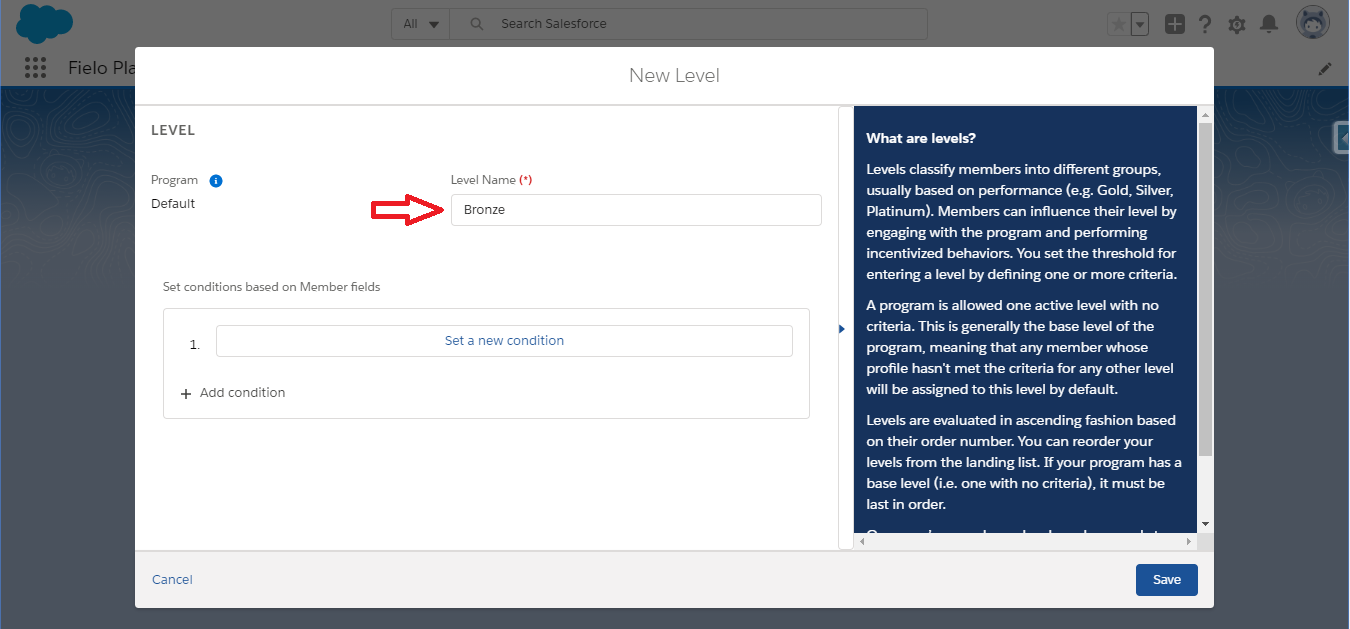
Create Level - Level Name
Now, in Filter Criteria, we'll specify the criteria for your level. These are how your level will be defined.
There are two types of conditions for criteria, Add Condition and Add Related List Condition. You can add as many conditions as you'd like from both types and, if necessary, it's possible to edit it later or even delete it.
-
Add Condition - Allows you to define what criteria need to be met so that the member is added to the level.
-
Add Related List Condition - Allows you to define criteria over a group of records of member activities. This means it's possible to create a level over member related lists such as: Member Badges, Events, Transactions, Challenge Member, Mission Member, Member Courses, etc. For example, a level could be related to the number of badges that a member has.
The Attainment Period setting is only available to be used with levels that use single object criteria. So, you will only see the Add Condition option if the Attainment Period is disabled.
Each criterion takes the form of a logical or mathematical comparison between the value of a field and either a fixed value or the value of another field. For example, you could compare a member's badges count with either the fixed value 10 or the value of some other numerical field.
For numbers, comparison operators include "Equals", "Greater than", "Less than", "Greater or equal", etc. In the case of text, the comparison can be to see if the values are the same ("Equals") or different ("Not equal"), or if the second value contains the first value ("Contains") or not ("Not contains").
A program is allowed one active level with no criteria. This is generally the base level of the program, meaning that any member whose profile hasn't met the criteria for any other level will be assigned to this level by default.
Let's walk through an example to see how to apply criteria:
Let's look at an example to see how it works when usingAdd Condition:
- Under Field Name, select the Points field
- Under Operator, choose the operator that will compare the field with your criterion value. We will use Less or equal.
- If you want to compare the value of the field in Field Name with the value of another field, select Dynamic value. Otherwise, leave it as Fixed. We will be leaving it fixed for this example.
- Under Value, enter the number or text value you want to compare with the field in Field Name or, if Field is , choose the field whose value you want to compare with the field in Field Name. We will put "1,000" in the Value field.
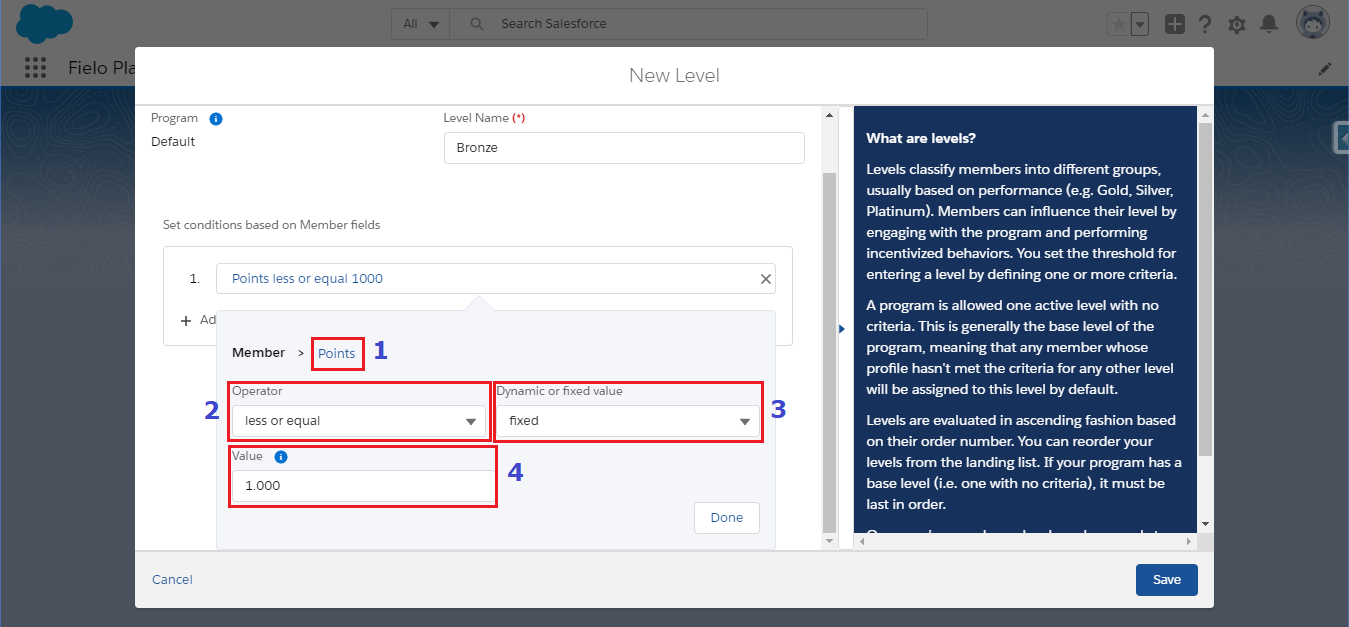
Create Level - Criterion
Let's look at an example to see how it works when usingAdd Related List Condition:
- Under Field Name, select the Badge Member > Badge > Badge Name field.
- Under Operator, choose the operator that will compare the field with your criterion value. We will use equals.
- If you want to compare the value of the field in Field Name with the value of another field, select Dynamic value. Otherwise, leave it as Fixed. We will be leaving it fixed for this example.
- Under Value, enter the number or text value you want to compare with the field in Field Name or, if Field is , choose the field whose value you want to compare with the field in Field Name. We will put "Top Seller" in the Value field.
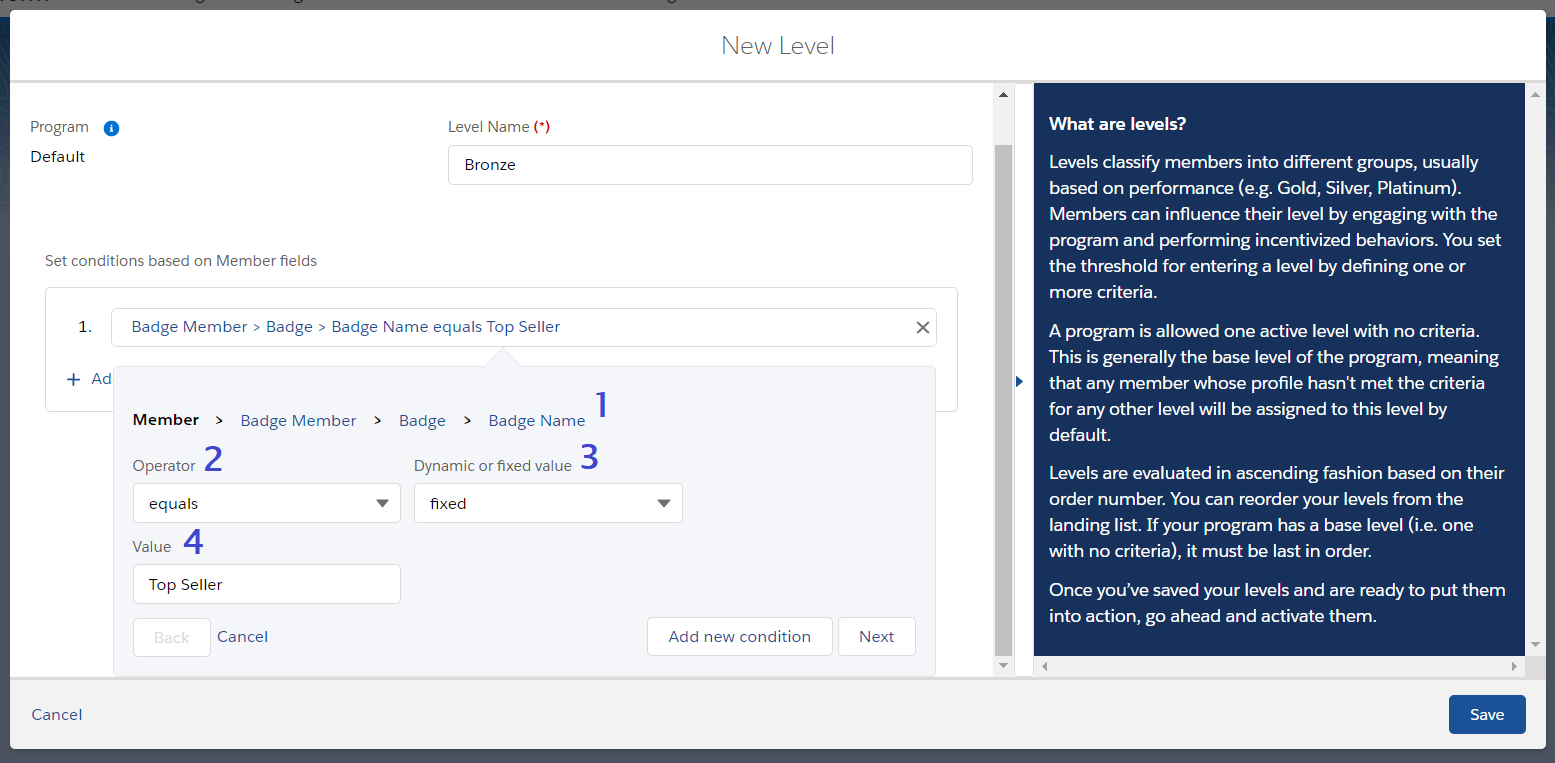
Create Level - Criterion
Now you will need to set how to aggregate the matched records, it can be either Count the number of records that met the conditions or Sum up a field over all of the records that met the conditions.
We will set it to COUNT with a greater or equals Value of "1", so that the Member has to have at least 1 Top Seller badge to accomplish the criteria to become Bronze Level.
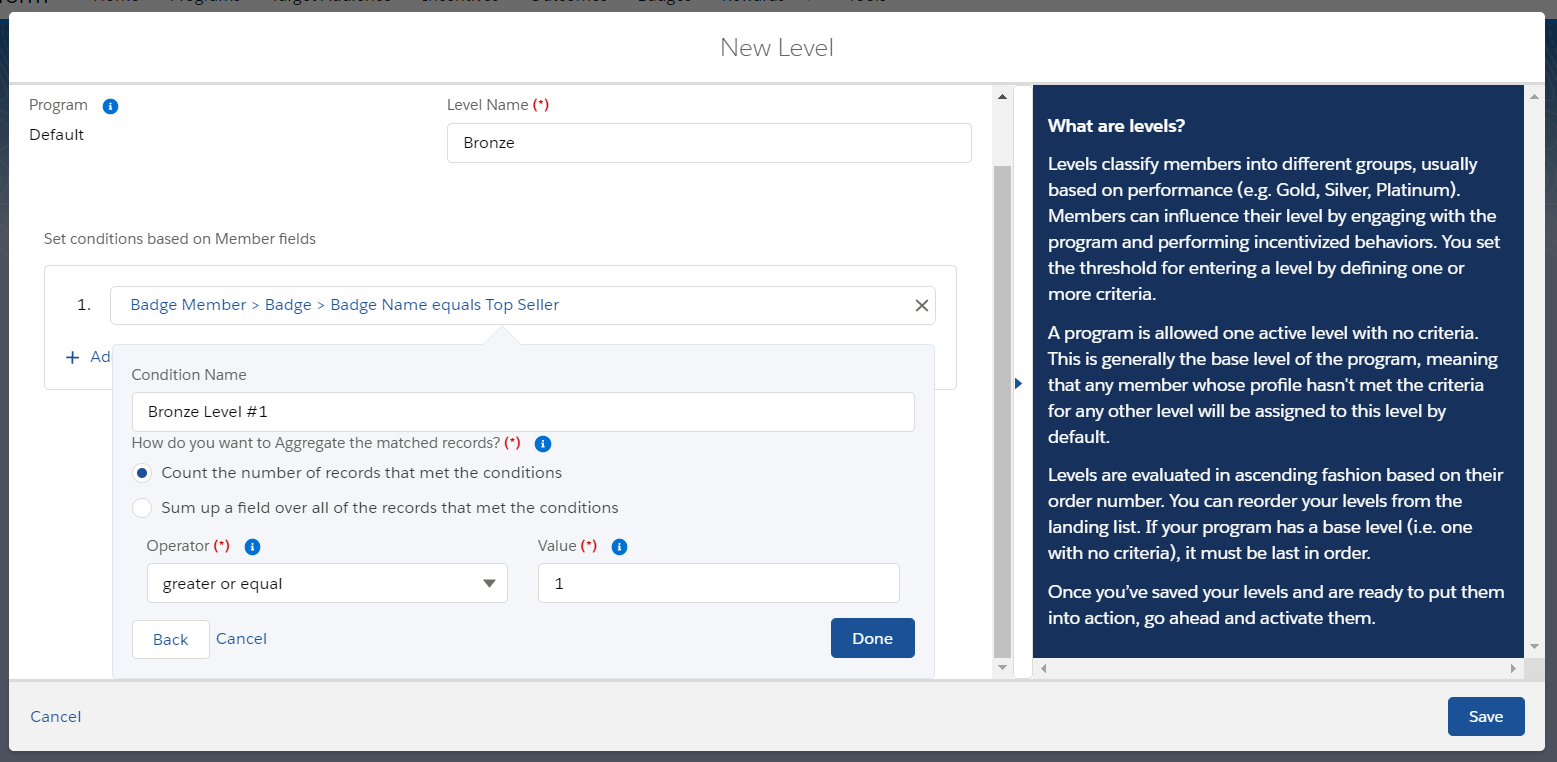
Defining the level's criteria
AggregationThe count option is generally used when you want to specify the number of times the member has done something or the quantity of redemptions, rewards, badges, etc. they have. Sum is better used to summarize a member field's amount (e.g. invoice amount).
Add another criterion
To add another criterion, click Add condition or Add Related List Condition and follow the same process to define it. You can remove a criterion by clicking .
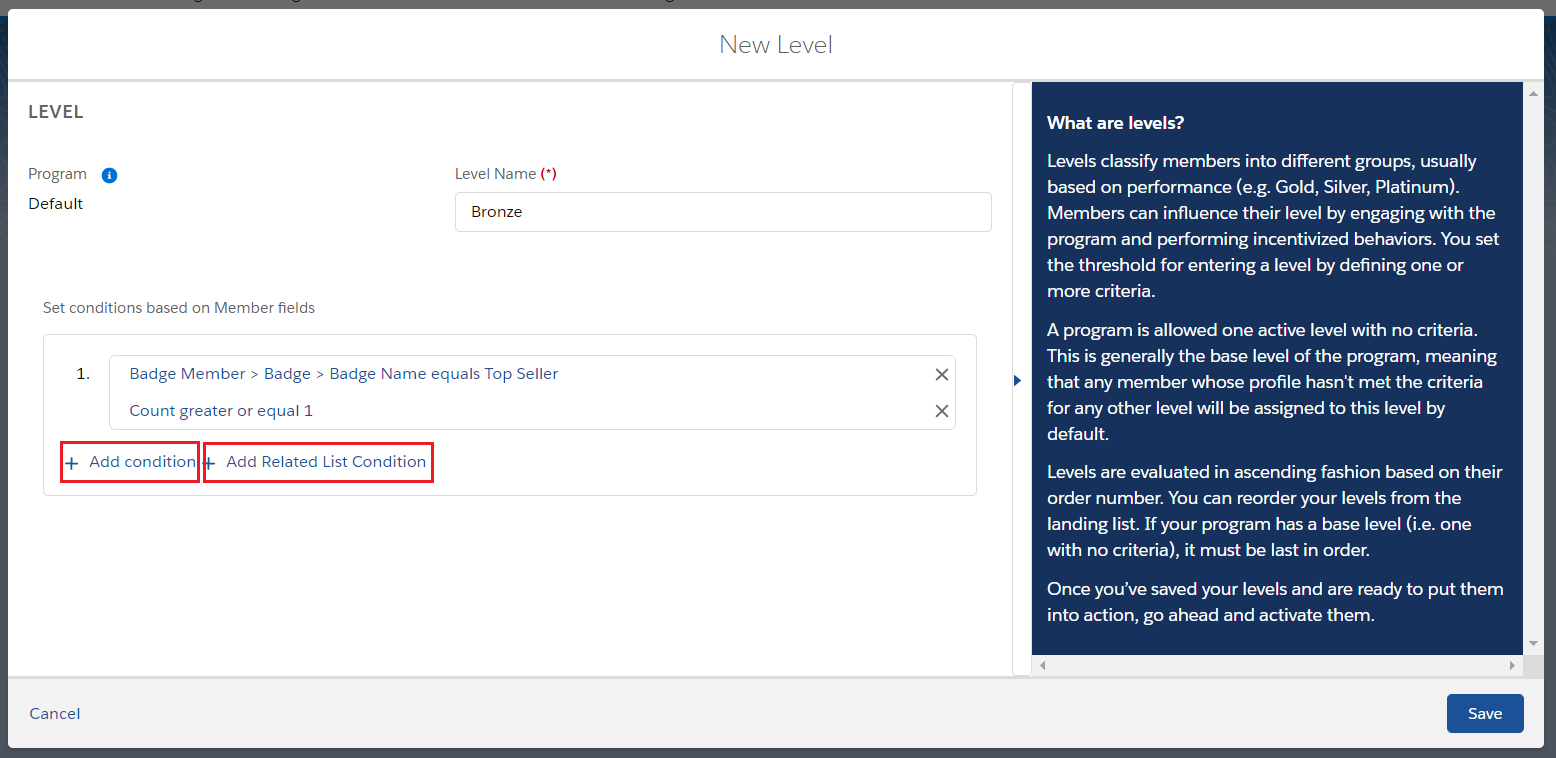
Create Level - New Criterion
When you've finished adding and defining criteria, you can then specify how they are evaluated via Match Criteria:
- All conditions are true means that all of your criteria will need to met for a member to be included in the level.
- Any condition is true means that a member whose profile meets any one of your criteria will be included in the level.
- The following expression is met allows you to specify more complex criteria prioritization. If selected, you must enter a formula with logical operators and your criterion numbers. For example, if you enter
(1 AND (2 OR 3)), a member who meets your first criterion and your second or your third criterion (or both) will be included in the level.
When entering a formula, make sure to add up to two conditions between the same parenthesis. For example, instead of (1 AND 2 AND 3), use ((1 AND 2) AND 3).
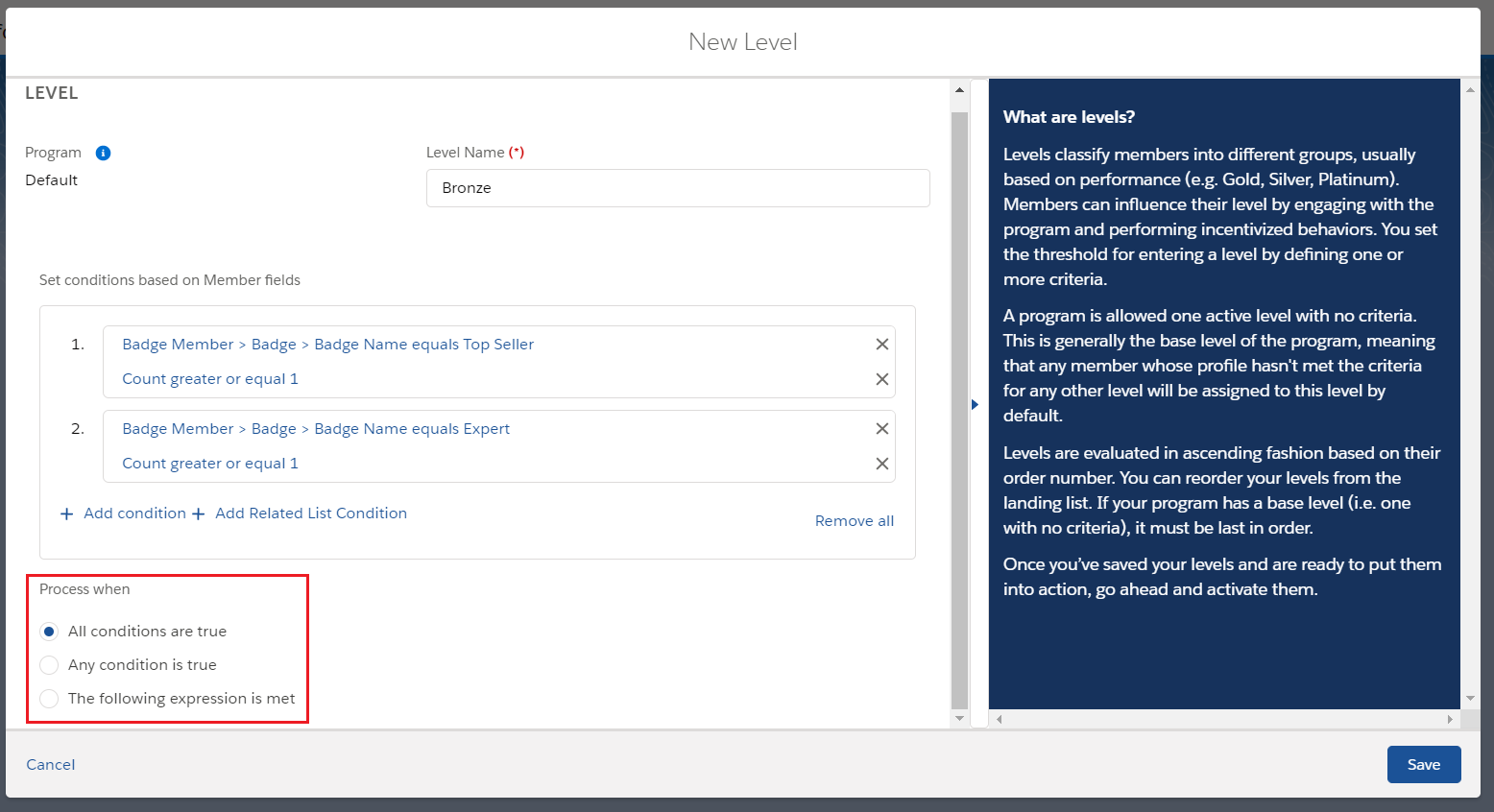
Create Level - Match Criteria
Once you're happy with everything, click Save.
Activating a Level
Once you've created a level, you'll need to activate it to make it available for use.
Click the level you have just created and hit the Activate button in the upper-right side of the screen.
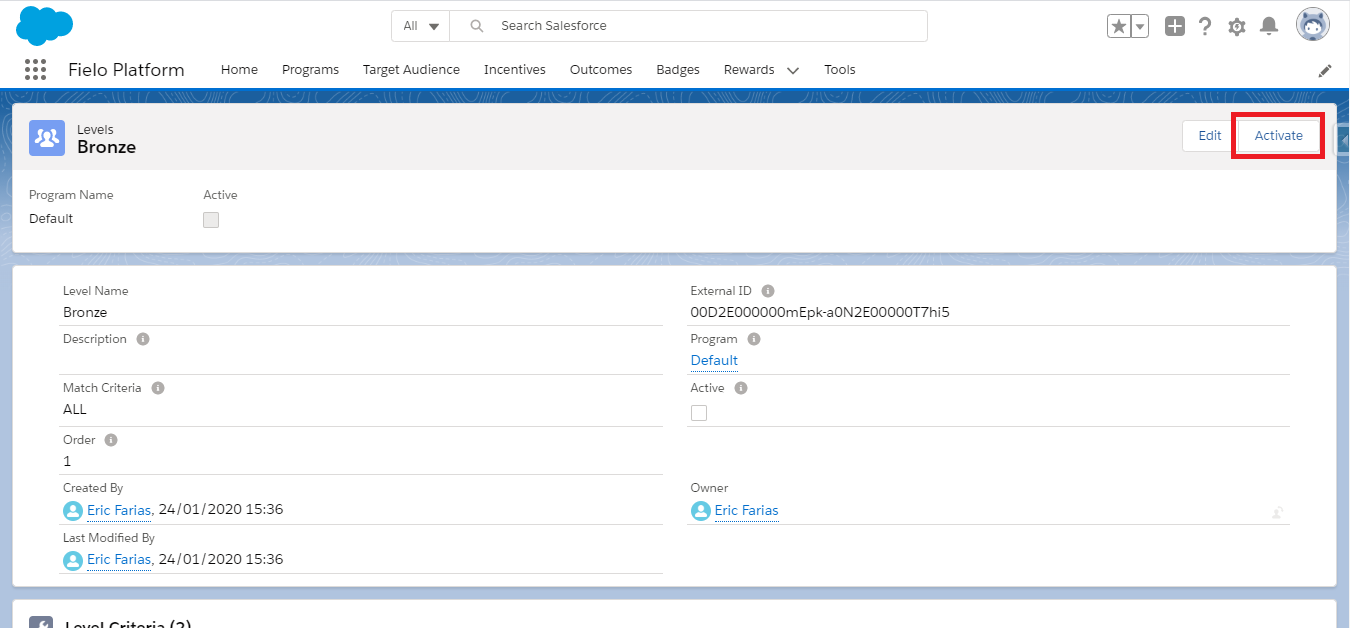
Edit Level
Changing the Level Order
The level order determines which level is evaluated first, second, third, etc. when Fielo assigns levels to members. Imagine the following level structure:
| Level Name | Criteria |
|---|---|
| Platinum | Points Balance ≥ 1,000 |
| Gold | Points Balance ≥ 500 |
| Silver | Points Balance > 100 |
In the above example, you would want to make the Platinum level Order 1, so that a member who has more than 1,000 Points would be assigned Platinum rather than Gold. Then, with Gold at Order 2, any member with over 500 but less than 1,000 Points would be assigned to Gold. Silver, which in this example is the base level, would have to be evaluated last (in this case, Order 3) because it has the easiest criteria to achieve: to have more than 100 Points.
In other words, if the member doesn't apply to the Platinum level, then they are evaluated to the Gold level. If they don't apply to the Gold level either, they will be evaluated to the Silver level. As soon as the system confirms that the member applies to a level, the member is not evaluated to the next level in the order.
Now, let's see how to reorder your levels. From the Outcomes tab, in the Levels section, click Change Order. You'll be taken to the Reorder Levels page. Here, you can drag and drop your levels into the preferred order.
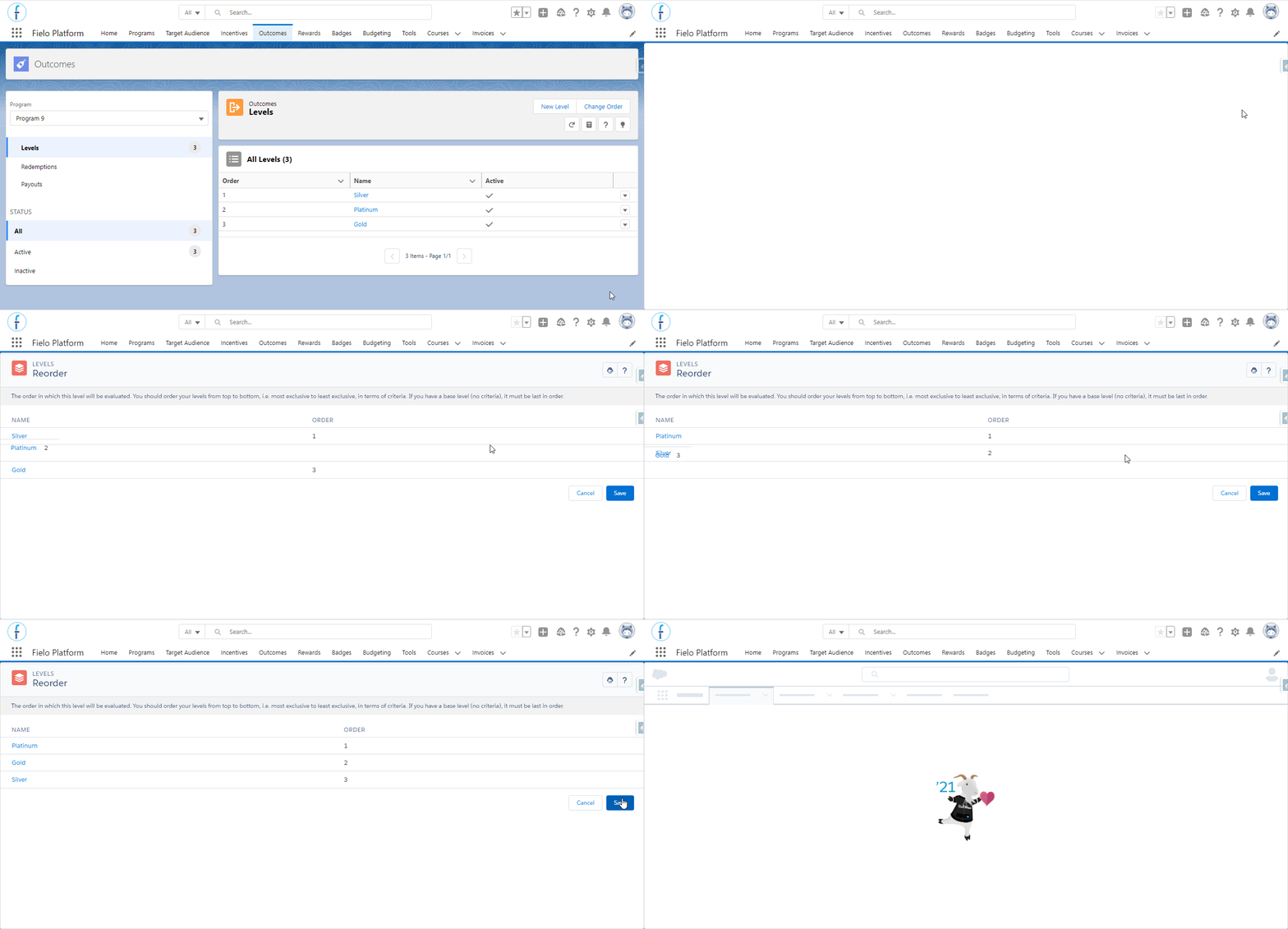
Reorder Levels
When you're ready, click Save.
Level with no criteriaRemember that you can have only one level with no criteria in your program (i.e. a base level) and, if you have one, it must be last in your Level Order.
Attainment Period
Fielo can evaluate levels in two different ways. There is the default one - where the member will receive a new level or have their level updated based on their current criteria whenever you wish to recalculate levels - and there is the way that is controlled by the Attainment Period, which you can set up through the Settings button.
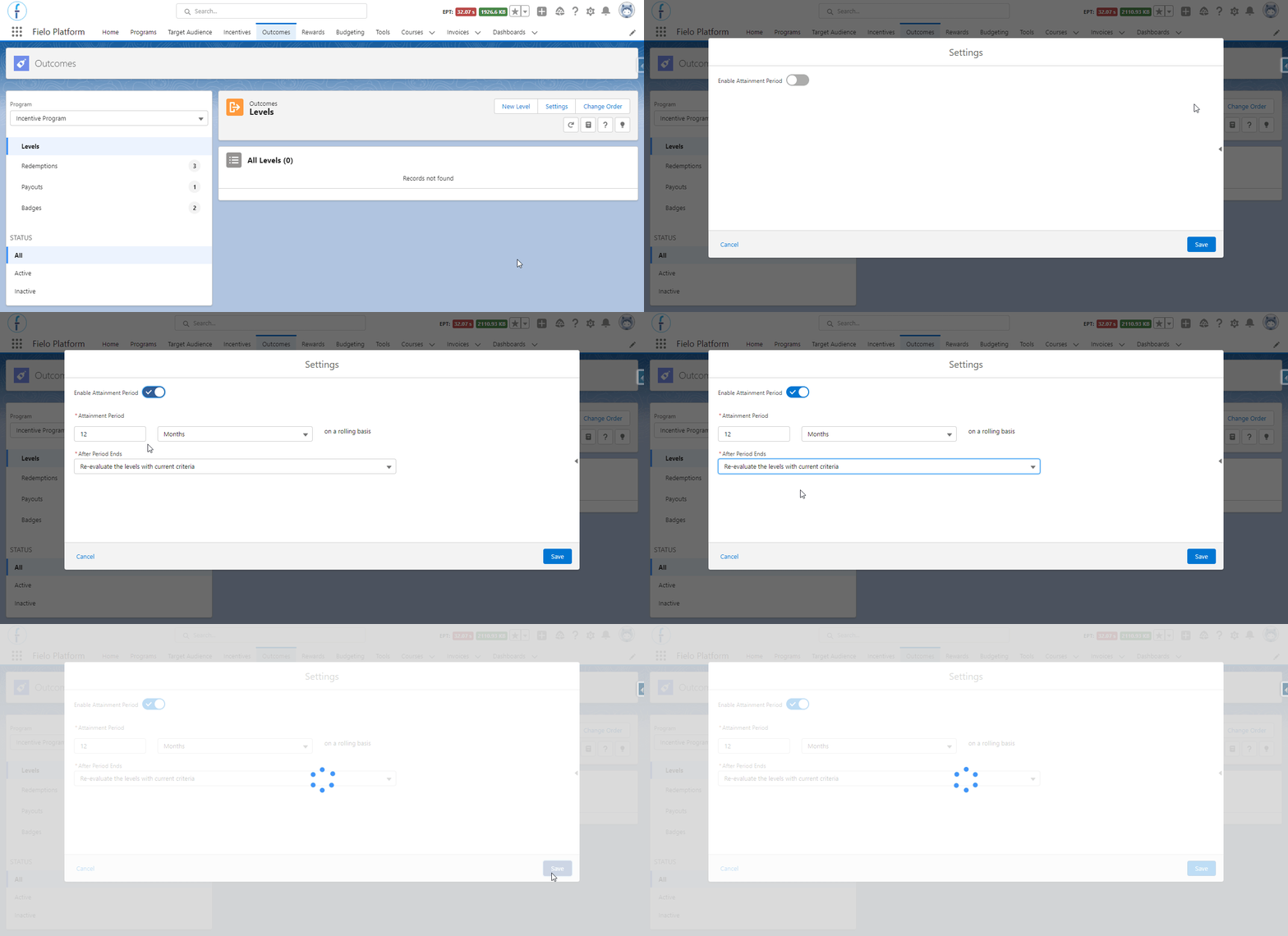
Settings button, in 'Outcomes'
By using it, you can define how long the member will maintain a specific level after acquiring it (its validity), and what will happen when that period ends. You can choose between two options:
- Re-evaluate the levels with current criteria so that the member will be reevaluated. They can maintain their current level or be demoted from it to the level that they apply to after the attainment period ends.
- Demote to the level below in the hierarchy so that the members will be automatically demoted to the level directly below their current level when the period ends.
Since the Attainment Period only supports levels that are based on single object criteria, you won't be able to use it if you have any levels based on multi-object criteria. In this case, when you click on the Settings button, the system will show you which levels are not compatible and why.
Moreover, when the Attainment Period is enabled, you can only use 1 related object and 1 condition. The object and condition used will be applied to any new level you create; you just need to define the Aggregation value. However, note that if you change any of them when creating or editing a level, all the other existing levels will have their object and field automatically changed too.
Recalculating Levels
Levels are automatically assigned to members in the following conditions:
- When the member is created.
- When the batch runs automatically.
- When you run the batch manually.
The Salesforce scheduled job related to the Level batch - the one created along with the FieloPLT package installation, levelAssignmentJob - runs automatically only once a month. However, you can create another one in order for the batch to run more frequently if you wish: see how here.
If you want to manually run a batch, go to the Program tab and click to select Batch Management. On the Batch Execution page, in the row named Assign Levels to Members, click Run.
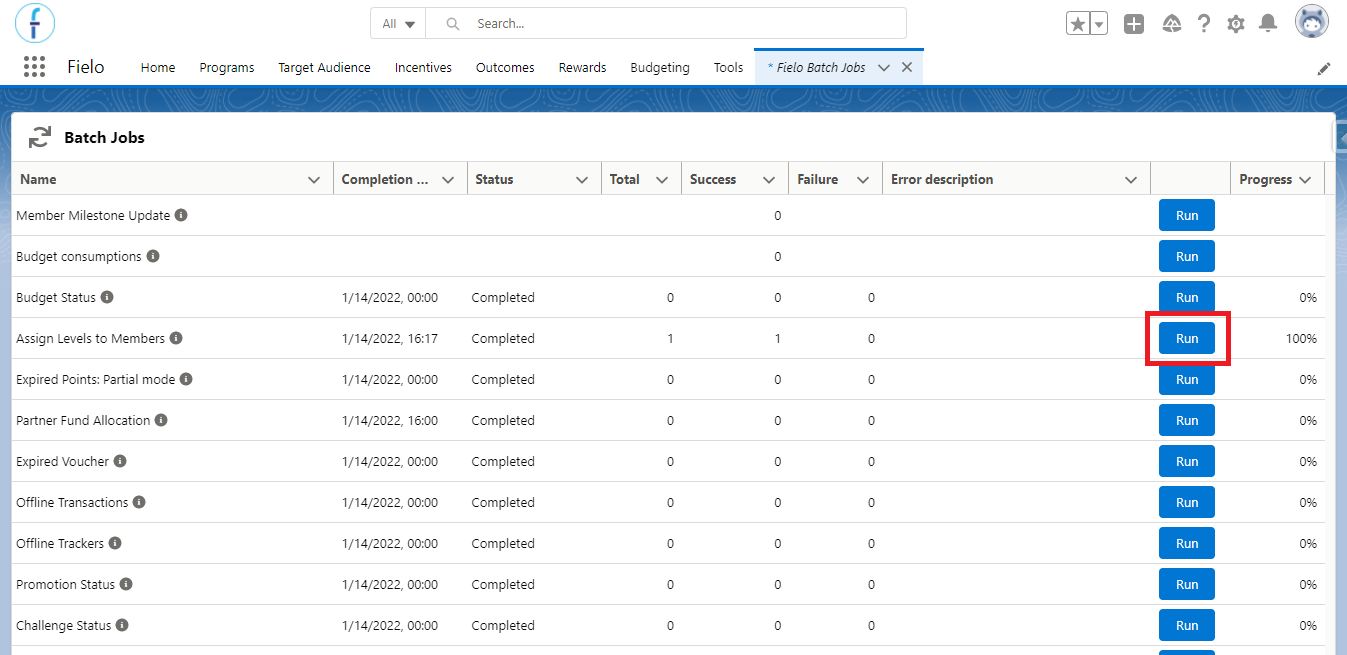
Run Levels to Members Assignment Batch
A few observations regarding how Fielo recalculates levels:
- Adjustment transactions are taken into consideration for leveling up a member.
- Revert transactions that take currencies away from the member's balance are taken into consideration when recalculating the member level.
- Redeem transactions (which also take currencies away from the member's balance) are not taken into consideration when recalculating the member level.
- To recalculate the levels created through the Program Setup Wizard, run the Member Milestone Update batch before running the Assign Levels to Members. This first batch is important to expire the member's milestones, which are responsible for marking that the member has reached a level's minimum required criteria.
Levels with attainment period
Note that whenever the levels are recalculated when the attainment period ends, the system will take into account only the records or activities that meet the level's criteria and that were created within the period.
To understand that better, imagine this scenario: in your program, the member must sum $100,000 in opportunities amount to be part of the Gold level, the attainment period is 6 months, and you defined to demote the member when the period ends. Abigail, a program member, received the Gold level 6 months ago and since then has only created a $50,000 opportunity, 3 months ago.
When the system re-evaluates her level now that the 6 months have passed, it will not consider any of the older opportunities that she has, because they will be outside the attainment period. The system will automatically demote her to the level below.
Promote Level & the Attainment Period
The member can be promoted from their level at any time that the Assing Levels batch runs, and it will evaluate the member's activities from the moment that it runs up to a moment in the past (specified by the attainment period) to determine if they will maintain the level or be promoted. If the member acquires a new level, the attainment period related to the *level validity starts to count again from the date that the member was promoted.
So, the attainment period has two goals:
- Determine the level validity to possibly demote the member, depending on how you defined the settings.
- Determine the period that the Assing Levels batch will evaluate the member's activities (e.g. from today, when the admin runs it, to 6 months ago).
Levels based on the member's currency balanceIf you have any levels created through the Program Setup Wizard based on the member's currency balance (e.g. member has to have at least 100 Points to be part of the Bronze level), whenever you revert the transaction that gave currencies to the member, they might be demoted if they no longer meet the level's criteria.
The demoting process happens automatically in those cases.
Considering that the Assign Levels to Members batch runs by default once a month and that the Member Milestone Update batch runs by default every day, be sure that this default schedule for the Assign batch is aligned with your Attainment Period.Otherwise, a member could have their level expired (done by the Milestone Update batch) before having their performance evaluated by the Assign Levels batch. This could cause them to, for example, lose their level even though they have the requirements for it.
Updated over 1 year ago