
Fund Allocation Rewarding
Have you ever thought about using Market Development Funds (MDF) as a way to drive demand for your products and to incentivize resellers or channel partners to generate leads? Well, through Salesforce's MDF, you can create marketing budgets and allocate portions of it to your partners, so that they can employ these allocations in marketing campaigns with the objective of increasing future sales.
Moreover, Funds Allocation Rewarding brings MDF to Fielo, allowing you to diversify your incentive strategy. You can integrate this Salesforce feature with your Incentive Program and reward Members who accomplish your promotions, challenges and missions with Funds Allocation instead of - or in addition to - other reward types.
Let's understand how it works!
Prerequisites to Use Funds
For you to be able to use Funds as a reward option in your Program, you have to comply with three prerequisites:
-
Have thePartner Marketing Budget and Partner Fund Allocation objects in your ORG.
Those objects are automatically created when you have Digital Experiences enabled and a partner license. You won't be able to activate Funds otherwise. -
Have at least oneMarket Development Budget created in your ORG
The Funds rewarding from Fielo creates an allocation in a Market Development Budget (MDB) you must have created beforehand. -
Members must be related to an Account enabled as partner.
Members who participate in promotions or challenges that are rewarding Funds have to be associated with an Account enabled as partner. If the member is not associated with an account or the account is not enabled as partner, they will not receive the reward.
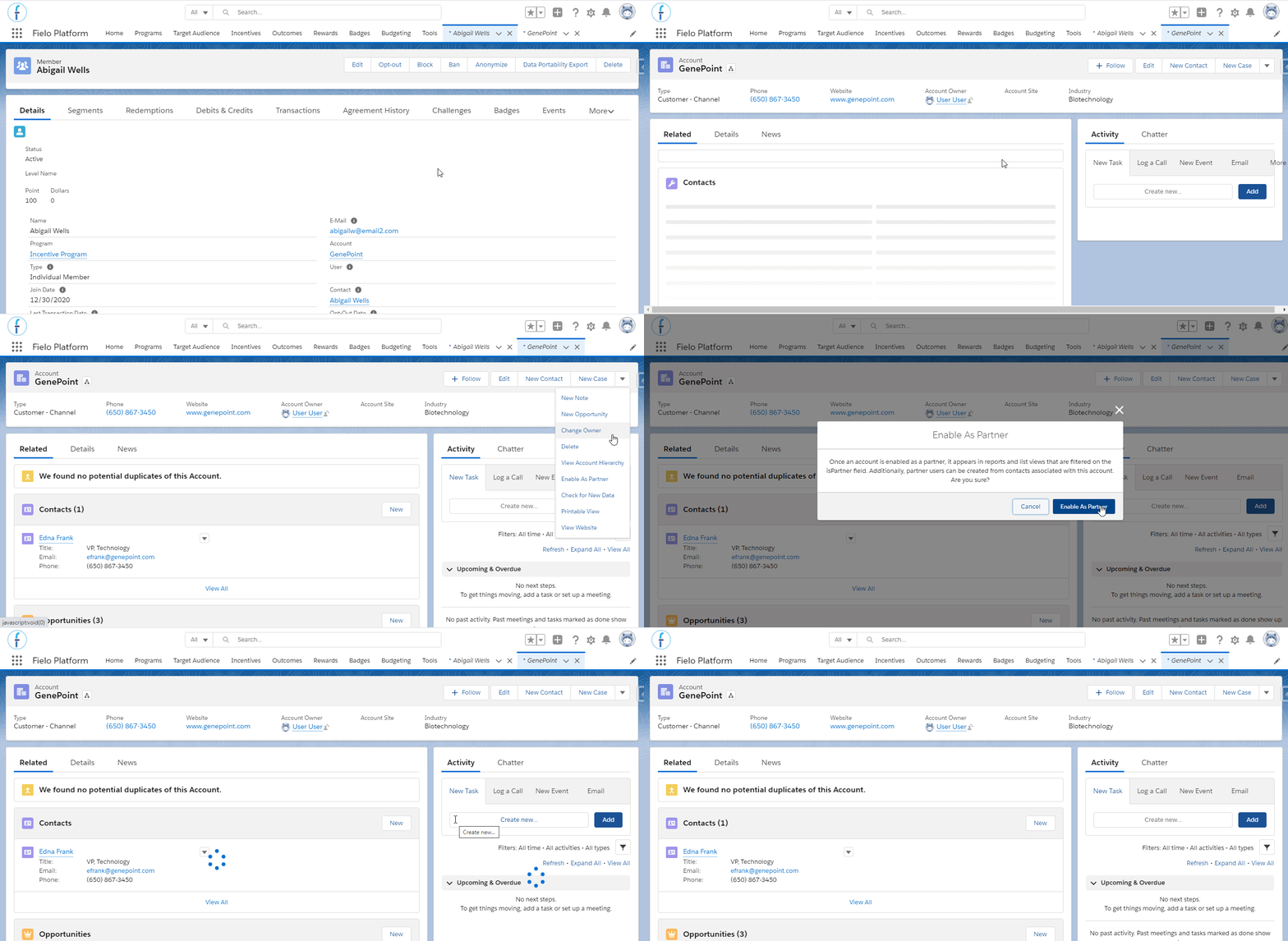
Enabling the member's account as partner
Funds do not work for team challenges.
Activating Funds
Since a few fields and an object need to be created - and some prerequisites need to be met - in order for Funds to work properly, this feature is not enabled by default in your org.
In order for Funds to appear as a rewarding option when creating or editing an incentive, you need to activate it first. For that, go to the Programs tab and select to open the program management tools. Find and click on Activate Fund Rewarding.
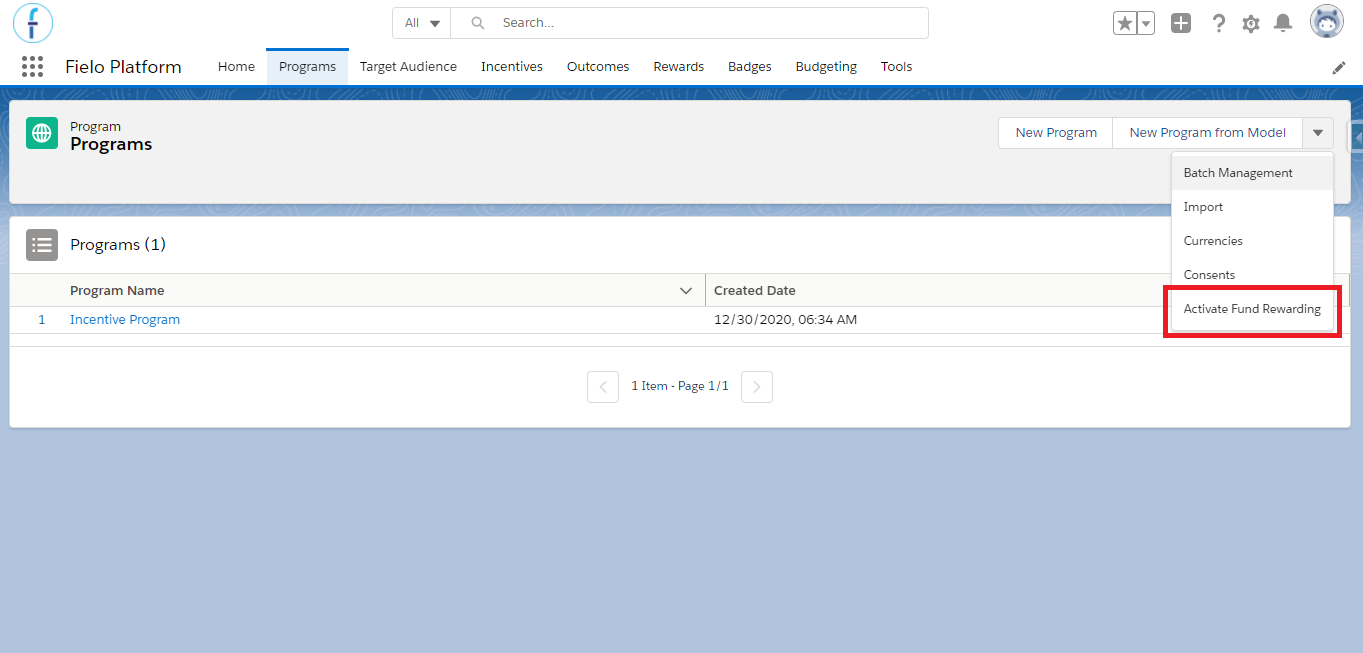
Activating Funds Allocation
Profile permissions
The Funds activation will automatically edit the permission of the System Administrator profile, allowing it to access the fields created. However, if any other profile is using Fielo, you need to give the permissions manually.
Go to Object Manager and, within the objects listed below, go to the Fields & Relationships tab. From each of the related fields' page, click on Set field-level security and check Visible next to the profiles using Fielo. Don't forget to Save after.
- InRule and Rewarding objects
- Specify a Partner Marketing Budget (Lookup to Partner Marketing Budget)
- Increase budget by reward amount (Checkbox)
- How will new allocation be named? (Text)
- Fund Conversion Mode (Picklist)
- Funds Conversion Value (Number with 2 decimals)
- Funds Field Name (Text)
- InTransaction object
- Funds (Number with 2 decimals)
- InFund Audit object
- Partner Fund Allocation (Lookup to Partner Fund Allocation)
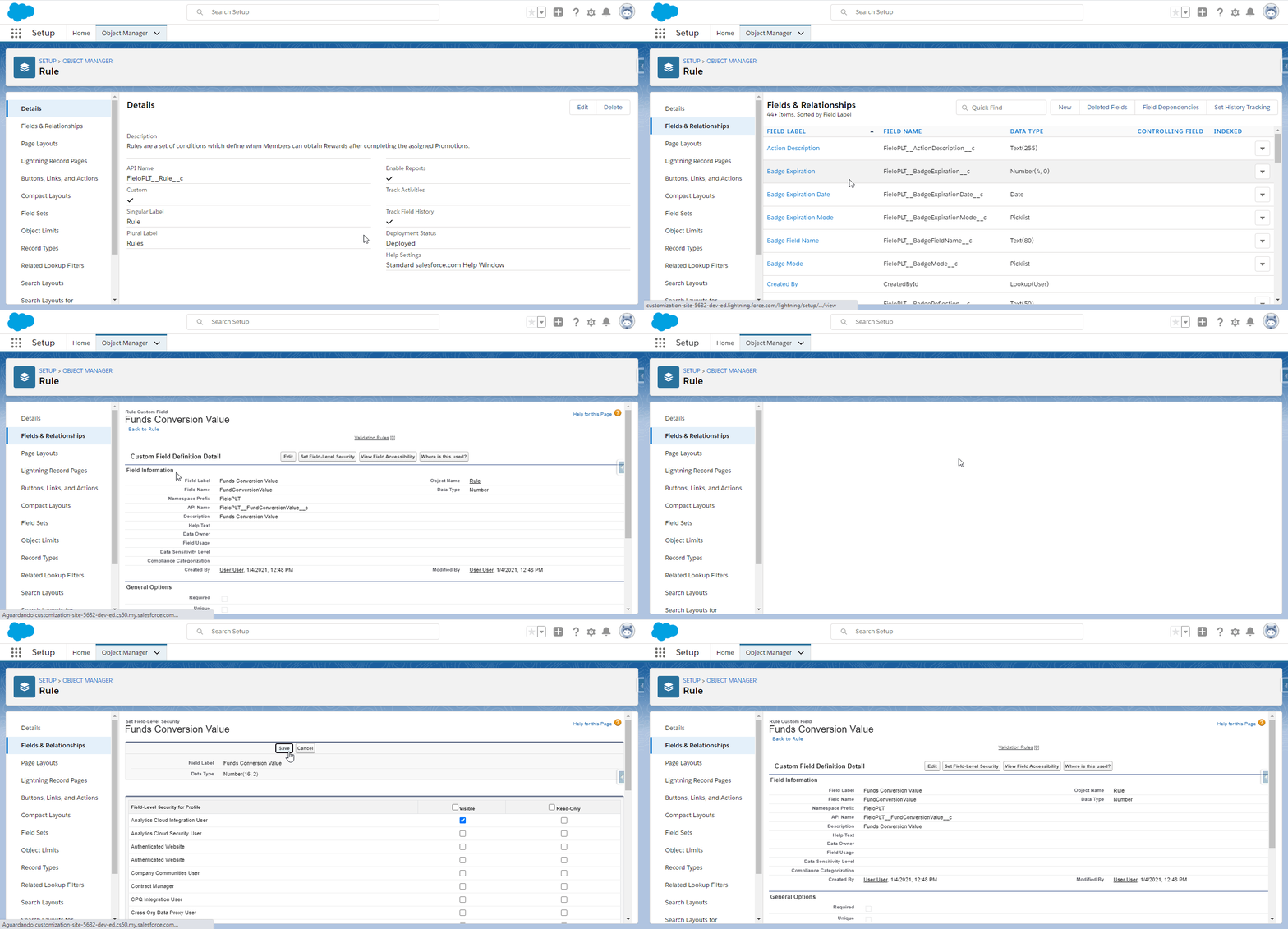
Giving permission to the 'Funds Conversion Value' field, within the Rule object
Using Funds as a Reward
After you activate Funds to be used as a reward in your ORG, it will appear as an option when you create or edit your Incentives.
Imagine that you want to create a promotion that will reward each channel partner who closes Opportunities that have an amount greater than $10,000.00, with a Funds Allocation value equal to 10% of the Opportunity amount. For that, when you reach the section where you define the reward for the promotion, select Funds.
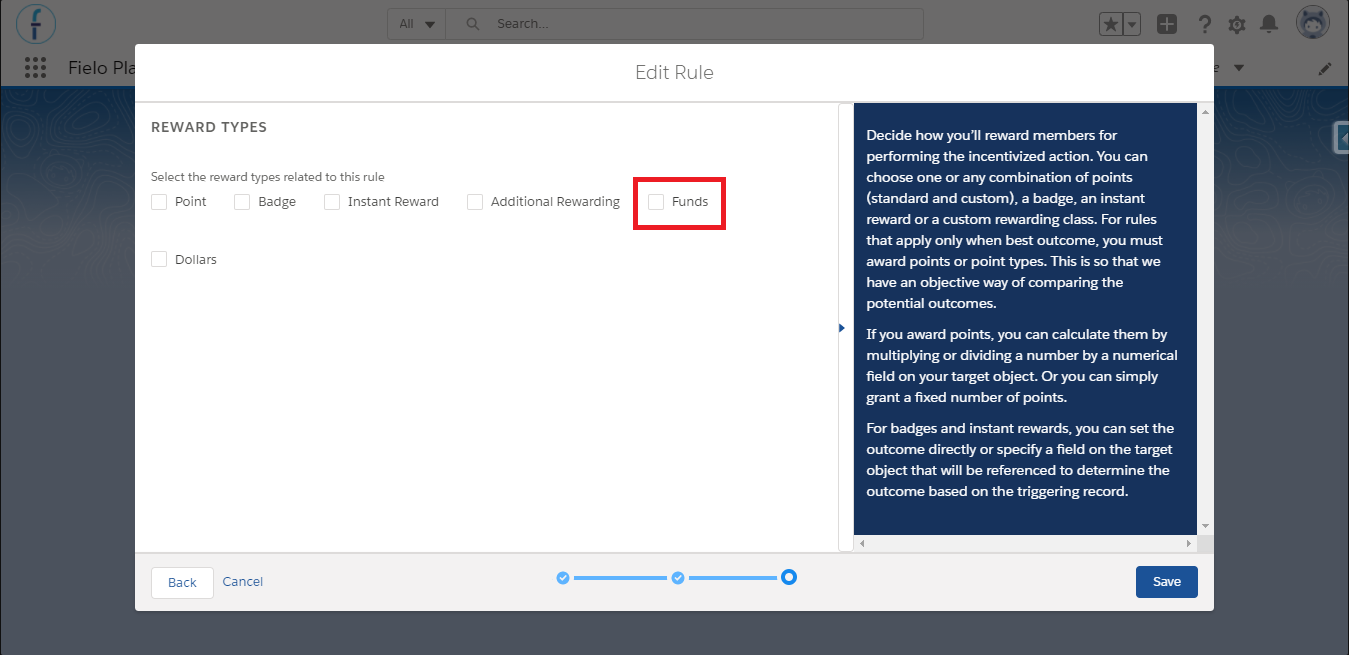
Funds as a reward option for a Rule
Next, choose the Funds Conversion Mode, which can be:
- Fixed Value: enter a specific value in the Funds Conversion Value field. E.g. enter 5000, so that the member will receive a $5,000.00 Fund Allocation.
- Percentage: choose a numeric field in Funds Field Name for the percentage to be based on, and enter the percentage value in Funds Conversion Value.
As mentioned before, the Funds rewarding is going to create an allocation in a Partner Marketing Budget (PMB), so in the Specify a Partner Marketing Budget field, you are going to search for and select the budget in which the allocation will be created - unless there is an existing allocation for the member's account, in which case it will be increased instead.
The PMB that you selected can have its amount increased by the reward value or not. If you want the system to automatically increase the budget amount every time that a member accomplishes the incentive, leave the Increase budget by reward amount option active ; if you don't, leave it inactive and the budget amount will remain the same.
If the Increase budget by reward amount option is inactive, whenever the reward amount surpasses the unallocated budget amount, the new allocation will not be created - neither the transaction.Moreover, if a Rule, Mission or Challenge rewarding consists of Currency + Funds + Badge, for example, only the transactions related to the Currency and the Badge will be created.
Lastly, it is possible to define a complementary name for the allocation created through the promotion or challenge. By default, the allocation's name will be equal to the account associated with the member, but in the How will the new allocation be named? field you can enter something else to be added after it.
If you do that, when the allocation is created, its name will have the member account's name + space + complementary name format. This could be useful for better identifying each allocation within your Budget.
However, defining a complementary name is optional: if you don't want to add it, leave the above mentioned field blank and the allocation's name will simply be the Account name of the member who earned the reward.
Take a look at how these fields were filled, following the example given before:
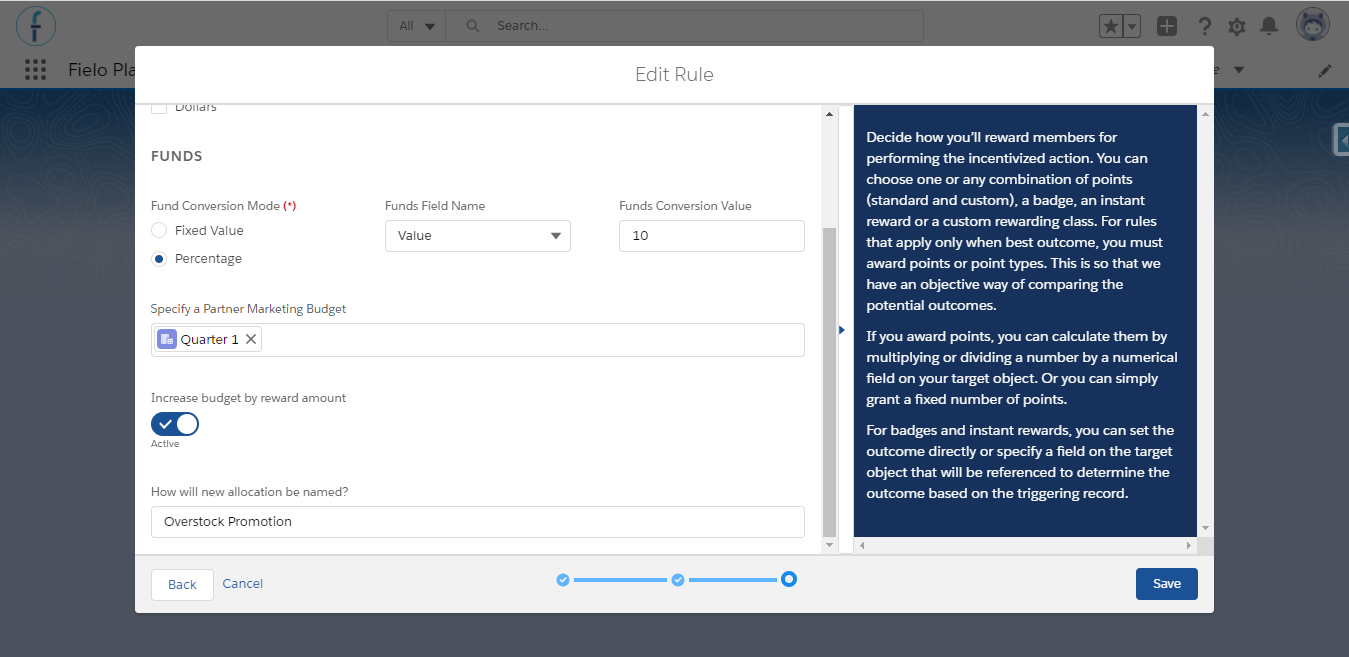
Funds setup
You can select other rewards - currencies, instant rewards, badges - along with Funds, so that members receive multiple rewards for accomplishing an incentive.
Any new allocations are stored in the Related tab in the Partner Marketing Budget page. You'll be able to see them within the Partner Fund Allocations related list.
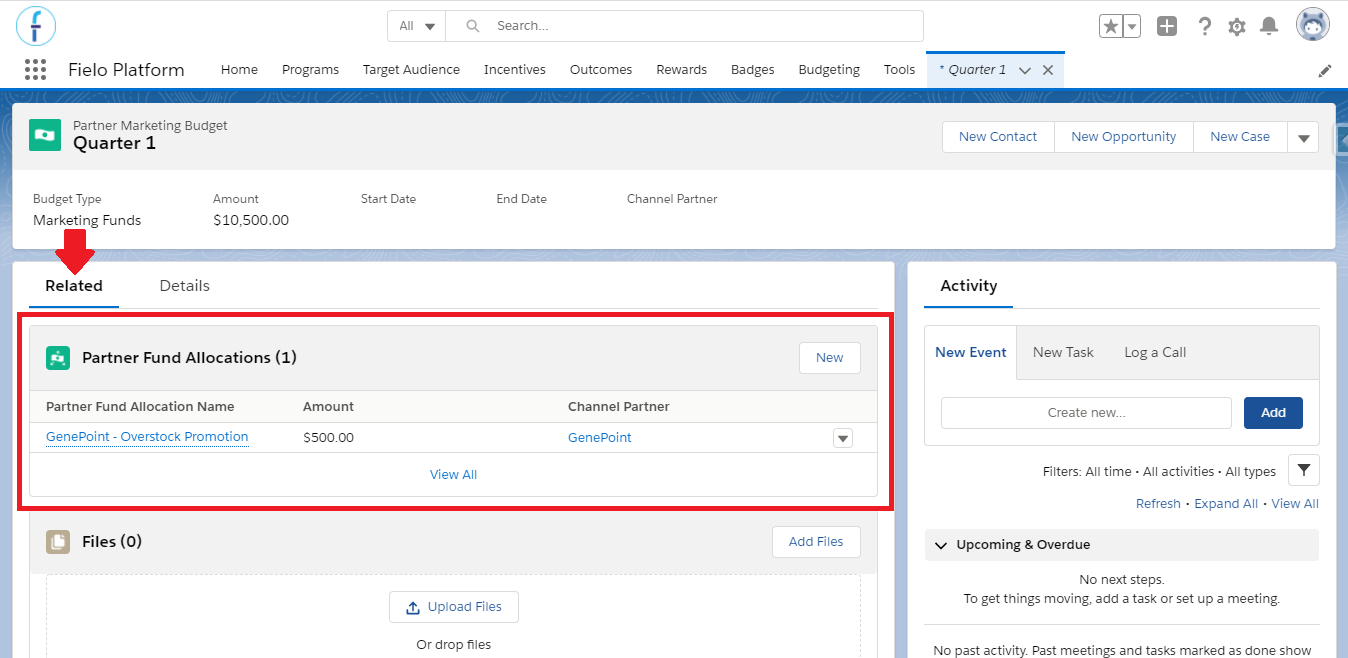
Allocation within the Budget page
Allocation CreationWhen a member wins an Allocation, the transaction related to it is immediately created. However, the actual Allocation is created only when the Partner Fund Allocation batch runs.
This batch runs automatically every hour and also whenever you run it manually through the Batch Management page, which you can access within the program management tools.
Existing Partner Fund Allocation
When the member performs an incentivized Action that will reward them with Funds Allocation, the system will look for any other allocations associated to that member's account in the same Partner Marketing Budget. If it finds one, the rewarded amount will be added to the existing allocation - if it doesn't, then a new one is created.
However, Salesforce doesn't limit the quantity of allocations per account that can exist; so how would Fielo know which one to increase, when there is more than one? It will look for the allocation that has the Fielo Partner Fund Allocation field checked, which happens whenever the allocation was created through Fielo (e.g. the member has already earned an allocation before) or when you manually create an allocation for an account and mark the field.
Note that when you have 2 or more allocations with the field checked, Fielo will increase all of them with the same amount rewarded. If that happens, you will find a fund audit record for each allocation in the transaction created.
Funds for Organization and Contributor MembersWhen an organization member has a contributor member related to it and they perform an action (set up to reward Members) that will grant them a Funds reward, both Fund Allocations created will be related to the same account. That happens, because contributors have the same account of their organization.
Moreover, if the Budget where the allocation will be created is the same, then only one Allocation will be created and its amount will be increased whenever a member (contributor or organization) earns a Funds Allocation reward again.
Notifications
Other than not creating an allocation, a notification is delivered in the 🔔 to the budget (PMB) owner every time that a member should have earned an allocation, but the rewarding amount surpasses the unallocated budget amount or when the member is not related to an account enabled as partner.
The notifications will stop only when you increase the budget or change the reward.
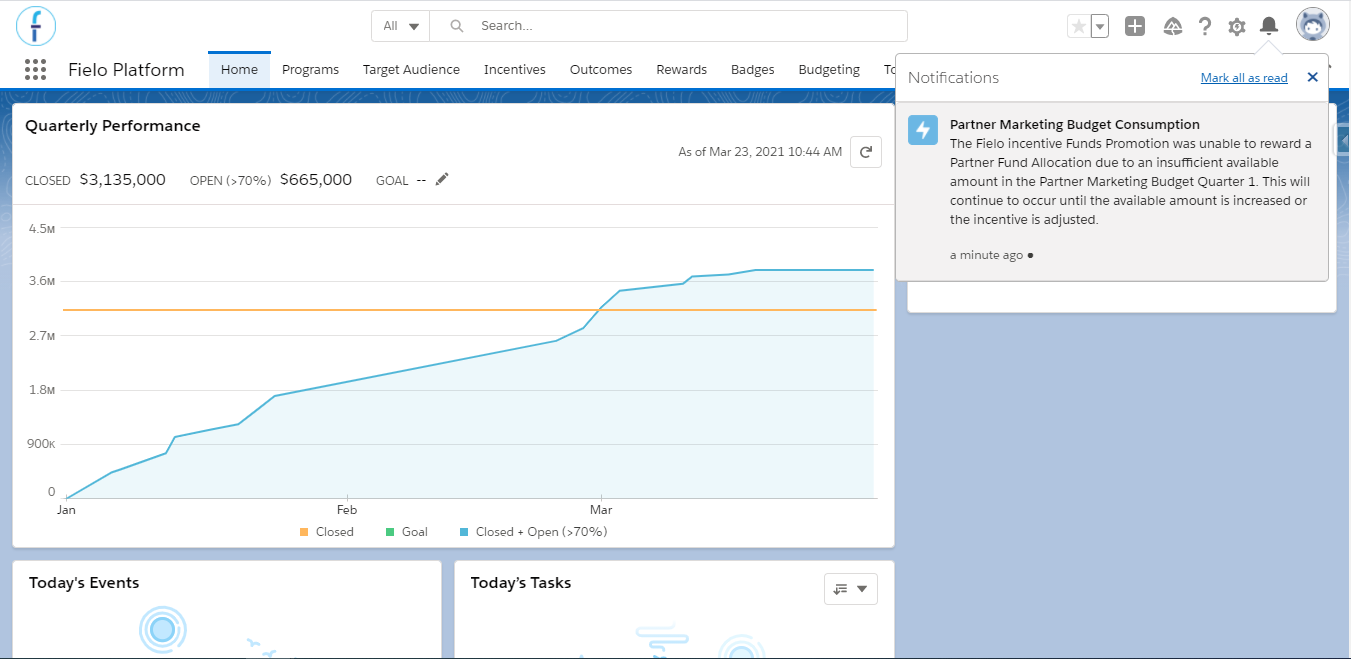
Notification
Customizing notification intervals
By default, the budget owner will receive these notifications every 3 hours. However, it is possible to customize the interval - in minutes - you'd like your users to receive notifications.
To do so, go to Salesforce Setup and quick find Custom Settings. Click on Manage, next to Public Settings, and Edit. Modify the value in Funds Notification Frequency to adjust how often you want notifications to be sent.
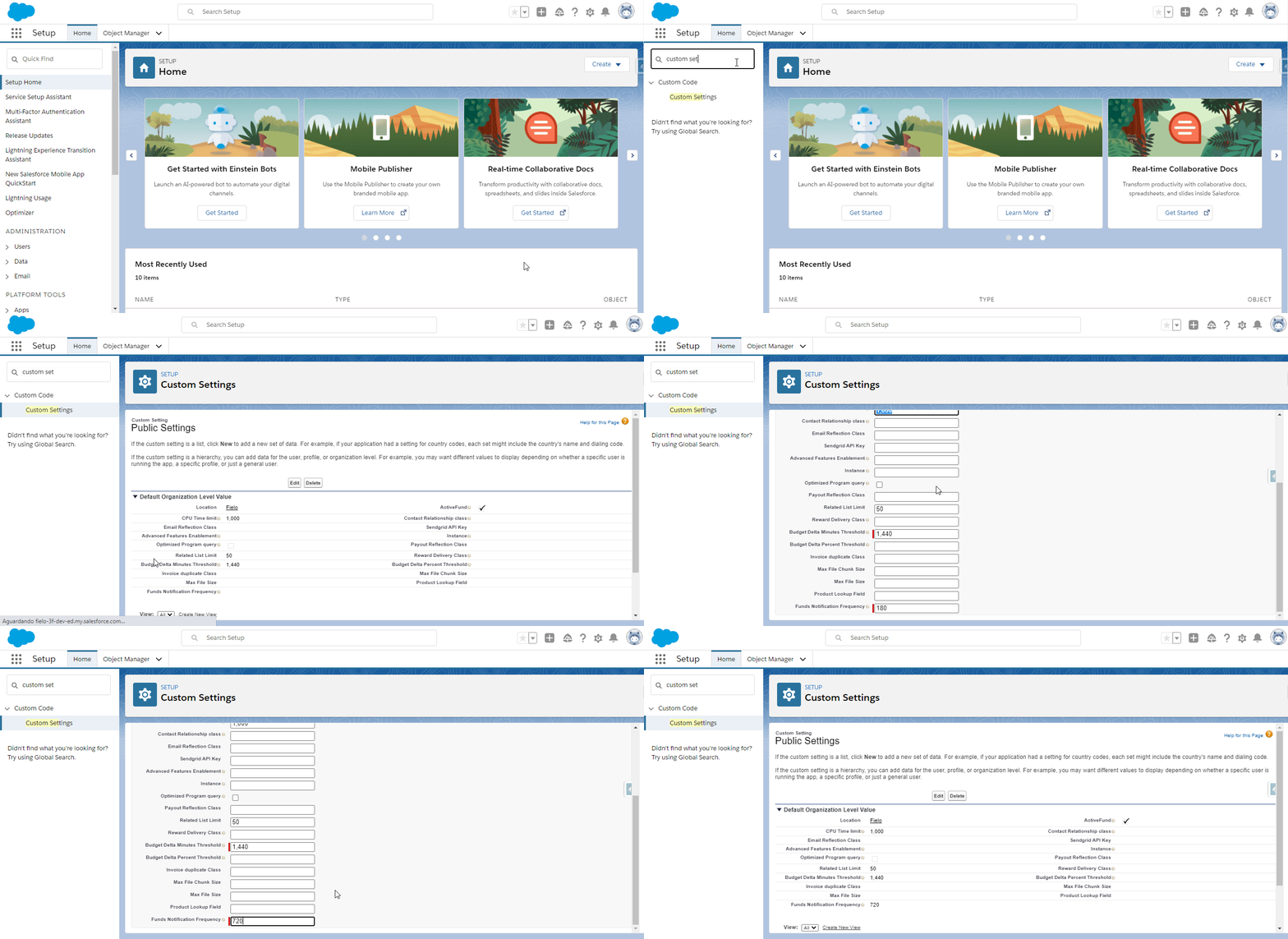
Editing Funds Notification Frequency value
- Funds Notification Frequency: Enter the frequency, in minutes, at which you want the budget owner to receive notifications. For example, if you don't want more than one notification to be sent per day, this value will be 1440 (i.e. 24 x 60). Two times per day, 720 (12 x 60). If you prefer not to set a limit on notification frequency, set this value to 0.
When you're finished, remember to save!
Audit Funds
You can keep track of any reward given to the member through their transactions, including which Budget the allocation was created in. For that to be available, you'll have to complete a few steps.
First, you need to activate the FieloFunds library. For that, go to the Tools menu and click on Activate next to FieloFunds.
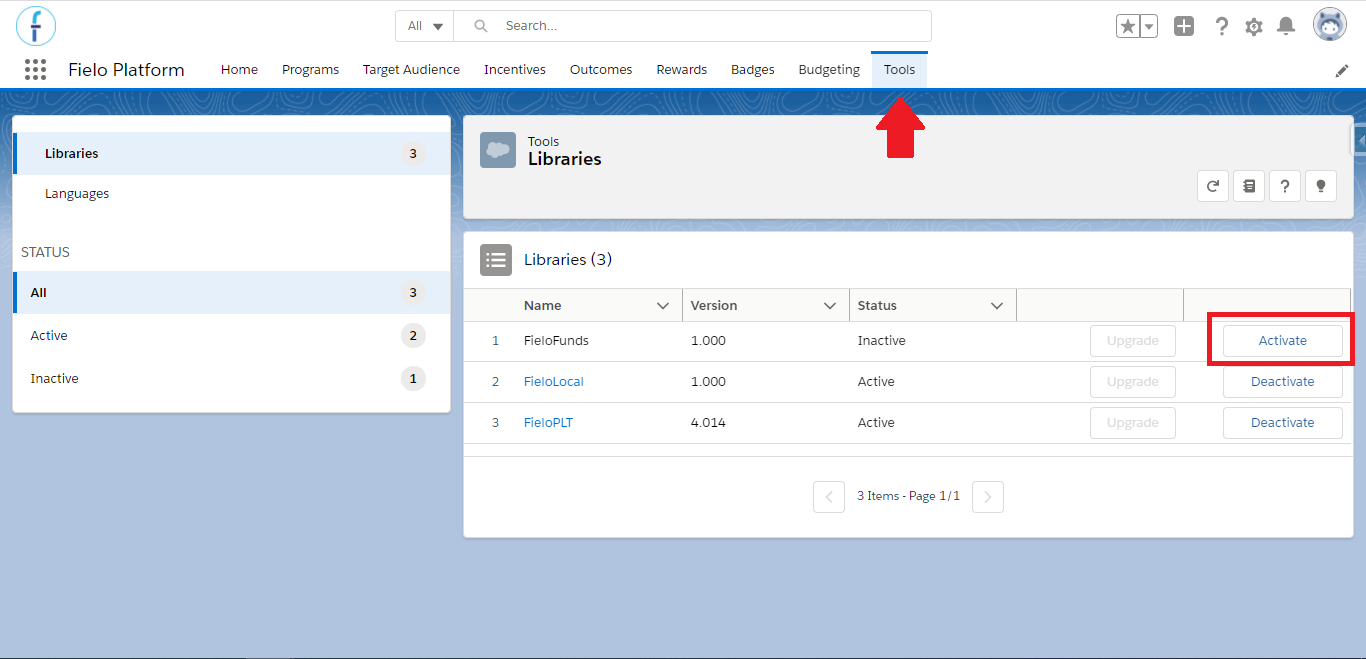
Click on Activate, next to FieloFunds
When that is done, you will automatically be able to see in the transaction page:
- The fund audit's name - and access it from there.
- The allocation amount.
- The Rule/Mission/Challenge that generated the allocation.
Next, go to the Object Manager, look for and access the Fund Audit object. From the Page Layouts tab, add the Partner Fund Allocation and Partner Fund Allocated fields to the Information section and Save.
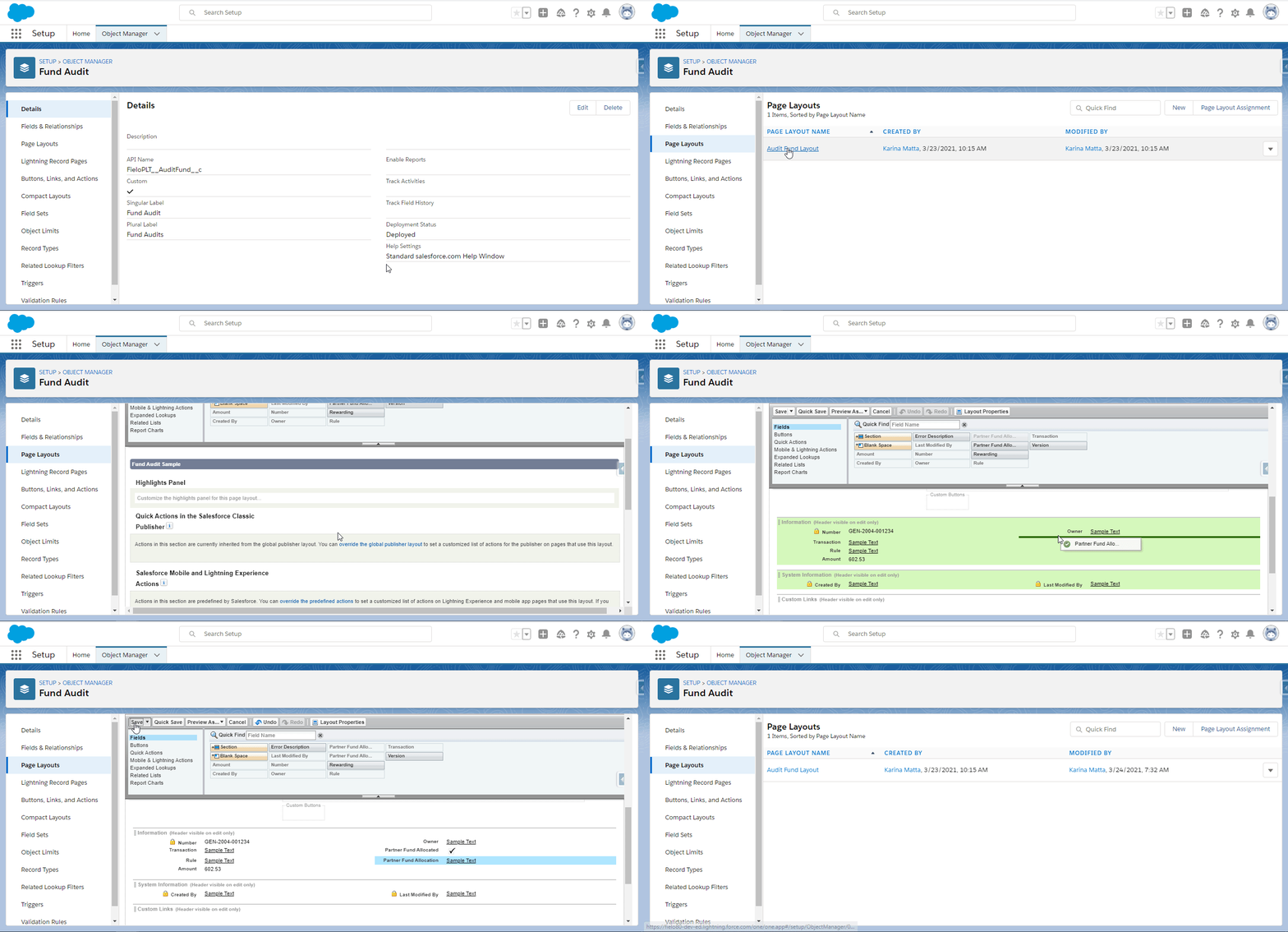
Adding the Partner Fund Allocation and Partner Fund Allocated fields to the Fund Audit object layout
After saving, go to the Member's page, enter the Transactions tab and click on the Transaction Name in order to enter the transaction's page. From there, click on the Fund Audit's name and access it. You will now be able to see if the Allocation related to this transaction was already created (or increased), its name and access it.
Note that the Allocation's name will be filled in only after it is created.
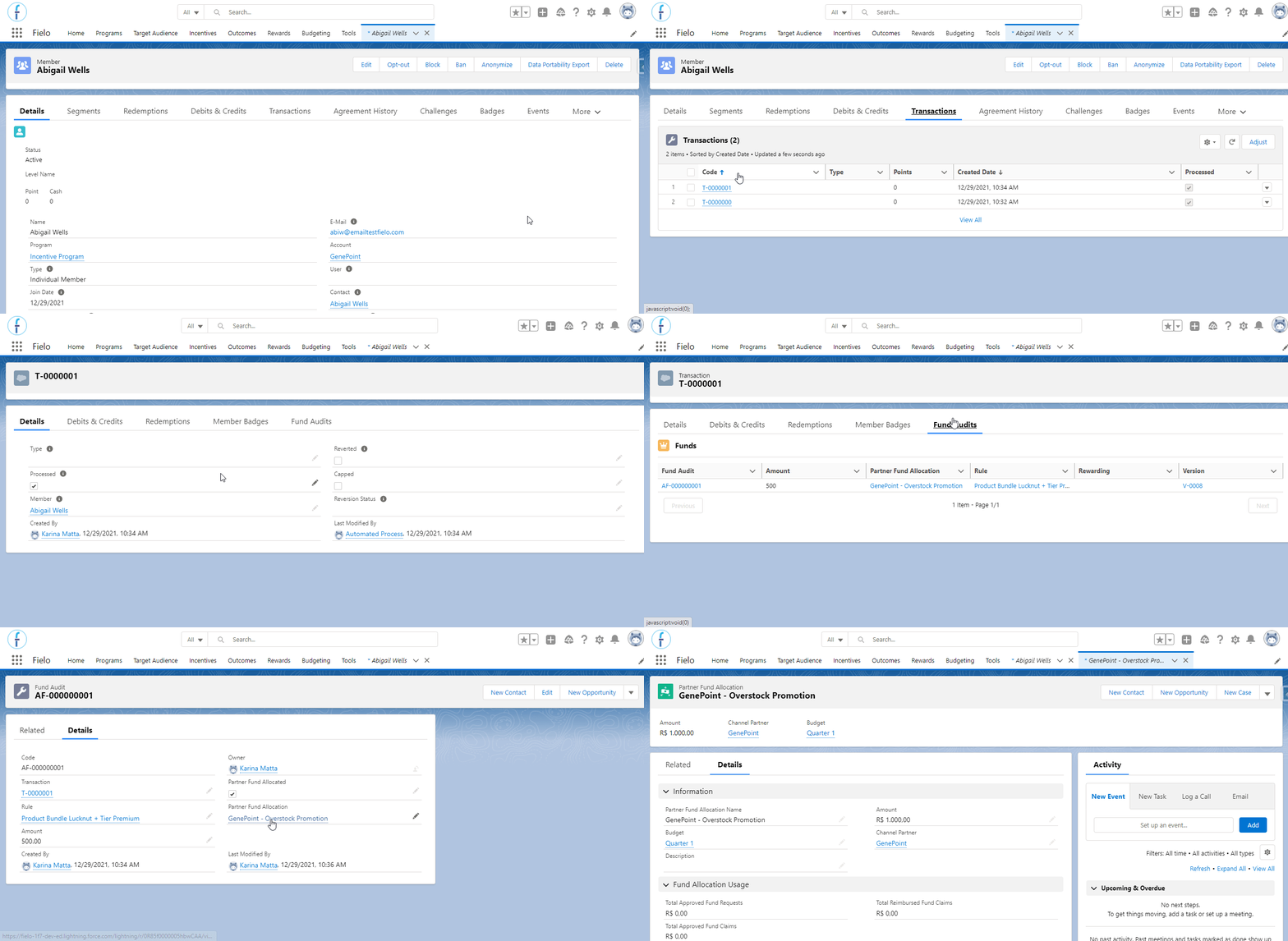
Failed batch processIn case the batch process that creates the Allocation within the PMB fails - e.g. because the budget does not have enough available amount and the rule was not set to increase the budget's amount - it is possible to reprocess the same record by unchecking the Processed Fund field that is automatically checked when the batch runs and run it again.
Empty transactionsA transaction related to Fund Allocation Rewarding will be empty when:
- The member who received it is not related to an Account enabled as partner.
- Funds is the only rewarding type set up in the Incentive that generated the transaction. Otherwise, the transaction will contain the details related to currencies, badges or instant rewards granted to the member by that Incentive (but not the Funds details).
Updated over 1 year ago