
Agreement
Create and manage Program Terms & Conditions
Agreement sets the terms and conditions that Members need to accept in order to take part in a Program. Once you've activated your agreement, members will be prompted to confirm acceptance when signing up or logging into the loyalty portal for the first time.
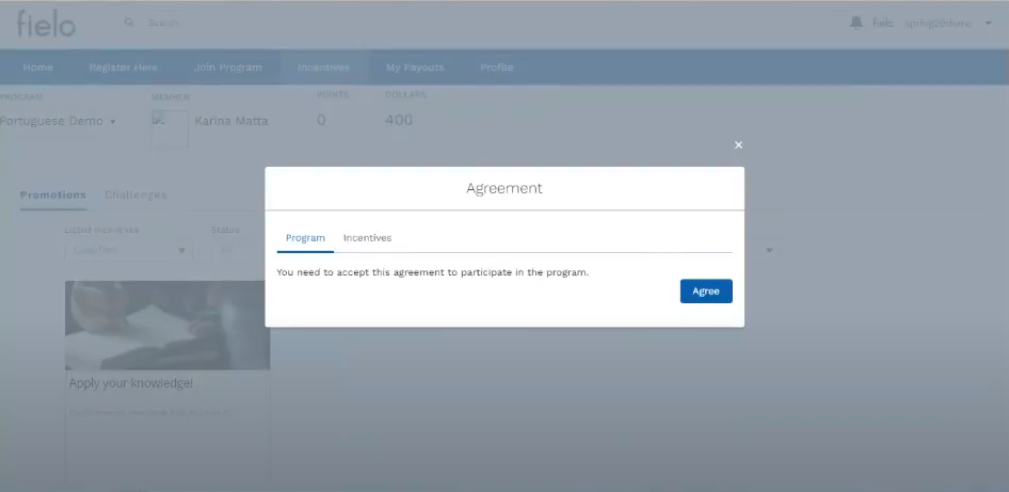
Loyalty Portal - Program Agreement
Creating and Activating an Agreement
From Programs, select the program in which you'd like to create an agreement and, on the detail page, access the Agreement tab and click on Create Agreement.
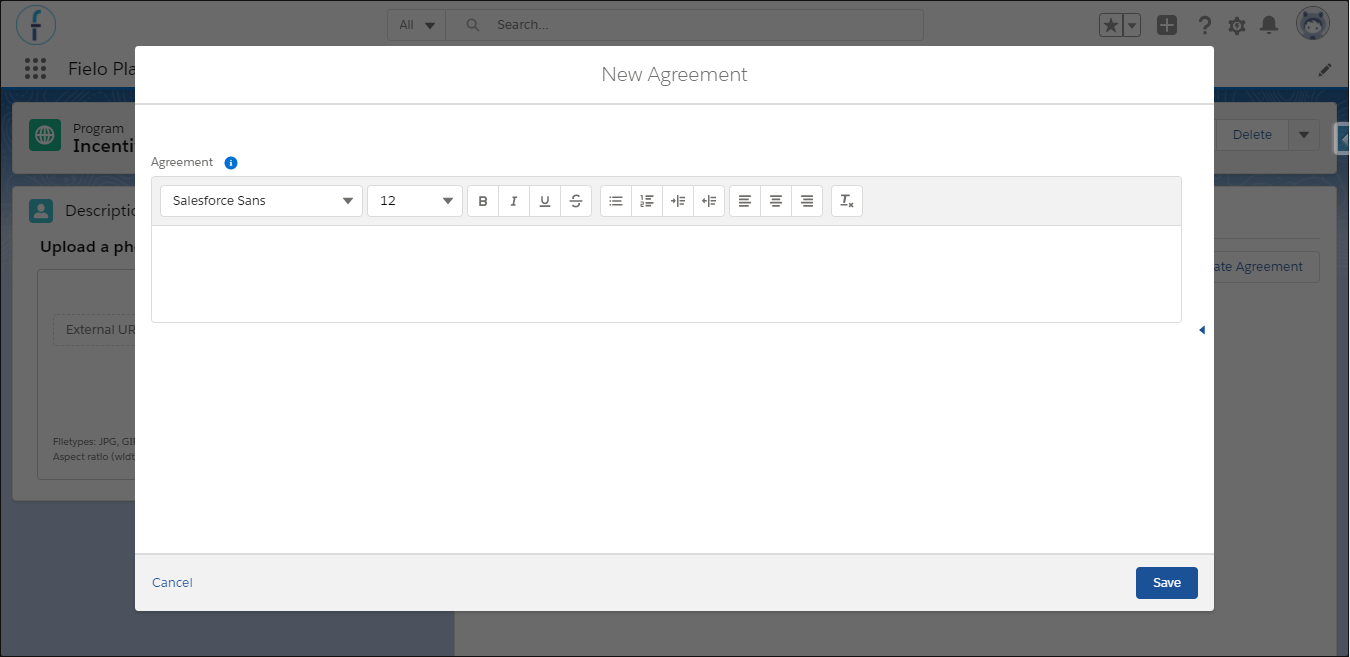
Create Agreement
Enter (or copy and paste) the text of your program terms and conditions and click Save.
Upon saving, you will be able to see the text you just saved within the Agreement tab, from where you can also edit your agreement.
When you're happy with your agreement, click Activate to make it part of your program. The agreement will change from Draft to Current status. While it is still as draft, you can also delete it from your program.
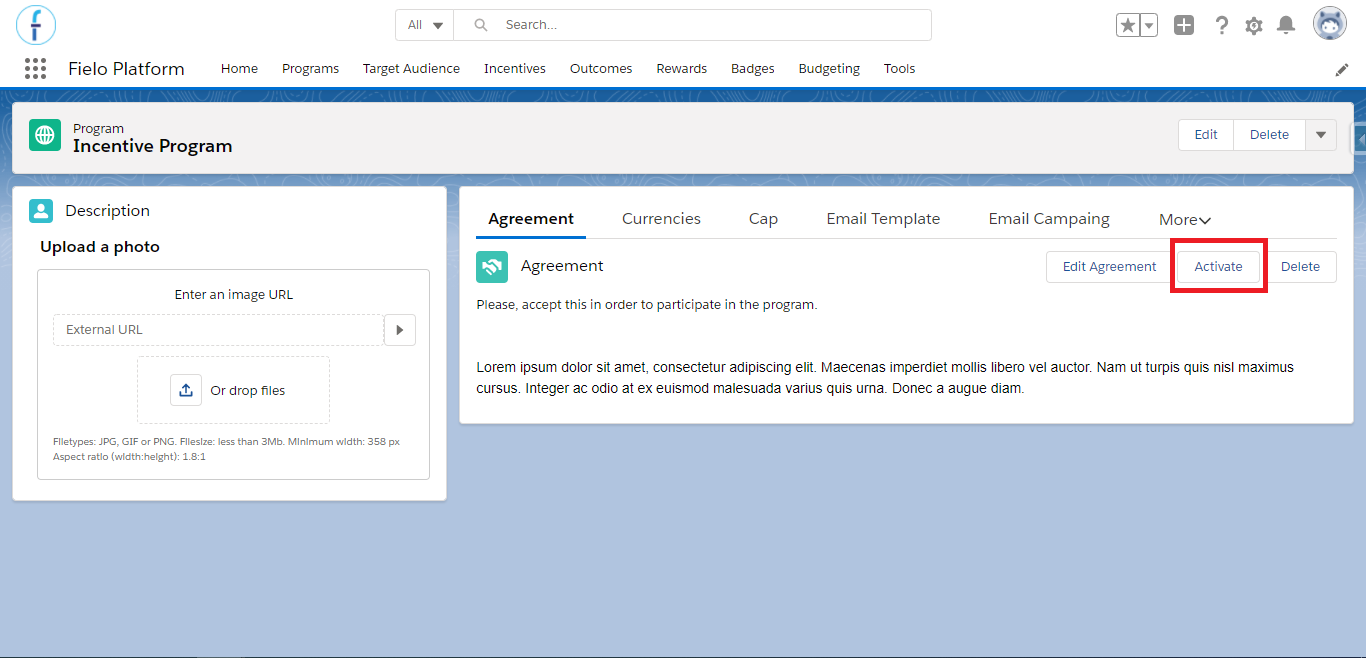
Agreement Detail Page
Editing an Agreement
If you have to make a change to your agreement, we support versioning, so that you can keep track of which members have agreed to which version(s).
To create a new version, navigate to your program page and, within the Agreement tab, click on Edit Agreement. Enter (or copy and paste) the agreement text.
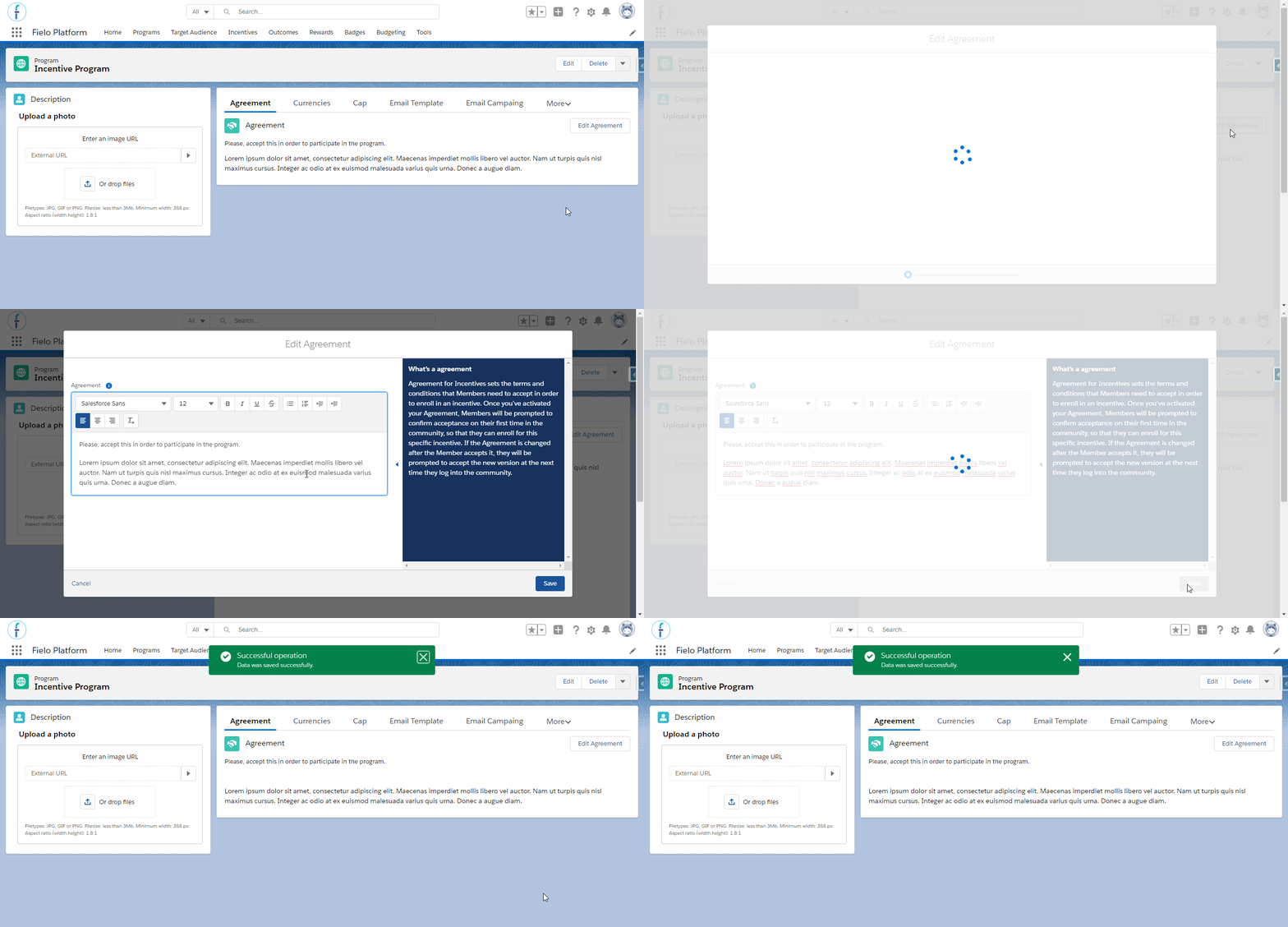
When you're ready, click on Save and the status of your previous agreement will change to Deprecated.
On each Member's detail page, you'll be able to see the agreement acceptance history of that member.
Agreement History
It is possible to keep track of every agreement that was accepted by the member. A list will be available in the Agreements History tab within the member's page, presenting its code, the incentive or program they were created for and created and end date.
Note that the created date displays the time and date the member accepted it and that the end date will be populated only when the member accepts a new version of the agreement related to an incentive or program. Every agreement with an end date, then, can be considered invalid (deprecated).
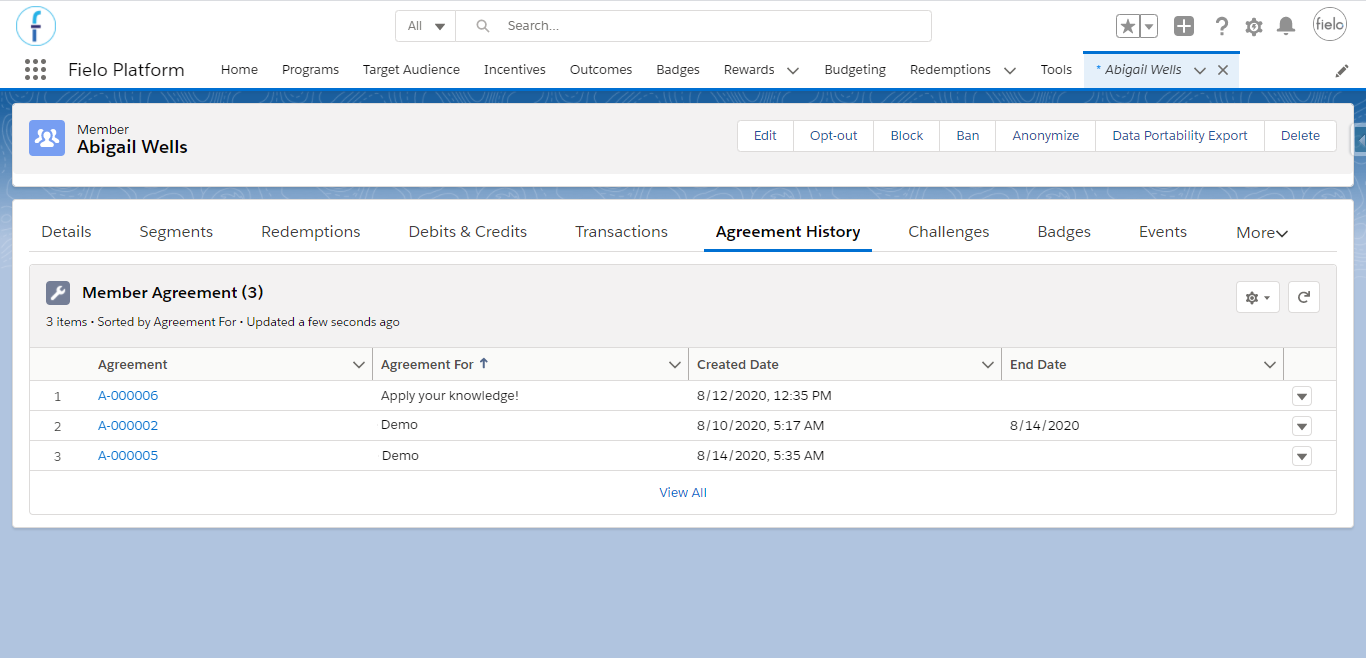
Agreement history
Updated over 1 year ago