
My Redemptions
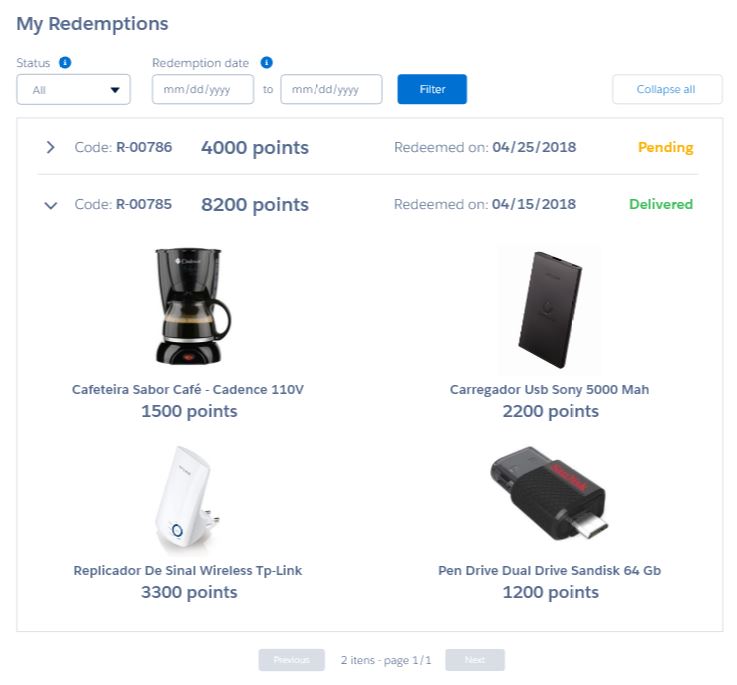
My Redemptions lists all of the redemption orders a member has made and, optionally, details about each redemption item in a given order.
Configuring My Redemptions
Once you've added Member Selector and My Redemptions to your page, you can customize what data is shown and how it is shown.
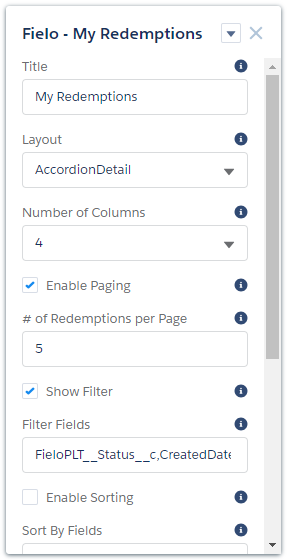
My Redemptions can be configured via the following properties:
- Title: Enter the title you want displayed at the top of the component.
- Layout: Choose AccordionDetail to display redemptions in a collapsible list format, Table to display them in a regular list format, or Grid to display them in tile format.
- Number of Columns: If using grid layout, choose the number of columns to be displayed.
- Enable Paging: Check this box to allow transactions to be displayed in pages.
- # of Redemptions per Page: If paging is enabled, enter the maximum number of redemptions to be displayed per page.
- Show Filter: Check this box to allow members to filter redemptions by date.
- Filter Fields: Enter the API names of fields you want to use for redemption filtering, separated by commas. Status and created date are included by default.
- Enable Sorting: Check this box to allow members to sort their redemption history.
- Sort By Fields: If sorting is enabled, enter the API names of the fields you want members to be able to sort by, separated by commas.
- Fieldset: Enter the API names of fields that you want to be displayed in the redemption list, separated by commas. The redemption code (name), points spent, and status are included by default.
- Redemption Item Related List: When displaying redemptions in accordion layout, make sure this box is checked if you want redemption items to be shown when list entries are expanded.
- Redemption Item Related List Fieldset: If showing redemption items in accordion layout, enter the API names of the redemption item fields that you want to be displayed in detail view, separated by commas. Reward image, name and point cost are included automatically.
Updated over 1 year ago
Did this page help you?