
Challenge Rewarding
Choose how you'll reward Members for completing Challenges and Missions
Challenge Reward are how members are rewarded for successfully completing a Challenge. They can take the form of Currencies (e.g.the standard Points), Instant Rewards and/or Badges.
Before setting up rewarding for your Challenge, be sure that you've created at least one Mission.
Challenge Rewarding Schemes
Rewarding schemes allow you to configure how one or multiple challenge rewards are awarded to members who have successfully completed your challenge. Depending on the number and type of mission(s) you're using in your challenge, there are several Rewarding schemes to choose from.
Missions using Based on a fixed metric
Challenges which include one or more missions based on fixed metrics, and no missions comparing among members, can have the following rewarding scheme:
- Just one reward, one or more times
Use Just one reward, one or more times if your challenge will have just one challenge reward. You can set a Limit for the number of times a member will be eligible for the reward.
- Different rewards depending on the order of completion
Use Different rewards depending on the order of completion to award different challenge rewards depending on the order in which members successfully complete your challenge. For each challenge reward, you'll specify a Position number which indicates whether the reward will be given to the member who completes the challenge first (Position: 1), second (Position: 2) and so on.
Challenges which include multiple missions using Based on a fix metric, and no missions using Compare among members, can have the following rewarding schemes:
- One or more rewards, each one depending of missions accomplished
Use One or more rewards, each one depending of missions accomplished to award challenge rewards one or more times over the life of your challenge. For each challenge reward, you'll set criteria for which mission(s) a member will need to accomplish to win the reward.
- Multiple rewards, but granting no more than one of them at the end of the challenge
Use Multiple rewards, but granting no more than one of them at the end of the challenge if you'll have multiple challenge rewards, but want to award no more than one of them at the conclusion of your challenge. For each challenge reward, you'll set criteria for which mission(s) a Member will need to accomplish to win the reward. When your challenge has finished, members will receive any challenge reward they've won. Members who've met the criteria for multiple challenge rewards will receive the one that you created first.
Missions using Compare among members
Challenges which include a mission using Compare among members can have the following Rewarding Schemes:
- Based on performance rankings at the end of the challenge
Use Based on performance rankings at the end of the challenge to award challenge rewards based on participating members' performance rankings at the conclusion of your challenge. For each challenge reward, you'll specify the range of rankings that will qualify for the reward.
- Based on performance metrics at the end of the challenge
Use Based on performance metrics at the end of the challenge to award challenge rewards based on participating members' performance metrics at the conclusion of your challenge. For each *challenge reward, you'll specify the range of performance values that will qualify for the reward.
Combining Mission Types
You can assign one or more missions that use Based on a fixed metric (with objective) together with a mission that uses Compare among members (without objective) in order to require that a member meet the objective(s) before starting the mission using Compare among members. Challenge rewarding takes place through either the performance metrics or the performance ranking rewarding schemes, and only members who first accomplish the missions using Based on a fix metric are eligible to be rewarded.
This is a great way to make members pass some initial requirements before participating in open-ended competition with other members. Only once a member has accomplished the missions using Based on a fixed metric - and following the mission criteria -, will they be able to compete for challenge rewards in the Mission without Objective. Let's see an example.
Choosing a Rewarding Scheme
Once you've decided which rewarding scheme you'll use in your challenge, you now create challenge rewards
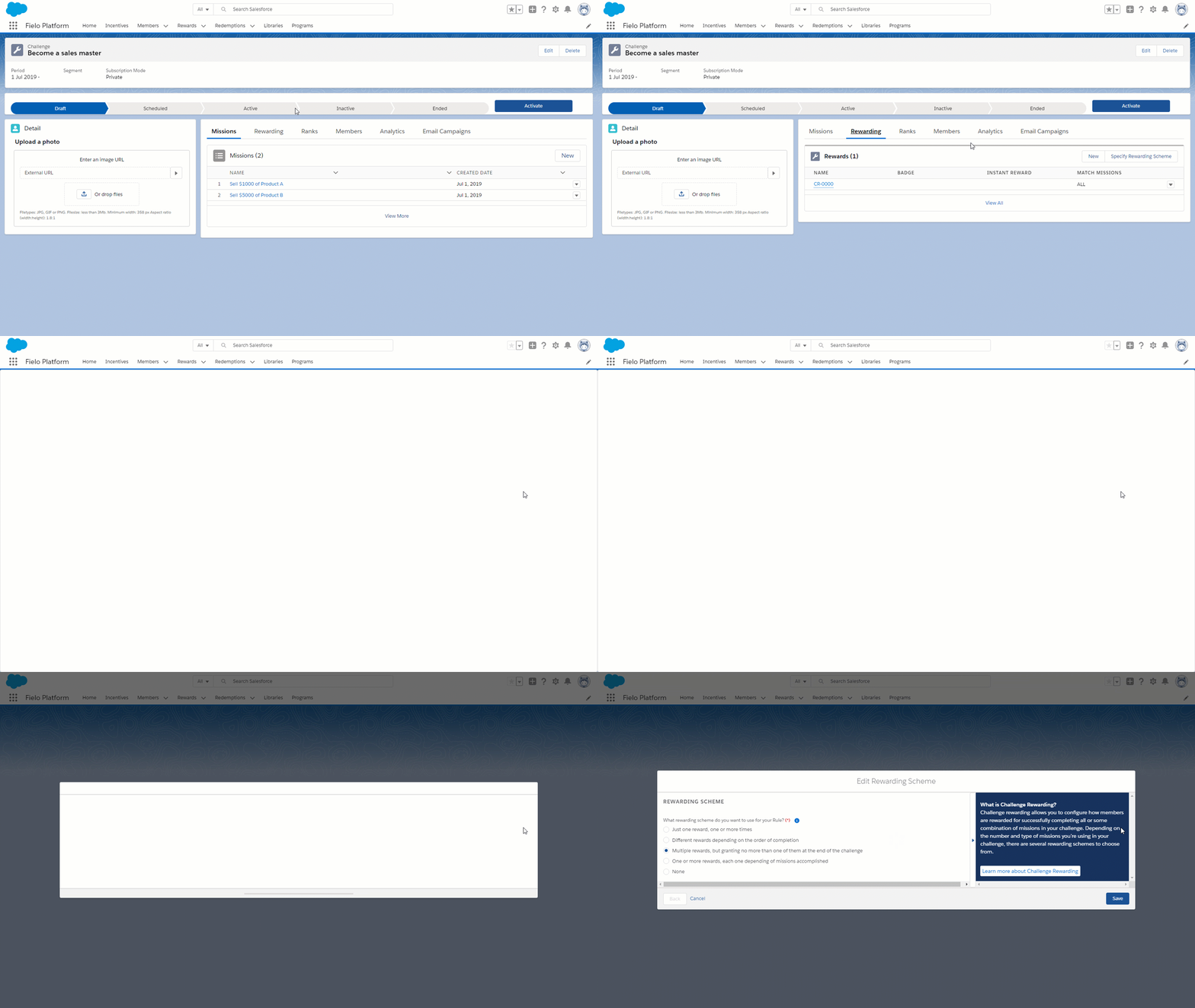
Changing Rewarding SchemesIf you want to change your Rewarding scheme after you've added challenge rewards, you'll have to delete those challenge rewards to make the change. So, it's a good idea to double check that the rewarding scheme you choose is right for your challenge.
Creating a Challenge Reward
After choosing a rewarding scheme, you can start creating challenge rewards.
Challenge rewards can award winning members through Currencies, Instant Rewards and/or Badges. You can choose just one of these reward forms, mix and match them, or even define additional custom rewarding. Let's see how.
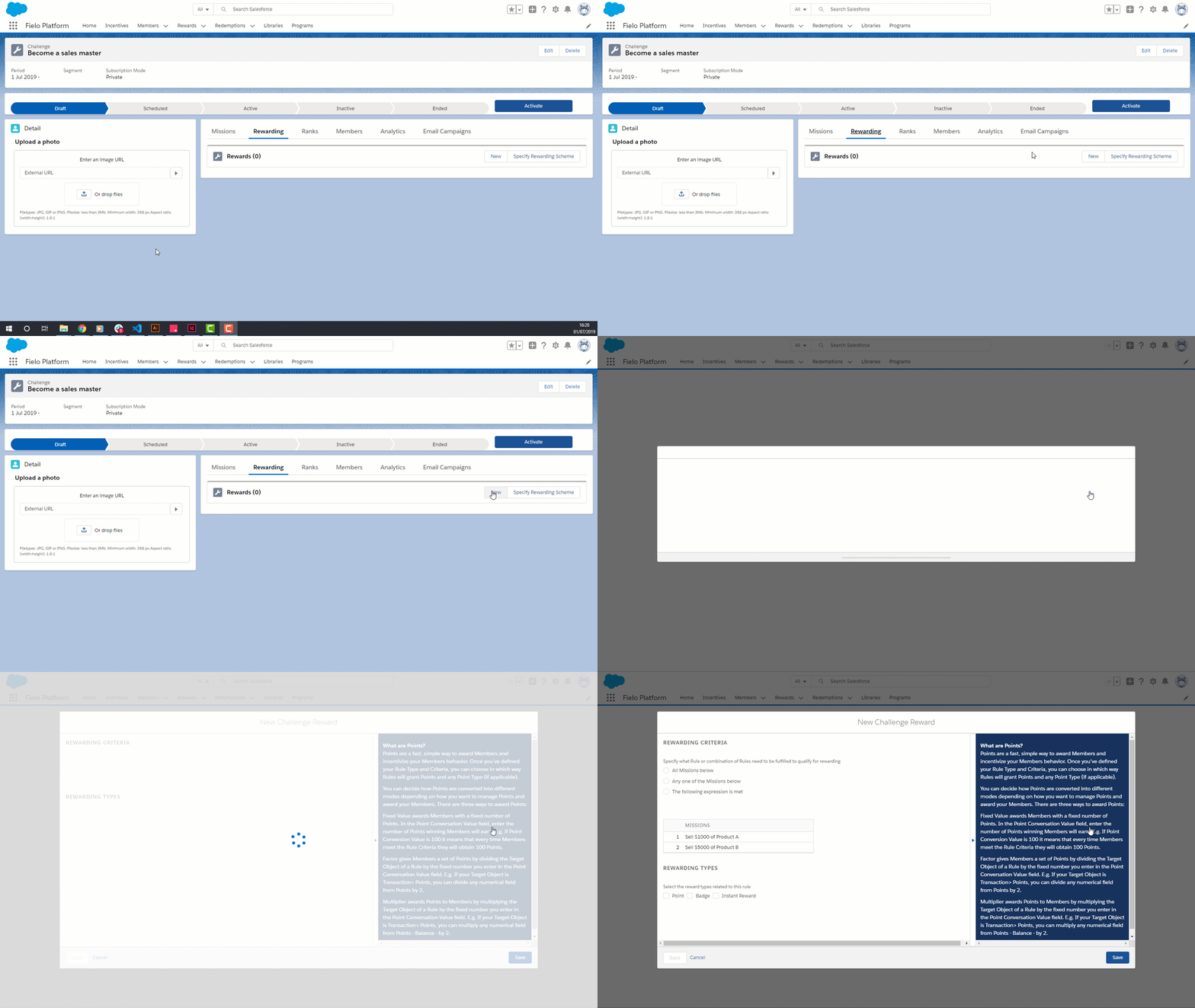
From your challenge page, click New on the challenge rewards card.
If haven't already saved a rewarding scheme, the first time you click the New button, it will ask you to select one. Once you have selected one, the New button will allow you to customize it.
Choose a Rewarding Range
(Based on performance rankings at the end of the challenge and Based on performance metrics at the end of the challenge Only)
Enter From and To values corresponding to the minimum and maximum performance rankings (for position range) or performance values (for value range) that a member will have to achieve in order to qualify for the challenge reward.
For example, if using Based on performance rankings at the end of the challenge, you can target a reward to members who finish the challenge in 1st, 2nd or 3rd place by specifying a From value of 1 and a To value of 3.
Specify a Currency Reward (If Any)
Currencies are a fast, simple way to reward Members for winning a Challenge.
If your Challenge Reward will include any kind of Currency (e.g. the standard Point), you'll need to choose a Conversation Mode and then specify either a fixed Currency value or a Conversion Value.
Incentives cannot deduct points. Avoid inputting negative values.
There are three ways to award Currencies:
- Fixed Value mode awards a fixed number of a currency. In the Conversation Value field, enter the amount of a Currency winning Members will earn.
- Factor mode awards currencies by dividing any numerical field of a challenge member by the fixed number you enter in the Conversation Value field.
- Multiplier mode awards currencies by multiplying any numerical field of a challenge member by the fixed number you enter in the Conversation Value field.
- Percentage: this is specific for when the chosen currency generates payout. It awards the amount by calculating the percentage of any numerical field of a Challenge, Mission or Promotion Member, according to the value you enter in the Conversion value field. You can add up to 2 decimal numbers to the percentage (e.g. 2.45%).
Using multiplier and factor with Rational valuesNote that, if the numerical field from the target object or the Conversion Value is a Rational numeric value and it is multiplied or divided by an Integer numeric value, the system will round the result down (until .4) or up (from .5).
For example, imagine that you have a transaction with 0.4 Points and it should be multiplied by 1; the result will be 0. If the transaction has 0.6 Points instead, the result will be 1.
In case your Challenge Mission uses Historical Data as aggregation, you can use the Goal and Growth fields within Percentage. The former is the goal value calculated by the system when you chose the period for comparison and the latter is the subtraction of the actual value and the goal, which gives you the opportunity to award the member with a percentage of the amount that is over the quota.
For example, let's say that you want to give to your member a payout that equals 20% of the mission goal. You would select Percentage as Conversion Mode, Goal in Field and insert 20 in Conversion Value. If you want to incentivize this member to beat the goal, though, you can use Growth in Field. This way, if they sell $ 1,000 and the goal was $ 800, the payout amount will be $ 40 (20% of $ 200).
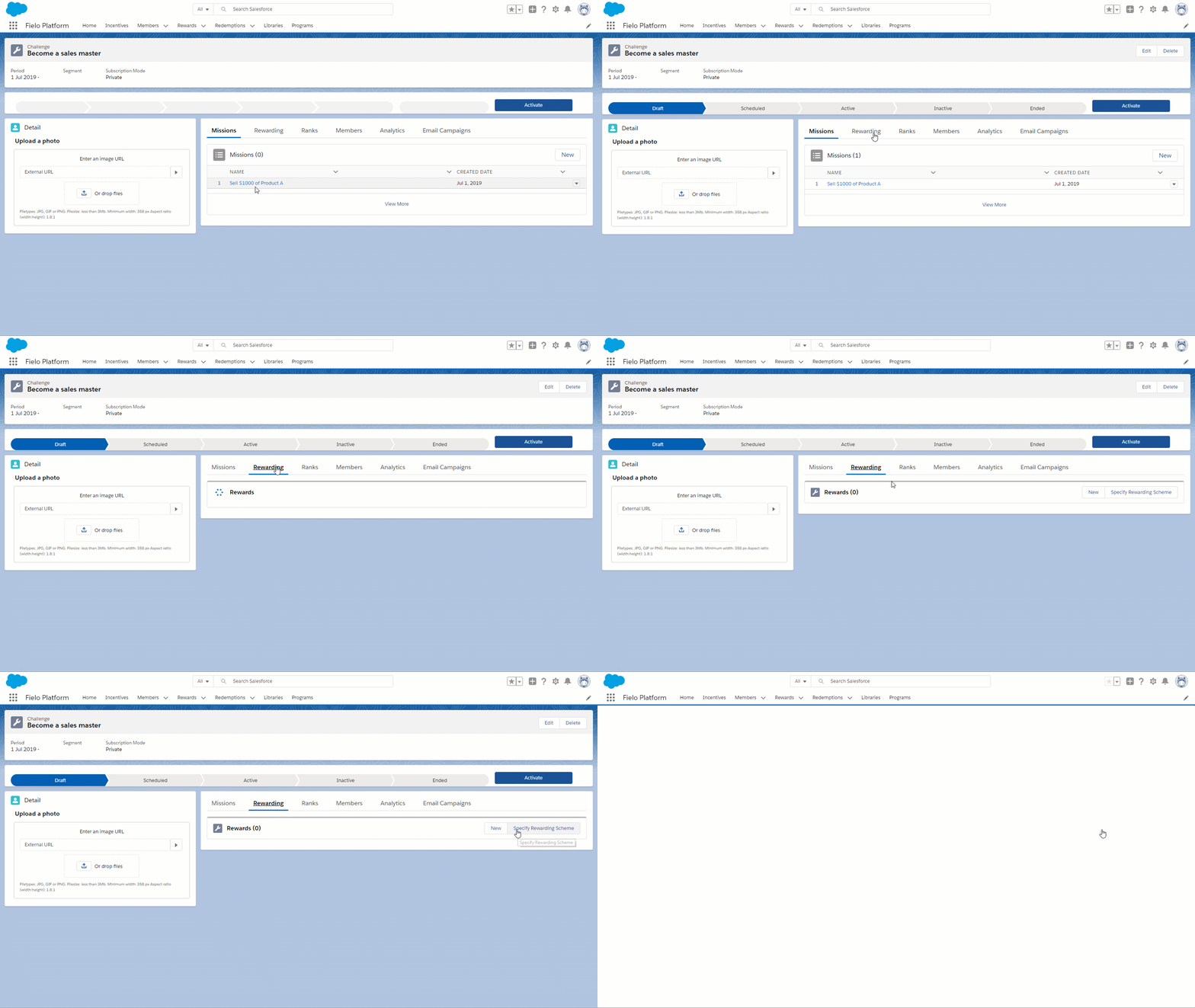
Optionally, you may also specify a Expiration Mode, which determines when currencies awarded will expire from a winning member's profile:
- Use Days to specify a fixed number of days that currency will be valid.
- Use Months to specify a fixed number of months that currency will be valid.
- Use Specific Date to specify a particular expiration date for all currencies awarded through this challenge reward.
- Use Recurrent Date to specify the month and day all currencies awarded through this challenge reward will expire every year.
A currency that generates payout doesn't have an expiration date.
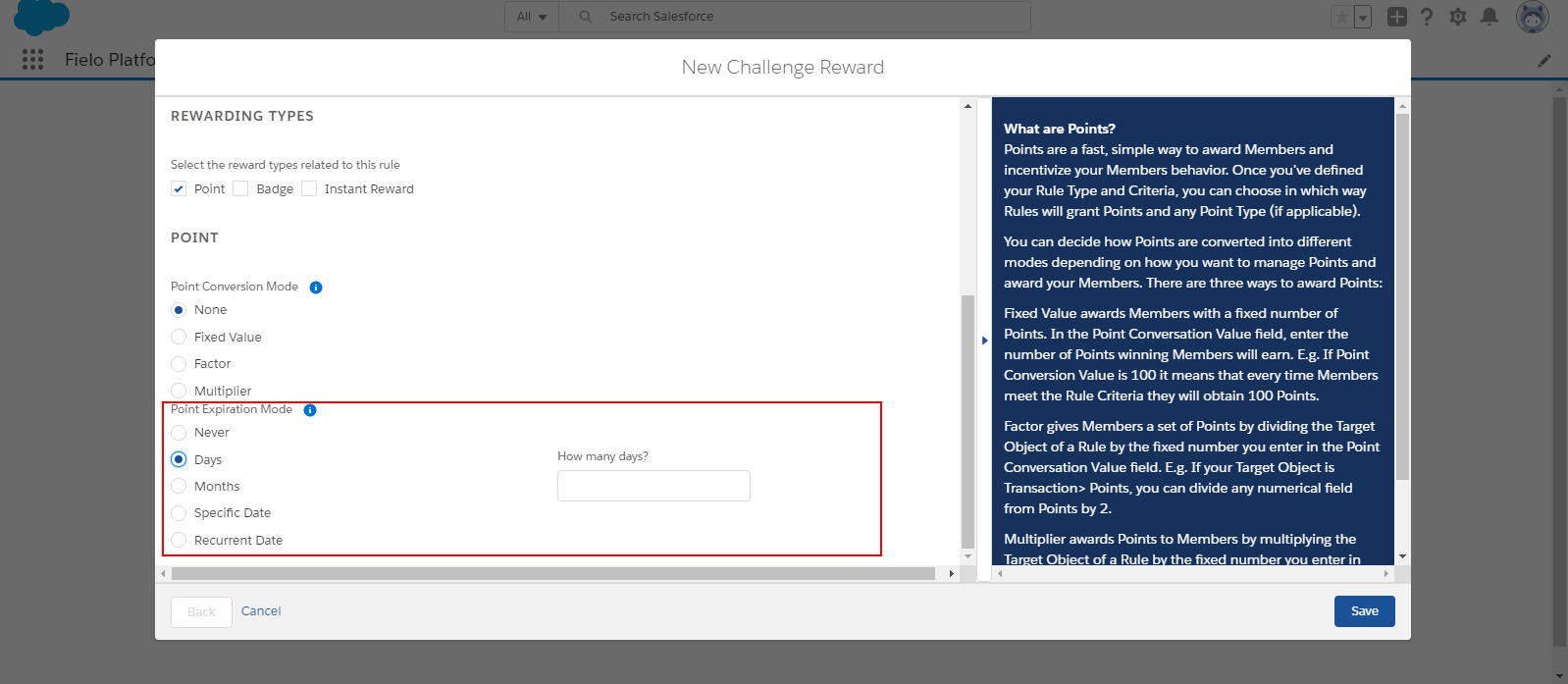
Enter an Instant Reward (If Any)
Instant rewards are a great way to give your members immediate gratification when they win a challenge.
You can use any of your rewards in a challenge reward. Simply ensure that Instant Reward is on in the reward you want to use.
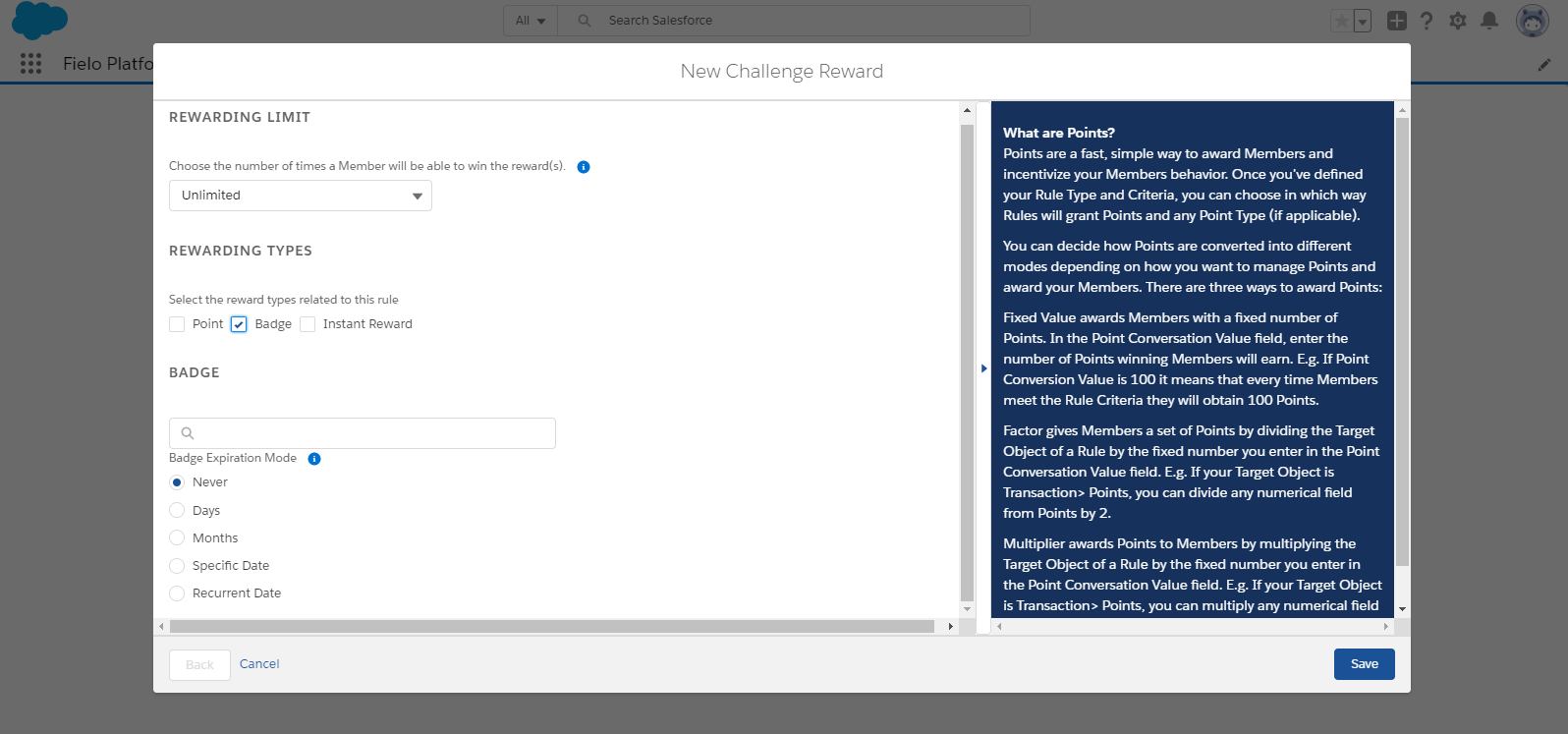
Enter a Badge (If Any)
Badges are perfect for any challenge where members will want to boast about their performance or accomplishment. They're a great reputation builder for any partner or employee community!
Optionally, you can specify a Badge Expiration Mode, which determines when the badge will expire from a winning member's profile:
- Use Days to specify a fixed number of days that a winning member will hold the Badge.
- Use Months to specify a fixed number of months that a winning Member will hold the Badge.
- Use Specific Date to specify a particular expiration date for all badges rewarded through this challenge reward.
- Use Recurrent Date to specify the month and day all Badges rewarded through this challenge reward will expire every year.
Specify Additional Rewarding (Optional)
In case you'd like to award members with something other than Currencies, Badges or the regular Rewards, you can implement an Apex Class with custom functionality that will allow you to offer additional rewarding, such as a special benefit or a ticket.
The code will be executed when the member performs an action that accomplishes the mission, giving you further rewarding flexibility.
Check out the guide to do that here.
Enter a Limit
(Just one reward, one or more times Only)
If your challenge is using Just one reward, one or more times, you can enter a Limit value to limit the number of times a member can win the challenge reward.
For example, a Limit of 3 means that any member who's won the challenge reward three times will not be eligible to win it a fourth time.
Enter a Position
(Different rewards depending on the order of completion Only)
If your challenge is using Different rewards depending on the order of completion, enter the Position number that a member will need to achieve to win the challenge reward.
For example, a Position of 2 means that the member who finishes the challenge second will win the challenge reward.
Set Mission Criteria
(Multiple rewards, but granting no more than one of them at the end of the challenge and One or more rewards, each one depending of missions accomplished Only)
If your challenge is using Multiple rewards, but granting no more than one of them at the end of the challenge or One or more rewards, each one depending of missions accomplished, you can specify what mission or combination of missions need to be accomplished for a member to qualify for the challenge reward:
- All Missions below means that a member needs to accomplish all missions to qualify for the challenge reward.
- Any one of the Missions below means that a member can qualify for the challenge reward by accomplishing any one of the missions.
- The following expression is met allows you to specify more complex criteria. If selected, you must enter a formula with logical operators and mission order numbers. For example, if you enter
(1 AND (2 OR 3)), a member will need to accomplish the mission whose order is 1 and either the mission whose order is 2 or the mission whose order is 3 in order to qualify for the challenge reward.
When entering a formula, make sure to add up to two conditions between the same parenthesis. For example, instead of (1 AND 2 AND 3), use ((1 AND 2) AND 3).
When you're ready to go, click Save.
Specify a Logical Expression
Once you've created your first challenge Reward, you can specify a logical expression that determines which mission*(s) need to be accomplished for rewarding to occur. By default, all missions will be required.
Only for Just one reward, one or more times, Different rewards depending on the order of completion, Based on performance rankings at the end of the challenge, Based on performance metrics at the end of the challenge
You can change this by clicking Logical Expression and specifying different mission criteria. Refer to set Mission Criteria for more information on setting mission criteria.
Updated over 1 year ago