
Budgeting
Budgeting allows you to create spending goals and track how your program funds are being spent, all in one convenient place. You and your colleagues can also be notified in Salesforce when expenditures reach a certain threshold. You can apply budgeting to any one or more of your program currencies.
At a high level, here's how it works: you set a total amount that you plan to spend, the period over which you plan to spend it and, optionally, the % spent threshold at which you want to be notified. Then, you distribute this budget among your incentives in what we call earmarks.
As members earn from your incentives, the associated earmark funds are consumed. You'll be able to keep track of this consumption on your budget dashboard.
You can access Budgeting from anywhere in Fielo and get an overview your existing budgets.
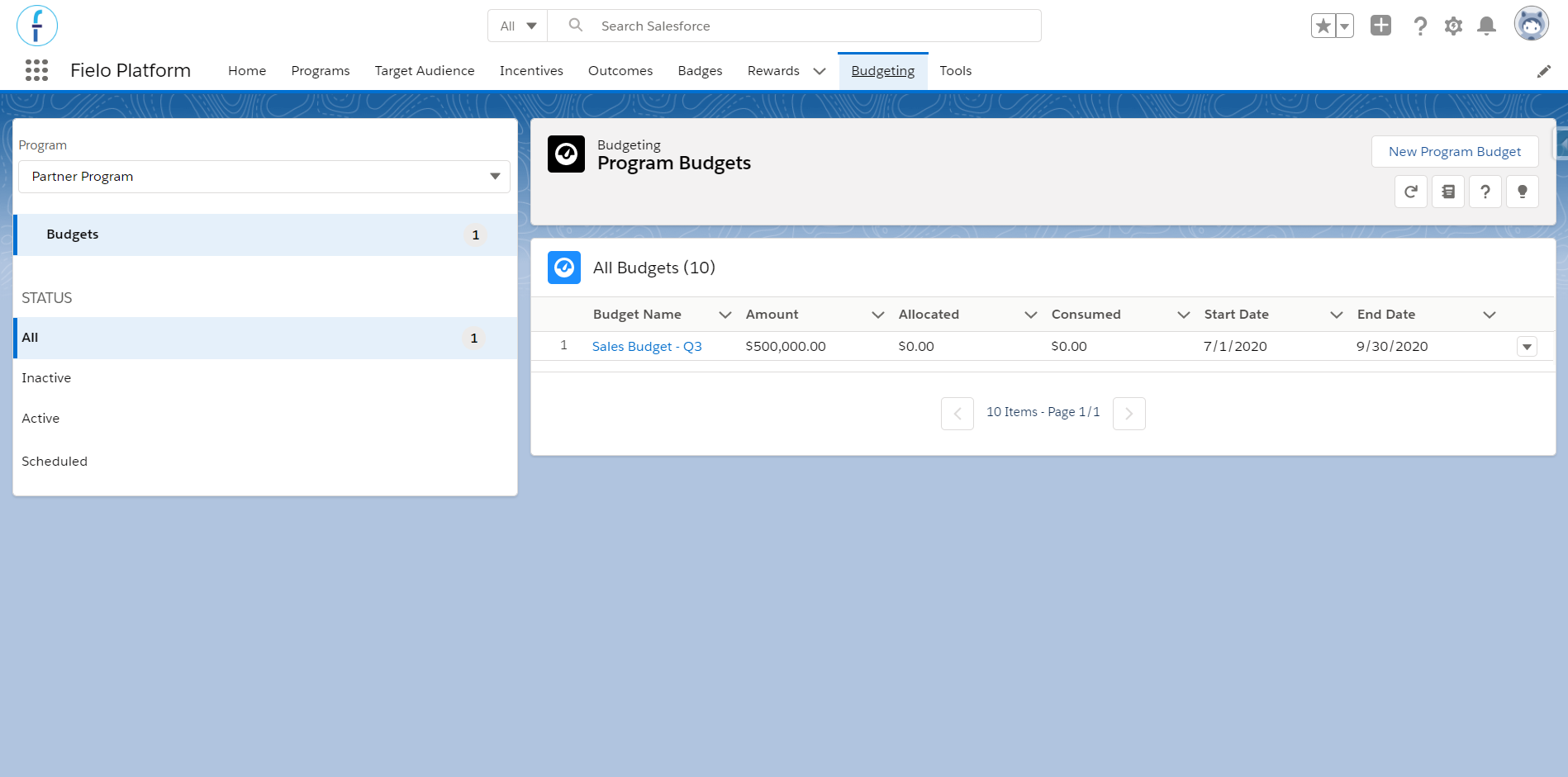
Budgeting tab
You'll see some key info about each budget:
- Amount: the spending goal.
- Allocated: the portion that has been allocated to incentives via earmarks.
- Consumed: the amount spent through incentive rewarding.
- Start Date & End Date: the period over which spending will be tracked.
Ready to get going? Keep reading to set up budgeting for your program.
Set Your Currencies' Actual Cost
Before creating your first budget, be sure Actual Cost is defined in the currencies you want to track spending for. Actual Cost determines how much a program currency is worth in terms of the real monetary currency you'll be budgeting in. Think of it as the "exchange rate" between the program currency and your org's corporate currency.
Budgeting in Multi-Currency OrgsIf your org is multi-currency, budgets will be denominated in the Corporate Currency.
A few important considerations:
- Currencies that generate payouts have an Actual Cost that is automatically set to 1.00. You can change this, if needed.
- All other currencies will have a blank Actual Cost. This means that, by default, they won't be tracked for budgeting purposes. If you wish to use budgeting, you can set Actual Cost to the rate at which you want it to be valued in real money.
If you need to set or modify an Actual Cost, access your program from the Programs tab. Within the Currencies tab, click on the to the side of the currency and enter the corresponding value in the Actual Cost field. Don't forget to Save afterwards.
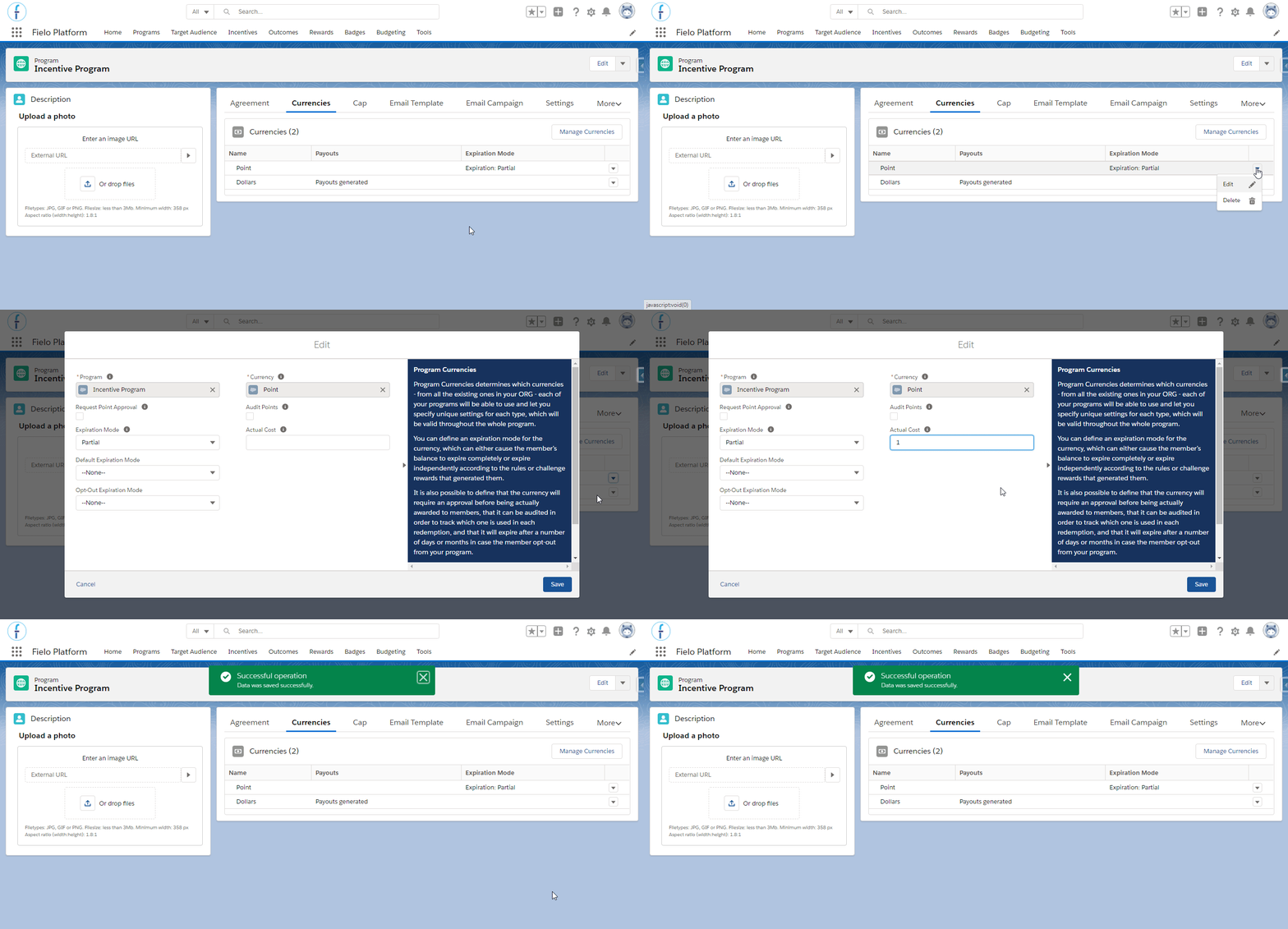
Defining the currency's actual cost
Creating a Budget
It's simple to create a new budget. Make sure you already have a program created and then go to the Budgeting tab. Once there, check whether you're in the right program and click on New Program Budget.
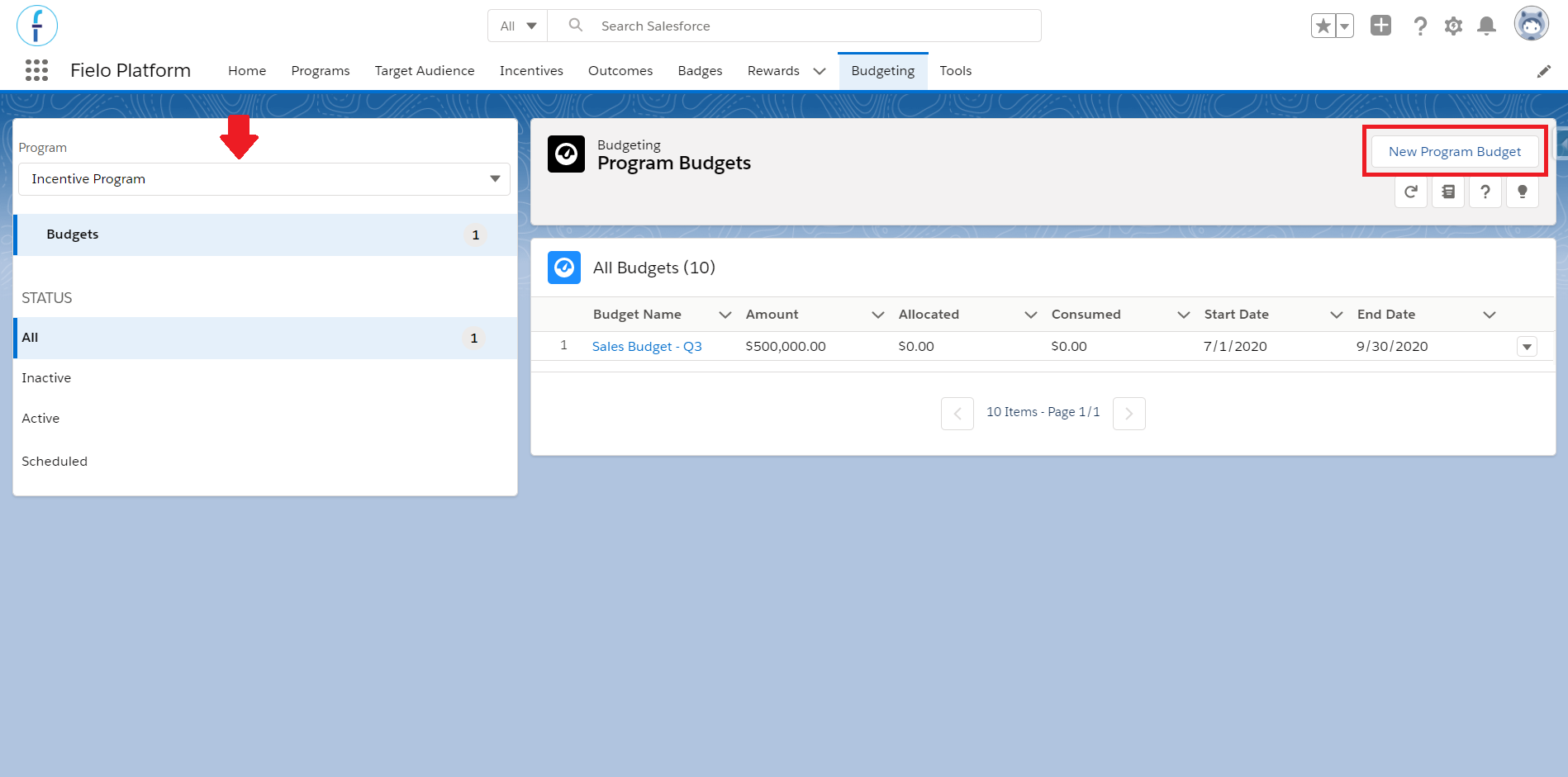
New program budget
On the New Program Budget form, enter a name, the amount you plan to spend and set the period over which the budget will be active.
Note that if you set a start date in the past and allocate incentives that have had transactions since that start date, those transactions will retroactively consume from your budget the next time the Budget Consumption batch job runs.
On the start date, the budget's status will go from Scheduled to Active and spending will start to be tracked. On the end date, the budget's status will go from Active to Inactive and spending will no longer be tracked.
Budget status is automatically updated once a day. However, you can perform this update immediately by running the Budget Status batch job.
If you'd like to receive notifications when spending has exceeded a certain percentage of the budget amount, enter that threshold % in Notify when earmark usage reaches. Notifications will go to the budget owner and the relevant earmark owner. They'll appear in the 🔔 on the top right of your Salesforce window, as well as in the Notifications tab of each budget.
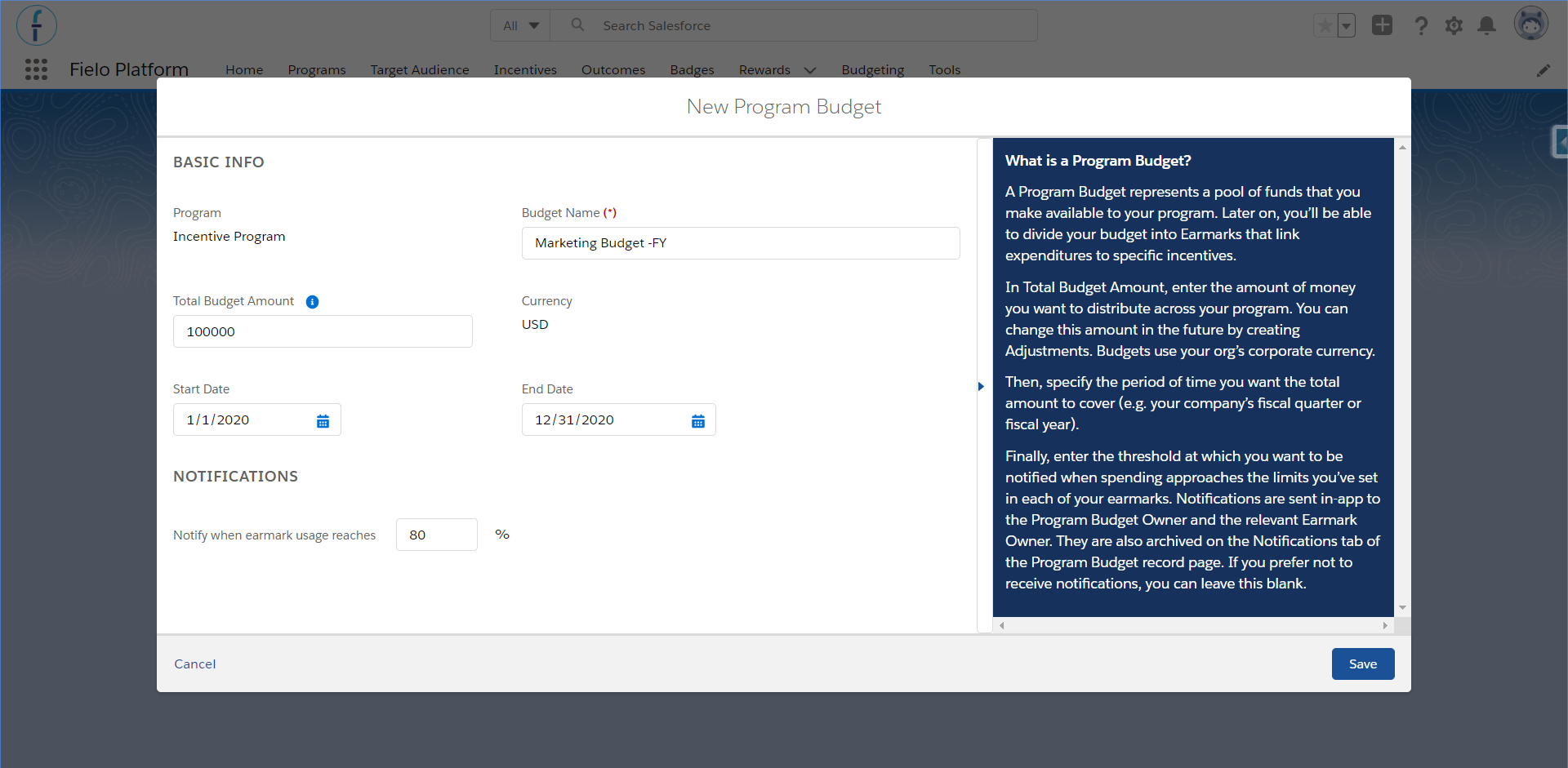
New Program budget for marketing team
Budget Management
On the budget page, you can quickly and easily stay up to date on your program's expenditures and make any changes needed.
Some information in the Details tab include the total amount, amount pending (this will apply only if you've set up an Approval Process), the portion of the budget that was allocated, how much has been consumed and used, and so on.
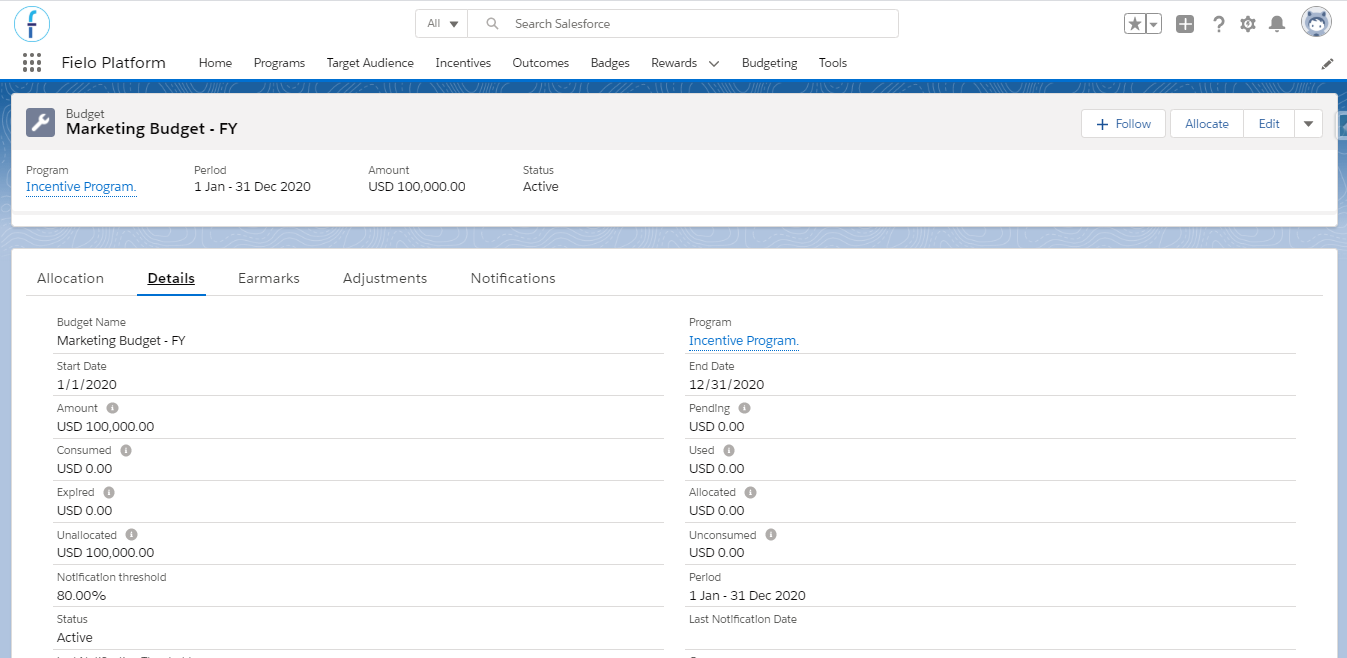
Budget details page
Consumed & UsedConsumed refers to the amount that has been earned by members, but not yet redeemed or paid out. Used counts what members have in fact received, either through redemptions they've made or payouts they've received.
On the Earmarks related list, you can access all earmarks created for this budget. On the Adjustments related list, you'll see and be able to approve the adjustments made to increase or decrease the budget amount.
And finally, on the Allocations tab, you'll find a visual overview of your budget, including stats on how your budgetary funds have been allocated and consumed.
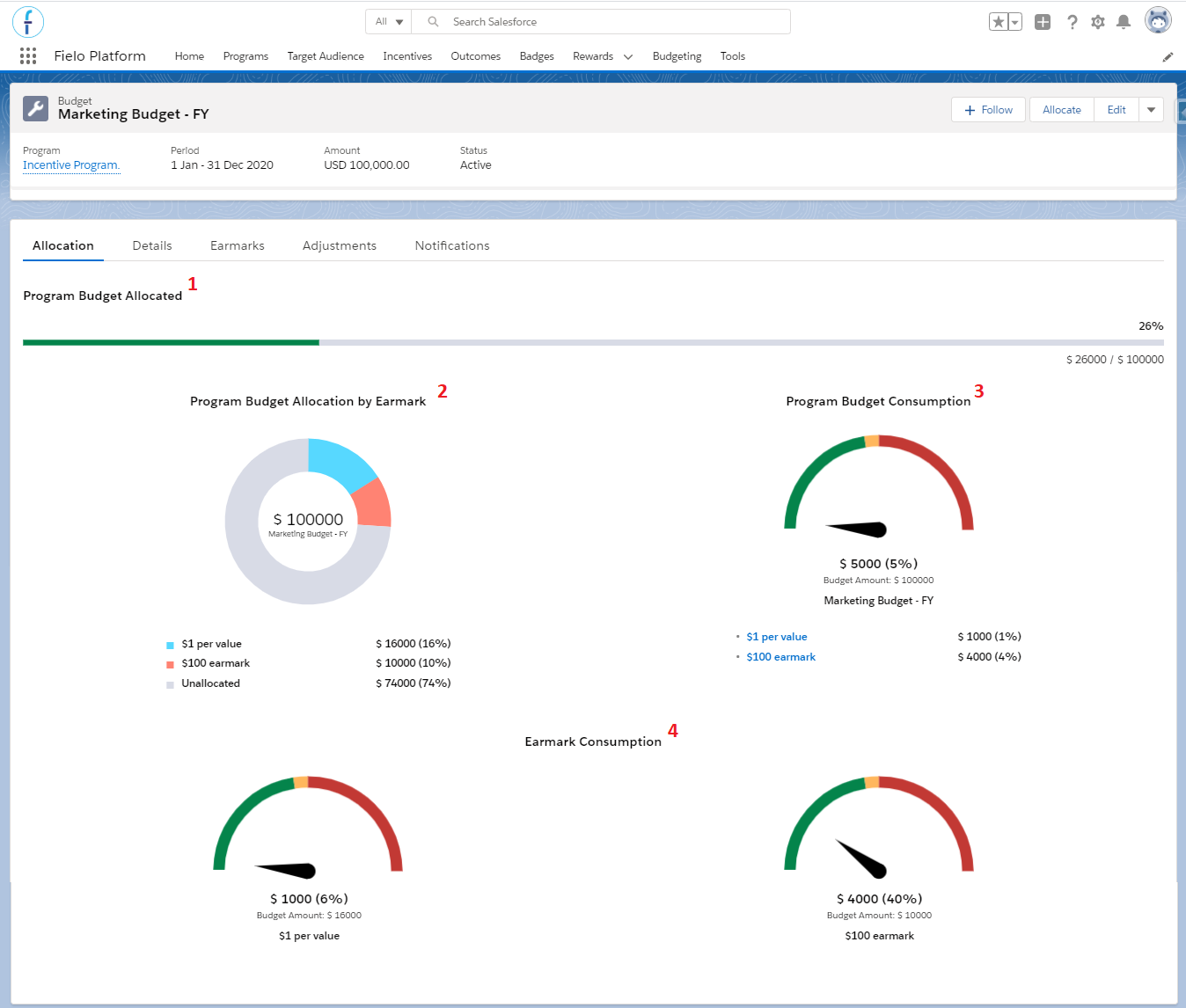
Budget dashboard view
- Program Budget Allocated: progress bar that tracks how much of your budget has been allocated to incentives.
- Program Budget Allocation by Earmark: donut chart that breaks down your budget by earmark, with the name of each earmark and its percentage of the budget below.
- Program Budget Consumption: a gauge that indicates how much of the budget amount has been consumed. The green area represents 0% to 90% consumption, the yellow 90.001 to 100% and the red 100.001% to 200% and over. Under it, you can see the consumption of the budget's amount broken down by earmark.
- Earmark Consumption: similar to the budget consumption gauge, these gauges indicate how much each earmark has been consumed.
Notifications
Budget and earmark consumption notifications are delivered in-app in the 🔔, as well as archived in the Notifications tab.
Who receives notifications?Earmarks notifications are delivered to the budget and earmark owners. Budget notifications are delivered only to the budget owner.
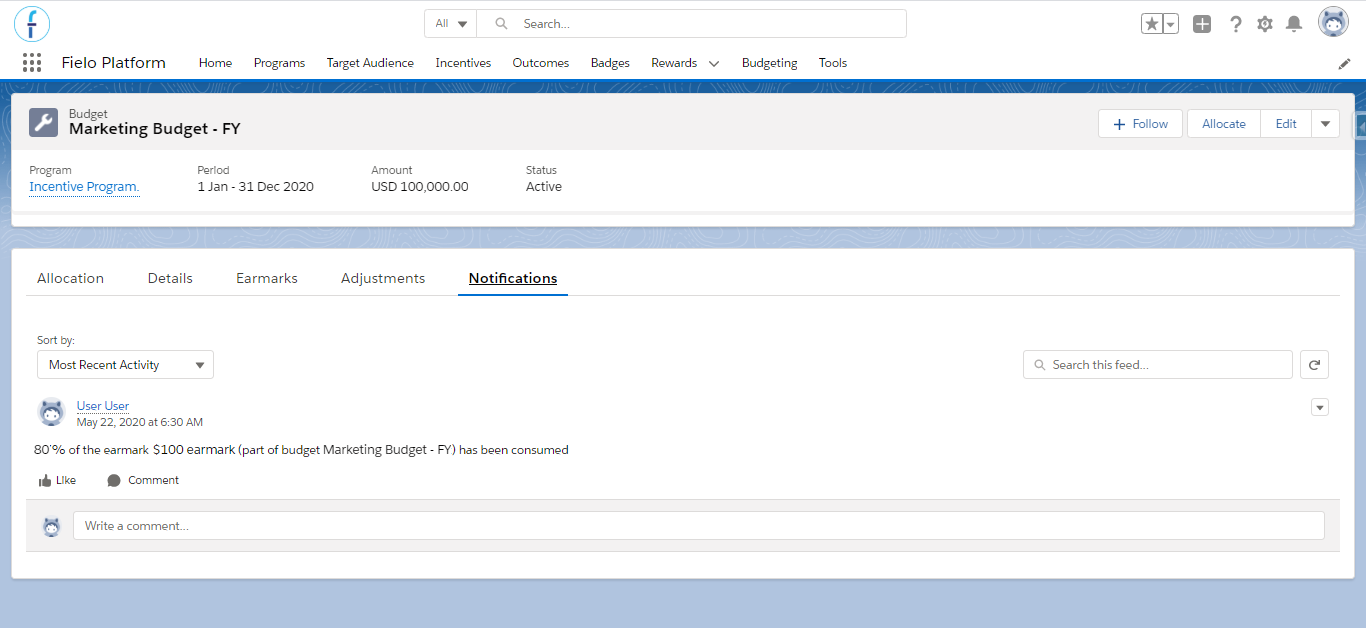
Notifications tab in budget page
The % notification threshold you set when creating your budget will apply not only to the budget's amount, but to the earmark's, too. Once consumption exceeds the threshold, Fielo will automatically send follow-up notifications in increments of 5%. By default, notifications will be sent no more than once every 24 hours per user.
For example, if you have a $100,000 budget, a $10,000 earmark in it and have set the notification threshold to 80%, you'll receive a message in the 🔔 when the budget's consumption reaches $80,000 and when the earmark's reaches $8,000. Following that first notification, you'll receive another one every time an additional $5,000 is consumed from the budget and $500 from the earmark.
Customizing notification intervals
You can customize how many times per day you'd like your users to receive notifications, as well as the % interval at which follow-up notifications are sent.
To do so, go to Salesforce Setup and quick find Custom Settings. Click on Manage, next to Public Settings, and Edit. Modify the value in Budget Delta Minutes Threshold to adjust how often (at maximum) you want notifications to be sent and Budget Delta Percent Threshold to change the % threshold for follow-ups.
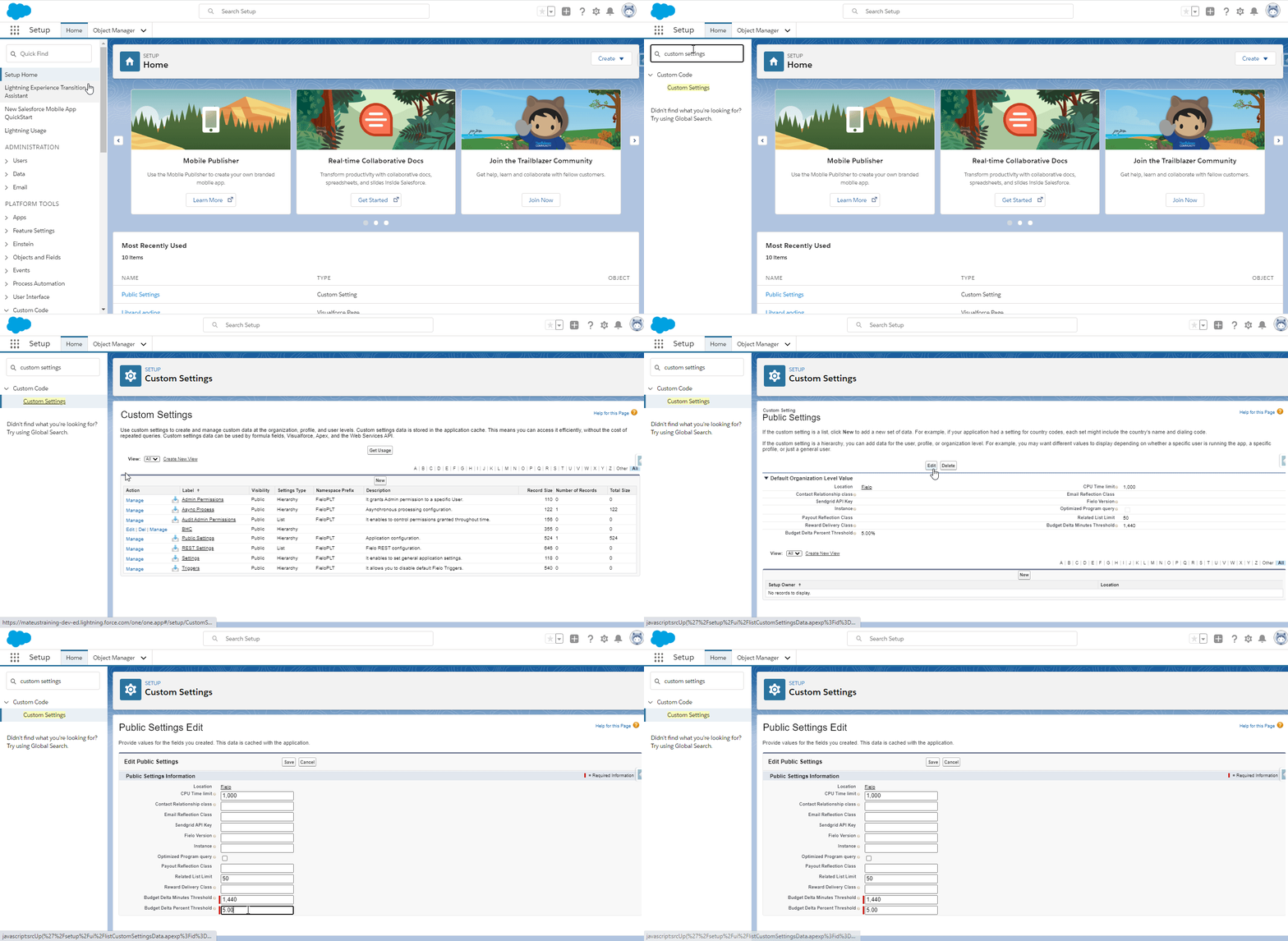
Editing Budget Delta Minutes Threshold & Budget Delta Percent Threshold values
-
Budget Delta Minutes Threshold: Enter the maximum frequency, in minutes, at which you want your users to receive notifications. For example, if you don't want more than one notification to be sent per day, this value will be 1440 (i.e. 24 60). Two times per day,720 (12 60). If you prefer not to set a limit on notification frequency, set this value to 0.
-
Budget Delta Percent Threshold: Enter the % interval at which you want follow-up notifications to be sent. For example, if you set this to 10 and the last notification was when the budget consumption reached 80%, your users will receive another notification only when it gets to 90%.
When you're finished, remember to save!
Creating an Earmark (Allocate)
Earmarks connect your budget's funds to the incentives in your program. They allow you to set aside portions of your budget to be consumed by specific incentives. In doing so, you define at a granular level how you expect your budgetary funds to be spent.
To create an earmark, click on the Allocate button, choose a name for it and enter the amount you wish to allocate. Next, specify which incentive(s) this amount will be directed to. For each incentive, you can decide whether all its rules/missions will be included or only specific ones.
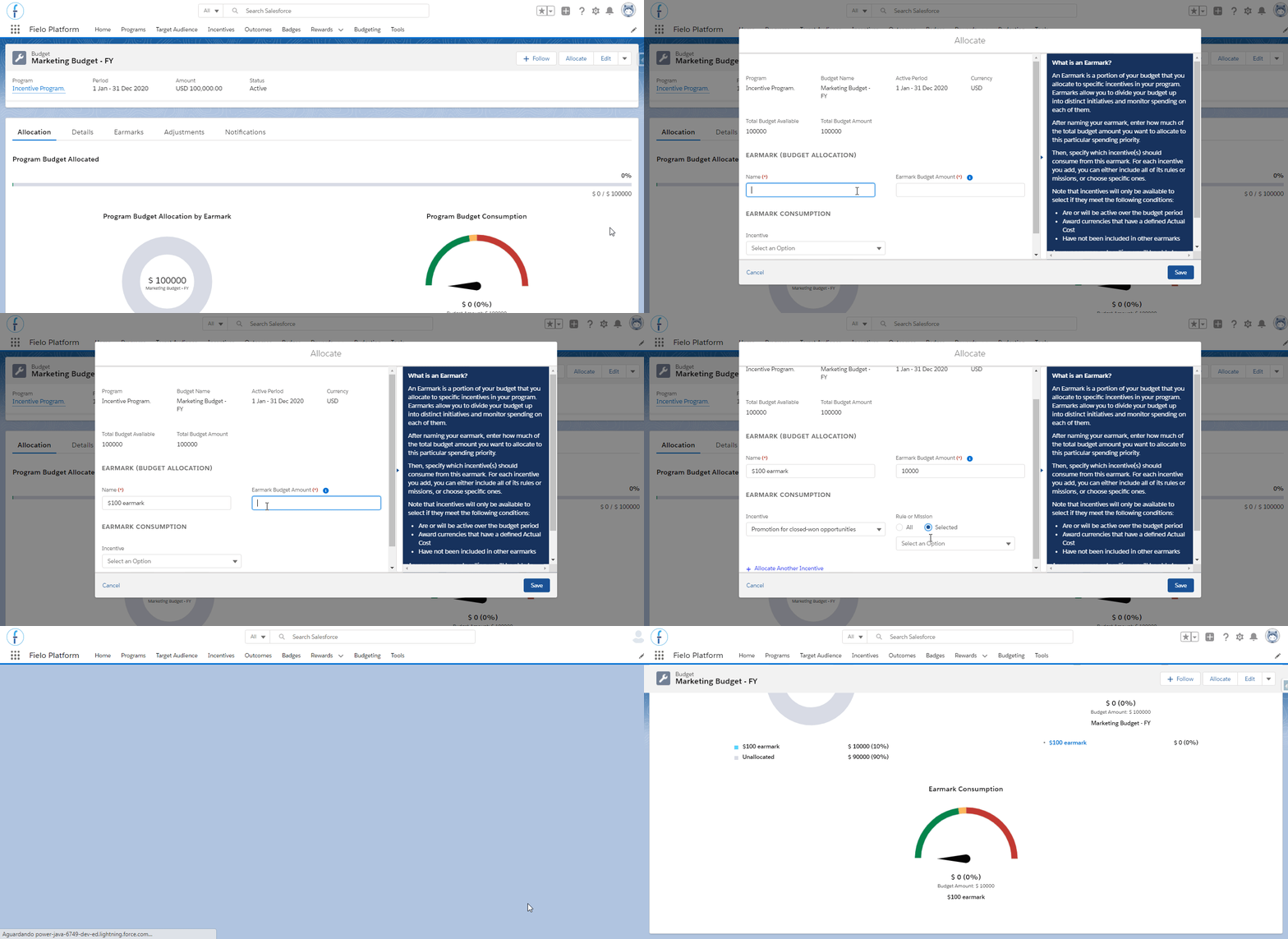
Allocating the budget to an incentive - creating an earmark
Earmarks will only track spend while both the budget and the allocated incentives are Active. In order to be available for allocation, incentives must be active or scheduled to be active during the period of the budget.
Each rule or mission can only be allocated once in a given period.
Editing
When editing a budget, you'll be able to modify its name, start and end dates and notification threshold. Any changes in the amount, though, have to be made through an adjustment.
In order to change the budget's information, click on the Edit button. You can change a budget in any status.
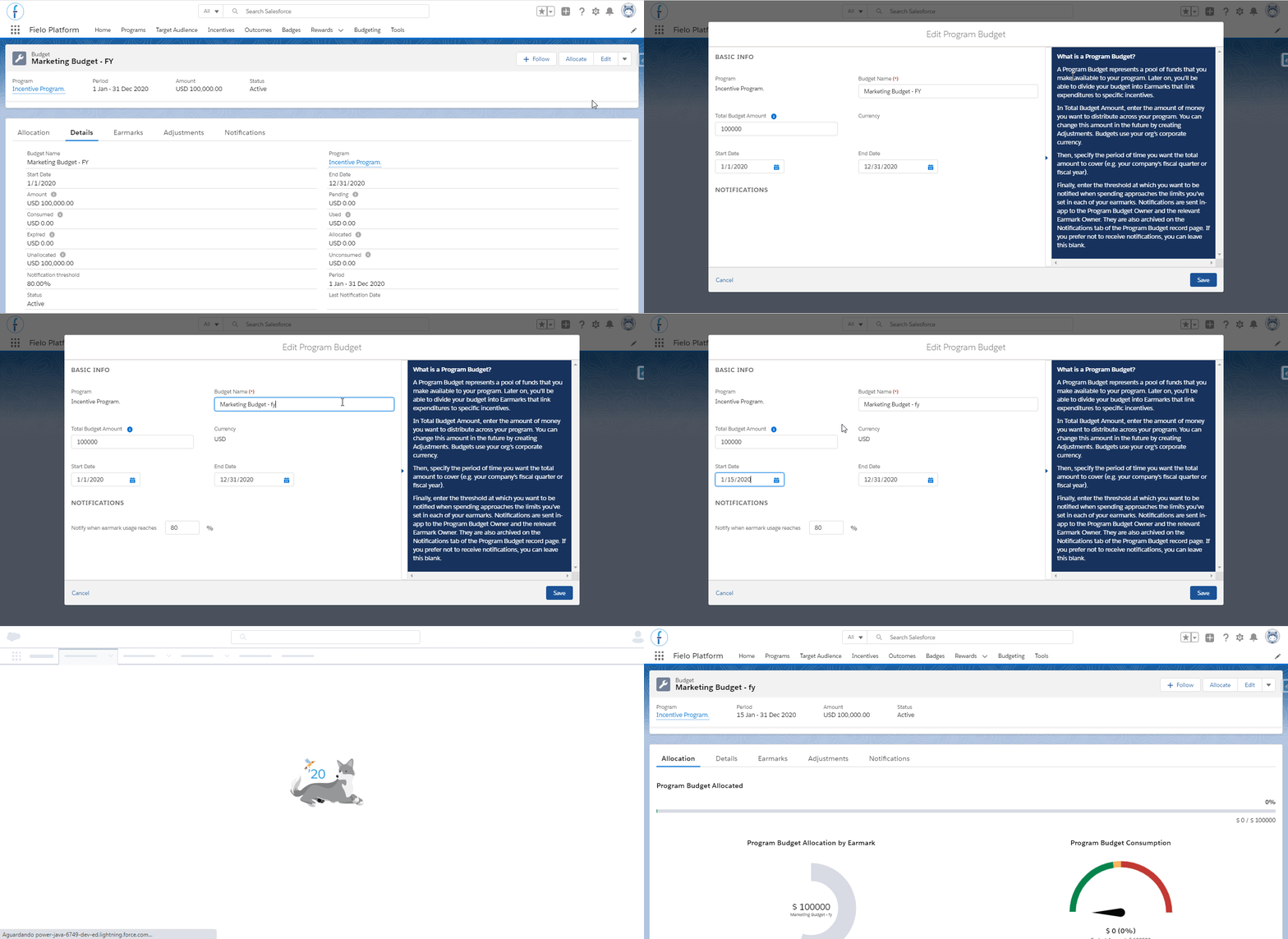
Editing a budget
Deleting
A budget can be deleted as long as it hasn't been consumed from. If it has, it should be Inactive and the system will require special approval from the program administrator.
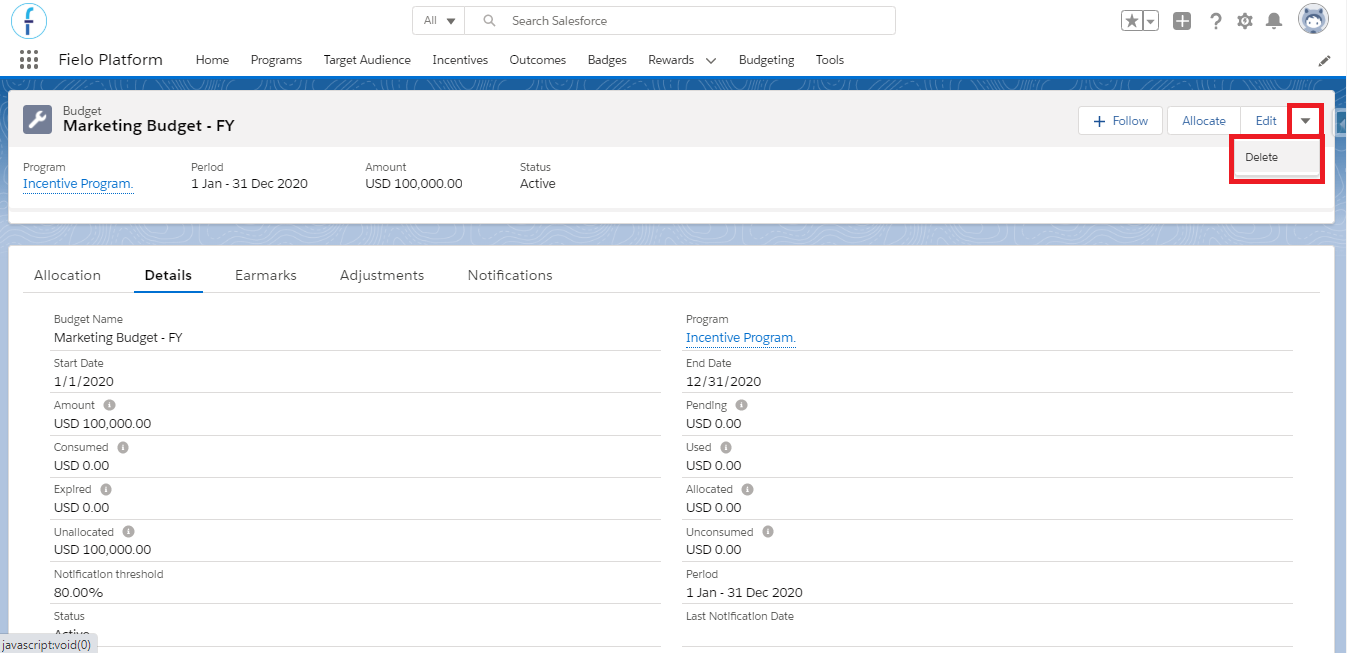
Delete budget option
Budget Consumption
Every time that a member performs a behavior that is being incentivized, and a portion of the budget was allocated to its related rule or mission, the budget and earmark will be consumed. The platform will keep track of that and you can see it in the Consumed field inside the budget Details page.
And, if you ever need to revert a transaction, there is no need to worry about the budget's consumption. The system will update it and return the transaction amount to the budget's unconsumed amount.
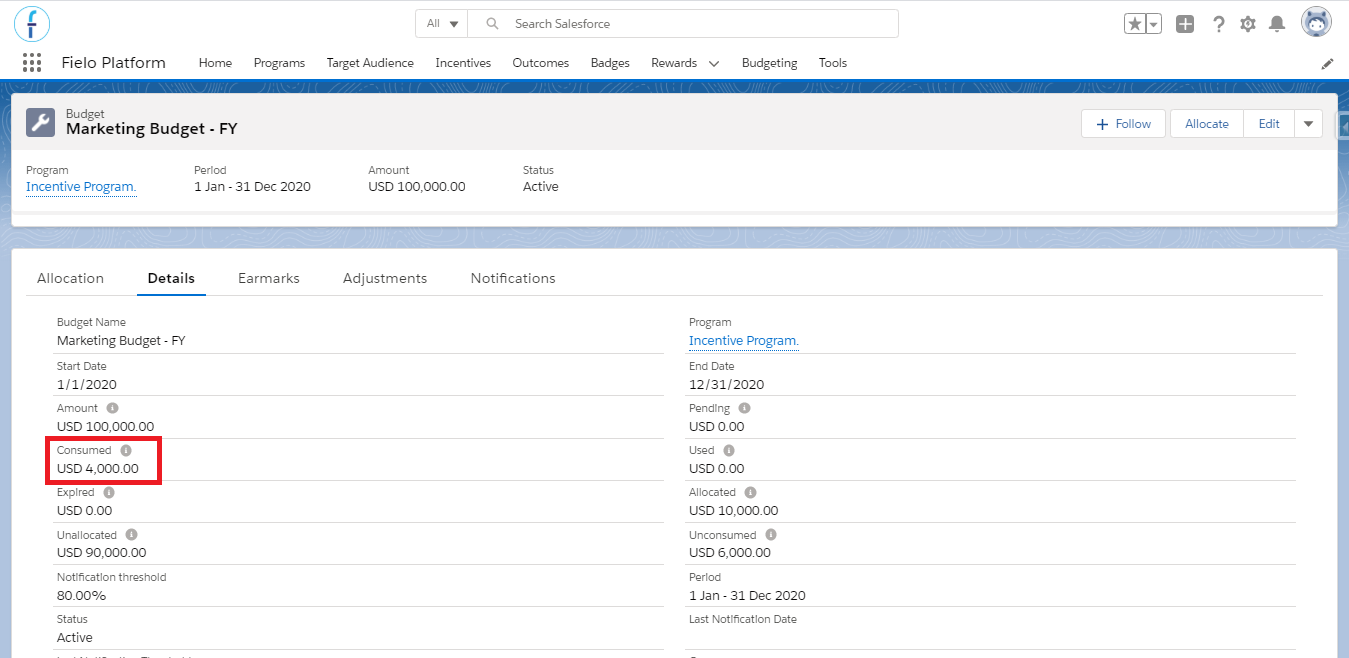
Consumed field
An earmark is what links the budget with members behaviors. The budget will be consumed only if there is an earmark specifying which incentives will consume it.
You can also see if a specific currency has consumed the budget inside the point record page. There, you will find which earmark is linked to it.
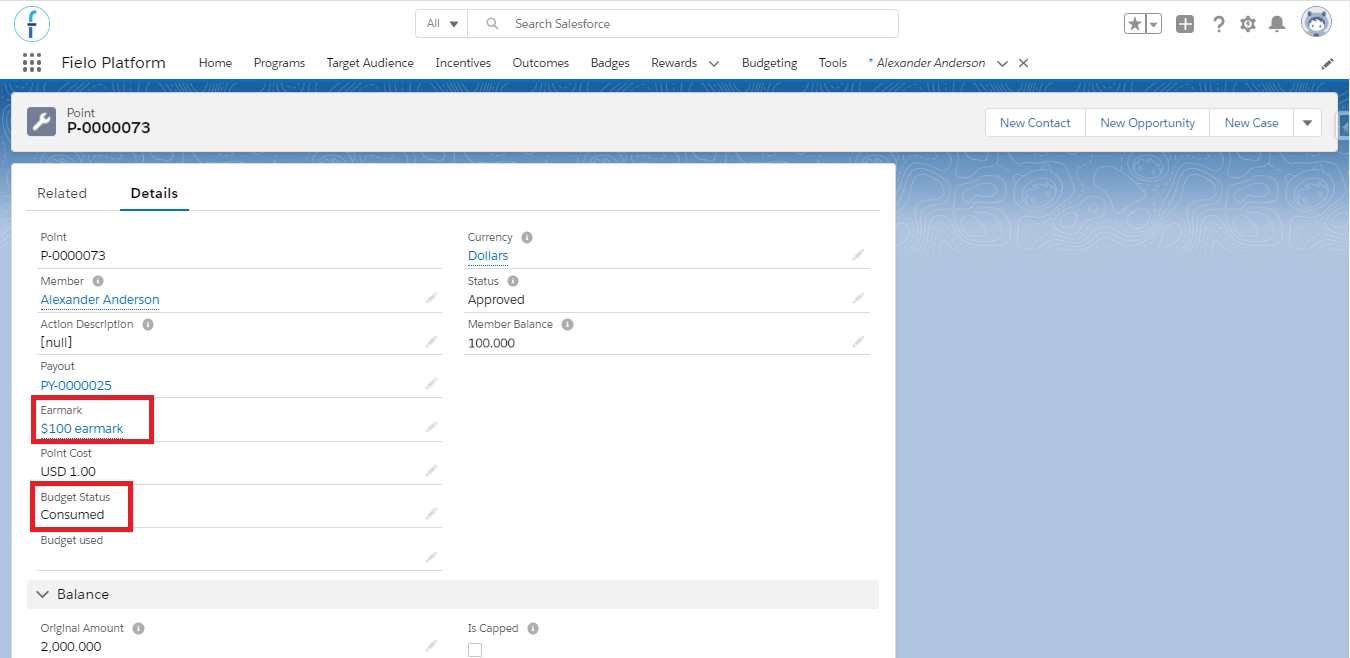
Point record page
If a rule or mission isn't part of a earmark, the Budget Status field will be populated with Not Budgeted. If you decide to add that incentive to an earmark later, and its active period is within the budget's period, those Not Budgeted records will be consumed retroactively as long as you consume them using the batch method mentioned below.
Budget consumption is automatically updated once a day. However, you can perform this update at any time by manually running a Batch.
When you manually run the batch, the system will look for and consume only the currencies created since the last day that the batch ran. For example, if you run the batch Monday and then again on Wednesday, the system will take into account every currency (or point) record created since Monday, but not from Sunday or before that. Unless you are running the batch for the first time in a Org with Fielo package freshly installed, in which scenario everything will be considered.
In case you need the batch to consider and consume all currencies that are pending or were not budgeted (i.e. that were just allocated) created during a specific period, you can do that through Developer Console, using the following method:
FieloPLT.BudgetBatch batch = new FieloPLT.BudgetBatch(Date.newInstance(year,month,day)); Database.executeBatch(batch);
Updated over 1 year ago