
Languages
Translate Fielo content for international users
With Languages, you can translate all Fielo's components so members from all around the world can be a part of your program without barriers. By identifying the user's location, the language displayed in your member touchpoints will dynamically change to match the user's own language, if available.
Note that this feature will work with both Text and Rich Text fields.
As an example, you can also display different images for different languages by changing the URL. Follow the steps below and find out how to manage and translate your program:
Managing Languages
From the Tools tab, select the Languages section on the left section of the screen.
Start by clicking Manage Languages. Select the languages you will be creating translations for from the left side and add them to the Selected languages to translate section.
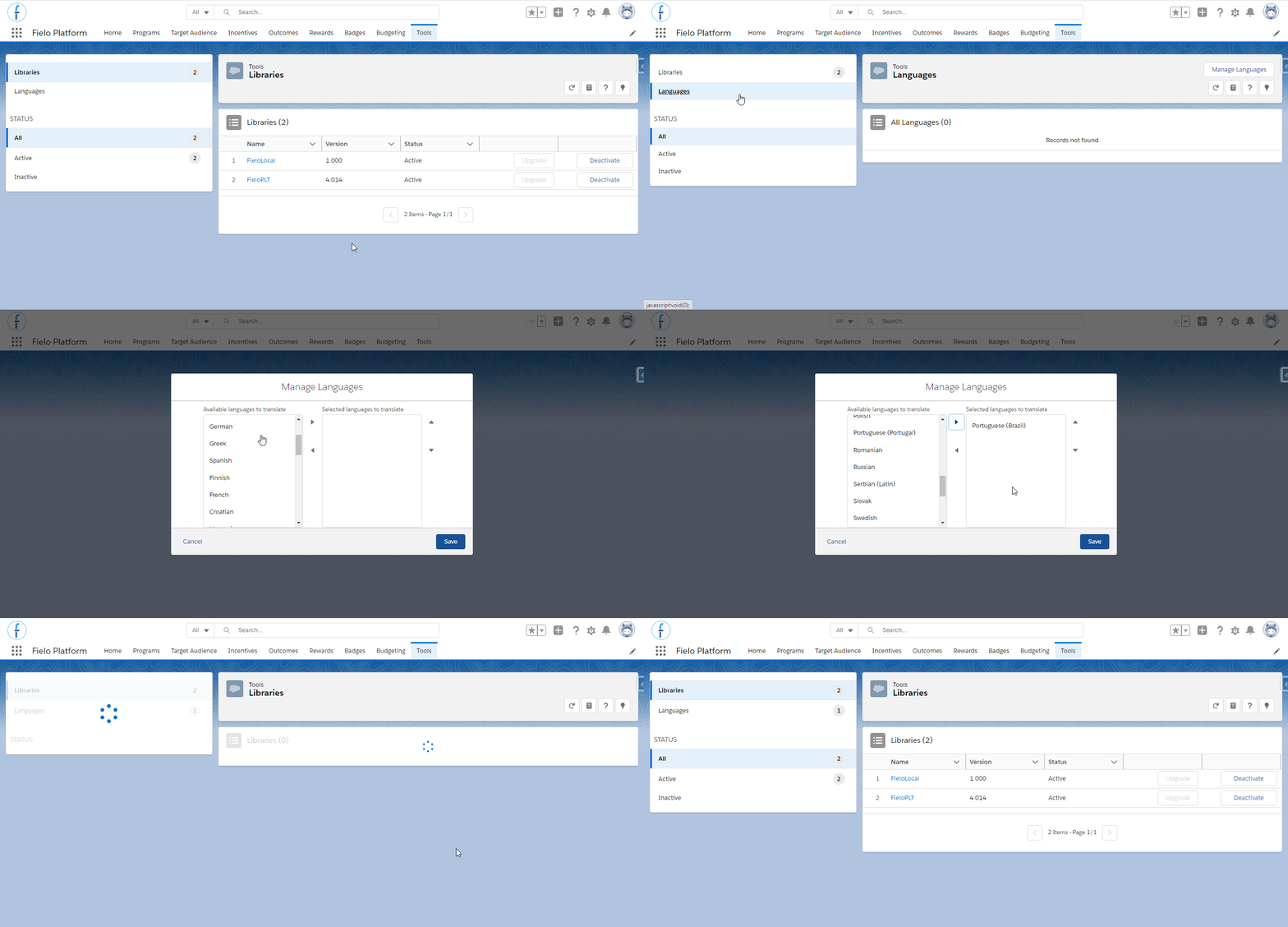
If you need to inactivate any language, follow the same steps above and move them back to the Available languages to translate section.
Once you have finished adding the languages you'll create translations for, they’ll be available in the Languages section.
Now let’s start translating your records.
Translating Records
Start by clicking the selected language. You'll find all Fielo's objects you can create translations for by default. You can always add other objects to the list, find out more clicking here.
Navigate to the tab of the object you'll translate. For the example below, we are going to be using Promotions.
Once on the page, click Translate Records and fill in the Translated Records column according to the chosen language.
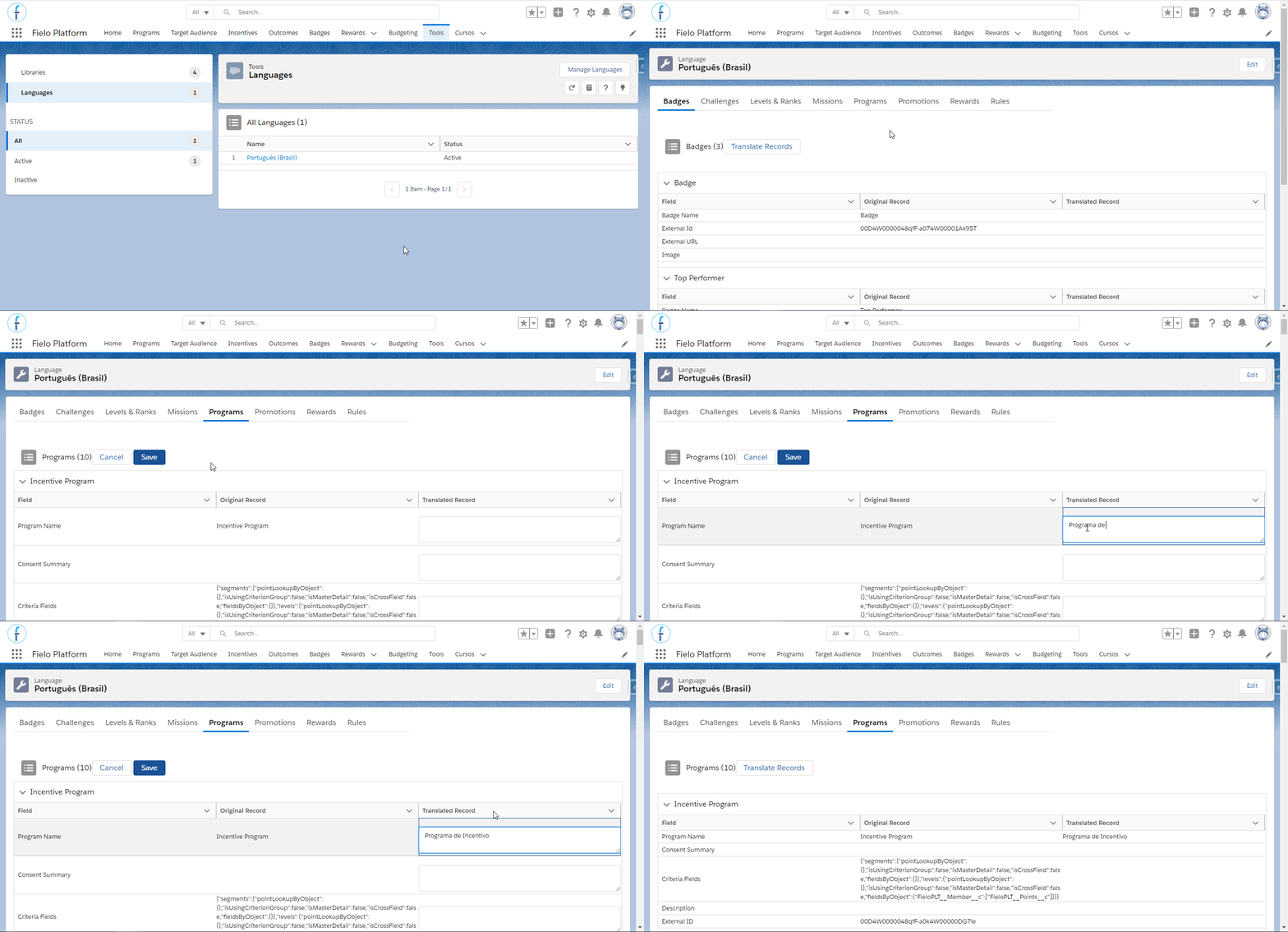
Don't forget to save before leaving.
Please note that Labels and Pick List values are managed by Salesforce's Translation Workbench; therefore, use Salesforce's solution to create translations for these.For more information on that, you can also check our guide.
Filtering Fields
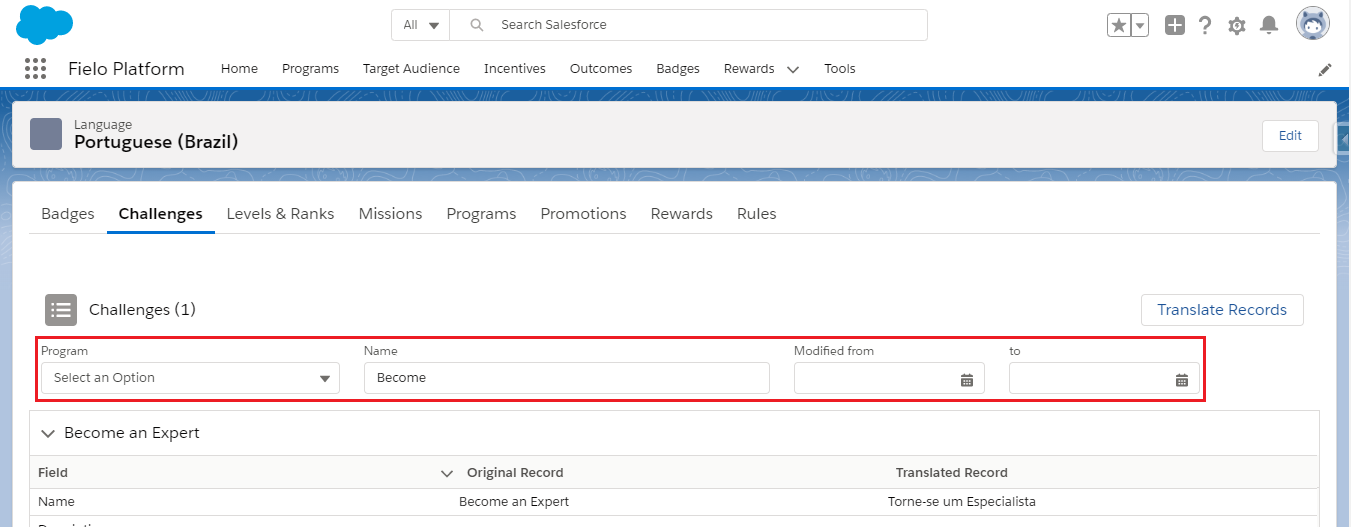
If your objects are vast in field number, using filters can come in handy.
In every Language, you can find filtering options under the object name you are in:
Adding Objects to the Translation
Languages offer the possibility to translate not only Fielo objects but also Salesforce objects in general. Follow the steps below to translate any object of your choice.
For a record to be successfully translated, be sure it makes use of a Fielo component or a custom component that employs a Fielo API.
On Setup, find the Translation object from the Object Manager tab. Click on the Fields and Relationships section.
Create a new custom field of the type Lookup Relationship, relating it to the object you want to translate.
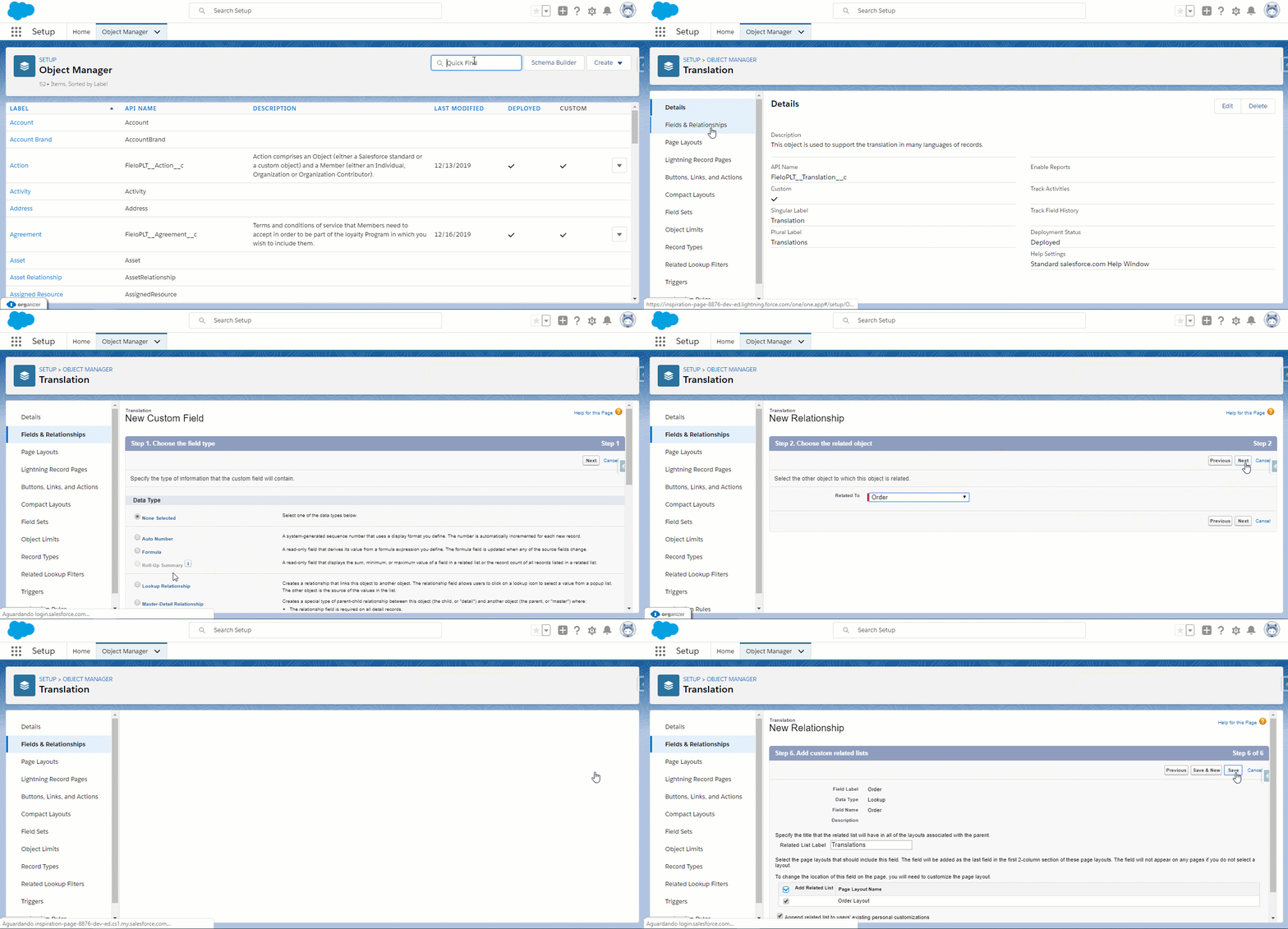
Once you've finished it, go back to the Language section. You will find a new tab with the object you created the relationship for, which will now be available for you to translate.
Updated over 1 year ago