
Upgrade from Spring '20 to Spring '21
PLT v2.114
If you're using Fielo’s Spring '20 release (v2.96), upgrade to Spring '21 (v2.114) to take advantage of all the features added to the platform. With this release, you can use Partner Marketing Fund Allocations as a reward, keep track of all the changes done to your Incentives through versioning - including full traceability of how any reward was generated -, deliver through the Incentive Planner all the information that the Program Members may need about what they can win in your Program... And much more!
Take a look at all of the new features available in Spring '21 clicking here. Continue below to upgrade to the latest version.
Versions Prior to 2.69If you're using a version prior to FieloPLT v2.69: Follow these upgrade instructions to get you to Summer '19 release (v2.69) before proceeding.
Platform cache & testingWith the introduction of the platform cache in the rules engine and Fielo triggers processing, all Fielo configuration objects are being stored in the cache, enhancing the performance of the rules engine. However, this can cause some trouble if you use the Org data (
SeeAllData = true) when writing your test classes.If that is your case, run this method in order to disable cache before running your tests; otherwise you will receive an error.
Please, make sure you're logged into your Salesforce org and have system administrator permissions before getting started.
How to Upgrade
Before proceeding, follow these steps to upgrade:
- Click here to access the Fielo installation package.
- If any internal users that are not admins will use Fielo, click Install for Specific Profiles and select Full Access on the profile(s) of those users. If only System Administrators will use Fielo, or if internal users are granted permissions via the FieloPLT Admin permission set, click on Install for Admins Only.
- Click Upgrade. When the first part of the upgrade process is finished, you (or the org admin) will be notified by email.
After the install process is done - i.e. you received the email confirming that it was successful - and if you are in fact upgrading Fielo from a previous release to the Spring '21 release, performing ALL the manual steps is MANDATORY.If the upgrade fails, check the Incentives step. If it doesn't fail, you can skip it and go ahead to Update and Activate Libraries.
Upgrading PLT versions within Spring '21
If you are upgrading your Org from an older Spring '21 version to a newer one, take a look at the following observations before proceeding.
- If any of the scheduled batches in your Org is getting updated by the new package (you can check this here), you should deactivate them, proceed with the package upgrade, and then activate them again.
Instead of doing that, you can go to Deployment Settings in Salesforce's Setup and check the Allow deployments of components when corresponding Apex jobs are pending or in progress option there. However, this is may cause the Apex Job to break. - If your ORG has a FieloPLT version ranging from 2.110 to 2.113.3: please refer to the Mission section. This section is new.
- If your ORG has a FieloPLT version ranging from 2.110 to 2.114.19 and you useExperience Cloud Sites: please review the Fielo Objects and Fields permissions that the members need and the permissions for Guest User Profile. They have been updated.
Otherwise, if your org is on FieloPLT 2.114.20 or later, and you've already performed all the following steps, there is no need to perform them again when upgrading to the newest version.
In case you are upgrading from any version prior to v2.110 (i.e. prior to Spring '21), please follow all the manual steps below.
Incentives
One of the new features introduced in Spring '21 is Incentives versioning, which will allow you to know exactly how and when an Incentive was altered, by creating a new version every time that you edit them. Usually, the version #1 is created when you first activate the Incentive.
However, when you upgrade your org to Spring '21, the process will try to automatically create the first version for all of your Active and Scheduled Promotions and Challenges. In case the system is unable to do that, the upgrade will fail and you will need to follow these steps:
- Inactivate all Promotions and Challenges in all of your Programs.
- Install Spring '21 by following what is detailed above, in How to Upgrade.
- Activate again the Incentives that were inactivated previously.
- Go ahead with the next manual steps.
Upgrade Libraries
Upgrade the FieloPLT library, in order to guarantee that all the changes made in Spring '21 will take effect. In this release, this means that this action will perform small changes in the Transaction page setting, in order to allow you to view versioning details.
On the Tools tab, look for FieloPLT in the Libraries section and hit Upgrade:
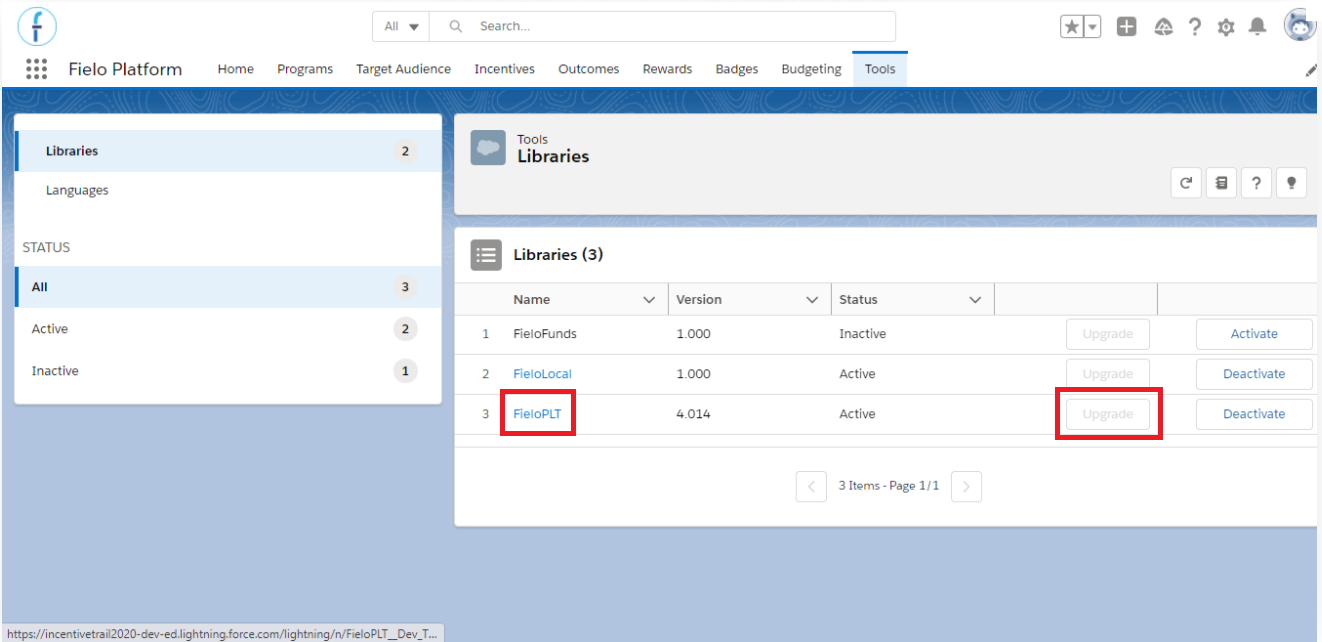
Once Spring '21 is up and running, follow the steps below to ensure you'll be able to make the most out of the new features:
Incentives Status
One of the features that Fielo is introducing in the new release is the Incentives Versioning, which will enable to to keep track of what and when an Incentive was edited - with all the details regarding what was altered too -, providing full traceability for the rewards given to members through promotions and challenges.
Because of that, promotions and challenges have a new status, edited, which needs to be manually added in order to be displayed in the incentives pages. For that, follow these steps:
- Go to the Object Manager and look for the Promotion object.
- Within thePromotion object page, go to Fields & Relationships, look for and access the Status field.
- In the Values section, click on New.
- Enter "Edited" in the text box and Save.
- Click on Reorder and place the new Edited status between Active and Inactive.
- Save before leaving.
Repeat this same process for theChallenge object.
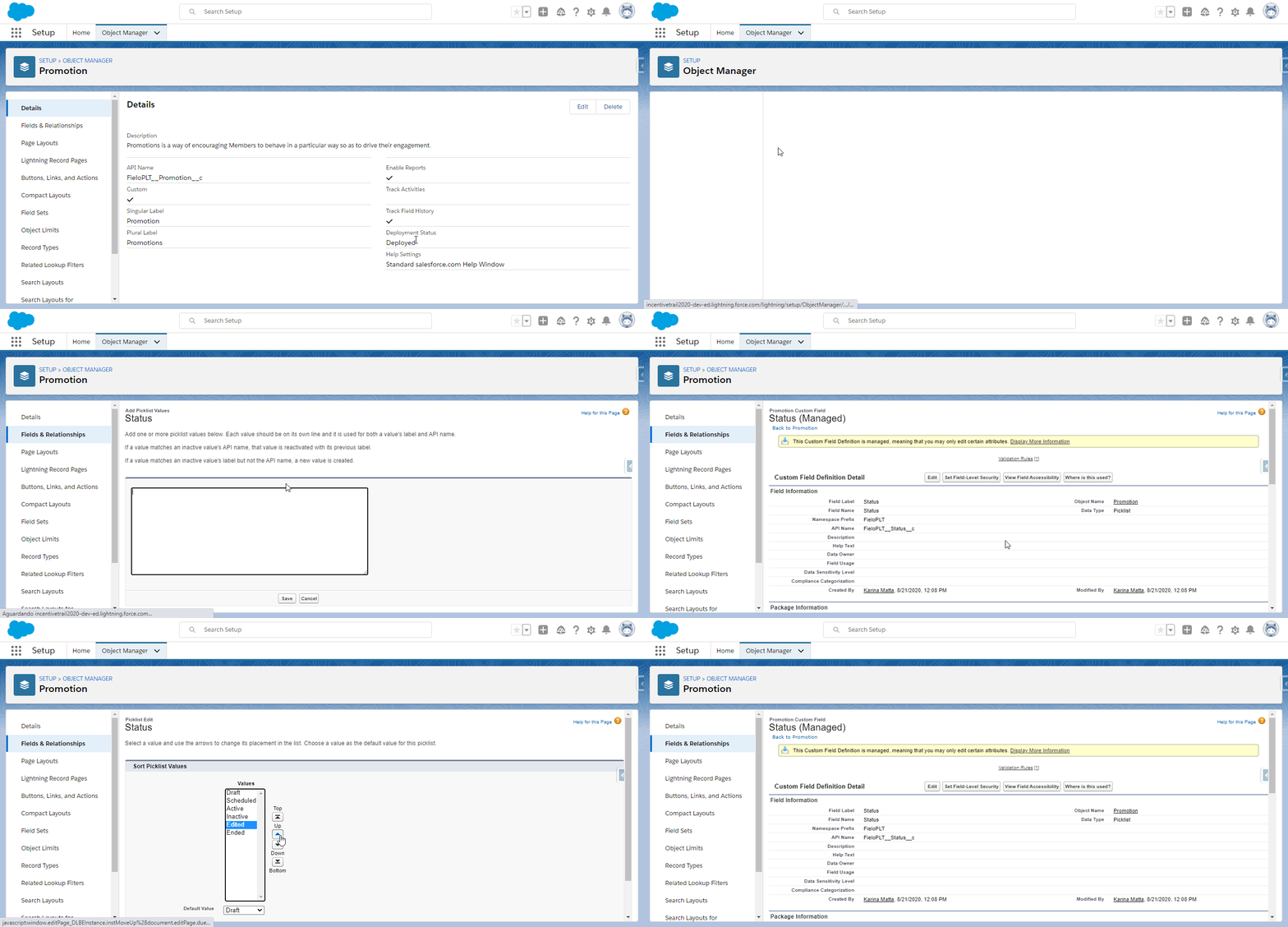
Creating new Edited status in Promotion object
Mission Member
Due to the new rewarding scheme added for missions based on a fixed metric, there is a new status for Mission Members: Baseline Met. This status is essential for the member to be rewarded through this scheme and so, you need to add it as a new value.
For that, follow these steps:
- Go to Object Manager, look for and access the Mission Member object.
- Within the Mission Member object page, go to Fields & Relationships and access the Status field.
- In the Values section, click on New.
- Enter Baseline Met in the text box. If your org doesn't already have the values To Be Processed and Disabled, go ahead and add those on separate lines.
- Save.
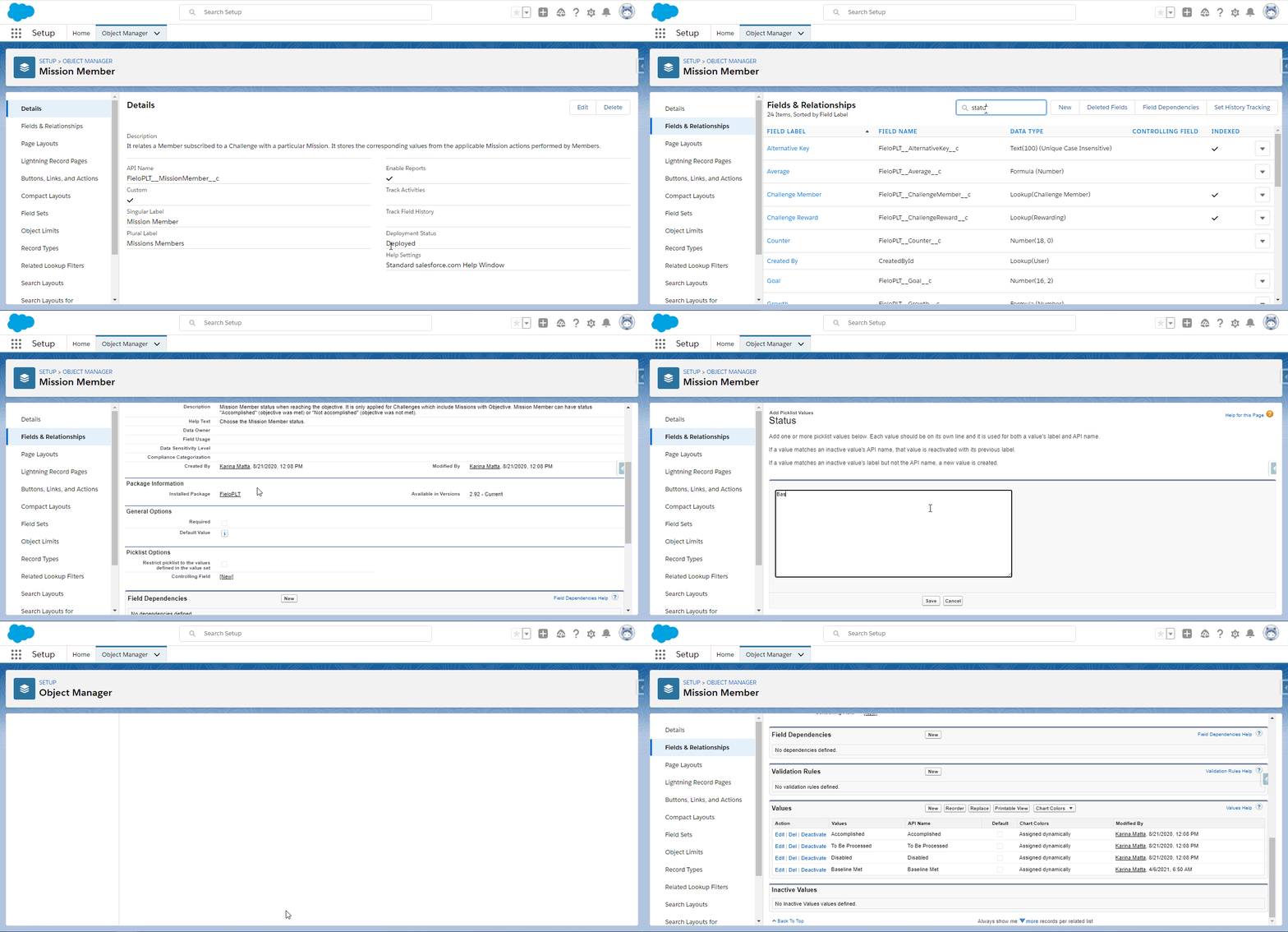
Creating new Baseline Met status in Mission Member object
- Click on Reorder and place the new Baseline Met status between Accomplished and To Be Processed.
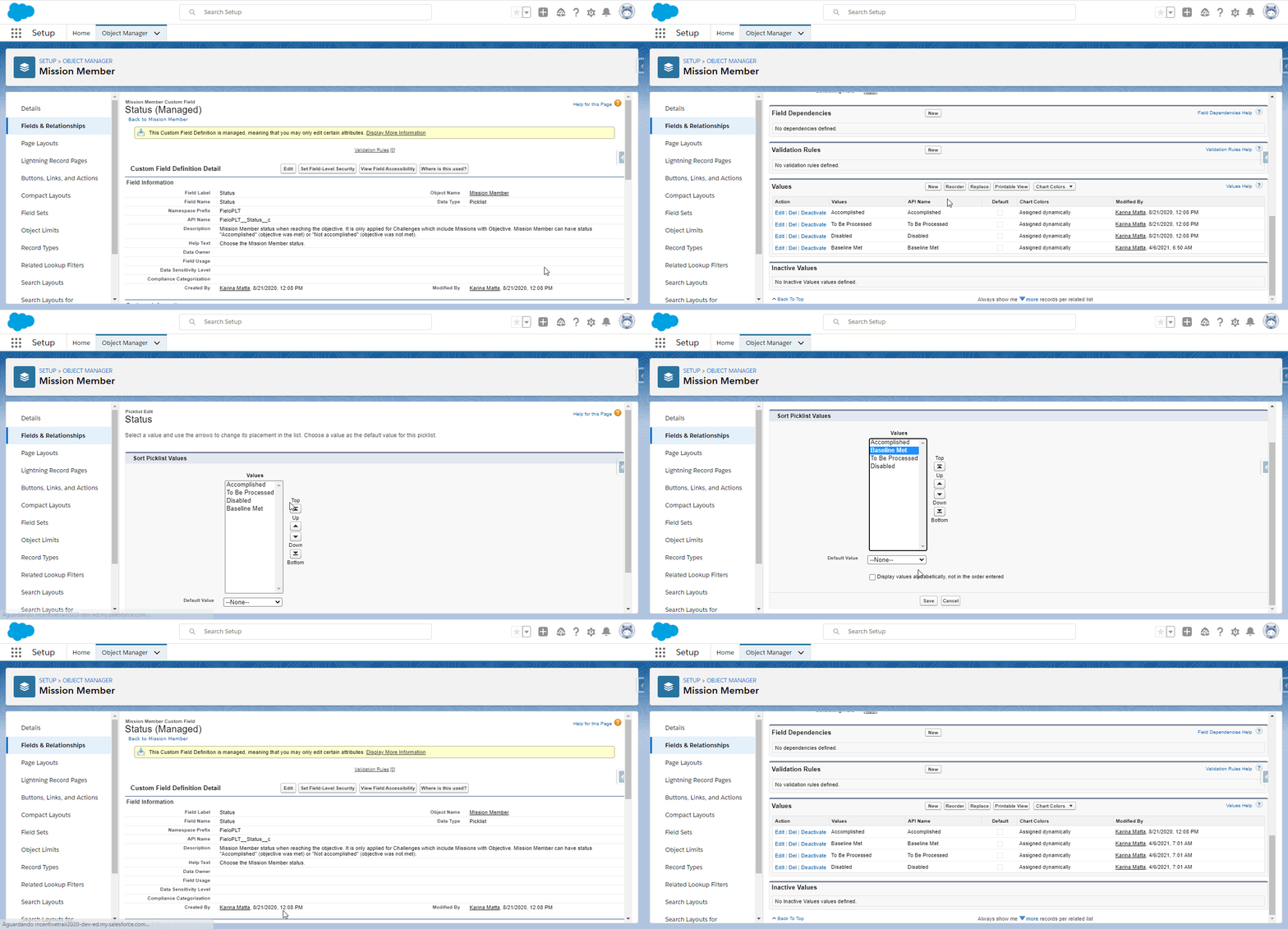
Changing the status order
Mission
Before moving on, there is one more action to be done within the Mission object. Go ahead with these steps:
- In the Object Manager, look for and access the Mission object.
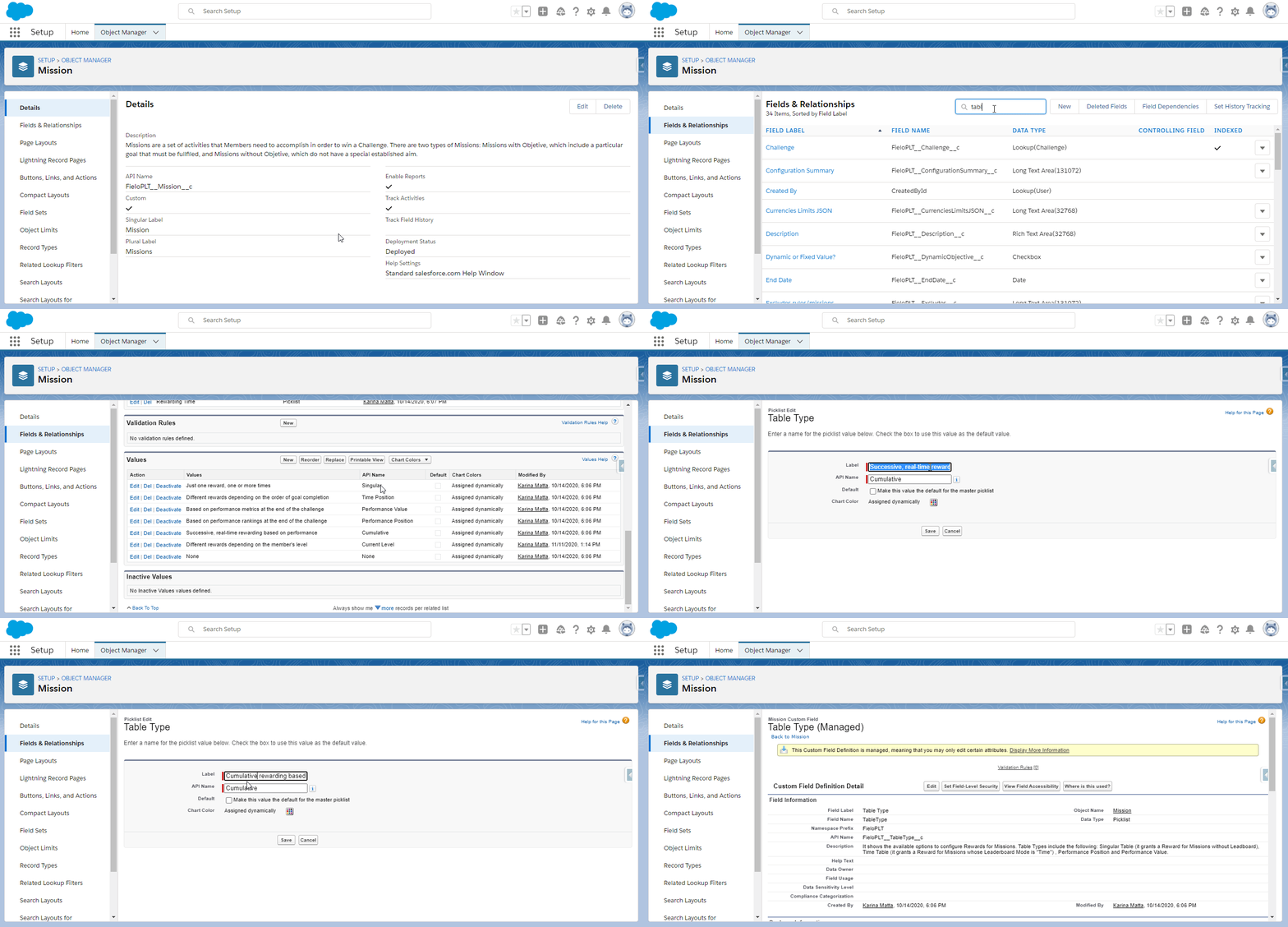
- Within the Mission object page, go to Fields & Relationships and access the Table Type field.
- In the Values section, click on Edit next to the "Successive, real-time rewarding based on performance" value.
- Change that label to "Cumulative rewarding based on performance".
- Save.
This will update the new rewarding scheme's name in your Org.
Layout and Object Configuration
In Spring '21, we have improved Fielo in Lightning Experience, so you will see that some page settings were replaced by Lightning Web Components. However, because of that, some Objects' Page layout need to be reviewed in order to check if all the fields were kept and, if not, to add them again.
Reward
- Go to the Object Manager, where you are going to search for and access the Reward Object.
- On the Reward Object page, go to Page Layouts.
- Take a look in the image below and add to the Reward layout all the fields that might be missing.
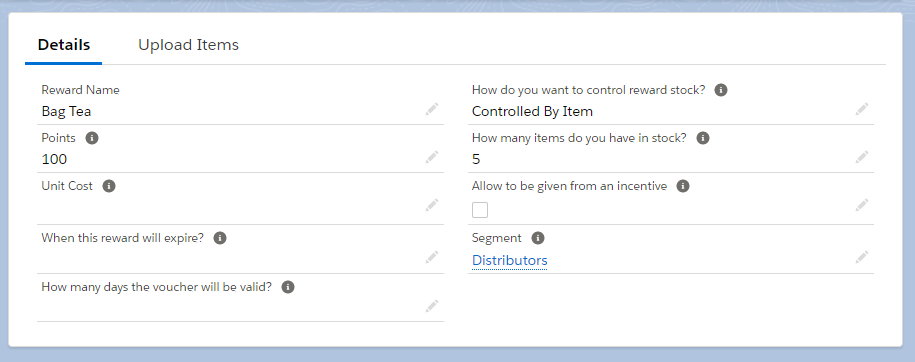
Reward Layout
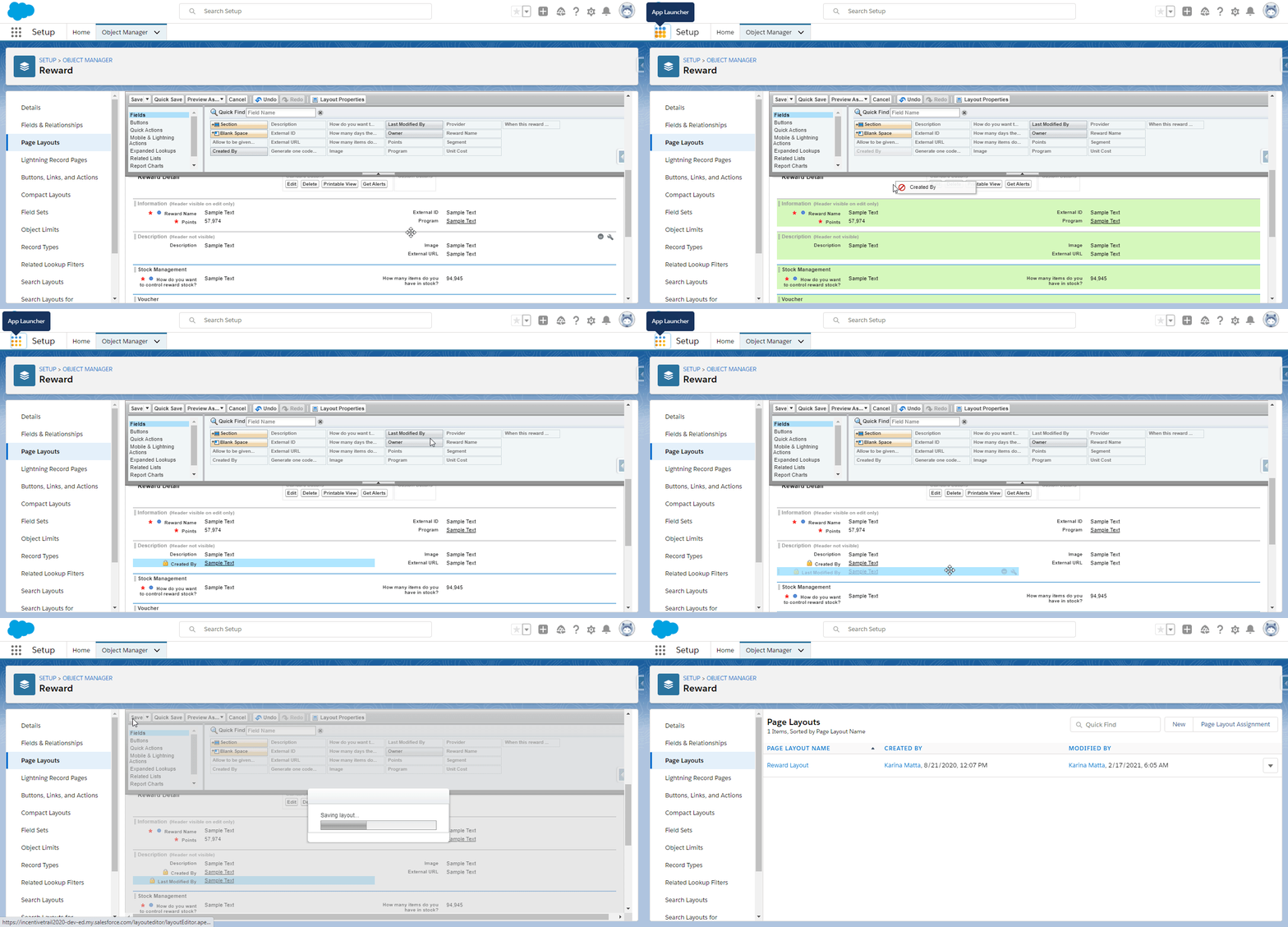
Adding 'Created By' and 'Last Modified By' fields to the Reward Layout
Don't forget to Save before leaving.
Cap
- Go back to the Object Manager, search for and access the Cap Object.
- Within the Cap Object Page Layouts, access the Cap Layout and add all the fields that might be missing, according to the image below:
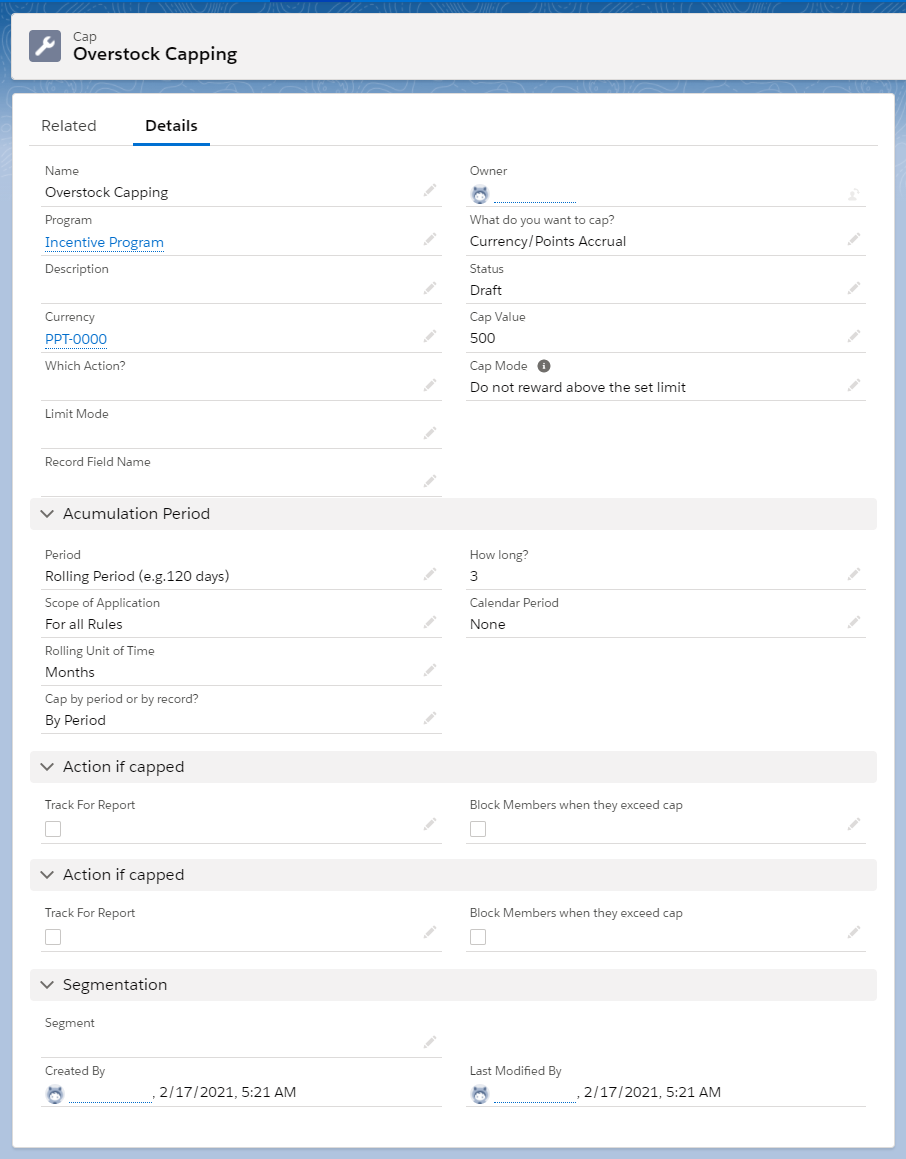
Cap Layout
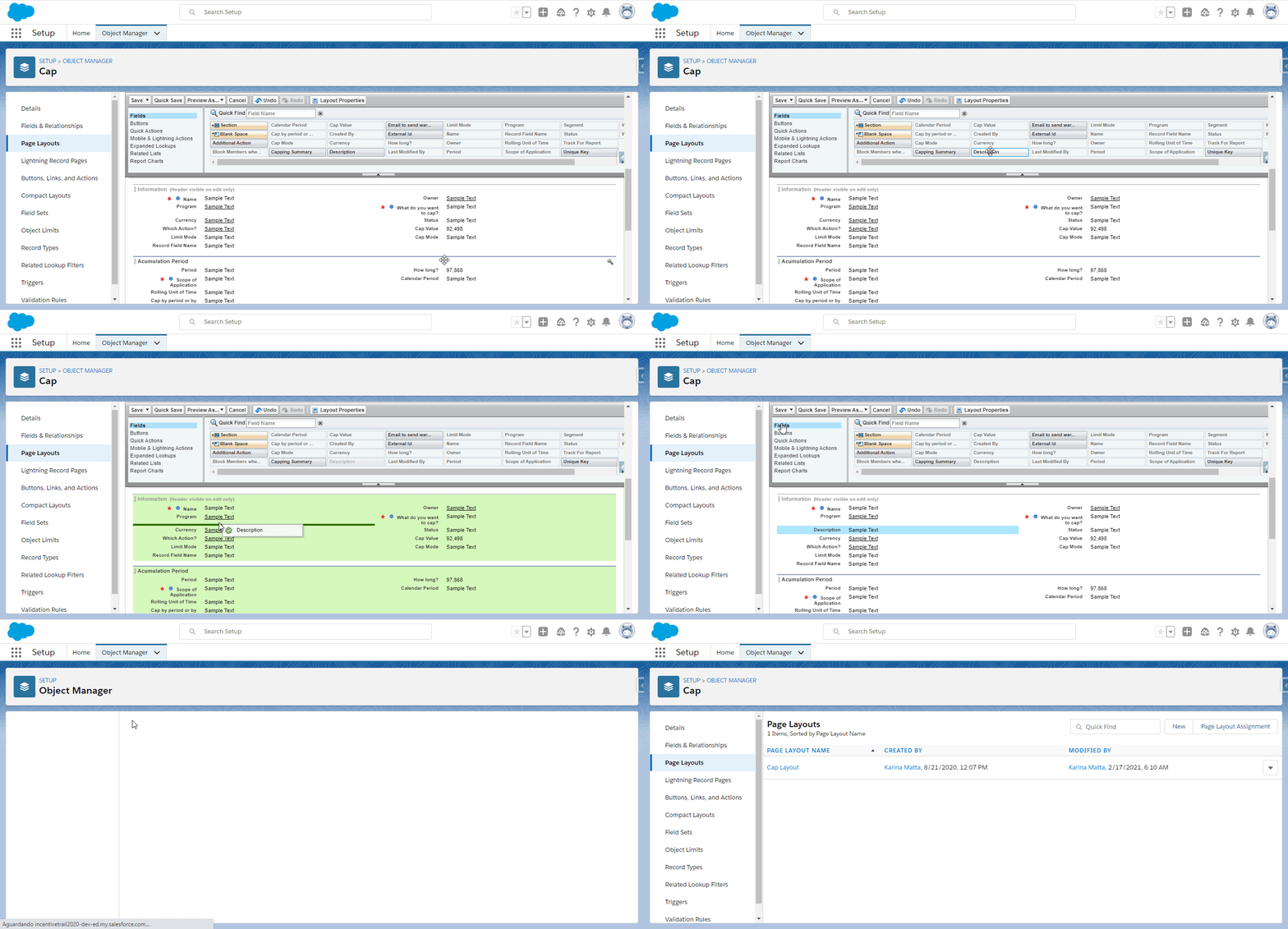
Adding 'Description' field to the Cap Layout
Email Template
Following the same process explained for the previous steps:
- Go to the Object Manager, search for and access the Email Template Object.
- Once you are on the Email Template Object page, go to Page Layouts. Take a look in the image below and add to the Email Template layout all the fields that might be missing.
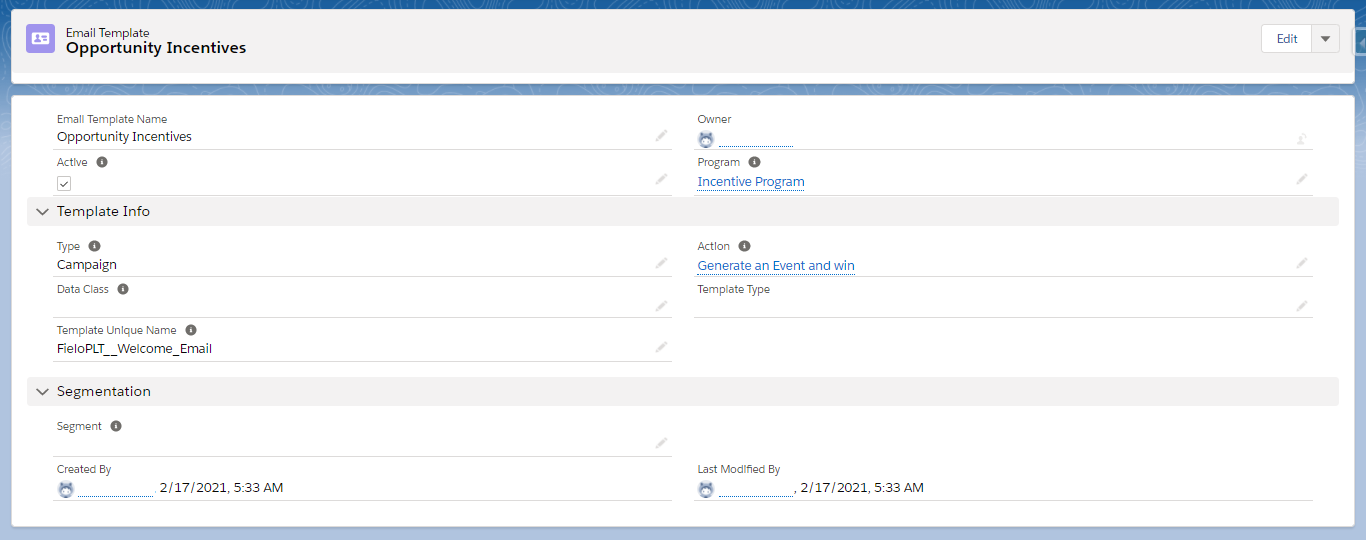
Email Template Layout
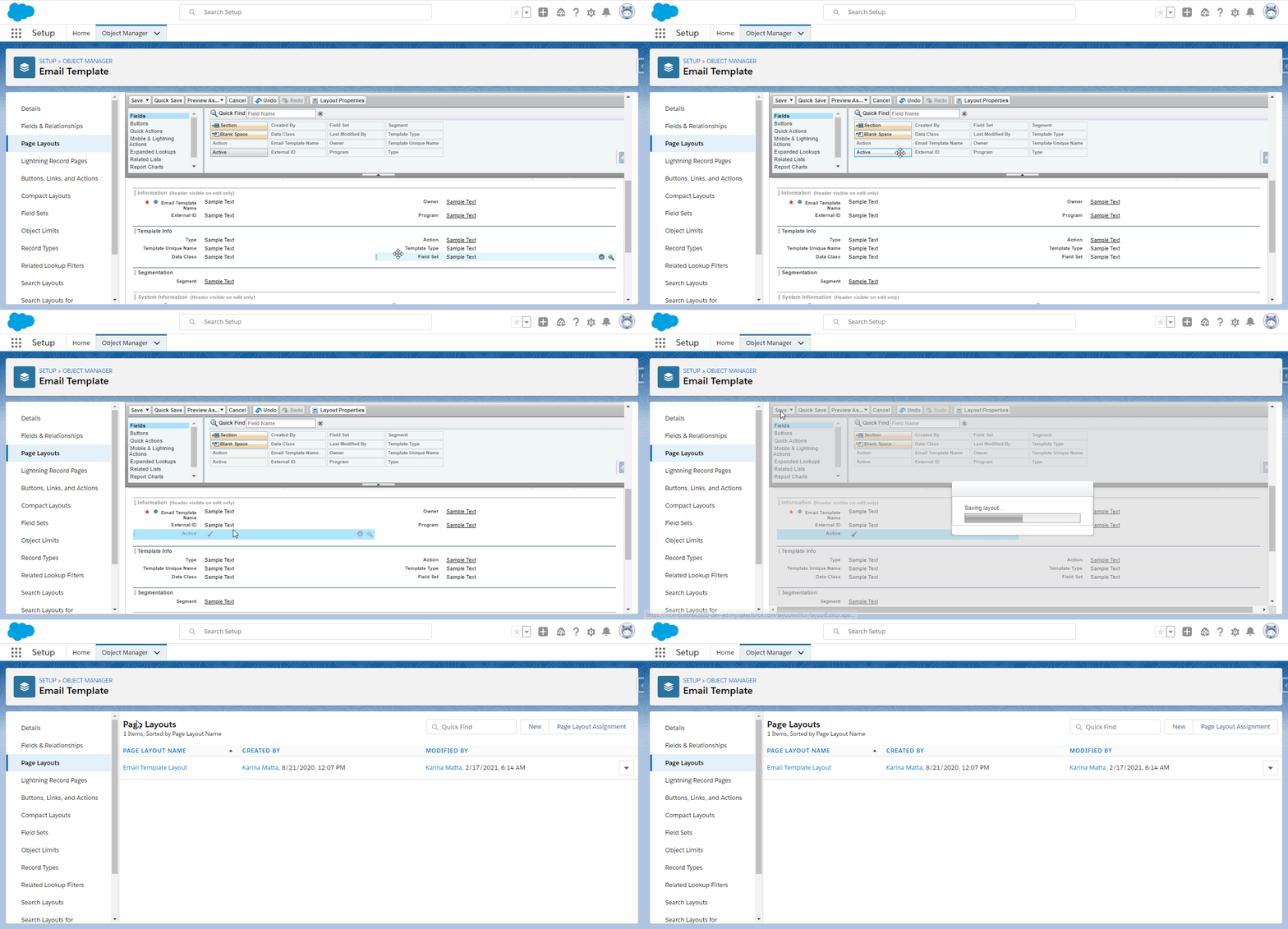
Adding 'Active' field to the Email Template Layout
Email Campaign
Once again, take a look in the image below and add to the Email Campaign layout - in the Email Campaign Object - all the fields that might be missing.
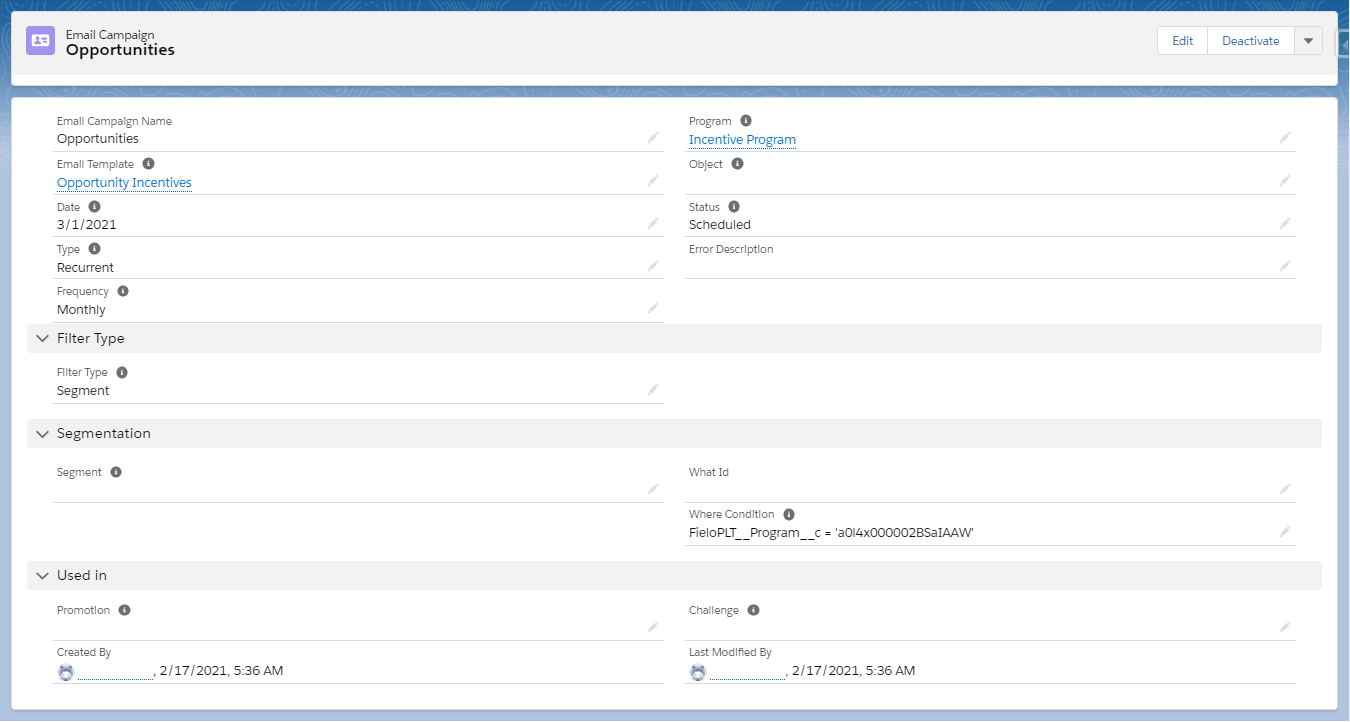
Email Campaign Layout
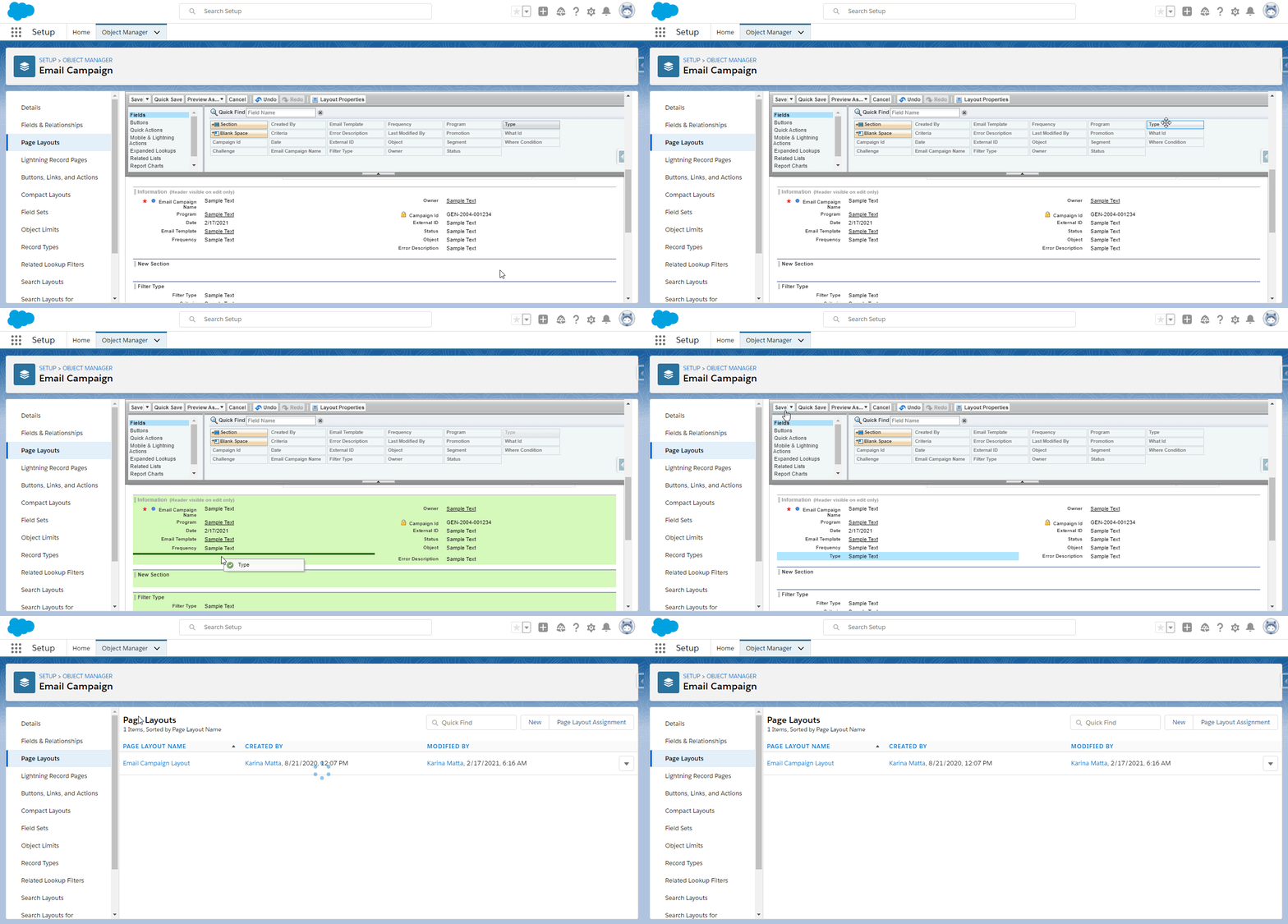
Adding field to the Email Campaign Layout
Point
- Go to the Object Manager, search for and access the Point Object.
- Once you are on the Point Object page, go to Page Layouts.
- Add a new section called "Versioning", which will refer to the version that generated a Currency reward.
- In the "Versioning" section, include these fields: Rule Version, Rule Description, Promotion and Rule Name.
After doing that, you will be able to easily access the versioning data from the Currency records.
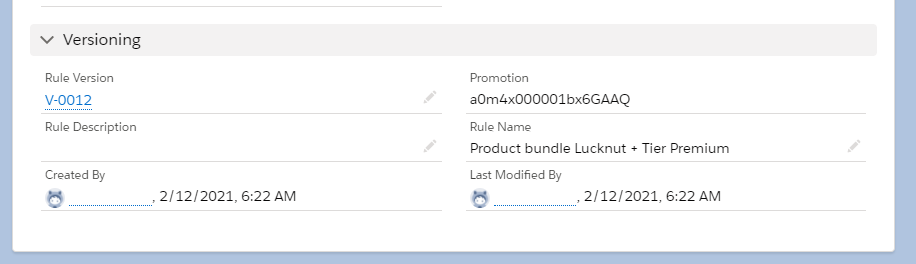
Point Layout
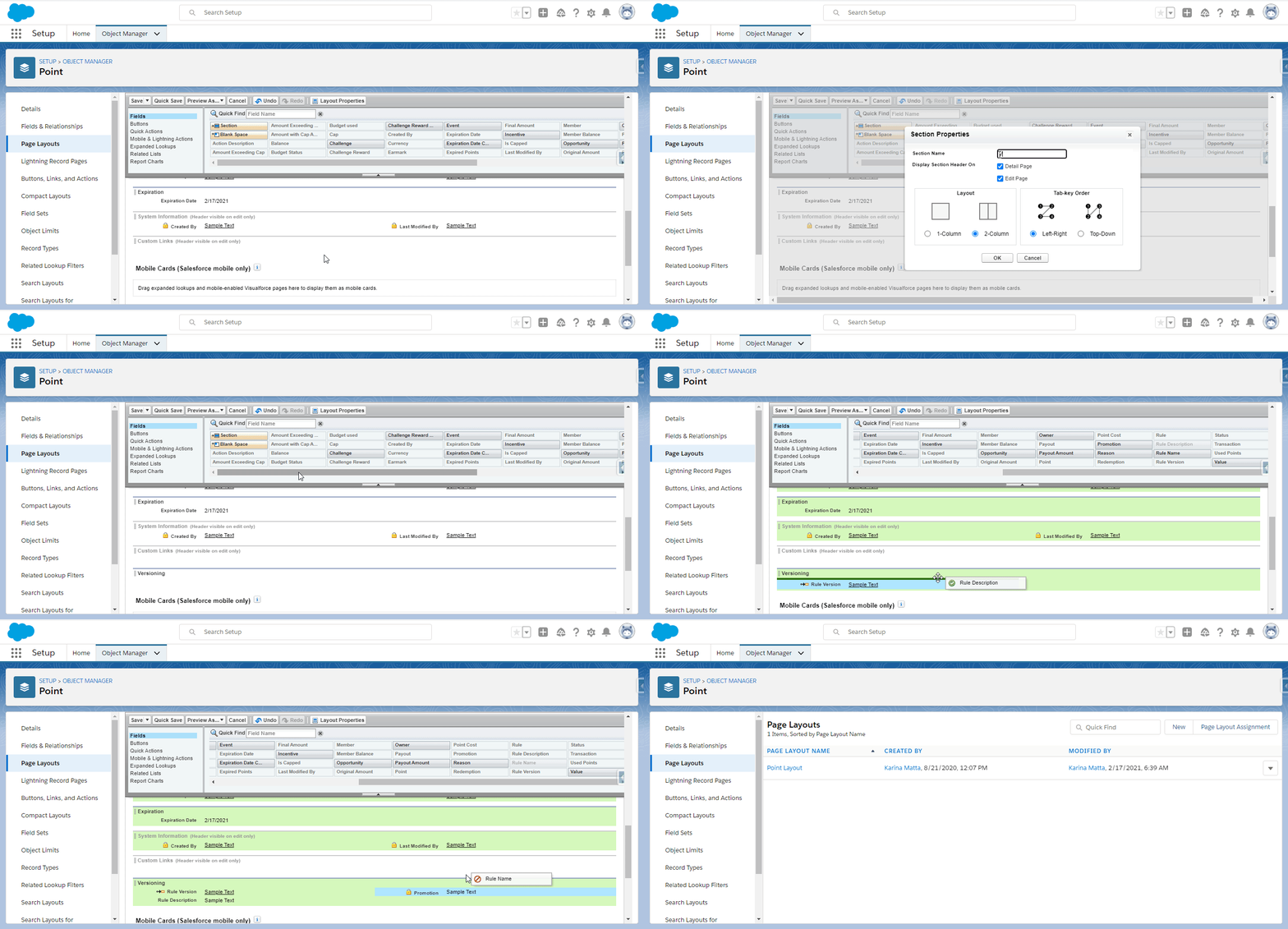
Adding Versioning section and fields to the Point Layout
Platform Cache
Fielo is now using Platform Cache in all SObjects in order to lessen the number of pre-processing in the platform. You will see the difference when you change pages within Fielo and they load more quickly.
While the cache allocation is done automatically if you have an Enterprise Edition Orgs or above, we recommend to check. You can do that by going to Setup and looking for Platform Cache.
From there, click on Settings next to FieloPLT. Check if there is 3MB allocated to the Provider Free slot within the Org Cache Allocation section.
In case you are using a Developer Edition org, you will need to click on Request cache trial in the Platform Cache page first. Wait for the Trial Capacity Available! message to show and, then, click on Edit next to FieloPLT. Allocate 3 (MB) to the Trial slot within the Org Cache Allocation section.
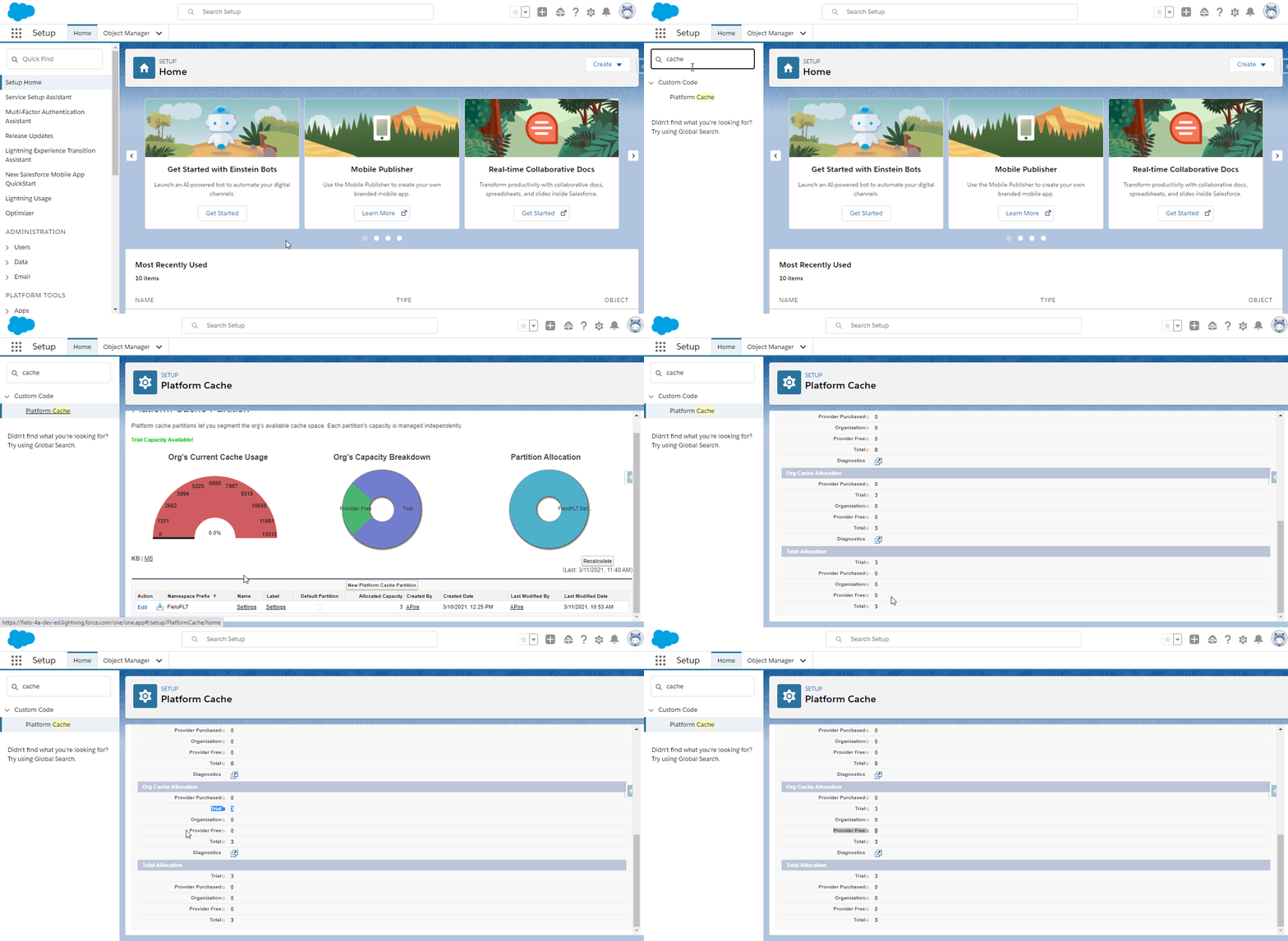
Platform cache within a Developer Edition org.
Fielo Invoicing (FieloPRP)
If you are an user of Fielo's Invoicing app, an important manual step is required. A few fields related to the PRP package, which used to be added to the Program view page layout automatically, now needs to be added manually. They are:
- Request Invoice Authorization;
- Request Invoice Products;
- Request Invoice Date;
- Product Inject Query.
For that, follow these steps:
- Go to Salesforce Set up and access the Object Manager.
- Find the Program object and enter it.
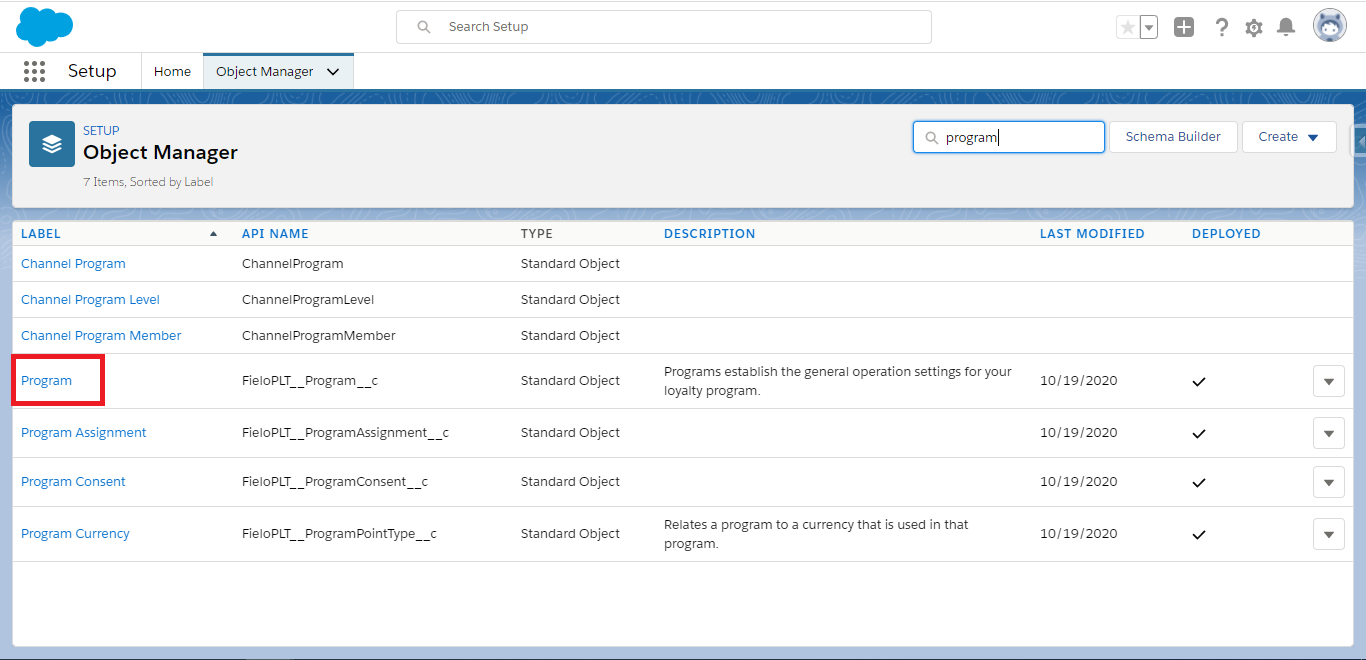
Click on 'Program' in order to access this object's page.
- In the column to the left, access Field Sets and click on New.
- Give the new Field Set a Label, enter the Field Set Name (which must be
ExtendProgramSettingsForm) and explain where it is going to be used. - Save.
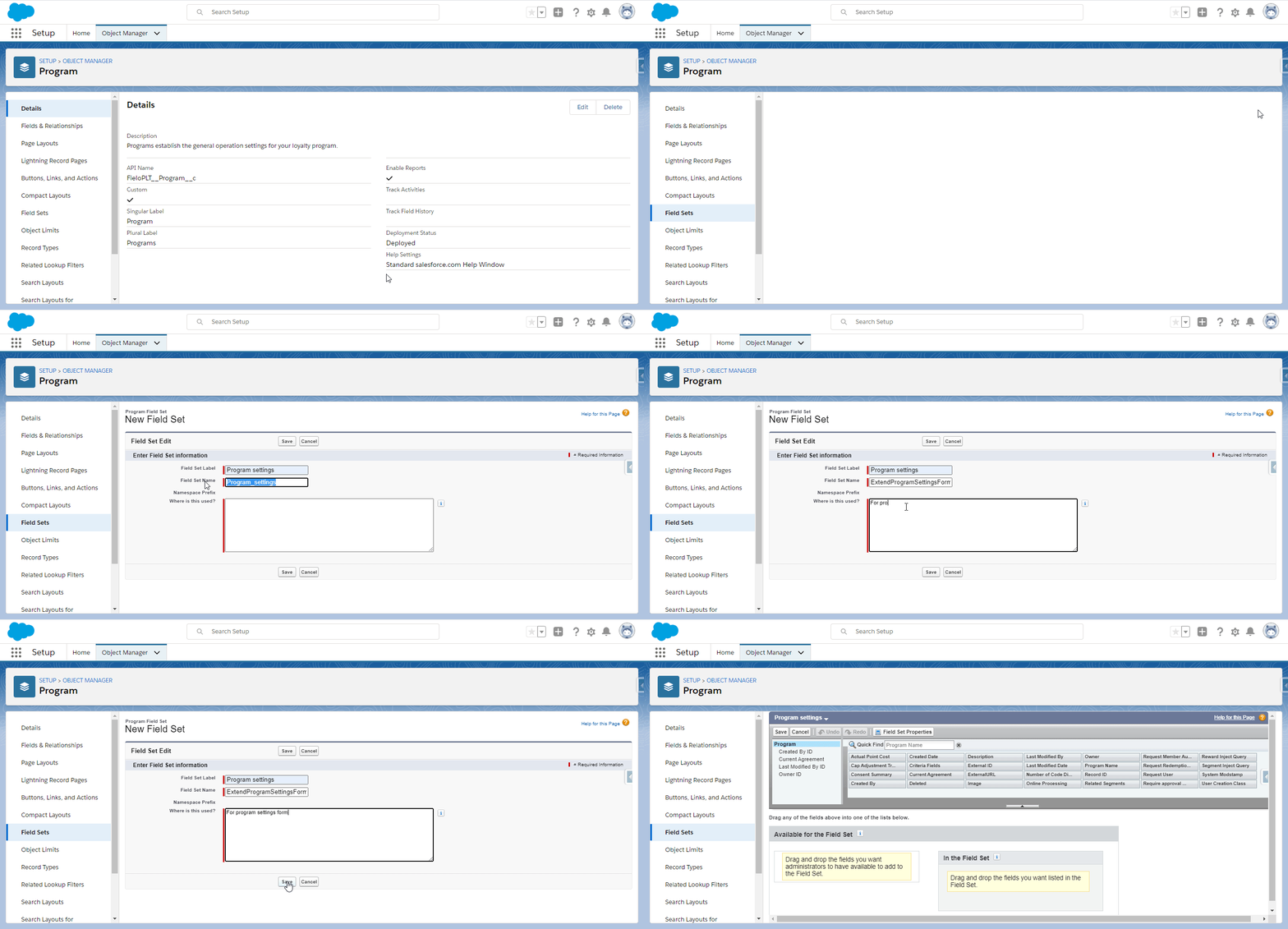
Creating a new field set.
After the field set is created, you will be redirected to its configuration page. In order to add the above-mentioned fields, look for them in the list on the top and drag and drop them to the bottom section of the page.
Don't forget to Save afterwards.
Updated over 1 year ago