
Salesforce E-mail Templates
Messaging is built on top of Salesforce. In order to send messages, whether Transactional or Campaign E-mails to your Members, you need to have E-mail Templates configured in Salesforce. These templates can be set up with all of your logo and design configurations and will use HTML coding to ensure that the e-mails are personalized to Members without you having to do any of the work.
Learn How E-mail Templates Work in SalesforceBefore starting, we recommend getting to know Email Templates in Salesforce Classic.
Currently, Fielo Messaging works only with Classic Email Templates.
Salesforce Templates
From the Setup, look up Classic Email Templates in the Quick Find along the left and select it.
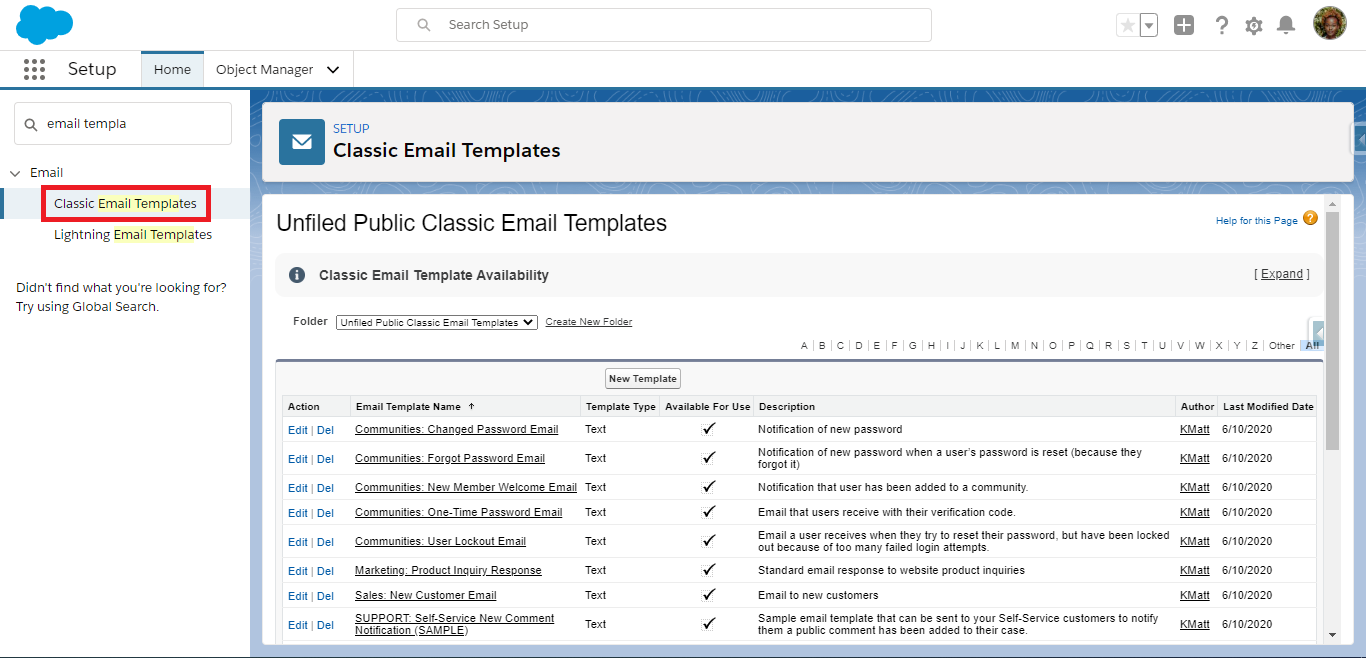
Quick find Email Templates
Depending on which packages you've installed (PLT, ERL, PRP or others), some Templates will come ready-made. These are all of the templates that Fielo offers, which you'll find by selecting the Fielo Templates folder from the drop-down menu:
- Course Accomplished
- Course Started
- Instant Reward
- Module Accomplished
- Module Started
- Program Invitation
- Proof of Purchase Approved
- Proof of Purchase Submitted
- Redemption Concluded
- Status Report
- Welcome Email
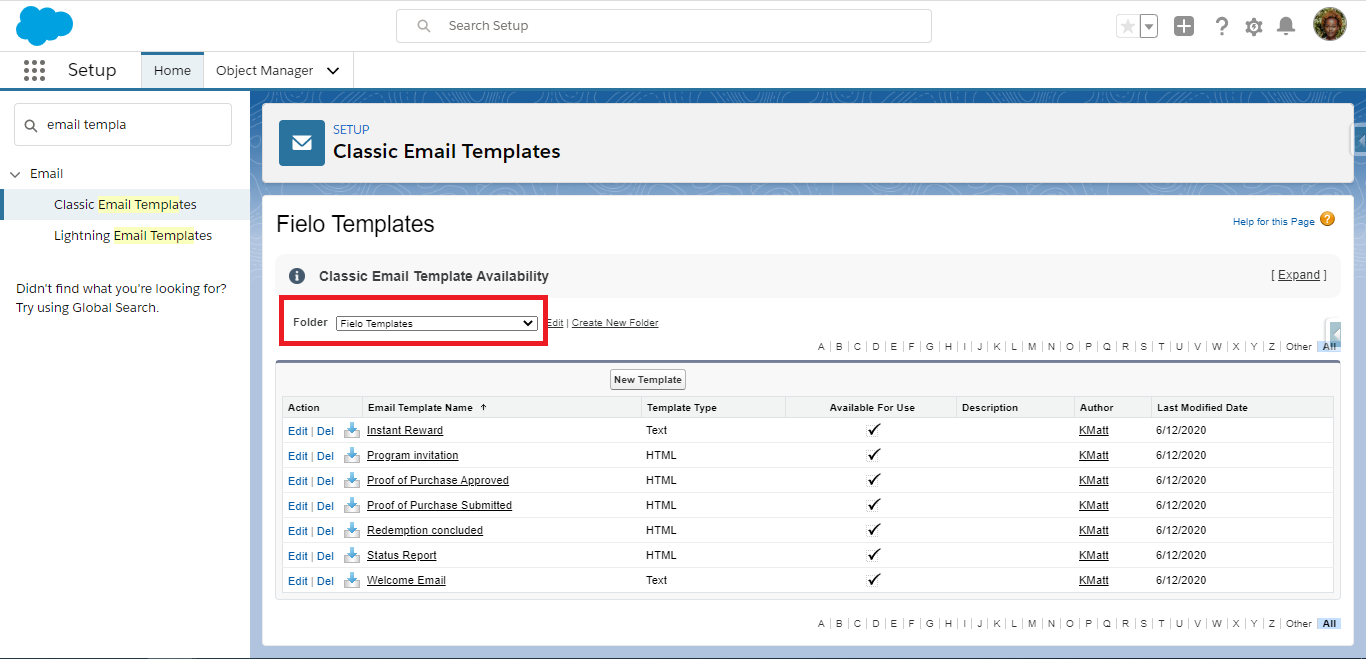
Fielo Templates folder
The Fielo Templates folder contains all of the templates that come pre-installed with your package. Unified Public Email Templates come with Salesforce - they are Salesforce E-mail Template.
The My Personal Templates folder is where you can create and store templates you have created yourself. We'll come to that later! You can also create a new folder for storing your templates, by clicking on Create New Folder.
Let's take a look at an example of a ready-made template: Redemption Closed.
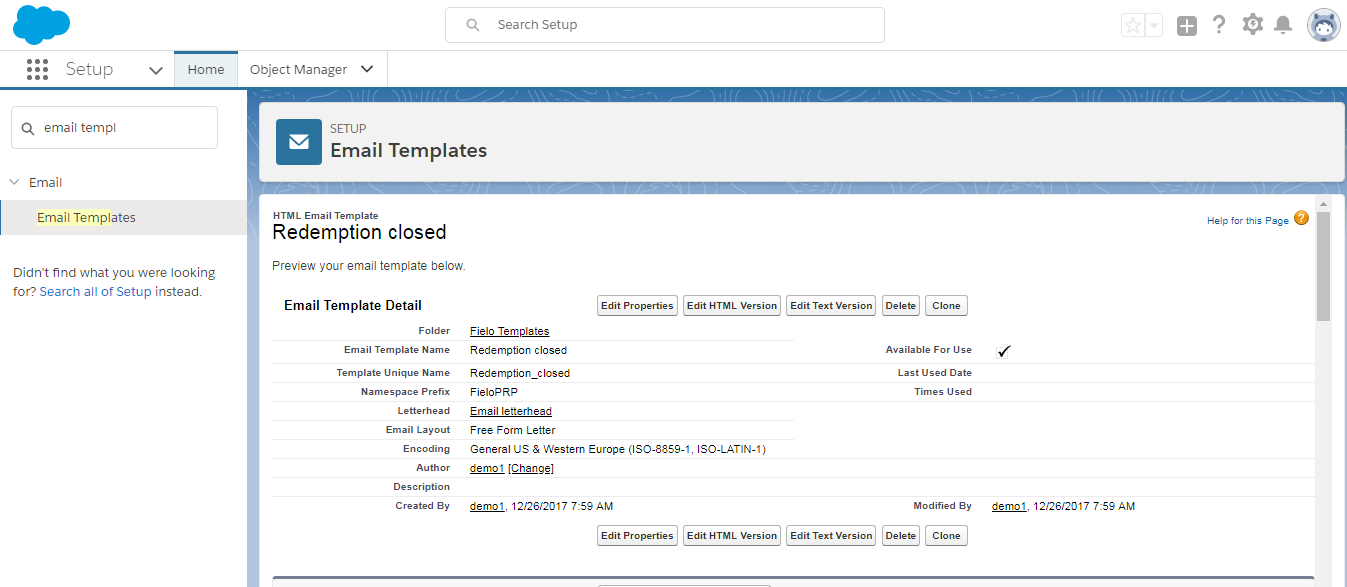
Redemption Closed template
As you can see in this pre-configured Template, Available for Use has been . this is important, because if that box is not , you will not be able to use this Template.
You can also see that HTML code is used for all of the variable field, such as name and points - this is automatically filled in by the system using your Member records when each individual email is sent to a Member.
Creating a New Template
To create a new Template, click the New Template button, above the existing template records. Then you have to select the type of email template you want to make - you should select HTML (using Letterhead)
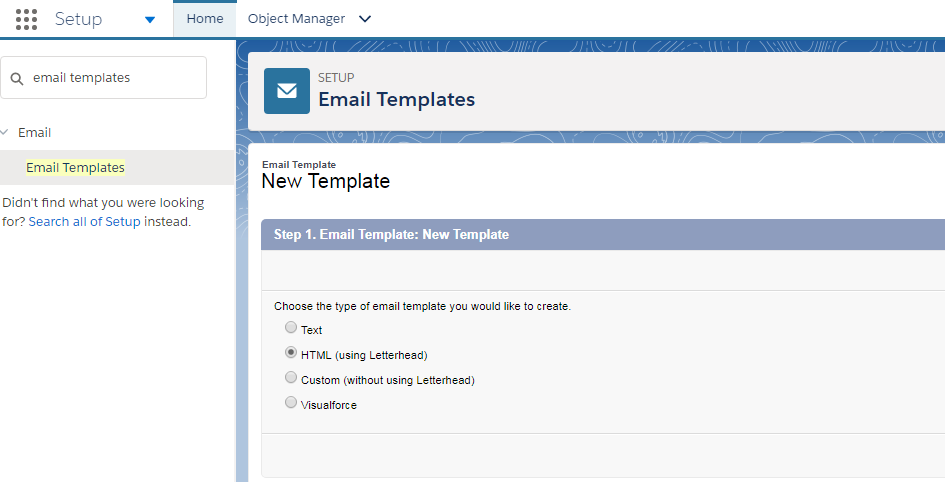
HTML (using letterhead)
Then press Next.
Now you have to fill out the following fields:
- Available for use: this if you want to be able to use this going forward.
- Email Template Name: Give your template a Name that corresponds to the reason it will be sent.
- Template Unique Name: This will automatically be filled by the system according to the Template Name you created above.
- Letterhead: Select your company's Letterhead to be used for these E-mails.
- Email Layout: Here you should select Free Form Letter.
- Encoding: This will come already filled out.
- Description: Give your Template a clear, concise description that explains when the message will be sent.
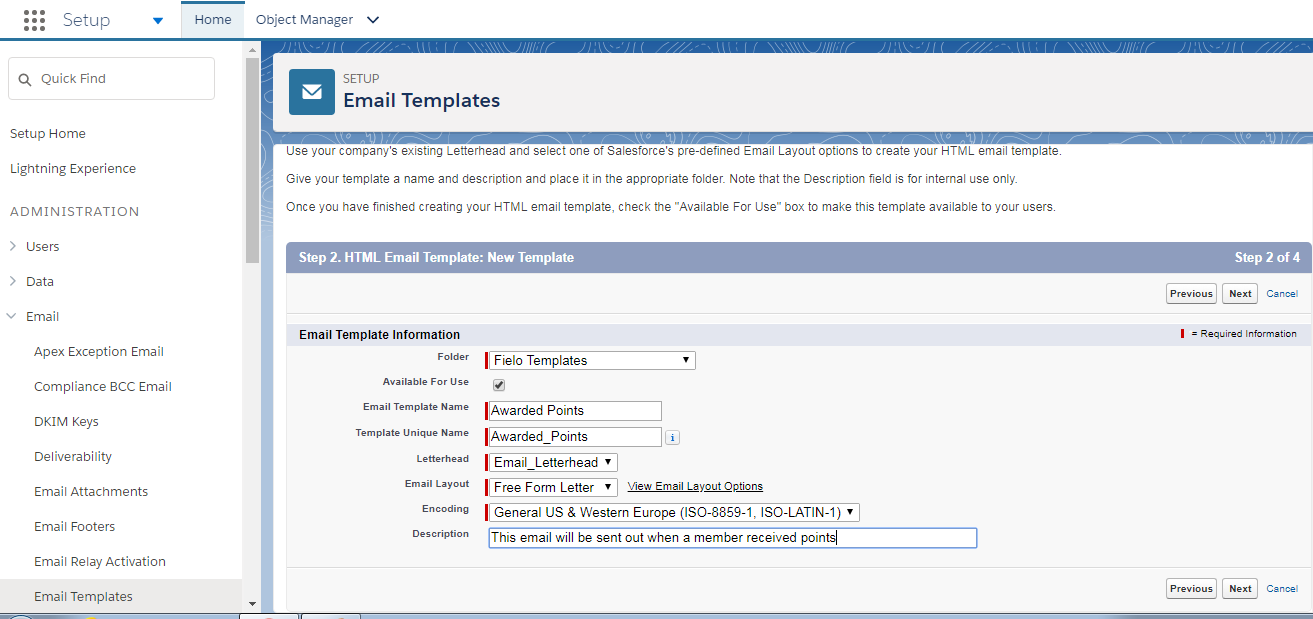
Email template information
When you're happy, click Next.
You will now be taken to a page where you can write your letter copy. Here, you can select font style, size, and all other general formatting.
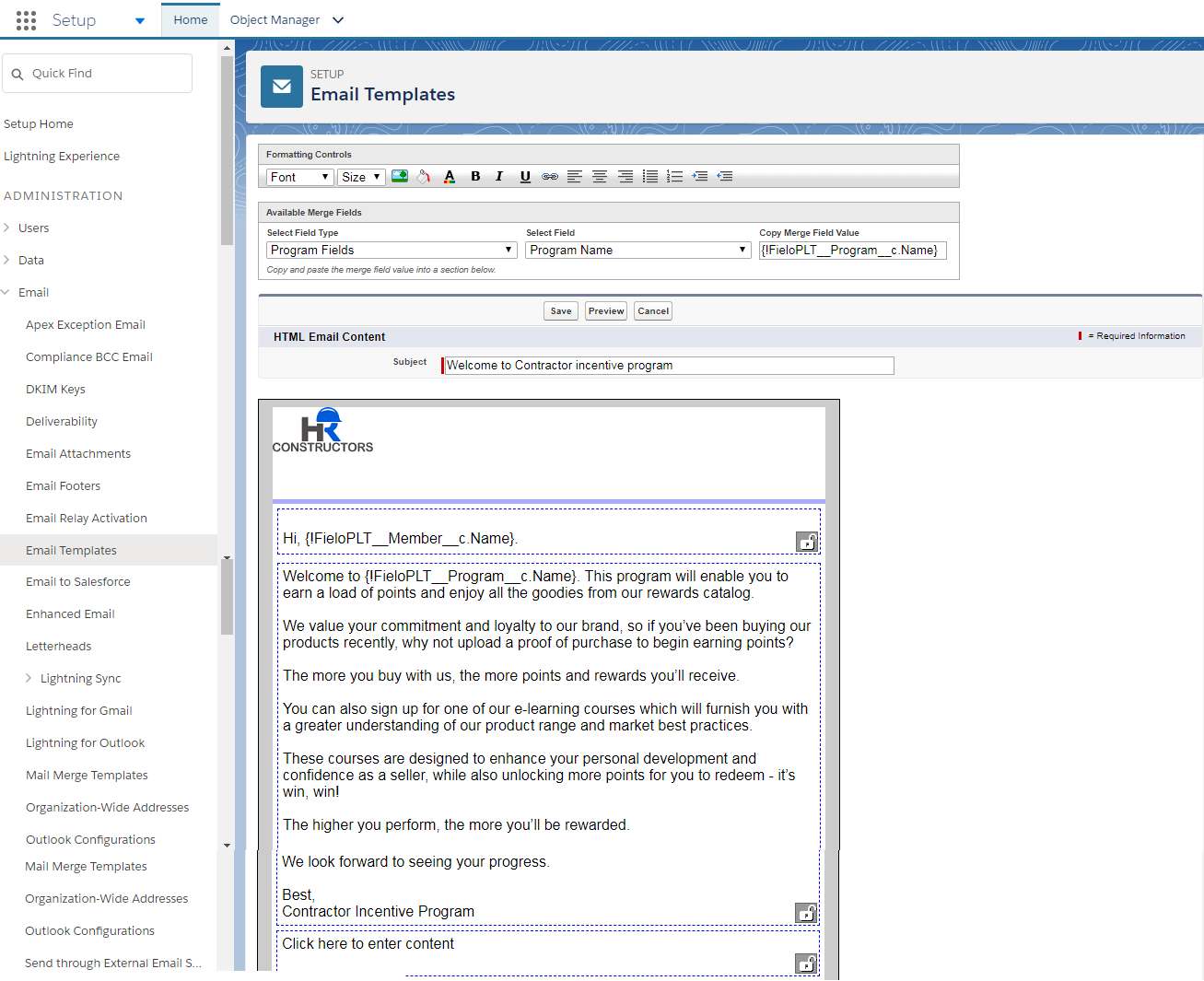
Template for a Welcome Message
You need to give your email a Subject - this is what will appear as the subject line in the email sent out. You can then fill out the body of the email text.
Merge Fields
This is an extremely important feature which allows you to send bulk personalized emails. For example, any time you want a specific Member's name mentioned, that individual's name on the e-mail will be included without you having to find it.
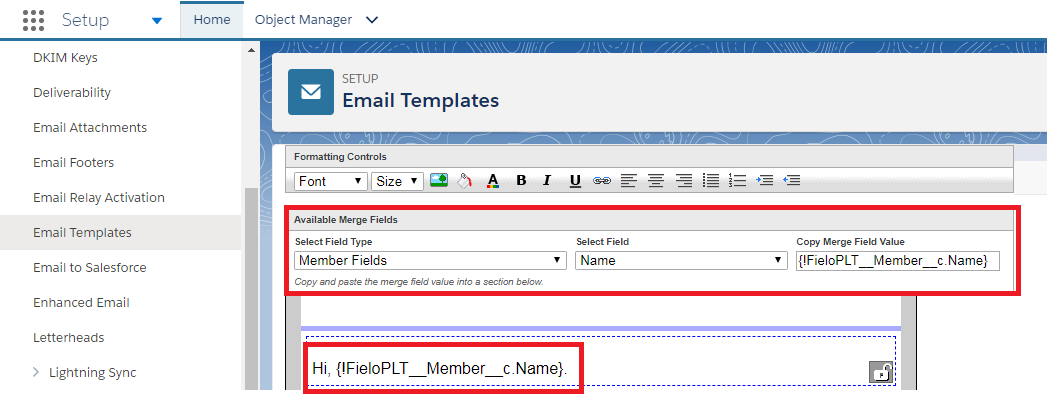
Member Name
In the above example, the Field Type selected is Member Fields - this means that something about the Member will be obtained by the system. In the second box, the Field Name is selected - this means that it is the Member's Name which will be identified by the system.
The Merge Field Value is then automatically created, and you can simply copy and paste it into the body of your text, whenever you want a Member's Name to be used. The same process can be used to input specific Program, Promotion and E-mail Campaign names, as well as Members Point scores. And so much more!
Merge Fields for Transactional EmailsIf you intend to use the Salesforce Email Template for a Transactional Email, all the merge fields must refer to the object of the related Action. For example, if the related object is Member, all merge fields must start with
FieloPLT__Member__c.You can find the lookup relations in an object by accessing its detail page in Object Manager. For more information, see Salesforce's Merge Field Syntax doc.
Once you're happy with the body of your Message, hit Next. On this page, simply click Copy text from HTML version.
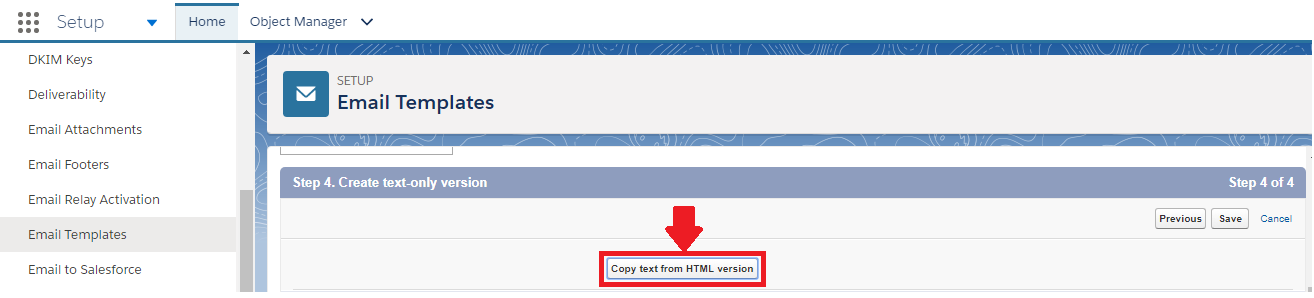
Copy text from HTML version
Then hit Save and your Template is ready to go!
Updated over 1 year ago