
Fielo B2B Commerce Connector
B2B Commerce is Salesforce’s solution for building self-service e-commerce storefronts that enable retailers, wholesalers, or distributors to purchase goods or services from your brand. If you use both B2B Commerce and Fielo, Fielo B2B Commerce Connector makes it easy to merge the best of both products, allowing your Portal members (Community members) to join and take part in your fidelity program right from the Storefront.
Salesforce Experience CloudPreviously known as Community Cloud, as of Salesforce Spring '21 release, it is now referred to as Experience Cloud and/or Site.
Before Starting
Be sure you’ve properly installed and set up both Fielo and B2B Commerce.
Installing Fielo B2B Commerce Component
Once both Fielo and B2B Commerce are up and running, you are ready to go. Start by installing Fielo B2B Commerce Component.
Activating Fielo B2B Commerce
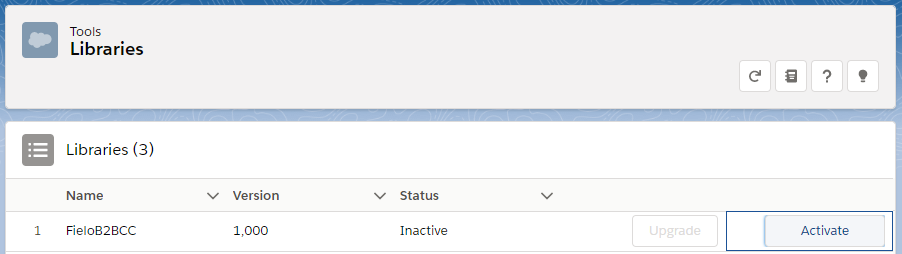
Once the package is installed in your Org, you’ll need to activate it. Go to the Fielo platform and select Tools. Once there, hit Activate on for the FieloB2BC record.
Creating an Incentive for B2B Community Users
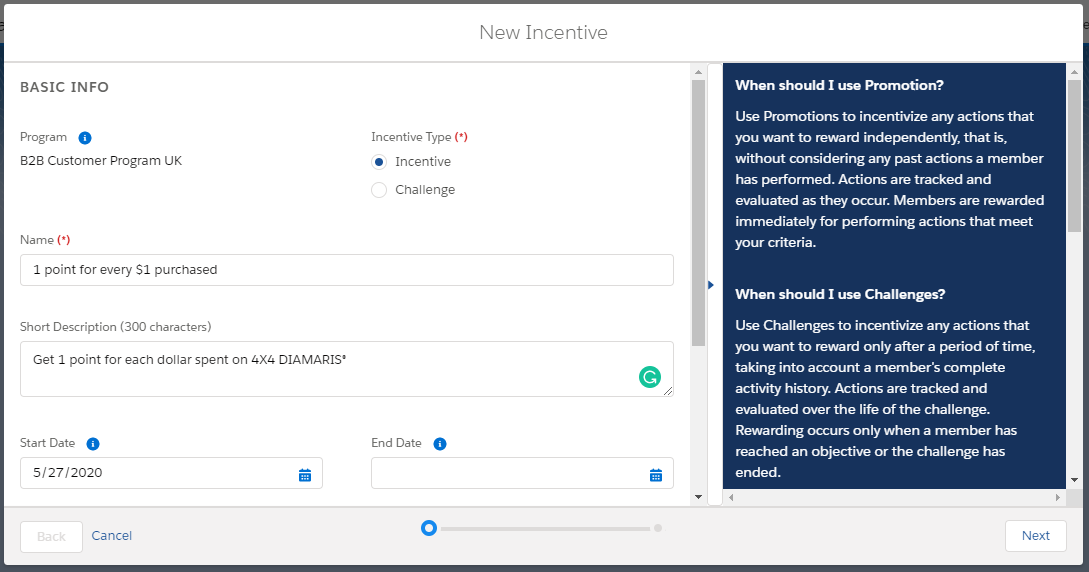
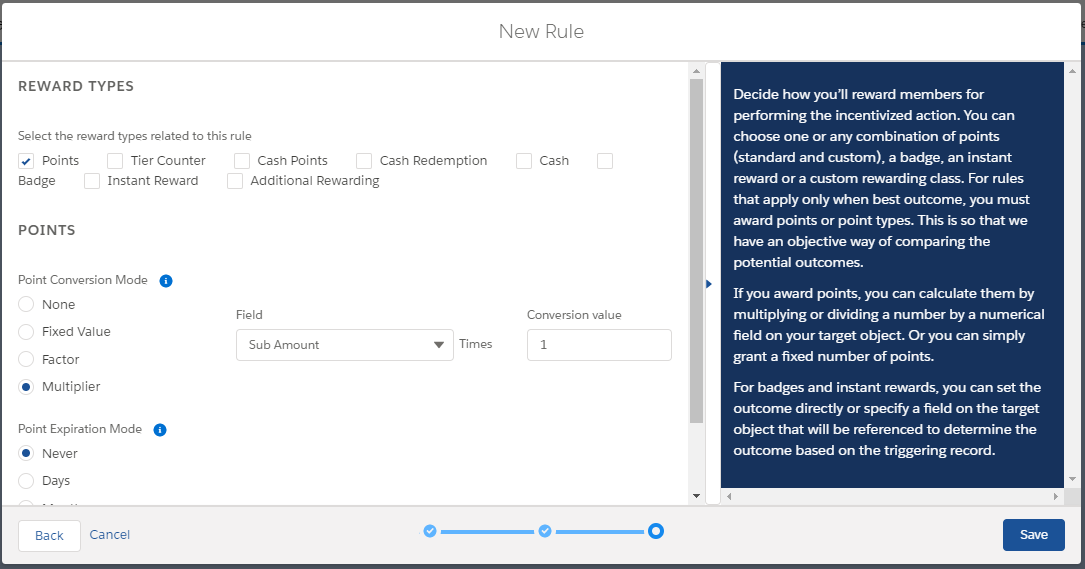
Tread Manufacturing is a tire company that wants to motivate their distributors to buy an overstocked tire - the 4X4 DIAMARIS. They are using Commerce Cloud to sell their products and have just decided to use Fielo to incentivize their customers by offering a point for each dollar spent on a 4X4 DIAMARIS purchase, which later can be used to either buy more products or get cash back.
Once Fielo is set up and Fielo B2B Commerce Component is installed and activated, it’s time to create an Incentive. On the Fielo Platform, go to Incentives and select the program you want to create an Incentive for. Click on New Incentive and fill in the Incentive information:
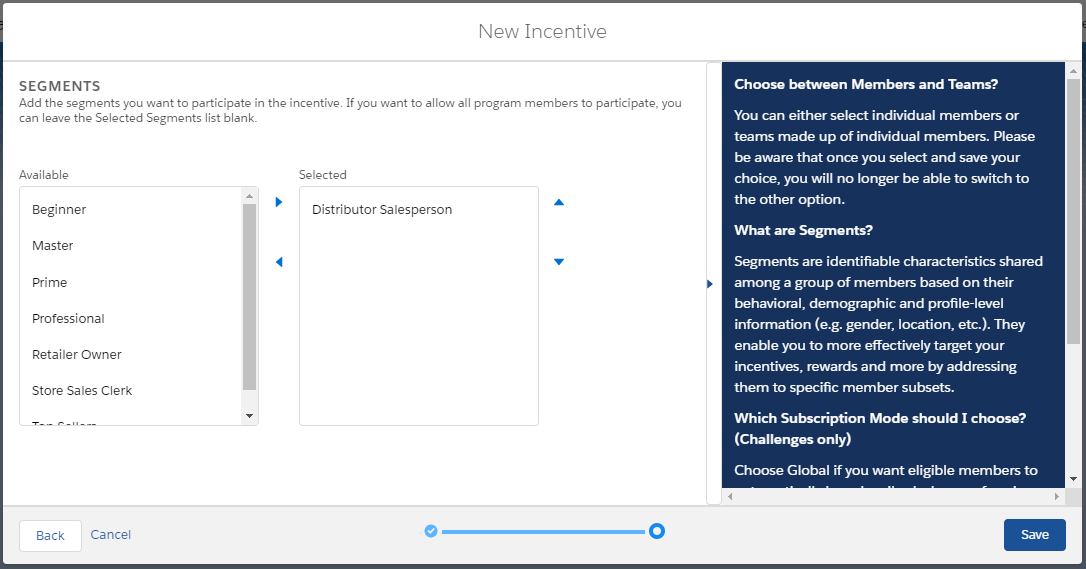
Hit Next and select from the available column which segment of members you want to incentivize. In this case, Tread wants the Distributors to purchase the item.
Creating a Rule
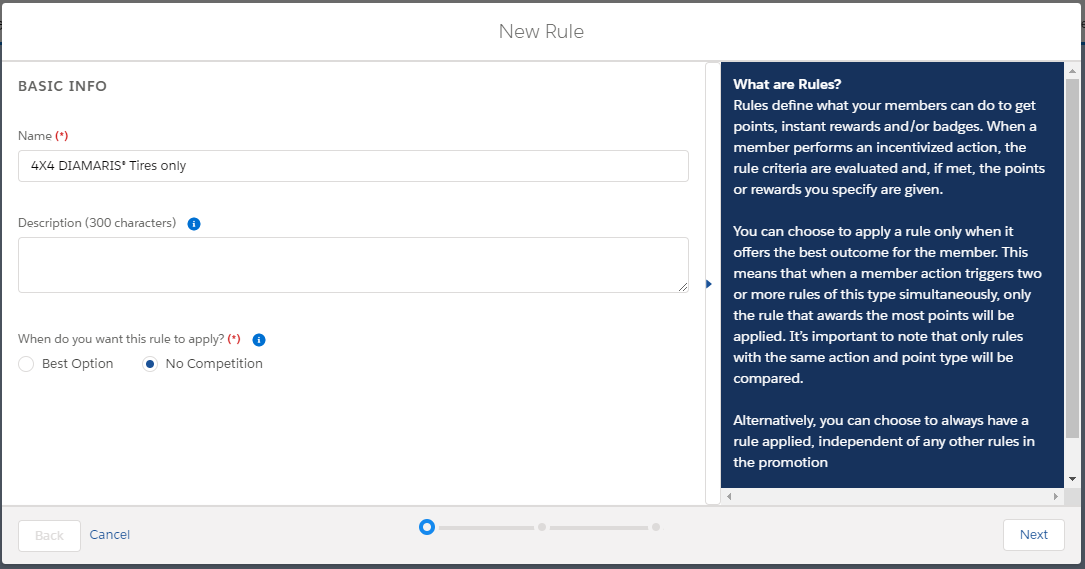
On the Incentive page, click New on the Rules tab. Start by filling in the basic information of the rule:
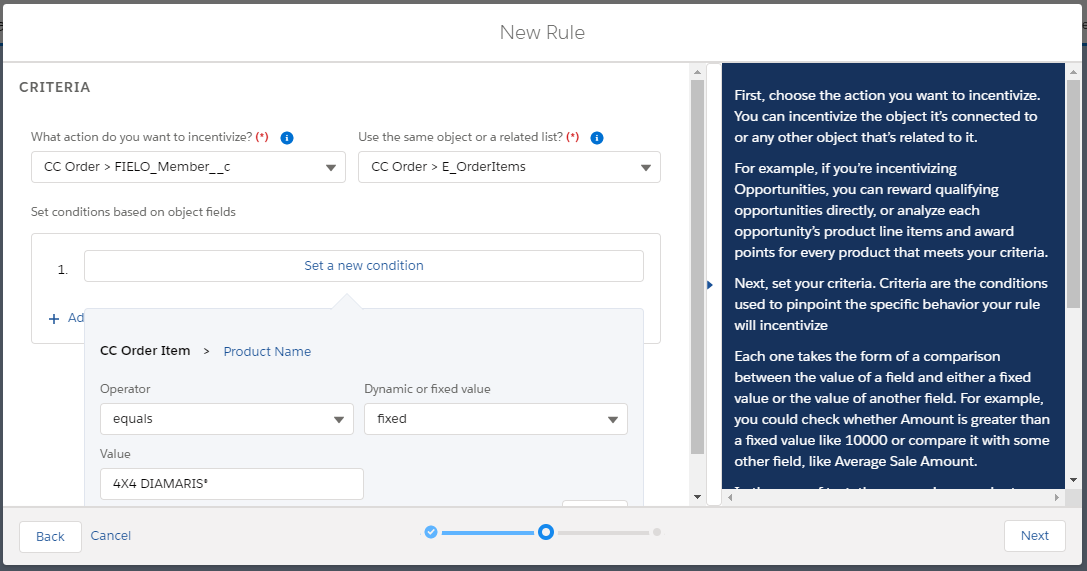
Click Next and on the criteria page is where the logic behind incentive goes. Tread wants to create an incentive for Fielo Members that create an order on the B2B Commerce, so the field CC Order >FIELO_Member__c is the action they are looking for. Also, as they are trying to upsell one of their products, they selected CC Order > E_OrderItems to created the condition based on the Product Name they want to incentivize.
Finally, they set the Reward Type, giving a point to each Dollar spent on a 4X4 DIAMARIS.
Once finished, Tread Activated the promotion. Now it’s time for them to include the program in the Storefront.
Updated over 1 year ago