
Managing Members
Once you've added members to your program(s), you can make changes to those members as circumstances evolve.
Editing a Member
You can edit Individual Members right from a member record page. Simply click Edit, make the necessary changes and Save.
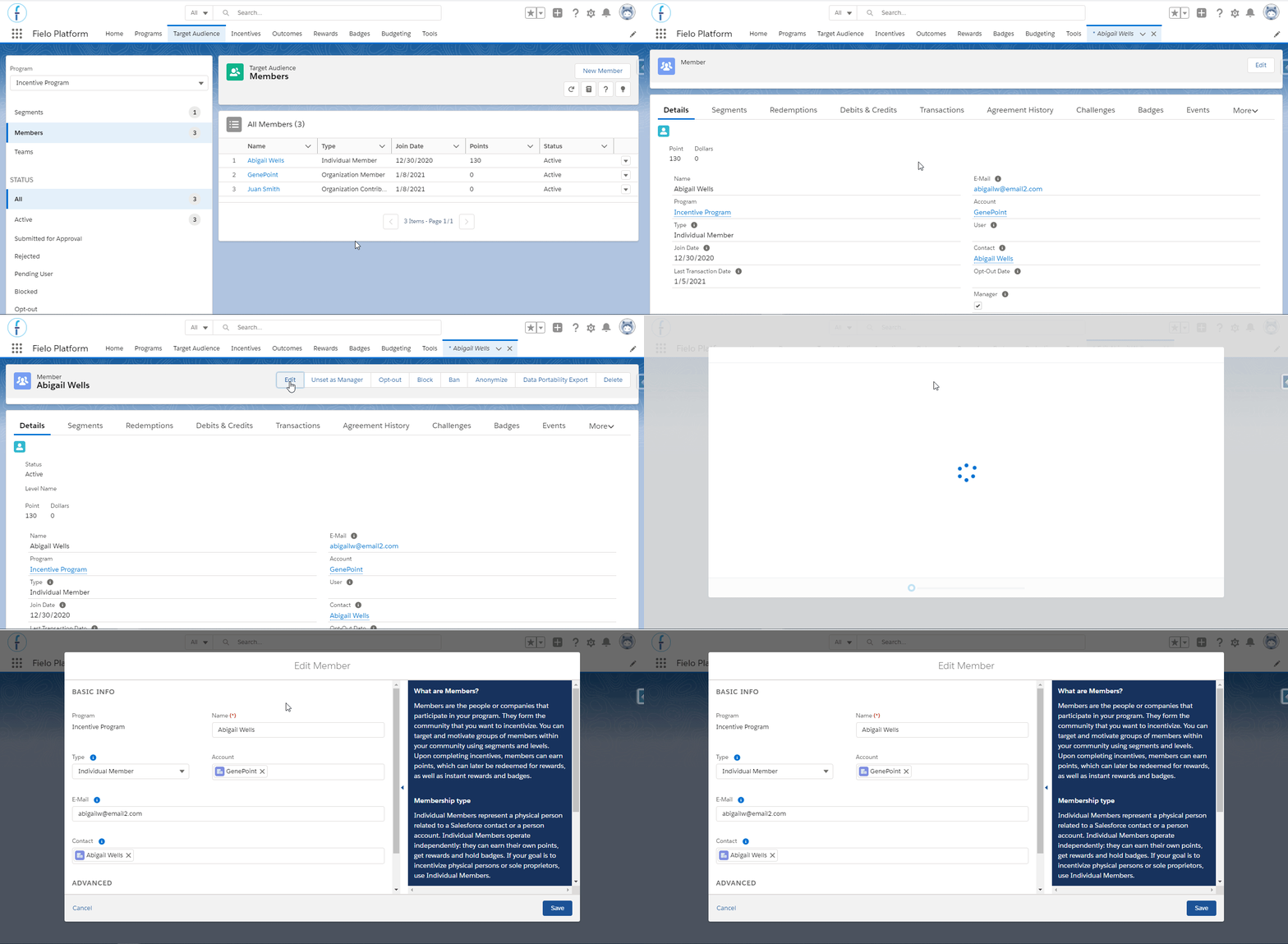
Setting an Organization Contributor Member as Manager
You can designate one or more Organization Contributor Members as managers of their Organization Member. By setting a Contributor Member as manager, you can customize an action later on - where the Member needs to be a manager in order to be able to do something. It can also be useful if you are thinking of creating your own components for Experience Cloud sites and want to give the manager Contributor Member access to the Organization Member.
To set an Organization Contributor Member as manager, click Set Manager on the member's record page.
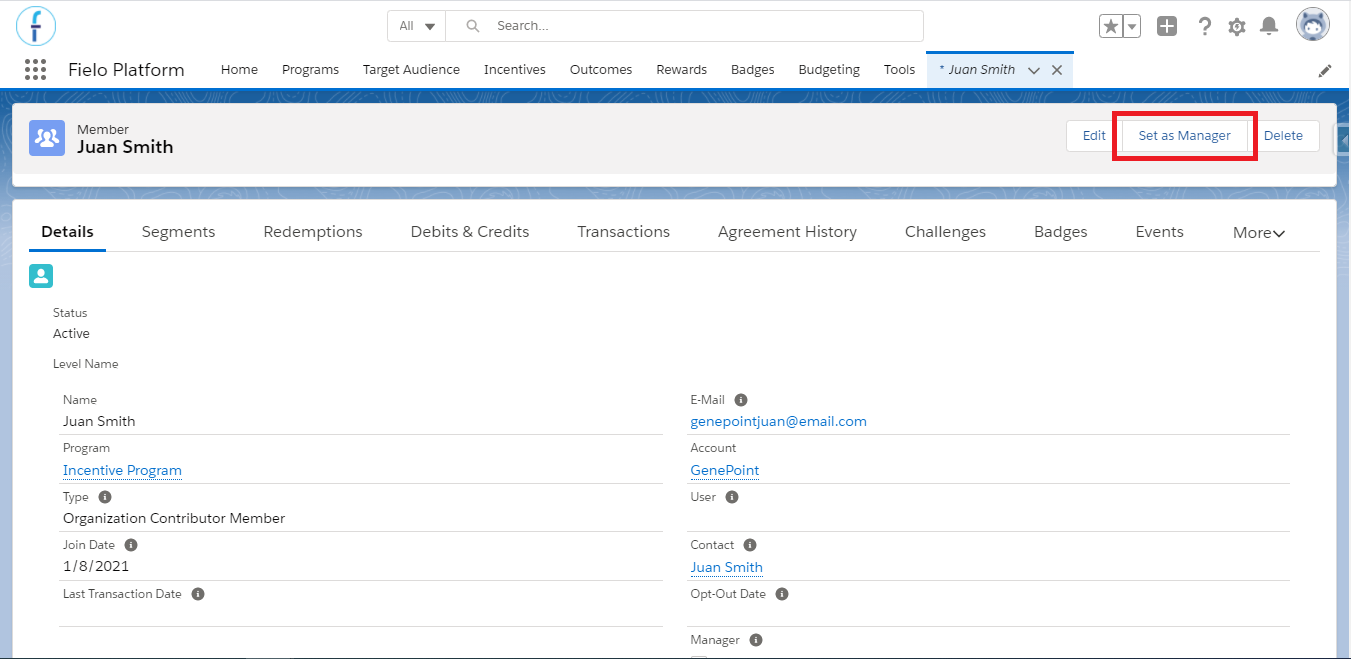
To remove the member from the manager position, click Unset as Manager.
Opting Out a Member
You can manually mark an individual member as opted out of their program. This means that the member will no longer be part of the program, but will be able to rejoin if they wish.
When a member is opted out, they will have a certain period of time to redeem any points they may have, as defined in the Opt-Out Expiration Mode and Opt-Out Expiration Value fields of their Program Currencies(s).
To mark a member as opted out, access the member's record page and select Opt-out.
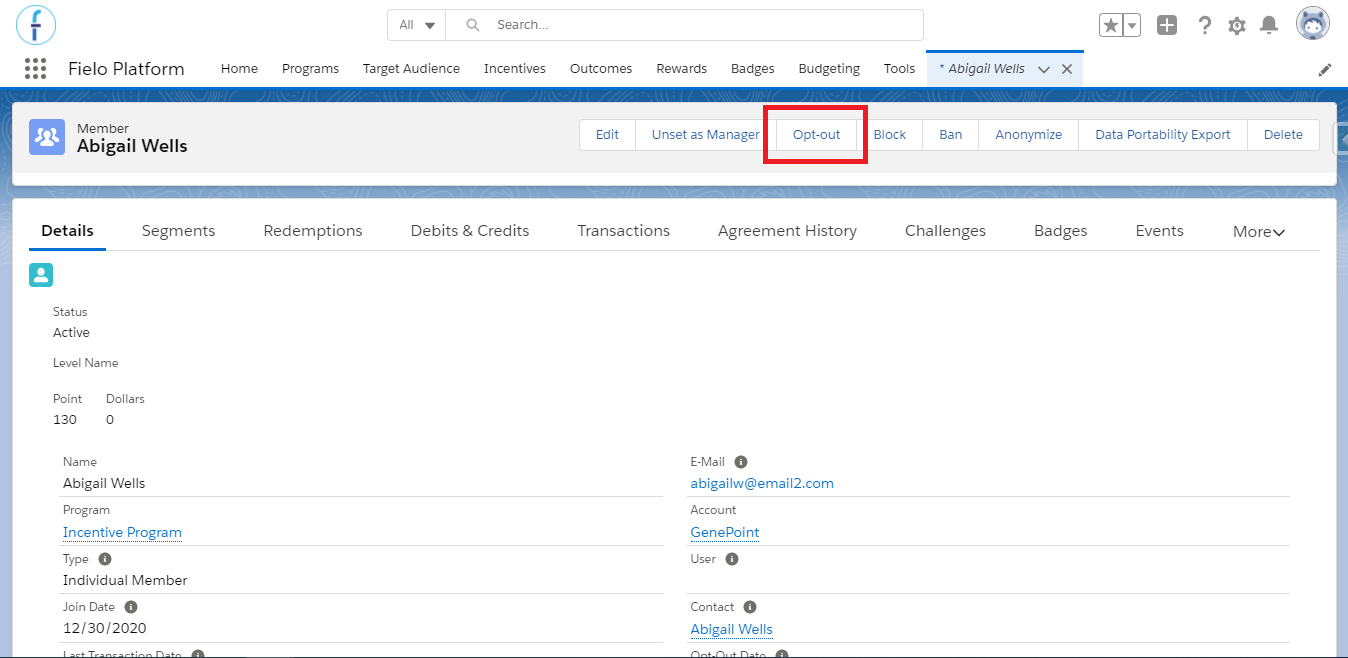
Once opted-out, the status of the member becomes Opt-out and Opt-Out Date is set to the current date.
You can reverse a member opt-out by selecting Reactivate on the tools menu.
Blocking a Member
You can suspend an individual member from participating in a program. When blocked, a member cannot participate in any incentives or earn any points, rewards or badges.
This is a great alternative to deleting a member when the member record has transactions associated with it (since members with transactions cannot be deleted).
To block a member, access the member's record page and select Block.
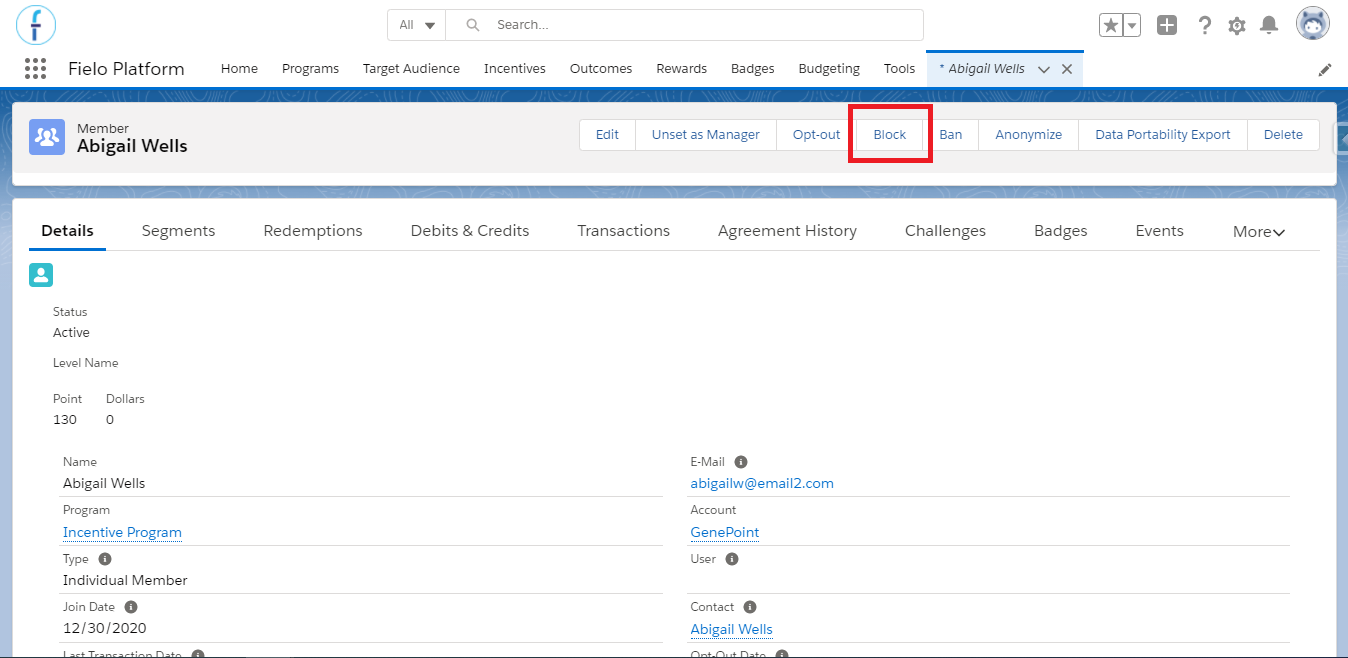
Similarly, you can unblock a member by selecting Unblock on the tools menu.
Banning a Member
If necessary, you can permanently ban an individual member from a program. This means that the member will immediately lose all points and no longer be able to participate in any way.
Careful! You cannot reverse a member ban.
To ban a member, access the member's record page and select Ban.
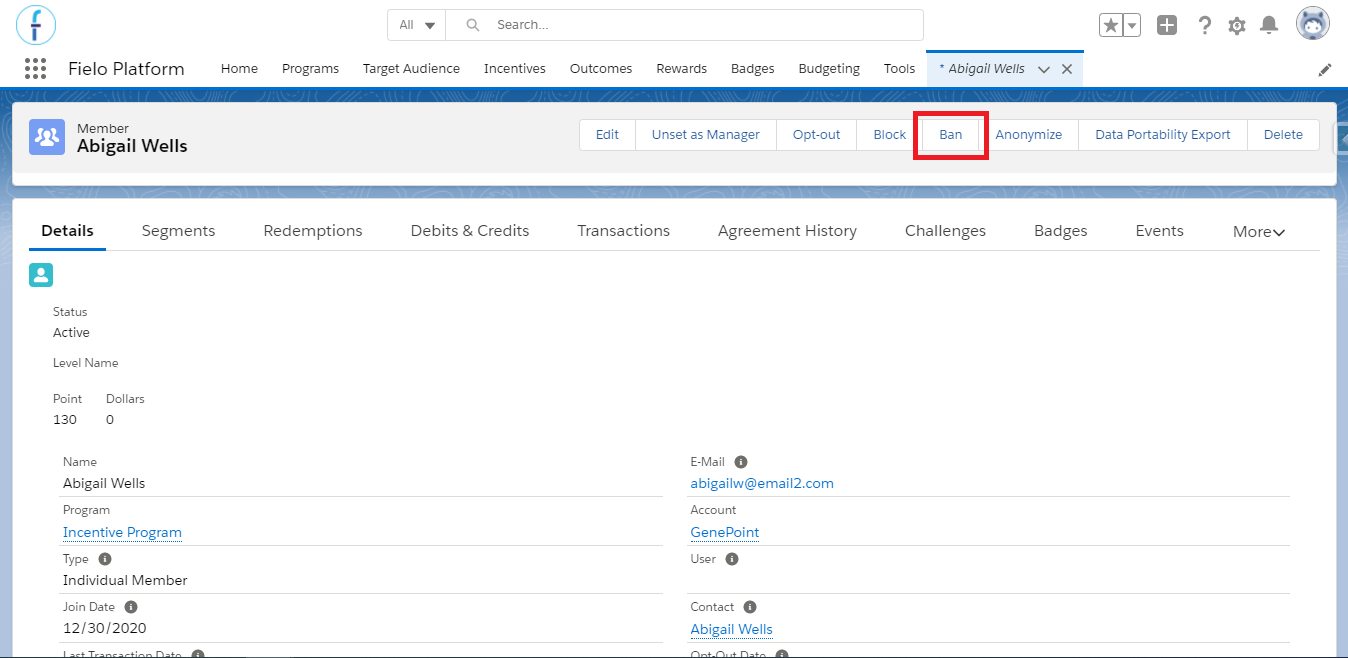
When banned, the status of the member becomes Banned and Opt-Out Date is set to the current date.
Anonymizing a Member
At some point, you may need to anonymize an individual member's data to remove any personally identifiable information from Fielo products. By default, the following member fields are made blank or given a generic value:
- Name
- Account
- Contact
- External URL
- Image
- Merged To
- User
Careful! You cannot recover data once a member is anonymized.
To anonymize a member, access the member's record page and select Anonymize.
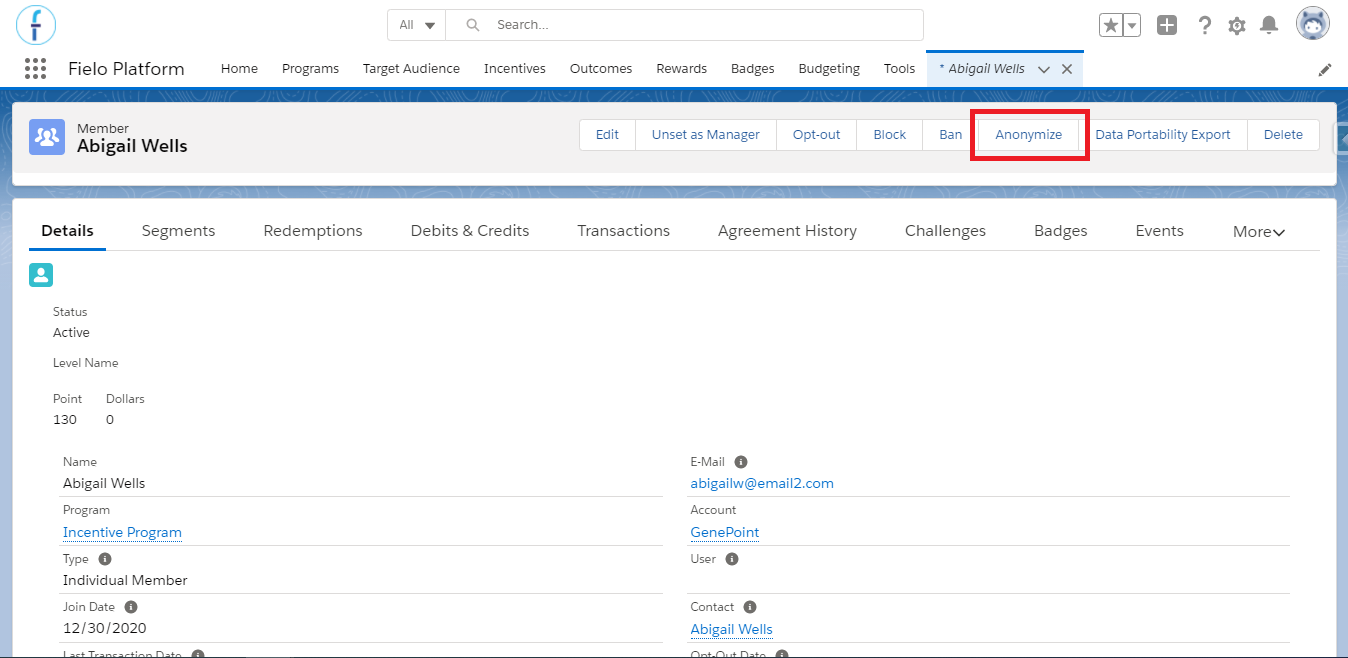
Once anonymized, the status of the member becomes Anonymized. Also, if the member was active before being anonymized, Opt-Out Date is set to the day you anonymized the record.
Advanced Feature: Customizing Member AnonymizationYou can customize which member data is anonymized. Learn how to do that here.
Data Portability Export
To comply with data portability requests, you can export Member data to a JSON file. By default, data portability exports include all Member fields and the following lookups:
- Points
- Redemptions
- Redemption Items
- Member Badges
- Member Level
- Member Segments
- Challenge Members
- Mission Members
- Transactions
- Events
- Email Alerts
To perform a data portability export, access the member's record page and select Data Portability Export.
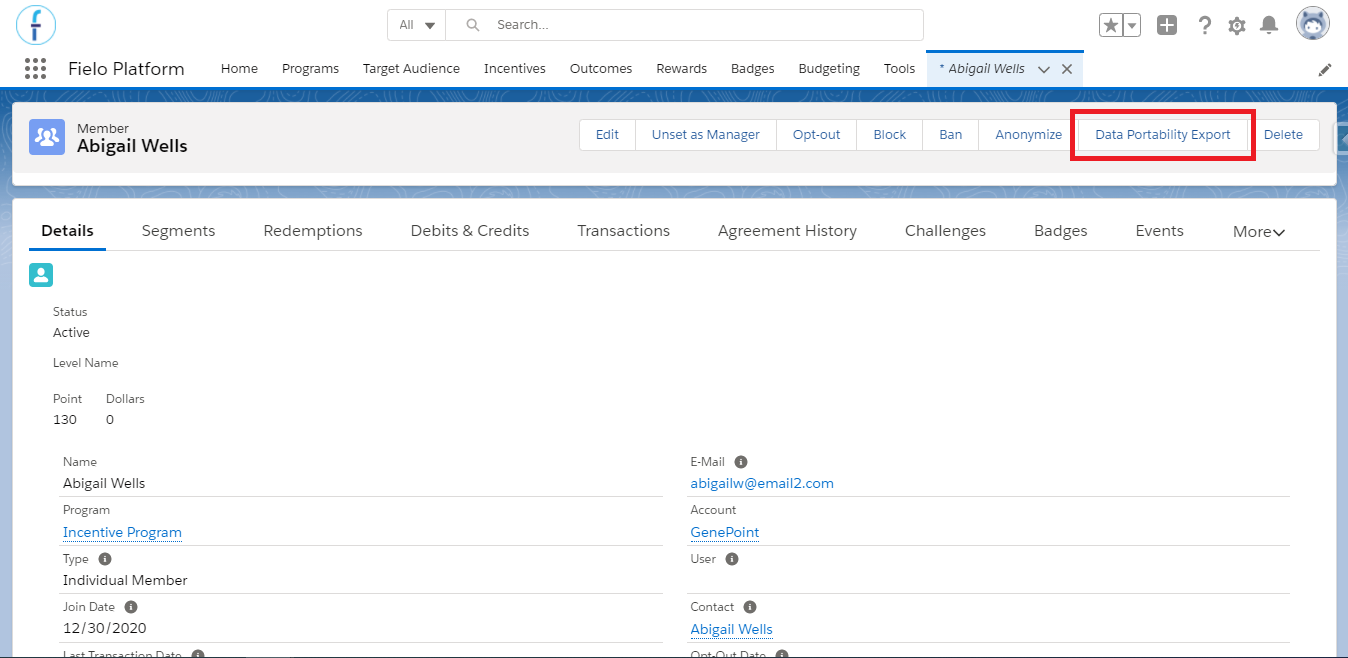
The JSON file containing the exported member data will be saved to your computer.
Advanced Feature: Customizing Data Portability ExportsDid you know that you can customize what data is included in Data Portability exports? To find out how, see Import/Export and Data Portability Utilities.
Member Statuses
Every member has a status that indicates whether the member can participate in a program or is encumbered in some way.
- Draft: this status is assigned to teams who have just been created, before you activate them.
- Inactive: this status is assigned to teams who have been inactivated by the program's administrator. When you inactivate a team, its ID is removed from the members' RelatedTeams field and the members' actions will no longer be related to that team. Otherwise, the team members are not affected.
- Active: members who are fully enabled to participate in a program. When a program has neither Request Member Authorization nor Request User enabled, newly added members are automatically active.
- Submitted for Approval: members that have this status are those who have been added to a program that has Request Member Authorization enabled. Once the associated Approval Workflow has been completed, a member who is Submitted for Approval becomes either Active (if approved) or Rejected (if denied).
- Pending User: members that have this status are those who have been added to a program that has Request User enabled. Once the associated Approval Workflow has been completed, a member who is Pending User becomes Active.
- Opt-out: members that have this status are those who have asked to leave their Program. An admin can help the member rejoin the program and return to Active status.
- Blocked: are members who have been blocked by an admin cannot participate further in their program until they are unblocked.
- Banned: members who have been banned are permanently barred from participation in the program.
- Anonymized: members who have, by request, had their personally identifiable information wiped from Fielo products.
- Merged: a member record has this status whenever their data has been merged into another member record (which keeps being Active), by use of the mergeMember API.
- Pending Merge: whenever the member is in the middle of the merge process, they will have this status.
Loyalty Portals on Salesforce Experience CloudThe Pending User status is not applicable to members of programs that use a loyalty portal in Experience Cloud. See Member Settings for details.
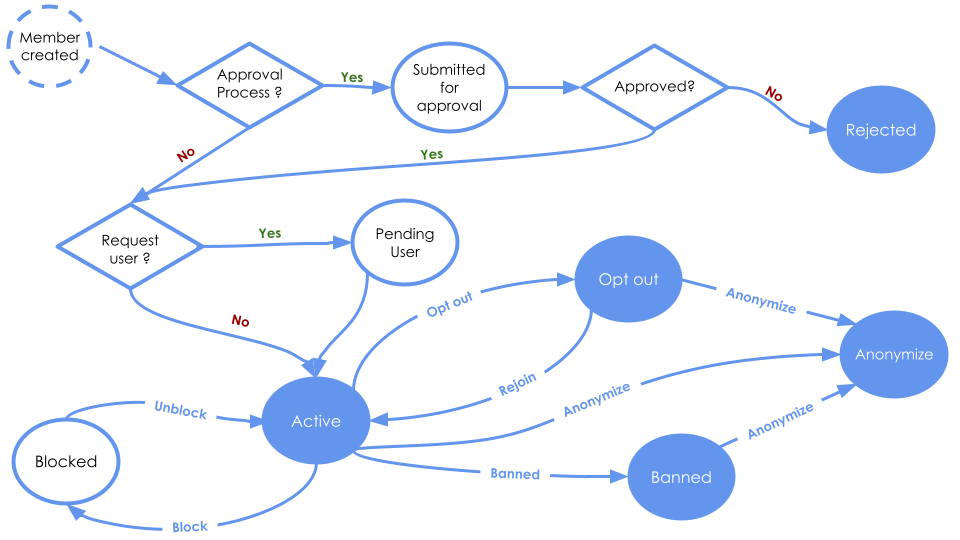
Member status flow
Updated over 1 year ago