
Fielo for an Experience Cloud Site
Install Fielo for Experience Cloud or as a standalone solution
Depending on your licenses, needs, and objectives you can use Fielo with Salesforce Experience Cloud or as a standalone solution. While using the Experience Cloud will allow you to easily create a place where the members of your program will be able to access the program's incentives, rewards, and much more, Fielo can also be used only for back-office purposes; as a standalone solution.
Let's see the steps to install Fielo into your Org!
Salesforce Experience CloudPreviously known as Community Cloud, as of Salesforce Spring '21 release Community is now referred to as Experience Cloud and/or Site.
Using Fielo as a standalone solutionIf you plan to use Fielo just for back-office incentive and loyalty administration, or simply want to take it for a spin to see what we offer without using Fielo in Experience Cloud, follow the instructions on this page only until step 4, Create Your First Program.
Before Starting
First thing's first: log into your Salesforce org and make sure you have system administrator permissions. You'll also want to confirm that:
- If you will use the Salesforce Experience Cloud
- Your Org must have at least one set of Community User licenses.
- You must have created a custom profile for your the members of your Fielo program (e.g. "Fielo Community"). This profile must have a community-related user license - such as Portal or Partner -, because it will be used whenever someone registers to your Program through the Site.
- You've enabled Salesforce Digital Experience.
- Your Org has a Domain. Production Orgs created in Salesforce Winter ’21 version and later have a My Domain by default, but if yours doesn't, check here how to create it.
Create a Site
You may skip this if you won't be using Experience Cloud Sites.
In case you don't have an Experience Cloud Site yet, go ahead and create one before installing Fielo in your Org. You can get a quick introduction to Sites in the Experience Cloud Basics Trailhead module.
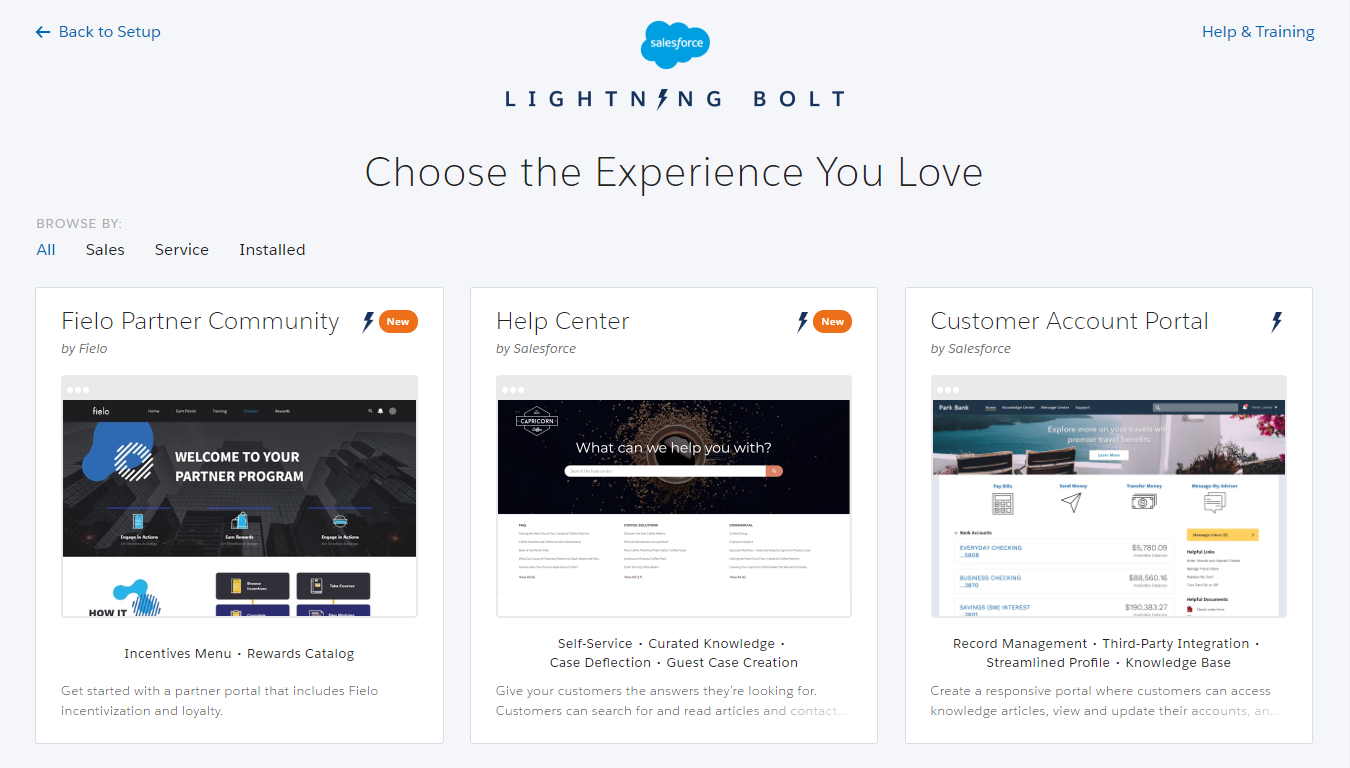
When you're ready, go ahead and create a new site. Feel free to use one of our tailor-made templates to jump start your build-out!
Make sure to read our guide on how to build an experience cloud site too. There are a few important steps to be followed in order to use Fielo Lightning Components in your site.
1. Install Fielo
After checking if your Org has the required data mentioned above, you're ready to install Fielo!
- Click here to access the installation package.
- Select Install for Specific Profiles.
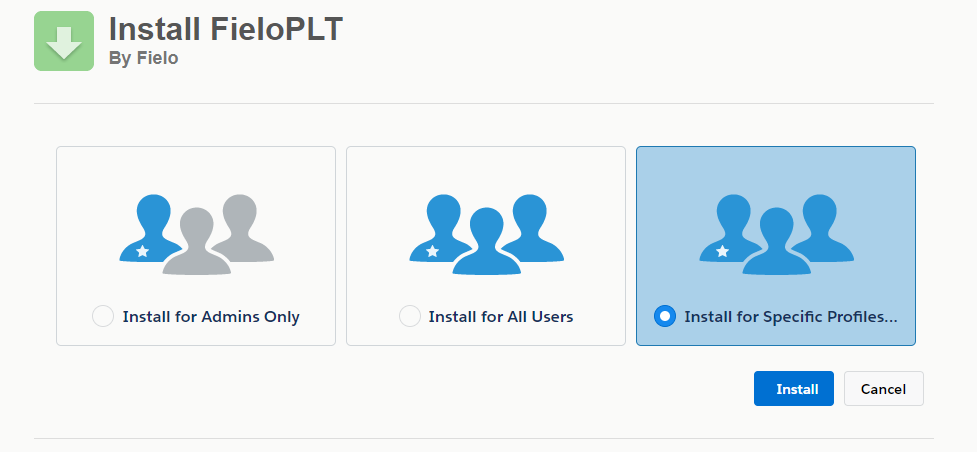
Don't click Install yet! Profile selection is on the same page.
- Scroll down and find the Site (Community) User profile(s) you created for the members before the installation - in the image below, it is the Fielo Partner Community. From the corresponding picklist(s), choose Fielo Community.
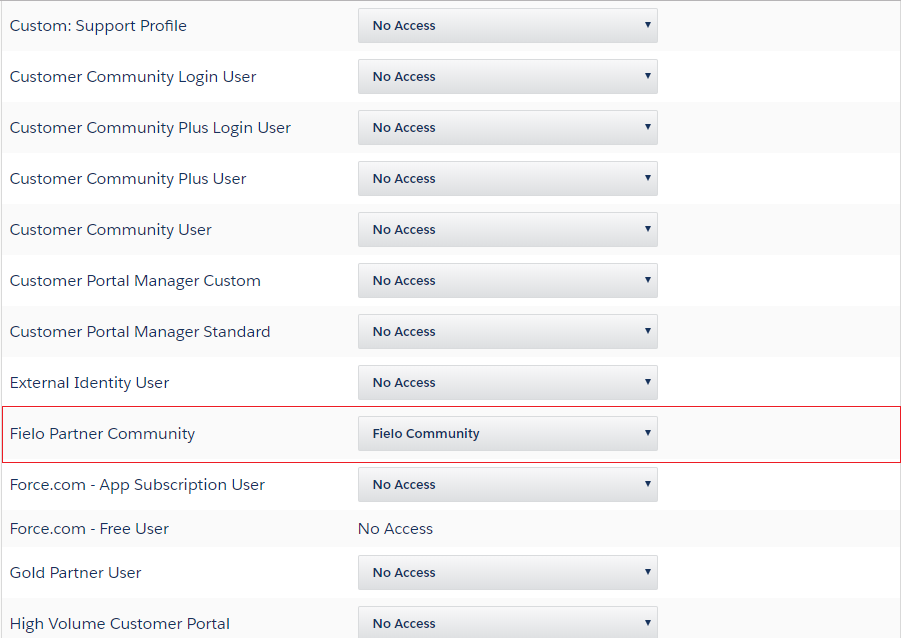
- If any internal org users besides System Administrators will be configuring Fielo, you'll want to give Full Access to those profiles, as well.
- Click Install. When the installation process is finished, you (or the org admin) will be notified by email.
PermissionsDuring the installation, Fielo automatically creates a Permission Set named FieloPLT Admin, which has all the permissions needed to work with Fielo standard objects. Therefore, all users that will work with the platform should have this Permission Set assigned to them.
In case you create your own custom objects to incentivize through Fielo, you'll need to clone the FieloPLT Admin and add the new object(s) permissions to it.
Please note that pre-existing Members need to be provided with the right permissions. Fielo provides an out-of-the-box Permission Set you can assign to all Portal Members (Community Members) at once. Find out more about how to assign it clicking here.
Also, make sure to read our guide on how to build an experience cloud site too. There are a few important steps to be followed in order to use Fielo Lightning Components in your site.
2. Ensure Email Deliverability
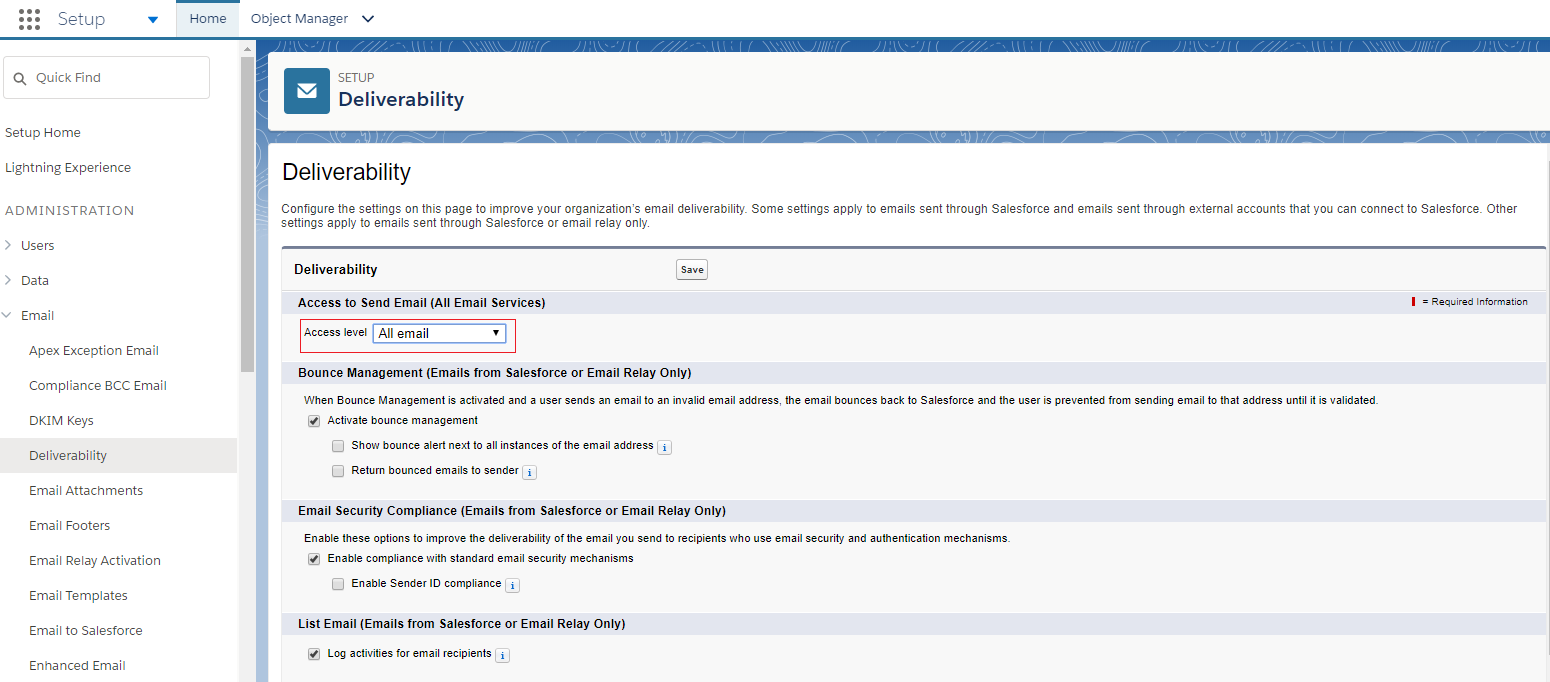
From Salesforce Setup, navigate to Deliverability. Make sure the e-mail access level is set to All email.
3. Enable Libraries
After installing, you'll want to activate our full feature set by enabling the FieloPLT library.
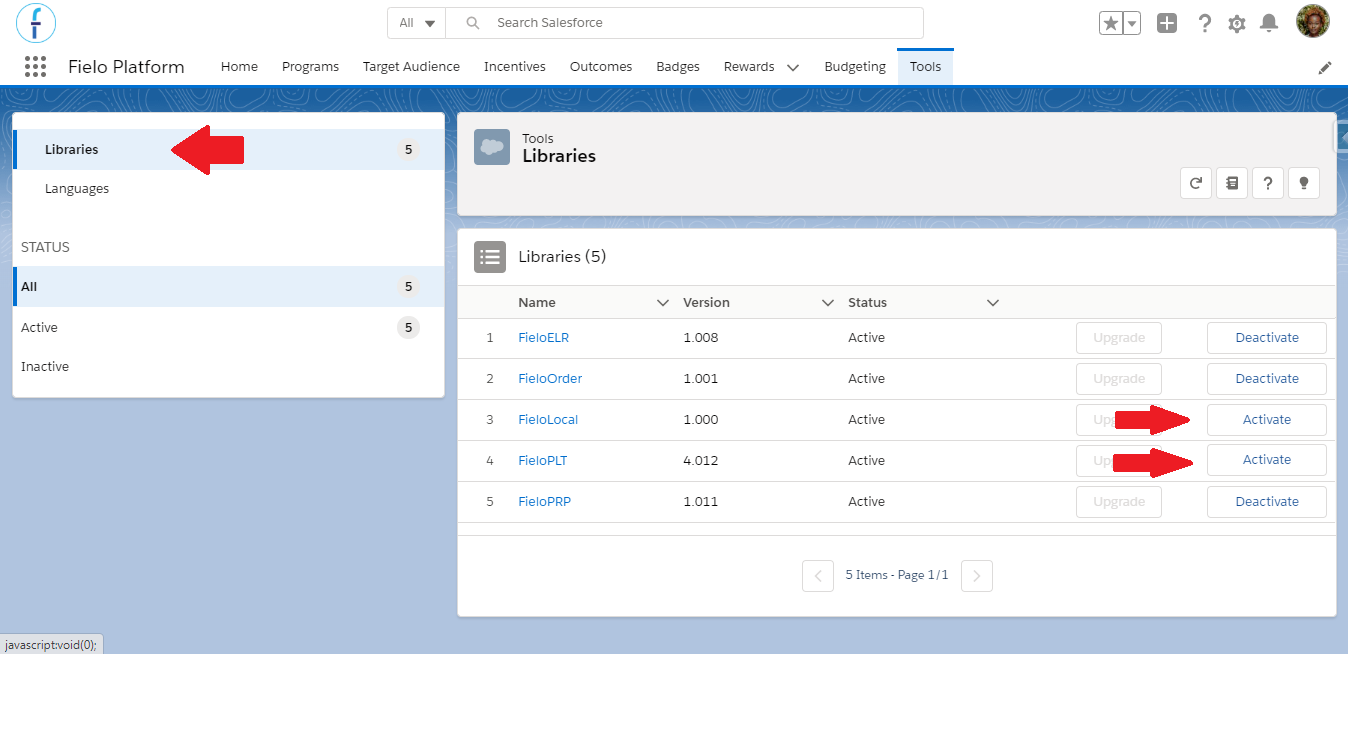
Click on the App Launcher and choose Fielo Platform. From the Tools tab, make sure that you are in the Libraries section and click Activate next to FieloPLT.
While you're here, go ahead and activate the FieloLocal library, as well. This way, you'll have a place to store any actions, models, or page settings that you create later on.
4. Create Your First Program
Now, let's go ahead and create your first incentive and loyalty program! Just click the Programs tab and choose Create a new program.
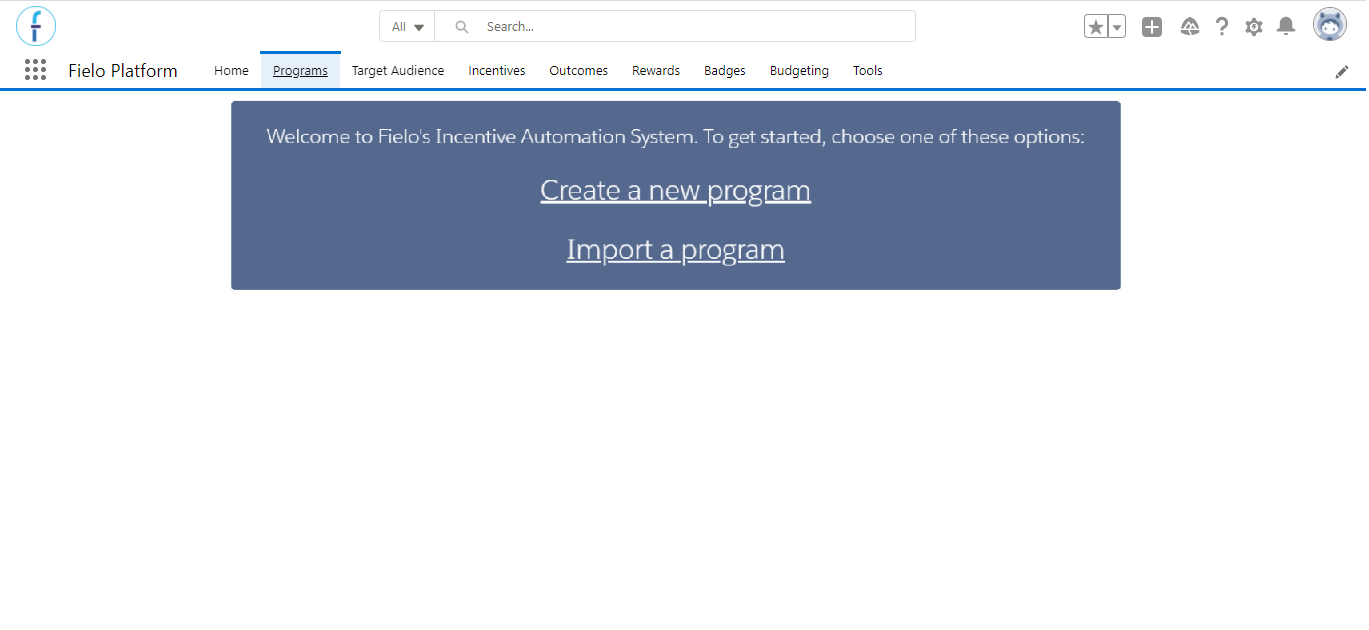
Then, follow the instructions for Creating a Program.
5. Add Lighting Components to Your Site
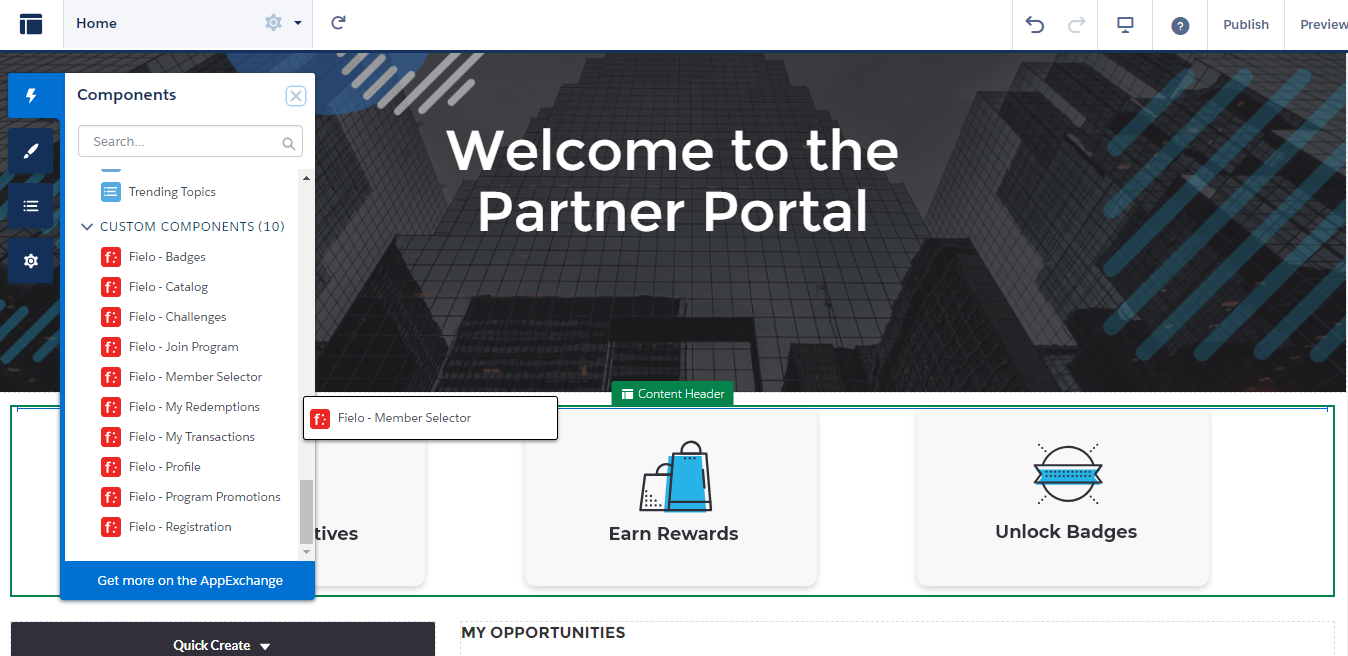
Whether you created your site from a Fielo template, a Salesforce template or you already have a Site up and running, you can go ahead and add any additional Lightning components you want to it.
Fielo has a number of Lightning Components that you can use in Experience Cloud Sites! Check them out and see if they comply with your needs.
Configure Registration
This is an important step: if you'll be using Fielo's Registration component, set it up as follows.
6. Activate Your Site
Once you've finished building out your incentive and loyalty program and set up all of the content on your Site, you can take your Site live. See Activate Your Site for details.
More Details About Installing Fielo
How long does it take to install?
Our main package, FieloPLT, takes 20 to 25 minutes to install on your org.
What does my org need to have in order for me to be able to install Fielo?
FieloPLT requires at least 3MB of platform cache available to allocate.
What do I need to have in order to use Fielo?
This really depends on how you plan to use Fielo; on which features you are going to use. For example:
- If you want to create a member portal, you will need to enable Digital Experiences.
- If you want to enable our metadata automation (Behaviors, Currencies and Fund Allocation Rewarding), you'll need to configure a remote site.
- If you plan on using Funds as a rewarding type, you'll need to have Partner Lincenses in your Org and Digital Experience enabled.
Updated over 1 year ago