
Program Promotions
Program Promotions shows members all active promotions available to their segment(s).
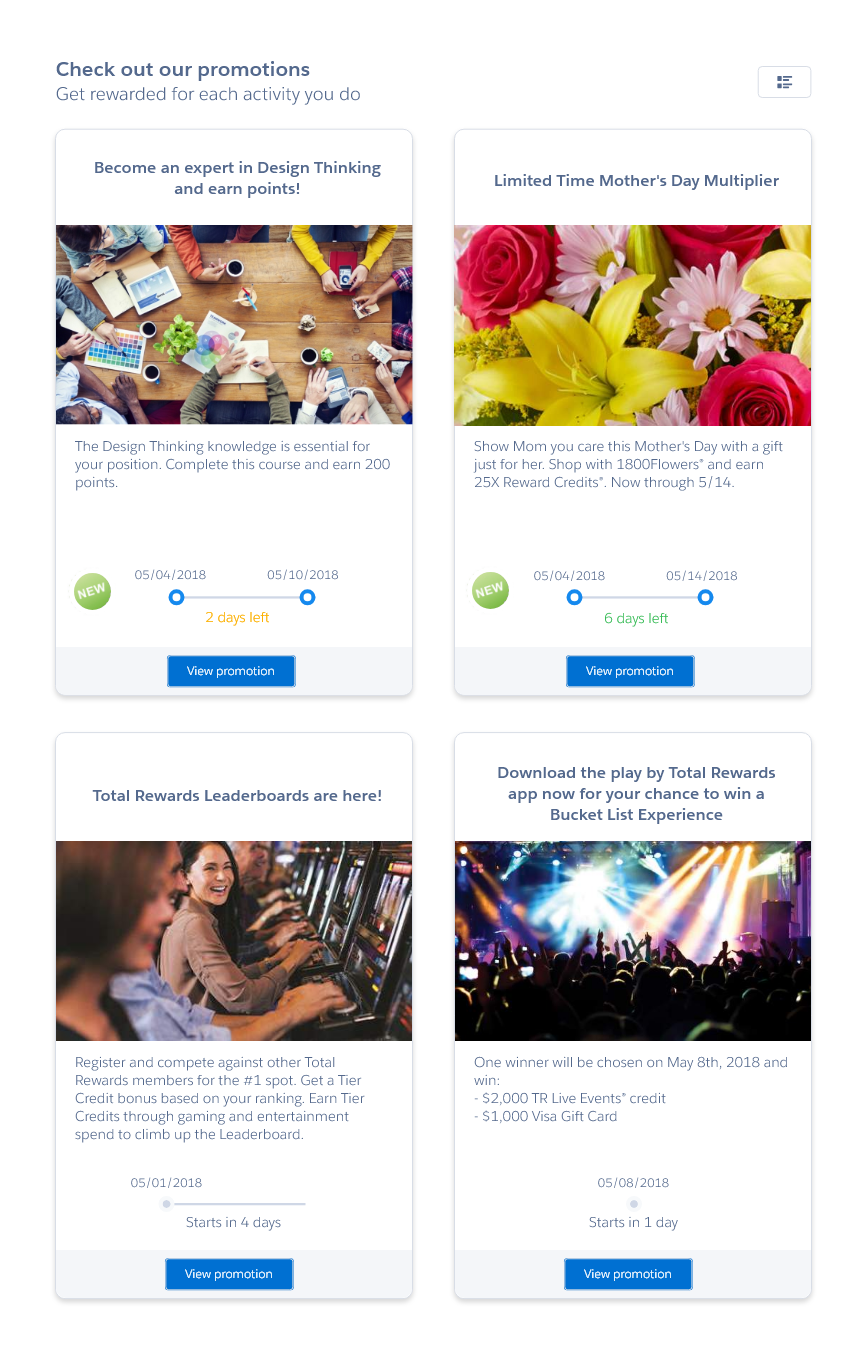
Promotions in Site
Configuring Program Promotions
Once you've added Member Selector and Program Promotions to your page, you can customize what data is shown and how it is shown.
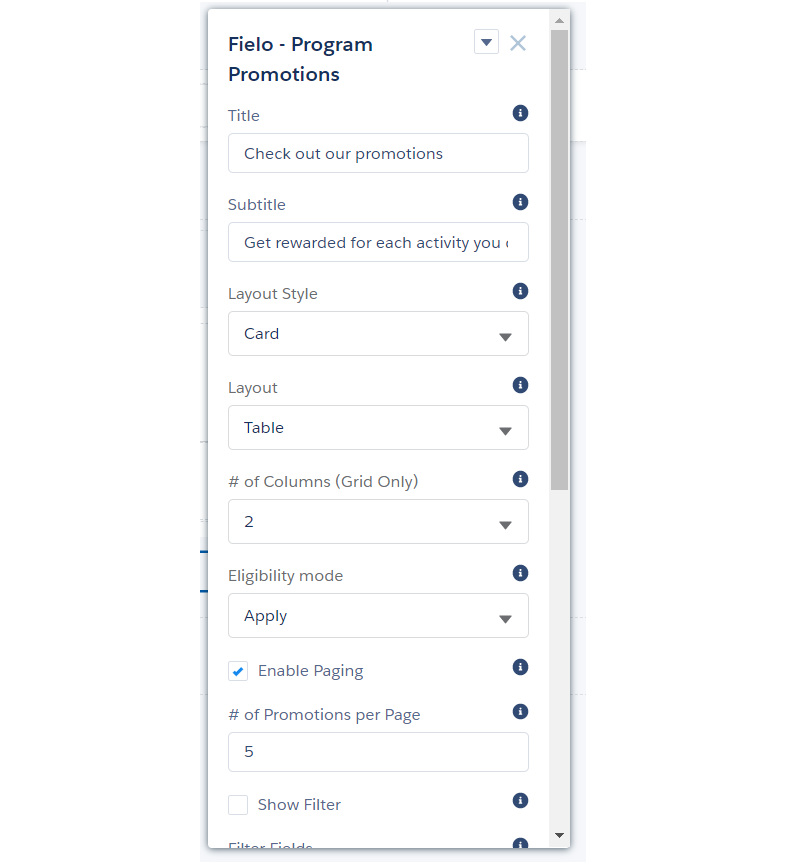
Component setup bar in Experience builder
Program Promotions can be configured via the following properties:
- Title: Enter the title you want displayed at the top of the component.
- Subtitle: Enter the subtitle to be displayed below the title.
- Layout Style: Leave this setting at Card for an optimized UI experience or switch to None if you plan to customize the component using CSS.
- Layout: Choose Table to display promotions in list format or Grid to display them in tile format. Don't worry, your members will be able to toggle back and forth between the views.
- # of Columns (Grid Only): Choose the number of columns you want to be displayed in grid layout.
- Eligibility mode: Choose which Promotions the member will be able to see. Further set up must be done while creating or editing a Promotion.
- Apply: allows the member to see a list of the Promotions that uses segments they apply to or without segment. This is the standard.
- Not Apply: will list the Promotions with segments that the member doesn't apply to with the Eligibility requirements link, which will open a dashboard (Progress view option) or message (Description View option) detailing which actions they need to accomplish in order to participate in the Promotion.
- All: will list all the promotions that would be listed for the options apply and not apply.
- Enable Paging: Check this box to allow promotions to be displayed in pages.
- # of Promotions per Page: If paging is enabled, enter the maximum number of promotions you want to be displayed on a single page.
- Show Filter: Check this box to allow members to filter their promotions.
- Filter Fields: If filtering is enabled, enter the API names of the promotion fields you want members to be able to filter by, separated by commas.
- Enable Sorting: Check this box to allow members to sort their promotions.
- Sort By Fields: If sorting is enabled, enter the API names of the fields you want members to be able to sort by, separated by commas.
- Promotion Fields: Enter the API names of the fields you want to include in the promotion list, separated by commas.
- Promotion Detail Fields: Enter the API names of the fields you want to be displayed in promotion detail views, separated by commas.
- Show Rules: Check this box to display rules in promotion detail views.
- Rule Fields: If showing rules, enter the API names of the rule fields you want to be displayed in promotion detail views, separated by commas.
EligibilityIt is possible to use the Eligibility option other than with Challenges or Program Promotions. This can be done using the Lightning Web Component CcEligibility.
Agreement for PromotionsThe promotion agreement cannot be used with program promotions. In order to take advantage of this feature, add the incentives component to you Experience Cloud site.
Updated over 1 year ago
Did this page help you?