
Budget Adjustments
Imagine that your incentive program is going spectacularly and that budget amount you set in January is starting to look out of date. Or, maybe additional priorities have popped up and need to be included in an existing budget.
With adjustments, budget amounts can be increased or decreased with full traceability. They're compatible with Salesforce approval processes, so you can configure the chain of approvals required to process an adjustment just as you do with other records across your org.
Adjustments are really simple and straightforward. Let's see how they work!
To begin, access the Adjustments related list on the budget view page. There, you will find the Budget Adjustments list, where you can see every adjustment that has been made or requested. At least one will already be there, since all budgets have an initial adjustment that provides the original budget amount.
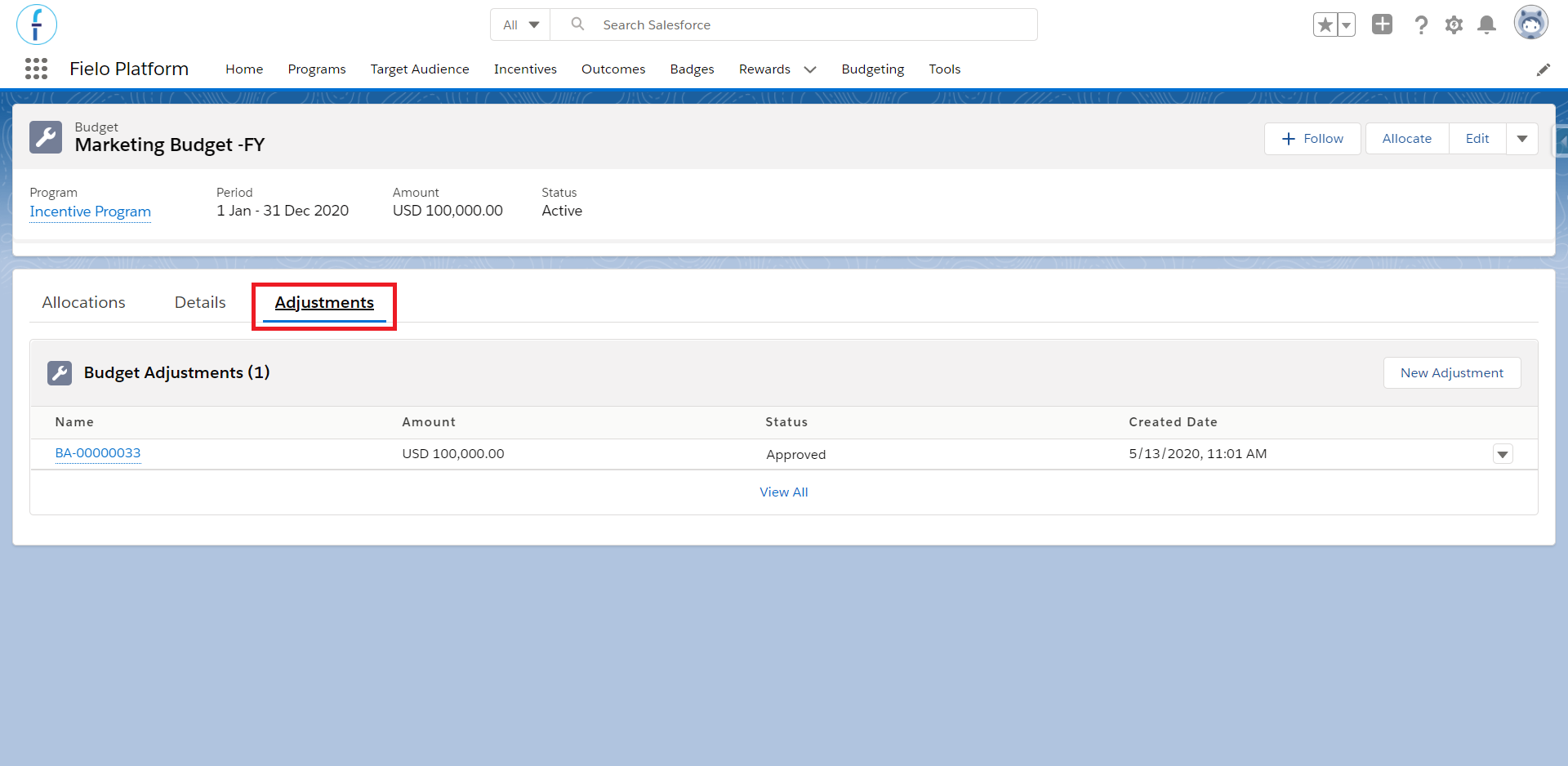
Budget adjustments
Some info you'll see is:
- Name: an automatically generated reference name that identifies each adjustment uniquely.
- Amount: the amount increase (if positive) or decrease (if negative).
- Status: this can be Approved, Pending or Rejected. If you have an approval process set up, all adjustments will be created as Pending, before being Approved or Rejected. Otherwise, all adjustments are automatically Approved.
- Created Date: the date and time the adjustment was created.
Creating an Adjustment
To create an adjustment, click on the New Adjustment button. Enter the amount by which you want to increase or decrease the budget amount and a reason. If you wish to reduce the budget amount, insert a minus sign ( - ) before the number.
As soon as the adjustment is approved, the budget amount will be updated.
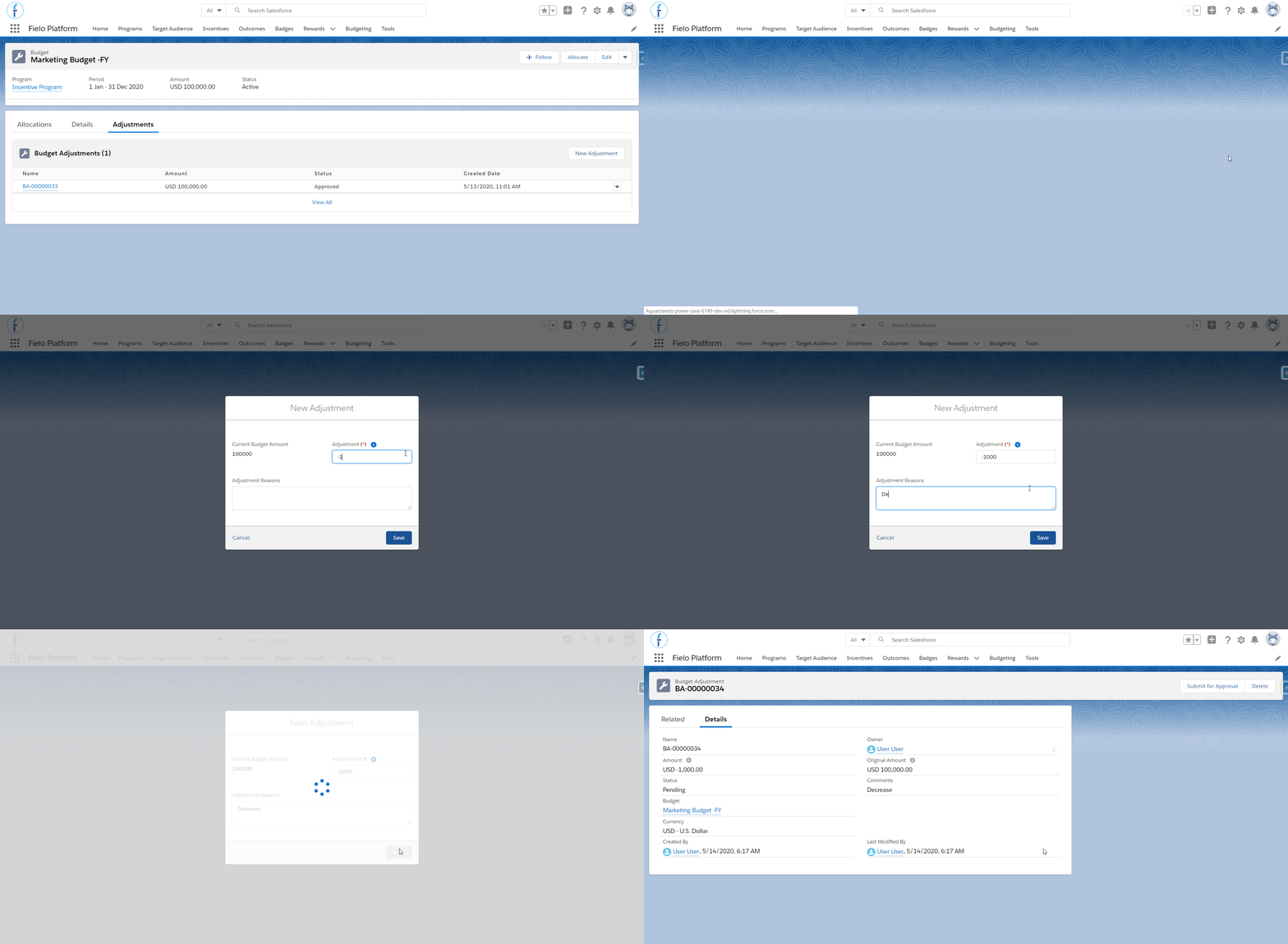
Creating an adjustment
Careful! While it is possible to decrease the budget amount, the system will not allow it to become zero, negative or less than the total allocated amount.
Congrats!You've just created your first adjustment.
Approval Process for Budgets
There are a lot of ways a company can manage its processes and it is possible that, in yours, the person who creates the budget or adjustments is not the same one who gives the final approval for it. You don't need to worry about having to send an email or go talk to the program administrator to approve your adjustments every time, though.
Instead, you can create a Salesforce approval processes for your Budget Adjustments. This way, one or more people inside your company will have to approve all adjustments—including the initial adjustment that comes when you create a budget—before those funds are available for consumption.
It changes the way adjustments work a little. Let's understand how.
In order to flag this process as a requirement in your program, you'll need to modify its settings. Go to your program page and click on Edit. Turn on the option Require approval for budgetary funds and save.
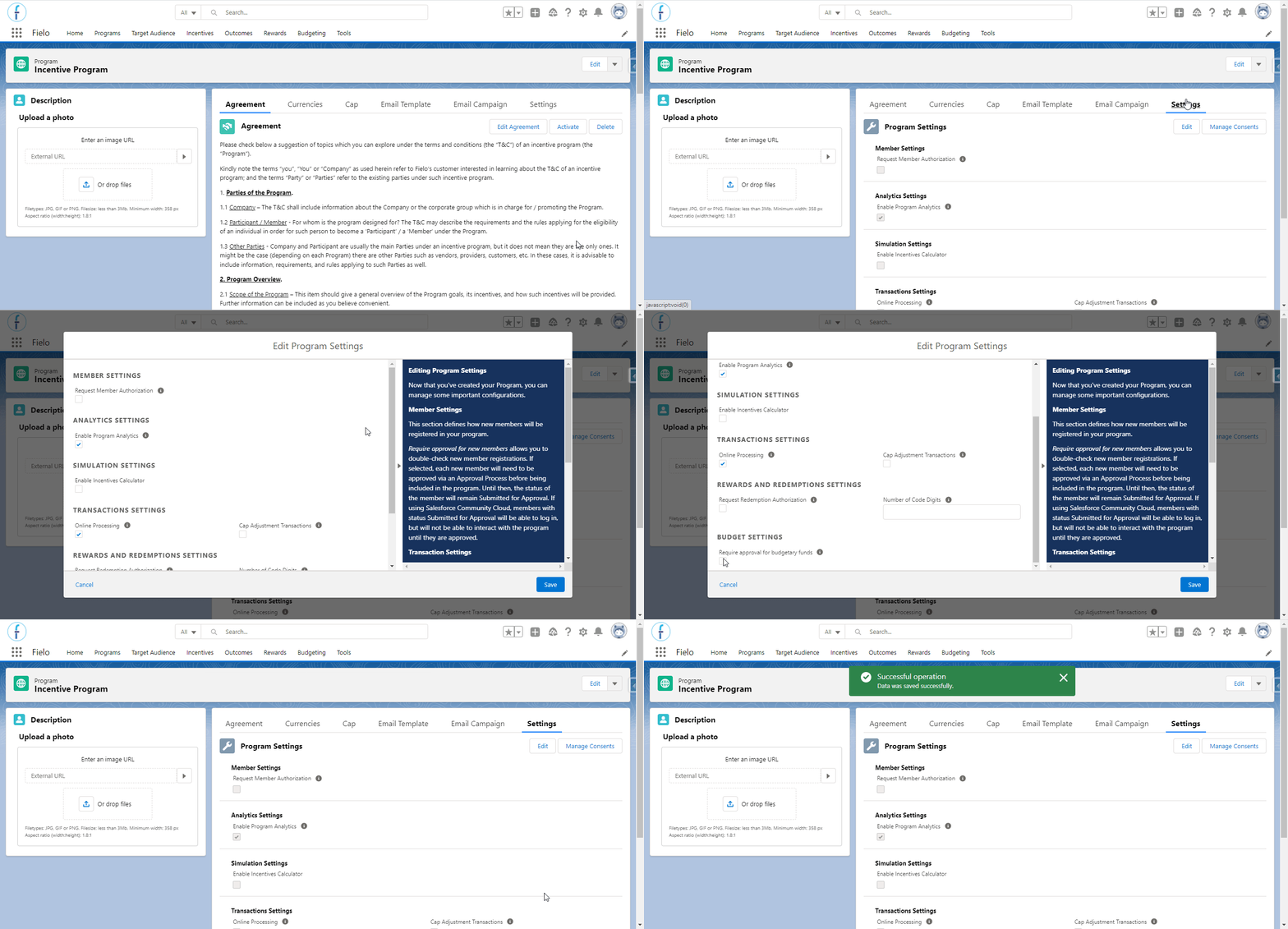
Turning on the Require approval for budgetary funds option
From here on out, all budget adjustments will be created with the status of Pending.
Now, you'll need to set up an approval process for the Budget Adjustment object. See Salesforce docs for detailed instructions.
As you go through setup, a few reminders:
- Ensure that your approvers will be properly notified when there are adjustments that require their review.
- Configure how Budget Adjustment statuses will change to Approved and Rejected.
- Double check that your Budget Adjustment page layout includes the Submit for Approval button.
Approving an Adjustment
So, you've set up and activated an approval process for the Budget Adjustment object. How do things work now?
Well, when your colleagues create a new adjustment, they'll notice that it automatically has a status of Pending. They'll then need to submit the adjustment for approval, so that it can enter your org's approval process.
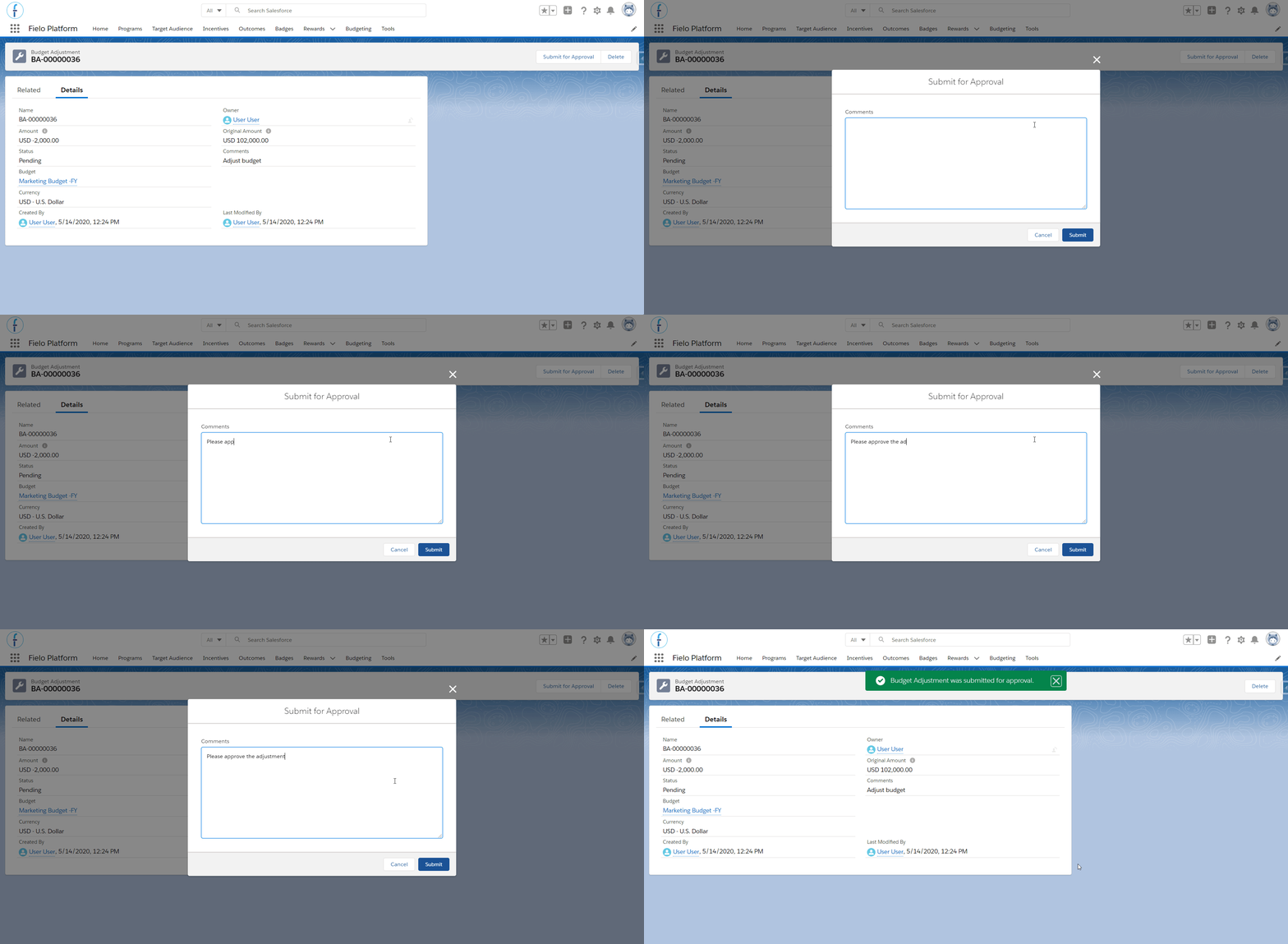
Submitting a budget for approval
Hopefully, you've set up the approval process to notify approvers when action is needed. In any case, you and your colleagues can see when a budget has a pending adjustment by checking out the Adjustments related list.
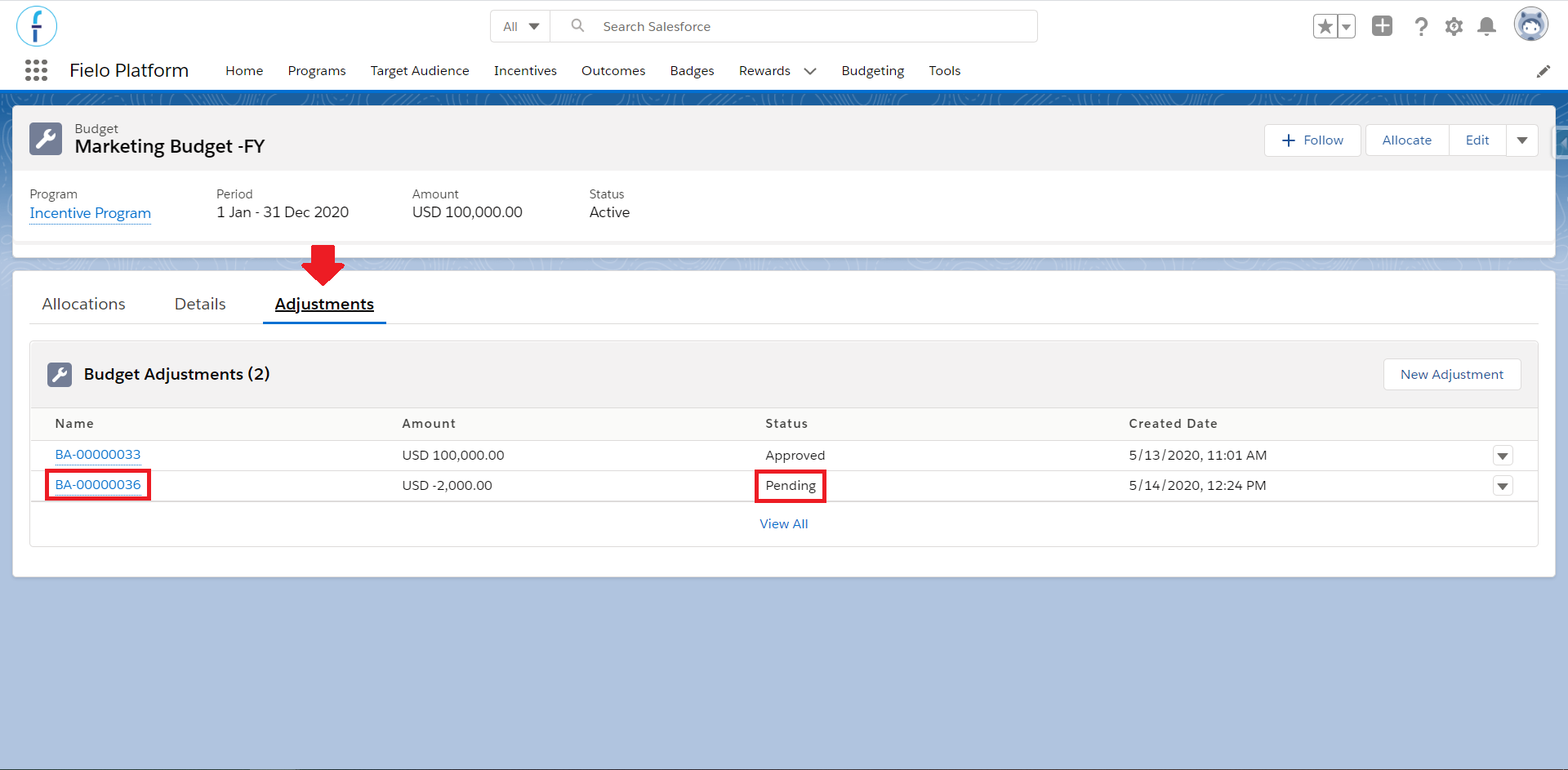
Checking budget adjustments status
Deleting an AdjustmentIf you or a colleague ever need to delete an adjustment, you can, as long as it's still Pending. For traceability reasons, adjustments with status Approved or Rejected cannot be deleted.
After an adjustment has been submitted for approval, it can be reviewed from the adjustment's record page. Salesforce also offers other convenient ways for approvers to review records, such as by email.
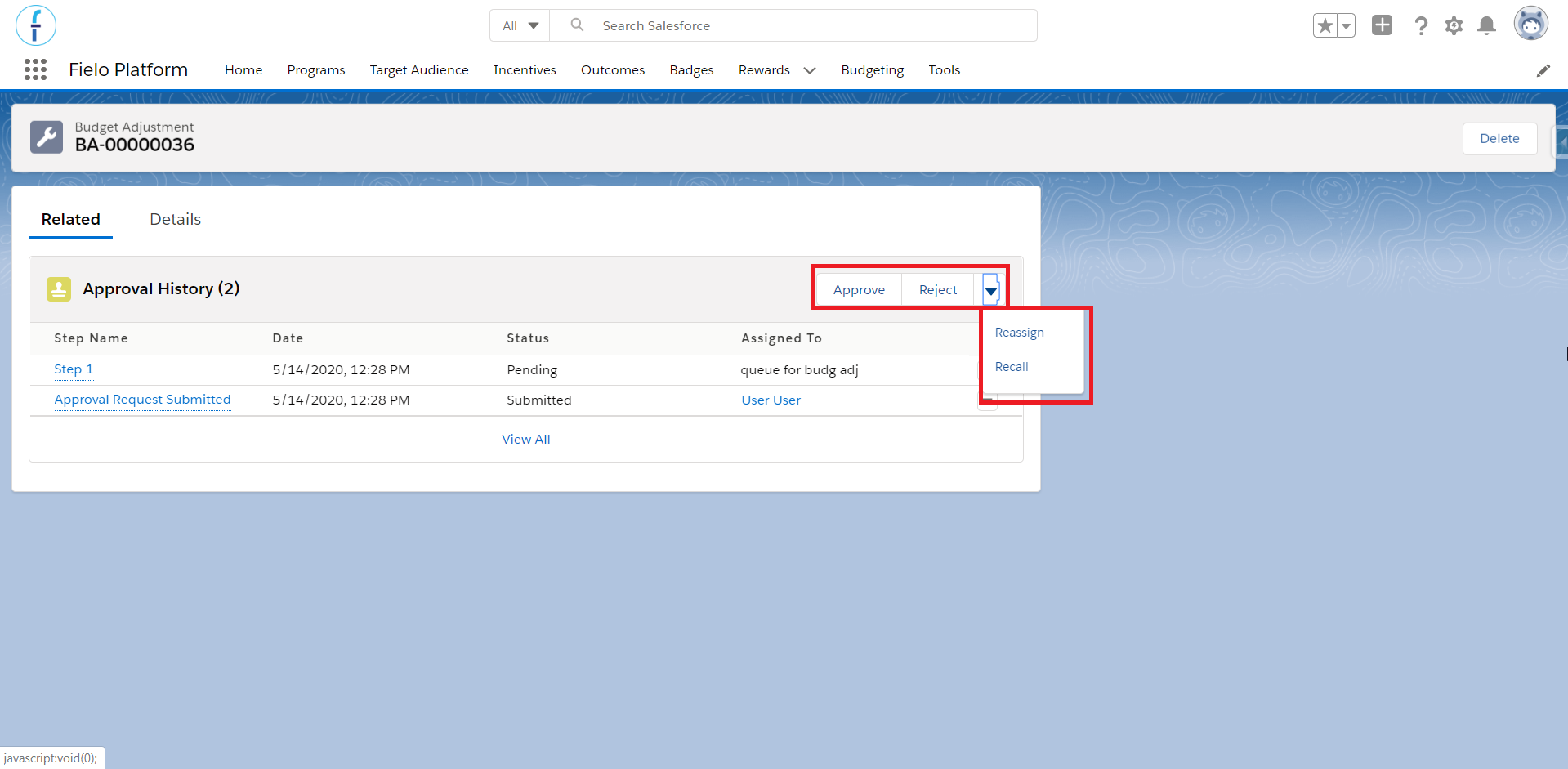
Managements options
When an adjustment is approved, the total budget amount will be updated to reflect the adjusted value.
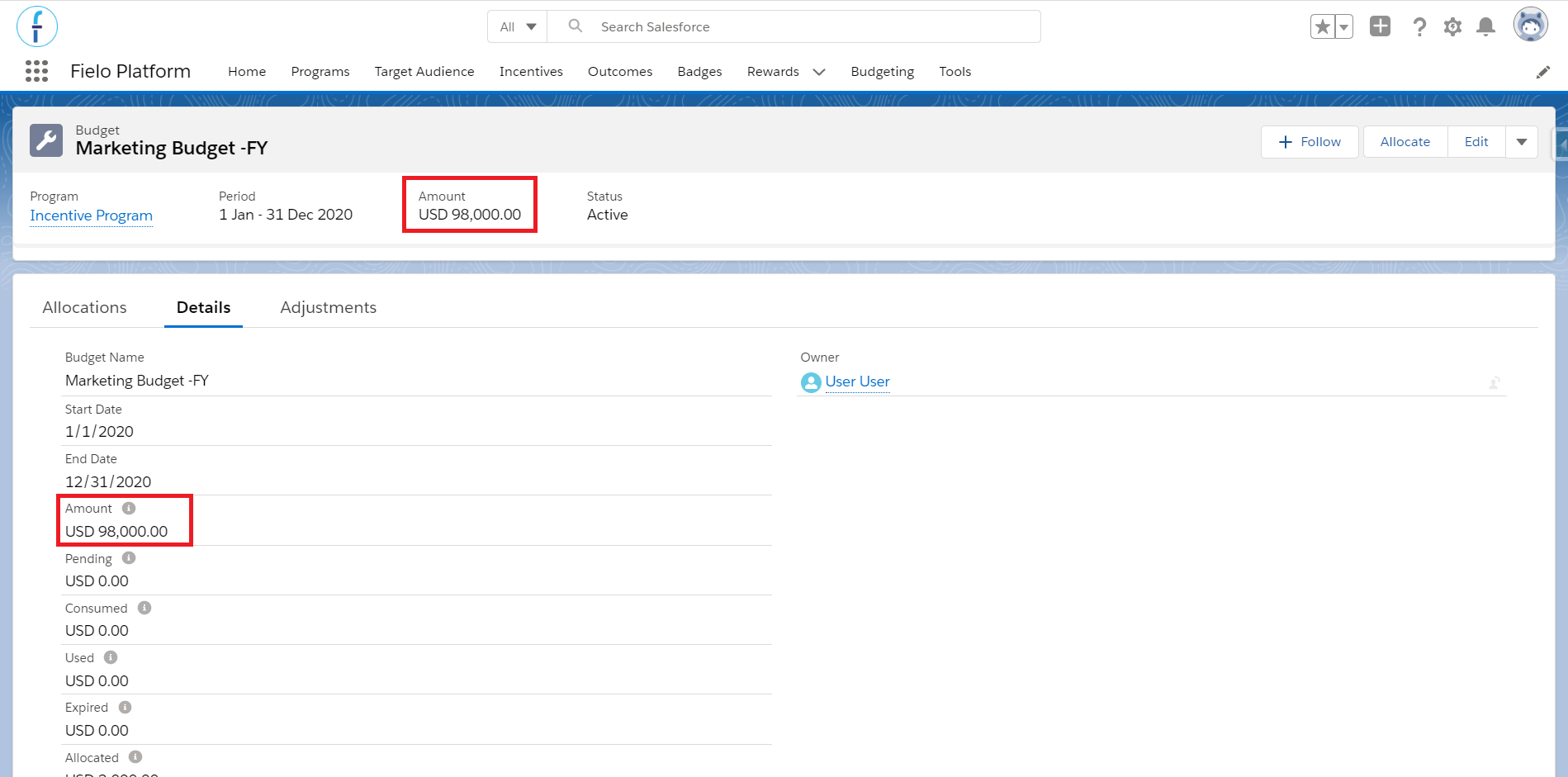
Amount field
Updated over 1 year ago