
🆕 AI Member Assistant ✨
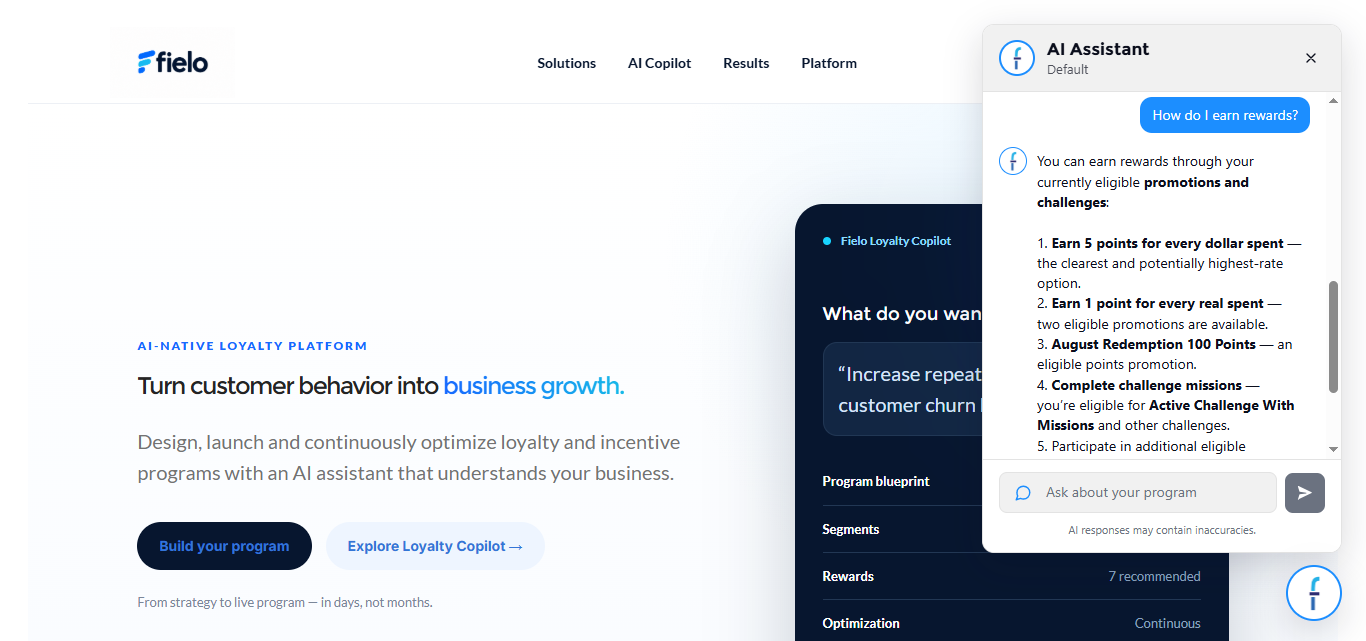
The AI Member Assistant gives members a conversational way to explore their rewards, understand available incentives, and keep track of what's happening with their points and redemption codes. Members simply ask questions in natural language and the assistant responds with answers drawn from their own program data in real time.
Install the FieloAIC package
Before you begin, make sure you have installed and set up Fielo AI on your org. Reach out to your Fielo rep for details.
How It Works
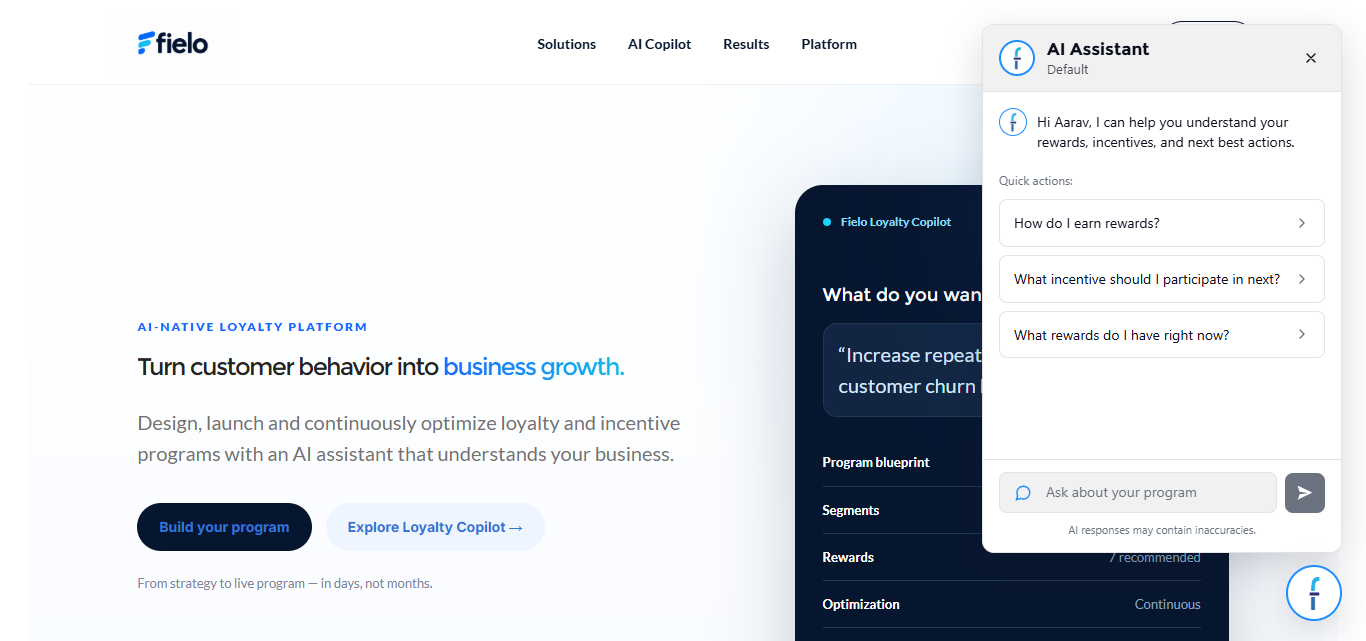
The assistant appears as a floating icon in the corner of the member portal. Clicking it opens a chat window where the member can type questions or select from a set of conversation starters.
The assistant grounds its responses in the member's transactional and profile data, and provides only information that the member is allowed to see. Incentives and rewards not visible to the member's segments or hidden by visibility settings, as well as other members' data, are excluded entirely.
Conversation Starters
When the chat window is first opened, the member sees three pre-set conversation starters to help them get going:
- How do I earn rewards?
- What incentive should I participate in next?
- What rewards do I have right now?
Members can tap one of these or type their own question freely.
Data Scope
The assistant draws on the following member profile and transactional data to answer questions.
| Data | What the AI can answer |
|---|---|
| Available Incentives | Promotions, challenges, and missions the member can currently participate in, filtered by segment and visibility settings |
| Catalog Rewards | Rewards available for redemption, filtered by segment and catalog visibility settings |
| Transaction History | Which incentives the member has previously participated in |
| Tracker / Mission History | Active and completed missions, including progress |
| Point History | Current balances, earned amounts, and upcoming expiry dates |
| Redemption History | Catalog checkouts, instant reward earnings, and expired vouchers |
| Levels | Current level, thresholds for the next level, and level benefits |
| Level History | Past level changes and when they occurred |
| Badge History | Badges the member currently holds, including expiry dates |
| Payouts | Payout amounts and projected or realized payout dates |
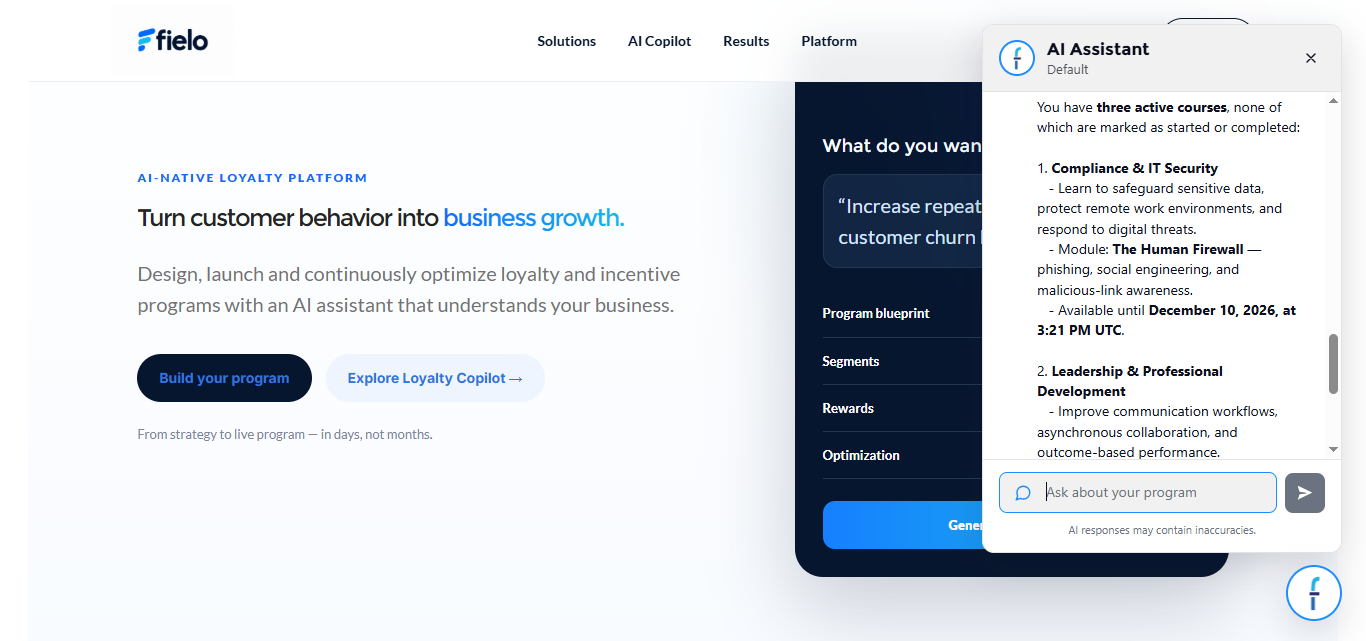
| Learning Courses and Modules | Courses and modules, including their descriptions |
Important: Incentives, rewards, courses and modules that are not visible to the member — whether due to segment targeting or visibility settings — are excluded from the assistant's knowledge. The AI will not reveal the existence of hidden content.
Example Questions
Incentives & Maximizing Rewards
• What incentives am I eligible for right now?
• Which incentive would earn me the most points?
• Is there a faster way to reach my next reward?
• What do I need to do to complete [incentive name]?
• Are there any incentives ending soon that I haven't joined?
Points & Expiry
• How many points do I have?
• Do I have any points expiring soon?
• When do my points expire?
• How many points have I earned this year?
Vouchers & Redemptions
• Do I have any vouchers about to expire?
• What have I redeemed recently?
• What did I buy from the catalog last month?
• Has my last redemption shipped/processed?
Catalog Rewards
• What rewards can I redeem right now?
• What's the cheapest reward I can afford with my current points?
• What new rewards were added to the catalog?
Transaction & Tracker History
• What incentives have I participated in before?
• Which missions am I currently working on?
• How close am I to completing [mission/tracker]?
• What missions have I completed?
Levels
• What level am I currently at?
• What do I need to do to reach the next level?
• What benefits come with my current level?
• When did I reach my current level?
Badges
• What badges have I earned?
• What badges are close to expiring?
• How do I earn [specific badge]?
Payouts
• When is my next payout?
• How much am I getting paid out this cycle?
• Has my last payout been finalized?
Learning — Courses & Recommendations
• What courses are available to me?
• What course should I take next?
• What course would help me reach [stated goal, e.g. "become a certified specialist"]?
• Can you build me a learning path to reach [goal]?
• What have I already completed vs. what's left?
• Recommend a learning path based on my past courses.
Learning — Course/Module Descriptions & Summaries
• What is [course name] about?
• What will I learn in [module name]?
• Can you summarize the key points of [course/module]?
• How long does [course] take to complete?
Learning — Incentives Tied to Learning
• Are there rewards for completing courses?
• What do I earn for finishing [course/certification]?
• Which learning incentives are still available to me?
Configuration
First, be sure you have the Member Overview or Member Selector component on your Experience Cloud page.
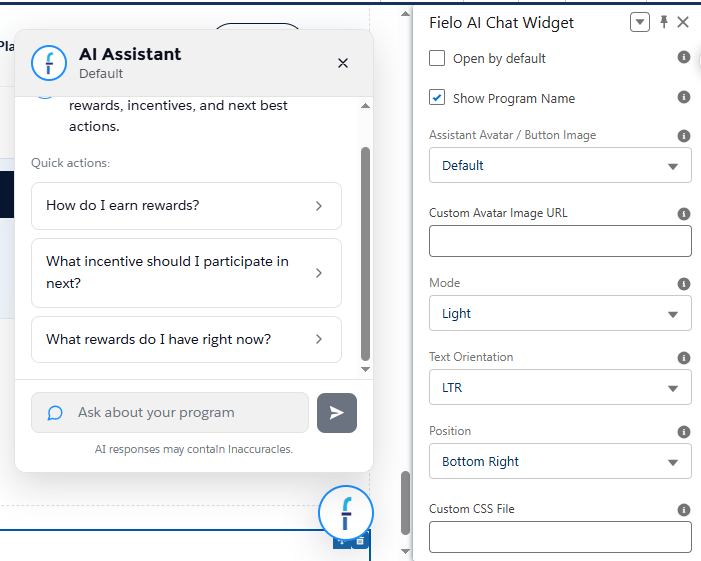
Then, add the Fielo AI Chat Widget component to your page and set the following properties in the component properties panel.
Open by Default
Check this field if you want the chat window to open automatically when the page loads. When unchecked (default), the chat window stays closed and the member opens it by clicking the floating icon.
Show Program Name
Check this field to display the program name under the AI Assistant title in the chat window header. It is checked by default.
Assistant Avatar / Button Image
This picklist controls the image used for the floating icon and the assistant avatar in the chat window. The default value is the Fielo f logo. To use your own image, such as your program's mascot or brand mark, select the custom option and provide the image in Custom Avatar Image URL.
Custom Avatar Image URL
The URL of the image to use as the assistant avatar and floating icon. This field is used when a custom image is selected in Assistant Avatar / Button Image. Leave it empty to use the default Fielo f logo.
Mode
This field controls the overall look and feel of the component. You can choose between two settings: Light or Dark. The default is Light.
Text Orientation
This picklist controls the direction in which the content of the chat window is rendered:
- LTR (Left to Right) (default): All elements are rendered from left to right.
- RTL (Right to Left): All elements are rendered from right to left.
Position
The chat assistant appears as a floating icon that sits on top of the page content. This field controls which part of the screen it is anchored to. By default, it is placed in the Bottom Right corner. The following positions are supported:
- Bottom Right (default)
- Bottom Left
- Top Right
- Top Left
- Center Right (vertically centered on the right edge)
- Center Left (vertically centered on the left edge)
Custom CSS File
This allows a CSS file to be imported from a static resource. Work with your IT department to include the customized CSS information.
Updated 5 days ago