
Batch Management
Large amounts of similar data are managed in batches or large groups. Any actions or components that are automated, such as incentives or rewards, are handled in batches to ensure that all applicable fields and parts are updated with the same information at the same time. This provides a more reliable way of managing these fields.
There are some batches that are handled in the background, but you can manage the majority of batch files. You can review the full list of available batches at the bottom of this page.
Keep this in mind as you start managing your batches - there are some that you can just leave alone and they will work just fine. For the rest of the batches, you can easily update or make changes as needed.
By default, batch processes automatically run daily at midnight, but you can change how many times each process runs within the week or month, and when it will run. You can also create and delete a new one. For example, if you need to delay or interrupt the evaluation of levels for some time, you can go in and make the change. You can also force a manual running of batches.
Let's take a look at how you can run, postpone, and manage your batches.
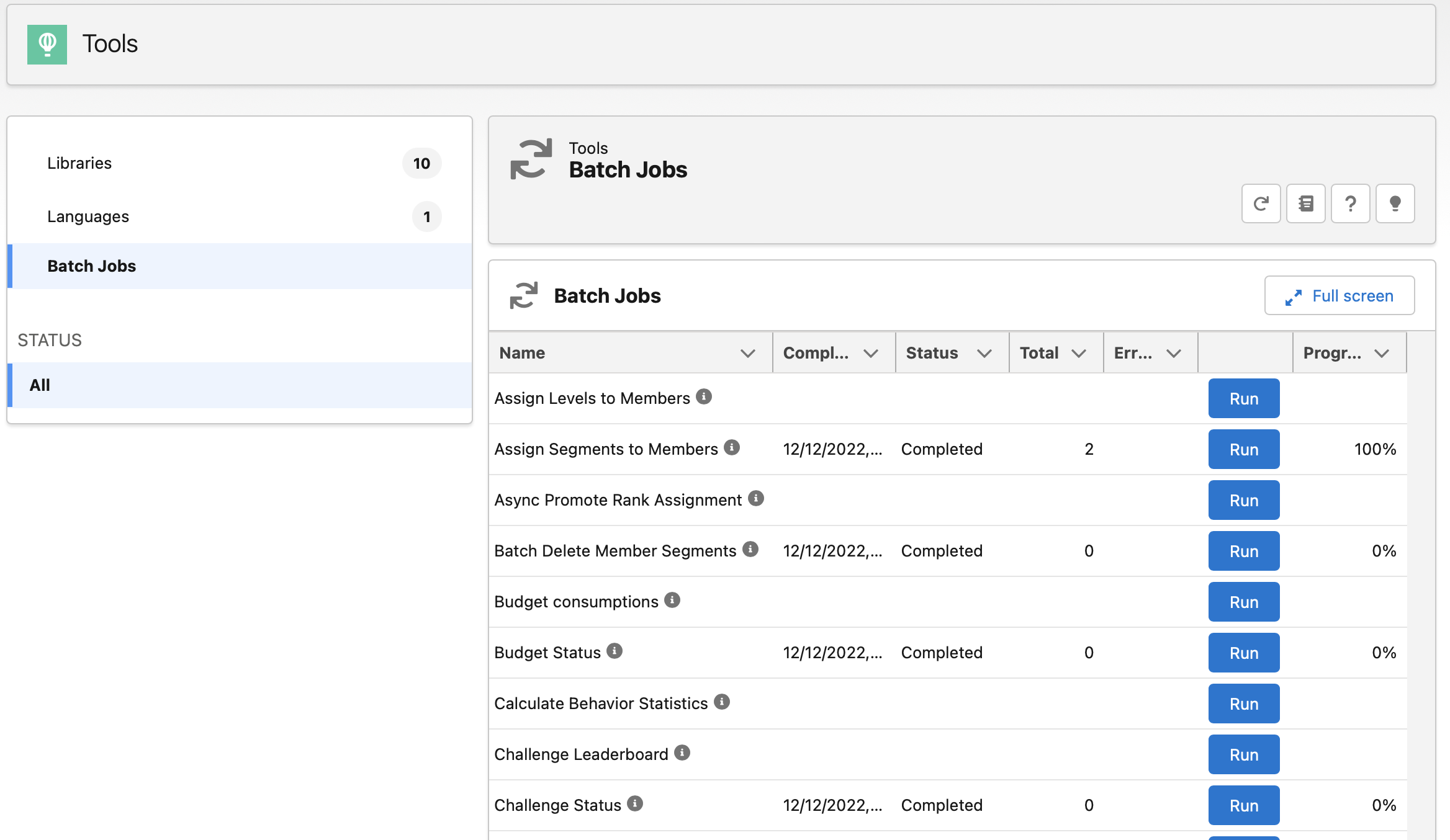
Review and Update Scheduled Batches
When you install Fielo, there are a number of batches that are automatically scheduled to run. You can view them all by going to Setup > Schedule Jobs. All of the existing batches are listed here.
This is also where you will return if you want to make changes to your batches.
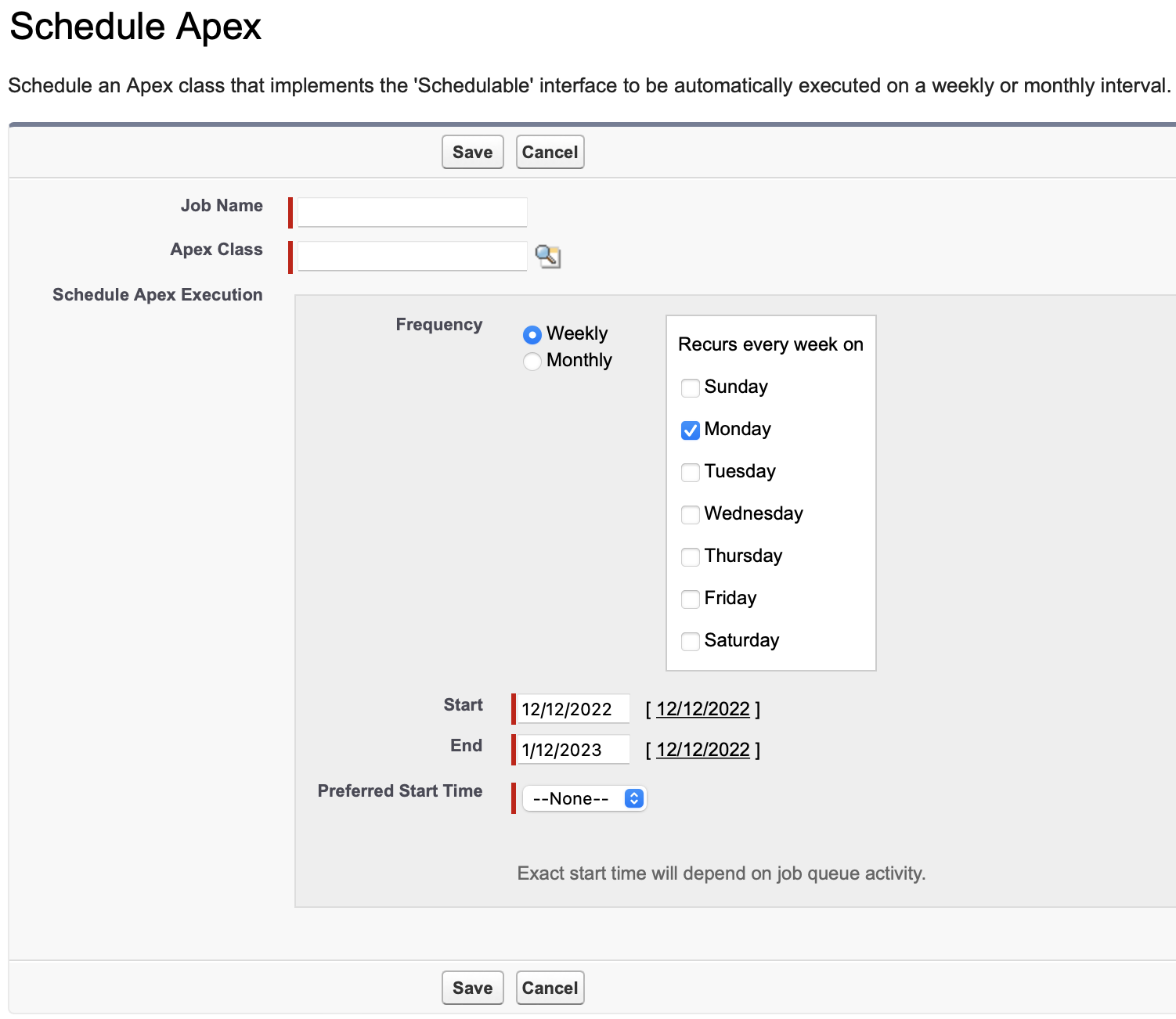
Add an Existing Batch to the Schedule
Since you are likely to need your own batches based on incentives, rewards, courses, and other custom elements, you are able to customize batches to manage your data.
- Go to Setup.
- Find Apex Classes and click on the Schedule Apex button.
- Enter a job name that will be easy to identify as the batch you want to run. For the apex class, refer to this page to know their API names and description.
- Select the following:
a. The apex class for the batch
b. The frequency for the desired execution of the process
c. The start and end date
d. The time that it will run - Click the Save button.
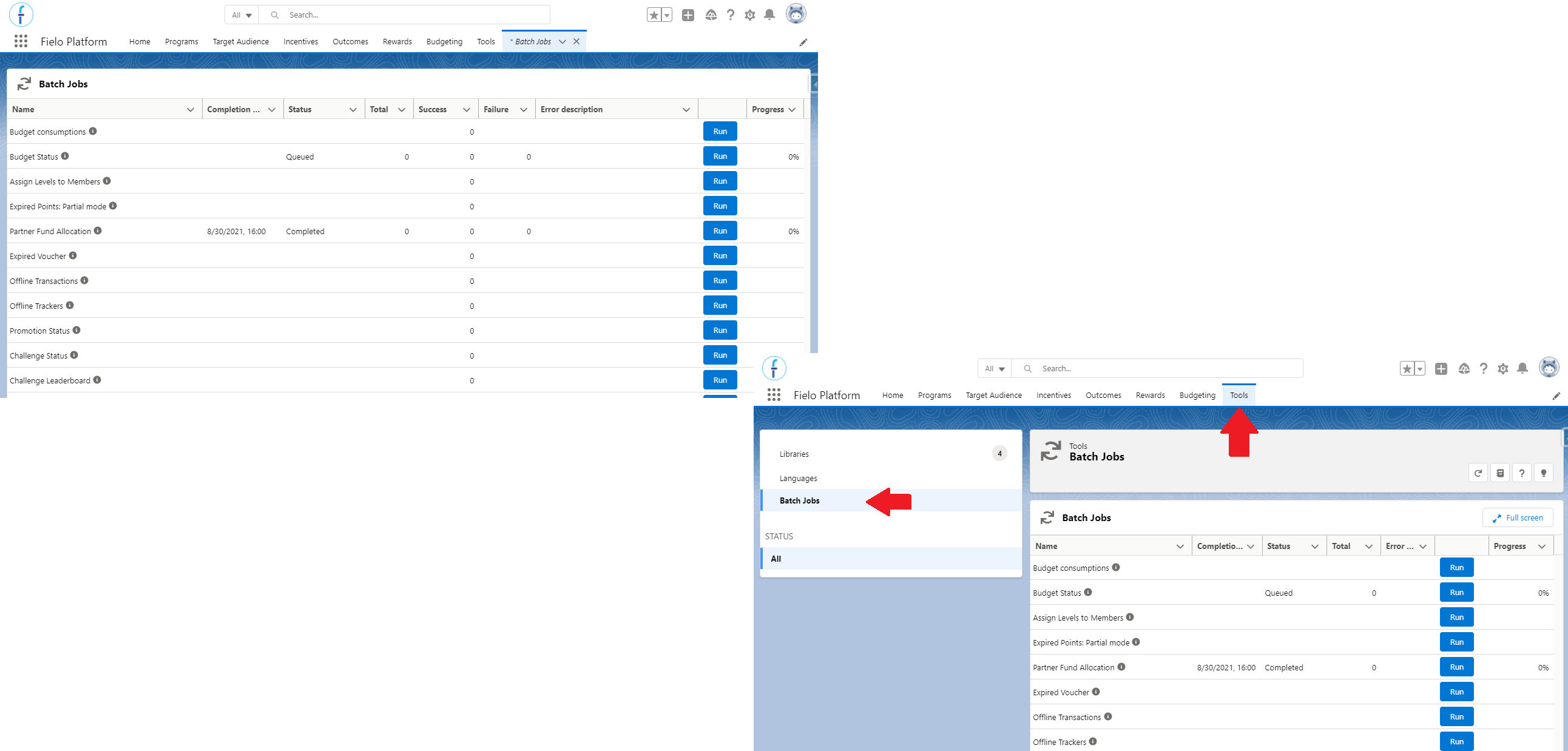
Manually Running Your Batches
Occasionally you will probably need to run a batch or two outside of a regular schedule. The following steps will take you through the quick process to manually run whatever batch you need to clean up your data.
-
Select Batch Management to access batch data and manually run batches for programs with Online Processing disabled. You can also access the batch management page from the Tools tab.
-
Click Run.
Add Your Own Batches
You can add your own custom batch to the batch management page, by creating a new static resource in your Org.
- Prepare a JSON file that will be used to create the batch. It must have the same format as the following example:
[
    {
        "className": "FieloPLT.UpdateEventsValue",
        "label": "Increment Events Value",
        "description": "Batch to increment all events value by 1 (one)",
        "confirm": "Are you sure?",
        "type": ["BatchApex"]
    }
]- Make sure that the className includes the namespace (if the Org has one), that the class you are using is global - so that Fielo package can interact with it -, and the Type must be
["BatchApex"]. You can enter whatever information you would like in the other inputs.
The attribute confirm allows you to add a message that will appear when the user clicks on Run. Use this to confirm that they want to run the batch or to give a warning.
Other than that, the JSON file can contain a list of batches, in this format:
[
    {batch_1},
    {batch_2},
    {batch_3}
]-
Go to your Org's Setup and enter "static resources" in the Quickfind box.
-
Click on New and fill out the form with this information:
a. Name: CustomBatches
b. Description: FieloPLT-Batches
c. Cache Control: public
d. File: [select the JSON file that you created] -
Click the Save button.
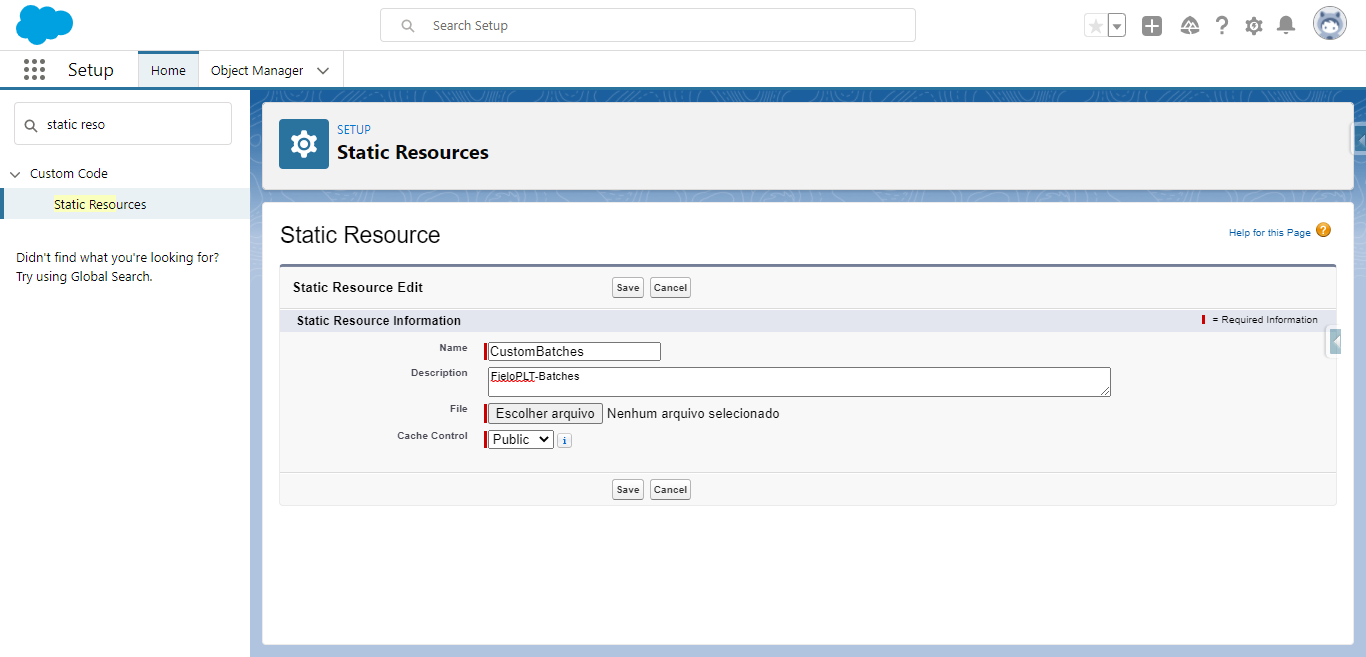
Creating the static resource
Managing Batches for Challenges
Batches have been created to help you scale your challenges. There are three batches related to challenges:
- Challenge Status moves the challenge status from Active to Ended on the challenge end date.
- For challenges that include leaderboards, Challenge Leaderboard updates participating members' leaderboard rankings and scores.
- Process Challenge Rewarding issues rewarding to members who have participated and earned rewards.
You can make sure that the batches have run on the Closing Status tab of a Challenge record page. Both the Challenge Status and the Process Challenge Rewarding batches appear here, as well as the Challenge Leaderboard batch, if applicable. This lets you quickly check whether the appropriate batches have run once a challenge has ended.
Batch Scheduling for Challenges with LeaderboardsIf using leaderboards in any of your Challenges, be sure to schedule the Challenge Leaderboard batch to run before the Challenge Status batch (for example, one day prior).
Resetting the Batch Schedule
You can reset the Fielo scheduled batches to package defaults. To do so, navigate to the Fielo Batch Jobs page and, inside the gear menu, select Reset Schedulers.
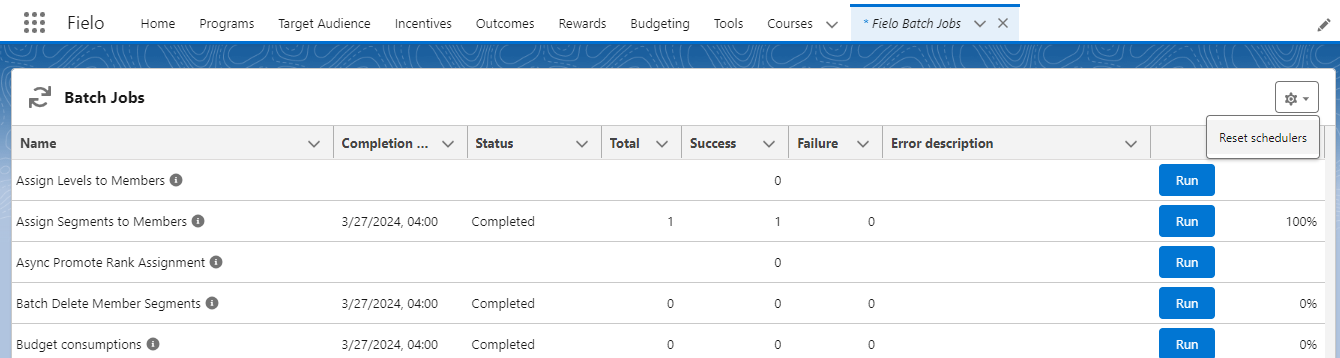
Fielo Batch List
| Batch Name | System Name | Scheduled? | Frequency | Related To | Description |
|---|---|---|---|---|---|
| Assign Levels to Members | LevelAssignmentBatchSchedule | ✅ | Once on the first day of the month | Level | The batch that assigns Levels to members. |
| Assign Segments to Member | SegmentRecordBaseBatchSchedule | ✅ | Once a day | Segment | If run from this page, the batch will process offline Segments only. If it's run by the Program View page, it processes all segments of that Program. |
| Asyn Promote Rank Assignment | AsyncPromoteRankBatchSchedule | ❌ | Rank | The batch that processes ranks marked as async. Ranks are marked as async if the engine is not able to process them under the governor limits. | |
| Batch Delete Member Segments | MemberSegmentBatchSchedule | ✅ | Once a day | Segment | The batch that processes member segments that are marked to be deleted. |
| Budget Consumptions | BudgetBatch | ✅ | Once a day | Budget | The batch accumulates in earmarks and budgets the cost of the incentives. |
| Budget Status | BudgetStatusBatchSchedule | ✅ | Once a day | Budget | Budget status changes from "Scheduled" to "Active" on Start Date. Budget status changes from "Active" to "Inactive" on End Date. |
| Calculate Behavior Statistics | CalculateBehaviorStatistics | ✅ | Once a day | Behavior Statistics | This batch calculates the number of incentivized and non-incentivized records related to an object. It processes one active behavior at a time, so if there isn't any record related to the last processed behavior, the result will be 0%. It will only evaluate the records from a program with Analytics enabled and an Org with the FieloAnalytics Library activated. |
| Challenge Leaderboard | LeaderBoardBatchSchedule | ✅ | Once a day | Mission | The batch that generates or updates the Leaderboards for Missions. |
| Challenge Status | ChallengeStatusBatchSchedule | ✅ | Once a day | Challenges | Challenges status changes from "Scheduled" to "Active" on Start Date. Challenges status changes from "Active" to "Ended" on End Date (if any). |
| Clear Deactivated & Deleted Level History | DeleteLevelMembers | ❌ | Level Member | Will delete the level history (Level Members) of inactive and deleted Levels, and assign new Levels to the members who were in the inactive/deleted levels. | |
| Course Status Batch | CourseStatusBatchSchedule | ✅ | Once a day | Course | Course status changes from “Scheduled” to “Active” on Start Date. Course status changes form “Active” to “Completed” on End Date (if any). |
| Create Historical Member Activities | CreateHistoricalMemberActivitiesBatch | ❌ | "Point, BadgeMember, Level Member, Redemptiom Item Mission Member Challenge Member, Transaction, Module Response, Course Status, Invoice" | The batch that creates member activities based on historical data for programs with member activities enabled. | |
| Delete Expired Member Milestone Items | MemberMilestoneUpdateBatch | ✅ | Once a day | Level | Every record that meets level criteria generates a milestone item for the member. These items are accumulated and used to check if the member has met the level's criteria. The batch looks for all milestones that are expired according to the program's settings and deletes them. |
| Delete Member Activities | DeleteMemberActivitiesBatch | ✅ | Once every hour | Member Activity | The batch that deletes member activities that are older than the number of stored days in the program settings field “Store Member Activities(days)”. If the field is 0 or empty it means that the number of stored days is unlimited and the activities for that program will not be deleted. |
| Delete Old Audit Transactions | DeleteAuditTransactionsBatch | ❌ | Transaction | This apex job will delete Audit Transacations that are older than the period defined in Public Settings > Audit Transaction Storage Period (Days). | |
| Email Campaign | EmailCampaignBatchSchedule | ✅ | Once a day | Messaging (Legacy) | Batch to send email campaigns. This batch file is not one that you will need to manage as it is handled in the background. |
| Expire Member Ranks | MemberRankExpirationBatchSchedule | ✅ | Once a day | Level Member | The batch that expires ranks that reached its expiration date. |
| Expire Points: Partial mode [Advanced info] | PointsPartialExpirationBatchSchedule | ✅ | Once a day | Point | The batch generates an "Adjustment Transaction" for members whose "Points" expired under "Partial mode". |
| Expired Voucher | RedemptionItemExpirationBatchSchedule | ✅ | Once a day | Redemption | "Expiration Date" is updated in the Voucher status. |
| Generate Unique Codes (PUC) | GenerateUniqueCodesBatchSchedule | ❌ | Unique Code Settings | The batch generates unique codes. | |
| Health Check Job | HealthCheckSchedule | ✅ | Once a day | Platform Health Check | Monitors platform health: checks Apex job errors, disabled triggers, error logs, admin permissions, and unscheduled jobs. Self-heals if misconfigured. |
| Health Check Member Balance Job | HealthCheckMemberBalanceSchedule | ✅ | Once a day | Platform Health Check | Audits member balance integrity by comparing stored balances against Point record sums. Reports issues back to Health Check parameters. |
| Historical Based Missions Goal Calculator | HistoricalMissionsCalculation | ❌ | Mission | Batch which calculates mission goal based on historical data. | |
| Member Balance Reconciliation | UpdateMemberBalanceBatchSchedule | ❌ | Member | Checks the sum of member debits and credits (Point records) and, if any discrepancies are found between it and the member’s balance, corrects the balances. This update is not reversible. Note that that batch does not take into account the Point records with Pending status. | |
| Member Merge | MemberMergeRelatedBatchSchedule | ❌ | Member | The batch merges Members that are marked to be merged. | |
| Mission Historical Data | MissionReprocessBatchSchedule | ✅ | Once a day | Mission | The batch that processes historical data for all active missions. |
| Member Related Summary Job | MemberRelatedSummaryCleanseBatchSchedule | ✅ | Once a day | Member | Removes stale inactive-cap references from Member RelatedSummary fields when they exceed 70% of the field length limit. Can be disabled if the capping feature is not in use. |
| Obsolete Records Cleaner | ObsoleteRecordsCleanerBatchSchedule | ✅ | Once a day | Storage Optimization | Deletes obsolete records to reclaim storage. With optimization enabled, cleans Points, Redemptions, Trackers, and more. Can be disabled if the storage optimization feature is not in use. |
| Offline Trackers | TrackerOfflineBatchSchedule | ✅ | Once a day | Tracker | Process trackers are marked as offline. Trackers are marked offline if the engine is not able to process them under the governor limits. |
| Offline Transactions | TransactionOfflineBatchSchedule | ✅ | Once a day | Transaction | Process transactions marked as offline. Transactions are marked offline if the engine is not able to process them under the governor limits. |
| Partner Fund Allocation | PartnerFundAllocationBatchSchedule | ✅ | Every Hour | Marketing Development Funds | The batch that allocates Partner Funds. |
| Process Challenge Completed | ProcessChallengeCompletedBatchSchedule | ✅ | Every Hour | Challenge | Finalizes completed Challenges by processing ChallengeMember records and triggering reward delivery. Logs DML errors and increments retry counters. |
| Process External Behavior Types | ProcessExternalObjectsBatchSchedule | ❌ | External Objects | The batch that processes the external behavior types. | |
| Promotion Status | PromotionStatusBatchSchedule | ✅ | Once a day | Promotions | Promotions status changes from "Scheduled" to "Active" on Start Date. Promotions status changes from "Active" to "Ended" on End Date (if any). |
| Processing Async Rewarding | AsyncRewardingBatchSchedule | ❌ | Transaction | The batch that processes transactions that are marked as async. Transactions are marked async if the engine is not able to process them under the governor limits. | |
| Purge Fielo Error Log | PurgeErrorLogBatch | ❌ | Batch that deletes all logs that are marked on the Error Log (FieloPLT_ErrorLog_c). | ||
| Revert Async Rewarding | AsyncReversionBatchSchedule | ❌ | Transaction | The batch that processes revert transactions that are marked as async. Transactions are marked async if the engine is not able to process them under the governor limits. | |
| Update Approved Modules | BatchUpdateApprovedModulesBatchSchedule | ❌ | Courses Status | Batch to fix the member progress in the course after any update to the course structure. | |
| Update Member Last Activity | UpdateMemberLastActivity | ❌ | Member | The batch that updates the last activity for all members. | |
| Update Payout Status | UpdatePayoutStatusBatchSchedule | ✅ | Once a day | Payout | Update all payouts that reached their payout date. |
| Update Member Last Activity | MemberLastActivityBatchSchedule | ✅ | Once a day | Member | Processes all the transactions and trackers (including adjustments and reversions) created by or related to the Member, to update the Last Activity Member field. This batch file is not one that you will need to manage as it is handled in the background. |
Updated 11 days ago