
Create a Planogram Definition
With your retail outlets registered, you can now define the ideal product configurations for each of your retail segments.
You can do so inside Fielo on Salesforce, or on the Planogram Designer app. In this guide, we'll do it on Salesforce.
On the Planogram Compliance Definition tab, click New. Add the following details:
- Name: The name of the planogram definition for day-to-day use.
- Retail Segment: The type of retail outlet that will be able to make planogram submissions against this definition. Submissions will not be accepted from other types of outlets.
- Description: Optional
- Planogram image: Upload a photo of the ideal product configuration that you want your retailers to be evaluated against.
- Instructions for Analysis: Provide additional color around what exactly makes the model product configuration so ideal. Which details should AI pay special attention to when evaluating retailer submissions? These will help the AI score better and provide richer feedback to retailers.
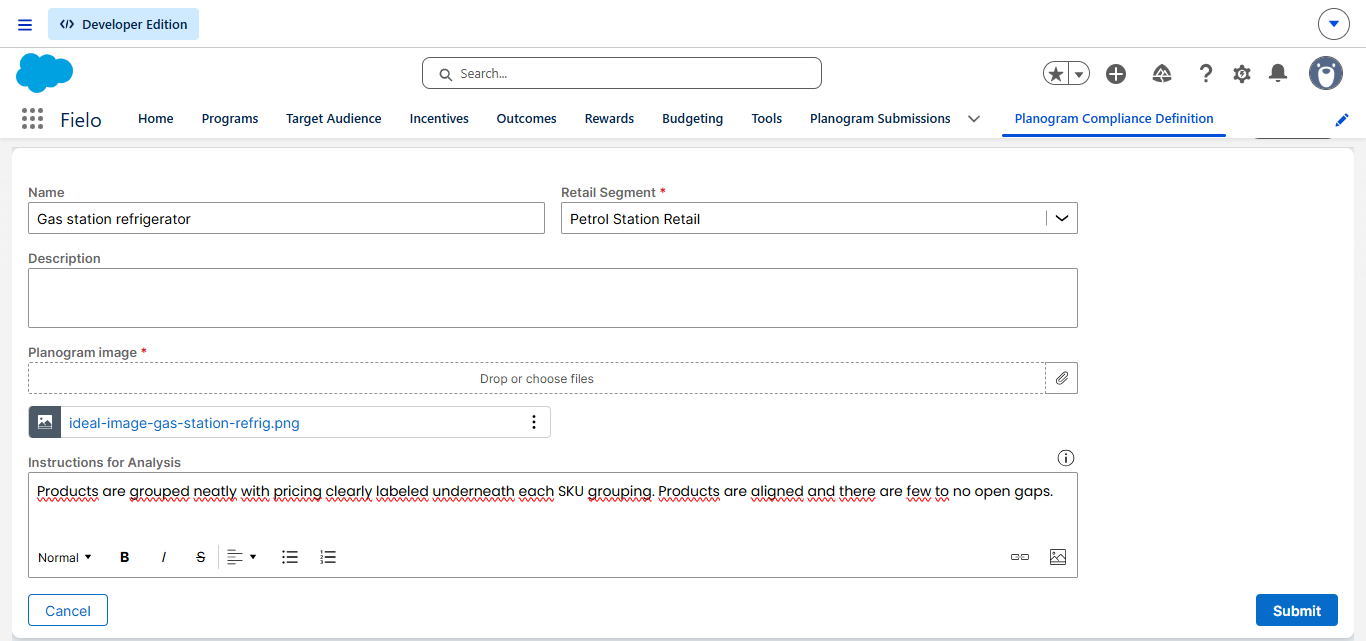
When you're ready, go ahead and submit.
Updated 2 months ago
Did this page help you?