
Installation and Setup
Requirements
Be sure you've first installed and set up Fielo, and that you're using FieloPLT v2.207 or above.
Install the Planogram Compliance Package
Click here to log in to your org and begin installation.
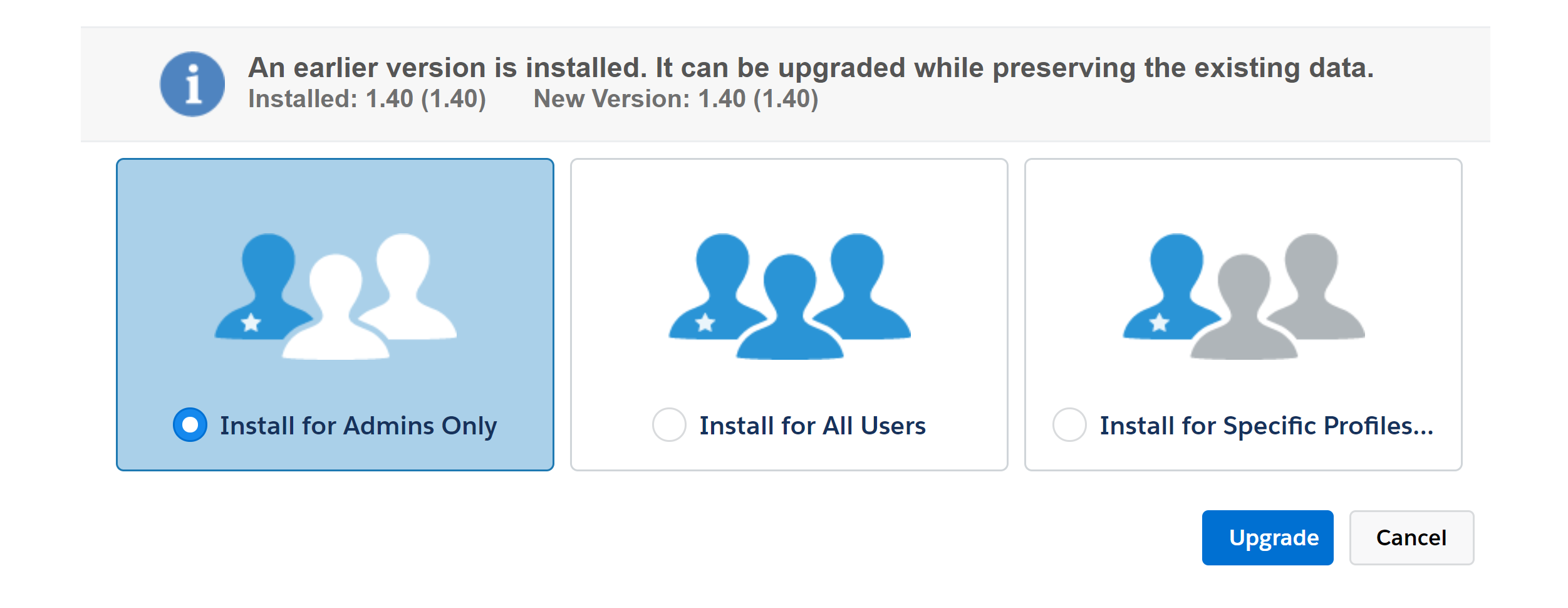
Choose which users in your org will be configuring. If it will be just you and/or other admins, select Install for Admins only and click Install. When the installation process ends, the org administrator will be notified by email.
Enable the FieloPGC Library
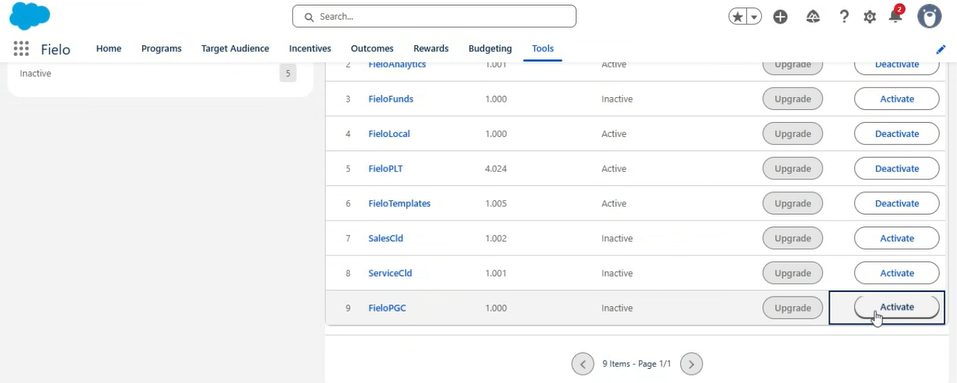
After installing Planogram Compliance package, activate the FieloPGC library to make planogram submissions incentivizable.
From the App Launcher (), choose Fielo. From Tools, access the Libraries section and hit Activate for FieloPGC.
Specify Named Credentials
From the App Launcher (), search for and choose Pega Settings. Click the Gear (⚙️) button on the top right. Enter the Client ID, Client Secret and Pega Server URL provided to you by your Fielo onboarding expert and save.
Provide User Permission Sets
All users need the following permission sets:
- FieloPGC User
- FieloPGC Pega Connection Access
For your convenience, you can provide all users that have the FieloPGC user permission set the FieloPGC Pega Connection Access permission set by clicking on the silhouette (👤) button on the top right.
Create External Client App
From Salesforce Setup, search for and choose External Client App Manager. Click New External Client App.
Enter the following details:
- External Client App Name:
FieloPGC_external_app - API Name:
FieloPGC_external_app - Contact Email: [Your email]
- Distribution State: Local
In the API (Enable OAuth Settings) section, check Enable OAuth and set the Callback URL to https://login.salesforce.com/services/oauth2/success.
Under OAuth Scopes, choose Manage user data via APIs (api).
Under Flow Enablement, check the following boxes:
- Enable Client Credentials Flow
- Enable Authorization Code and Credentials Flow
- Require user credentials in the POST body for Authorization Code and Credentials Flow
Under Security, check the following boxes:
- Require secret for Web Server Flow
- Require secret for Refresh Token Flow
- Require Proof Key for Code Exchange (PKCE) extension for Supported Authorization Flows
When you're done, click Create.
Configure External Client App Policies
In the Policies tab, click Edit.
On the Start Page picklist, choose OAuth.
Under Plugin Policies, specify the OAuth Start URL as https://login.salesforce.com/services/oauth2/success.
Under OAuth Flows and External Client App Enhancements, check Enable Client Credentials Flow and, under Run As (Username), enter a Salesforce admin or integration username.
When you've finished, click Save.
Get Consumer Key and Secret
In the Policies tab, under OAuth Settings, click Consumer Key and Secret. Provide the Consumer Key and Consumer Secret to your Fielo onboarding expert.
Updated about 1 month ago