
Create WhatsApp Templates
To send marketing communications using WhatsApp, the first step is to create a WhatsApp template. With a WhatsApp template, you set up message content, copy, formatting, calls-to-action and more ahead of time, and then submit it for approval by Meta (the owner of WhatsApp). Meta uses a machine learning algorithm to expedite approvals, and they often occur within seconds. Once a template is approved, it can be used in your communication campaigns.
To get started, go to the Fielo Comms app and, on the left nav, select WhatsApp Templates. Click New WhatsApp Template.
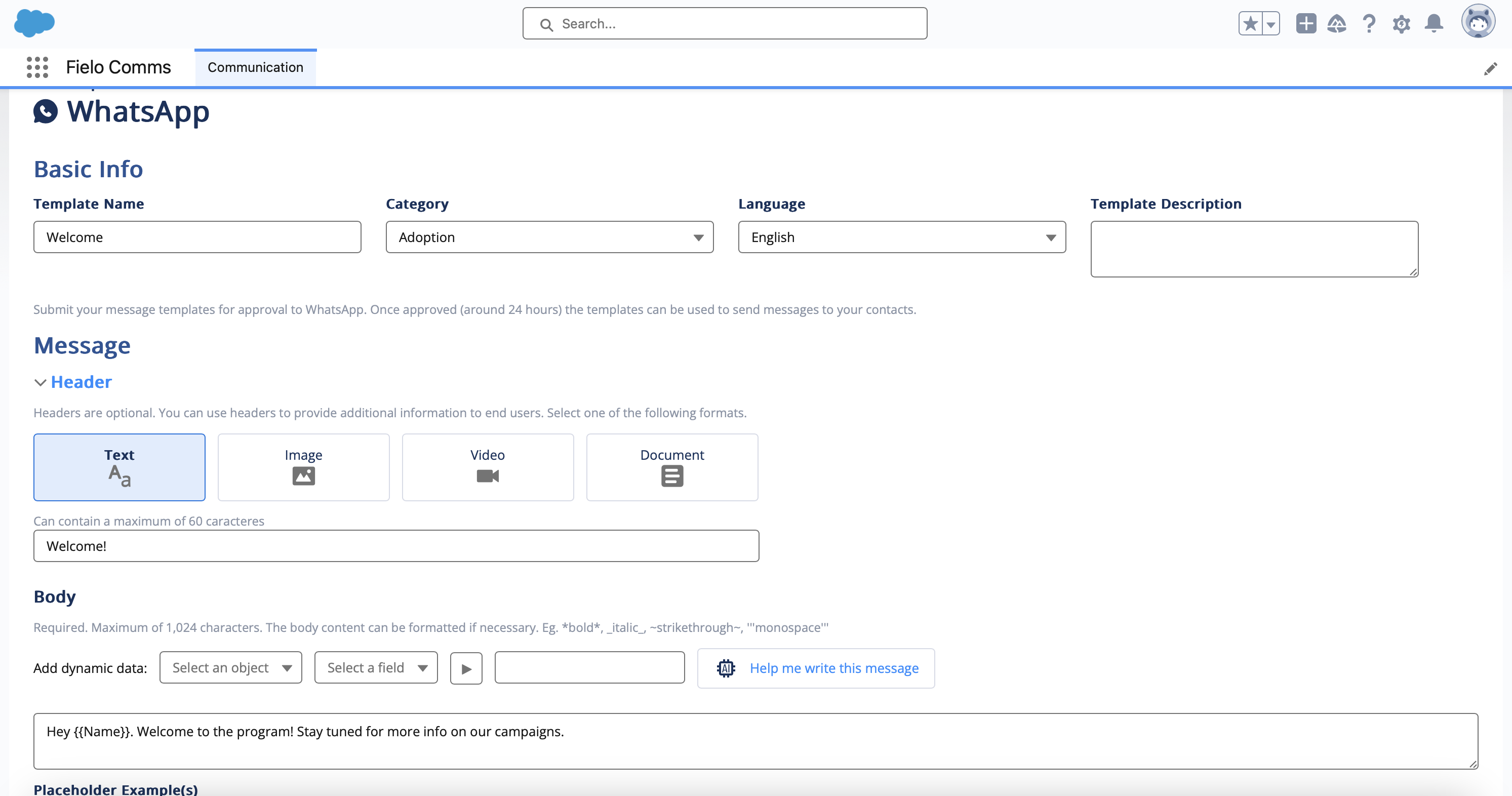
Give the template a name and select its language. Be sure the language is correct, as Meta's approval algorithm makes use of this information. Optionally, you can also give it a category and description.
Add CategoriesYou can create more categories by adding picklist values to the Category field on the Communication Template object. If you don't have access to Salesforce Setup, ask your org admin to do this.
AI Assistant
Next, define the main text of your message. For help in writing copy, feel free to ask our AI Assistant by clicking Help me write this message.
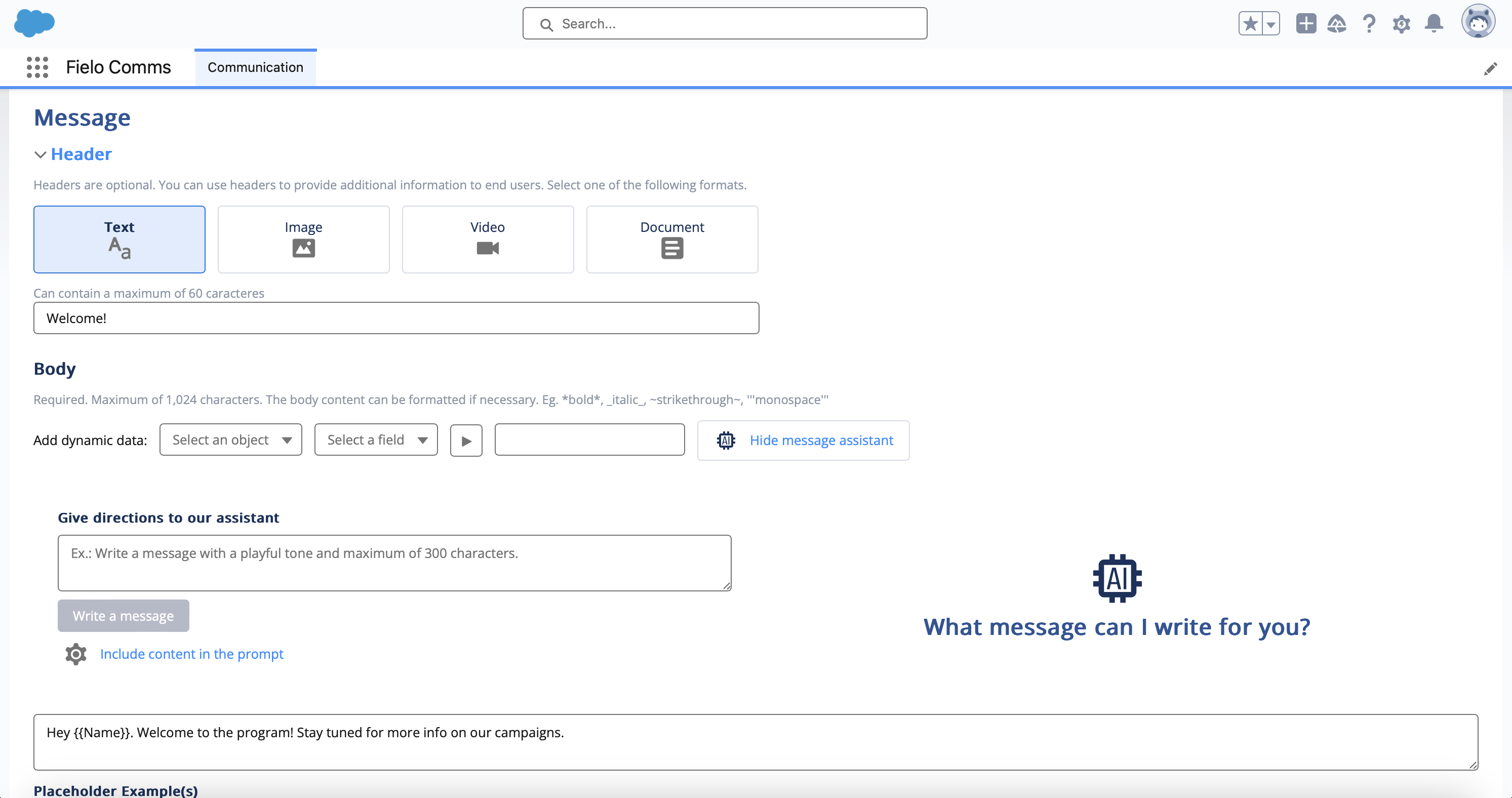
When using the AI Assistant, you send initial instructions and then, optionally, refining instructions. Alternatively, you can restart from scratch, in which case the assistant will discard any previous dialog. When you're satisfied with the text, you can copy and paste it into the template.
Additional ContextBy default, Fielo will include contextual information to help the assistant craft better copy. You can control what supporting data is sent in the Include content in the prompt settings.
Dynamic Content
You can add dynamic data to your message. On the template, this can be data from the Member and Program objects. If you plan to use the template in a triggered communication, you can also refer to data from the triggering object.
To use dynamic data, select an object and then a field of that object, and then copy the resulting placeholder string and paste it into the message body.
Advanced: Multi-HopIf you know how to work with Salesforce field paths, you can hop up to 4 times on Fielo objects and up to 5 times on triggering objects. Be sure to append lookups from custom objects with
__rinstead of__c.Example:
{{FieloPLT__LevelMember__r.FieloPLT__Level__r.FieloPLT__Benefits__c}}
Guidelines
- Placeholders cannot be placed at the very beginning or very end of a text block.
- Placeholders cannot be placed next to each other.
Placeholder Examples
When using dynamic data in WhatsApp templates, you must provide an example value for each placeholder you've included in your message. These example values allow Meta's approval algorithm to understand the type of content that will be included in the messages sent to WhatsApp users.
If using multiple placeholders throughout your message, enter your examples in the order in which they appear in the header and body (header examples should be first), separated by commas and with no spaces on either side of the commas. Any spaces will be considered as part of the example.
Message Header
WhatsApp messages are organized in the following sections:
- Header (Optional)
- Body
- Footer (Optional)
- Buttons
Header
The optional header is content that is shown at the beginning of the message. It can be text (like a subject), an image, a video, or a document.
For images, videos and documents, you can either upload a file or enter a public URL:
- Upload a file: The resource will stored on your Salesforce org. Meta will access this resource, which may consume Salesforce file limits.
- Enter a URL: This must be a public, downloadable resource – not a preview or content viewer tool. Meta will access this resource, which may consume hosting server resources.
Body
This is the main part of the message and is required. It can contain up to 1,024 characters. You can format text by placing special characters around it, as follows:
- Bold: *Bold*
- Italic: _Italic_
Strikethrough: ~Strikethrough~Monospace: '''Monospace'''
Footer
The optional footer can contain only plain text, up to 60 characters.
Buttons
Buttons are optional calls-to-action that you can add to the end of your message. A button can either open a URL in your recipient's web browser or initiate a phone call. You can add a button of one or both types.
Click-to-URL buttons must go to a website that begins with http:// or https://.
Call buttons must go to a number formatted in the E.164 standard. For example, the US phone number (800) 555-1234 must be entered as: +18005551234.
Submit Your Template
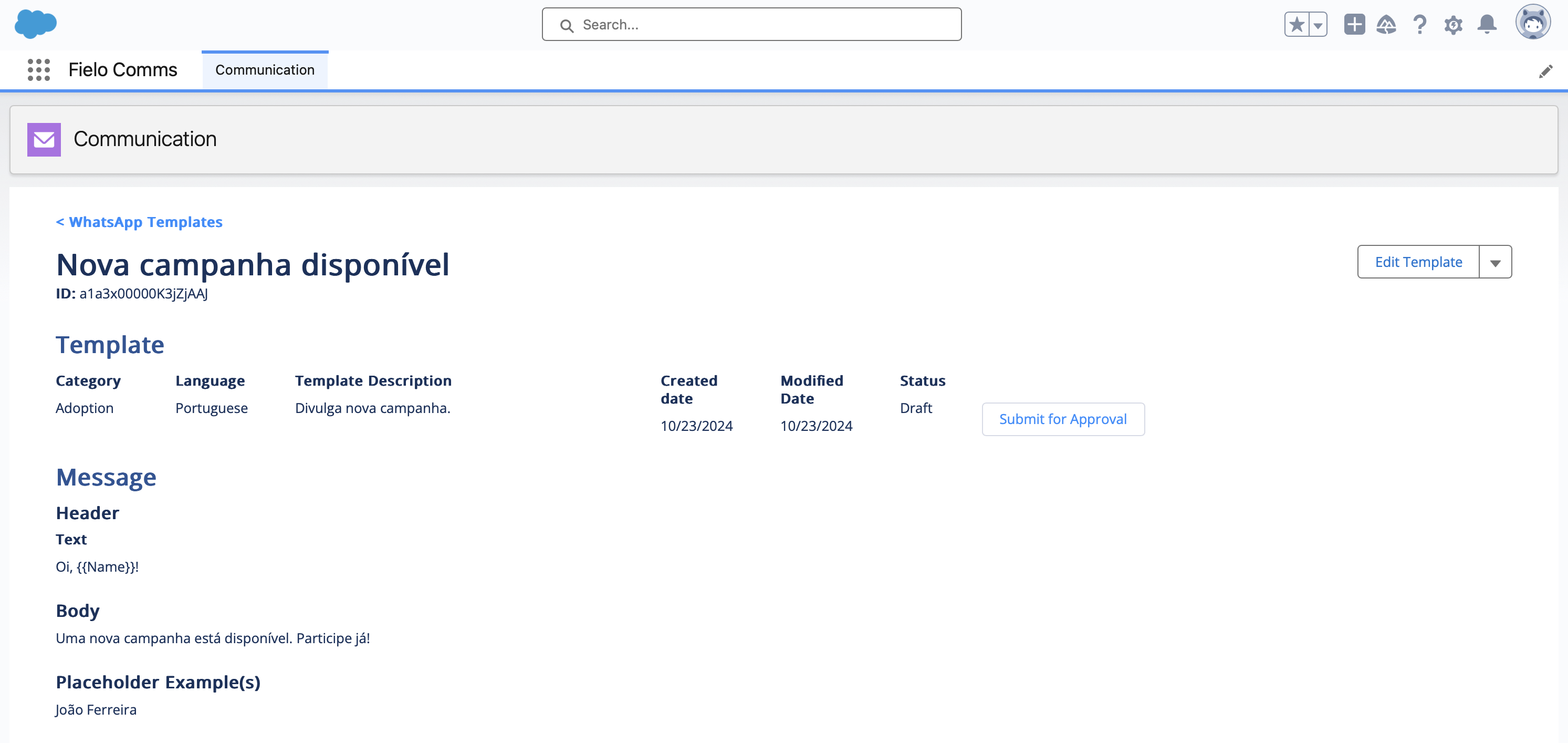
When you're ready to make your template available for use in communications, navigate to the template's detail page and click Submit for Approval. Though many go through in seconds, approvals can take up to 48 hours.
By default, WhatsApp template approvals update daily. To check manually, go to the WhatsApp Templates area and click Update Approval Statuses.
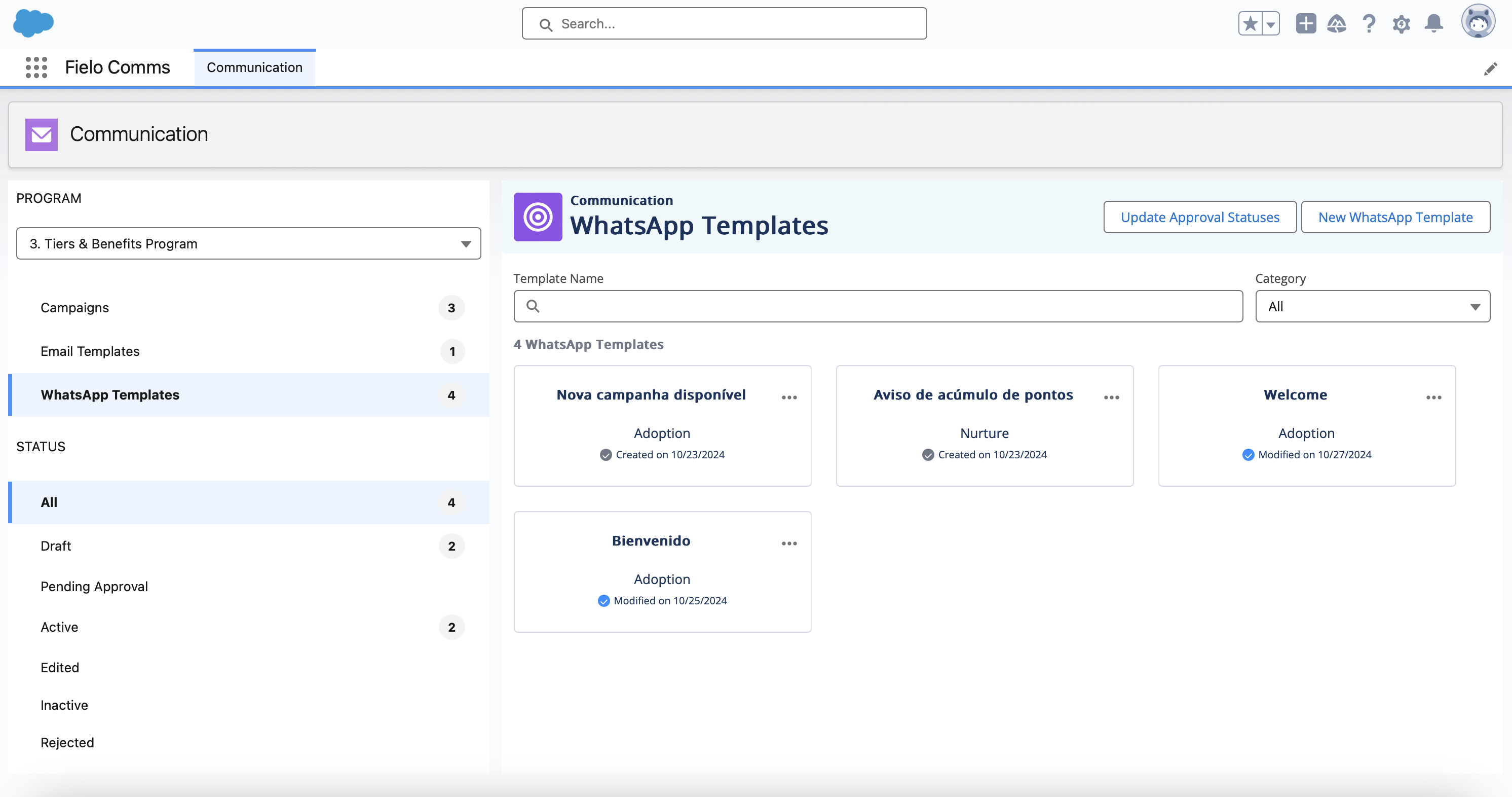
When your WhatsApp template is approved by Meta, its status will change to Active and it will be available to add to your communication campaigns.
RejectionCommon rejection reasons include:
- Placeholder(s) with no example value
- Multiple placeholders in a row
- Placeholders at the very beginning or end of a text block
- Incorrect language selected
If your template is rejected, do not create another template of the same name for 30 days, as any such template will be rejected automatically.
For more information from Meta, check out Message Template Guidelines.
Updated over 1 year ago