
Analytics
You need to see how your incentives and loyalty strategy is performing in real time. Fielo Analytics makes it easy to create rich, criteria-based program reports where your key performance indicators are front and center. Get clear visibility on member onboarding, incentive performance, engagement stats, and lots more.
Analytics is built directly on Salesforce, so it uses the wealth of information Salesforce puts at your fingertips — from real-time snapshots of your business to yearly summaries. For instance, an independent survey of more than 4,000 Salesforce customers found that these analytics were able to cut the time people needed to prepare Reports by an average of 52 percent.
By always knowing where you stand, you can spot trends early and make the best decisions for your business.

How Salesforce and Analytics Work Together
Fielo leverages Salesforce Report to offer a complete view of your program performance and nearly endless flexibility to extend your own custom reports.
Salesforce Reports & Dashboards
Reports and dashboards in Salesforce can be summed up in just two sentences:
Report types are the templates from which users build reports, which organize data and are shared via folders. Reports are also the source for dashboard components, which visually display data in dashboards.
Report Types
A report type defines the set of records and fields available to a report based on the relationships between a primary object and its related objects. Reports display only records that meet the criteria defined in the report type.
Reports
A report returns a set of records that meet certain criteria and displays it in organized rows and columns. Report data can be filtered, grouped, and displayed graphically as a chart. Reports are stored in folders.
Dashboards
Dashboards offer quick, high-level visualizations of your data.
Folders
Folders are where you store reports and dashboards. You can control access to reports and dashboards by storing them in folders with restricted visibility settings. Folders can be public, hidden, or limited to specific groups, roles, or territories.
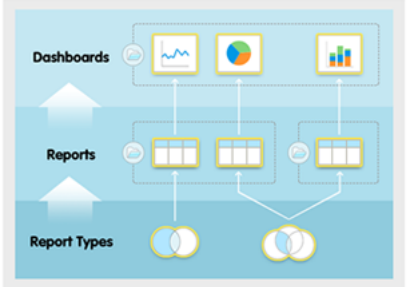
Salesforce's analytics model
Fielo Analytics & Command Center
Fielo Analytics offers you a complete view of your program statistics, with some out of the box reports that are created as soon as you install the Fielo package in your Org. There are several of them: the number of new members, rewards given by period, the number of members per segment, payouts, rewards cost, and much more.
Those Reports - which are stored in the Analytics report folder within Salesforce - are ready to be used and, in fact, are the first thing you will see whenever you access Fielo in your Org.
Through these reports, we can readily offer you the most relevant information regarding your program; not only related to its performance but to members' engagement as well. It is a great way for you to score the program members based on their activities, and even to predict the churn risk, for example.
We advise you to not edit in any way the Analytics folder's reports within Salesforce. Every change you do to them will reflect in the way that Fielo shows the data, which might have some negative impact.
Fielo-Enhanced Reports
Fielo doesn't display the Reports in table form the same way that you can see through Salesforce. Each report takes the form of the chart (line, bars, progress line, donut, etc.) that applies better to the data that it is delivering, also allowing you to edit some of its configuration so that it shows what you want to see.
So, although similar to how Salesforce's Dashboards look and work, Fielo's dashboards were created thinking about you and the kind of information that you would want to see, displaying them in the best possible way.
Enabling Reports
All of Fielo's Reports can be seen through the Command Center, located in the Home tab. However, in order for them to be visible, you will need to complete just a few steps:
- From Fielo Platform, go to the Tools tab and click on Activate next to the FieloAnalytics library. This will enable all the default KPIs that come with the Fielo package.
- From the Programs tab, enter your program.
- Within the program page, go to the Settings section and click on Edit.
- Make sure that the option "Enable Program Analytics" is checked and Save.
Finally, go back to Home and you will see all of the dashboards there, divided by tab in the command center: program, incentives, members, and financial. This is it; it's that simple to use Fielo's Analytics.
Updated over 1 year ago