
Upgrade from R1 2025 to R1 2026
FieloPLT v2.210.2
If you're using Fielo’s R1 2025 release, upgrade to R1 2026 to take advantage of all the features and enhancements we've added to the platform. Take a look at What's New in R1 2026. Continue reading to upgrade to Fielo R1 2026.
Versions Prior to R1 2025If you're using a version prior to R1 2025, you must perform all of the upgrades required to get you to the R1 2025 release (v2.199+) before proceeding:
- Upgrade steps for versions 2.23 through 2.51
- Upgrade from Spring '18 to Summer '18
- Upgrade from Summer '18 to Winter '19
- Upgrade from Winter '19 to Spring '19
- Upgrade from Spring '19 to Summer '19
- Upgrade from Summer '19 to Winter '20
- Upgrade from Winter '20 to Spring '20
- Upgrade from Spring '20 to Spring '21
- Upgrade from Spring '21 to R1 2022
- Upgrade from R1 2022 to R2 2022
- Upgrade from R2 2022 to R1 2023
- Upgrade from R1 2023 to R2 2023
- Upgrade from R2 2023 to R1 2024
- Upgrade from R1 2024 to R1 2025
Also, make sure you're logged into your Salesforce org and have system administrator permissions before getting started.
How to Upgrade
Follow these steps to start the upgrade process:
- Make sure that your org has Platform Cache enabled and 3MB or more of Org Cache allocated to FieloPLT.
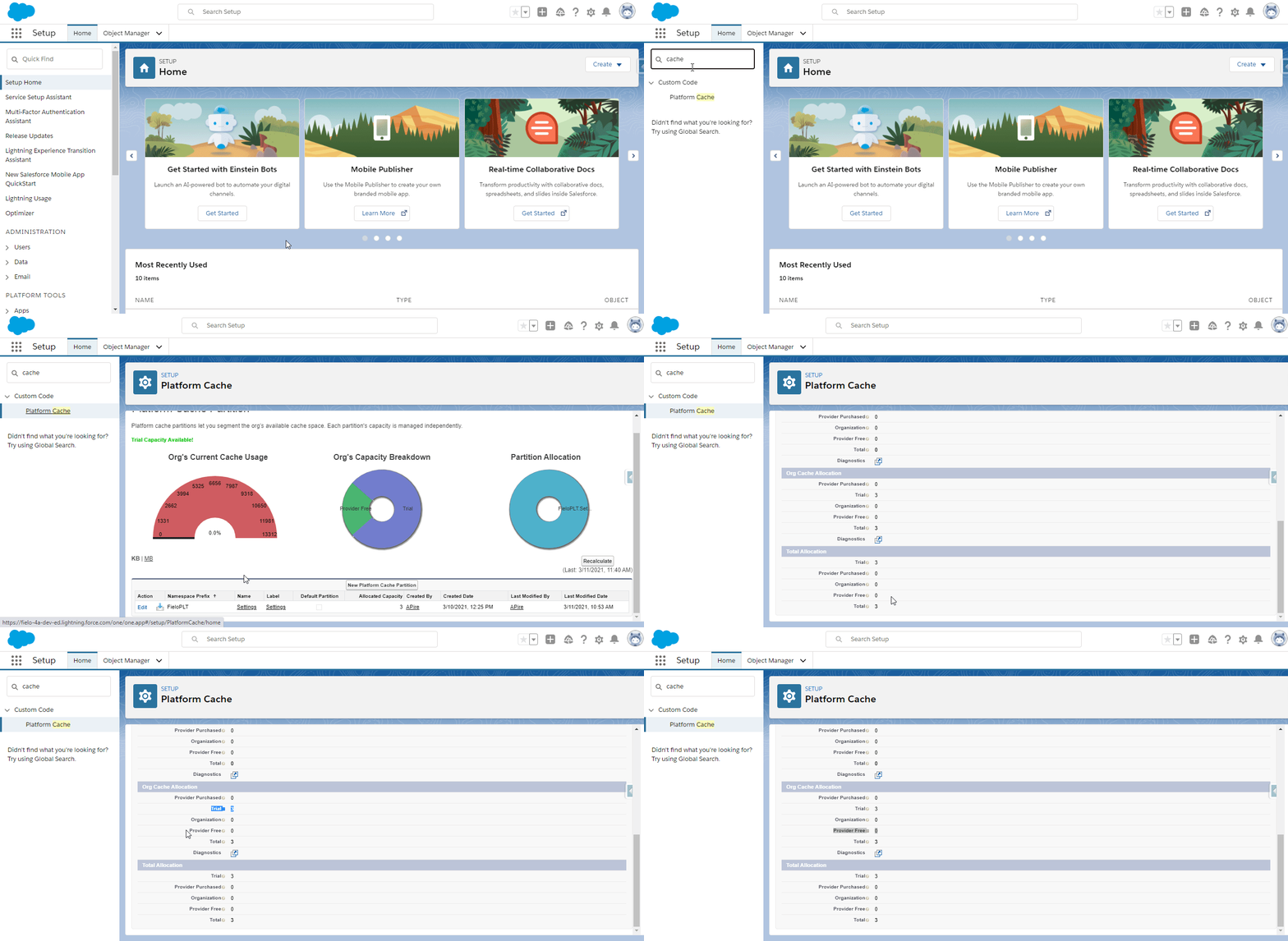
- In Custom Settings, make sure that the Public Settings for FieloPLT have at least the default organization-wide values defined in the package.
- In Scheduled Jobs, ensure that your org is not at or near its limit of 100 jobs per day.
- On the Incentives tab, check for any Promotions or Challenges that are in Edited status. Before installing the new package, select Apply Changes on these incentives so that their statuses move to Active.
- Click here to install the FieloPLT package.
- If any internal users that are not admins will use Fielo, click Install for Specific Profiles and select Full Access on the profile(s) of those users. If only System Administrators will use Fielo, or if internal users are granted permissions via the FieloPLT Admin permission set, click on Install for Admins Only.
- Click Upgrade. When the first part of the upgrade process is finished, you will be notified by email.
- Once you've been notified, in Salesforce Setup, search for and select Apex Classes and then click Compile all classes.
Run Post-Installation Routine
Once the FieloPLT upgrade has finished, access the Fielo app. If prompted, run the post-upgrade scripts.
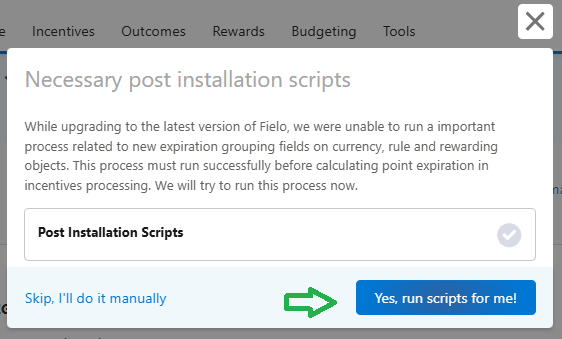
Click Yes, run scripts for me!
Update Redemption Item Layout
In the Object Manager, go to the Redemption Item object (FieloPLT__RedemptionItem__c) and navigate to Page Layouts.
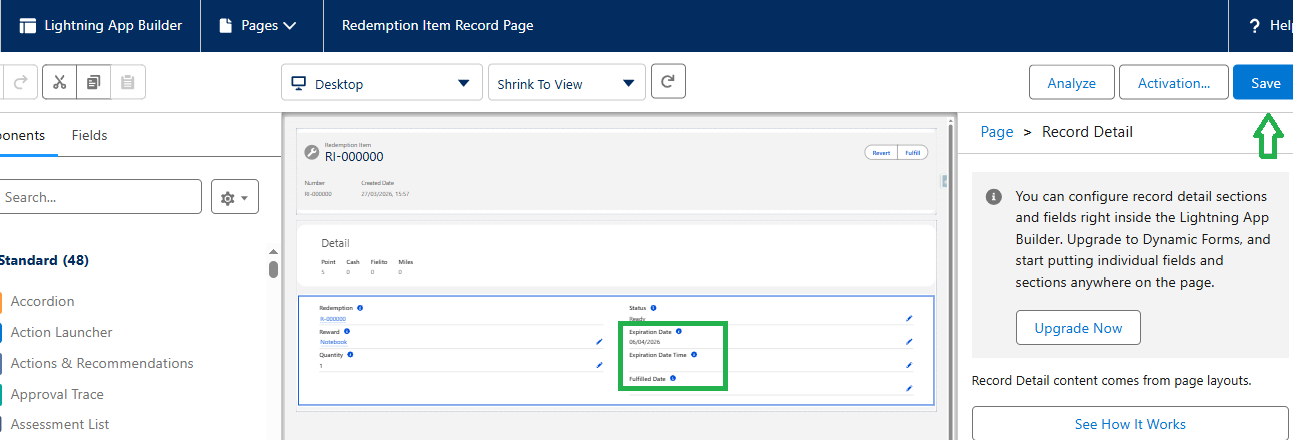
Edit the Redemption Item page layout, add the Expiration Date Time field to the top section and save.

In order to see the new field on your Redemption Item detail page, you may also have to edit the page and add the field there. When saving the page, be sure to activate it.
Update Reward Layout
In the Object Manager, go to the Reward object (FieloPLT__Reward__c) and navigate to Page Layouts.
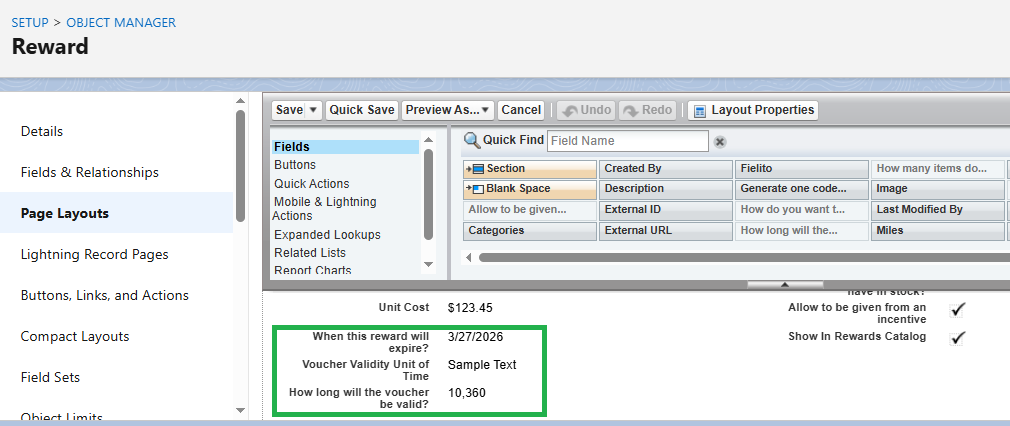
Edit the Reward page layout, add the Voucher Validity Unit of Time field to the top section and save.
Update Reward Help Text
While on Reward, go to Fields & Relationships and add the following help text to the Days Available field: Enter the number of days, hours, or minutes the Unique Code generated through a redemption of this Reward will be valid.
Update Challenge Reward and Rule Layouts
In the Object Manager, go to the Challenge Reward object (FieloPLT__ChallengeReward__c) and navigate to Page Layouts.
Edit the Challenge Reward page layout, add the Point Expiration Grouping field to a section and save.
Repeat the same process on the Rule object (FieloPLT__Rule__c).
Update Program Currency Layout
In the Object Manager, go to the Program Currency object (FieloPLT__ProgramPointType__c) and navigate to Page Layouts.
Edit the Program Point Type page layout, add the Default Expiration Grouping field to a section and save.
Update Badge Layout
In the Object Manager, go to the Badge object (FieloPLT__Badge__c) and navigate to Page Layouts.
Edit the Badge page layout. Under Related Lists, add the Is Active field to the Member Badges related list properties and save.
Update Segment Record Page
In the Fielo app, navigate to one of your segments. Under Setup, click Edit Page. Add the Fielo - Status Bar Lightning component to the top of the page, below the two headers.
When saving, be sure to assign the updated Segment record page as default to the Fielo app.
That's all. You are ready to use the R1 2026 Fielo release!
For more in-depth info on the release, check out the R1 2026 Technical Release Notes.
Updated 9 days ago