
External Behavior Types
External Behavior Types let you incentivize behaviors that aren't native to Salesforce, such as bookings. Salesforce is able to sync and interact with external objects so that Fielo can incentivize member activities that originate in those objects. To use it, you will need to set up an External Data Source. If you already have one set up, you can build on that; you won't need to set up a new one.
External Behavior Types are processed by the Process External Behavior Types Apex batch job. To establish the frequency of the job runs, be sure to set schedule the Process External Behavior Types batch after you create a new external behavior type.
There are some limitations to your external behavior types.
- Segments that reference external objects cannot be processed in real time.
- You can't dynamically reference Reward or Badge fields on external objects.
- You cannot reference formula fields that depend on external data.
- You won't be able to automatically classify new members in a level if your levels depend on external data.
- You will only be able to use classic leveling; the new leveling configuration with attainment period is not compatible with external objects.
- Teams do not support external behavior types.
Before Starting
Be sure your desired data source is set up as an External Data Source, including one or more External Objects, in Salesforce. This requires subscription to Salesforce Connect.
Create an External Behavior Type
- In Fielo Admin, click on the Tools tab.
- Select the FieloLocal library.
- On Behavior Types, and click New.
- Fill out the form.
- Click Save.
Enter Form Data
The form is fairly easy to fill out, but there are a few things to know as you go through it to set up new external objects.
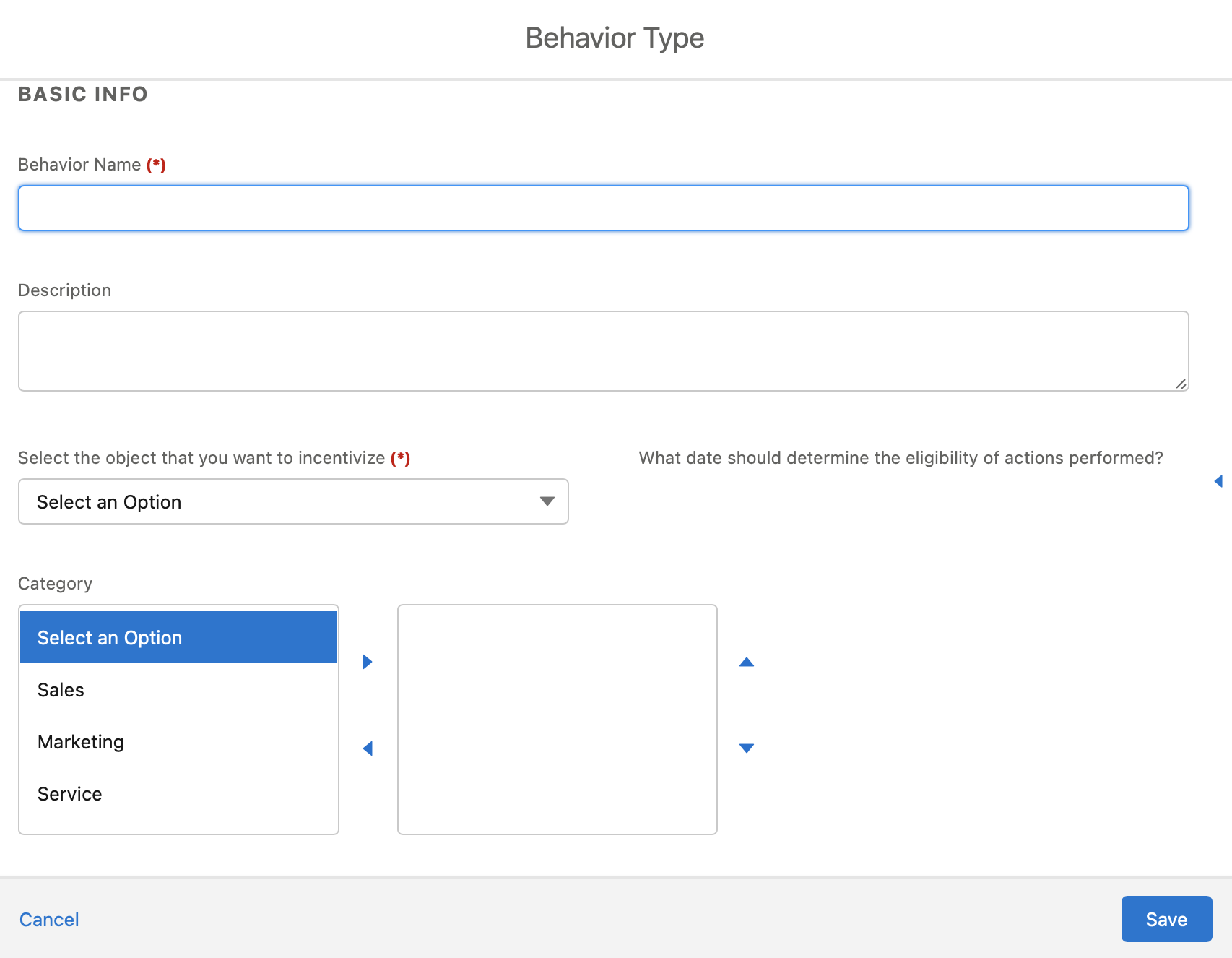
Behavior Name (*)
Enter a name that is easy to identify when you need to access the external object. This field is required.
Description
You can provide details about the behavior type. This isn't required, but if you have several similar behaviors, providing more details about the behavior will help people to more quickly determine which one they need.
Select the object that you want to incentivize (*)
Use the drop-down menu to find the object that you want to correspond to the behavior. All external behaviors are identified with (External) to make it easier to find what you need. This also helps to prevent confusion with any internal objects that have the same name as the external object.
This field is required.
What date should determine the eligibility of actions performed?
Use the drop-down menu to select the date to identify if the action is eligible. This will determine if a completed action took place during the period of the incentive.
Category
You can optionally assign one or more categories to the behavior type. You can add additional categories to the Categories picklist of the Behavior Type object in Salesforce Setup.
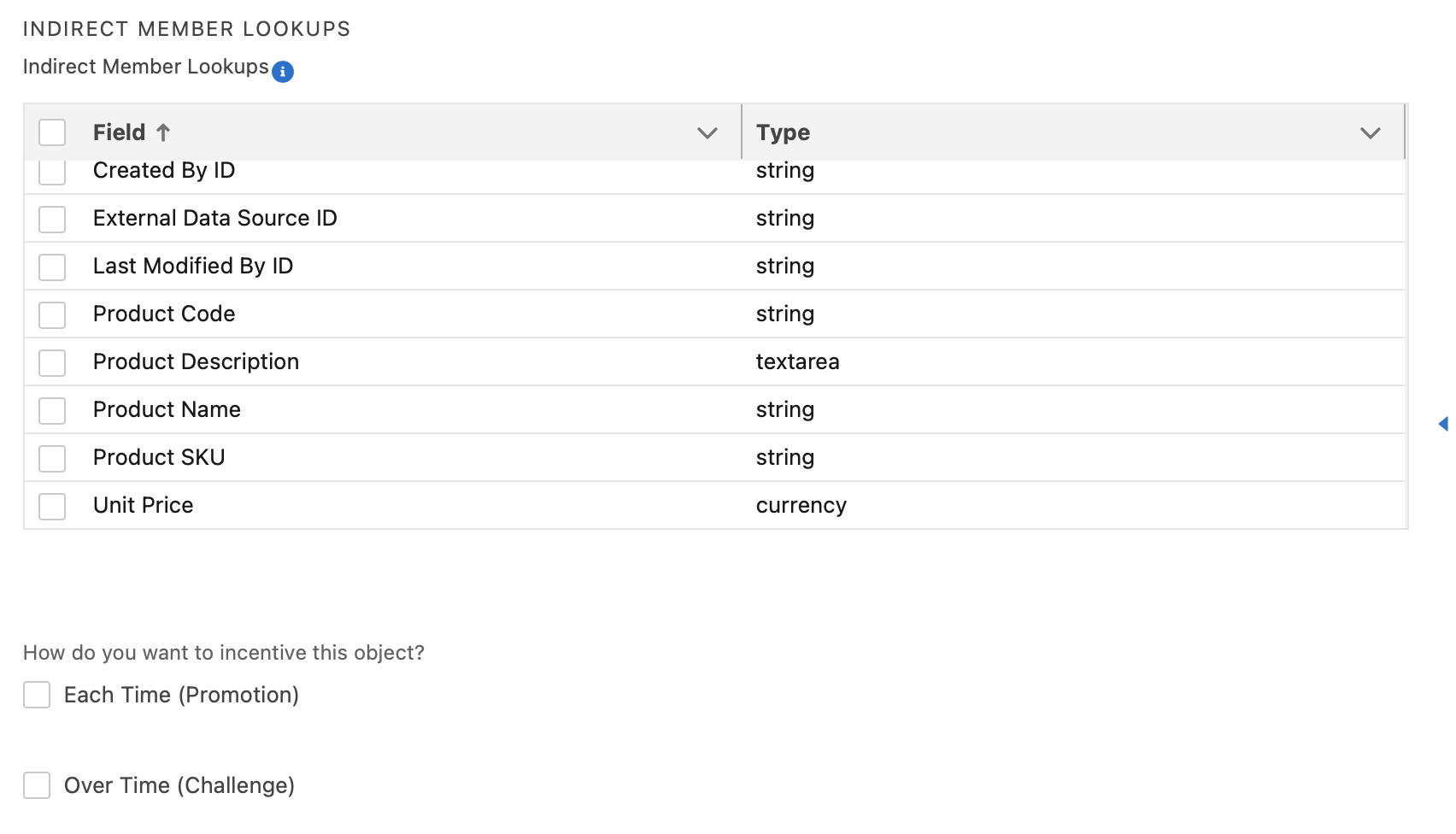
Indirect Member Lookups
These fields are the ones that could be used to associate a behavior to the applicable member. Select which fields you want to use to identify these members. This section is only included for external behavior types.
**How do you want to incentive this object?
You can incentivize each time a behavior is performed, or when a behavior is performed over time. We recommend you select both so that both possibilities are available to your program designer.
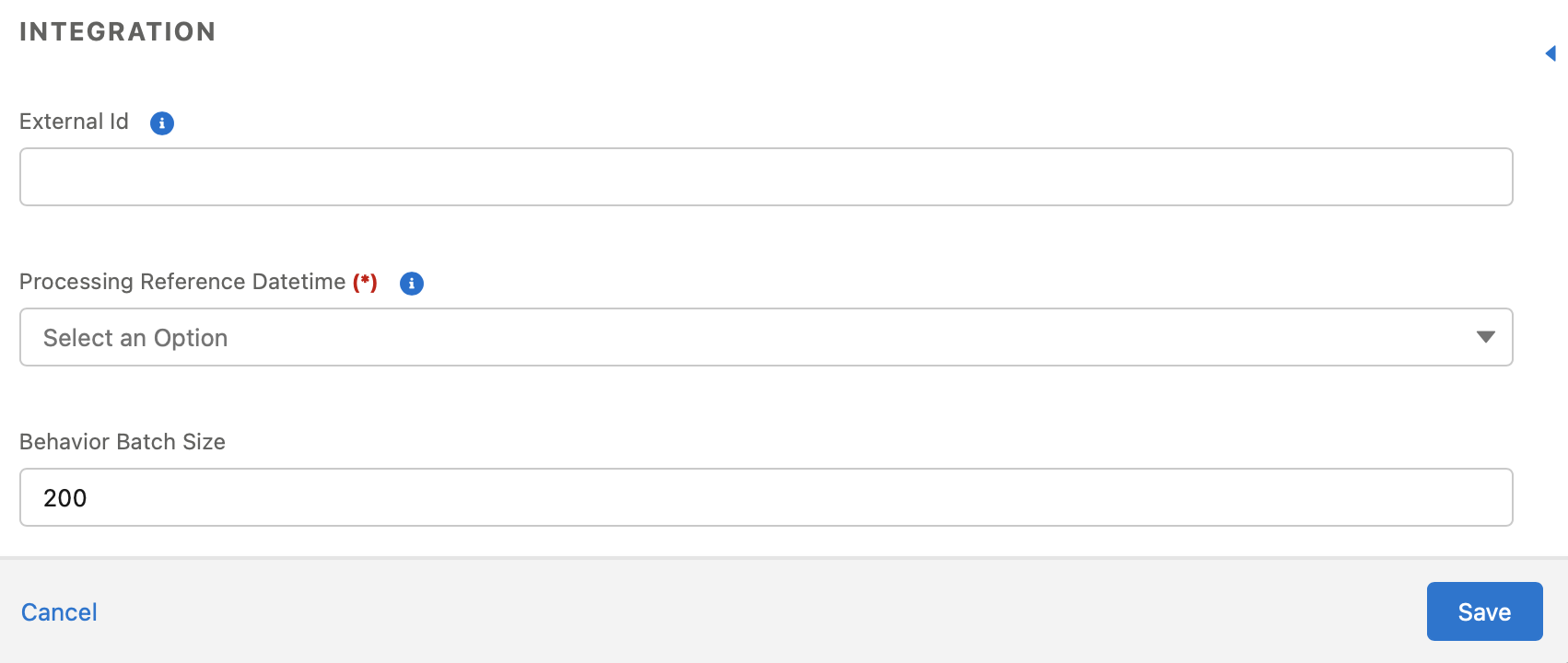
External Id
This will be automatically generated, so you don't need to add anything to this field.
Processing Reference Datetime (*)
Use the drop-down menu to select the date criteria you want to apply. These are managed in batches.
This field is required. The default is to run it once a day, but if the criteria you select have a different time frame to run the batch, your external behavior type batches will run on that time frame. For example, if the external behavior type is based on Bookings, and you run booking batches every three days, your associated external behavior type will run every three days instead of daily.
Behavior Batch Size
This setting controls the size of the batches. To avoid hitting any Salesforce governor limits, 200 is the default. Work with your developers to determine if what adjustments need to be made to this field, if any.
Deploy the New External Behavior Type
Once you set up the form, you have to deploy the new behavior type so that it will be ready for use.
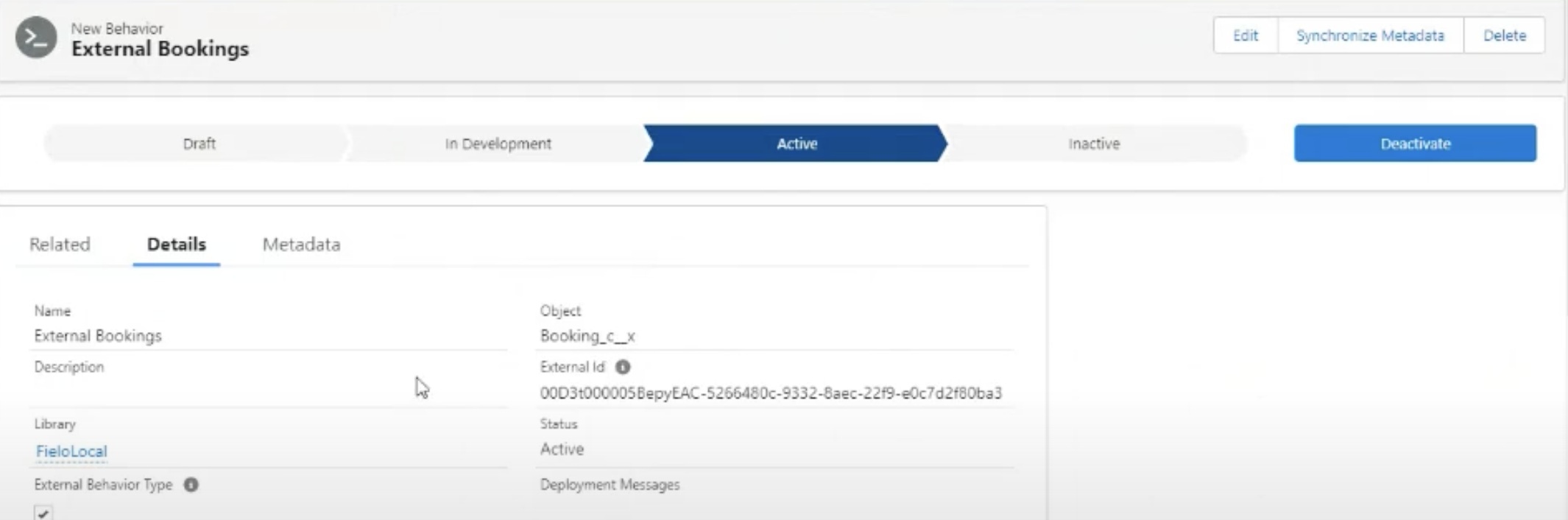
After saving your behavior type, you will be directed to its detail page. From there, click Deploy.
Synchronize Metadata after a Change
Changes to external objects are nearly guaranteed. Whenever there is a change to an external object that is associated with one of your external behavior types, you must resynchronize the metadata so that Fielo is aware of the new data structure on your external object.
- To do so, go to the library in which you created the external object behavior type (usually FieloLocal).
- Navigate to its detail page.
- Click Synchronize Metadata.
Updated over 1 year ago