
Incentivize Planogram Submissions
To help keep your retail outlets on track, you can incentivize positive planogram submission outcomes right inside Fielo. Let's see how.
First Thing's First
Make sure you have an active incentive program, and that your retail outlets are members of it. Each Member has a unique external ID that can be included alongside the other data sent when a retailer makes a planogram submission. When using the Planogram Submission API, be sure that the member external ID is being passed by the system that is calling that endpoint.
Create an Incentive
In Fielo on Salesforce, go to the Incentives tab and click New Incentive. Choose whether you want a Promotion or a Challenge and enter the basic details, such as name and period. In this walkthrough, we'll create a promotion. Apply any Segments and save.
Create a Rule
On the promotion detail page, under Rules, click New and enter the basic details.
On the next step, select the Action called "Planogram Submission > Member". This action will reward the member if the rule criteria have been met, the planogram was submitted within the incentive period, and the submission was marked as ready to process.
Reward Based on Score
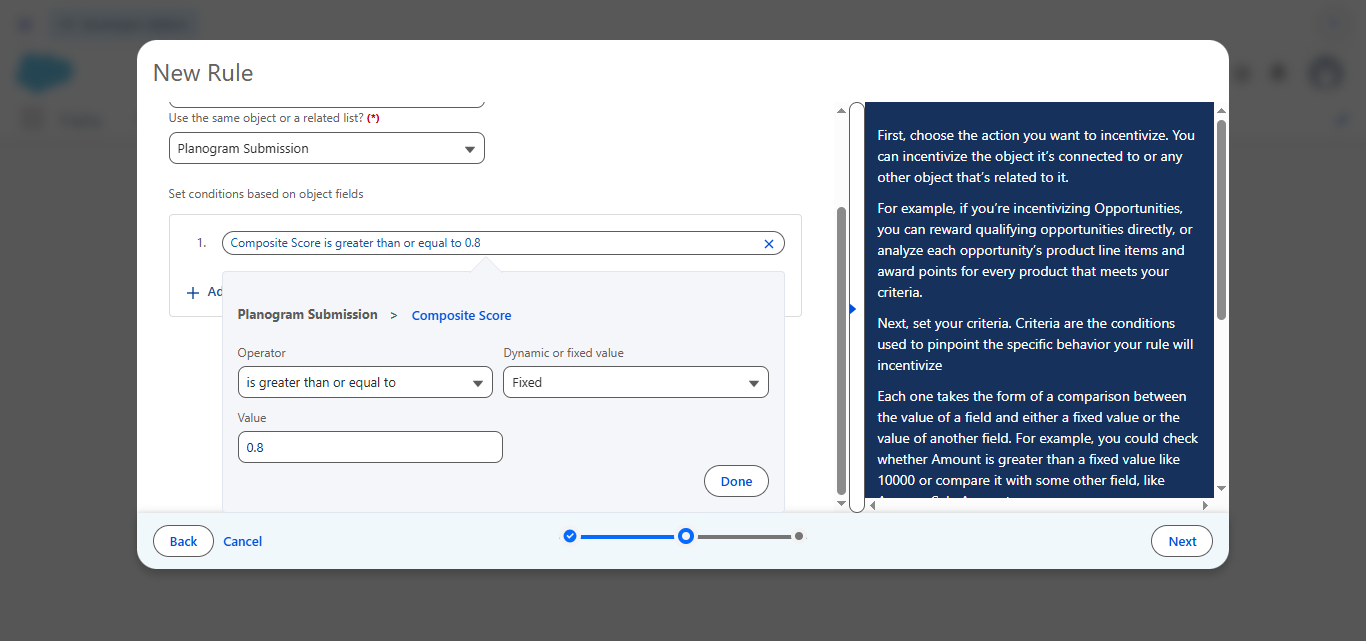
The most straightforward way to incentivize a planogram submission is to set a composite score threshold. Click + Add Condition and choose Composite Score. The composite score is the overall score for the submission, between 0 and 1, calculated as the average of its subscores.
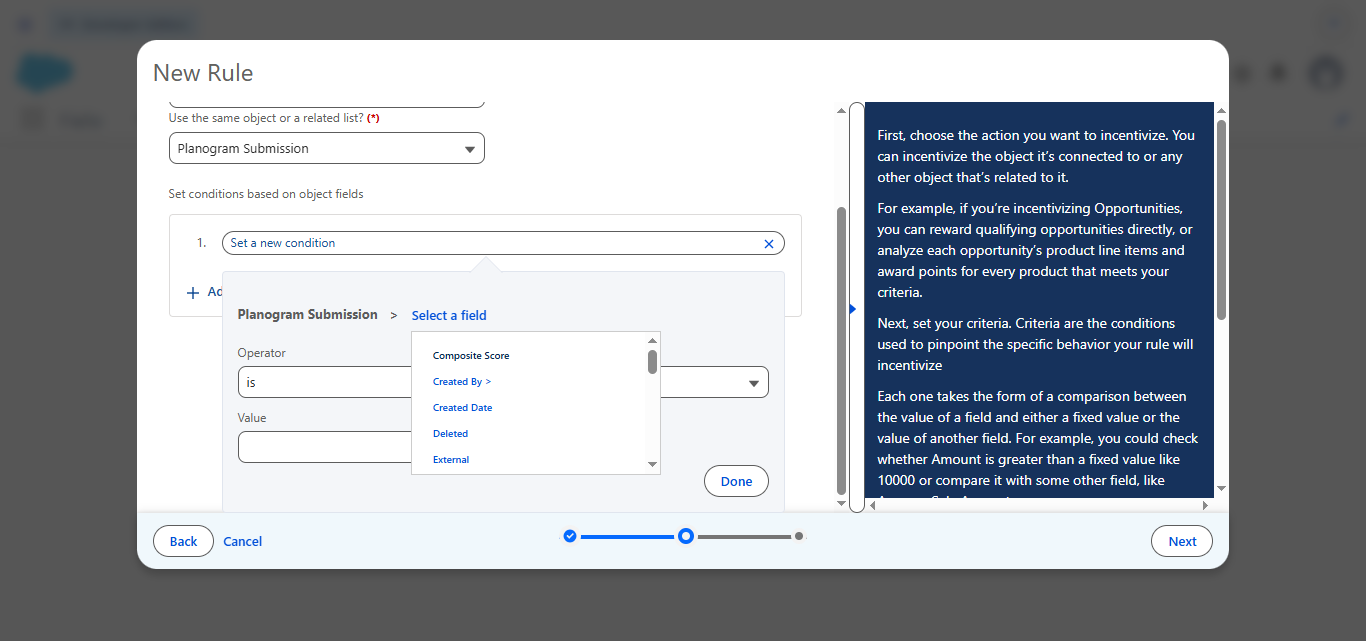
In this example, we'll require the score to be 0.8 (80%) or over to qualify.
Reward Based on Subscores
You can also incentivize members based on the individual subscores of a planogram submission. To do so, click + Add related list condition and select Planogram Submission Dimension.
Select Score and set the threshold you want to apply for the subscore. Then, click Add condition and select Name. This allows you to specify which subscore the criterion applies to. You can enter one of three names:
RightPlaceRightProductRightQuantity
Click Next and click Next again. Select the operator greater or equal and enter the value of 1. This checks whether the submission contains at least one subscore meeting your conditions.
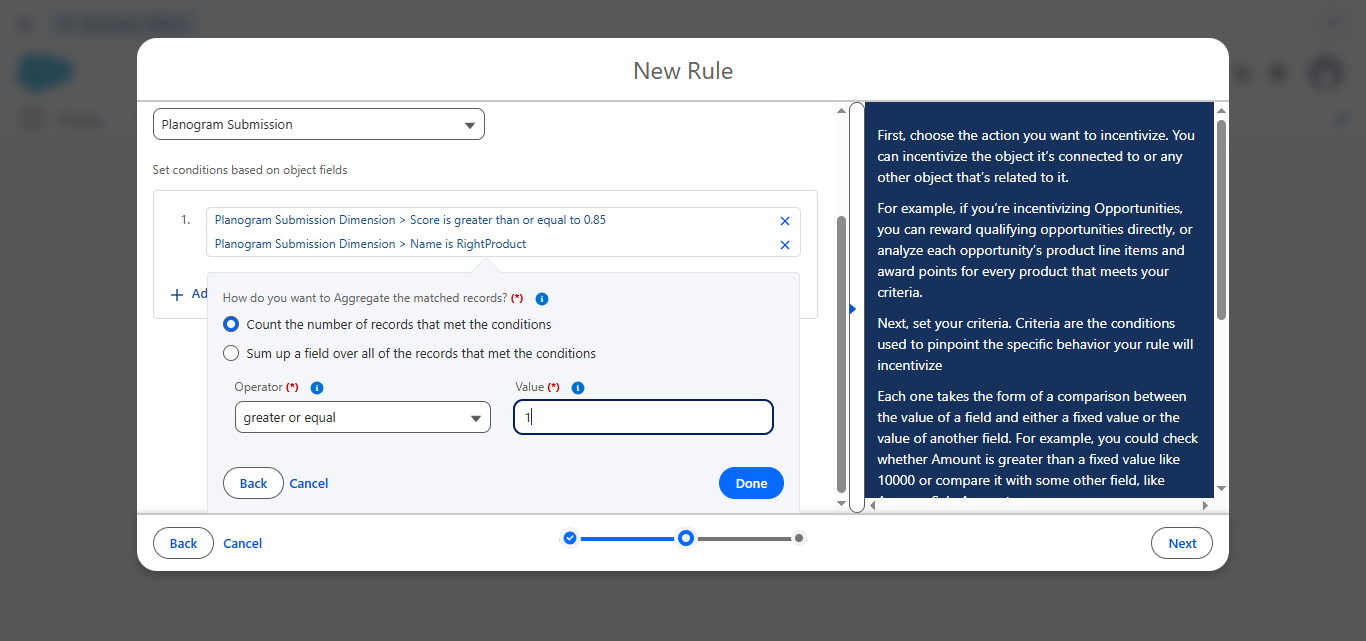
When you're ready, click Done.
Save and Activate
Define the reward(s) your rule will grant and save your rule. When you're ready, activate the incentive.
Updated 2 months ago