
Rewards Catalog
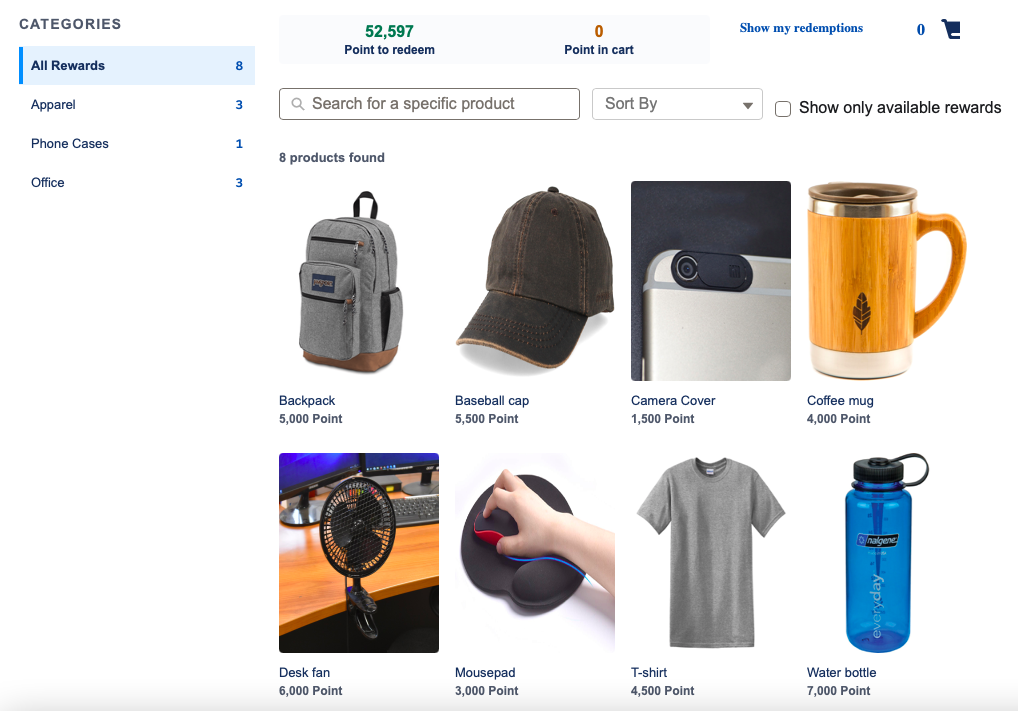
The Rewards Catalog offers a complete rewards shopping experience to your members.
Members can browse all of the rewards available to their segment(s), including quicksearch by name, filter by category, and more. They can favorite any rewards they want to circle back on later and, of course, add rewards to their cart.
When they're ready, they complete the checkout process and see that their redemption order has been confirmed.
Members can also consult their history of past redemptions.
With Catalog, your members' sustained program engagement is rewarded and a virtuous incentive and loyalty cycle is reinforced.
Getting Started
To get going, make sure you have a member associated with your user, as well as some rewards configured in that member's program. This way, you can get an idea of how the catalog will appear as you're configuring your member experience.
When you drag and drop Fielo MX - Rewards Catalog onto a Lightning page or Experience Cloud page, remember to also place the Member Selector on that page.
Categories
In order for a reward to be shown in a category, add that category to the reward on the Rewards admin tab. If a reward has no category, it will still be displayed when the All Rewards filter is selected.
To add a new category, add a new value to the Category picklist on the Reward (FieloPLT__Reward__c) object.
Configuring the Rewards Catalog
Once you've dragged and dropped the Fielo MX - Rewards Catalog onto your page, you can tailor the look and feel using the component properties.
Display
By default, Catalog and Redemptions provides the complete experience from reward selection to checkout, including a shortcut link to the member's redemption history.
Alternatively, choose Only Catalog to just include reward selection and checkout. Or, choose Only Redemptions to show members their redemption history.
Catalog - Currencies
Choose which program currencies should be displayed on the catalog. This should be a comma-separated list of API names of Currency lookups from the Reward object. These should always be non-payout (i.e. redeemable) currencies. By default, we show standard points (FieloPLT__Points__c).
Catalog - Show Currency Filter
When enabled, members will be allowed to filter rewards by the currency(its) with which they are redeemable.
Catalog - Show Search Filter
When enabled, members will be allowed to filter rewards by name via a quickfind bar.
Catalog - Sort By
Control how your members can sort catalog rewards by entering a comma-separated list of sorting options. Each sorting option is a bracketed set, where "label"is the option text that will be displayed to the member and "value"is the ordering for that option, represented in SOQL syntax. Here are the default sorting options that you can use as a model to make your own:
{"label":"Name Ascending", "value":"Name ASC, FieloPLT__Points__c ASC"},
{"label":"Name Descending", "value":"Name DESC, FieloPLT__Points__c ASC"},
{"label":"Points Ascending","value":"FieloPLT__Points__c ASC, Name ASC"},
{"label":"Points Descending", "value":"FieloPLT__Points__c DESC, Name ASC"}
The first sorting option on the list will be the default one used when the component initially loads.
If you leave this property blank, rewards will be displayed in alphabetical order from least expensive to most expensive.
Catalog - Allow Sorting
When enabled, members will be able to sort catalog rewards using the options defined on the Catalog - Sort By property. Otherwise, items will be sorted by the first sorting option defined on the Catalog - Sort By property. If that property is blank, rewards will be displayed in alphabetical order from least expensive to most expensive.
Catalog - Show Rewards
When True, members will only see rewards that they have enough currency to redeem. False means that all rewards relevant to the member's segment(s) will be shown. For both of these options, you can allow member to change or leave it locked on the desired visibility.
Catalog - Columns
Choose the maximum number of columns that you want to display catalog rewards in. Members viewing the component on a narrow screen may see fewer columns.
Catalog - Reward Item Fields (Card View)
Choose which fields should be displayed for each catalog reward on the main view. This should be a comma-separated list of API names of fields from the Reward object. By default, we show the reward photo (FieloPLT__ExternalURL__c) and name.
Catalog - Reward Item Fields (Detail View)
Choose which fields should be displayed on the detail view of each catalog reward.
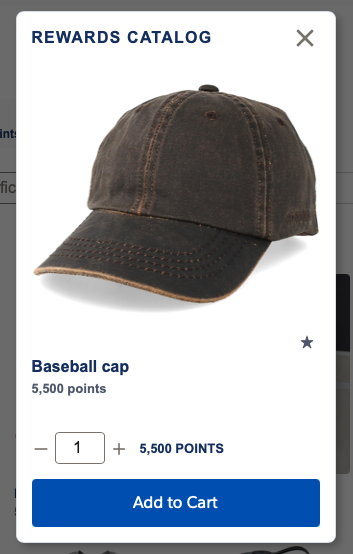
This should be a comma-separated list of API names of fields from the Reward object. By default, we show the reward photo (FieloPLT__ExternalURL__c), name and description (FieloPLT__Description__c).
Catalog - Allow Favorites
When enabled, members will be able to mark catalog rewards as favorites, allowing them to easily find them again through the Favorites filter.
Catalog/Redemptions - Page Size
Choose the maximum number of items you want to load at a time.
Catalog/Redemptions - Page View Mode
When the number of items to show is greater than the page size, you can choose to display a paginator or a "show more" button.
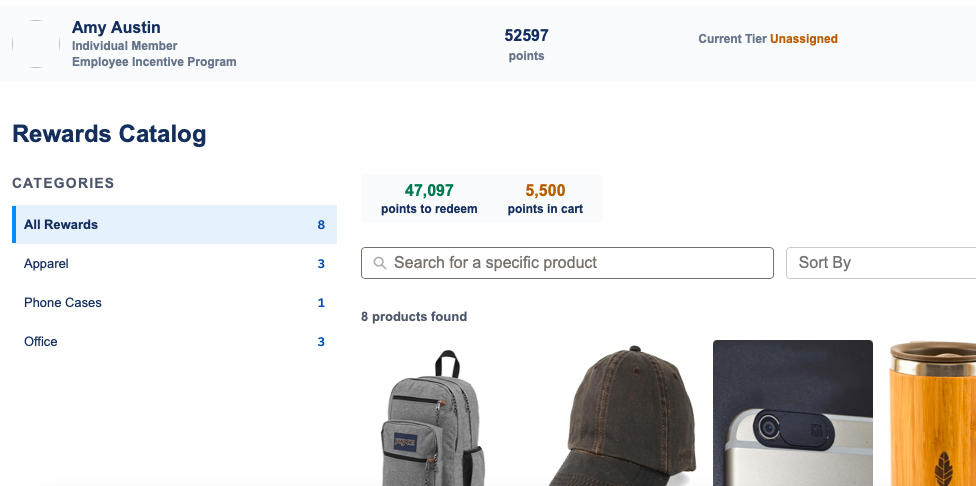
Wallet - Points Summary
When enabled, members will be able to see the number of points they have left to redeem against the number of points already accounted for in their cart.
Wallet - Points Expiration Threshold (Days)
If using the wallet, you can choose to warn members of any points set to expire within the next x days. If you'd rather not show this info, leave the property at 0.
Checkout - Quantity
You can allow members to see and modify the number of items in the cart during checkout. Alternatively, you can show the quantity but not allow any changes, or not show the quantity at all.
Checkout - Show Unit Price
When enabled, members will be able to see the per-item price of each catalog reward at checkout.
Checkout - Show Total Price
When enabled, members will be able to see the total price of each catalog reward at checkout. Total price is the quantity multiplied by the unit price.
Checkout - Show Resulting Balance
When enabled, members will be able to see a preview of the balance they will have remaining upon completing checkout.
Checkout - Shipping Address (View Fields)
Choose which Member fields should be displayed under Recipient at checkout. This should be a comma-separated list of API names of fields from the Member object.
Note that if using a field of type Address, you need to enter the component fields. For example, for an Address field called Address, you can enter: Address__Street__s,Address__City__s,Address__StateCode__s,Address__PostalCode__s,Address__CountryCode__s
If you leave this property blank, only the member's name will be shown.
Checkout - Shipping Address (Editable Fields)
Choose which, if any, Member fields shown under Recipient should be modifiable. This should be a comma-separated list of API names of fields from the Member object.
Note that if using a field of type Address, you need to enter the component fields. For example, for an Address field called Address, you can enter: Address__Street__s,Address__City__s,Address__StateCode__s,Address__PostalCode__s,Address__CountryCode__s
If you leave this property blank, no fields under Recipient will be editable.
Redemptions - Redemption Fields
Choose which Redemption fields should be displayed on the Redemption history. This should be a comma-separated list of API names of fields from the Redemption object. By default, we show the redemption code (Name), status (FieloPLT__Status__c), and close date (FieloPLT__ClosedDate__c).
Redemptions - Redemption Item Fields
Choose which Redemption Item fields should be displayed under each redemption on the Redemption history. This should be a comma-separated list of API names of fields from the Redemption Item object.
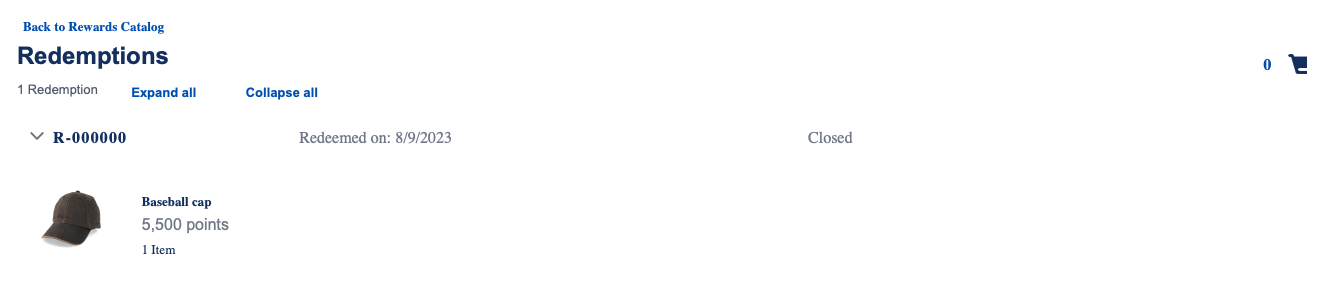
By default, we show the reward photo (FieloPLT__Reward__r.FieloPLT__ExternalURL__c), name (FieloPLT__Reward__r.Name), price (FieloPLT__Points__c) and quantity (FieloPLT__Quantity__c).
If you're pricing rewards in a currency other than the standard points, be sure to switch out FieloPLT__Points__c with the desired currency field.
Updated over 1 year ago