
Rebates / Cashback / Commissions Management
In addition to powering Points programs, Fielo supports cash-based incentive programs - from rebates for partners/dealers to cashback for consumers to commissions for employees.
You can configure models based on various Member attributes such as type, tier, revenue, industry, and country — all without requiring IT involvement.
Transition your rebate, cashback and commission processing from cumbersome spreadsheets or outdated legacy systems to Fielo. Leverage cash-based programs as a strategic pricing tool to boost your revenue growth.
Setting Up a New Cash-based Incentive
To create a new Rebates, Cashback, or Commissions incentive, follow these steps:
- Access the Fielo app in Salesforce's App Launcher.
- Navigate to the Home tab in the Command Center.
- Go to the Rebates / Cashback / Commissions section.
- If other incentives are already configured, click the “New” button to launch the configuration wizard. If not, you’ll be automatically redirected to the next step.
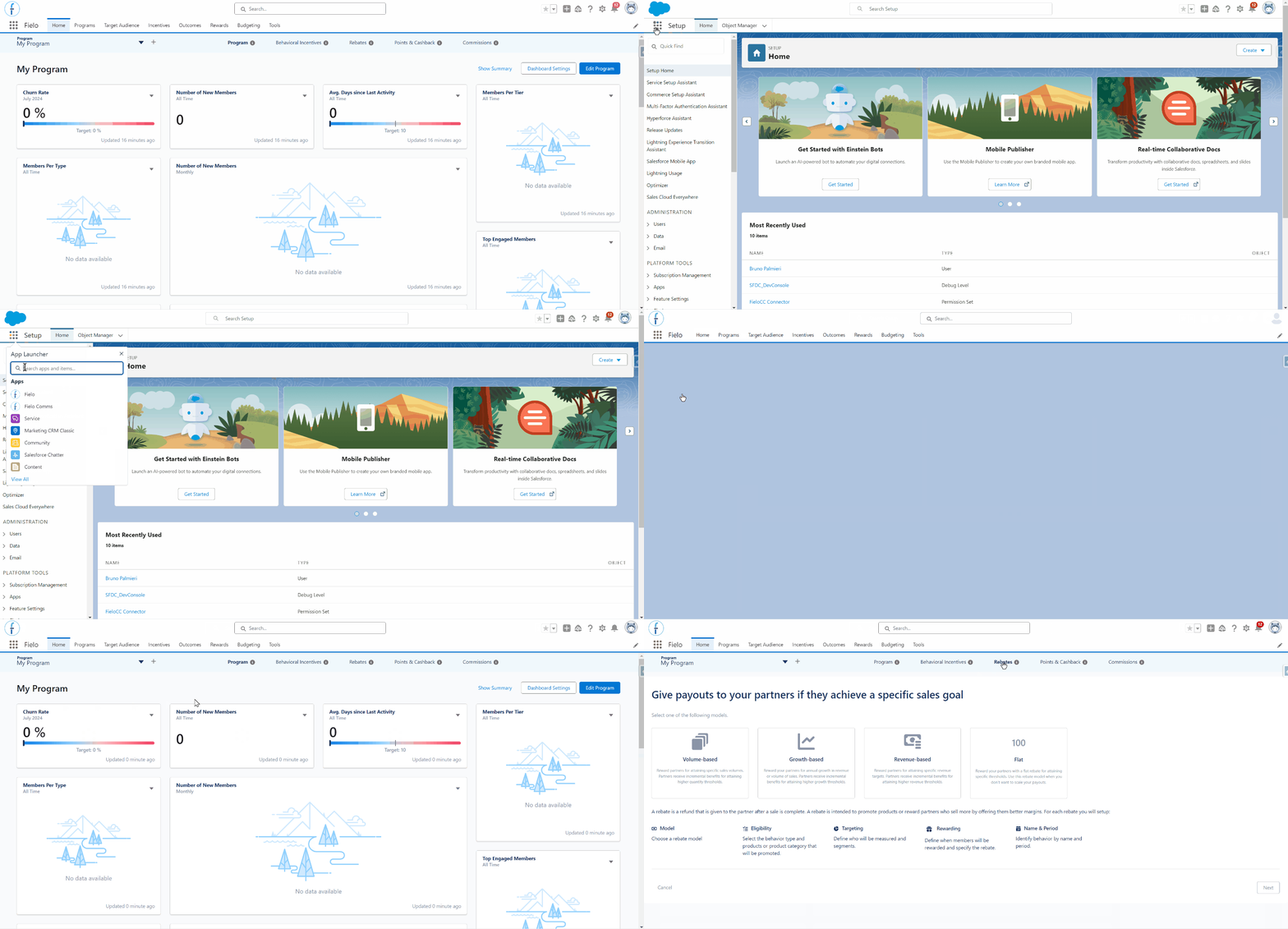
Choose from Four Models
When setting up your program, you can select from four distinct models:
- Volume-Based: Reward members for achieving specific sales volumes. Members receive incremental benefits for reaching higher quantity thresholds.
- Growth-Based: Reward members for annual growth in revenue or sales volume. Members receive incremental benefits for surpassing higher growth targets.
- Revenue-Based: Reward members for meeting specific revenue targets. Members receive incremental benefits for achieving higher revenue thresholds.
- Flat: Provide a flat rebate for attaining specific thresholds. This model is ideal when you prefer not to scale rewards incrementally.
Each model offers unique advantages, allowing you to tailor incentives to your strategic goals.
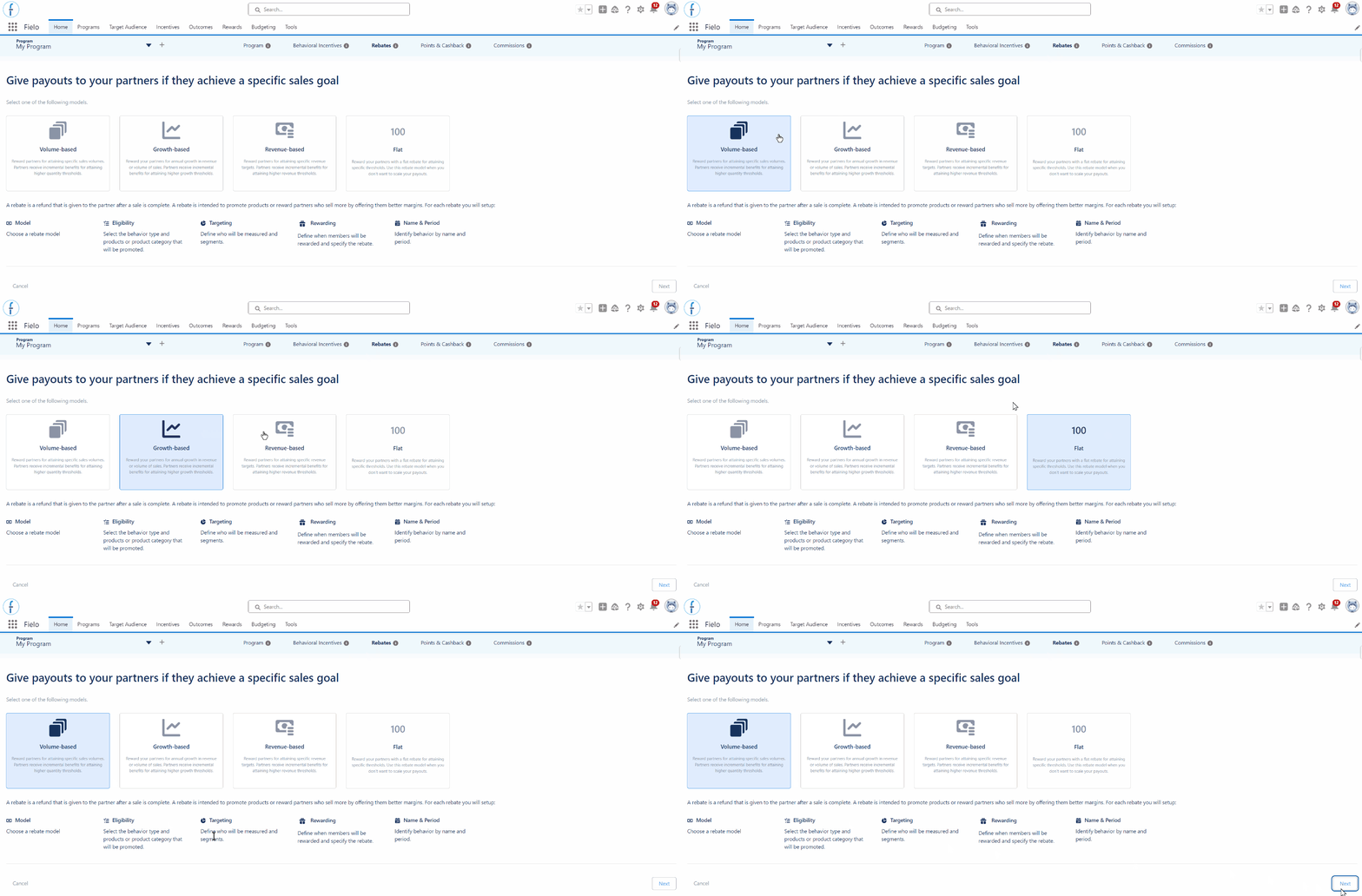
After selecting the model click the “Next” button to continue with the configuration:
-
Eligibility: In this step, define the behavior you want to track and incentivize, along with the criteria that will determine eligibility:
-
Behavior: Select the behavior by clicking on ▼. Decide whether to incentivize the behavior itself (e.g., Invoice total amount) or related data (e.g., Invoice product quantity or amount).
To view and configure behaviors and related data behaviors (child behaviors), they need to be enabled in advance. For more information, click here
-
Eligibility criteria: After selecting the behavior, define the eligibility criteria. This can be based on:
Specific Criteria: Set specific conditions for eligibility.
Select Products: choose from a list of products which will be eligible.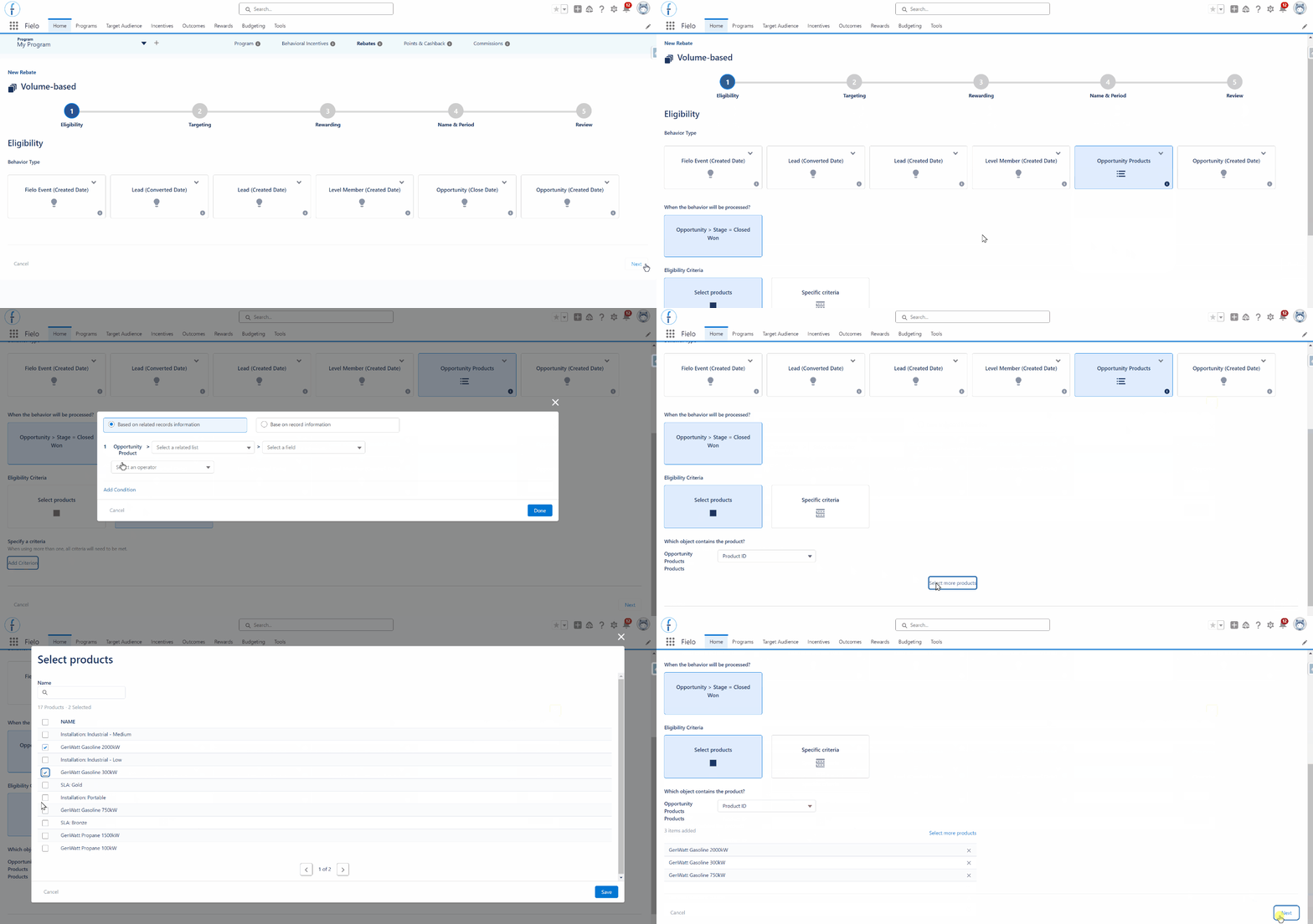
-
-
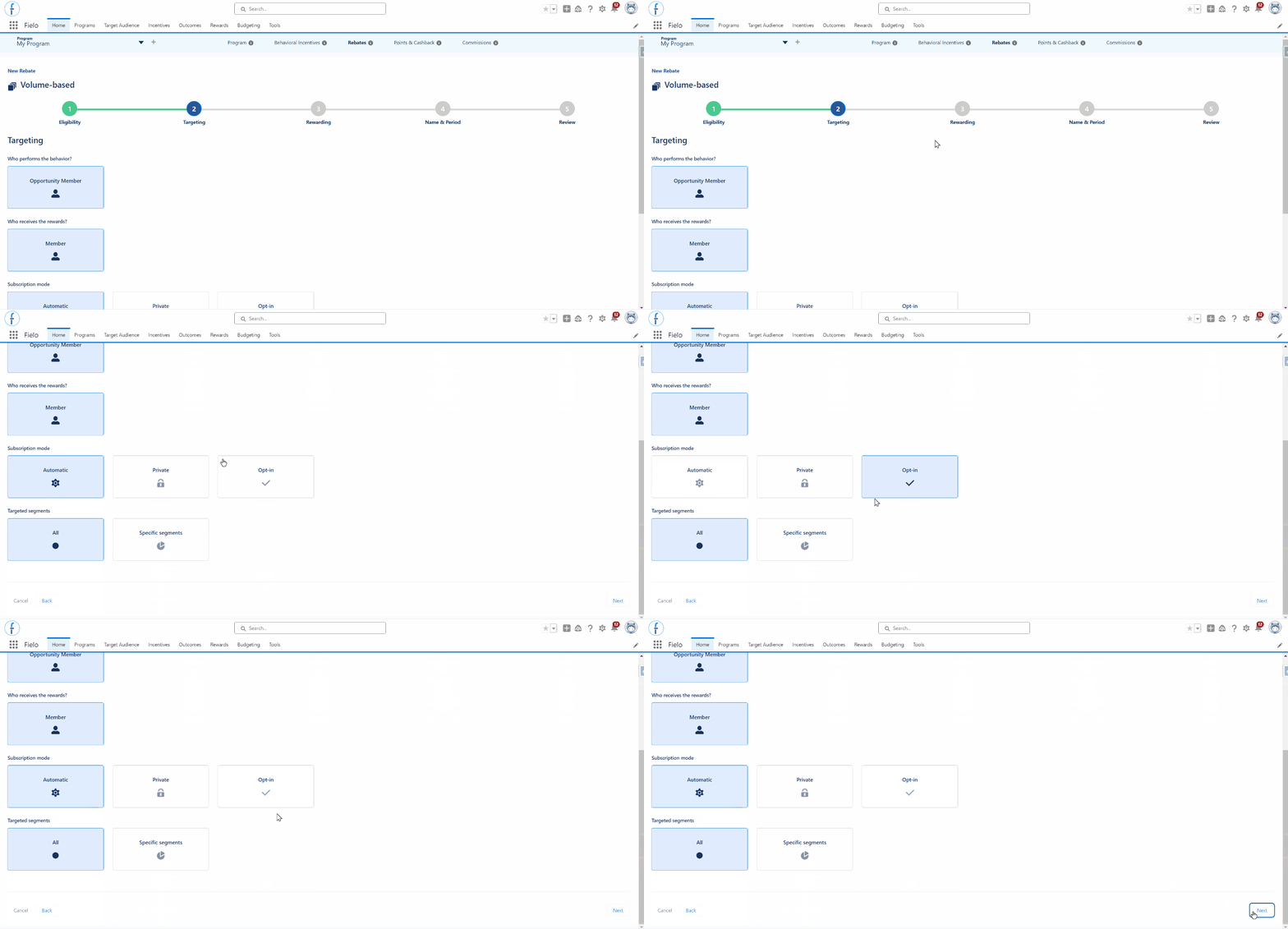
Targeting: In this step, define who will be measured when the behavior is tracked, which member segments are eligible for the incentive, and, in some cases, the subscription mode for the incentive:
-
Who will be Measured?: Determine who will be tracked for the behavior. This can be either the individual member who performed the action or the organization to which the member belongs.
-
Subscription Mode: Define how members will subscribe to the incentives. (Note: This setting is not available for Flat incentives.)
- Global: Members are automatically subscribed when they perform the behavior.
- Private: Members must be manually subscribed to participate in the incentive.
- Opt-In: Members need to subscribe to the incentive before they can start participating.
-
Segments: Select which members are eligible for this incentive (Note: this setting is not available if ‘Subscription Mode’ is set to ‘Private’):
-
All: All members are eligible.
-
Specific Segments: Choose specific member segments that will be eligible.
-
-
-
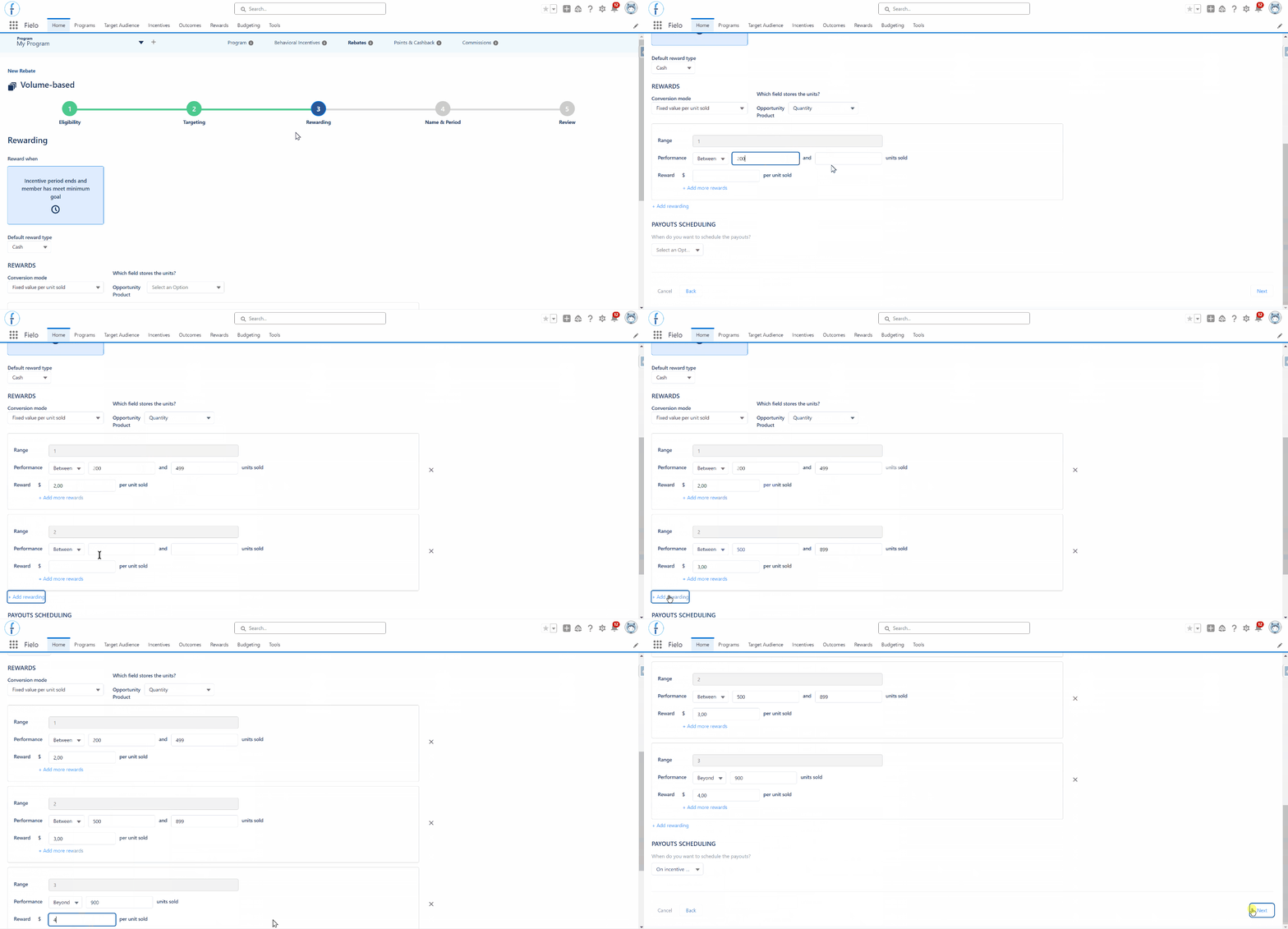
Rewarding: Design the benefits you want to reward your members with, such as payouts, points, badges, instant rewards, etc. The available options depend on the incentive model chosen at the beginning:
-
Volume-Based:
- Fixed amount per unit sold: Reward a multiplier per unit sold based on unit sale thresholds.
- Fixed value per unit sold: Reward a fixed amount based on unit sale thresholds.
-
Growth-Based:
- Percentage of revenue growth: Reward a fixed amount based on the sales growth percentage over the previous period.
-
Revenue-Based:
- Total order value: Reward a percentage of all accumulated sales based on the thresholds.
- Threshold value: Reward a fixed amount after surpassing the threshold
-
Flat:
-
Fixed value per unit sold: Reward a fixed amount multiplied by the quantity of product sold.
-
Percentage of total amount: Reward a percentage of the total order value.
-
-
-
Name & Period: In this step, set the name for the incentive, the period it will run, and member experience settings, such as incentive description, visibility, and notifications.
For a Growth-Based Model, you'll also need to set the comparison period. This is the period in the past against which the member's performance will be evaluated to determine if there has been growth.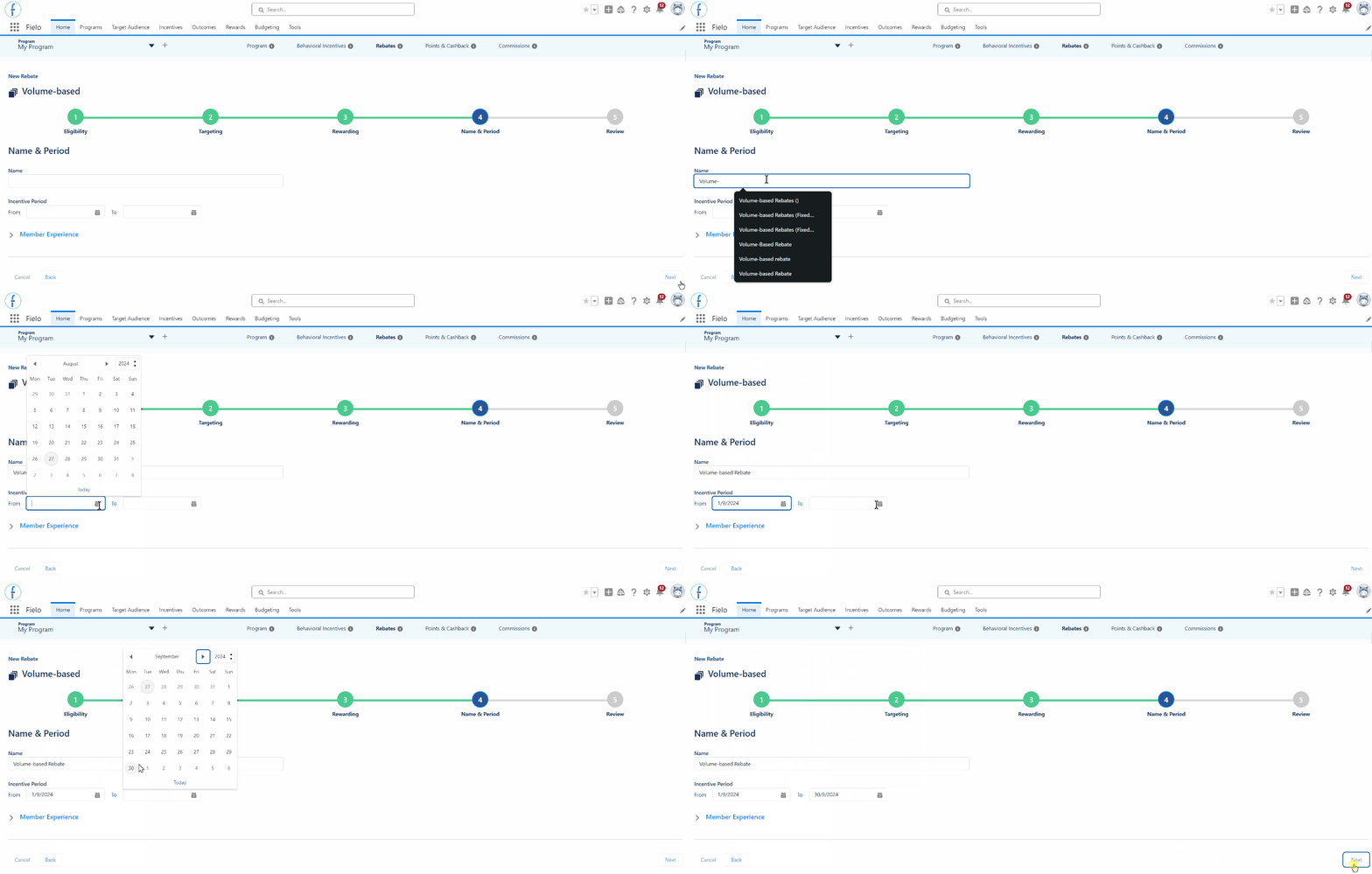
-
Review: This is the final step of the configuration wizard. Here, you'll see a summary of all the settings you have configured in the previous steps.
-
If you need to make adjustments, you can go back to any of the previous steps.
-
If you are satisfied with the settings, click the ‘Save’ button to create the incentive in ‘Draft’ status.
Once saved, you can activate the incentive from the detail page.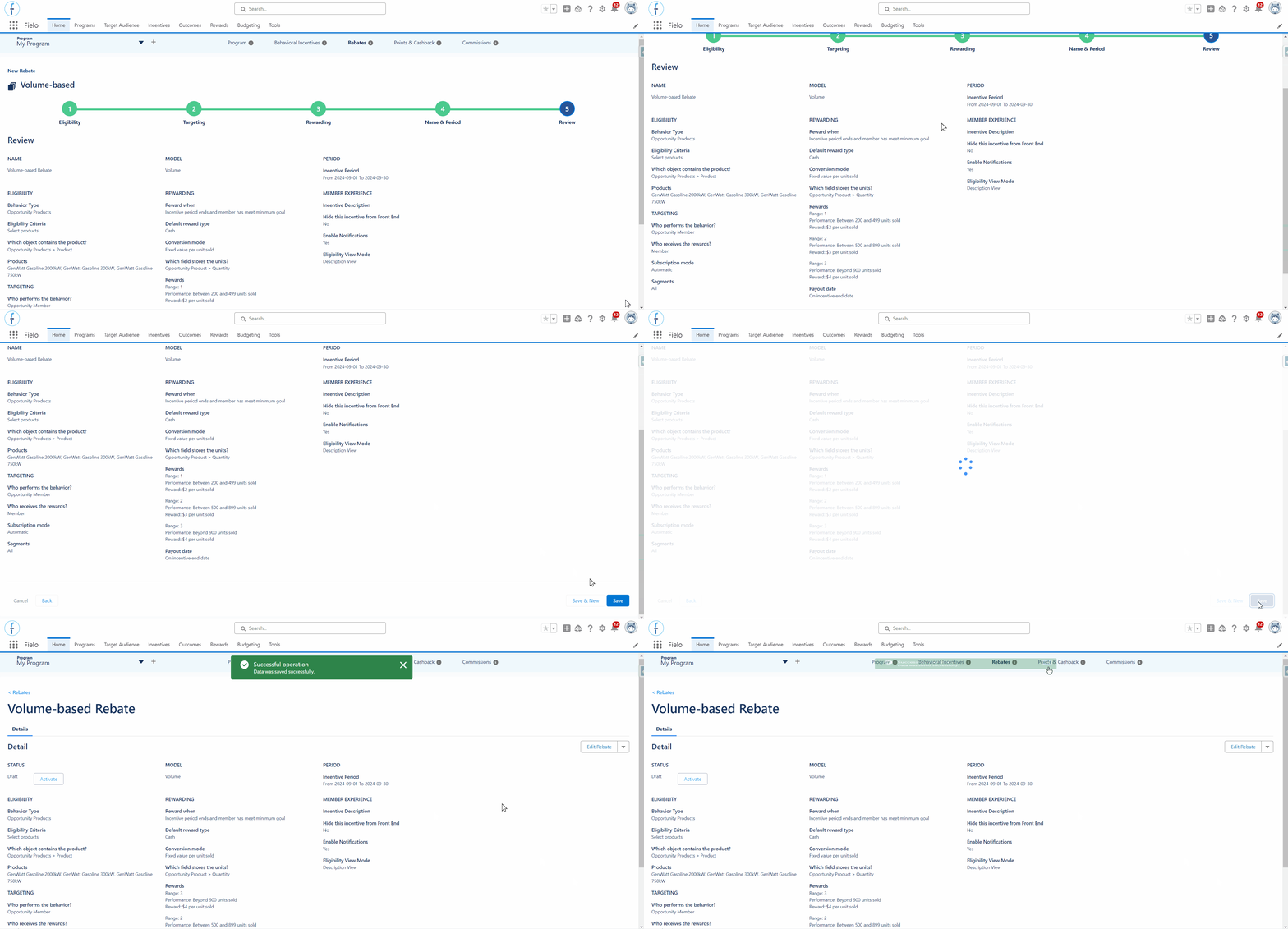
-
Updated over 1 year ago