
Automate Your Plans
You can use RevOps Apex actions inside Salesforce Flows or Apex triggers to automate the filling in of RevOps plans. This means that, if you are already capturing an activity in Salesforce, users won't have to fill it in manually on their plans. Let's see how we might accomplish this with a flow.
Before Starting
Get up to speed on Record-Triggered Flows.
Setting Up a Flow
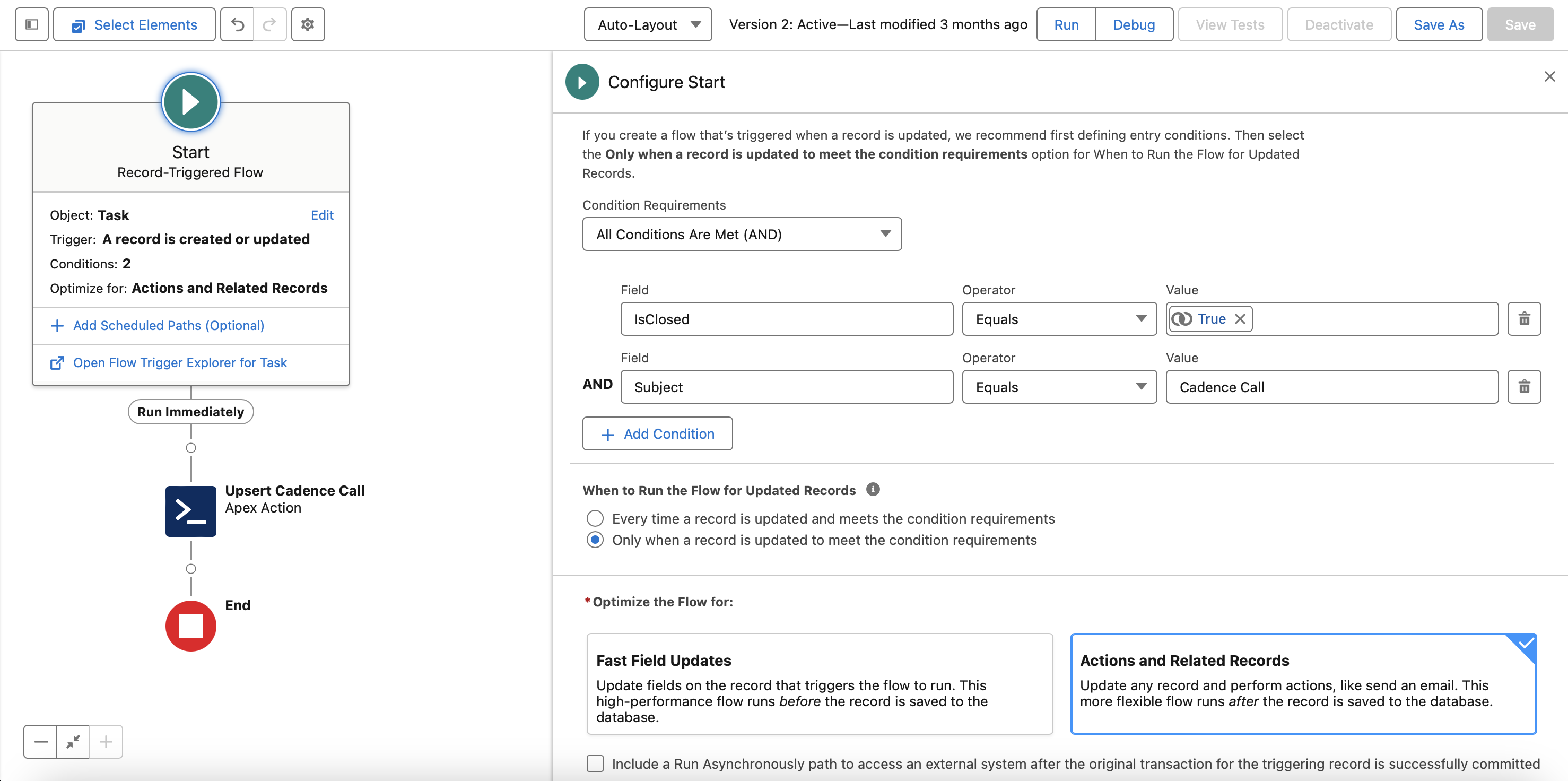
Let's say that we want to fill in an activity, Cadence Call, on an Account-based activity plan when a user completes a Salesforce Task meeting certain criteria.
First, we create a Record-Triggered Flow that runs when a Task is created or updated to meet our conditions: IsClosed = true and Subject = 'Cadence Call'. Since we plan to use this flow to call an Apex action, we optimize it for Actions and Related Records.
Upsert Activities
Next, we add an element of type Action and, inside the Fielo RevOps category, choose FieloRO - Upsert Activities. We give it a label, an API name, and a description.
Now we need to specify the input values to pass to the Apex action when it's called by the flow.
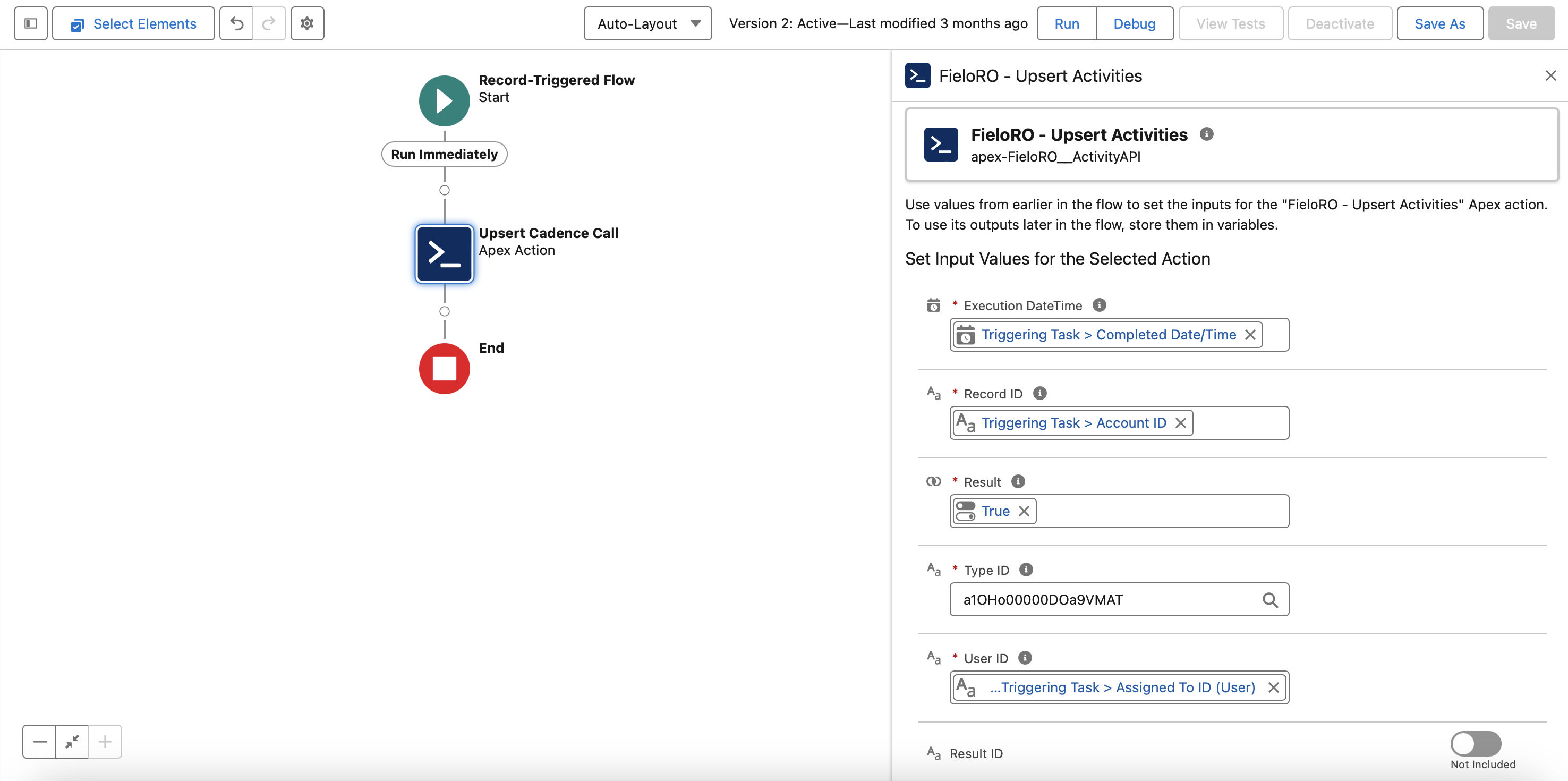
Execution DateTime
This is the date and time we want to determine whether the activity was completed within the timeframe of the activity plan. In our case, we use the Completed Date/Time field on Task.
Record ID
This is the record for which the activity was completed. Since ours is an Account-based activity plan, we use the ID of the Account associated with the Task.
Result
This records whether the activity should be considered done or not. We set the result to True.
Type ID
This is where we specify that the Activity Type we want is Cadence Call.
To find the ID of the Activity Type Cadence Call, we open the App Launcher and, under Items, select Activity Type. We find the record called Cadence Call and go to its detail page. From our browser's address bar, we grab the ID, which appears towards the end of the URL, before /view.

We copy and paste the Activity Type ID a1OHo00000DOa9VMAT into the Type ID field.
User ID
This is where we point to the user who should be given credit for the activity. In our case, we specify the Assigned To ID field on Task.
Result ID
For an activity of type Multiple (i.e. a picklist on the planner), this should be set to the ID of the Activity Type Detail corresponding to the desired picklist selection. You can find the Activity Type Detail ID similarly to how you found the Activity Type ID.
Since Cadence Call is a checkbox on our planner, we do not specify any result ID.
RevOps Automation CompleteCongrats! You're ready to save and activate your flow.
Go ahead and test it out with a dummy user to make sure everything is working as expected.
Who knew automating your RevOps plan would be so easy?
Updated about 1 month ago