
Fielo for an Existing Salesforce Site
2.96.24
If you plan to use Fielo with an existing Salesforce Site, follow the steps below.
Before Starting
First thing's first: log into your Salesforce org and make sure you have system administrator permissions. Your org should have Community User licenses and at least one active Site, including a custom profile for your members.
Salesforce Experience CloudPreviously known as Community Cloud, as of Salesforce Spring '21 release Community is now referred to as Experience Cloud and/or Site.
If you don't have a custom profile for your members yet, create one before moving forwards with the installation.
Install Fielo
Once you've confirmed that your org has at least one active Site whose members are assigned a custom profile, you're ready to install Fielo in your org.
- Click here to access the installation package.
- Select Install for Specific Profiles.
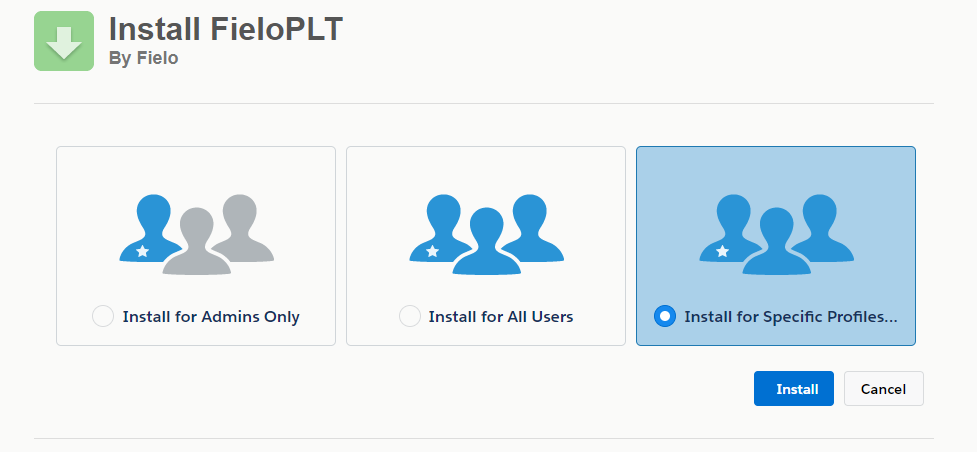
Don't click Install yet! Profile selection is on the same page.
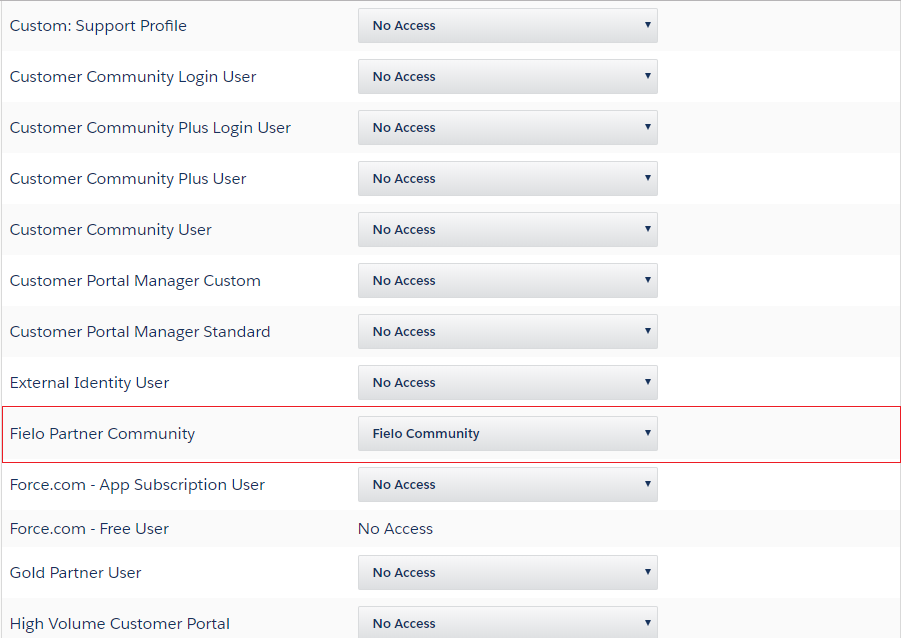
- Scroll down and find the Site (Community) User profile(s) you created for the members before the installation - in the image below, it is the Fielo Partner Community. From the corresponding picklist(s), choose Fielo Community.
-
If any internal org users besides System Administrators will be configuring Fielo, you'll want to give Full Access to those profiles, as well.
-
Click Install. When the installation process is finished, you (or the org admin) will be notified by email.
Ensure Email Deliverability
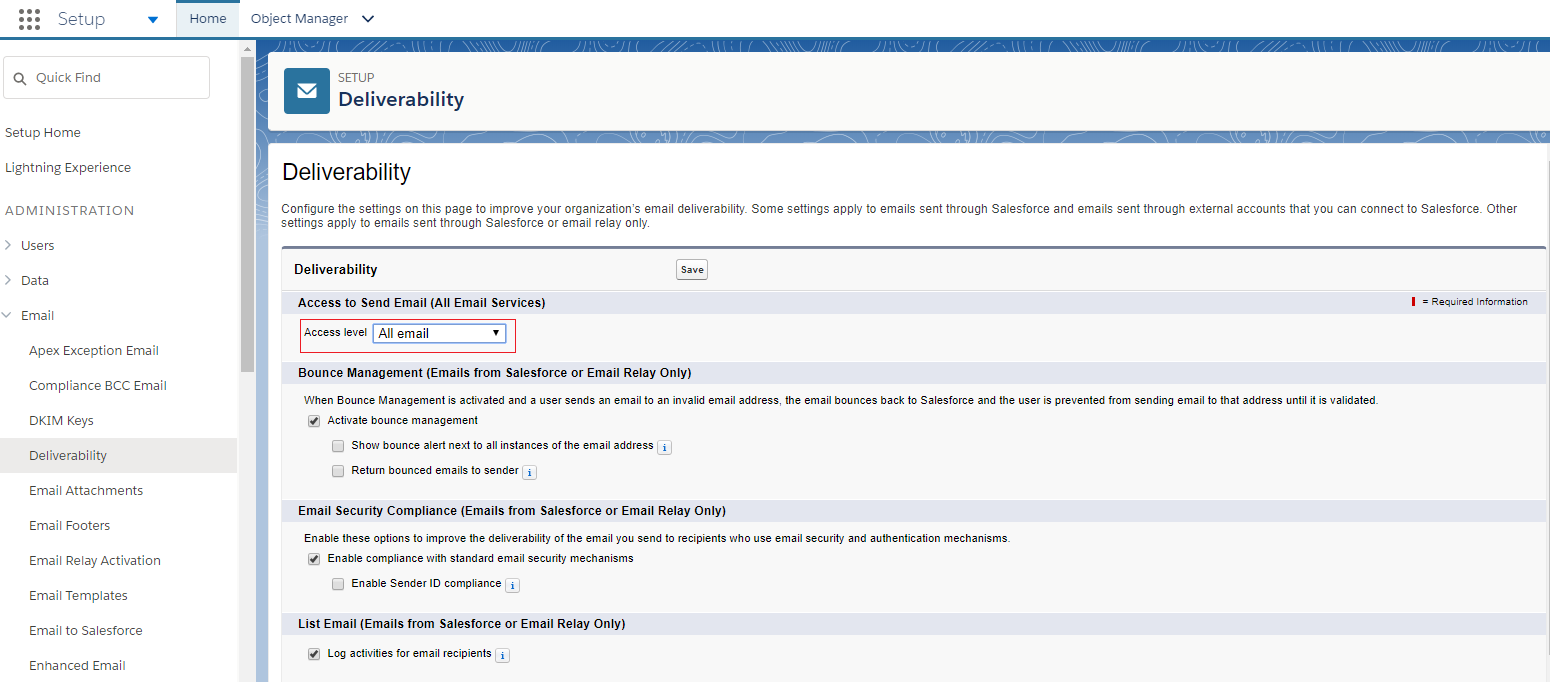
From Salesforce Setup, navigate to Deliverability. Make sure the e-mail access level is set to All email.
Enable Libraries
After installing, you'll want to activate our full feature set by enabling the FieloPLT library.
Click on the App Launcher and choose Fielo Platform. From the Tools tab, make sure that you are in the Libraries section and click Activate next to FieloPLT.
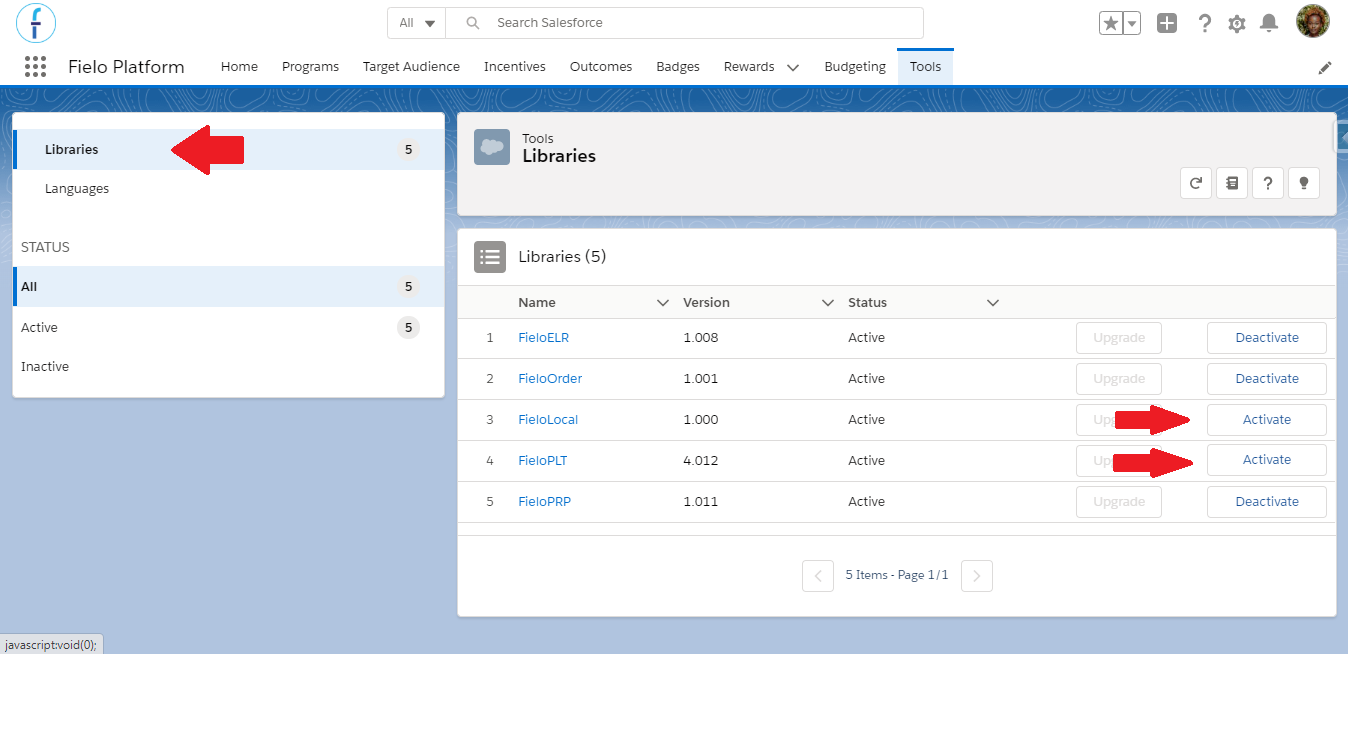
While you're here, go ahead and activate the FieloLocal library, as well. This way, you'll have a place to store any actions, models, or page settings that you create later on.
Setting up Domain
In case you created your production ORG in Salesforce Winter ’21 release and later, you can skip this step. The newest ORGs have a My Domain by default.
Go to Setup from the top right. Within the Quick Find menu search for "domain". You will see the category Company Setting and within that, click on My Domain.
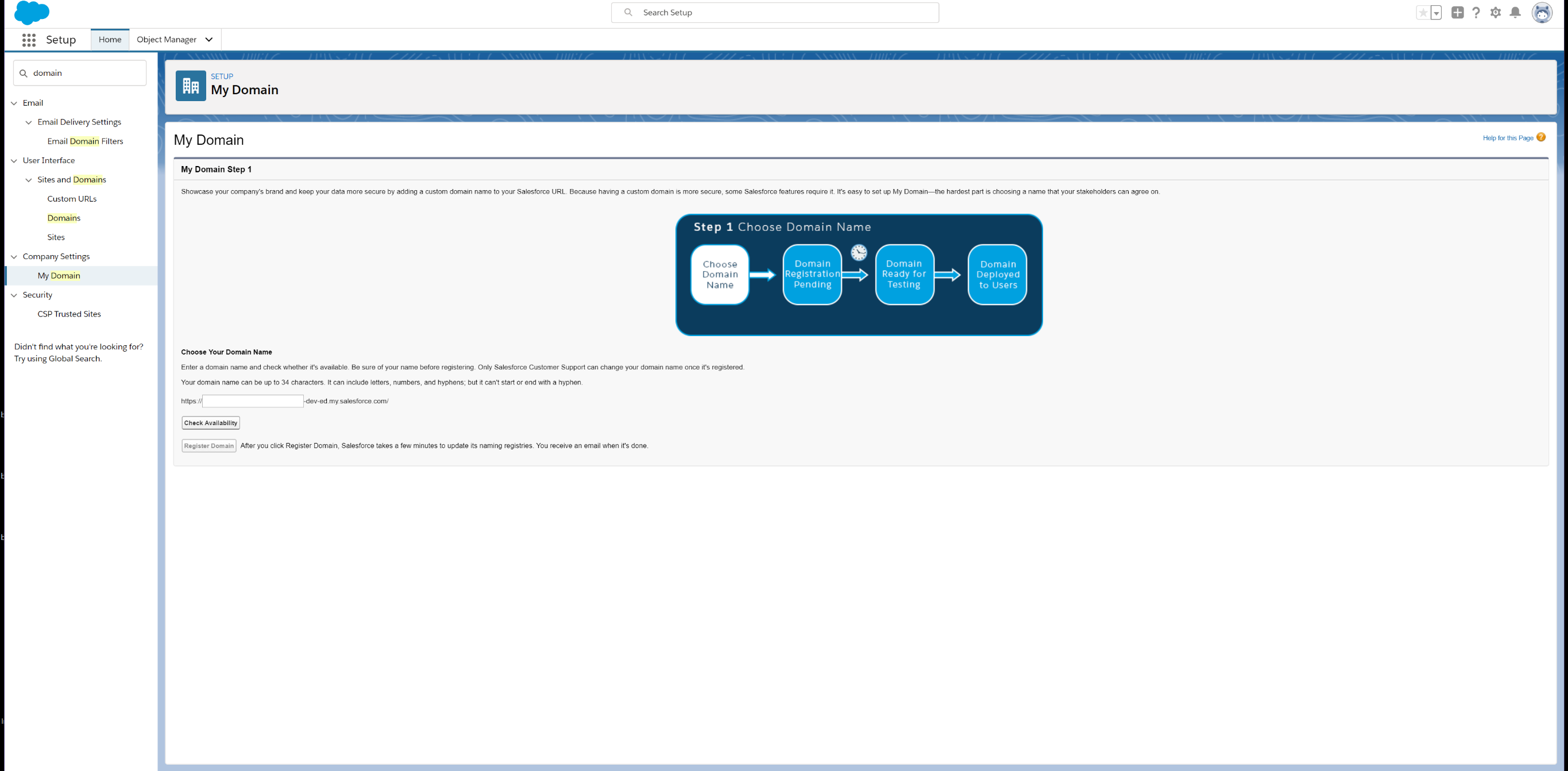
It will ask you to choose your domain name so go to the input field and enter a domain name that works for your program. Once you have entered a name, click the Check Availability button to make sure it able to be used. Once you have an approved domain name, click Register Domain.
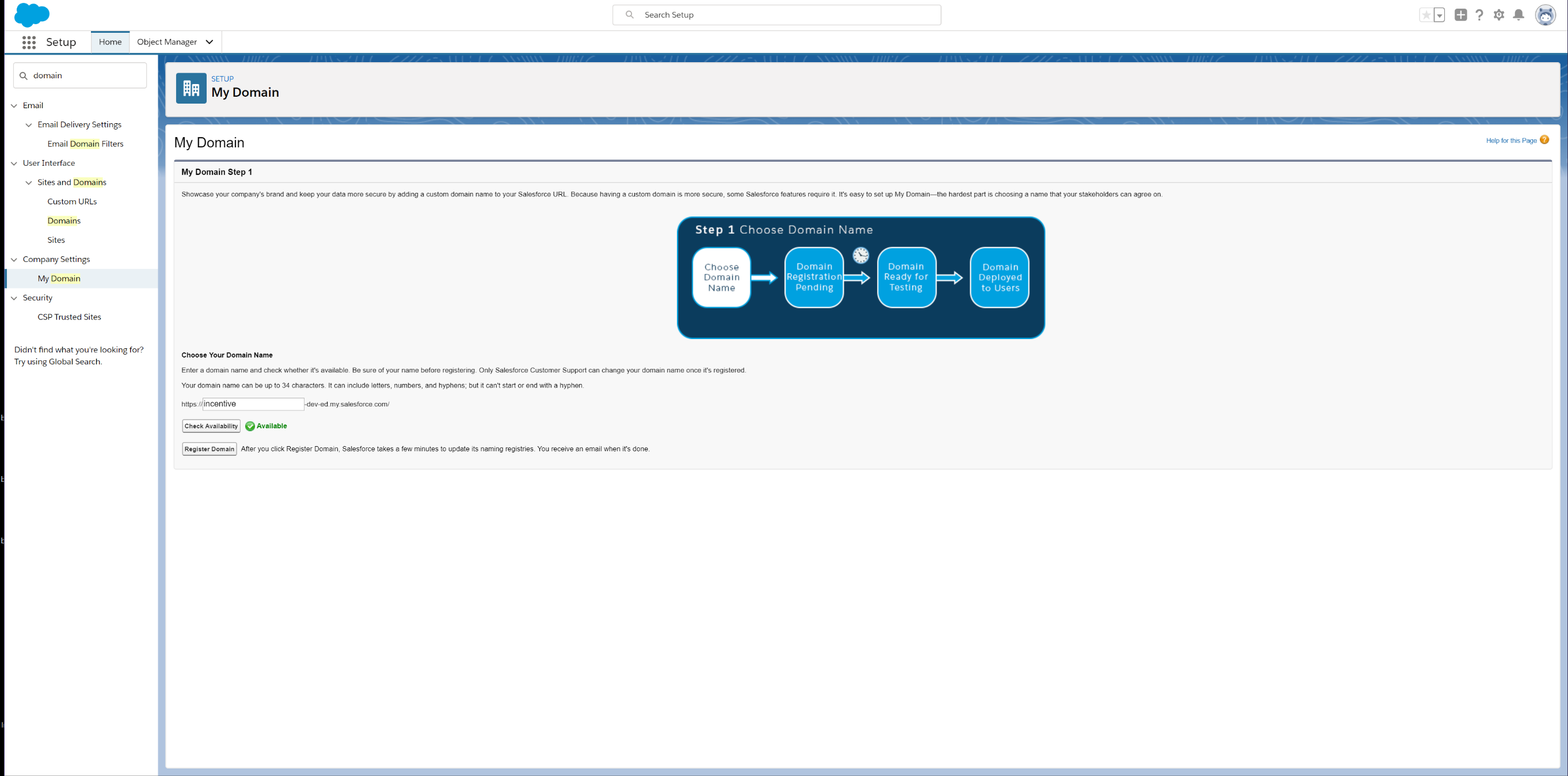
The process may take a few minutes to complete but you will receive an email titled "Salesforce domain ready for testing" once your domain has been made. You can either login from the email and go back to the domain section or refresh the original page if it is still open. You will be directed to Log in to test your domain before deploying it to your users.
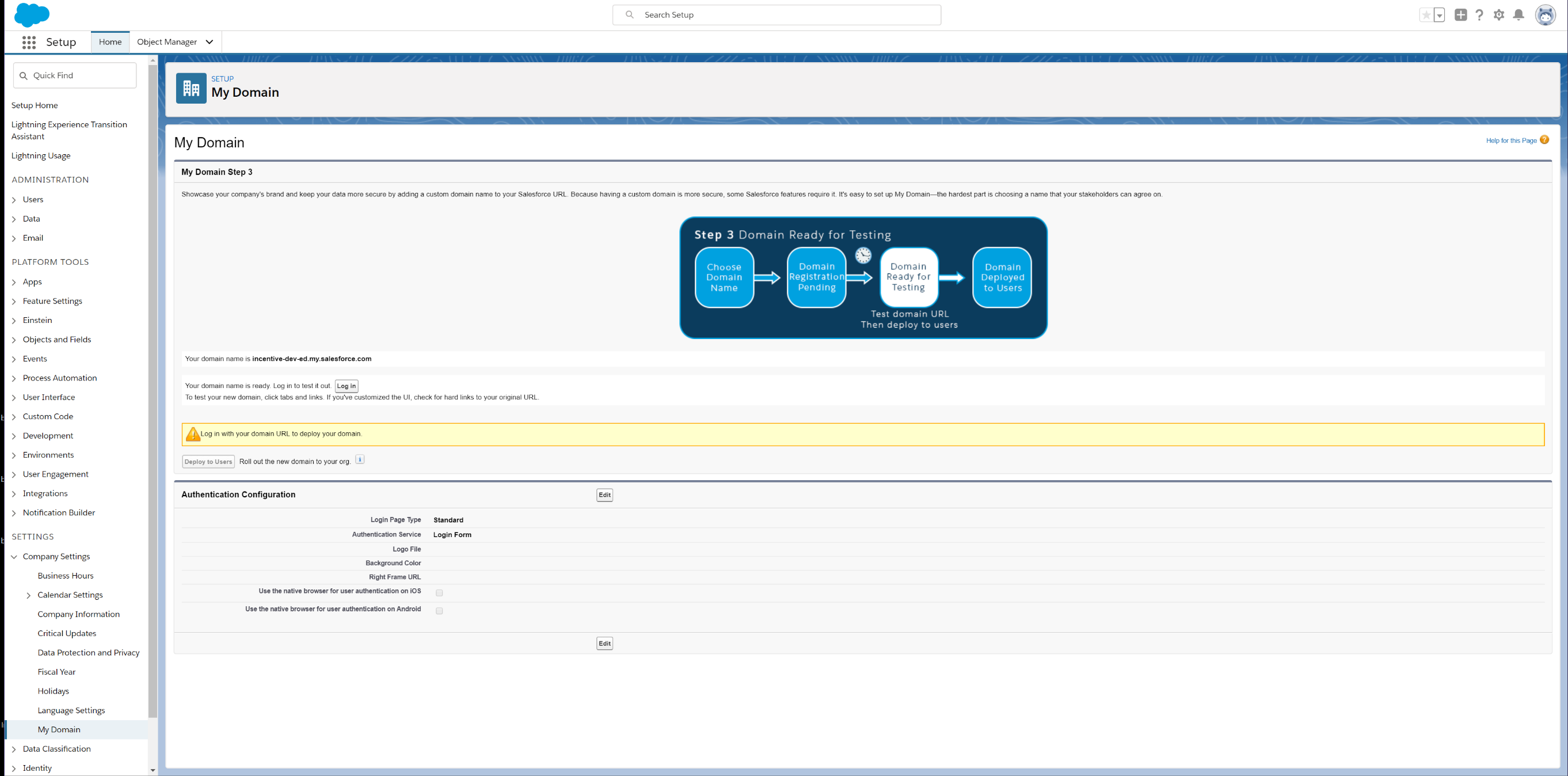
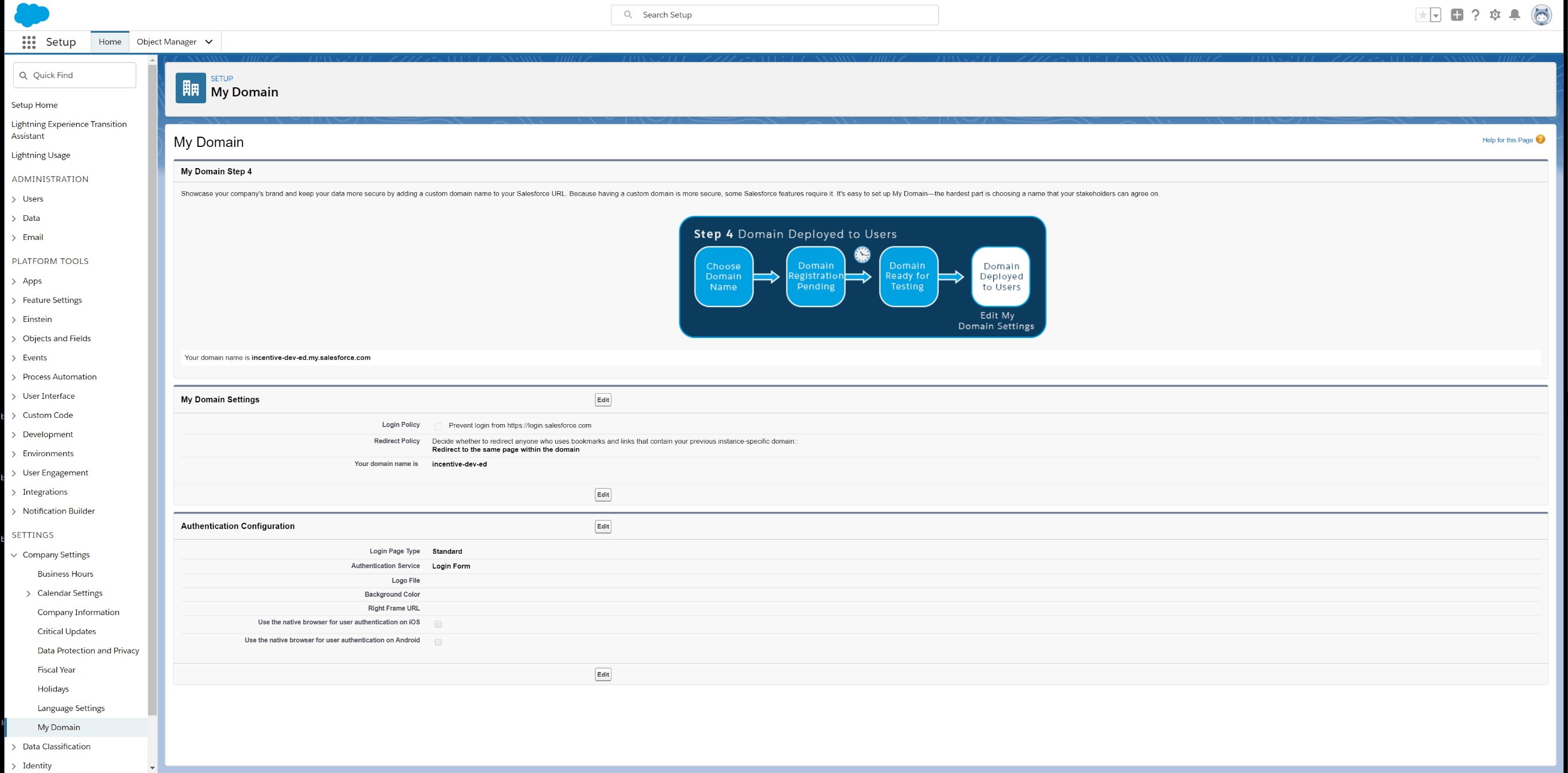
Once you have tested our domain, you are now ready to deploy to your users. The final step is to click Deploy to Users and you have now created your domain.
PermissionsDuring the installation, Fielo automatically creates a Permission Set named FieloPLT Admin, which has all the permissions needed to work with Fielo standard objects. Therefore, all users that will work with the platform should have this Permission Set assigned to them.
In case you create your own custom objects to incentivize through Fielo, you'll need to clone the FieloPLT Admin and add the new object(s) permissions to it.
Please note that pre-existing Members need to be provided with the right permissions. Fielo provides an out-of-the-box Permission Set you can assign to all Portal Members (Community Members) at once. Find out more about how to assign it clicking here.
Also, make sure to read our guide on how to build a an experience cloud site too. There are a few important steps to be followed in order to use Fielo Lightning Components in your site.
Great job!You're ready to start using Fielo. Be sure to check out our Lightning Components for Experience Cloud, including Join Program, which enables your existing Portal members (Community Members) to join a Fielo program.
Updated over 1 year ago