
Behaviors
Behaviors let you decide which Salesforce objects you want to create incentives for. You can choose to drive a particular behavior by using the Single Action Engine - for example, award your members every time they log in to your loyalty portal - or you can encourage your members to carry out a set of activities in certain order, time frame or number by means of Multi-Action Engine - e.g. you award your members after logging into your portal 5 times.
Our Single Action Engine works via Promotions, while the Multi-Action Engine leverages Challenges.
While the Behavior allows any object to be incentivized, it is the Action that will actually trigger the Single Action Engine and Multi-Action Engine. Therefore, you will always need at least one Action related to your Behavior.
Using Behaviors
In case you'd like to test out incentive automation before doing anything, the library FieloPLT comes with a default Behavior, Event, that can be used for that. This record is related to the Event object and can even be configured for real-world applications in your program.
You can access it in Tools tab, going to Libraries and clicking on FieloPLT. The Behavior tab already includes Event:
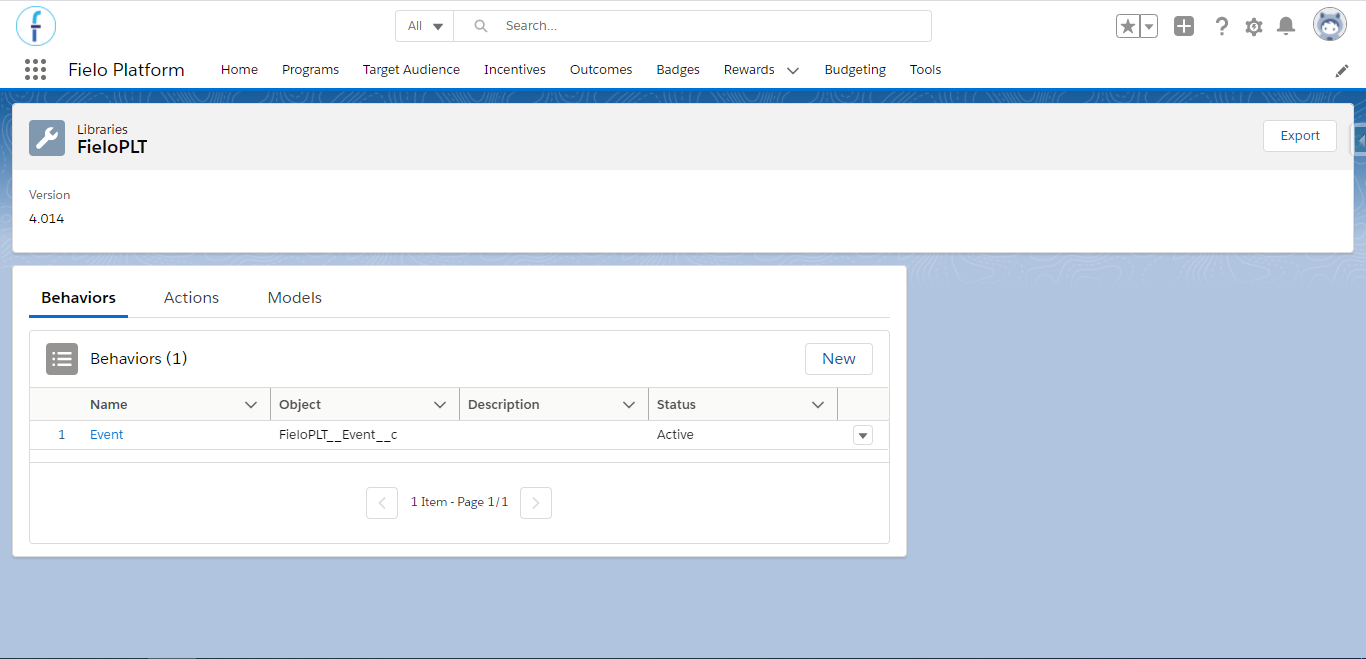
FieloPLT Library
Creating a Behavior
Fielo lets you create Behaviors for any object whose associated activity you wish to drive. You can create it using your own custom object, a Fielo object or any Salesforce standard object.
In order to create a brand new behavior in your program, go to the Tools tab and, within the Libraries section, access FieloLocal. Once there, make sure that you're on the Behaviors tab and click on New.
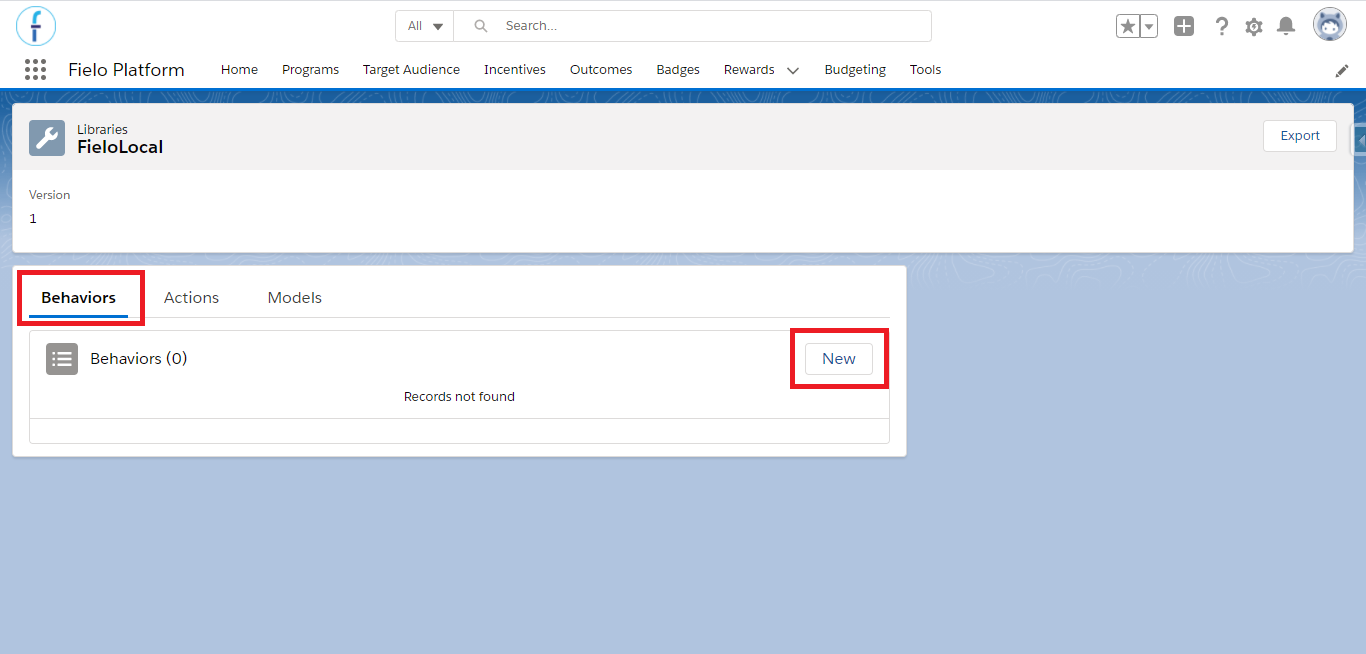
Creating a behavior
In the New Behavior form that will appear, fill out the fields as it follows:
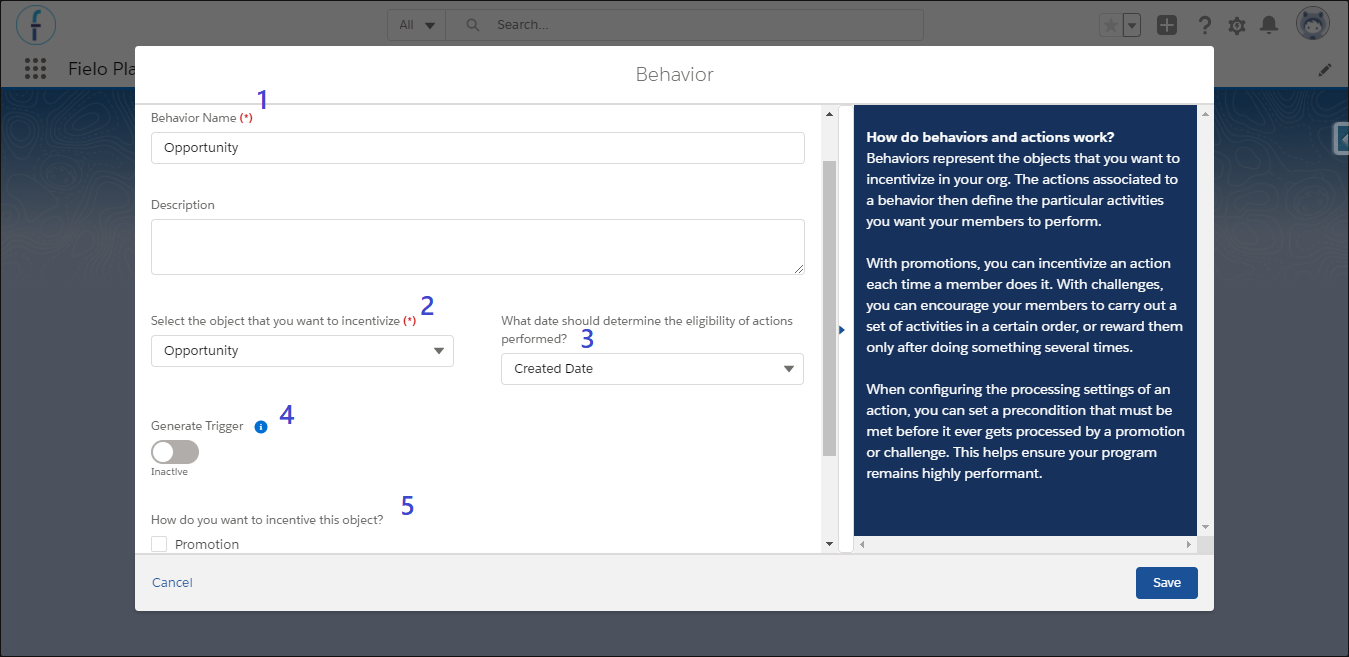
Creating a behavior, part 2
-
Behavior Name: Choose a name that best fits your behavior. We chose to name it "Opportunity", in order to be a generic name that can have more than one action related to this Behavior later on.
-
Select the object you want to incentivize: In this case, we want to incentivize our members to do something related to the Opportunity object, which could be, for example, to change its status to closed and won. That is to say, that we want to incentivize members to close opportunities.
-
What date should determine the eligibility of actions performed?: The date field you select will be the one used to determine if a member action falls within the validity period of the incentive. If you want to process all behaviors based on the date when the records were created, choose Created Date (this option can be used for most cases). Since we want the Behavior to consider the date in which the closed opportunity's record is created, we chose Created Date.
-
Generate Trigger: if set to true, the system will generate the trigger and test class automatically for you, but if set to false please refer to triggers. Note that there are some objects that don't support this option; in this case, leave it as false.
-
How do you want to incentive this object?: Choose whether you want to incentivize your behavior with Promotions, Challenges or both. You can also select Communication to send member communication regarding that behavior via Fielo Messaging.
Generate triggerIf you have a complex business rule or logic, that is, if the object you wish to incentivize has a custom rule (e.g. custom validation rule), the system might not be able to automatically create the trigger. It must be done manually, as explained next.
Custom objects with the same name as a Fielo objectIt is not possible to create a Behavior for a custom object that has the same name as a Fielo object (those which API name start with FieloPLT__). Salesforce understands that you are creating a Behavior for Fielo's object even if you select your own custom object.
After you save the Behavior - and if you used the Generate Trigger option - go ahead and click on Deploy.
By doing that, the system will try to create the metadata needed for the Behavior to work:
- A lookup field from the object selected to the Member object.
- A lookup field from the Point object to the object selected.
- The trigger, if you activated the Generate Trigger option.
- If you selected to incentivize Promotions:
- A lookup field from the Transaction object to the object selected.
- If you selected to incentivize Challenges:
- A lookup field from the Tracker object to the object selected.
- If you selected to incentivize Communications:
- A lookup field from the Email Alert object to the object selected.
Those fields are needed in order to link the incentivized object to each type of incentive and - in the lookup field from Point's case - so that you can use the Audit Point feature, which tells you what exact record (e.g. from Opportunity, Lead, Course) generated any Currency reward.
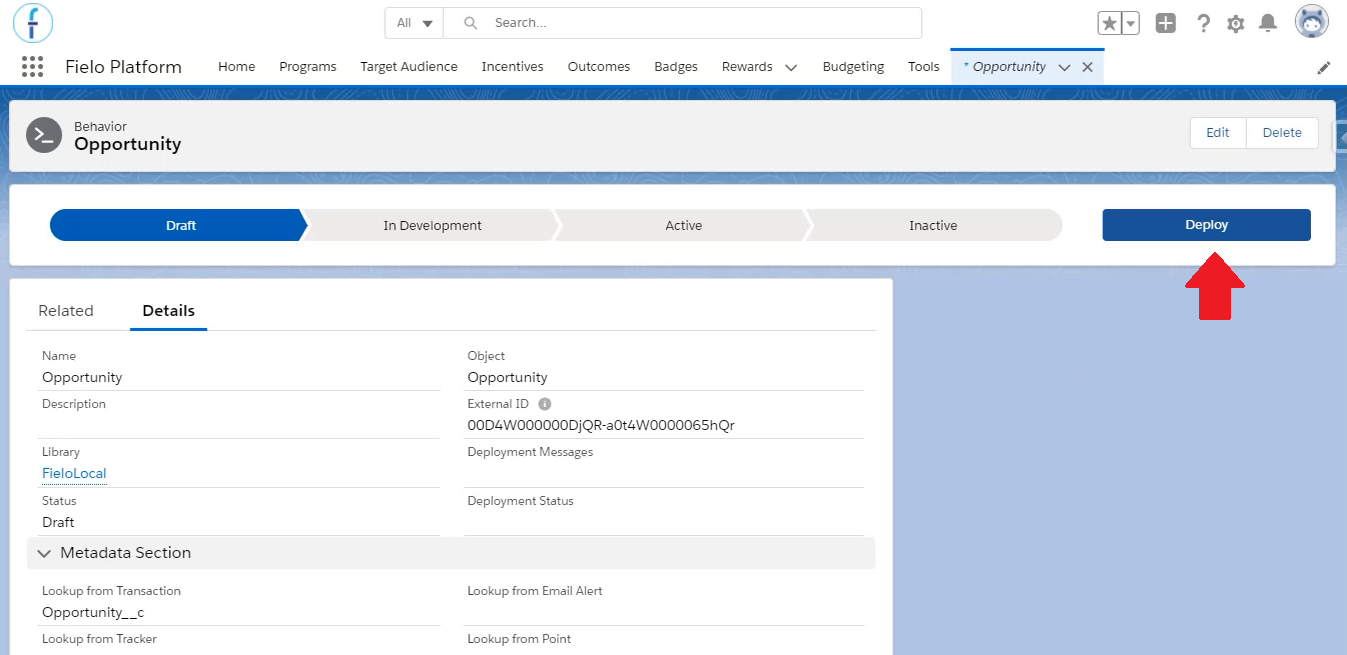
It may take a few moments for the deployment to finish; when it does, click on Activate. The system will look for any errors and change the Behavior status to Active.
When there is an error in the deployment process, the system will not activate the Behavior. You can check the Deployment Messages field, within the Behavior page, or the Deployment Status (from Salesforce Setup) for the errors.
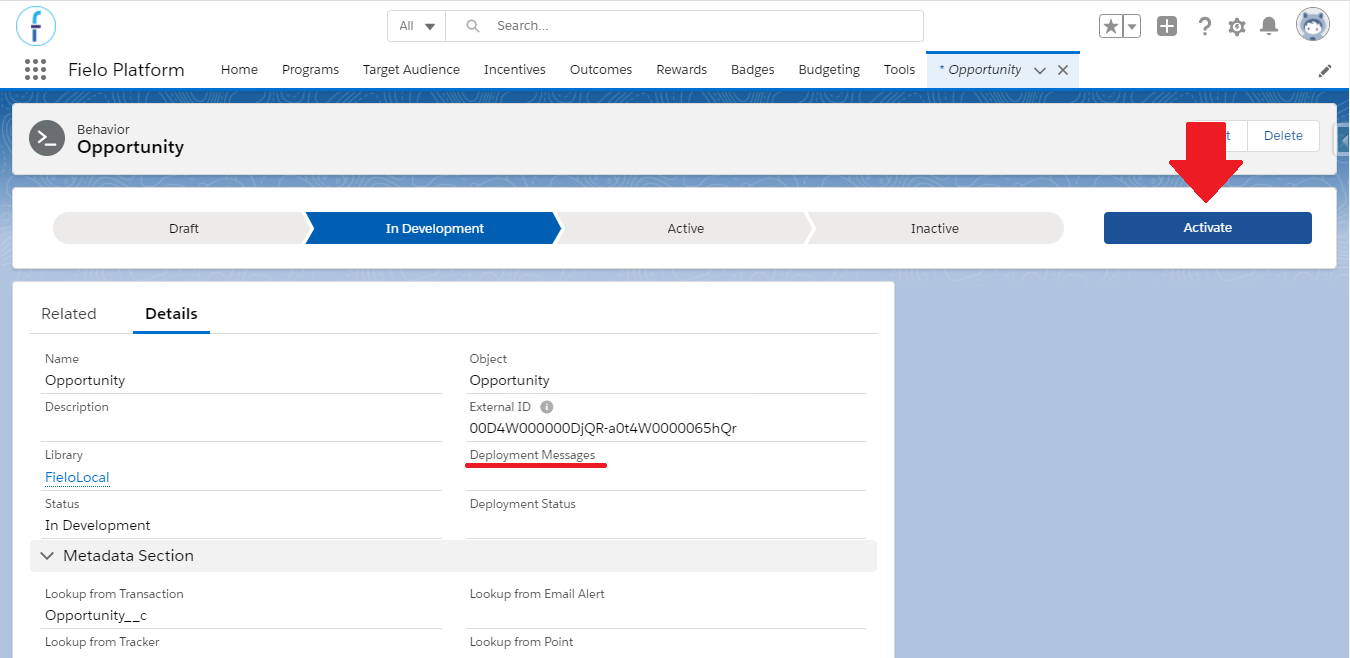
Click on "Activate"
All ready! Now you'll be able to use this new behavior with any action (and incentive) you create.
Creating a Behavior for Exceptions
In case you are creating a new behavior for any of the objects listed below, before deploying and activating the behavior you'll need to create the trigger manually.
Salesforce Objects that don't Support Automatic Trigger Creation
When you're creating a new behavior and check the Generate Trigger, it means that the Trigger will be automatically created. However, there are a few Salesforce objects that don't support this option and, if you wish to incentivize them, it is necessary to do it manually.
These objects are listed below, by API name:
- Asset
- AssetRelationship
- AssignedResource
- AssociatedLocation
- ChannelProgramMember
- ConsumptionRate
- ConsumptionSchedule
- ContactPointPhone
- ContentVersion
- Contract
- DuplicateRecordItem
- DuplicateRecordSet
- Idea
- MaintenanceAsset
- MaintenancePlan
- OrderItem
- PartnerFundAllocation
- PartnerFundClaim
- PartnerFundRequest
- PricebookEntry
- ProductConsumed
- ProductConsumptionSchedule
- ProductItem
- ProductItemTransaction
- Recommendation
- RecordAction
- ResourceAbsence
- ResourcePreference
- ReturnOrderLineItem
- ServiceAppointment
- ServiceCrew
- ServiceCrewMember
- ServiceResource
- ServiceResourceCapacity
- ServiceTerritoryLocation
- ServiceTerritoryMember
- Shift
- SkillRequirement
- TimeSheet
- TimeSheetEntry
- TimeSlot
- WorkBadge
- WorkBadgeDefinition
- WorkThanks
- WorkType
- WorkTypeGroupMember
Triggers
When you need to create a behavior manually, it is essential to create a trigger in the object you want to incentivize, so that the Single or Multi Action Engine can process your incentivized object every time a Member performs the Action.
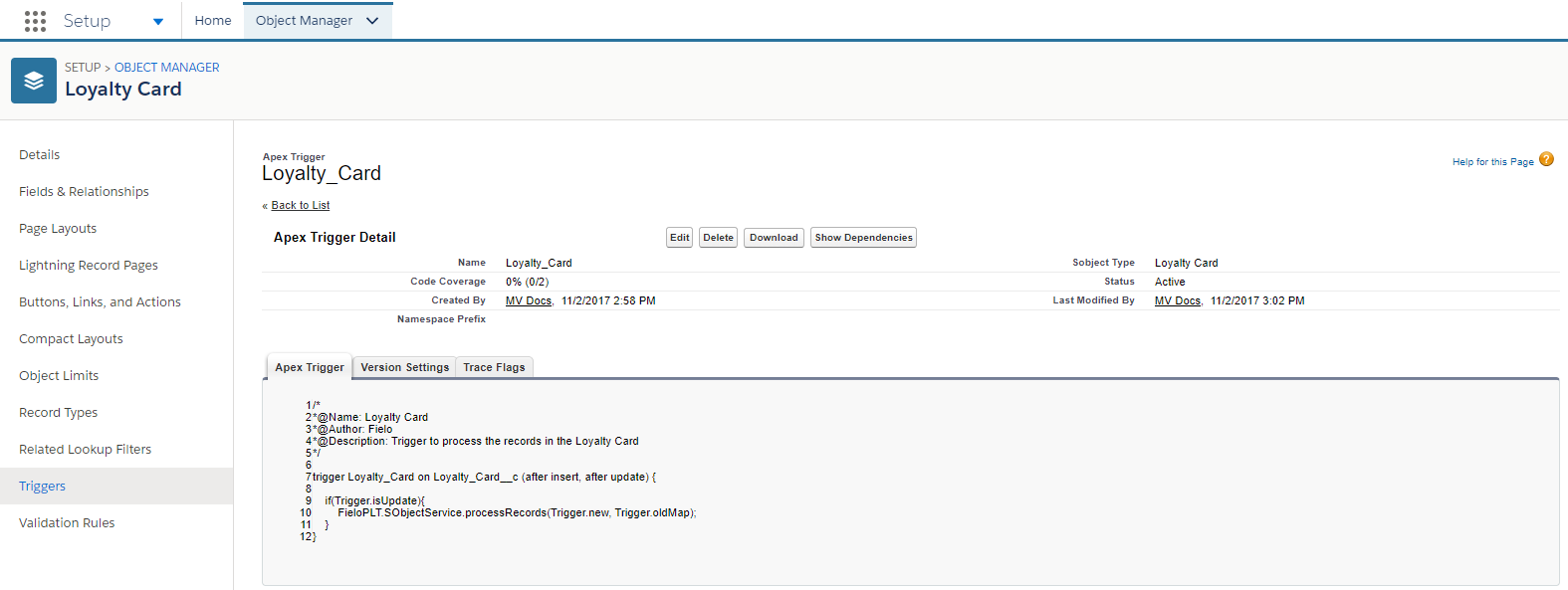
Trigger
From Setup, go to your object and scroll down to Triggers. Click New and copy the following code snippet, replacing ObjectPluralName with the name of your Action object and ObjectAPIName with its API name:
//ObjectPluralName is the Action Object name. ObjectAPIName is the API Name of the object to process.
trigger ObjectPluralName on ObjectAPIName (after delete, after insert, after update, before delete, before insert, before update){

  if(Trigger.isAfter){
  	if(Trigger.isInsert){
  		FieloPLT.SObjectService.processRecords(Trigger.new, null);
  	}else if(Trigger.isUpdate){
  		FieloPLT.SObjectService.processRecords(Trigger.new, Trigger.oldMap);
  	}
  }

}
Object Relationship
Other than creating the trigger in the incentivized object, it is also needed to have a relationship between it and your Members.
Fortunately, you don't have to do that manually, because the system does that for you when you create a new Behavior from the FieloLocal library and deploy it. All you have to do is to proceed as explained in Creating a Behavior, and a lookup relationship field will be automatically created for the incentivized object (e.g. our own custom object, Loyalty Card), having Member as related object.
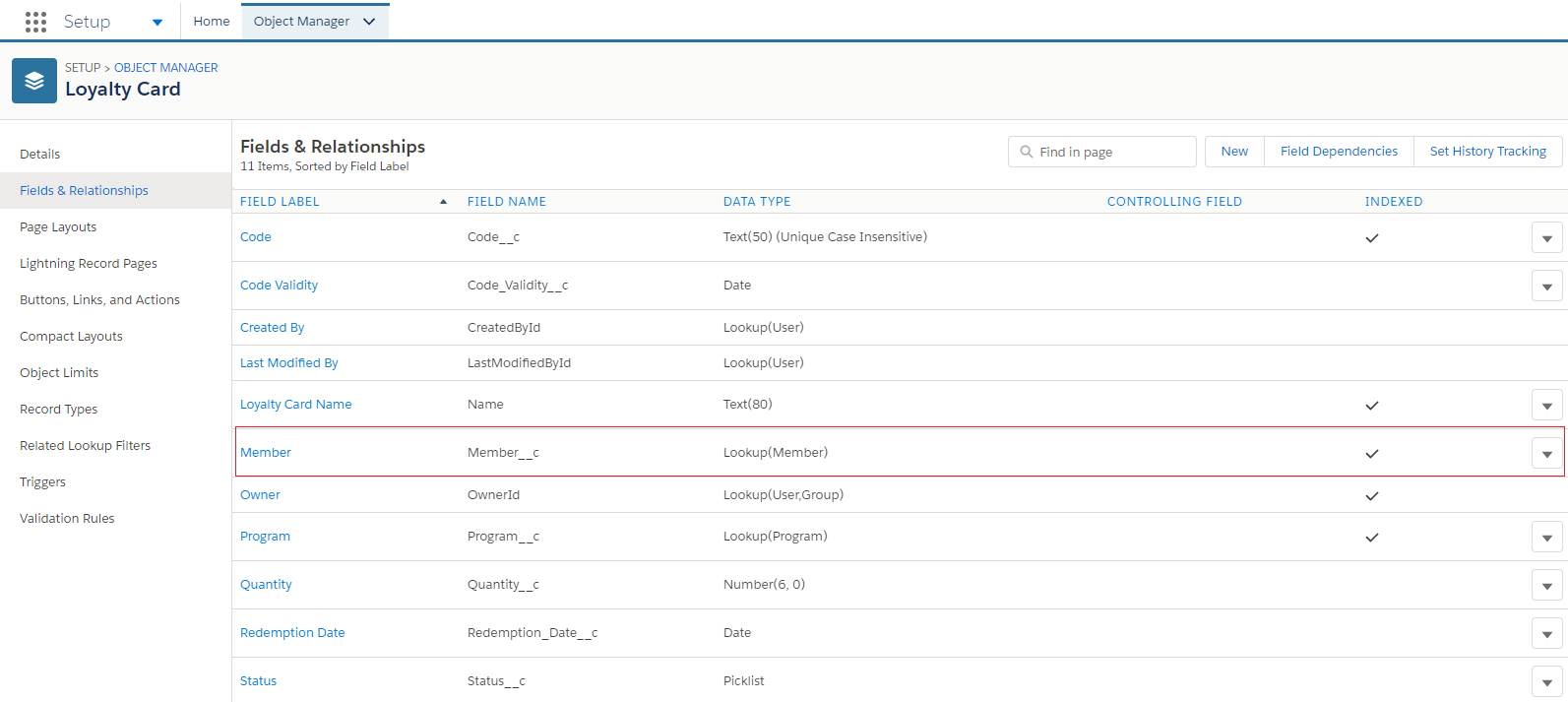
Lookup relationship example
It will also be created a relationship between the object and the program's currencies, which means that you'll be able to easily see which action was responsible for it through the Point Records.
Note that Point Record is the object’s name, but it actually refers to your Currency Records.
Edit a behavior
You can edit a behavior as long as it is still in a draft status or inactive, but it isn't possible to change the related Object.
All you have to do is access the Behaviors through the Library it was created, and click on Edit.

Edit a behavior
Note that the behavior can be in one of four status:
- Draft: Cannot be used yet. All information can be edited, except the Object.
- In Deployment: In this stage, the system is trying to create the metadata. If it fails, an error message will appear in the field ErrorDescription. It is a Read Only status.
- Active: This status will be accomplished when the system was able to create everything and the behavior is ready to be used. It is a Read Only status.
- Inactive: When the behavior is disabled. All information can be edited, except the Object.
The behavior can be deactivated only if its related actions are not being used in a Promotion, Challenge or for Messaging.
Updated over 1 year ago