
Transactions and Currencies
Generate and manage Transactions and Currencies
Transactions
Transactions are the result of processing the Actions you've encouraged your Members to perform within your incentive and loyalty program.
Transactions can be the result of processing a Single Action in a Rule or a set of Actions - Multi-Action - in a Mission.
In most cases, Transactions are automatically generated when the Action (Rule) Engine processes a Rule or a Mission online, but sometimes - depending on how you configure your Transaction Settings in your Program - you can process them offline in a batch.
Managing Transactions
You can see and manage Transactions directly by selecting any of your Members from the Members tab.
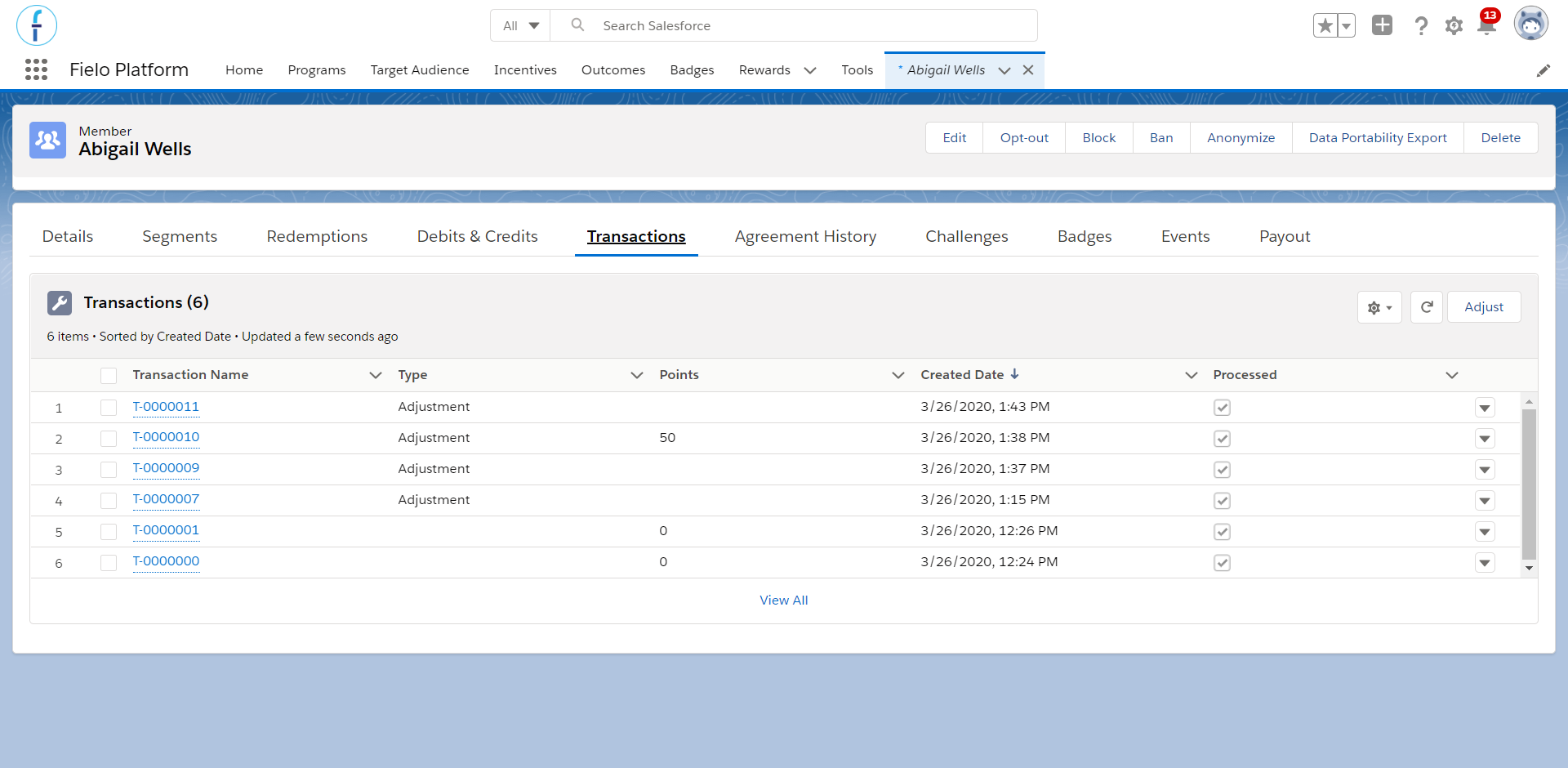
Member's Transactions
The Transactions related list gives you a quick overview of the most important information you need to know, such as:
- Transaction Name: this is an automatically generated reference name that identifies each Transaction uniquely.
- Type: this shows the different kind of existing Transactions depending on their origin and/or purpose, that is, when and why they were created. There are four types of Transactions:
- Adjustment: Transaction that gives or subtracts an amount of a Currency without a Member performing any particular Action.
- Challenge Reward: Transaction created when a Challenge Reward is granted to a Challenge Member.
- Expiration: Transaction created when Currencies reach their expiration date, if applicable.
- Reversion: Transaction which arises from reversing a previous created Transaction.
- Points: Currencies each Transaction carries when it is processed. Essentially, points and currencies are the same.
- Created Date: the day that the transaction was created.
- Processed: This shows if the Transaction has already been processed () or not. Transactions can be processed either online or offline.
Transaction: Multiple CurrenciesTransactions work with all Currencies.
If you want to review the details of a given Transaction, simply click on the entry and you can see the elements which generated Currencies for your Member.
Adjustment Transactions
You can create an Adjustment Transaction whenever you need to increase or decrease the currency balance of an Individual or Organization Member.
For example, imagine a Member who's complaining about receiving a faulty product as part of a Redemption. Apart from replacing the faulty product, you may want to compensate you Member by giving them 100 Points extra. How can you do that? Create an Adjustment Transaction.
To do so, click Members and access the detail page of the Member. On the Transactions related list, click Adjust. For each currency that you're using, enter the amount you want to give to your Member and an optional expiration date.
You should also add a reason as to why this adjustment is necessary. You can enter a negative number to remove an amount of a currency from a Member, in which case you must leave the expiration date blank.
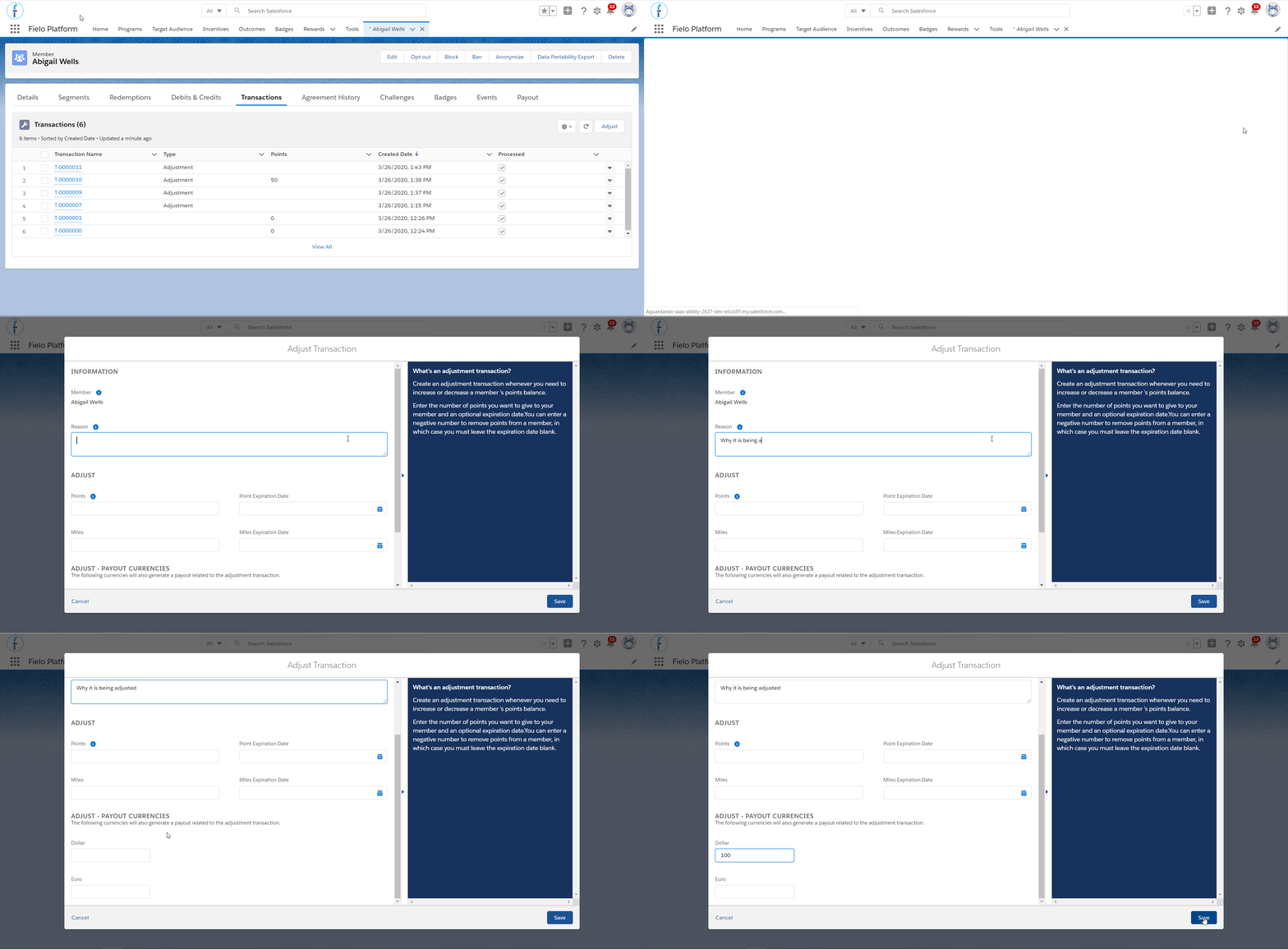
New adjustment
You'll see that the new Transaction is added to the list and running currency totals for the Member are updated.
Note that when you adjust a Transaction, the new Adjustment Transaction is not linked to any processed Action from a Rule or Mission, unlike other types of Transactions.
Adjustment Transactions: Bulk Upload
Sometimes you may need to create several Adjustment Transactions for different Members and doing so manually one by one is time-consuming. For those cases, you can upload all the Adjust Transactions you need in a bulk. For that, just follow the next steps:
Create a .CSV file
First, create a spreadsheet including Members ID, number of Points (or another currency) the Adjust Transaction gives the Member and confirm that is an Adjust by adding TRUE.
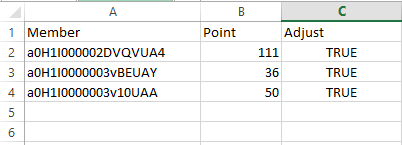
Transactions .CSV file
Member ID is an 18-character alphanumeric ID can be found between id= and & in the URL of the Member view page.
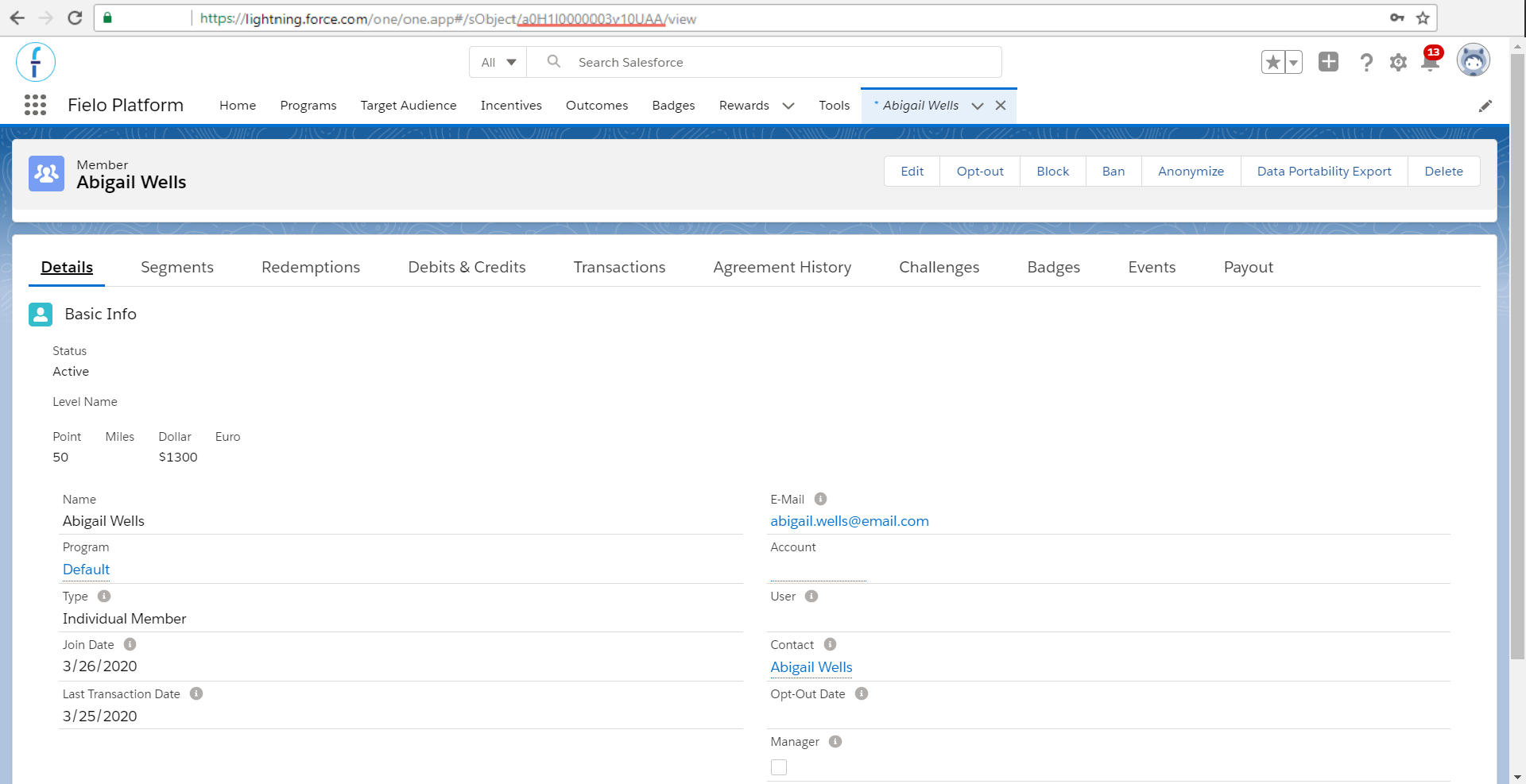
Member alphanumeric ID
If you're uploading Adjust Transactions using a Currency different than Points - i.e. Miles - or both, standard Points and your own Currency, make sure you add it as extra column in your spreadsheet:
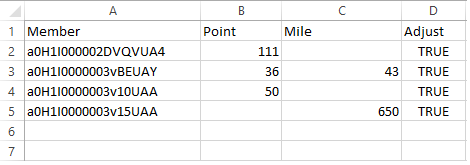
Transactions .CSV file with Multi Currencies
When ready, save your spreadsheet in Comma-Separated Values (.CSV) format.
Use Data Import Wizard
Now, from Setup, go to Data Import Wizard and click Launch Wizard!.
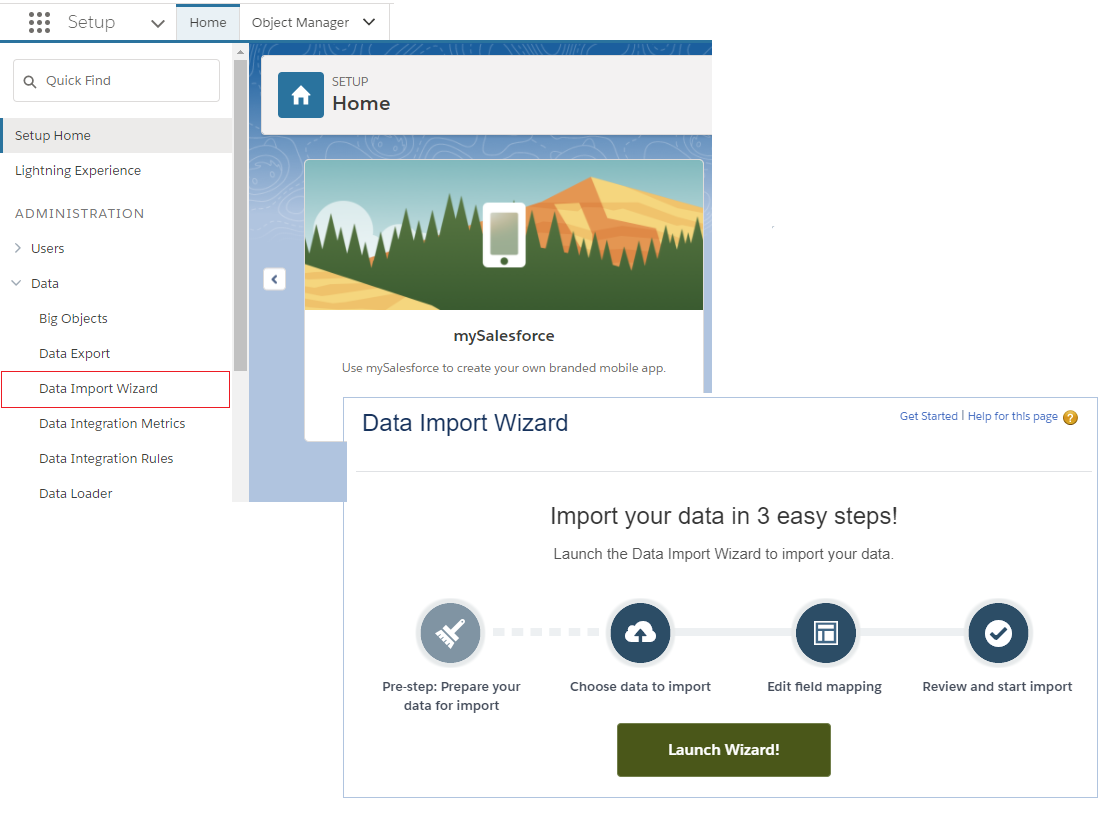
Data Import Wizard
- For What kind of data are you importing? question, choose Custom Objects tab and scroll down to Transactions.
- For What do you want to do? question, choose Add new records. Complete the
question Which Member field in your file do you want to match against to set the Member lookup field? with Salesforce.com ID. Leave all the other questions in None. - For Where is your data located? question, choose the .CSV file you've created in Create a .CSV file.
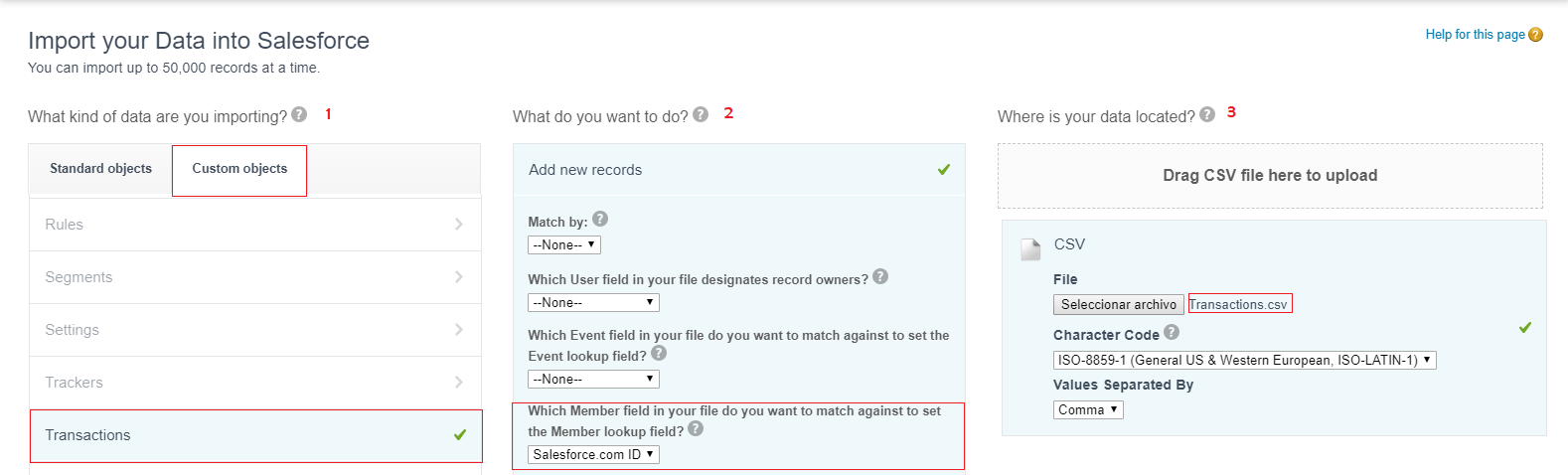
Importing Adjust Transactions into Salesforce
Once you've hit Next, confirm your field mapping and click Next again to start the importing process.
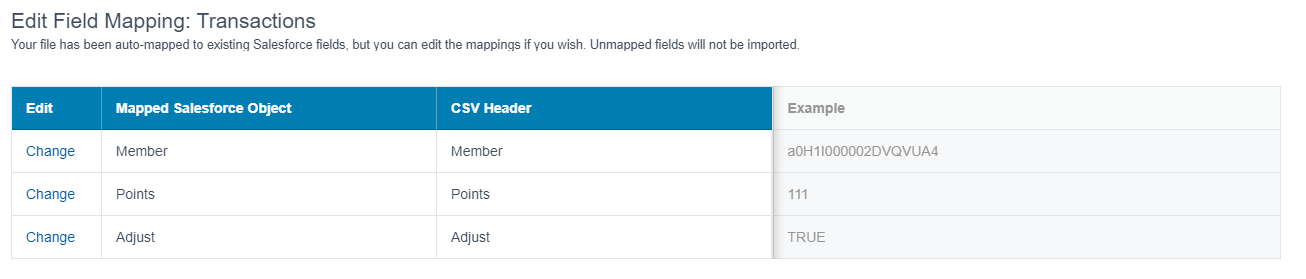
Field Mapping
After reviewing your import data, click Start Import. When finished, you'll be redirected to Bulk Data Load Jobs, which will include all the details of the imported job, such as Start and End Time, Total Processing Time, etc.
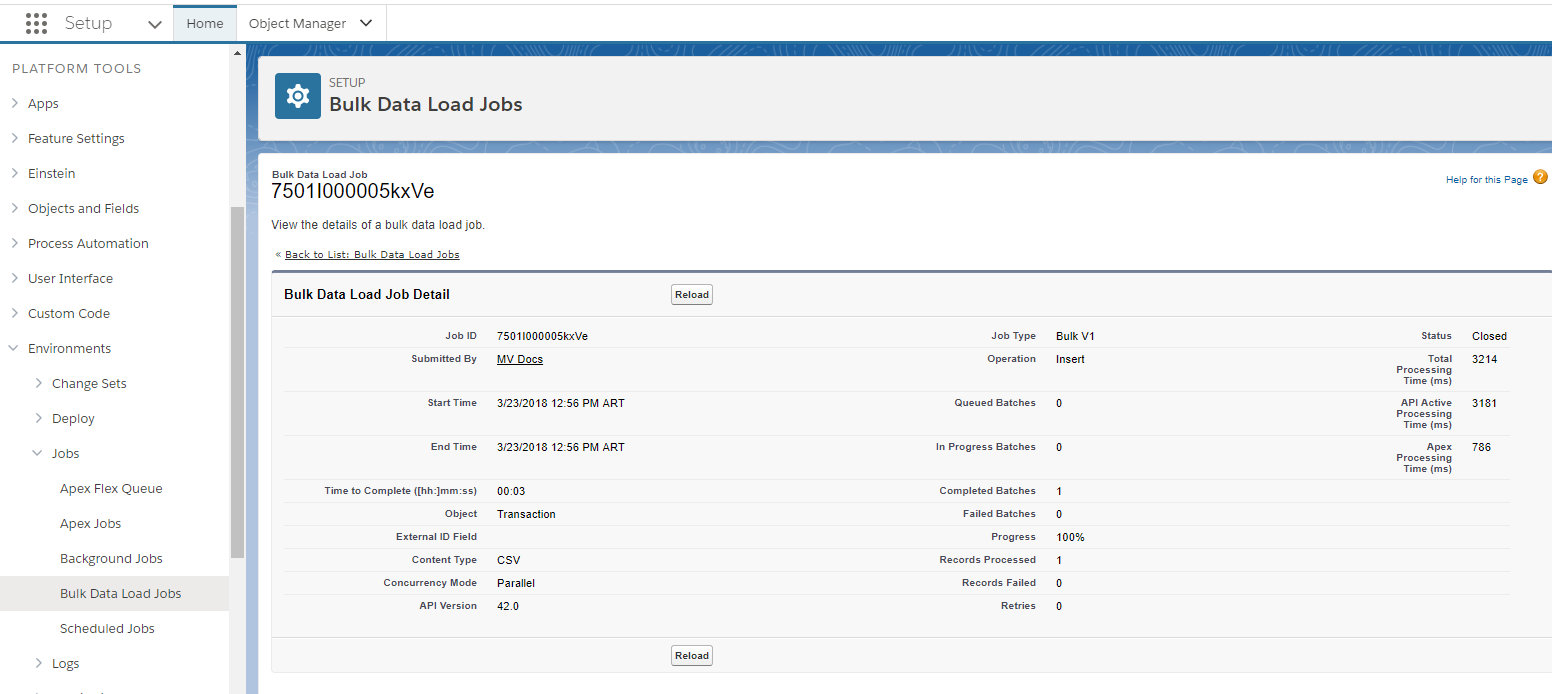
Bulk Data Load Job details
Using Salesforce Data LoaderIf you're using Data Loader instead of Data Import Wizard, don't forget to:
- Members must be referred by their Field API name.
Reverting Transactions
In case you realize there's been a mistake when giving Currencies to your Members - i.e. a Rule or Mission was processed wrongly, a Member obtained Points by fraudulent activities, etc. - you can revert a specific Transaction.
To do so, first you need to identify which Transaction the Action (Rule) Engine will need to revert. Once you've identified it, just click Revert
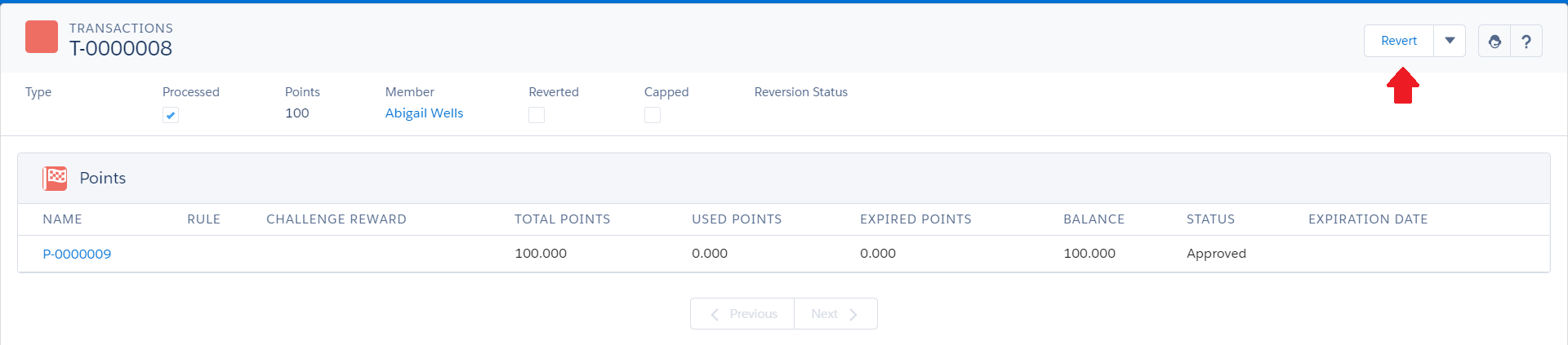
Transaction to revert
You'll see that the selected Transaction has a on Reverted and there's no Revert possibility anymore.
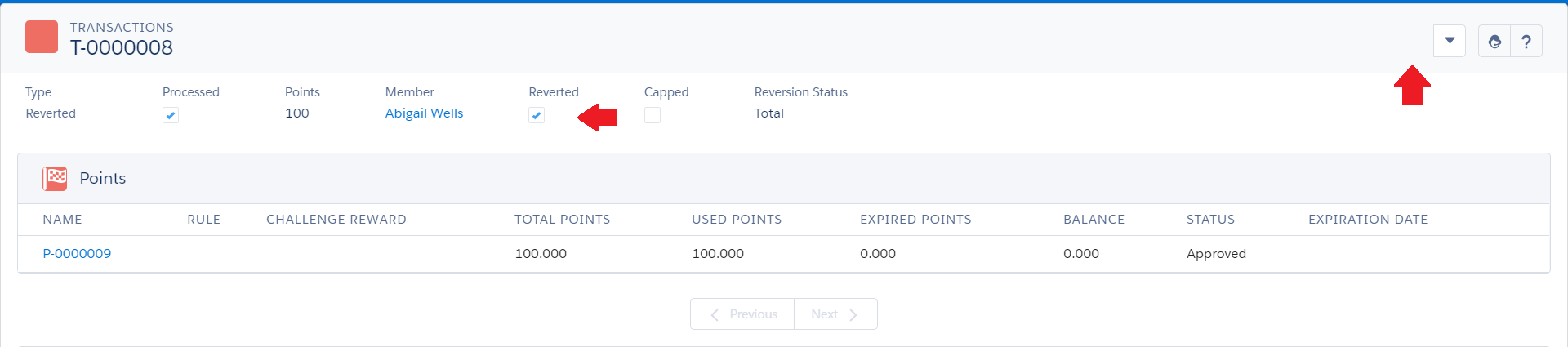
Reverted Transaction
Then, another Transaction - of Reversion type - will be generated, thereby substracting the same number of Points involved in the original Transaction.
You cannot revert a Transaction that results from a previous reversion
If you're reverting a transaction that has records related to regular currencies and currencies that generate payout, only the regular ones will be reverted.To revert a currency that generates payout, you must access the payout page, reject it and edit its amount.
Transaction Management Tools
Page Settings Management
You can customize the Transactions page design by using the applicable Page Settings for Transactions).
Currencies
Currencies are single units Members can obtain as an outcome for performing specific activities. You can manage and configure Currencies in several ways, and you can use them in Rules and Missions to redeem them for Rewards.
Managing Currencies
You can get a general overview of Currencies directly by selecting any of your Members from the Members tab and accessing the Debits & Credits tab within.
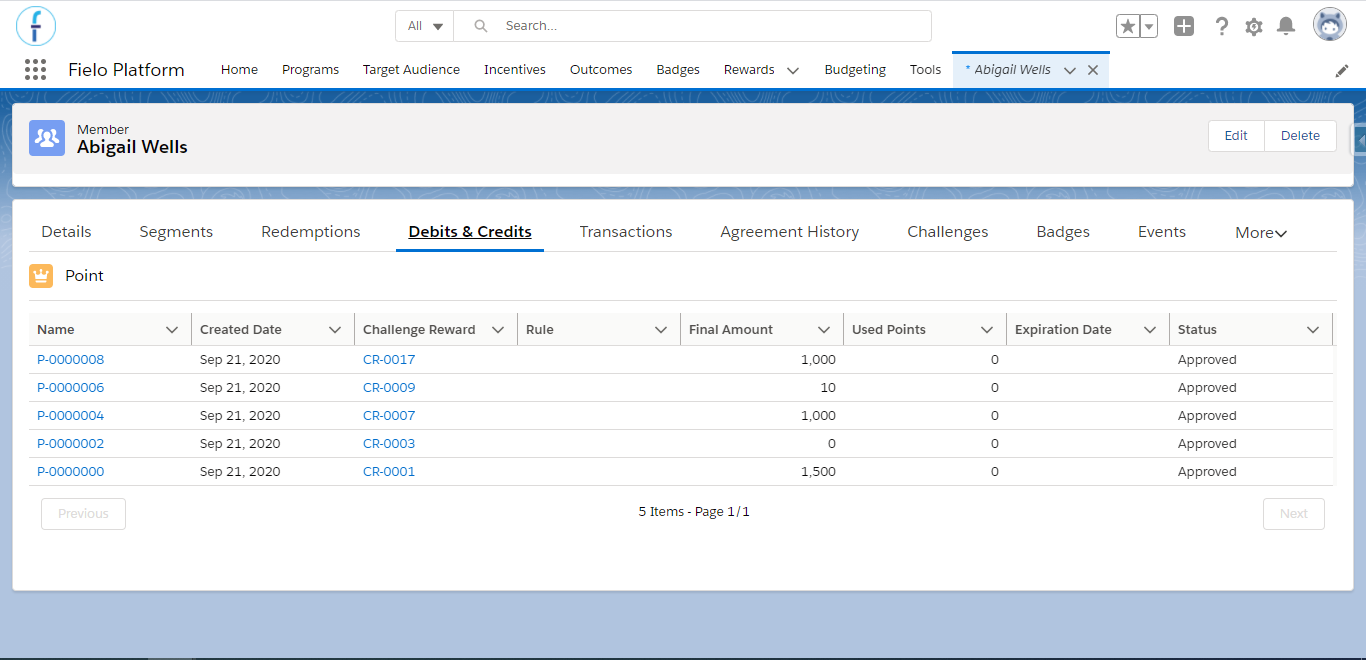
Member's Points
The Points related list gives you a quick overview of the most important information you need to know, such as:
- Point Name: this is an automatically generated reference name that identifies uniquely each Currency or set of Points records the Members obtained when completing a Rule or a Mission.
- Rule: this shows the name of the Rule that grants the Currencies. In the case of Missions, you can also set this to show the Challenge and/or Mission Reward that gives the Currencies to the Member.
- Challenge Reward: this shows which challenge generated that currency.
- Currency: here you can see the name of the currency related to that record.
- Final Amount: this represents the total number of Currencies that the specific record includes.
- Used Points: Currencies that have already been used in redeeming a Reward. Used Points are subtracted from the Total Points record.
- Balance: this displays all Currencies available to be used after subtracting the Used Points and/or the Expired Points (if applicable) from the Total Points. If no Currencies were used or expired, Balance should be exactly the same as Total Points. Only Currencies with status Approved are included in the balance.
- Created Date: displays the date the currency was created.
- Expiration Date: if Currency have an Expiration Mode established, you see the date when the Currency will expire.
- Status: Depending on how you've set Currency, they may have any of the following statuses:
- Pending: Currencies which have been generated and which require Request Point Approval. Note that Currencies with Pending status are not included in the Balance.
- Approved: Currencies which either originally had Pending status and were later approved by the ORG System Administrator, or Currencies which were generated and there is no Request Point Approval required.
- Rejected: Currencies whose initial status was Pending but were not approved by the ORG System Administrator.
Currency details
You can deep-dive into Currency information to find out more about their source, when and how they were used. You can get to this overview just by clicking on the Point Name record you want.
Currency details are also available from the Redemptions tab when choosing a specific Redemption.
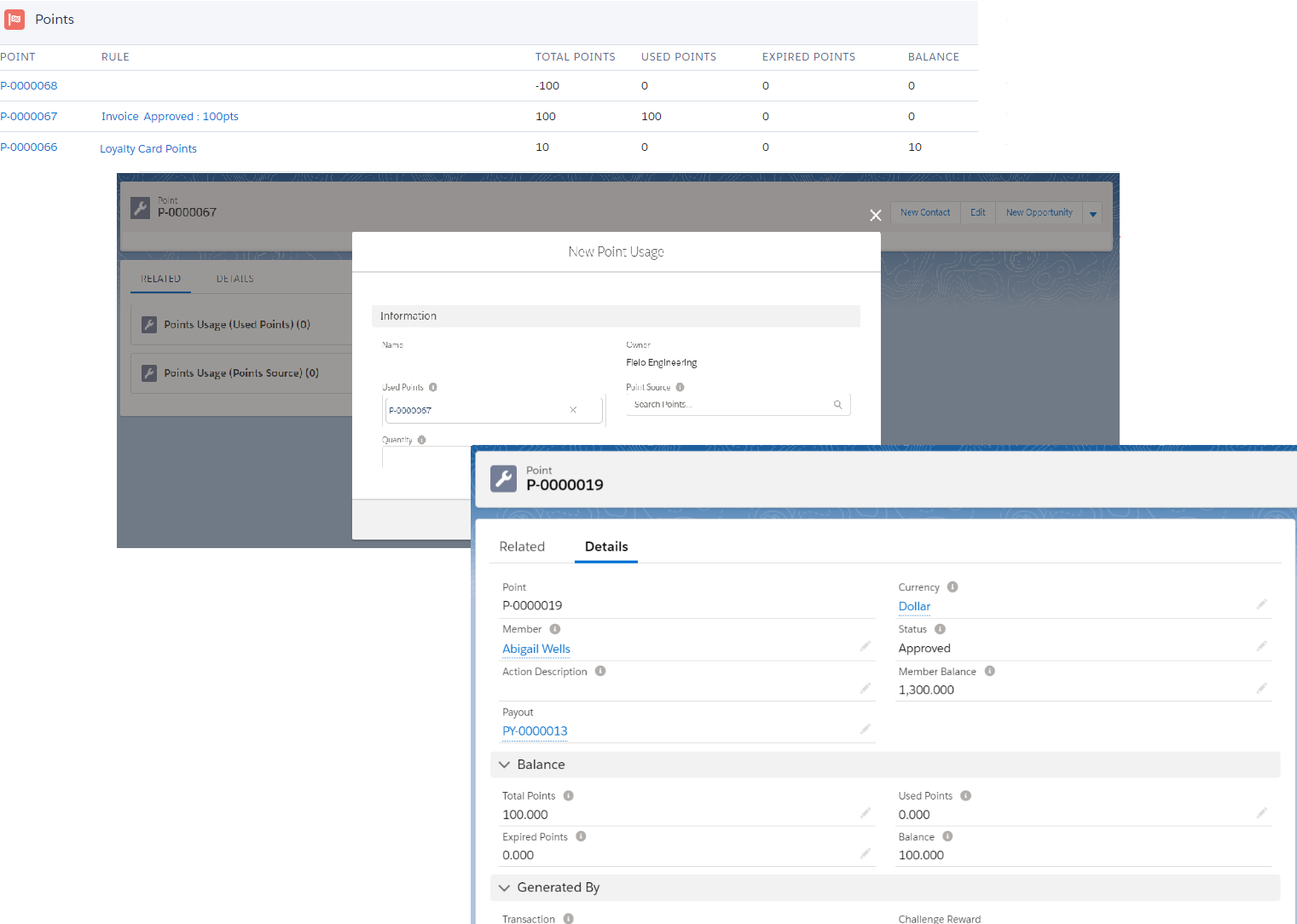
Points details
You'll see some of the elements of the Point record, such as:
- Currency: This refers to what kind of Currency this record is giving. By default, it's always Point but it may be set to be another Currency, if applicable.
- Point Name.
- Member: The member who received the currency.
- Status.
- Total Points: This shows the total number of points the Point record gives to the Member.
- Redemption: If applicable, this will show the Redemption where the Currencies were used by the Member.
- Transaction: This displays the Transaction that gave the Currencies.
Updated over 1 year ago