
Member Selector
The Member dashboard for your portal
Member Selector connects your Experience Cloud site pages with the Member record of the portal user. Members use it to confirm which program they're in, see how many currencies (e.g. the standard Points) they have in that program and switch to any other programs they're a part of.
It is the keystone of Fielo Lightning Components, as component data is always specific to the program a member is currently interacting with.
Salesforce Experience CloudPreviously known as Community Cloud, as of Salesforce Spring '21 release, Community is now referred to as Experience Cloud and/or Site.
Add Member Selector to Pages that use Fielo Lightning ComponentsBecause most Fielo Lightning Components depend on Member data, you need to add the Member Selector component to all pages that use Fielo components (except Registration).
But, here's the good news: you can always make Member Selector invisible on a page if it doesn't fit into your design plan.
Member Selector includes the member name and program, the amount of a currency the member has in the selected program, and their level (if any).

Member Selector Component
You can always hide Member Selector if it doesn't make sense for your members on a given page.
Using Member Selector
Add Member Selector to all pages on which your members will interact with their programs. It's simple!
From Salesforce Setup, access All Sites and select Builder for your site. In Builder, click in the page menu and navigate to the page you'd like to use Member Selector on.
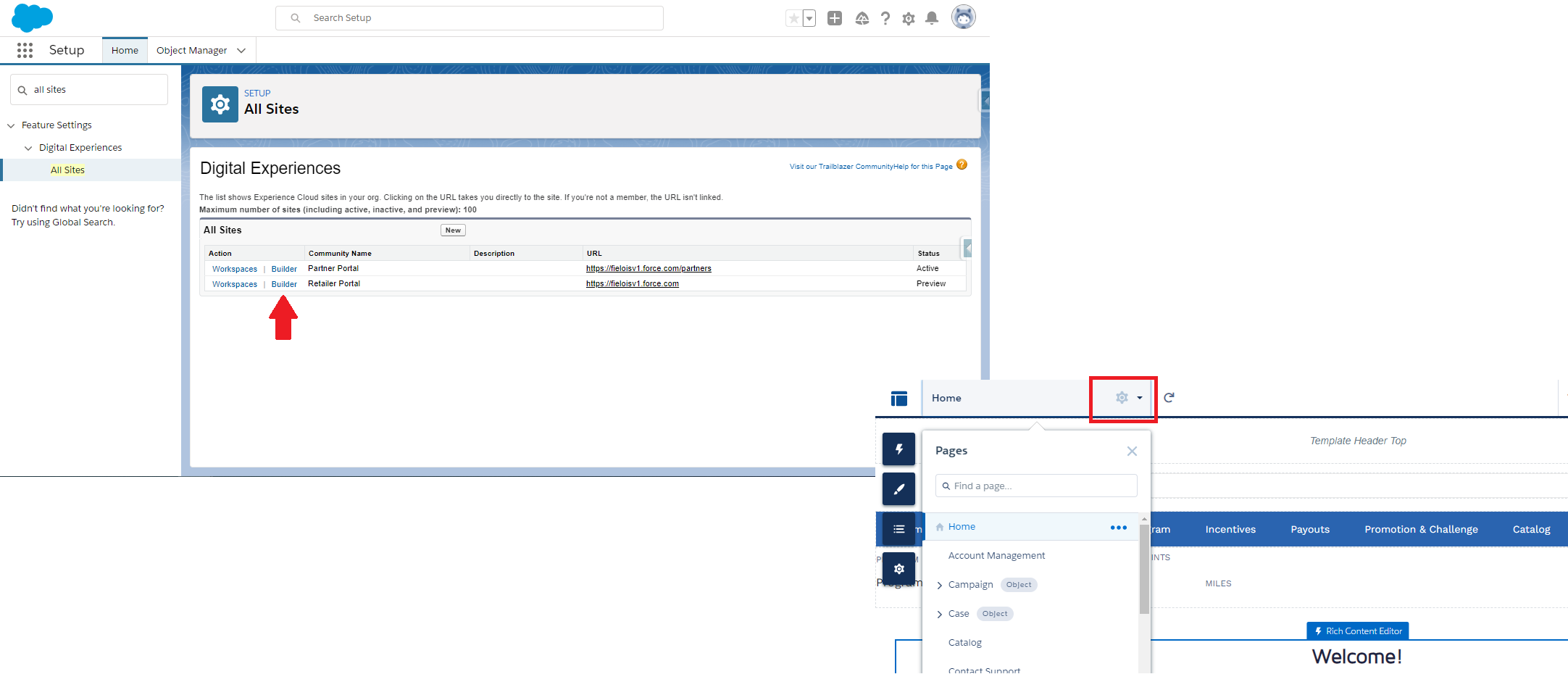
If your Experience Cloud site is being used exclusively as a loyalty portal, you can start with the homepage; otherwise, you can include it only on the site page(s) relevant to your program.
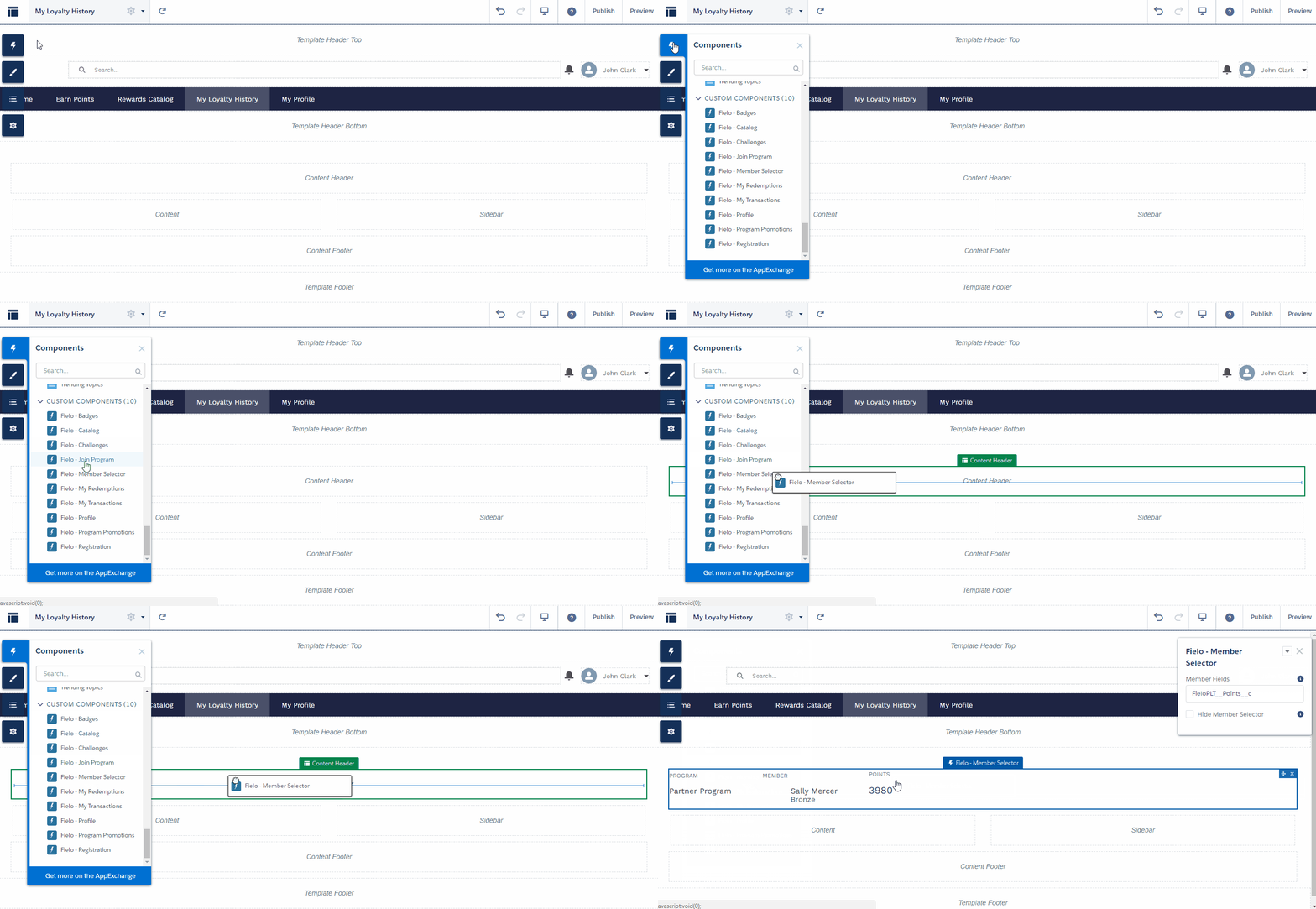
Once on the page, click and drag and drop Fielo - Member Selector onto the content area. For compatibility purposes, be sure to place Member Selector in the Content Header, Content, or Content Footer section of your page.
Properties
With the component on your page, you can now configure Member Selector to meet your loyalty portal's specific needs.
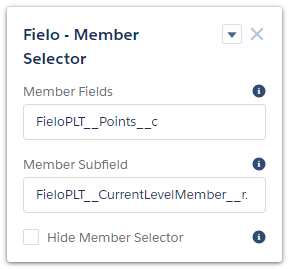
Member Selector can be configured with the following properties:
- Member Fields: Type in the API names of the Member fields that you want to be displayed, separated by commas. For example, you can include the Points and email fields by entering
FieloPLT__Points__c, FieloPLT__Email__c. The member's name, program and level are included automatically. - Member Subfield: By default, this will show the member's level. You can customize this text to show info from a different member field, if you'd like.
- Hide Member Selector: Check this box if you want to make the component invisible to members. You can use this to hide the component on pages where it doesn't fit the design or desired user experience.
Updated over 1 year ago