
Relationship Plans
Relationship plans are where you outline the types of stakeholders you expect your users to build relationships with over a given period.
Create a Relationship Plan
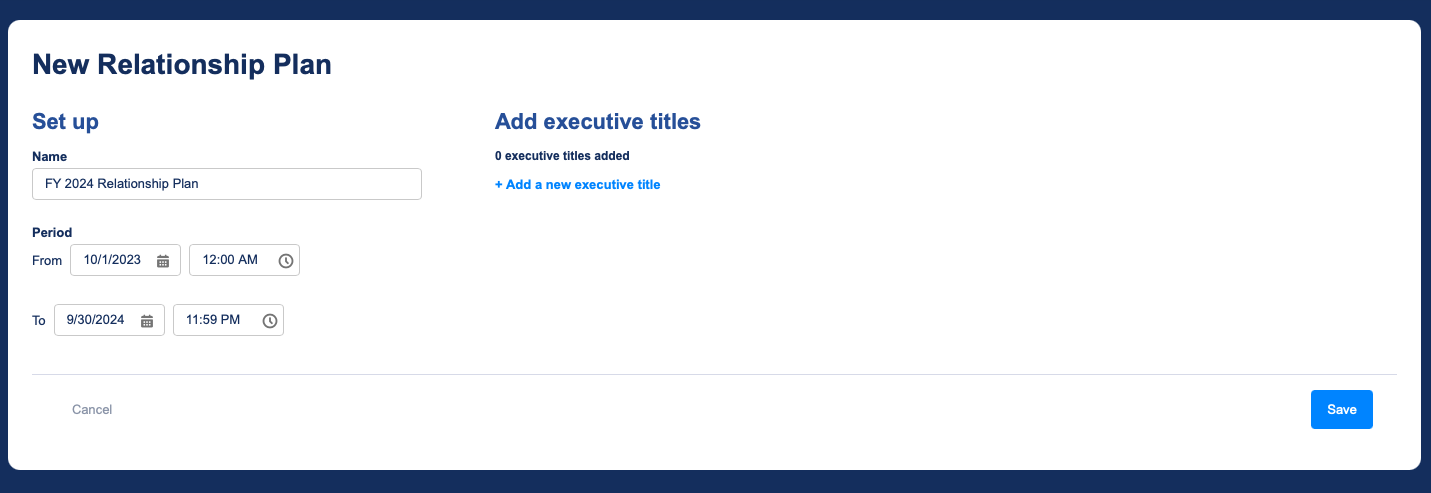
To create a relationship plan, go to the Relationship Plans tab and click New Relationship Plan. Alternatively, you can navigate to the Import Plans tab to import a previously-exported plan.
Give your plan a name and, optionally, a timeframe.
SOQL Filter
You can narrow down which subset of accounts will appear on the plan by entering a SOQL WHERE clause. For example:
Industry IN ('Banking', 'Finance')The above expression will limit the plan to accounts in the banking or finance industries. Notice that there's no need to include the preceding WHERE. To learn more about SOQL WHERE clauses, check out Salesforce Developer docs.
If you leave the SOQL filter blank, all accounts to which the logged-in user has access will be shown on the plan.
Add Stakeholder Titles
Now, add stakeholder titles to your plan. These are the people you expect your users to build relationships with while the plan is active.
Give the title an appropriate name that your users will easily understand.
Fill in only through automation
By default, relationships can be logged either by the user or through automation. If this option is enabled, relationships with this type of stakeholder will only be loggable through automation and will be read-only for end users.
Set Statuses
Next, define how users will rate stakeholder relationships. The first status should represent an unbuilt relationship, while the rest should represent ways in which it can be built.
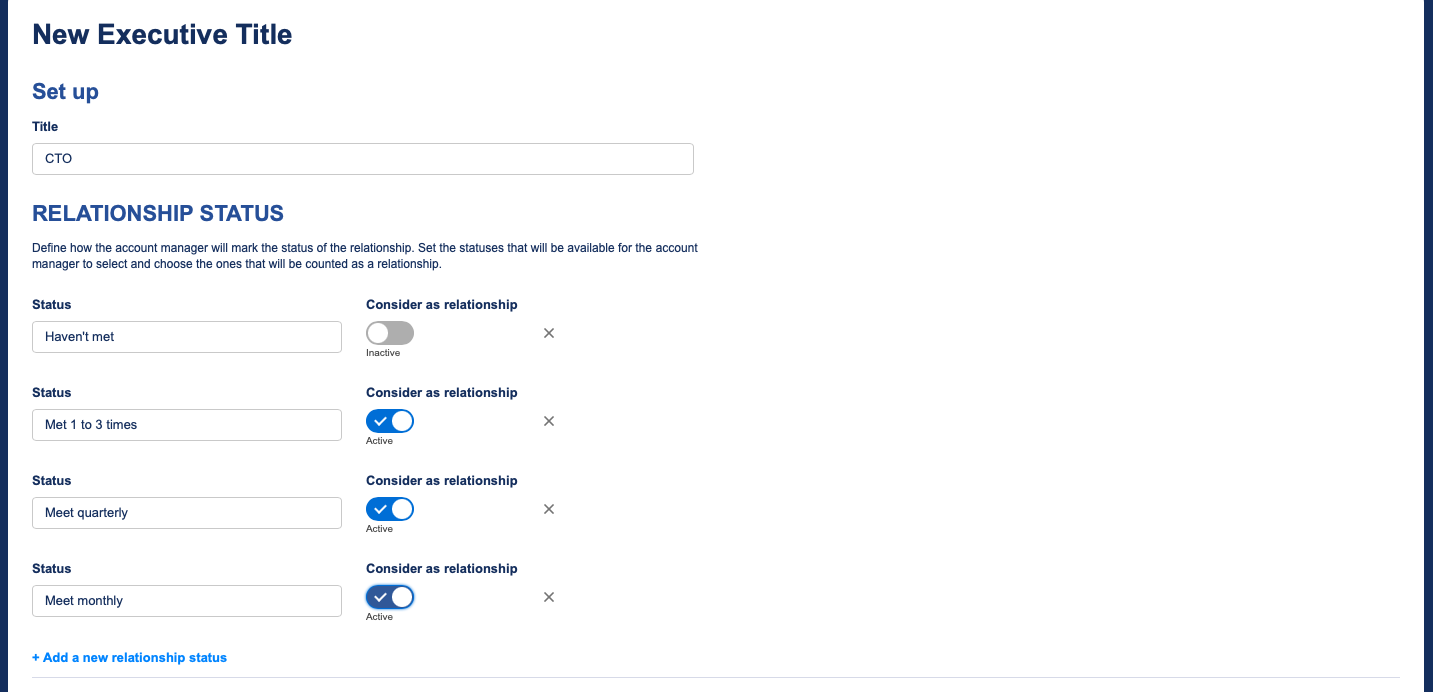
When you're ready, click save. Feel free to follow these steps again to include additional stakeholder titles.
Activate Your Plan
Once you're satisfied with your plan, go ahead and activate it.
Enable Users to Log Relationships
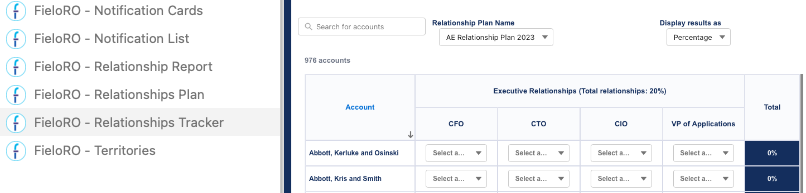
The Relationship Tracker component presents the relationship plans applicable to the logged-in user, allowing the user to rate stakeholder relationships and check their progress. We recommend placing it in a wide area on a page that your users are accustomed to visiting.
To add it to a page, go to the Lightning App Builder or Experience Builder and open the component menu. Drag and drop FieloRO - Relationship Tracker onto the desired area, then save or publish.
Enable Managers to Monitor Relationships
The Relationship Report component allows managers to monitor relationship building at every level of the role or territory hierarchy, including aggregated progress data. We recommend placing it in a wide area on a page that your managers are accustomed to visiting.
To add it to a page, go to the Lightning App Builder or Experience Builder and open the component menu. Drag and drop FieloRO - Relationship Report onto the desired area, then save or publish.

Updated about 1 year ago