
Installation and Setup
RevOps v1.39
Prerequisites
- The Organization-Wide Default Sharing Settings for the objects you want to create plans on must be set to Private.
- All RevOps users must have a role assigned.
- You should have 30 custom objects available on your org.
- Your org should have the following objects: Opportunity, Lead, Case, Contact and Account
1. Install the RevOps package
Click here to log in to your org and begin installation.
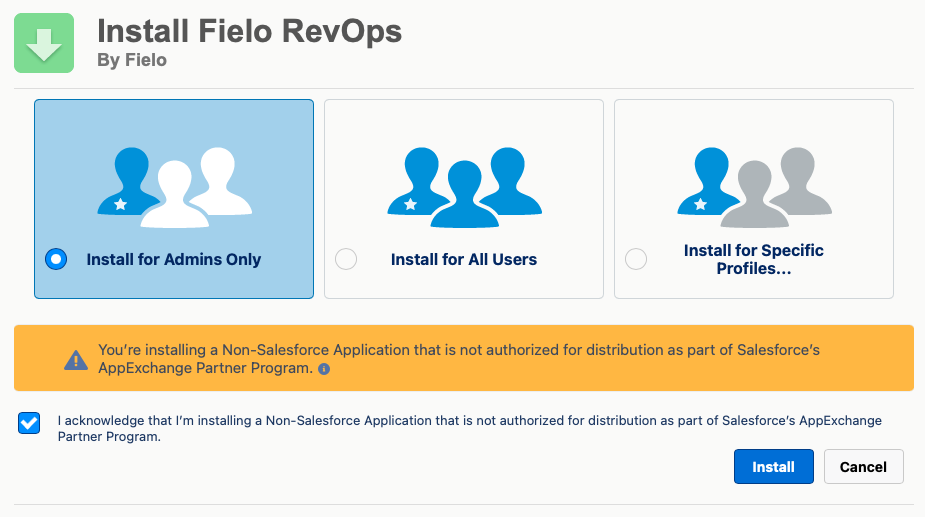
Choose which users in your org will be configuring. If it will be just you and/or other system admins, select Install for Admins only and click Install. When the installation process concludes, you will be notified by email.
2. Choose Roles & Hierarchies or Enterprise Territory Management
You can use RevOps either with standard Salesforce Roles and Hierarchies or Enterprise Territory Management.
By default, RevOps leverages the Roles and Hierarchies you already have set up on your org. With Roles and Hierarchies, you can create activity plans for Accounts, Opportunities, Contacts, Leads, Cases, and custom objects. If this is your preference, move on to the next step.
If your org uses Enterprise Territory Management, RevOps can leverage your territories when using Account-based activity plans. Note that objects other than Account are not available when using RevOps with Enterprise Territory Management.
In Salesforce, Enterprise Territory Management is an additional layer of record access control on top of Roles and Hierarchies. This means that if your org uses Enterprise Territory Management, but your use case does not require it, you can still use RevOps with standard Roles and Hierarchies.
If you decide to use RevOps with Enterprise Territory Management, go to Salesforce Setup and, under Custom Code, select Custom Settings. In the row corresponding to Visibility Options (FieloRO), choose Manage. Above Default Organization Level Value, click New. Check the box next to Use Enterprise Territory Management and save.
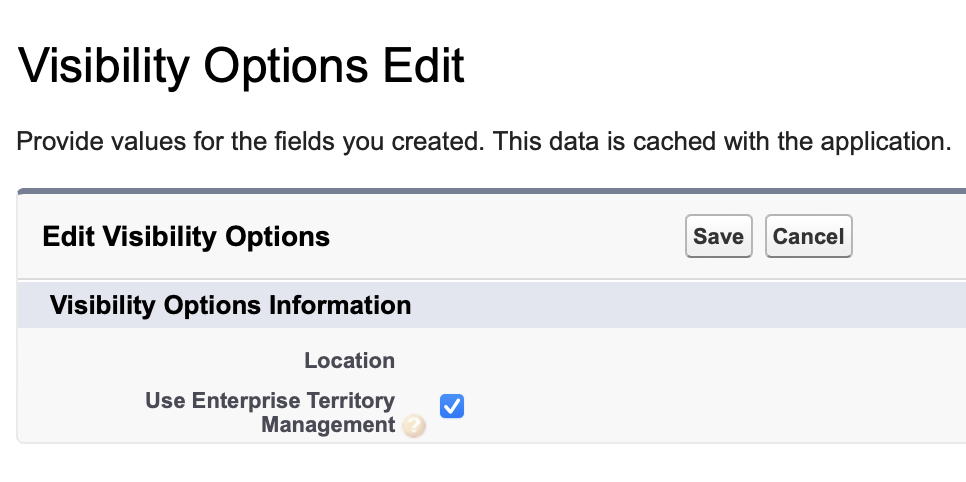
Enable and disable RevOps + ETM on the Default Organization Level
RevOps + Enterprise Territory Management can only be turned on and off at the Default Organization Level. We do not support enabling and disabling this feature at the profile or user level.
3. Provide user permissions
Identify the users that will complete activities and establish relationships, and grant them the FieloRO Internal User permission set if they will be CRM users, or the FieloROCommunityMember permission set if they will be portal users.
You can also allow additional users to administer RevOps by granting them the FieloROAdmin permission set.
4. Activate the FieloRO library (Optional)
If you plan to use RevOps alongside our Incentives product, you can unlock ready-to-incentivize behaviors.
To do so, enter the Fielo Incentives app and select the Tools tab. Under Libraries, activate the FieloRO library.
You're ready to go!Now, it's time to start setting up your plans.
Updated about 1 year ago