
Upgrade from Spring '21 to R2 2022
Learning v1.92.2
Fielo Learning R2 2022 offers a brand new Lightning Web component to supercharge member engagement with your content. It also includes new supported content types, wrong answer hints, member feedback and more. Continue reading to upgrade to Fielo Learning R2 2022.
How to Upgrade
- Click here to install the FieloELR package.
- If any internal users that are not admins will use Fielo Learning, click Install for Specific Profiles and select Full Access on the profile(s) of those users. If only System Administrators will use Fielo, or if internal users are granted permissions via the FieloELR Admin permission set, click on Install for Admins Only.
- Click Upgrade. When the first part of the upgrade process is finished, you will be notified by email.
Update Sharing Settings
Go to Salesforce Setup > Security > Sharing Settings
In the Organization-Wide Defaults section, for the Content object (FieloELR__Content__c), set the Default External Access to Public Read Only.
Update Library and Content
NOTE: The following steps should be completed only at the moment you decide to migrate from our legacy Aura components to our new Lightning Web component. If you will continue to use our legacy Aura components for a while, wait until you switch to the new LWC to complete these steps.
Upgrade FieloELR Library
Go to Fielo > Tools and, next to FieloELR, click Upgrade.
Update Module Content Type Picklist Values
From the Salesforce Object Manager, go to the Module object and, in Fields & Relationships, click Content Type. Then, follow the guide below to adjust the picklist values and API names. To ensure data integrity on existing Module records, be sure to edit existing values whenever they correspond to a new value. For example:
- Youtube Video -> Youtube
- PDF -> Files
- Image -> Single Image
- MP4 -> Video
- MP3 -> Audio
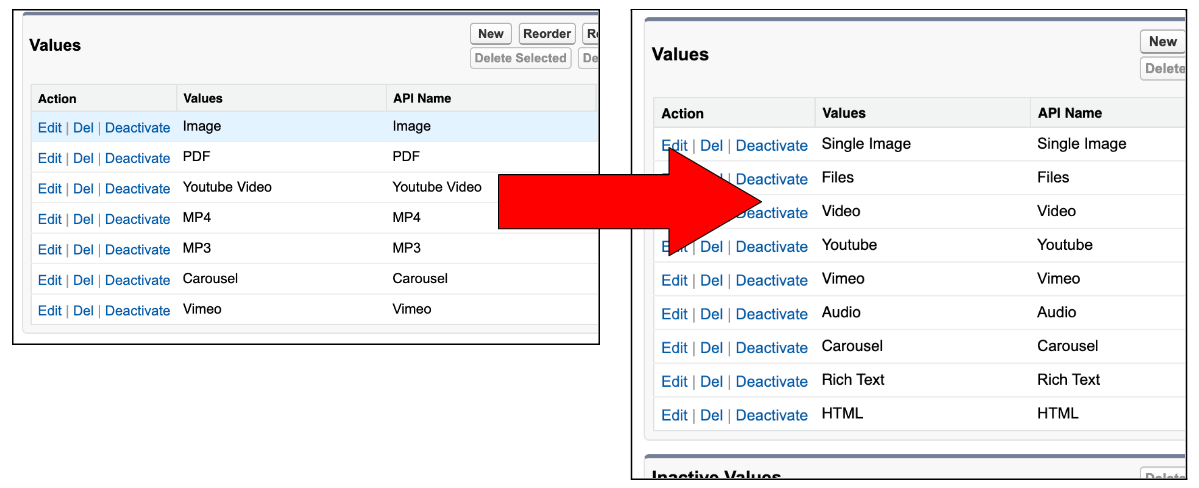
Tip: Verify you did everything correctly by checking that the Content Type values on Module are the same as those on the Course object.
Once these steps have been completed, you can start to use the new Content Editor to add and modify content on your Courses and Modules.
Reconfigure Content on Existing Course Modules
On the Modules of your existing Courses, you'll need to reconfigure your content using the new Content Editor.
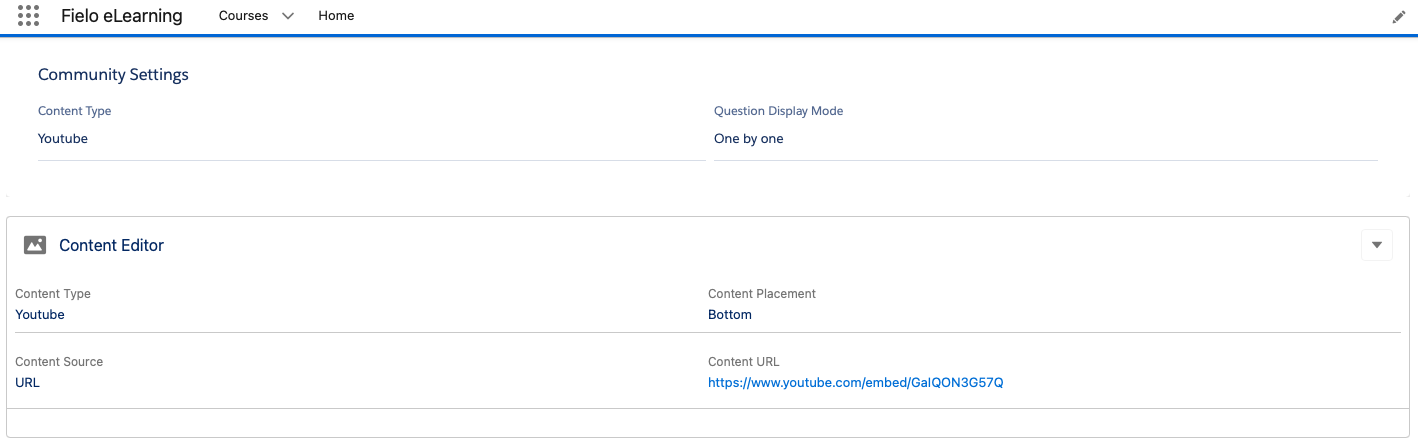
To get started, select the dropdown menu on Content Editor and click Edit. Then choose a Content Type and add your content.
That's all. You are ready to use Fielo Learning R2 2022!
Updated over 1 year ago