
Incentive Components
Incentive components incorporate Platform's Incentive features into your loyalty portal. They include Program Promotions, Challenge Subscription and My Challenges.
Program Promotions
Program Promotions shows Members all active Promotions available to their Segment.
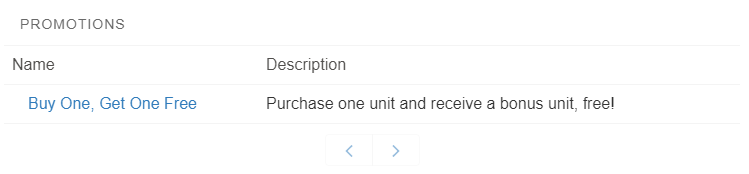
Program Promotions Component
Properties
Program Promotions can be configured via the following properties:
- Title: Enter the title you want displayed at the top of the component, i.e. Promotions.
- Layout: Choose Table to view Promotions in list format or Grid to view them in tile format.
- Number of Columns: If using Grid layout, choose the number of columns to be displayed.
- Paging: Tick this box to allow Promotions to be displayed on more than one page.
- Records per Page: If Paging is , enter the number of Promotions to be displayed per page.
- Fieldset: Enter the API names of fields that you want to be displayed in the Promotions list, separated by commas. For example. you could include the Description and End Date fields by entering
FieloPLT__Description__c, FieloPLT__EndDate__c/date. The Name will display automatically. - Record Detail Fieldset: Enter the API names of fields that you want to be displayed in Promotion detail view, separated by commas. For example. you could include the Program Name and Promotion Status fields by entering
FieloPLT__Program__r.Name, FieloPLT__Status__c. - Rule Related List: Tick this box if you would like Rules to be displayed in detail view.
- Rule Related List Fieldset: If Rule Related List is , enter the API names of Rule fields that you want to be displayed in detail view, separated by commas. For example. you could include the Rule Name, Description and Point Conversion Value fields by entering
Name, FieloPLT__Description__c, FieloPLT__ConversionValue__c.
- Rule Related List Fieldset: If Rule Related List is , enter the API names of Rule fields that you want to be displayed in detail view, separated by commas. For example. you could include the Rule Name, Description and Point Conversion Value fields by entering
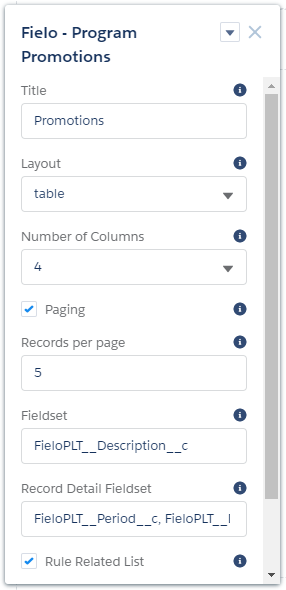
Program Promotions Properties
Challenge Subscription
Challenge Subscription allows Members to view and subscribe to all active Challenges available to their Segment. When a Member subscribes to a Challenge, it no longer appears here and is instead shown in the My Challenges component.
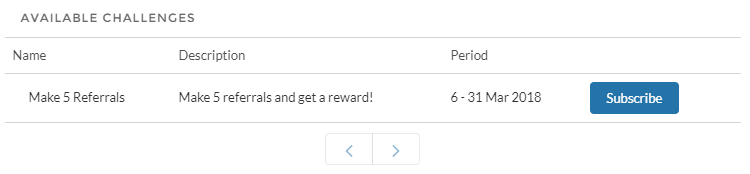
Challenge Subscription Component
Properties
Challenge Subscription can be configured via the following properties:
- Title: Enter the title you want displayed at the top of the component, i.e. Available Challenges.
- Layout: Choose Table to view Challenges in list format or Grid to view them in tile format.
- Number of Columns: If using Grid layout, choose the number of columns to be displayed.
- Paging: Tick this box to allow Challenges to be displayed on more than one page.
- Records per Page: If Paging is , enter the number of Challenges to be displayed per page.
- Fieldset: Enter the API names of fields that you want to be displayed in the Challenges list, separated by commas. For example. you could include the Name, Description and Period fields by entering
Name, FieloPLT__Description__c, FieloPLT__Period__c.
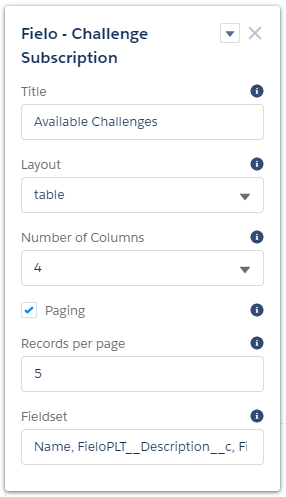
Challenge Subscription Properties
My Challenges
My Challenges shows a list of all Challenges the Member is currently subscribed to. You can also provide the roadmap of Missions the Member must accomplish in order to complete each Challenge.
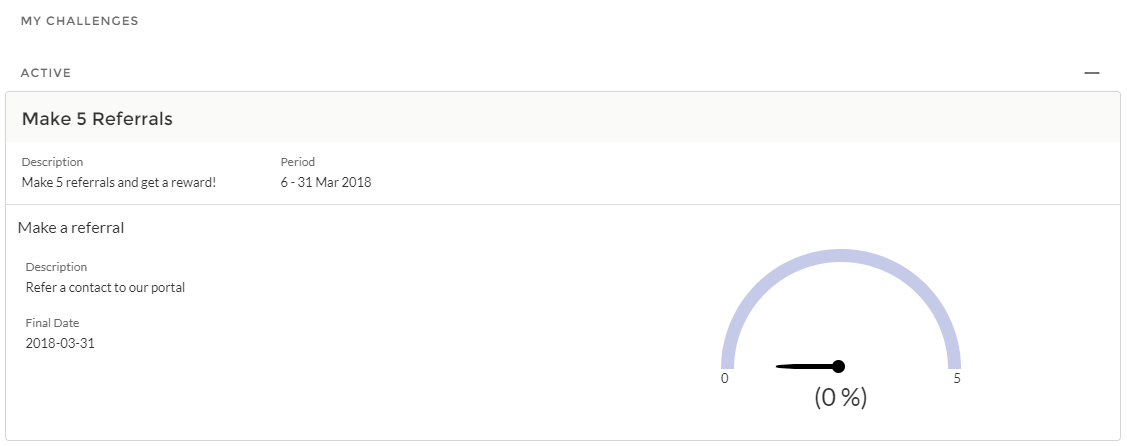
My Challenges Component
Properties
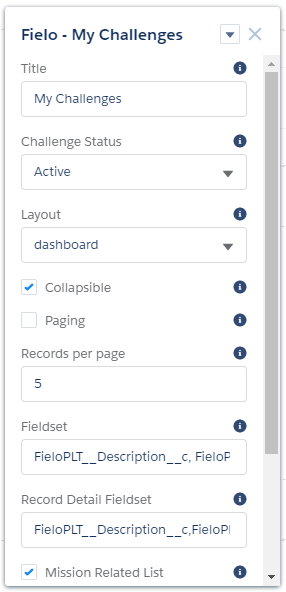
My Challenges can be configured via the following properties:
- Title: Enter the title you want displayed at the top of the component.
- Challenge Status: Choose the Status of the Challenges you want to display.
- Layout: Choose Table to view Challenges in list format or Dashboard to view them in large tile format with detail view.
- Collapsible: Tick this box if you want the Challenges view to be expandable and retractable.
- Paging: Tick this box to allow Challenges to be displayed on more than one page.
- Records per Page: If Paging is , enter the number of Challenges to be displayed per page.
- Fieldset: Enter the API names of fields that you want to include in the My Challenges list, separated by commas. For example. you could include the Description and Period fields by entering
FieloPLT__Description__c, FieloPLT__Period__c. Challenge names are included automatically.- Record Detail Fieldset: If using Table layout, enter the API names of Challenge fields you want to be visible in detail view, separated by commas.
- Mission Related List: Tick this box if you would like each Challenge's Missions to be displayed in detail view.
- Mission Related List Fieldset: If Mission Related List is , enter the API names of Mission fields you want to be displayed in detail view, separated by commas. For example. you could include the Name, Description and Type fields by entering
Name, FieloPLT__Description__c, FieloPLT__Type__c. - Show Mission Progress: If Mission Related List is , tick this box to show Mission Progress in Mission detail view.
- Mission Progress Indicator: If using Mission Progress, choose how to format the Mission Progress Indicator: Gauge for speedometer , Bar for progress bar or Circular for circular progress indicator.
- Mission Progress Range Field: If you're using Mission Progress and your Challenges include Missions without Objective, enter the API name of a Mission field of type Number that contains the maximum value to be used in the Mission Progress indicator. This will serve as the maximum value your Mission Progress Indicator can reach. If left blank, the default value of 100 will be used.
- Show Mission Leaderboard: If Mission Related List is , tick this box to show the Mission Leaderboard in Mission detail view.
- Mission Related List Fieldset: If Mission Related List is , enter the API names of Mission fields you want to be displayed in detail view, separated by commas. For example. you could include the Name, Description and Type fields by entering
My Challenges Properties
Updated over 1 year ago