
Point Types
Create and manage your own custom Point Types
Point Types are different kind of non-monetary Points that your Members can obtain, together with standard Points or as an alternative to them. By creating different Point Types, you can create exchange units based on distance, time, currency, etc. instead of regular numeral Points.
When can I use Point Types?
Imagine the following scenario: you've installed and set up Platform, you've configured the generalities of your loyalty Program settings, and you want to give a custom, representative unit for your Member to later exchange them for Rewards. How can you do that? Simply create the Point Type that fits best into your business context and needs - whether they're Miles, Starts, Hours, etc. You can create as many Point Types you want!
Creating Point Types
Platform includes its default Point Type named Point, which represents regular, standard Points. If you decide to use other Point Types, first they need to be created and linked to the corresponding Objects in Salesforce database so that they can later be available to use in Platform.
In the next steps, we'll show you how to create a typical custom Point Type: Miles.
Adding your 'Point Type' Field
First things first: you need to create your Point Type fields so that they can be linked to each of the Platform Objects it will interact with: Member, Transaction, Redemption Item,Redemption, and Reward.
When adding a new Point Type, make sure you follow this Object order: 1) Member; 2) Transaction; 3) Redemption Item; 4)Redemption ; 5) Reward.
Let's use Member as an example. From Setup, look up Object Manager in the Quick Find box and select it. Then, enter Member in the Object Manager Quick Find box and select it.
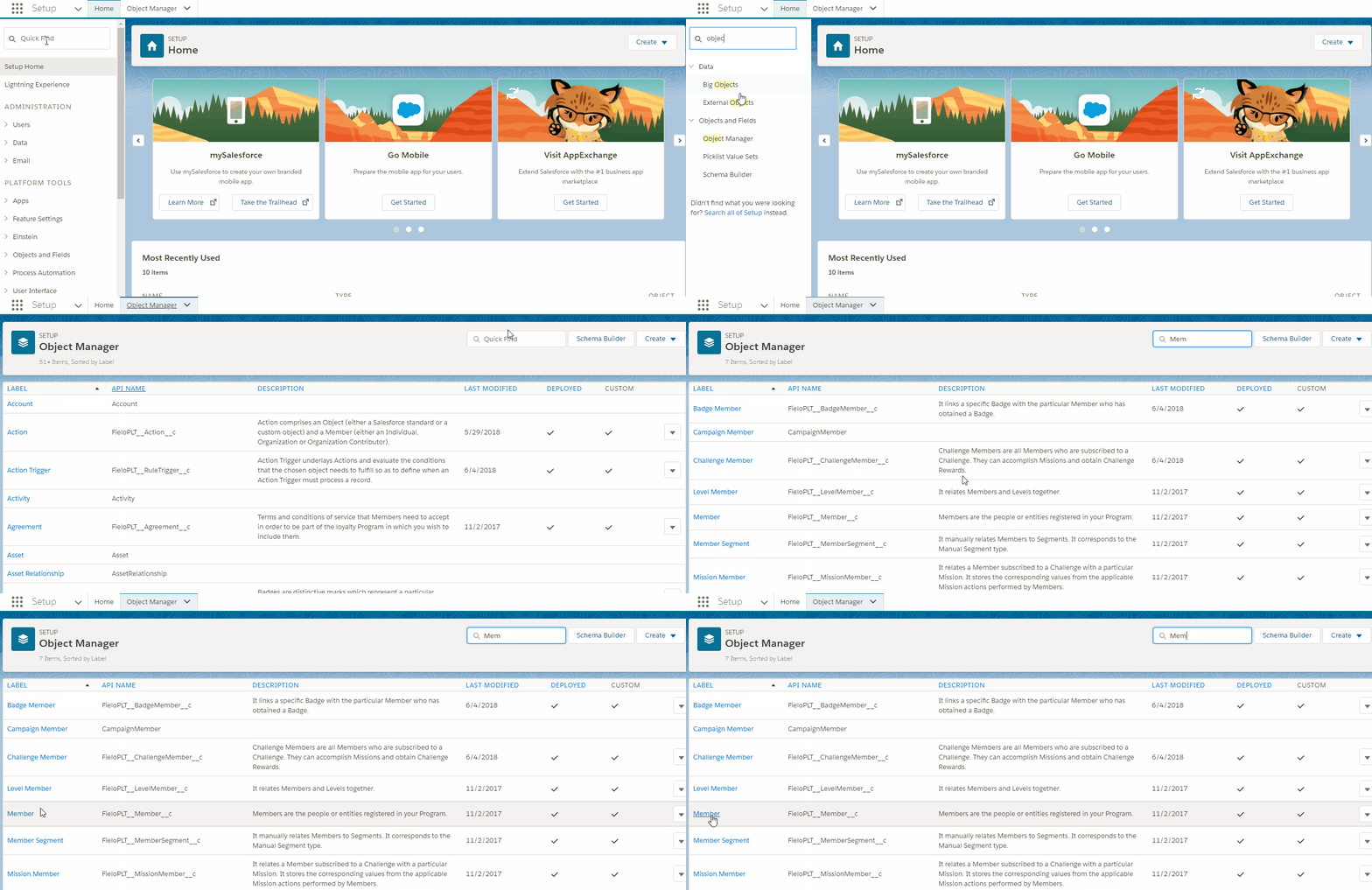
Now, go to Fields & Relationships and hit New. Choose Field Type Number.
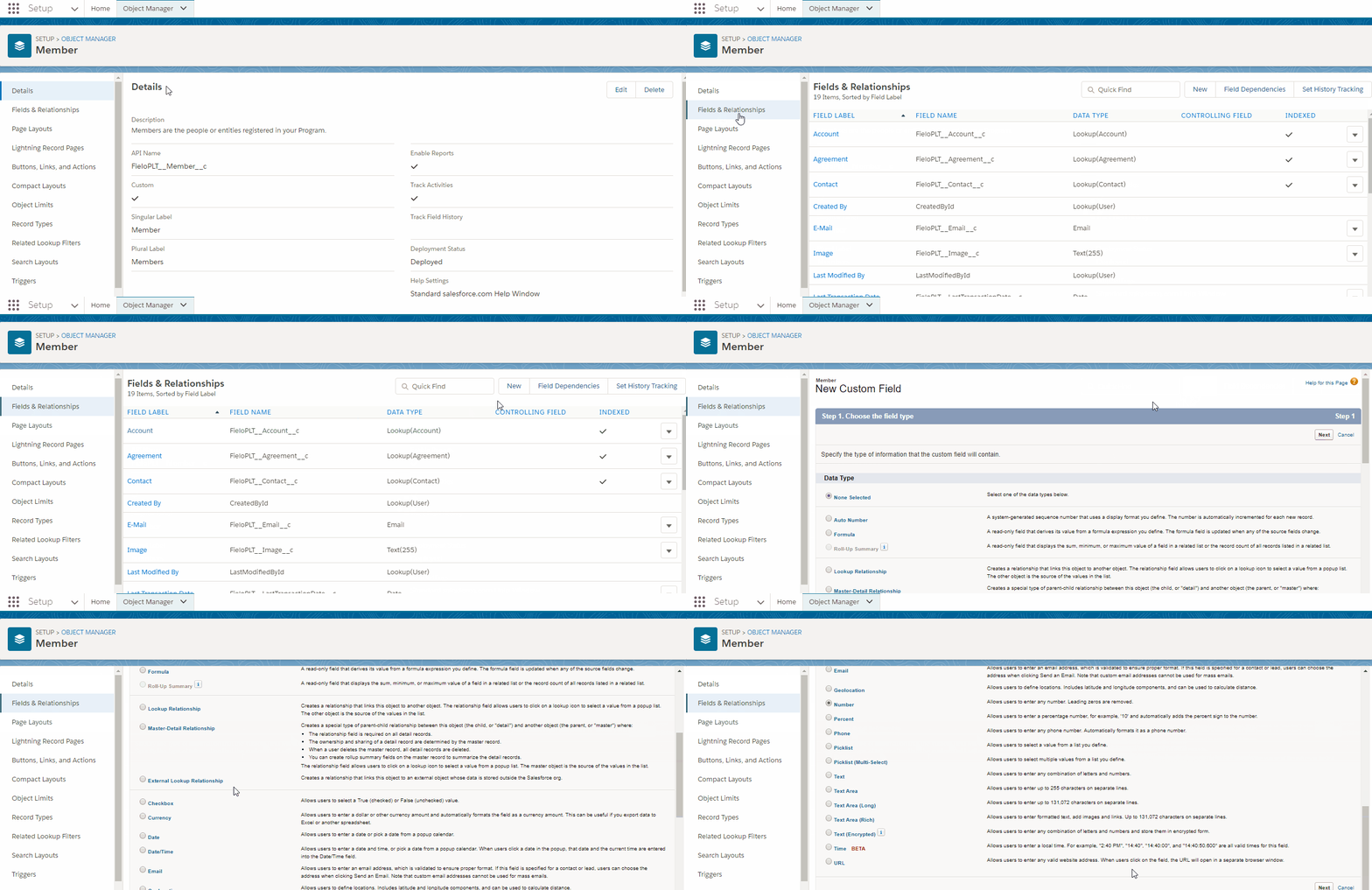
Field TypesWhen adding our Point Type field in Member, Transaction, Redemption Item and Reward, Field Type must be Number. For Redemption choose Field Type Roll-up Summary.
Once Field Type is chosen, click Next and enter the following details:
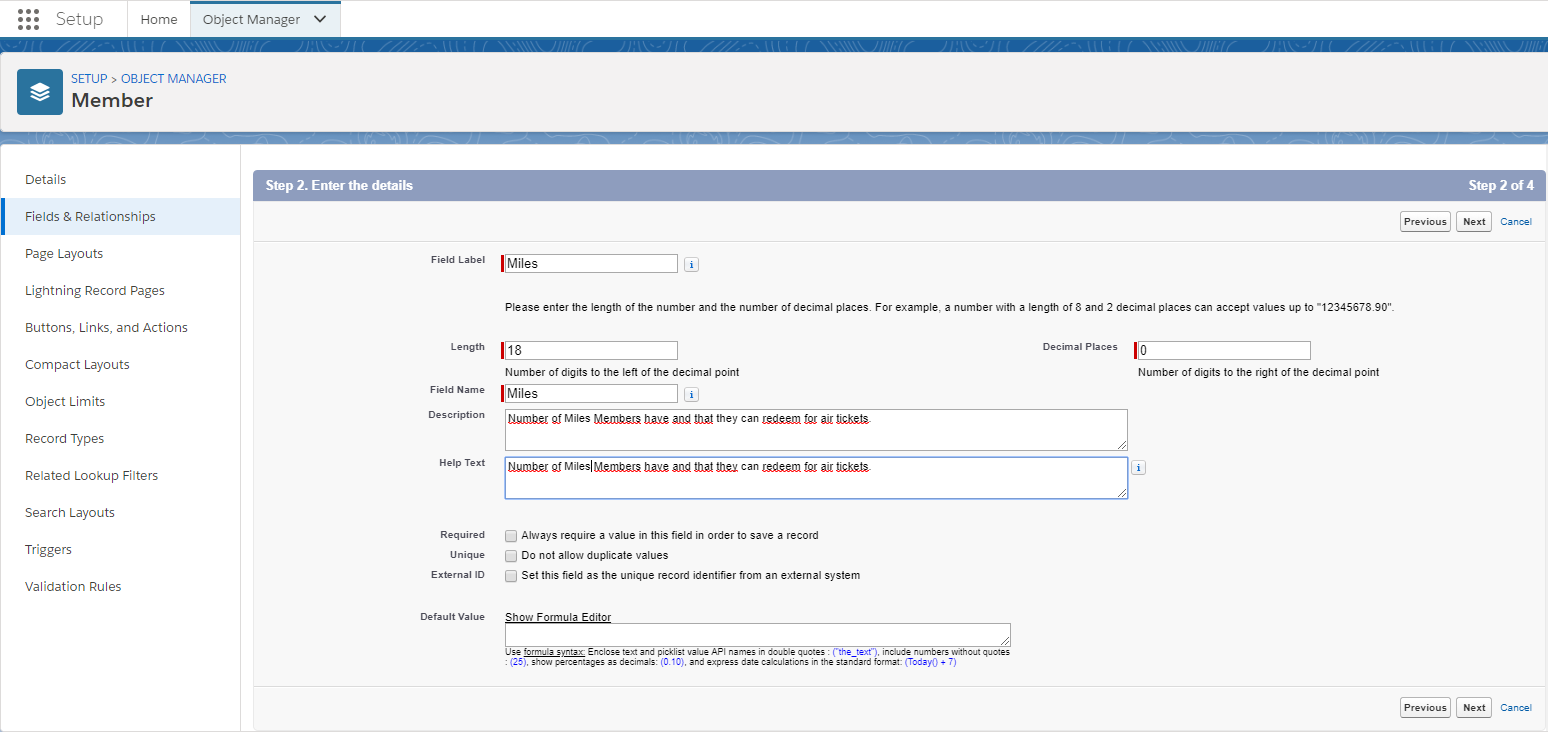
Miles Details
Note that in the case of Redemption, since its Field Type is Roll-up Summary, there are some other details you must fill in as well:
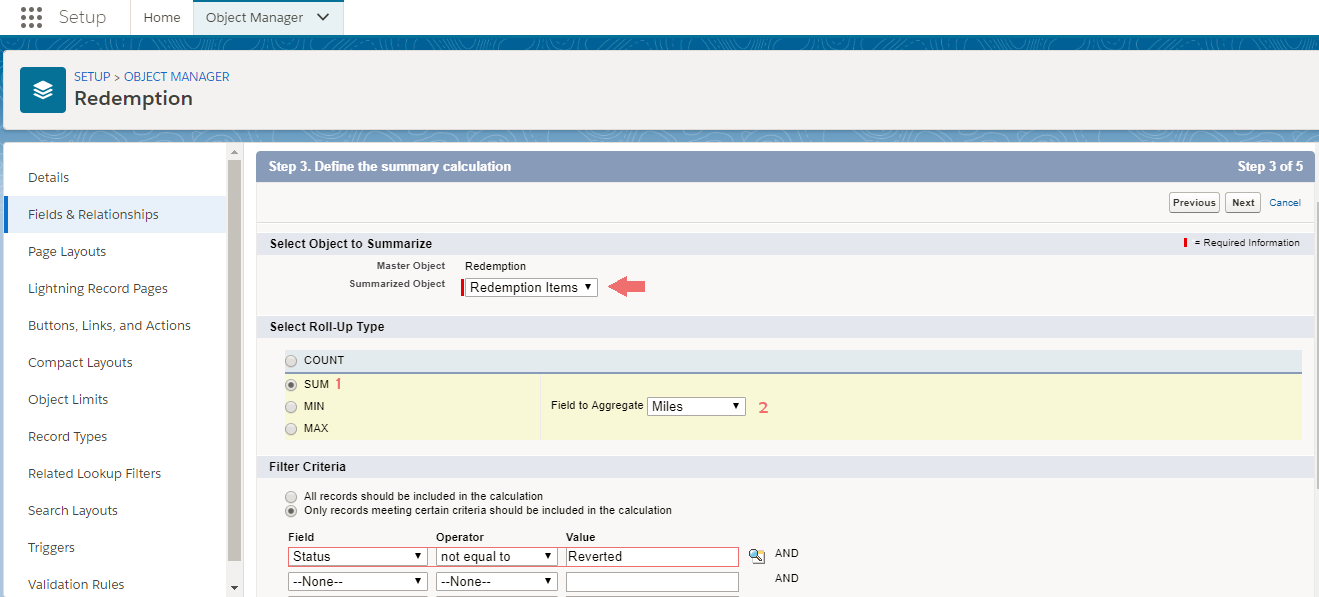
Roll-up Summary details
- For Summarized Object choose Redemption Item - Redemption Point Type number is fed by all Point Types coming from Redemption Item.
- For Roll-up Type choose Sum.
- Once Sum is , you'll notice that Field to Aggregate lets you choose a value. Make sure you always select the Point Type you're creating as value.
- Finally, on Filter Criteria section, Only records meeting certain criteria should be included in the calculation. For Field, choose Status; for Operator, choose not equal to, and for Value click and select Reverted. This means that Reverted Redemptions that use your Point Type will not be part of the sum calculation.
Once ready, hit Save.
Now, decide on the Field-level security and Page Layout the new Point Type will be added.
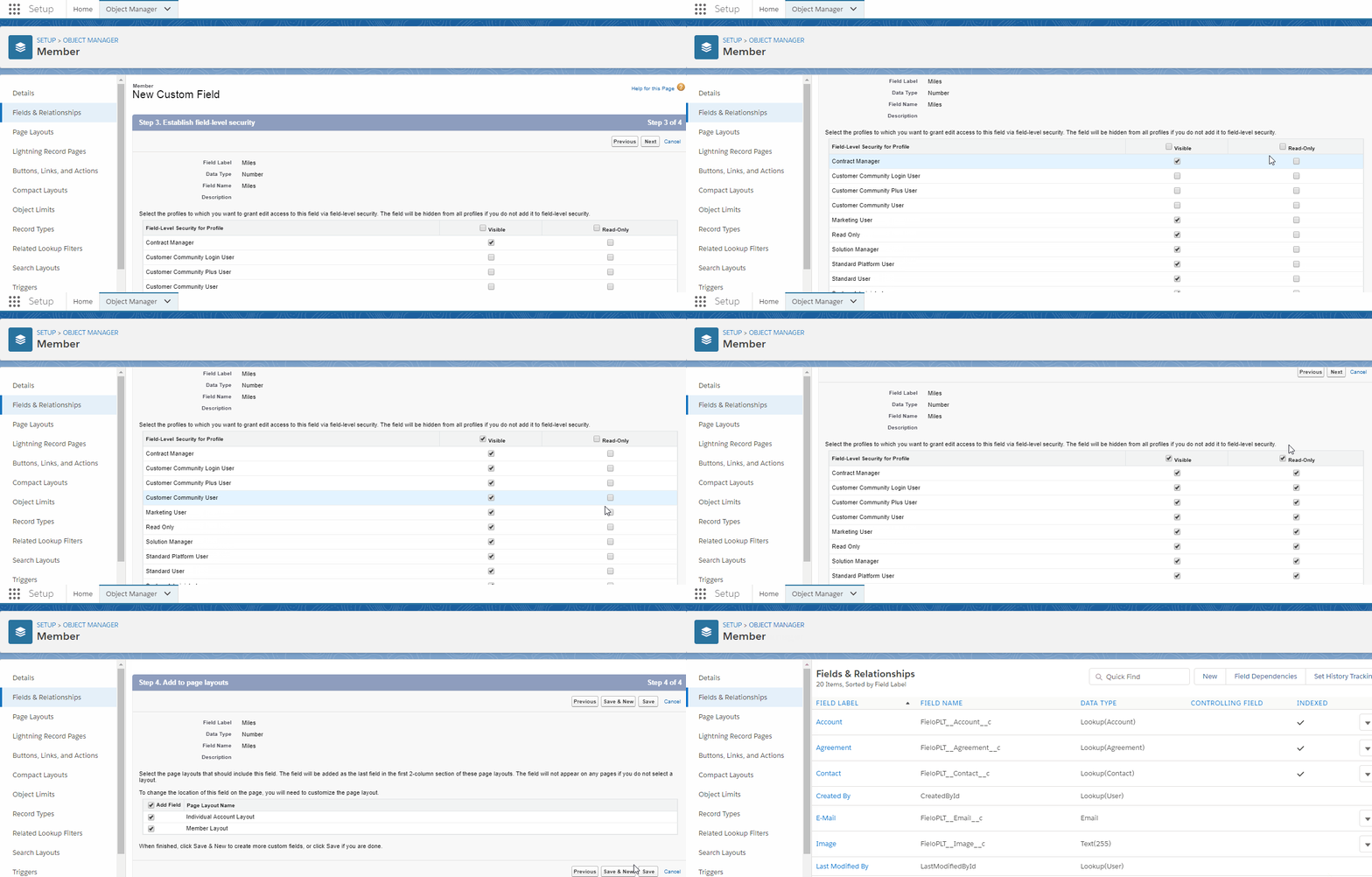
For more information on how to create fields in Salesforce, see Create Custom Fields
Using Multiple Point Types
When Rules, Challenge Rewards and/or Mission Rewards grant more than one kind of Point Type, you need to add some fields to manage your Point Type directly from Rules, Challenge and Mission Rewards screens. Basically, it replicates the same fields standard Points require to be granted as an outcome. Those fields are:
- Conversion Mode.
- Conversion Value.
- Field Name.
- Expiration Mode.
- Expiration.
- Expiration Date.
- Custom Expiration.
Let's use Rule as an example. From Setup, look up Object Manager in the Quick Find box and select it. Then, enter Rule in the Object Manager Quick Find box and select it.
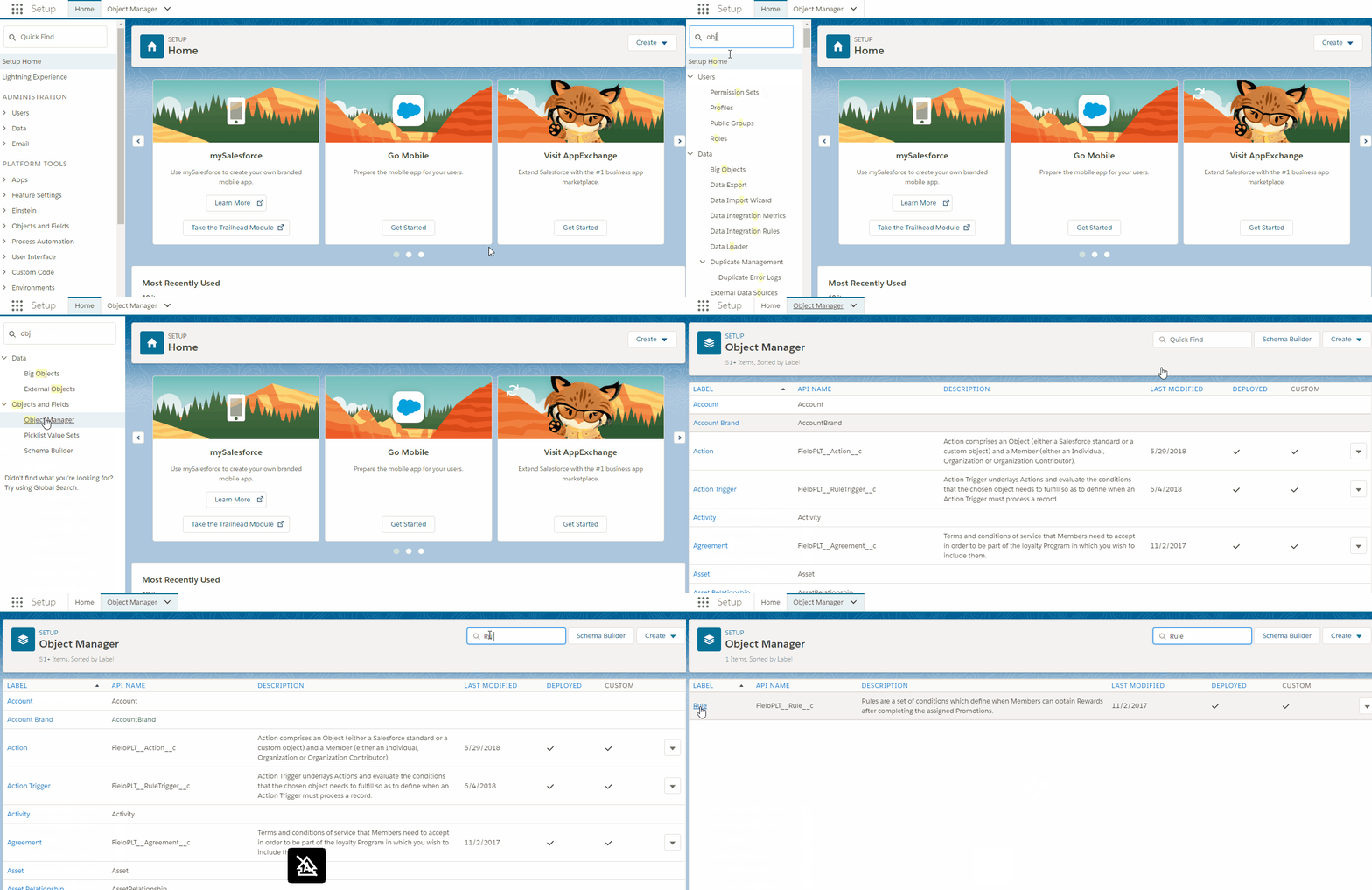
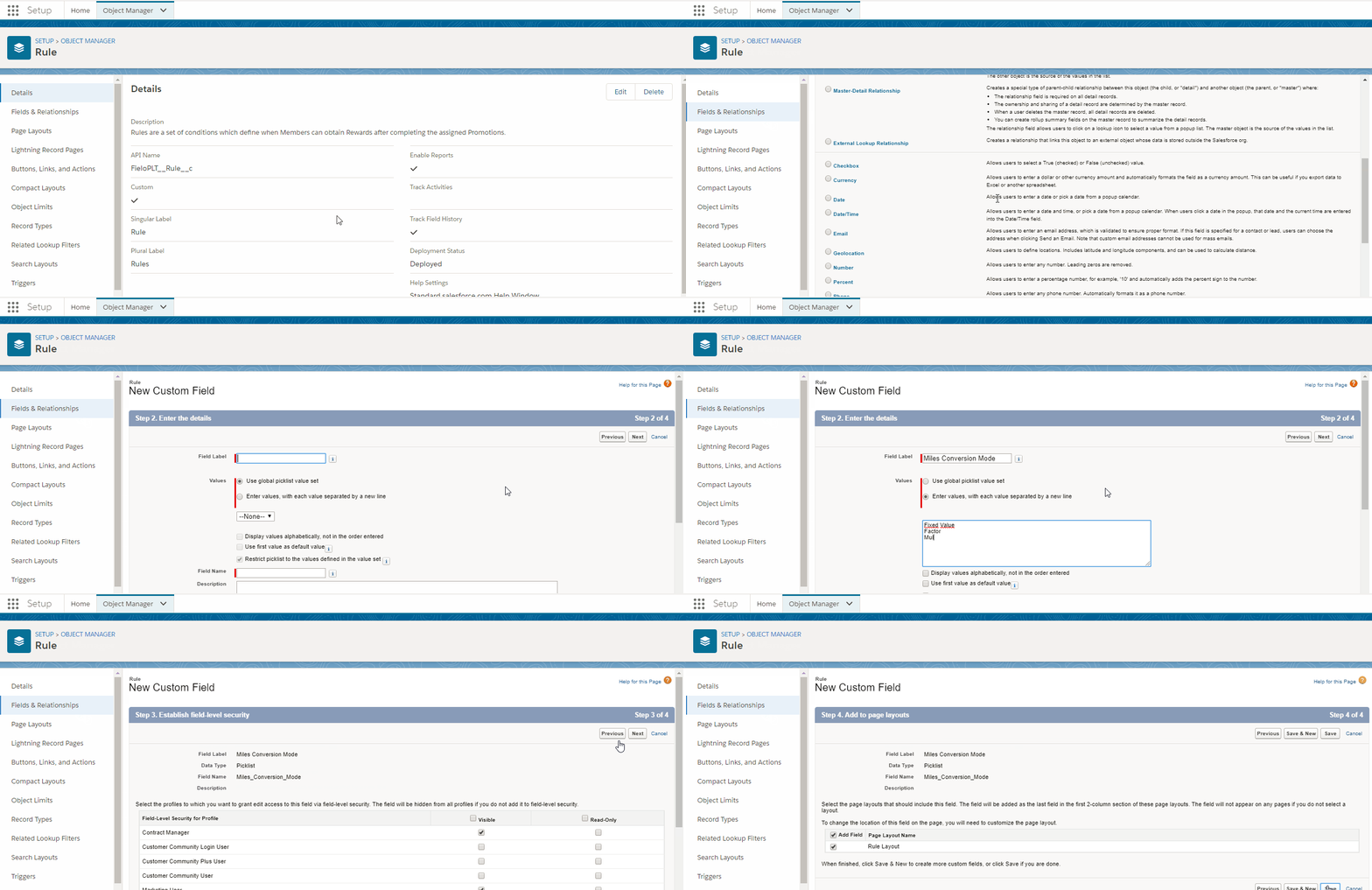
Adding 'Conversion Mode' Field
Conversion Mode is the way in which a Point Type can be converted into. It is a Picklist field and its options include: Fixed Value, which is a fixed assigned number of the Point Type; Factor, a numerical field related to the Action Target Object that can be divided by a specific number; and Multiplier, which is numerical field related to the Action object that can be multiplied by a specific number.
Make sure to uncheck Restrict picklist to the values defined in the value set.
Adding 'Conversion Value' Field
Conversion Value is the Point Type value by which Point Type Field Name is divided (Factor) or multiplied (Multiplier). It's a Number field.
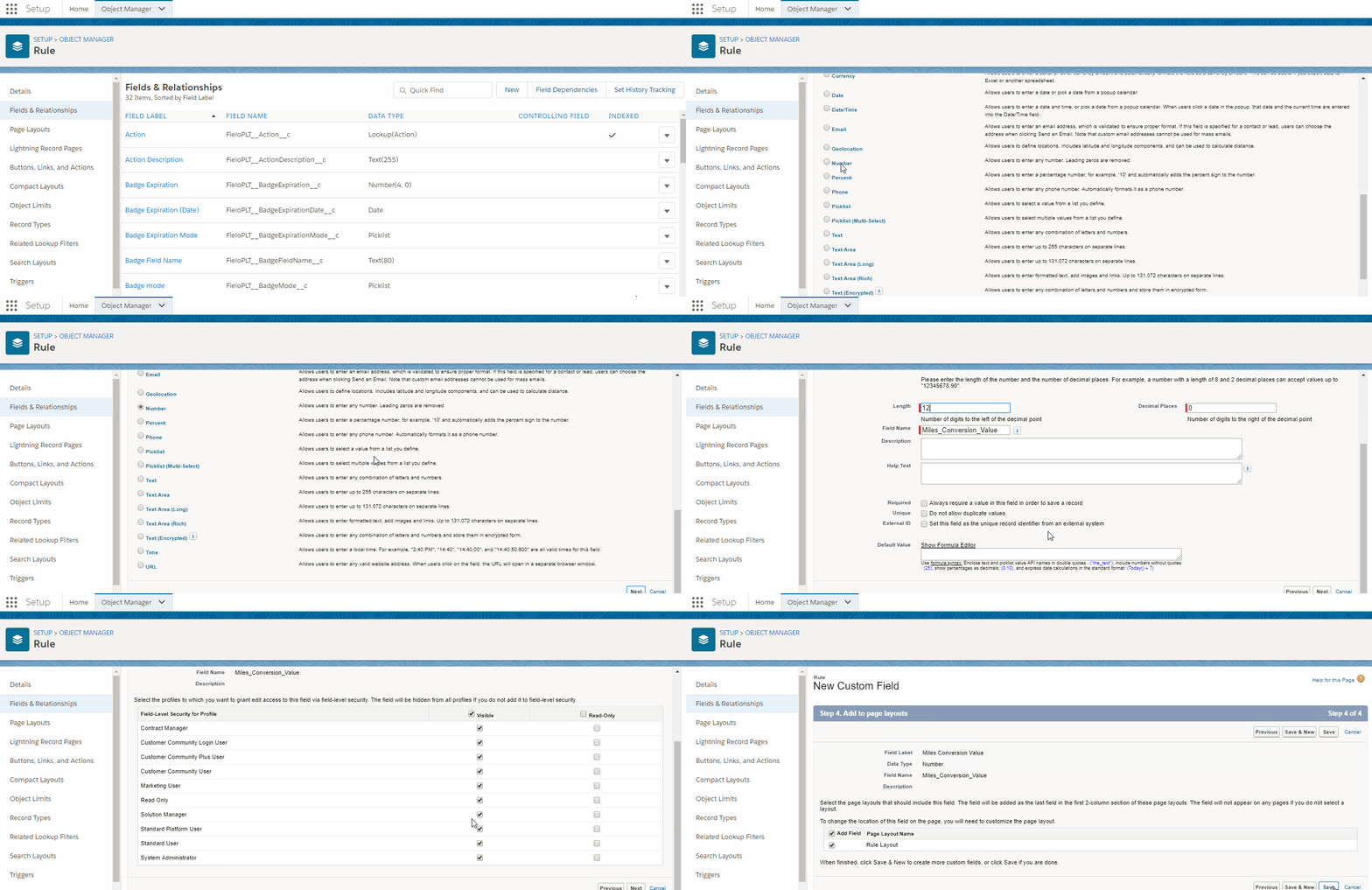
Adding 'Field Name' Field
Field (Miles) Name Field (FieloPLT__RecordFieldName__c) will show a numeric field from the Action object which can be either divided (Factor) or multiplied (Multiplier).
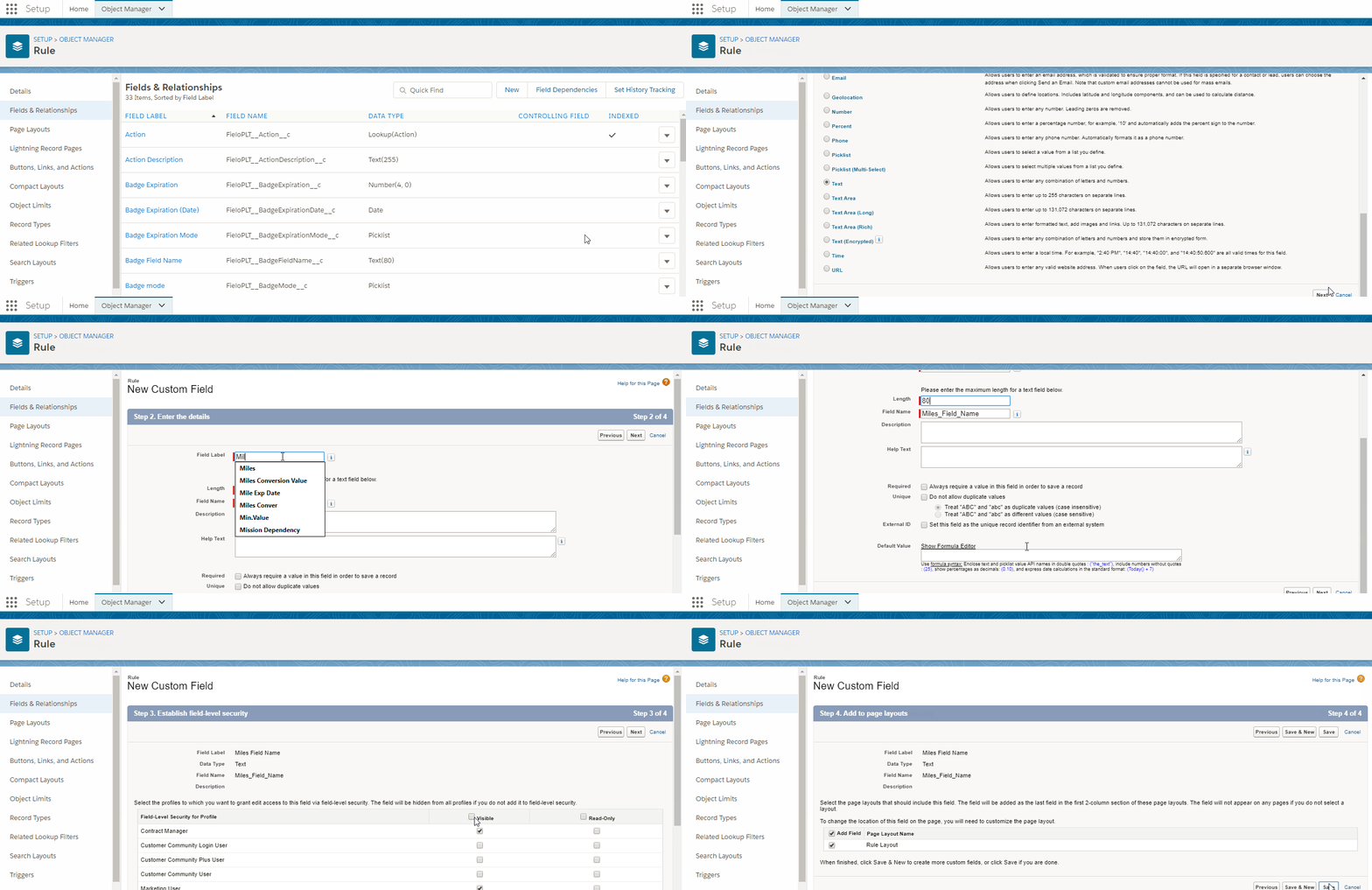
Adding 'Expiration Mode' Field
Expiration Mode is the way in which a Point Type can expire. It is a Picklist field and its options include: Days, which specify a fixed number of days that your Point Type will be valid; Months, which specify a fixed number of months that your Point Type will be valid; Specific Date, if you'd like to specify a particular expiration date for all Point Types; and Recurrent Date, if you'd like to specify the month and day all Point Types will expire every year.
Make sure to uncheck Restrict picklist to the values defined in the value set.
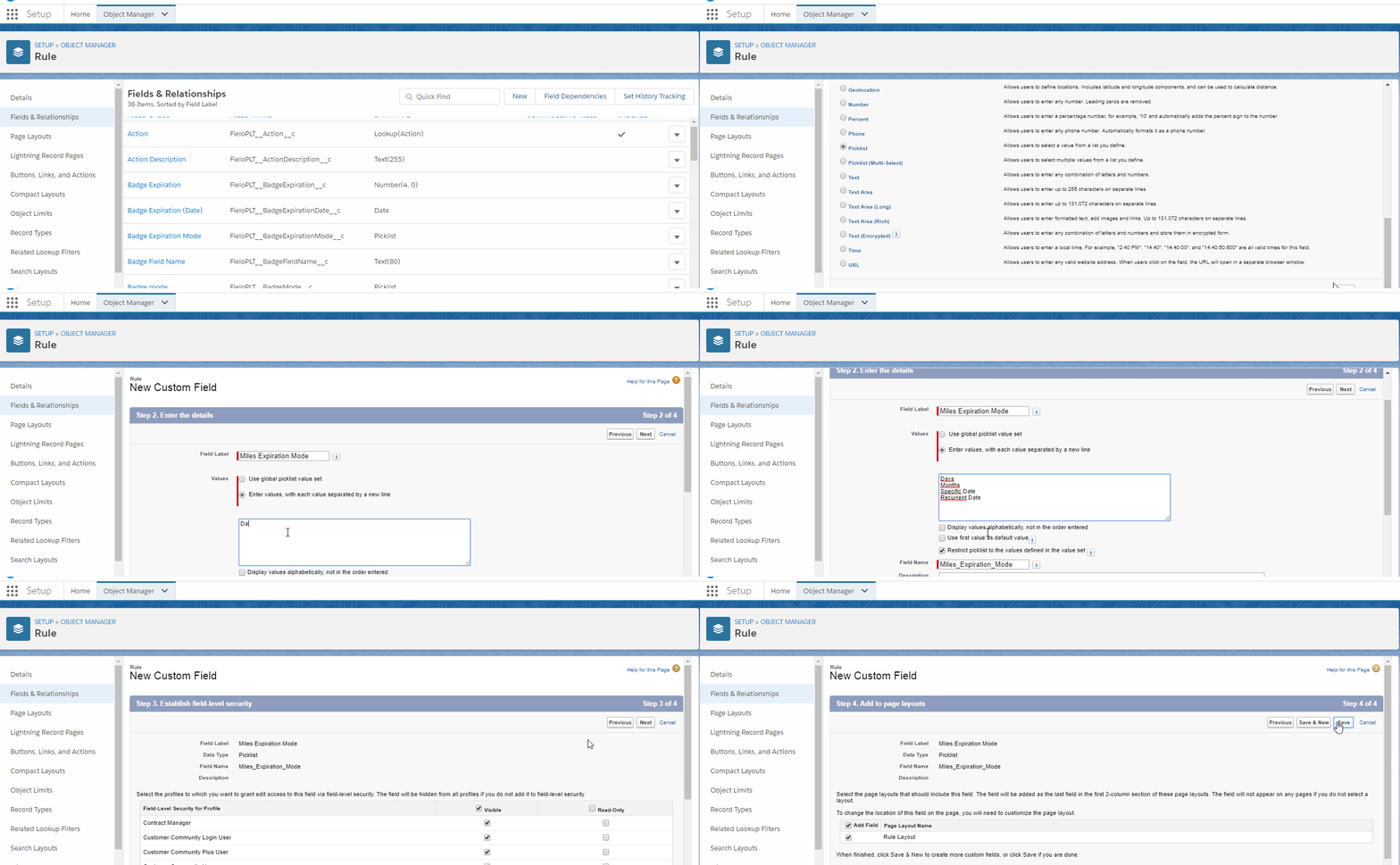
Adding 'Expiration' Field
Expiration (FieloPLT__MonthsUntilExpiration__c) will show the number of days or months during which your Point Type is valid.
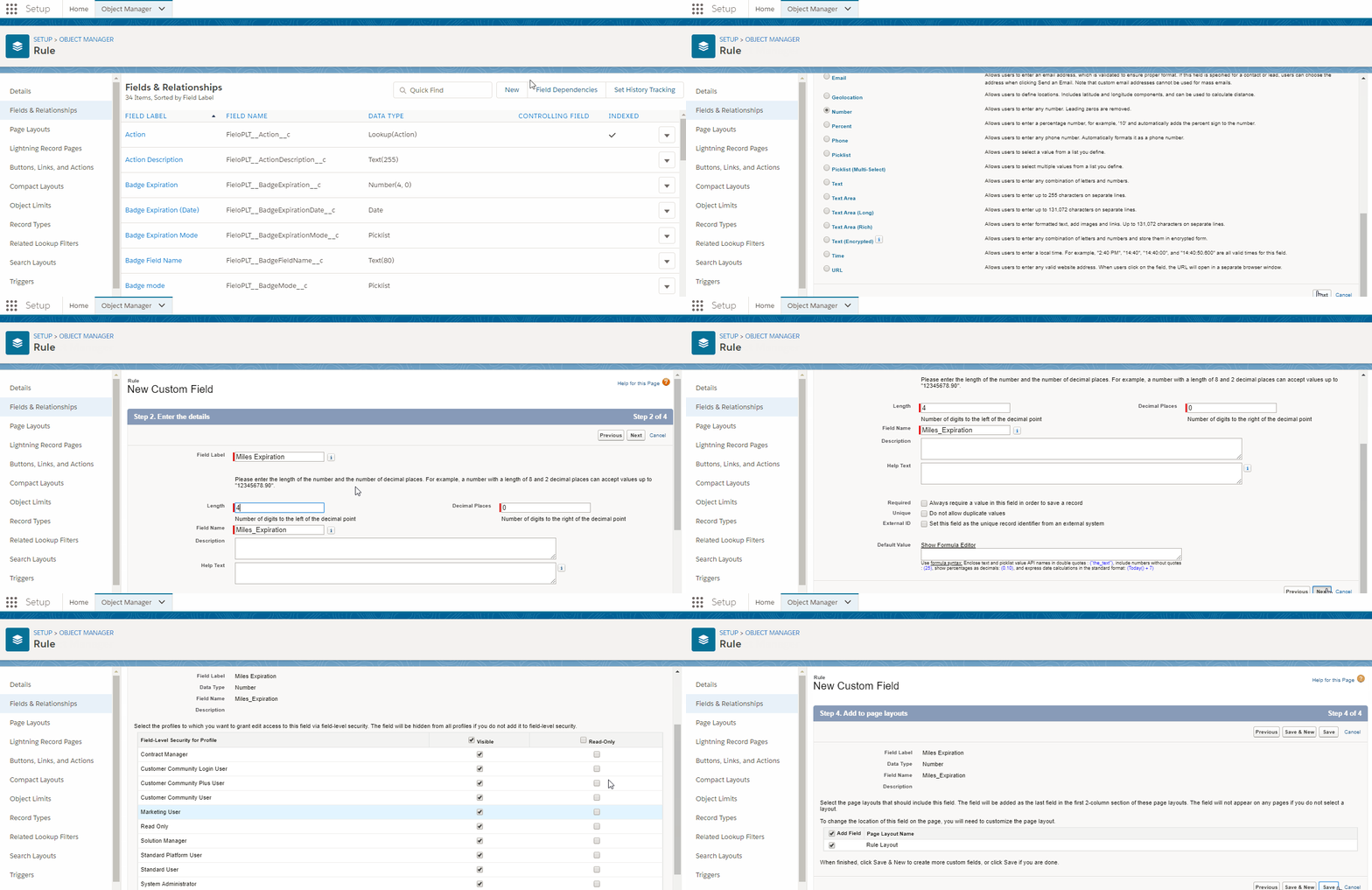
Adding 'Expiration Date' Field
Expiration Date lets you display the specific date in which your Point Type expires.
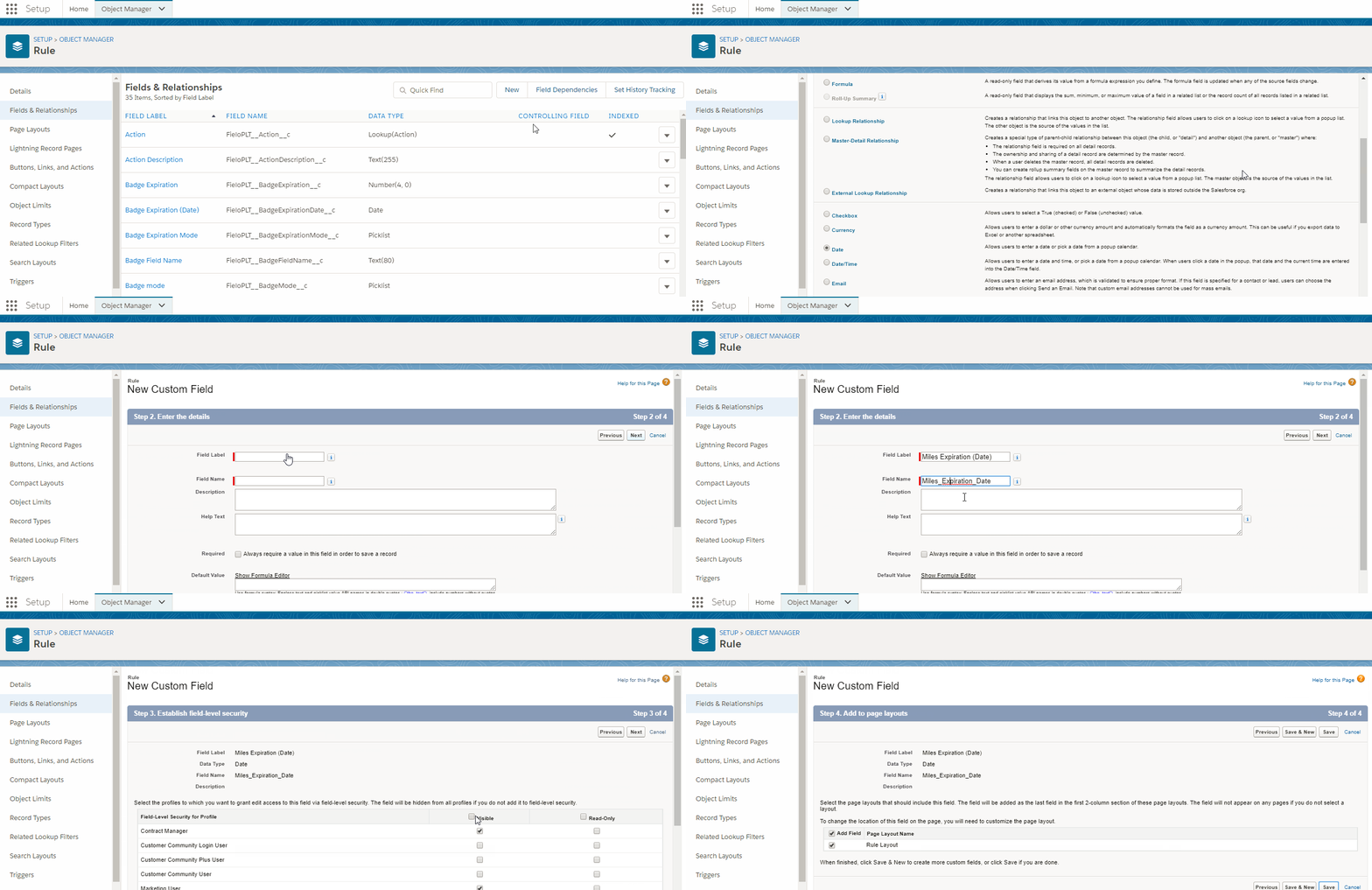
Adding 'Custom Expiration' Field
Custom Expiration lets you expire Point Types with custom functionality.
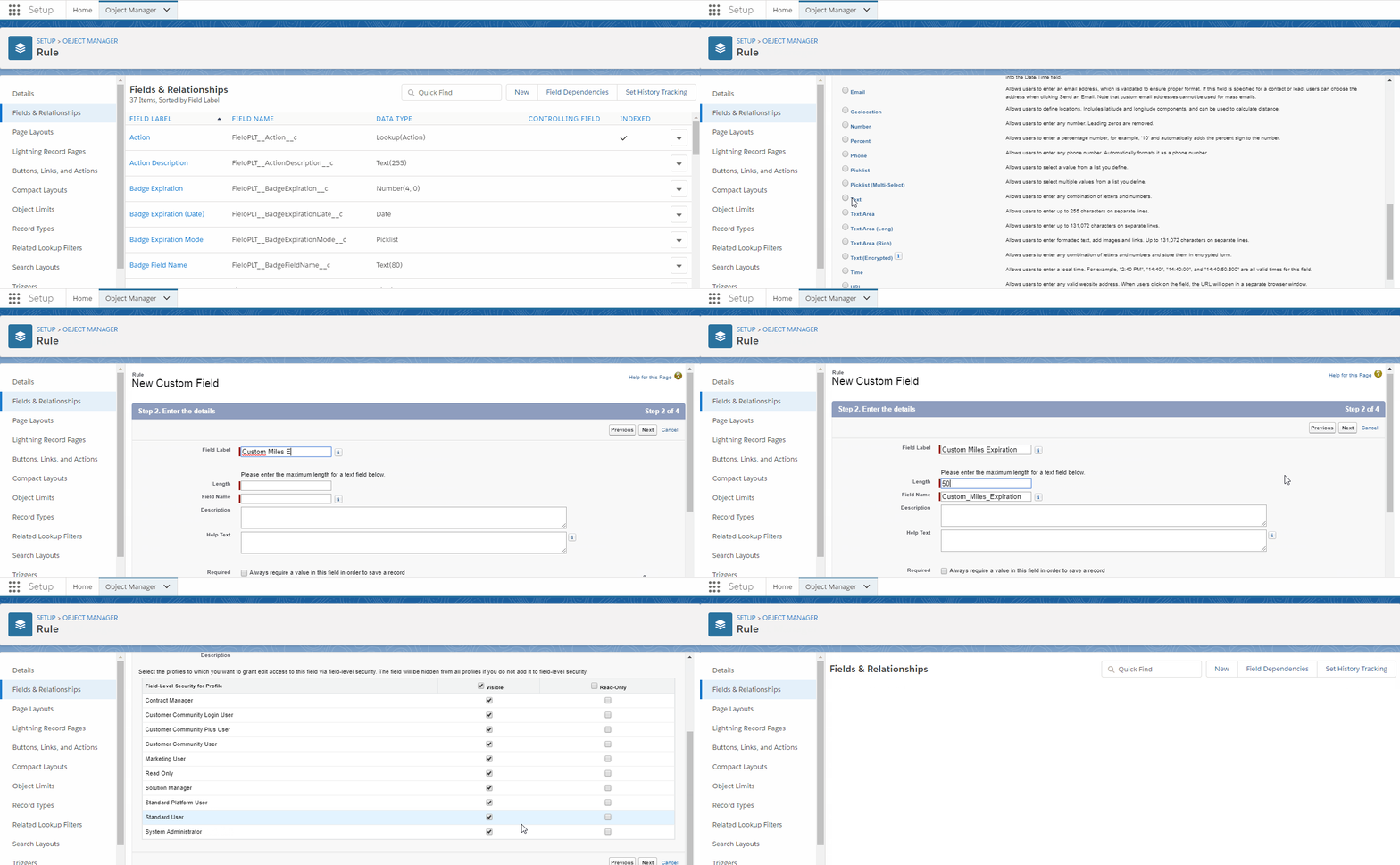
Field-level securityCheck that the above-created fields are visible in your layout and for your Profile.
If you're using Challenges, don't forget to create all the above fields in the Challenge Reward object as well.
Creating and editing Multiple Point Types
Once you've created your Point Type in Salesforce, it is time you create it in Platform.
Set Point Type
Once in Platform, navigate to Programs and click Point Types.
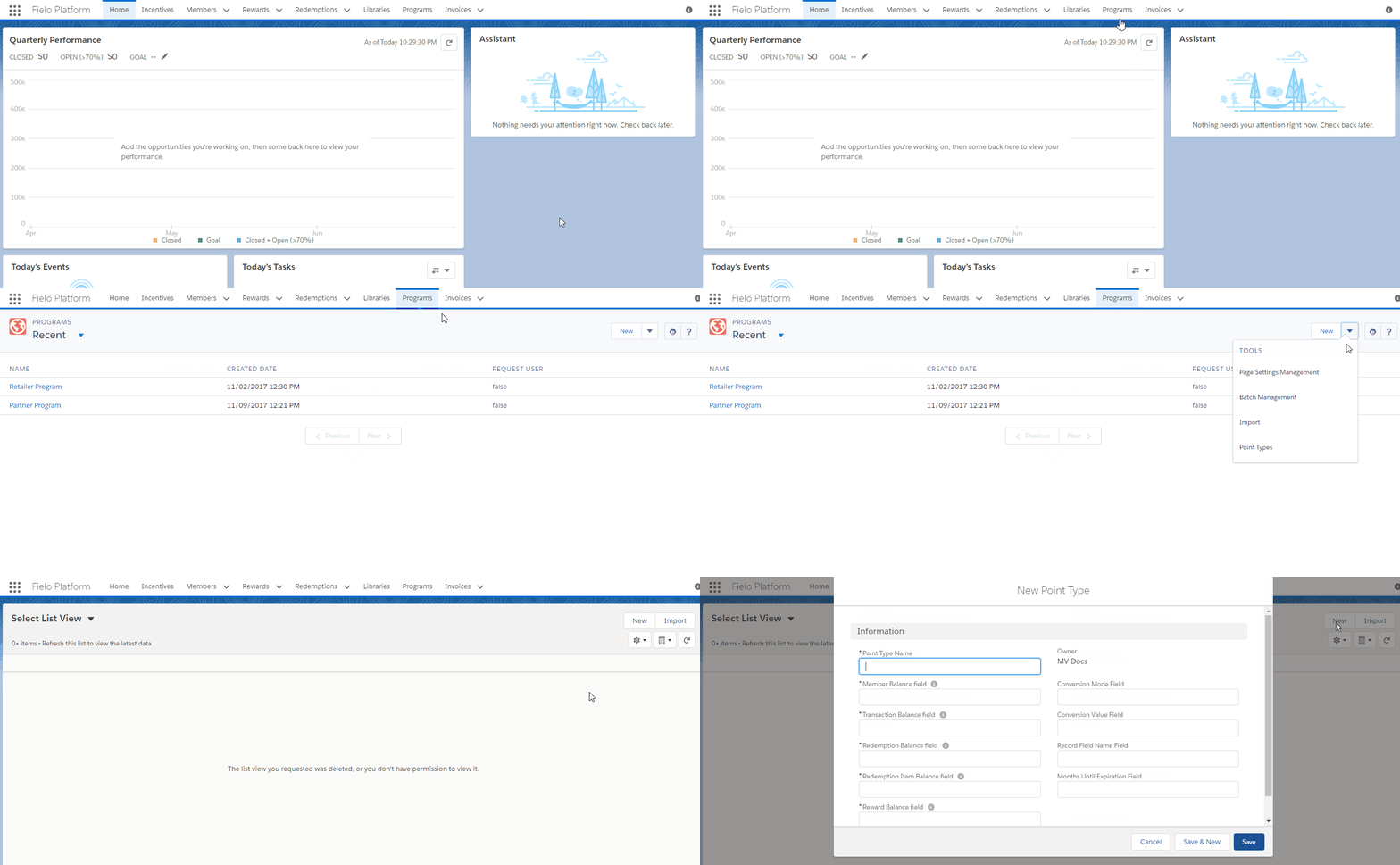
Click New Point Type and complete the following information:
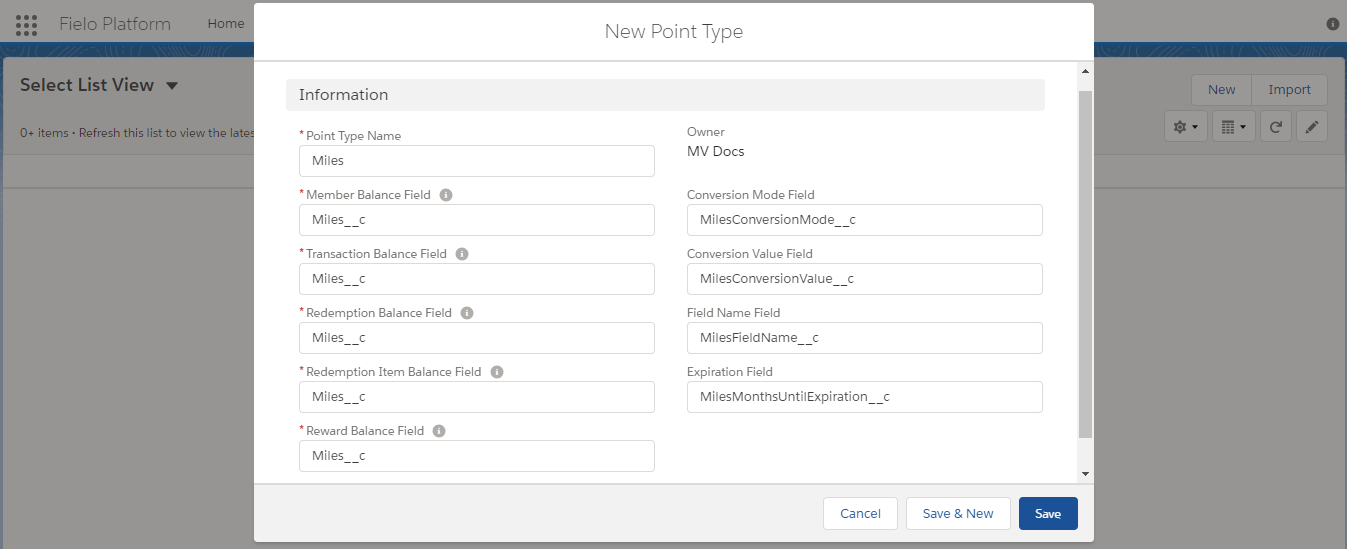
New Point Type: Miles
- In Member Balance Field, Transaction Balance Field, Redemption Balance Field, Redemption Item Balance Field, and Reward Balance Field, simply enter the API Name of your Point Type field - in our case is ´Miles__c´. This lets you keep track of your Point Type balance on each of the Objects the Point Type is related to.
- In Conversion Mode Field, Conversion Value Field, Field Name Field, and Expiration Field simply enter the API Name of each of those fields you've previously created when using Multiple Point Types in Rules and Challenge & Mission Rewards.
Once ready, just hit Save.
Program Point Types
Program Point Types maps all existing Point Types to the Program where it will be used. This means that for every Point Type you want to include in a Program, you must create its corresponding Program Point Type.
Program Point Types let you determine which and how many Point Types each of your loyalty programs will have.
Creating a Program Point Type
To create a new Program Point Type, simply choose the Program you'd like to use your Point Type. Once there, navigate to the Program Point Type related list and click New.
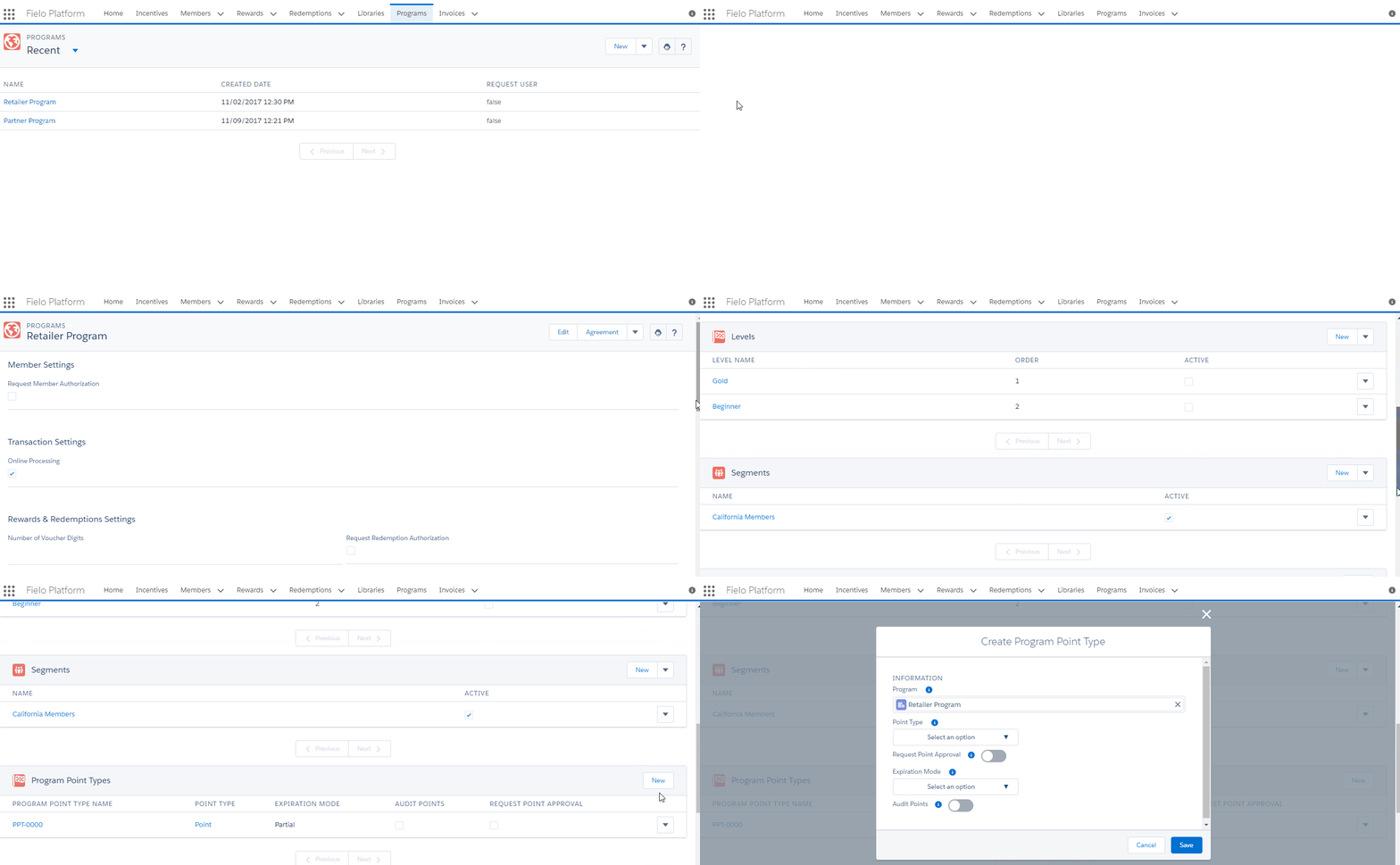
Now you need to check and complete the following Program Point Type settings:
- Program: it's the Program where the Point Type will be part of. By default, the Program you've accessed before is already selected.
- Point Type: here is where you choose which of all existing Point Types will be part of the current Program.
- Request Point Approval lets you control how you grant Point Types. When , each new Point Type record must be approved before giving it to Members and an Authorization Workflow has to be established. In this case, newly generated Points initially have Pending status and they are not part of Members Point Balance.
- Expiration Mode is where you choose if Point Types records will ever expire and, if so, in which way. There are two Expiration options:
- Total: All Point Type records from the Member Point Balance expire completely by means of a Transaction of Expiration type. The expiration date must be prior to the date when expiration takes place and Member must have a positive Point Balance. Total Expiration Mode only works by using the Expire Total Points API, or Expire Total Point Type API, when expiring a custom Point Type.
- Partial: Point Type records expire according to the specific expiration mode set in Rules and/or Challenge & Mission Rewarding. Expiration is carried out by the Batch process named Expired Points: Partial Mode, and only a single Point record expires at a time. The expiration date must be prior to the date when expiration takes place and Points must have a positive Balance.
You can set Partial and Total Expiration only for Points whose status is Approved.
Alternatively, you can set Expiration Mode to None. In such case, Point Type records never expire and they remain valid as long as the Program they belong to exists.
- Audit Points: When , it specifies where Program Point Type used in a Redemption comes from.
Once you're happy with the all the settings, click Save.
For Point Types that have Partial Expiration Mode to expire on a regular basis, you need to manually schedule a Batch Process as it's not an automatic process.
Editing Program Point Type: Point
If you're giving Member standard Points, you can change their default settings just by editing Point.
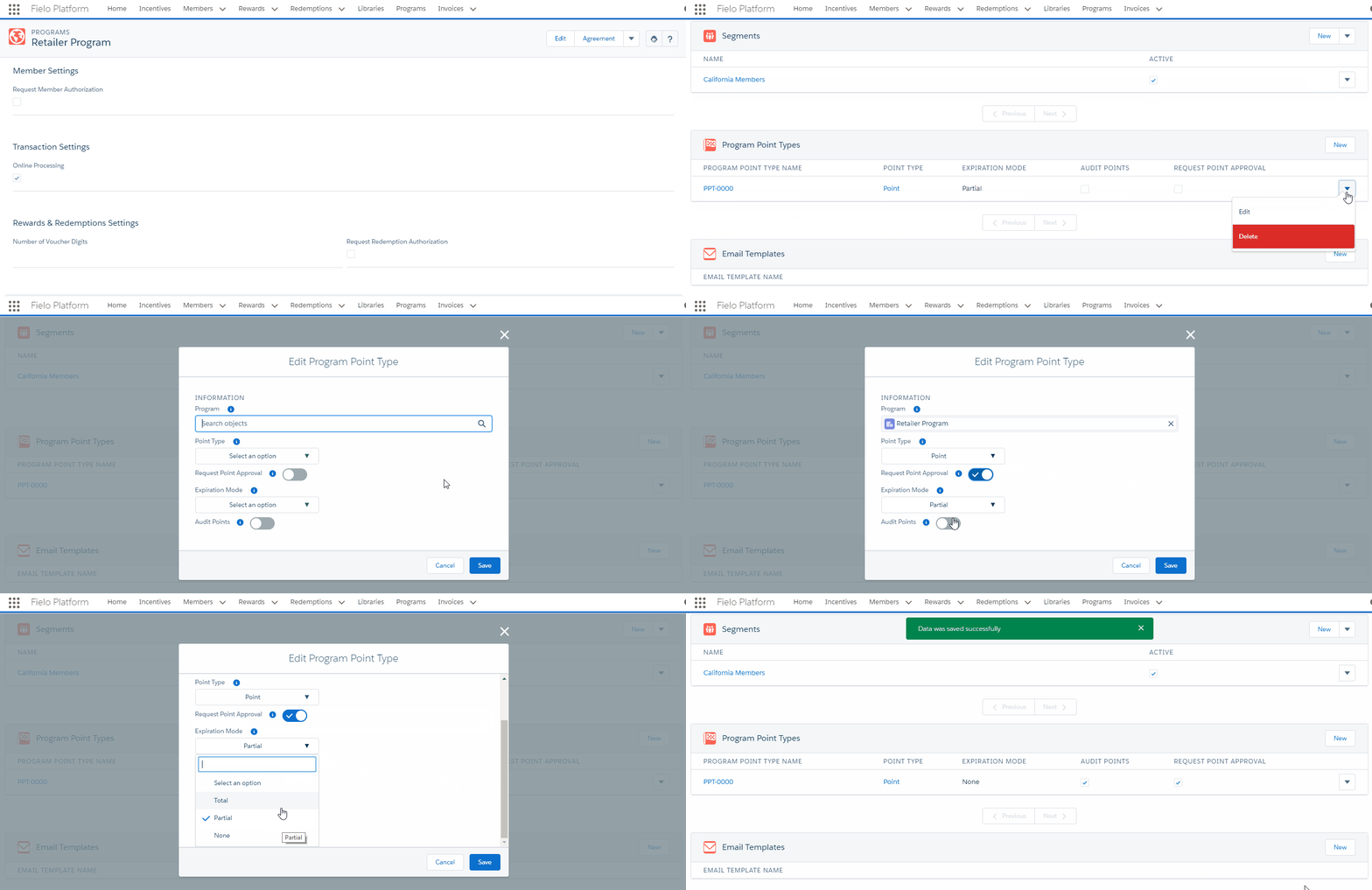
Program Point Types Management Tools
There are several tools that let you manage your Program Point Types. You can access these tools by selecting the Program your Point Type is connected to and clicking on Program Point Type related list.
New
Click New to create a new Program Point Type.
Edit
Select Edit whenever you need to modify any of the current Program Point Type configuration.
Delete
Select Delete to eliminate any available Program Point Type.
Updated over 1 year ago