
Join Program
Where the Member journey begins
Join Program allows Users of a preexisting Salesforce Community to join a Program. You can also use it to let registered Members enroll in any other Programs that you want to make available to them.
Who It's For
Join Program is for loyalty admins who want to include loyalty and incentives in a preexisting Salesforce Community. With this component, registered Users can join a Program and begin engaging with it in their Community via Fielo Lightning Components.
It's also for admins wanting to offer existing Members the chance to join and engage with additional Programs within the same Community.
What It Does
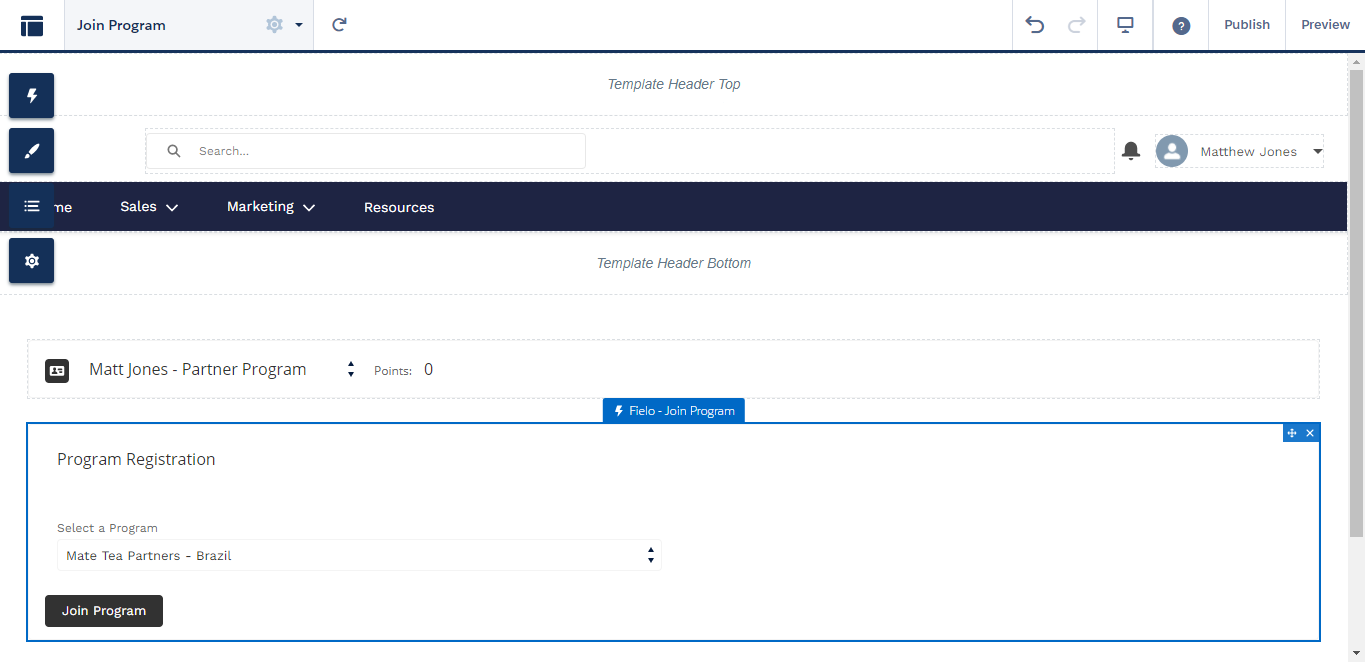
Join Program lists the Program(s) available for a Community User to join. The User selects the Program he or she wants to join from the menu and clicks Join Program. The new Member is then sent a Welcome e-mail.
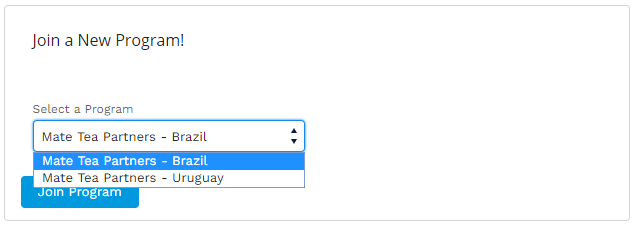
Join Program Component
How It Works
When a Community user joins a Program, an Individual Member is created in the Program that the user selected. This new Member has a lookup relationship to the Contact associated with the User, as well as a lookup relationship to the Account associated with that Contact (if any).
Before Starting
Before getting started with Join Program, you'll need to make sure some things in your org are in proper order.
Give Community Users Fielo Object Permissions
If you're using Join Program to enable preexisting Community users to join their first Fielo Program, you'll want to make sure they have the appropriate Object Permissions and Field Permissions for Fielo resources.
Assigning Object and Field PermissionsYou can choose to either assign Fielo permissions to your Community users' Profile or create a Permission Set for Fielo objects and assign your Community users to that permission set.
Community users who are Members of a Fielo Program require Read permission for the following custom objects, as well as Read access for each of the fields within them:
- Agreement
- Badge
- Badge Member
- Challenge
- Challenge Member
- Challenge Reward
- Member
- Mission
- Mission Member
- Point
- Program
- Promotion
- Redemption
- Redemption Item
- Reward
- Reward Item
- Rule
- Transaction
In addition, be sure to assign Read permission for objects and fields related to any Fielo Apps you may be using in your org.
Customize Your Welcome Email
When Community users join a Program, they will automatically receive a welcome email. We recommend that you take a look at this welcome email.
From Setup, search for and select Classic Email Templates. Go into the folder called Fielo Templates and select Welcome Email.
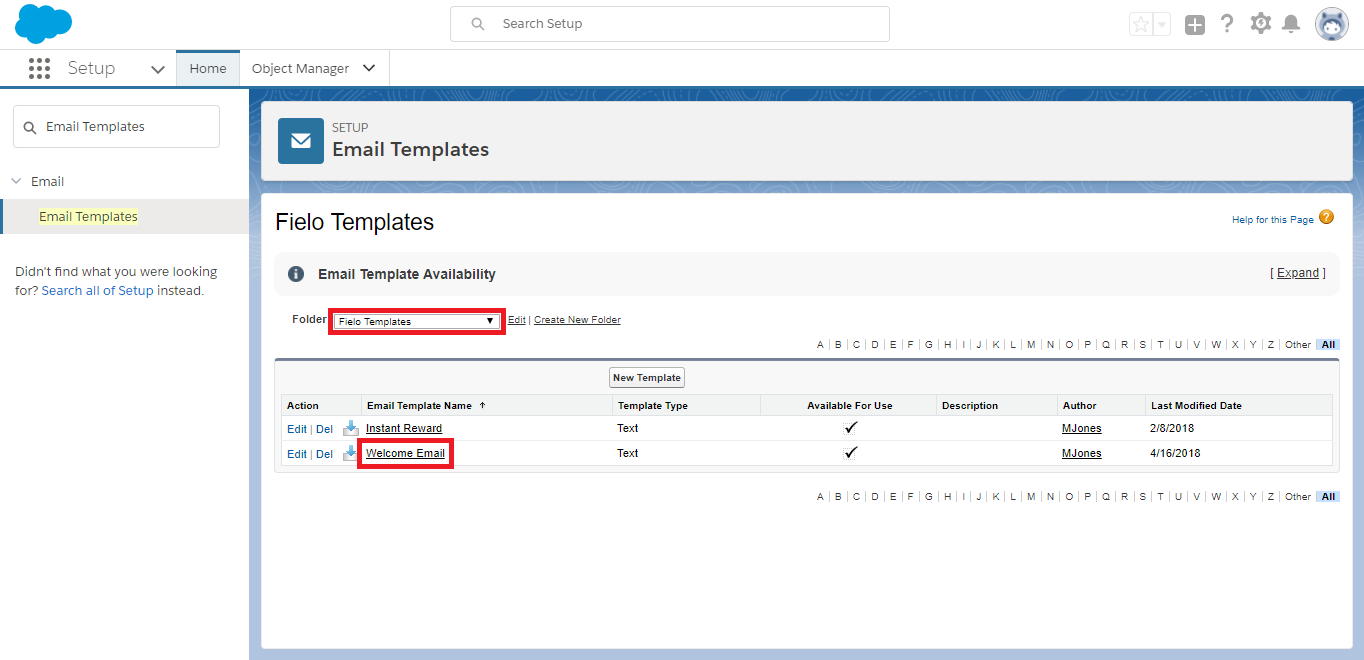
Before adding Join Program to your Community, be sure to make any content changes your loyalty program requires, such as company branding and Program-specific details.
Salesforce Email TemplatesFor details on working with Salesforce Email Templates, see Salesforce's Email Templates doc.
Using Join Program
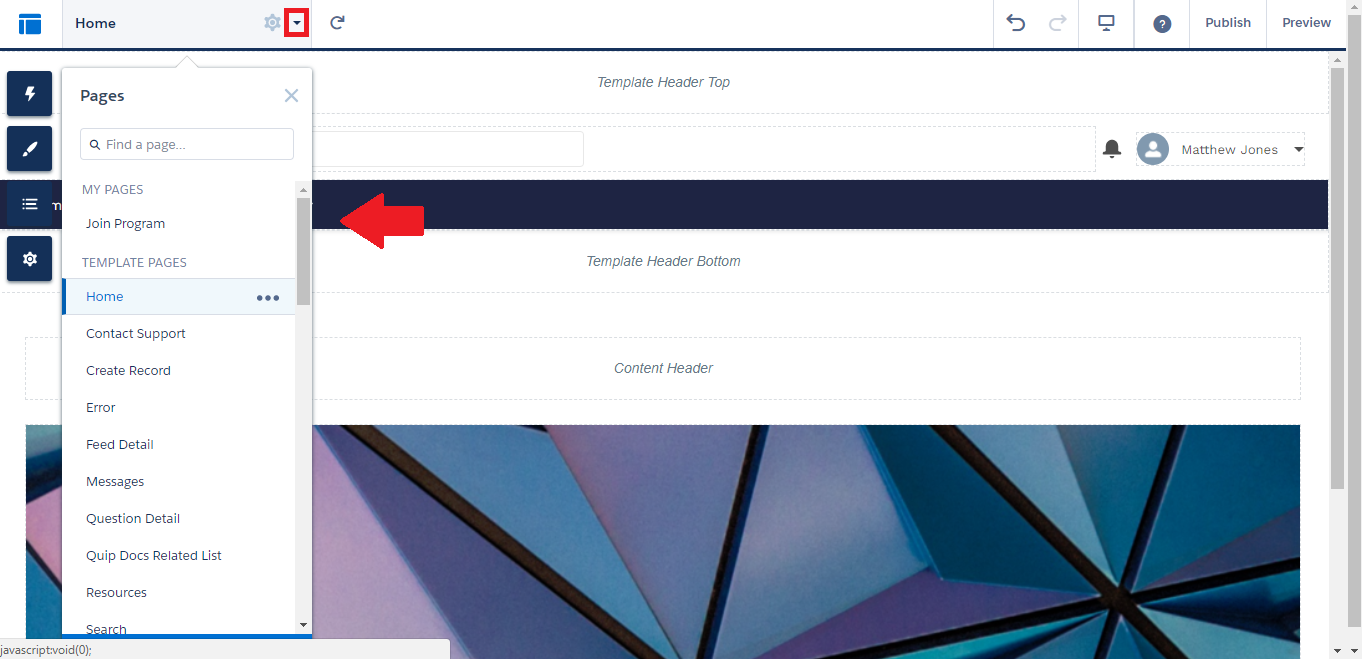
From Setup, access the All Communities page and select Builder for your Community. In Builder, click in the page menu and navigate to the page you'd like to use Join Program on.
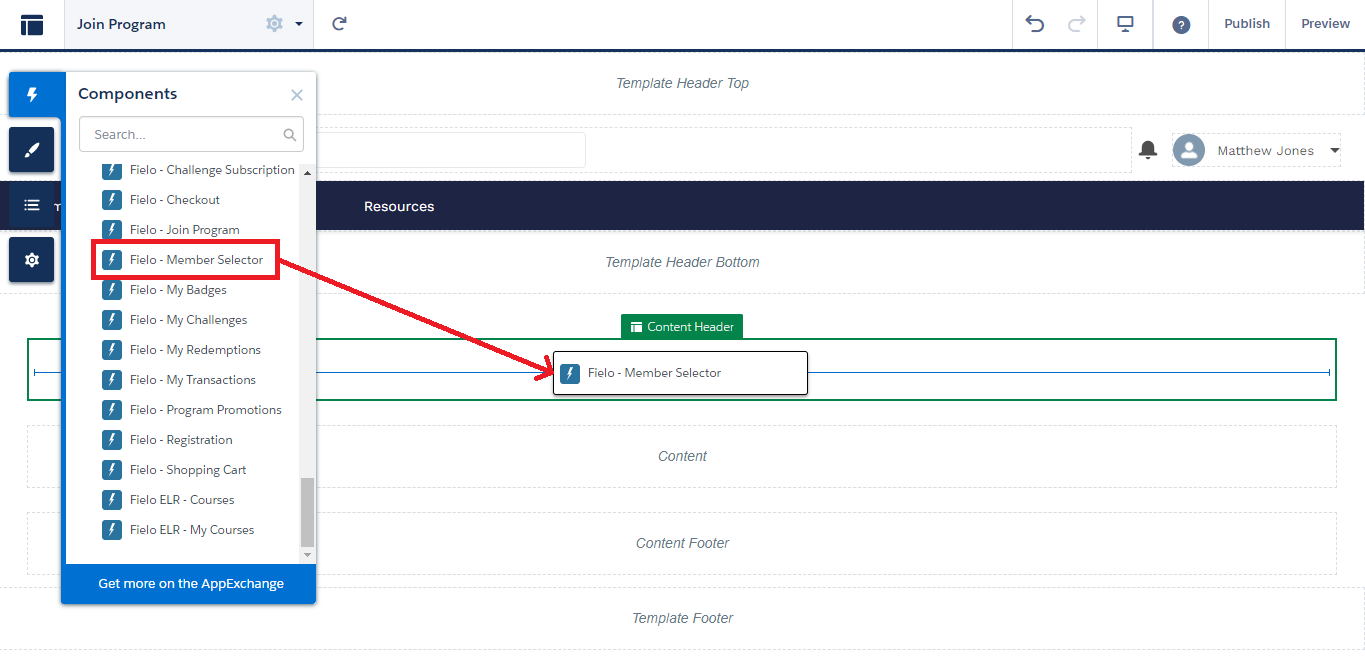
Click and drag and drop the Fielo - Member Selector component into the Content Header of your page. This component shows existing Members' information and is invisible to non-Members until they join their first Program.
Add Member Selector to Pages that use Fielo Lightning ComponentsBecause most Fielo Lightning Components depend on Member data, add the Member Selector component to all pages that use Fielo components (except Registration).
Now, from the same components menu, drag and drop Fielo - Join Program onto your page.
Properties
With the component on your page, you can now configure Join Program to meet your loyalty portal's specific needs.
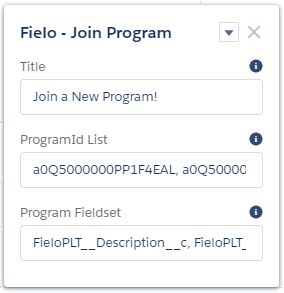
Join Program can be configured via the following properties:
- Title: Enter the title you want displayed at the top of the component (e.g.
Join a New Program!). - Program ID List: Enter the Program IDs for the Programs you want the Member to be able to join, separated by commas (e.g.
a0Q5000000PP1F4EAL, a0Q5000000NxSh3EAF8). This 18-character alphanumeric ID can be found in the URL of the Program detail page. If left blank, the Member will be able to join any Program. - Program Fieldset: Enter the API names of Program fields that you want to be displayed, separated by commas. The names of the programs in your Program list are included automatically.
Join Program Properties
Updated over 1 year ago
What's next
Now, let's dive into the components that motivate Members to take the next step in their journey!