
Libraries
Create and manage Libraries
Libraries are stacks which extend Fielo functionality. They comprise a suite of data such as Actions, Models and Page Settings designed to achieve more functionality for your incentive and loyalty program.
Each Fielo package includes its own reusable Library. For example, if you install and setup Proof of Purchase, you'll have its corresponding Library, FieloPRP, installed and ready to be enabled. You can also have and manage your own Library- Local Development Library- in which you can save all your customly-created Actions, Models and Page Settings to later reuse them as you like.
Managing Libraries
You can manage Libraries directly by accesing the Libraries tab. By default, all Libraries are Inactive but we guide you through how to enable them every time you install a new package - i.e. when installing and setting up Platform one of the last steps you need to do is enable FieloPLT Library; when you're setting up any Incentive and Loyalty Apps, we walk you on how to enable their corresponding Libraries (i.e. FieloPRP, FieloELR, FieloBCP).
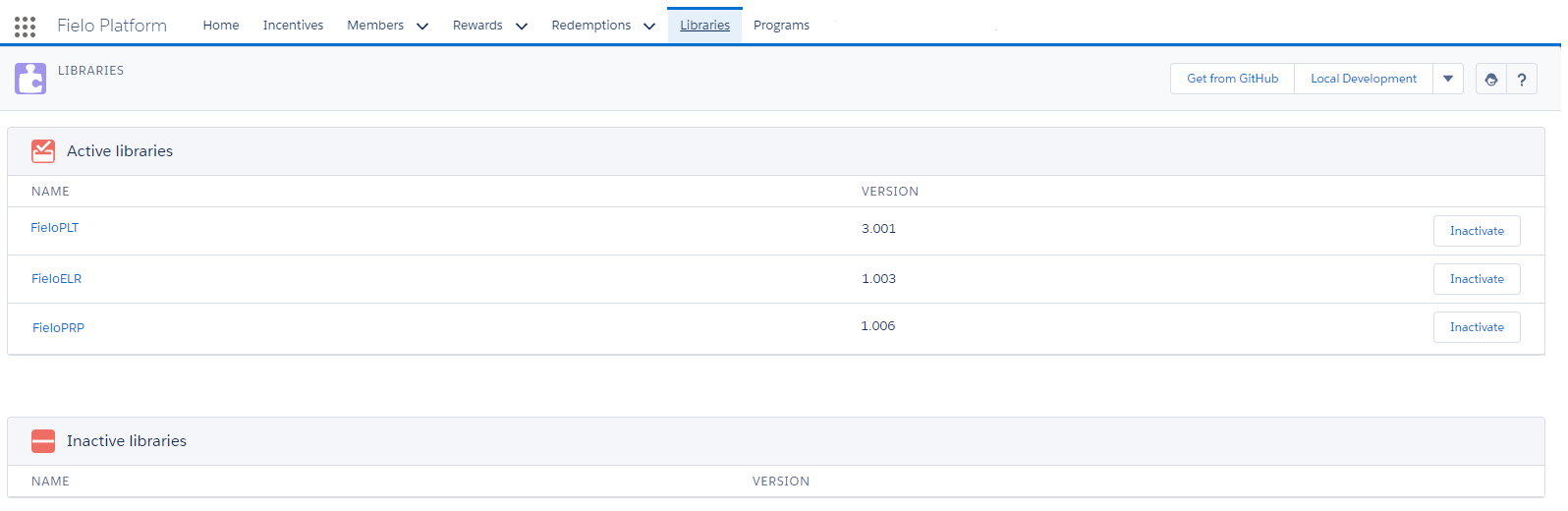
Libraries
Upgrading Libraries
Libraries might change when upgrading different Fielo packages. In the event that a new version of a Library is available, you'll have the possibility of upgrading them. For that, just click Upgrade next to the Library version to update.
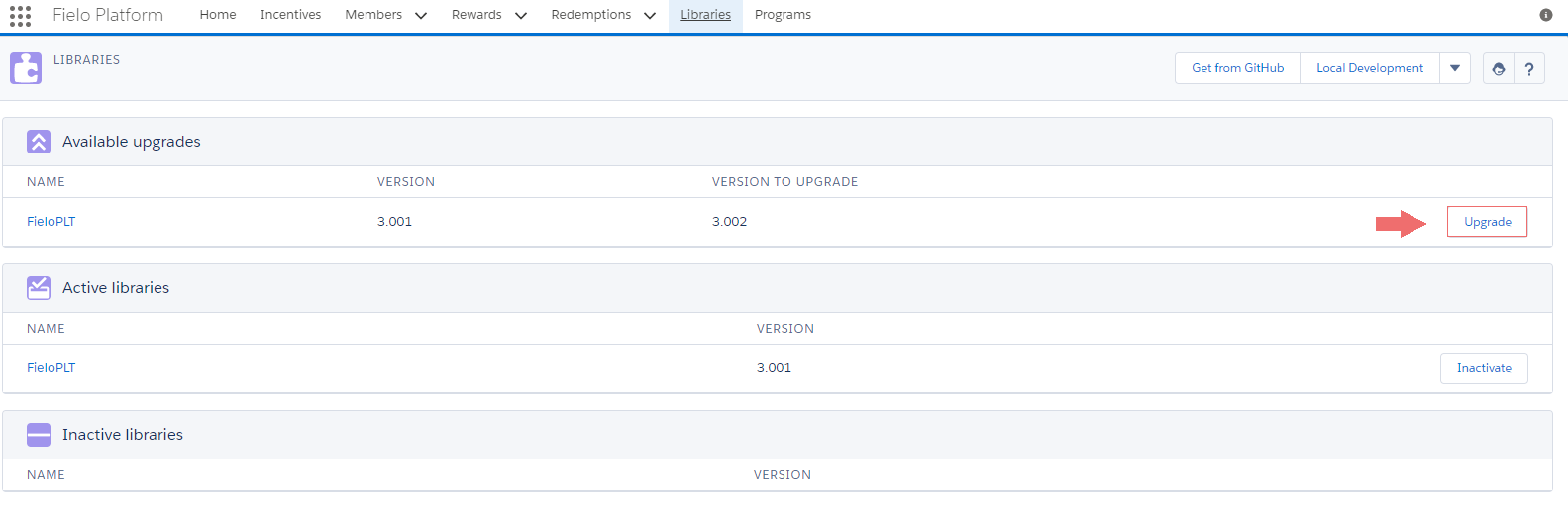
Upgrading FieloPLT Library
Once you've upgraded your selected Library, note that Available Upgrades is no longer available and that the Version Number has also changed, displaying the newly updated version.
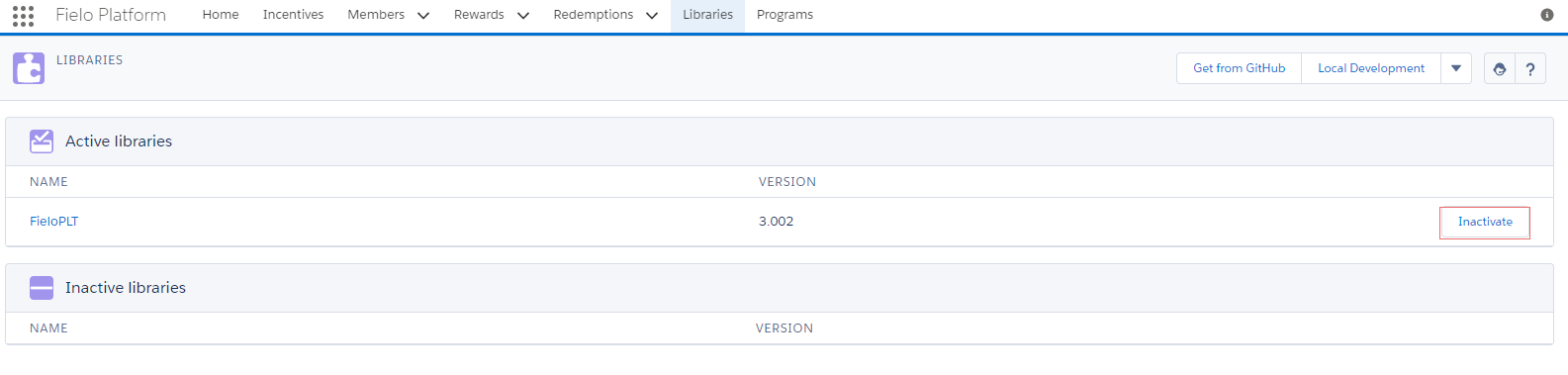
FieloPLT Upgraded Library
In this example, we're upgrading FieloPLT Library as we've installed a new version of Platform. You can do the same for each newly upgraded Library, such as FieloPRP, FieloELR, FieloBCP, etc.
Importing Libraries
elect Import to import a Library you or a colleague has previously exported.
Simply upload a JSON file containing all the data for the Library you wish to import. In most cases, this will be one that's been previously exported from another ORG, so you won't need to make any changes. We do, however, advise you to validate the JSON file before uploading.
Once you're ready, just hit Import.
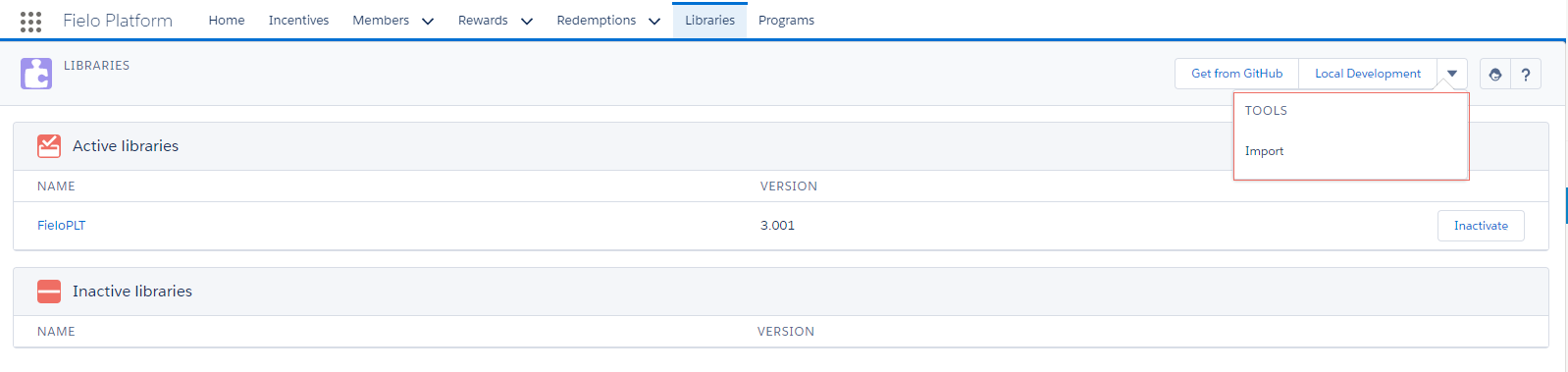
Importing a Library
FieloPLT Library
Platform comes with its own default Library called FieloPLT. FieloPLT Library includes a default Action - Event - and their Page Settings.
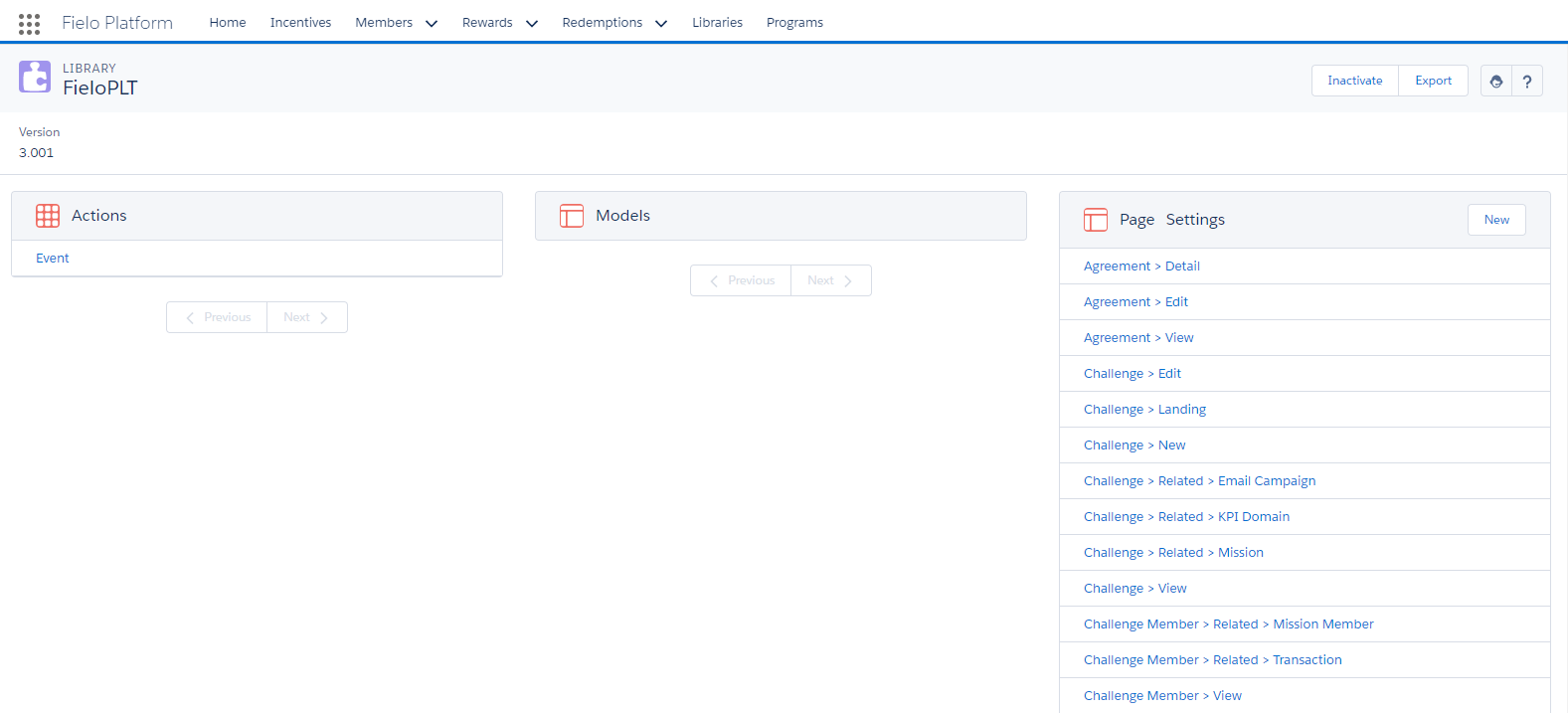
FieloPLT Library
Actions
Actions let you decide which behavior and participants to drive in your incentive and loyalty Program.
You can choose to drive a particular behavior by using Single Action Engine- i.e. award your Members every time they log in to your loyalty portal - or you can encourage your Members to carry out a set of activities in certain order, time frame or number by means of Multi Action Engine - i.e. you award your Members after logging 5 times in to your portal.
Platform comes with a default Action in FieloPLT Library - Event - which you can use as example to create your own Actions.
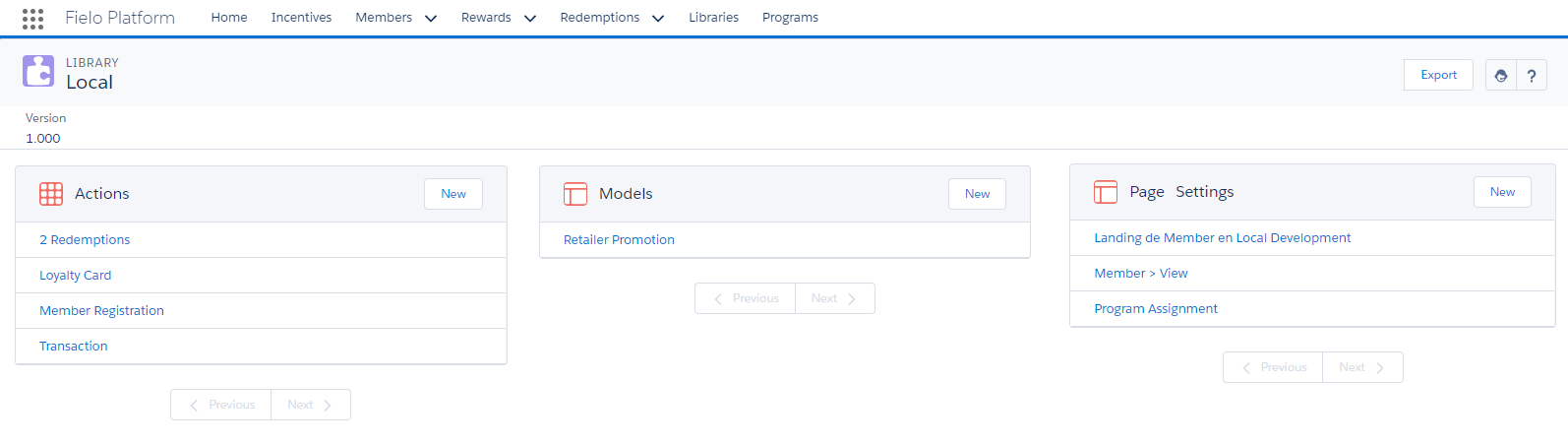
Action: Event
Models
Models are pre-configured, reusable Incentives and Programs templates you can use to create Programs and Incentives easier and faster. FieloPLT Library doesn't come with any Model, but some other Fielo packages, such as Proof of Purchase or E-learning, do bring some Models you can start using from scratch.
You can create new Models and reuse them any time you want! All of your own created Models are stored in Local Development Library.
Page Settings
Page Settings is a tool which lets you extend and customize Platform pages functionality and design. FieloPLT Library includes an array of different Page Settings for each page and form that can be customizable.
You can create new Page Settings for FieloPLT Library just by hitting New.
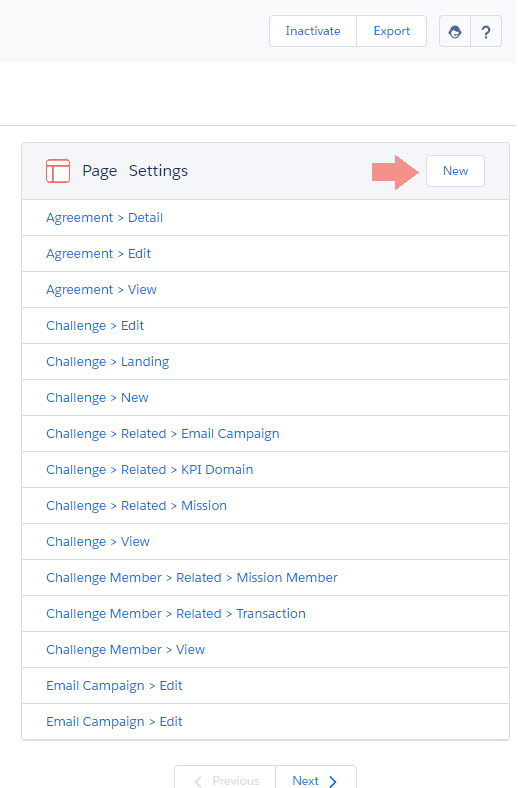
FieloPLT Page Settings
For a complete understanding on how Page Settings work, check Page Settings.
Activating and inactivating FieloPLT Library
You must enable FieloPLT Library to use Platform, as it contains all Page Settings that control every Platform page layout and design. For that reason, it's one of the last step while setting up Platform.
To enable FieloPLT Library - and any other Library as well - just hit Activate on the right area of the Inactive Libraries related list. You'll see how FieloPLT moves from Inactive to the Active Libraries related list, which makes it ready for you to click and access it.
Inactive FieloPLT LibraryIf FieloPLT Library is *Inactive you won't see any page fromPlatform**.
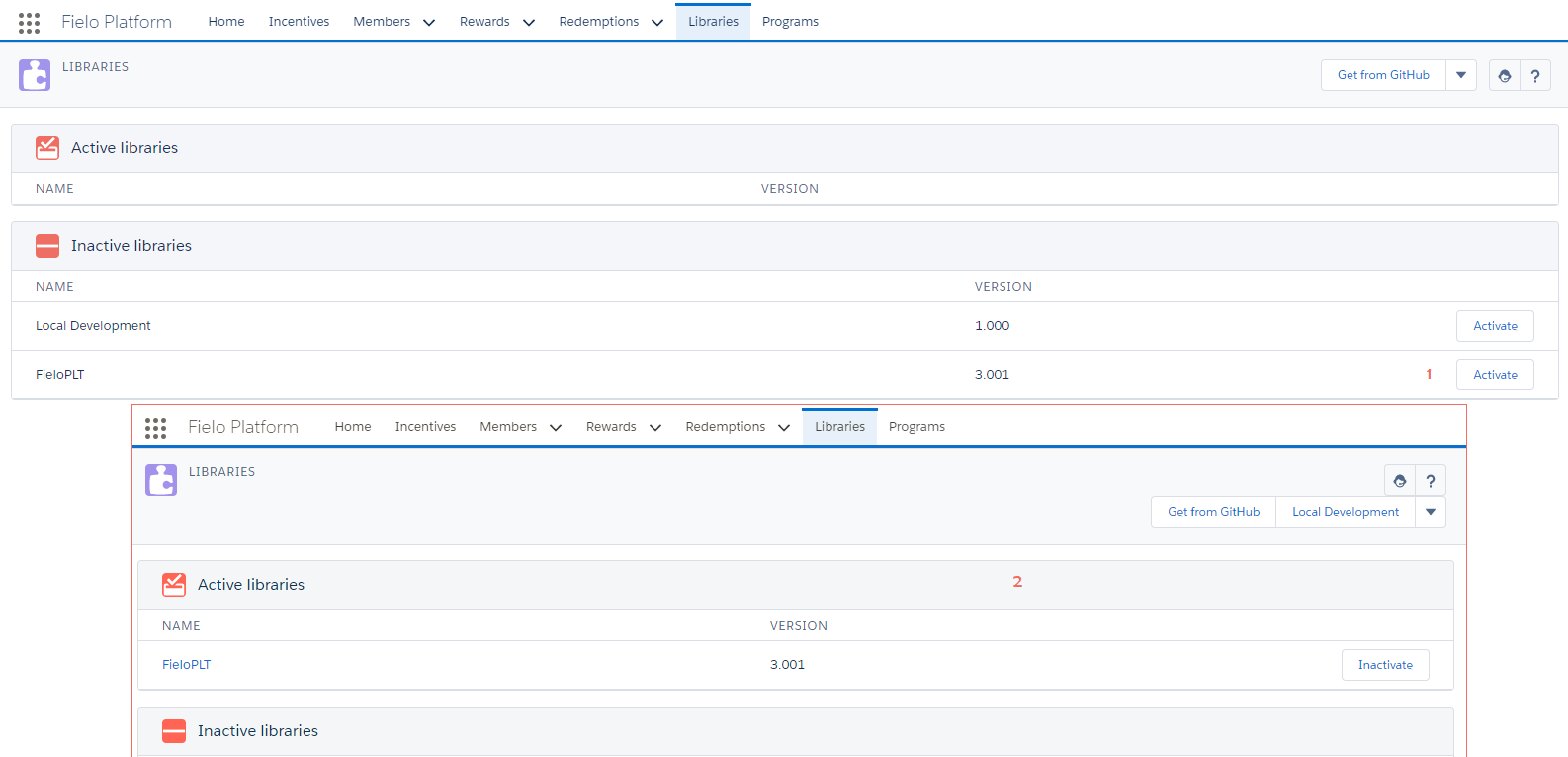
Activating FieloPLT Library
Exporting FieloPLT Library
You can easily export all data stored in FieloPLT Library, which can include Actions and Models, as well as all Page Settings of all Programs. After selecting FieloPLT, simply click Export in the top right corner of the page.
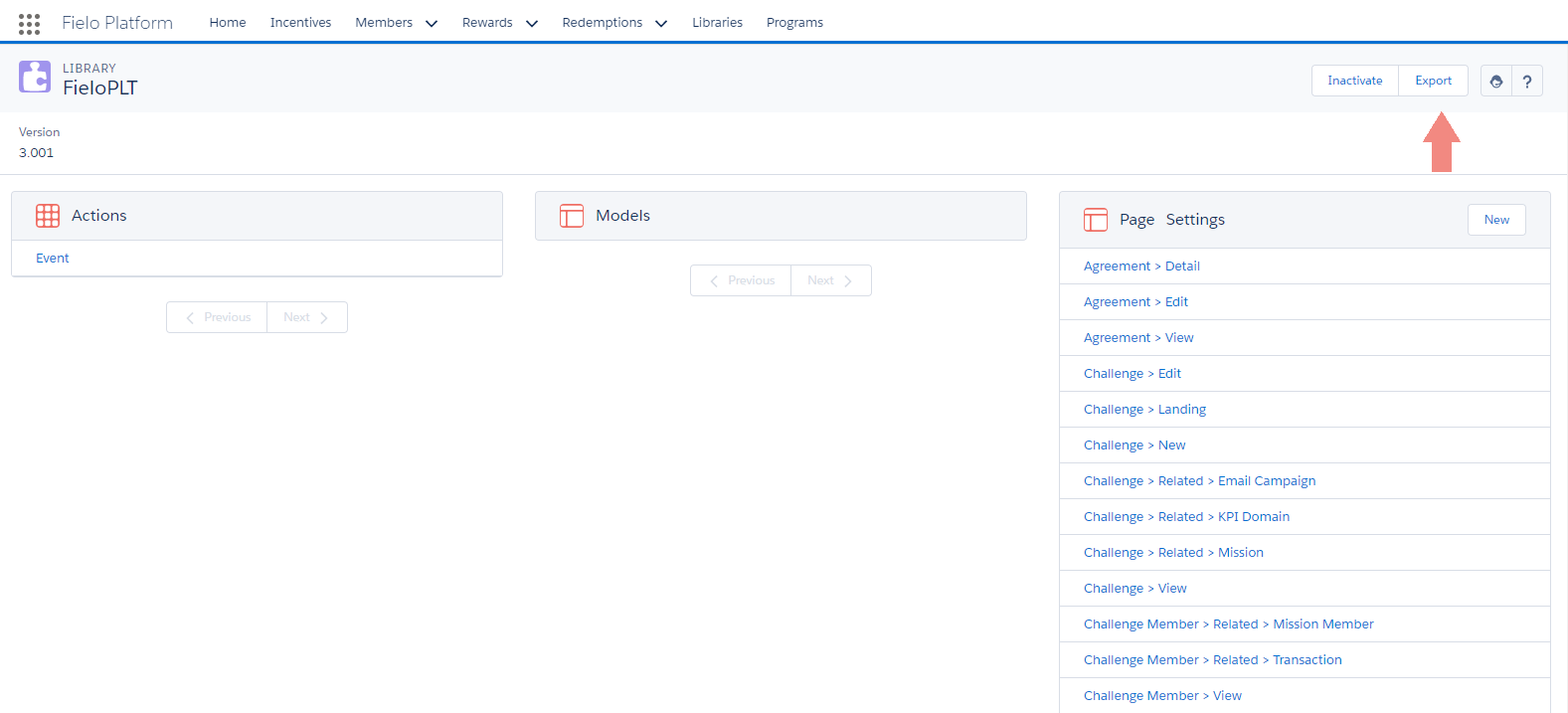
Exporting FieloPLT
You'll obtain a file in a JSON format containing the following object hierarchy:
FieloPLT Library (FieloPLT__Library__c)
FieloPLT__RuleTrigger__cFieloPLT__Action__cFieloPLT__ProgramAssignment__c
FieloPLT__KPI__c
FieloPLT__Model__cFieloPLT__ProgramAssignment__c
FieloPLT__PageSettings__cFieloPLT__ProgramAssignment__c
You can export FieloPLT Library and then import the generated JSON in different ORGs. This tool is really useful when migrating from different ORGs, for example, from Sandbox ORGs to Production ORGs.
Get from GitHub
You can access our Github public repository, which includes different plugins to extend Fielo functionality. These plugins may be used for several specific solutions which can be applied to any of your customers' particular needs.
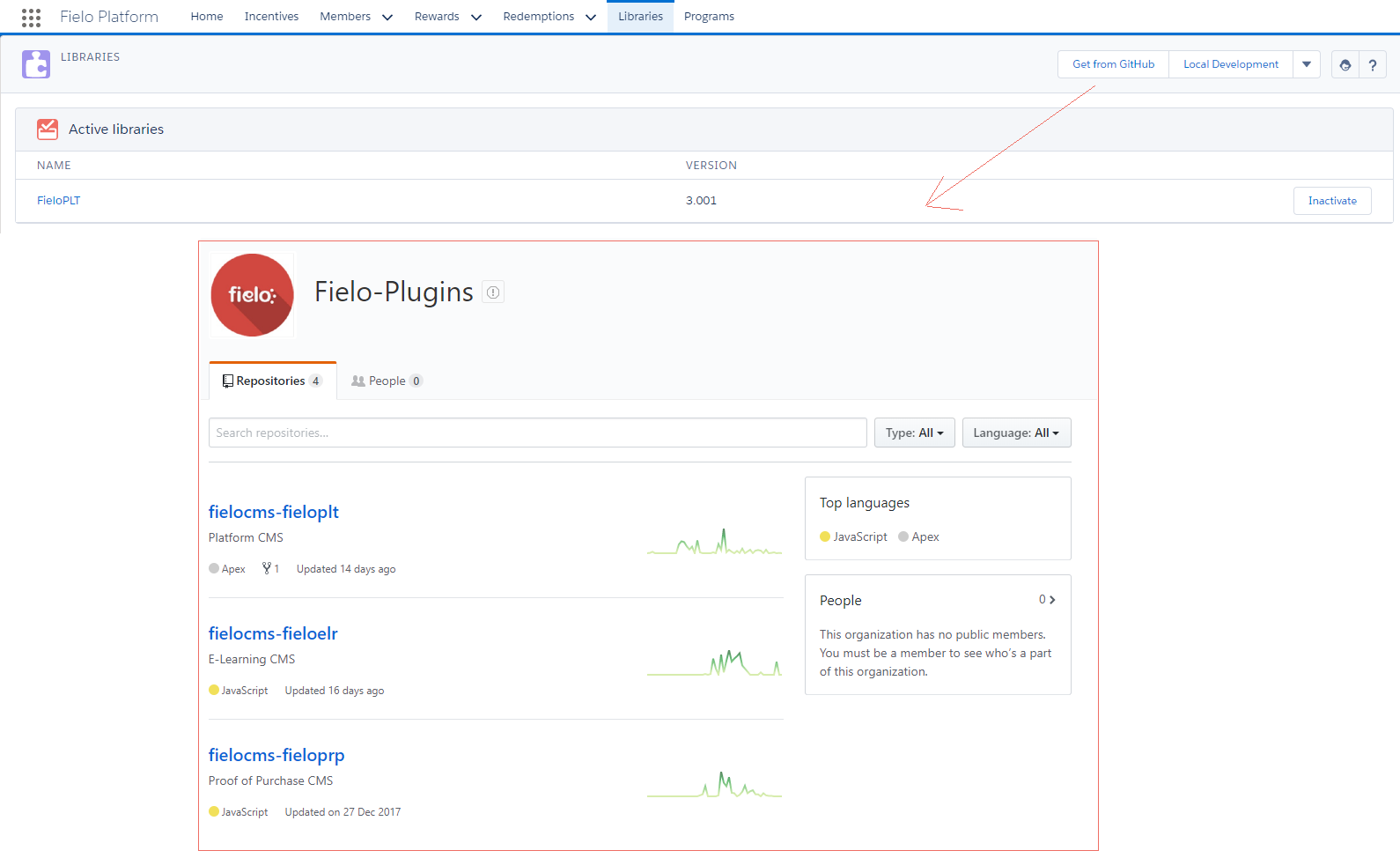
Get from Github
Local Development Library
Local Development Library represents a local repository you can use to create and store your own Actions, Models and Page Settings, independently of the default Libraries that come after installing the different Fielo packages.
To enable Local Library - and any other Library as well - just hit Activate on the right area of the Inactive Libraries related list. You'll see how Local Library is no longer part of the Inactive box but now it's available to access by clicking Local Library at the top right area of the page.
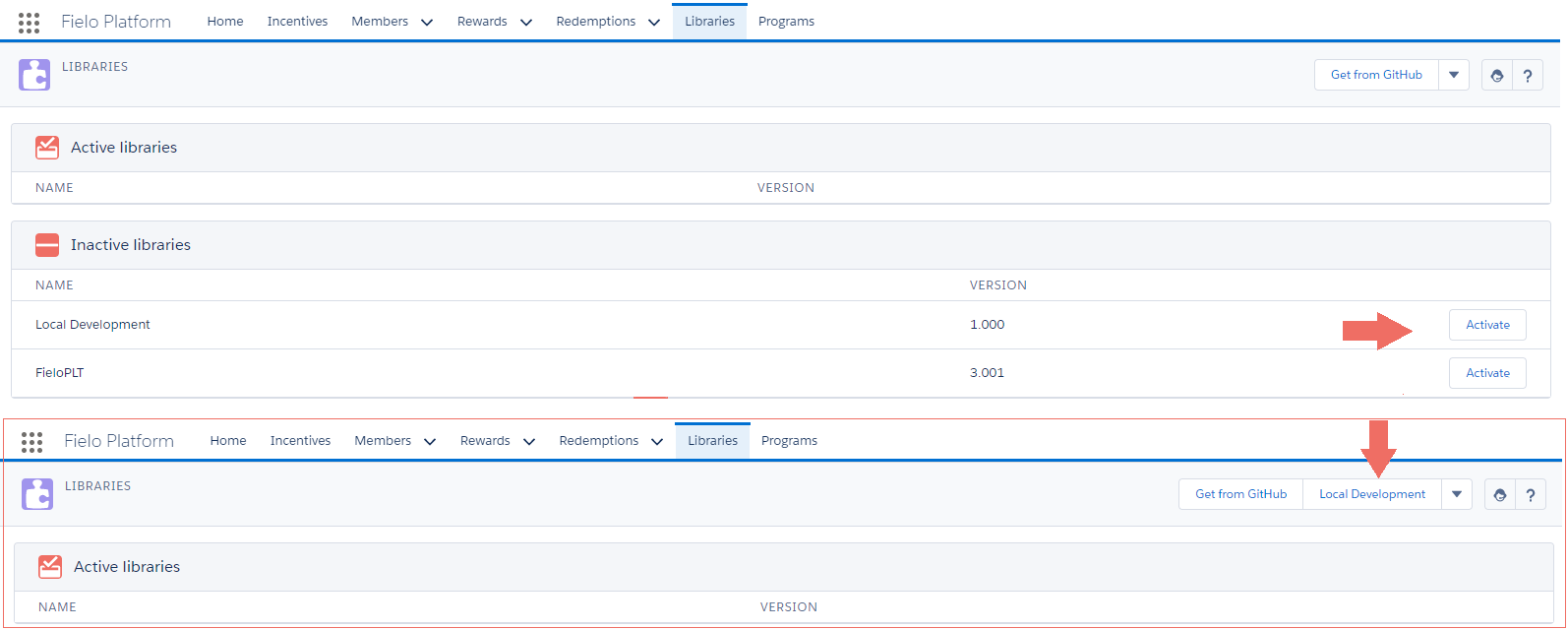
Activating Local Library
Once you've accessed Local Development, you are free to create all the Actions, Models and Page Settings you want!
Export
You can easily export all data stored in your Local Development Library, which may include Actions and Models, as well as all the Page Settings you've created for your Programs. After selecting Local Development, simply click Export in the top right corner of the page.
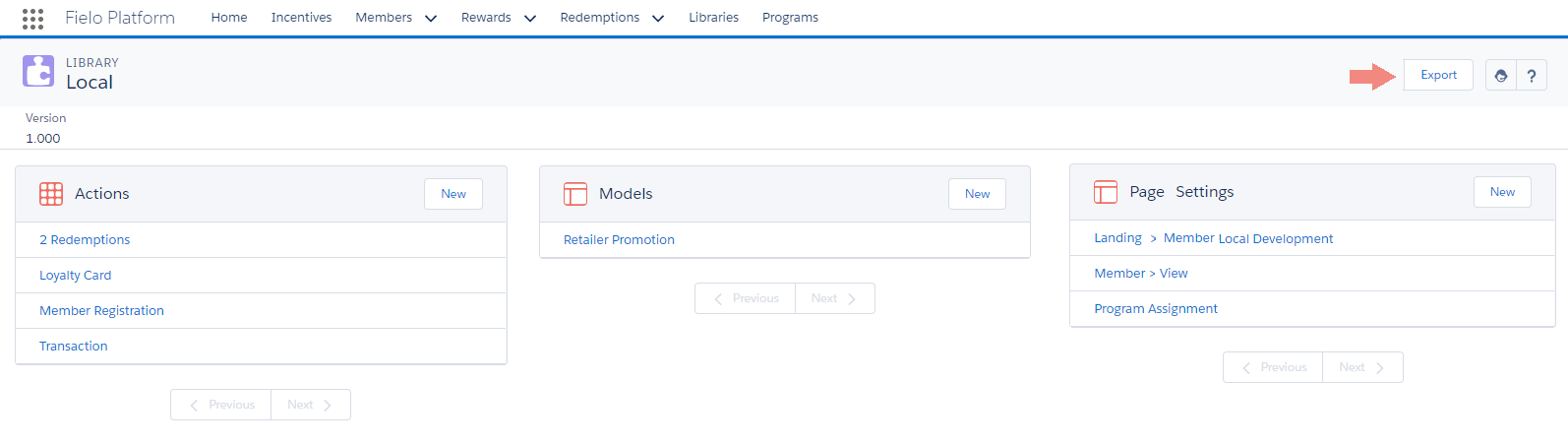
Local Development Library
Fielo Local Library
FieloPLT__RuleTrigger__cFieloPLT__Action__cFieloPLT__ProgramAssignment__c
FieloPLT__KPI__c
FieloPLT__Model__cFieloPLT__ProgramAssignment__c
FieloPLT__PageSettings__cFieloPLT__ProgramAssignment__c
Advanced Features: Export and Import Utilities
The Export and Import utilities provide a simple way for you to transfer data and record objects between different ORGs. When you run export against some Platform objects - such as Incentives, Rewards Programs and Libraries - their information is extracted together with their related objects (such as Promotions, Challenges, etc.), if any. The extracted data is written to a JSON file.
In case you need to export some specific information from a Library - i.e. you'd like to obtain only Models from your Local Development Library or the Segments from a Program- or some data that cannot be obtained by hitting an existing Export button - i.e. a list of Redemptions, custom objects and fields that you've added to extend any Platform feature - follow the steps below to get a full picture of how you can do it.
Create an Export Config file
The first thing you need to do is to create an Export Config file. Export Config is a JSON file that includes two elements:
- configObjects: Here you can define all metadata from the objects you need to export, which includes their External ID and the fields to exclude.
- configModel: Here you define the data model to export, being sure to include any parent or related objects and lookup fields. You can also define a record filter using a whereCondition
{
   "configObjects":[
      {
         "apiName":"ExampleObject__c",
         "externalId":"ExampleField_ExternalID",
         "fieldsToExclude":"ExcludedField1__c,ExcludedField2__c",         "fieldsToExcludeModel":"ExcludedField1__c,ExcludedField2__c,ExcludedField3__c"
      },
      {
         "apiName":"AnotherExampleObject__c",
         "externalId":"AnotherExampleField_ExternalID"
      }
   ],
   "configModel":[
      {
         "apiName":"ExampleObject__c",
         "relatedObjects":[
            {
               "apiName":"RelatedObject__c",
               "relationship":"LookupExampleField",
               "relatedObjects":[
                  {
                     "apiName":"ParentObject__c",
                     "relationship":"LookupExampleField",
                     "whereCondition":"[{\"field\":\"AFieldToFilter__c\",\"operator\": \"=\",\"value\":\"SomeValue\"}]"
                  }
               ]
            },
            {
               "apiName":"AnotherRelatedObject__c",
               "relationship":"AnotherLookupExampleField"

            }
         ]
      }
   ]
}
Imagine that you've created your own Page Settings to customize certain pages layout and you only need to export these Page Settings, but not the whole Local Development Library - no Actions nor Models. To do this, the first thing you need to do is create an Export Config as follows:
{
   "configObjects":[],
   "configModel":[
      {
         "apiName":"FieloPLT__PageSettings__c",
         "whereCondition":"[{\"field\":\"FieloPLT__Library__r.Name\",\"operator\": \"=\",\"value\":\"FieloLocal\"}]",
         "relatedObjects":[]
      }
   ]
}
Create an Export Point
Once the Export Config JSON file is ready, it's time to set an Export Point in Platform. An Export Point defines where the data you're exporting comes from. To do this, go through the following steps:
First, go to Setup and choose Static Resources in Platform Tools section. Click New to create a new Static Resource.
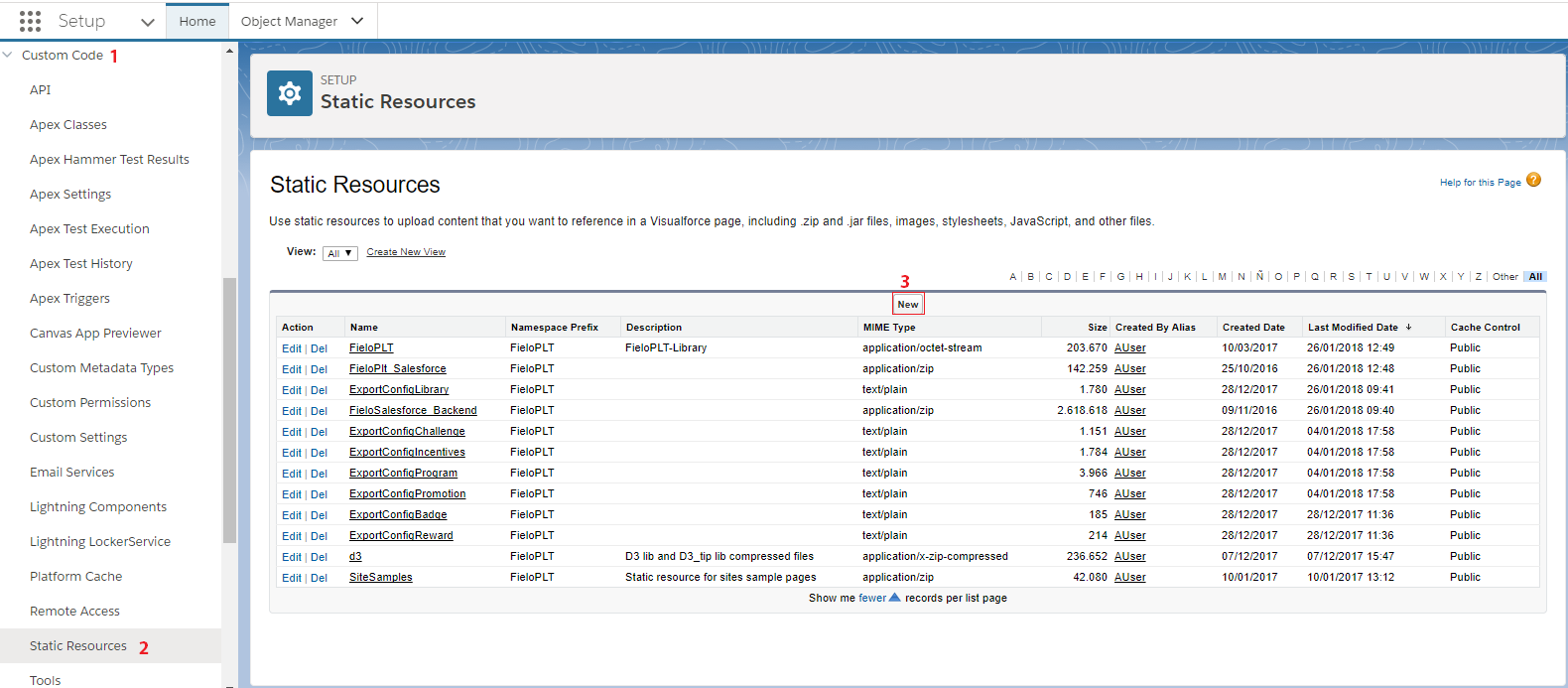
New Static Resource
Now, enter the name for your Static Resource and upload the Export Config file containing the JSON definition of what we want to export.
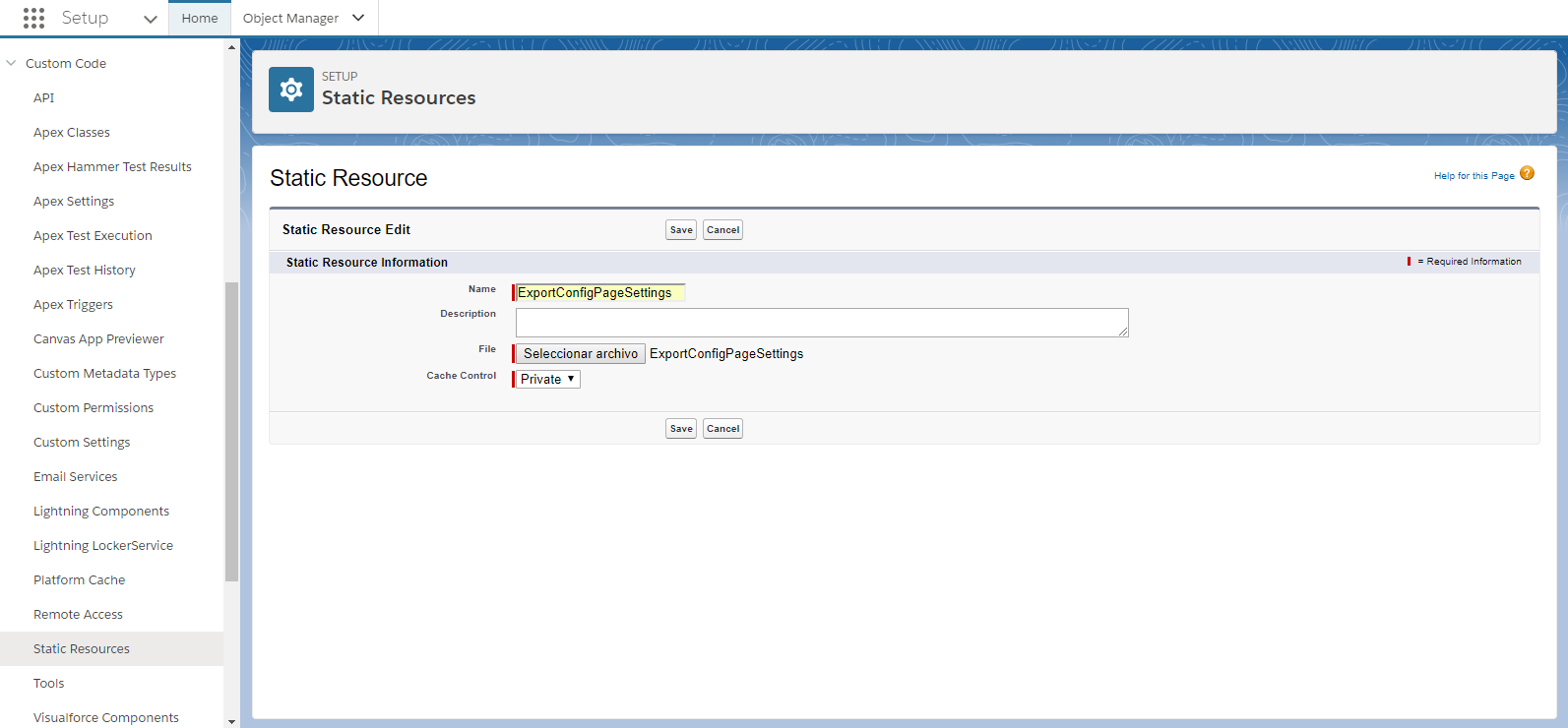
Export Config Page Settings
In this example, we're using the Export Config JSON file for Page Settings that we've created in Create an Export Config file.
After clicking Save you're ready to use your new Export Point.
We advise you to name your Static Resource and Export Config JSON file the same way.
Link an Export Point to a Library
Lastly, you need to do is connect the Export Point you've created before to the corresponding Library.
Internally, all information from each Fielo product is stored in different Libraries, i.e. all Platform data included in Programs, Incentives, Rewards, etc. is stored in FieloPLT Library; all Courses, Modules and Questions information is linked to FieloELR Library, and the same happens to Invoices included in FieloPRP Library.
So, once you've created your Export Point, go to the appropiate Library where the information you're exporting is stored. Here we're accessing Local Development Library as we're using the same example from our custom Page Settings.
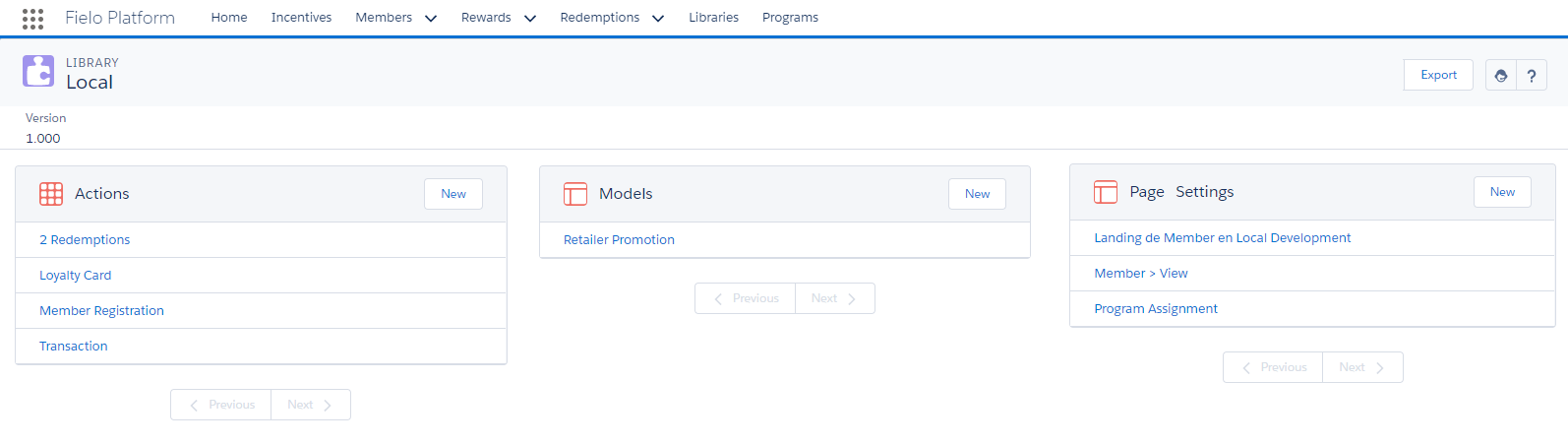
Page Settings in Local Development Library
Now, change the URL by deleting /apex/apex/LibraryView?id=and adding ?nooverride. You'll notice that Library details are displayed, including an Export Resources field.
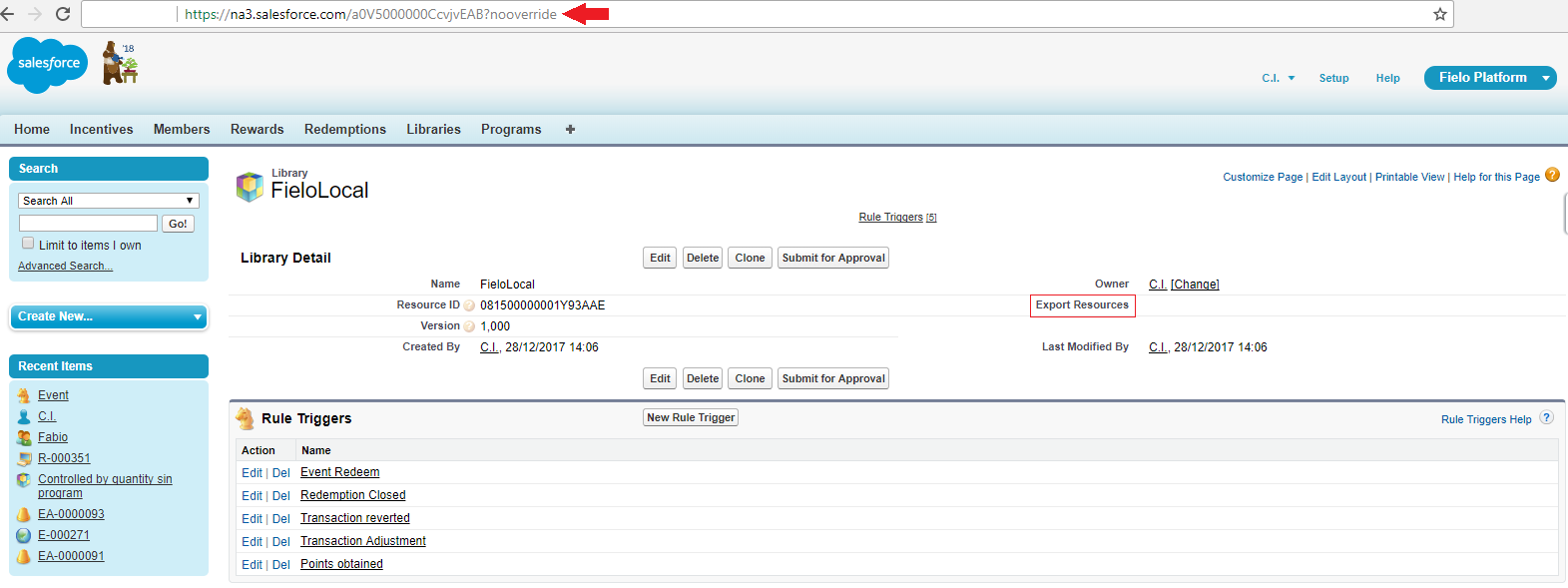
Local Library Details
Enter the name of the Export Point (Static Resource) - in our example ExportConfigPageSettings - that you've created before and hit Save.
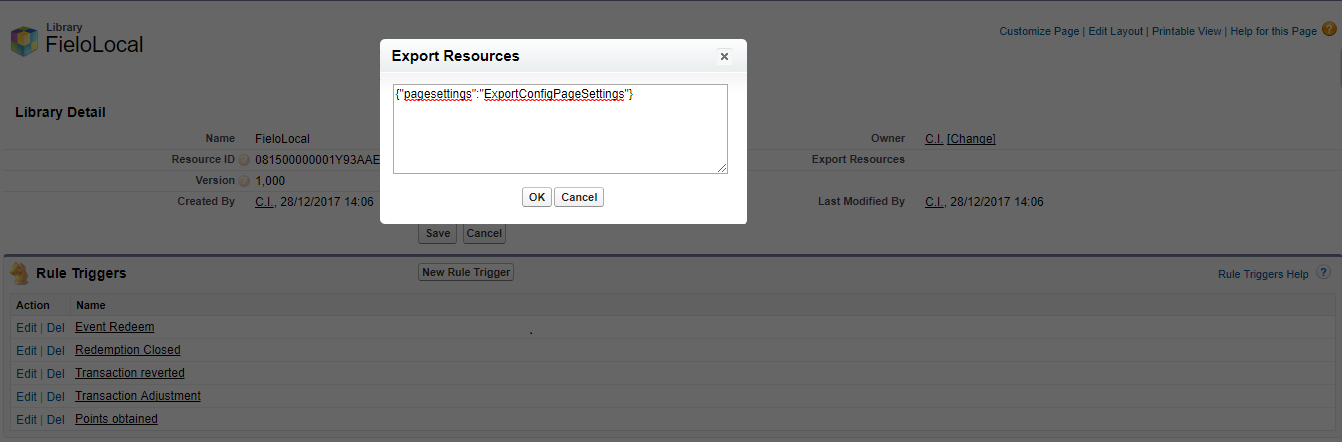
Export Resources
Using your Export Point
Once you've created an Export Config file containing the data you'd like to export and set up your Export Point, you can access your Export Point to download the data.
For that, you need to access a base URL as follows:
https://[app:Instance URL]/apex/fieloplt__xmlexport?exportPoint=yourExportPoint
You can include other parameters in the URL depending on the information you want your JSON export file to have:
- exportPoint: Name of the Export Point to download. This parameter is mandatory.
- library: Here you can define theLibrary in which the Export Point is stored.
- exportType:
- exportRecords: Here you can set the IDs of the records to export. The parameter should be structured as follows:
ExampleObject__c:recordId1,recordId2;AnotherExampleObject__c:recordId1.
For our Page Settings example, the URL we use is made up like this:
https://[app:Instance URL]/apex/fieloplt__xmlexport?exportPoint=pagesettings&library=FieloLocal
Updated over 1 year ago