
Automating Status Changes
How to update Course Status based on end date and start date
Here we will explain how to configure Courses so that their Status is automatically changed based on completion criteria. Let's clarify that for you:
The system searches for Courses whose Status is Scheduled but whose Start date is today. For Courses that match these conditions, the system will change the Status from Scheduled to Active.
The system also searches for Courses whose Status is Active but whose End date is yesterday. For Courses that match these conditions, if the Status is Active, it will be changed to Completed.
To configure this, follow these steps:
Automatic Status Update
Go to Setup.
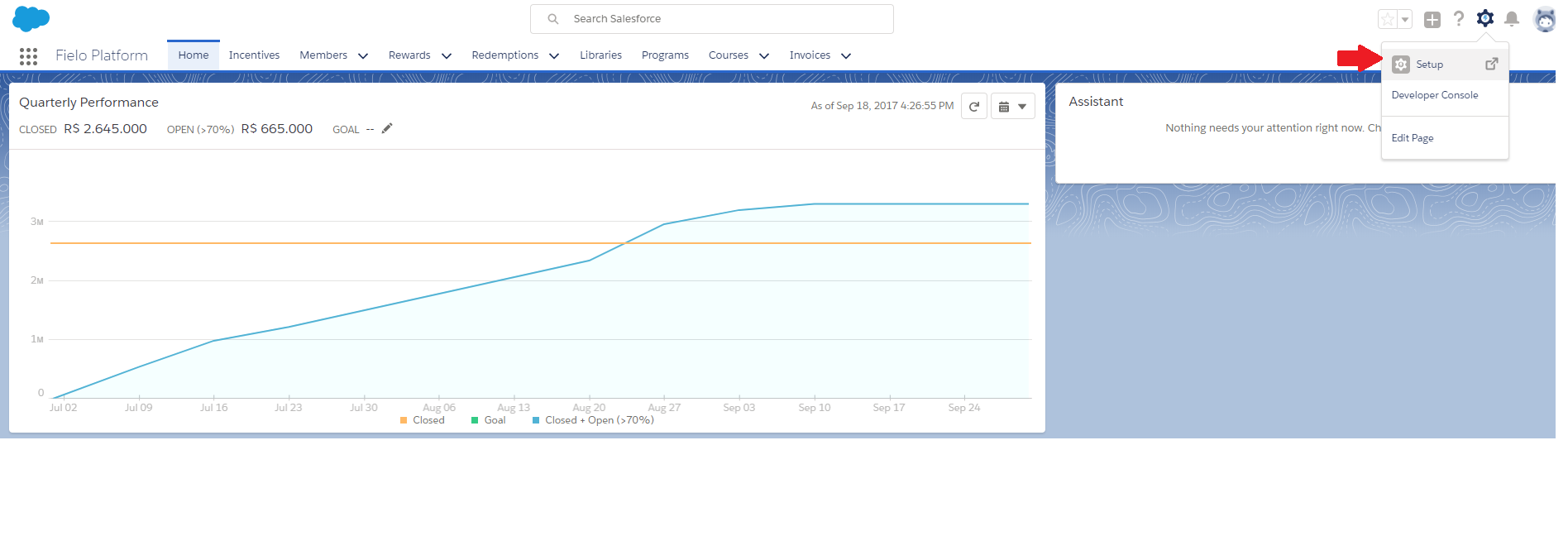
Setup
Then search for Jobs in the Quick find search bar, and click on Scheduled Jobs.
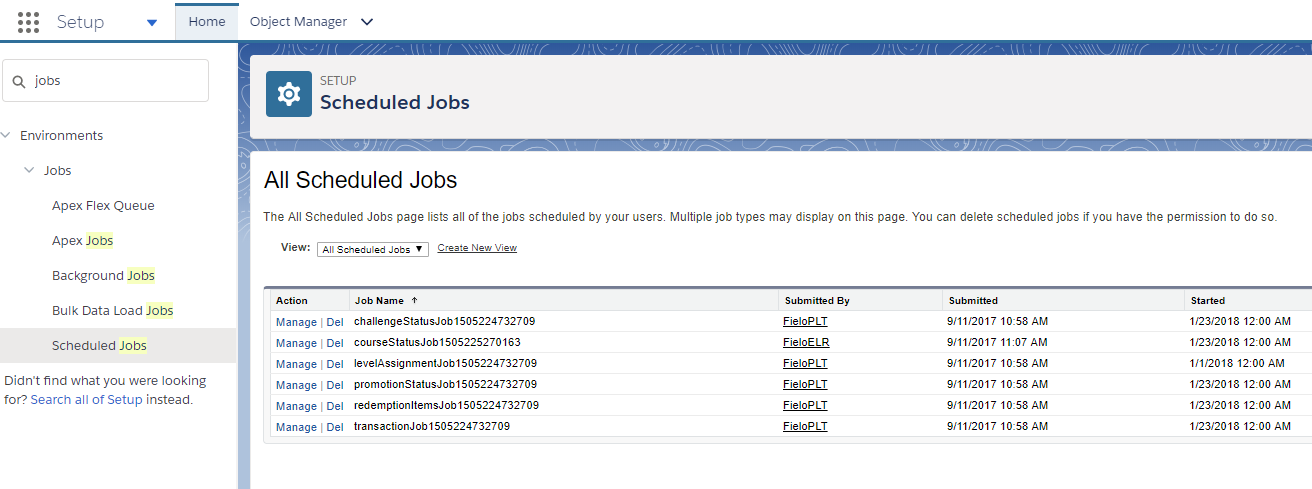
Scheduled Jobs
If no Scheduled job is set to CourseStatuschanging, it must be created as follows:
In the Quick find search bar, type in Custom Code, and click on Apex Classes. Then click on Schedule Apex.
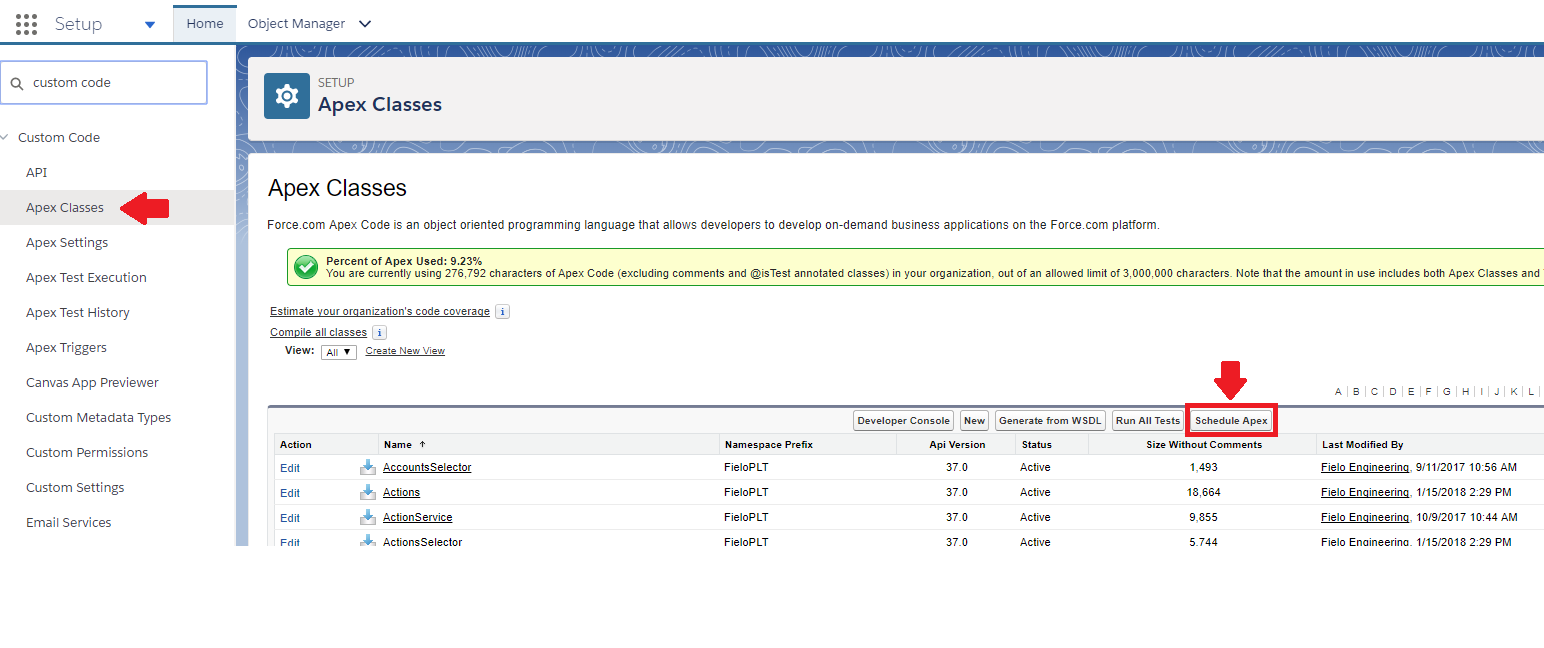
Schedule Apex
- Give the job a name, e.g., Course Status Update.
- Select the Apex Class
CourseStatusBatchSchedule.
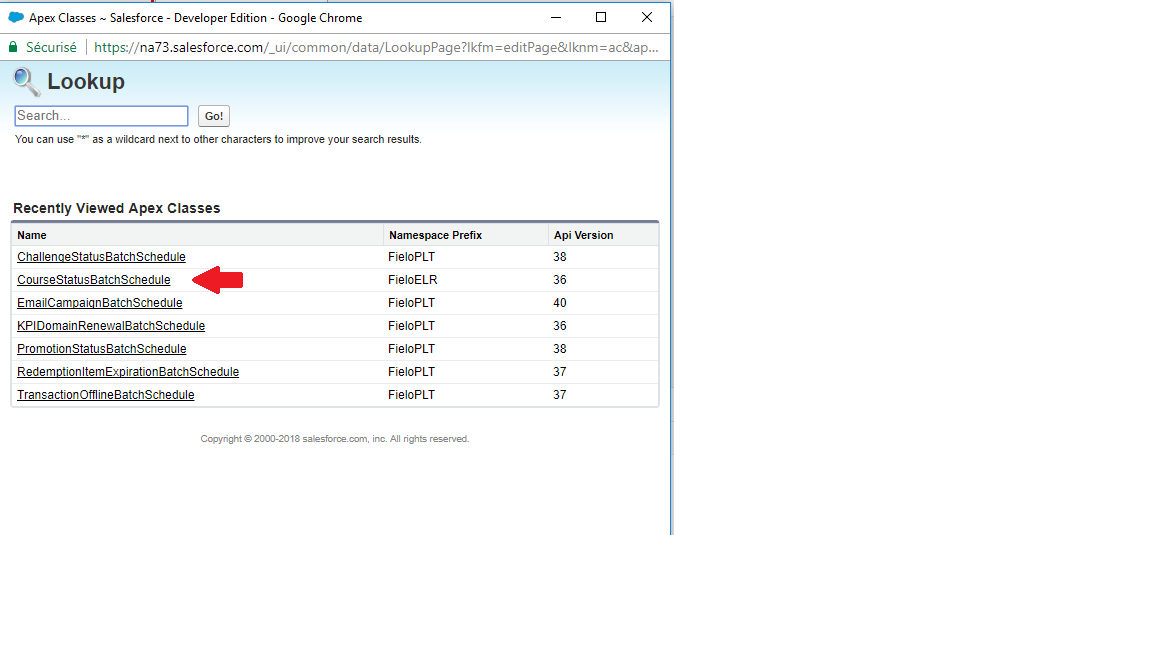
Course Status Batch Upload
- Set the frequency to Weekly and mark all days of the week.
- Define a Start date and an End date as well as the Preferred Start Time.
- Click Save.
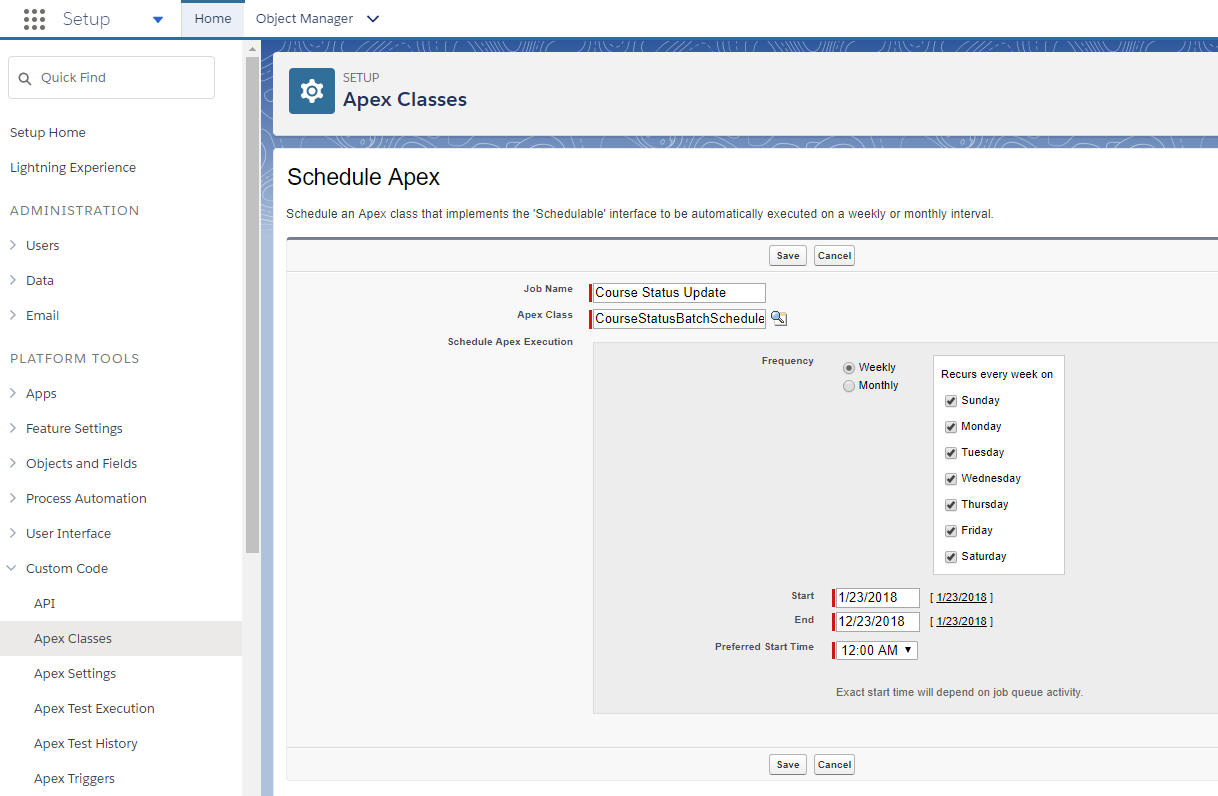
Schedule Apex filled
This configuration means that a Batch Process will run every day at the defined Preferred Start Time, from the defined Start date up to the defined End date.
Updated over 1 year ago