
Incentivizing Purchases
Defining your Proof of Purchase rules
Once you've set the Program Settings and you have uploaded the Invoice and/or approved it, you can encourage your Members by creating Promotions and Rules.
This is the part of the process where you configure what exactly it is you are incenting, and the detailed settings of the Rules - i.e. what exactly the Member needs to do, and what particular elements of the Invoice upload will earn them Points. Will it be the the amount spent or the number of Invoices uploaded? How many Points will they earn? Will there be more than one way of earning Points?
Setting up a Promotion
This is all explained in Incentives: Promotions. It's a simple process in which you define a Promotion name, its period and Segments, if applicable. You can create as many Promotions you like and each can include several Rules as well.
Defining Rule(s)
This is the stage at which you determine what exactly earns your Members Points.
You can set as many Rules as you like for a given Promotion. After entering the Rule name you need to select the Rule Type which will depend on how many Rules you include. You can also decide:
- whether rules "compete" with each other or not
- if you want your Members to only obtain Points or Instant Rewards and Instant Badges as well.
Now you need to determine the following:
- Action: for the Proof of Purchase App, you need to select the Invoice > FieloPRP__Member__c option. This Action already comes when installing PRP and it becomes available when you enable FieloPRP Library.
- Target Object: Here you should select Invoice, if you want to base your Rule around the Invoice itself or select Invoice > InvoiceItems.
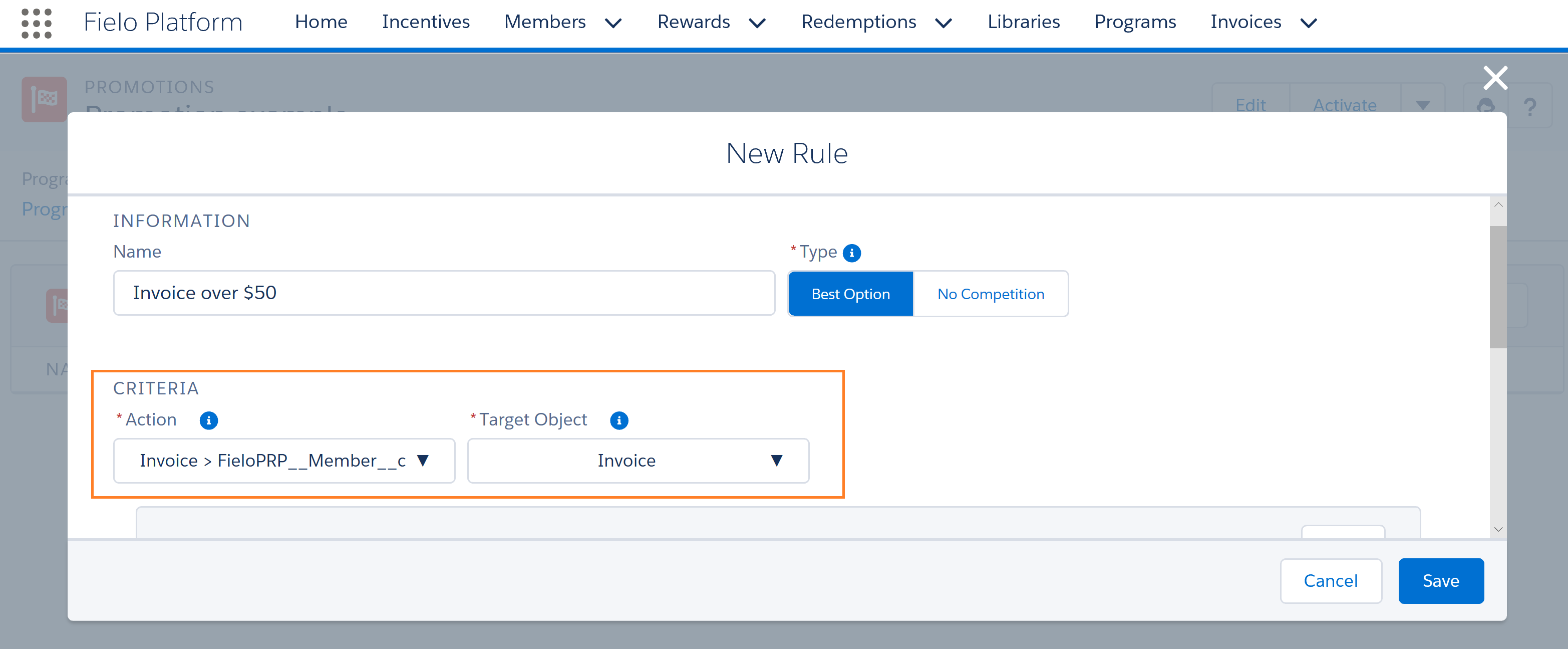
Invoice Rule: Criteria
Now it's time to select the bits of the Invoice that are going to earn your Members Points - in other words, you need to define how to Filter Criteria:
- Field Name: Here you can select the feature of the Invoice you want to base your Point attribution around. Popular ones are:
- Amount: The total amount, in whichever currency, that the Invoice comes to.
- Status: This refers to whether the Invoice is Pending Approval or Approved.
In this case I'm not sure if it makes sense to select the status field as a filter criteria once we already use the "status equals to approved" in the Invoice action. I think that it will be useful if creating a new invoice action where no condition is set.
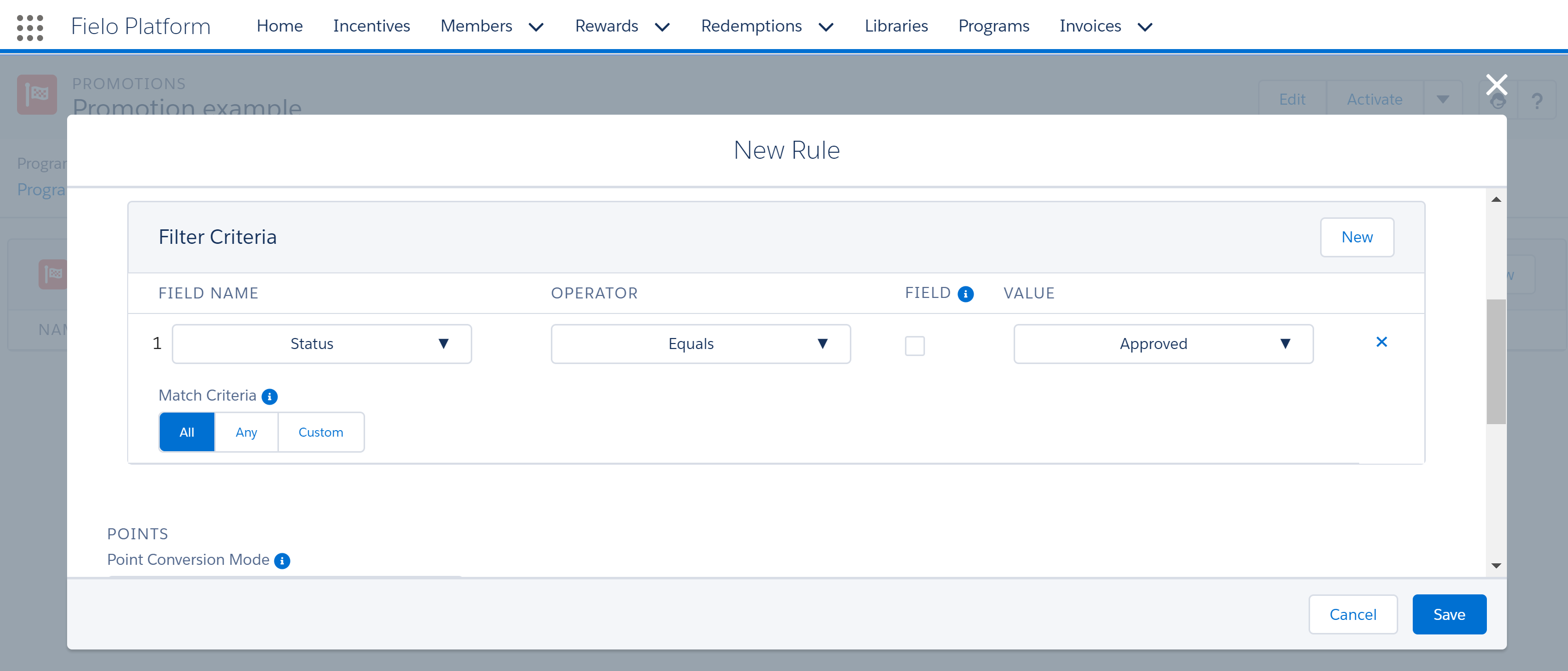
Invoice Rule: Filter Criteria
Then you need to choose how the Rule will grant Points to Members. If you choose the Rule Type No Competition, you're able to configure the Rule so that Members can earn Instant Rewards and Badges as well.
You will then Save your Rule settings and finally Activate your Promotion. Do not forget to check all about how to Manage Rules.
Promotion Models
The Fielo teqm have lended a helpful hand by creating some Promotion Models for you. In other words, if you're not keen to do all of the configuration and work yourself, feel free to use one of our pre-made Models!
The Proof of Purchase App comes with two pre-set Models:
- 2 points per dollar
- Sales
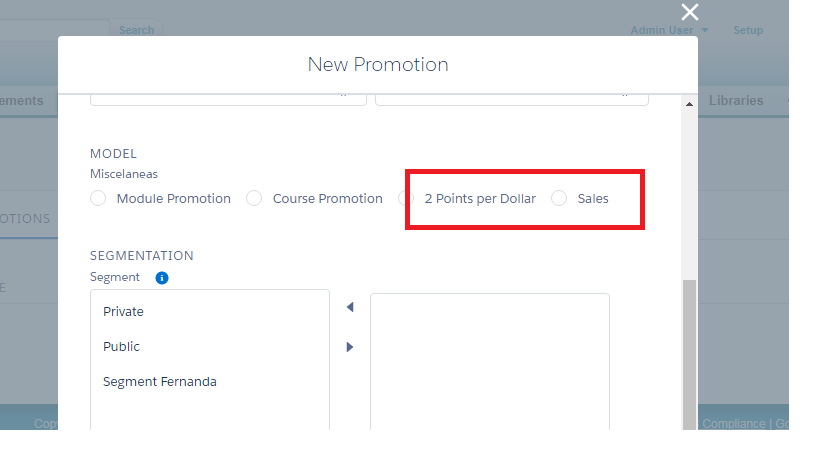
Proof of Purchase Promotion Models
2 Points per dollar Model
The Rule of this Promotion is set up as follows;
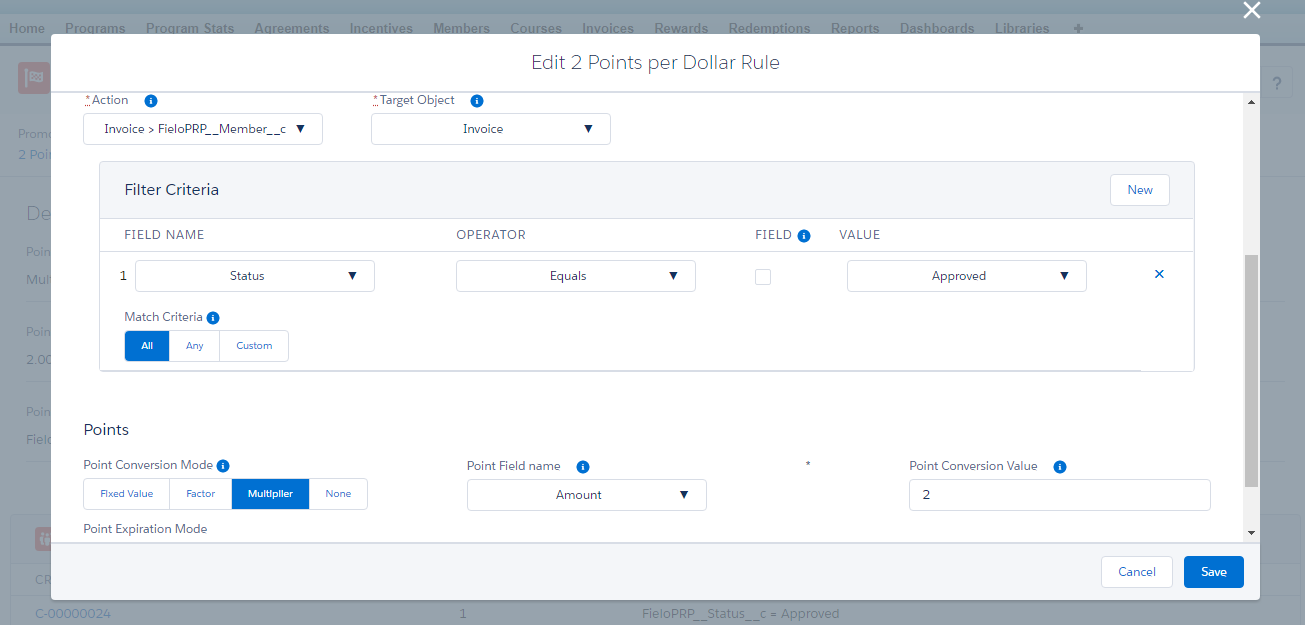
2 Points per Dollar Rule
The Member will receive Points when the Status of a submitted Invoice is Approved.
Then the Point value they receive will be: the Amount i.e. the value of that Invoice multiplied by 2.
Obviously feel free to edit these settings to suit your needs. You can change the name of this Rule, add more Filter Criteria, change the Multiplier and much more. You should also add descriptions and a start date to the Promotion.
Sales Model
The Rule of this Model is set up as follows:
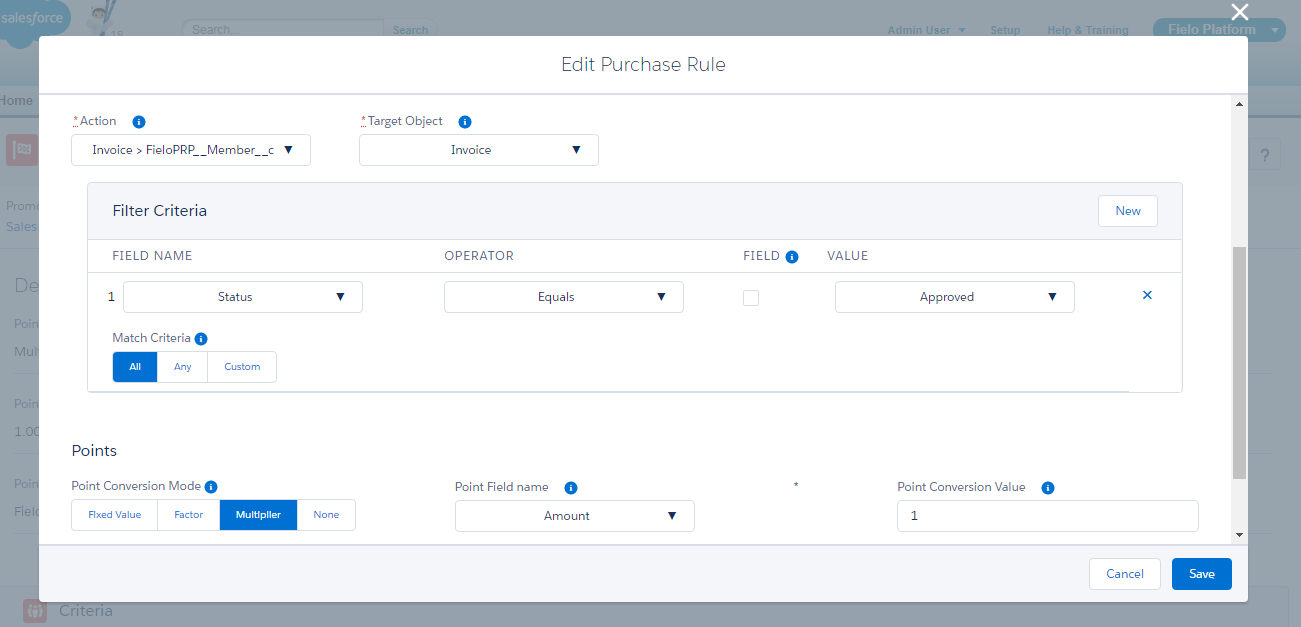
Rule for Sales Model
The Member will receive Points when the Status of a submitted Invoice is Approved.
Then the Point value they receive will be: the Amount i.e. the value of that Invoice multiplied by 1.
Obviously feel free to edit these settings to suit your needs - they're just templates after all, and you're the boss!
Updated over 1 year ago