
Member Components
Member components incorporate Platform's Member features into your loyalty portal. They include My Badges and My Transactions.
My Badges
My Badges displays all of the Badges that a Member has earned.
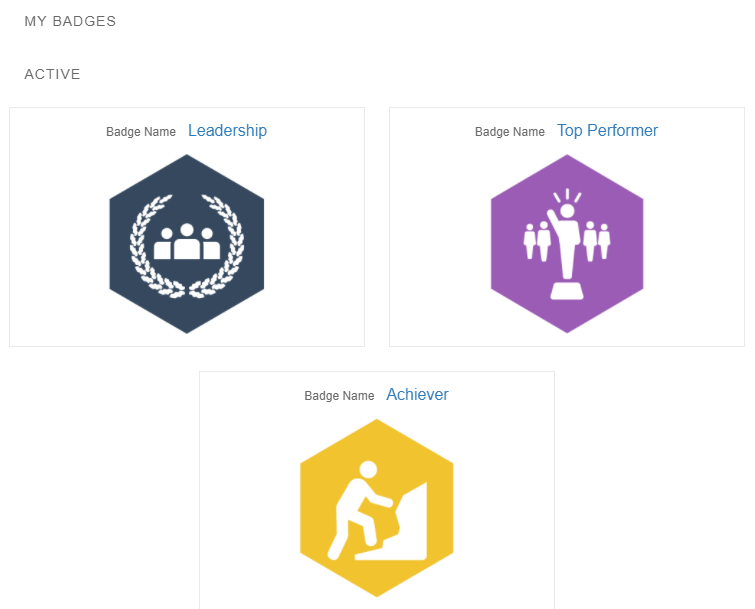
My Badges Component
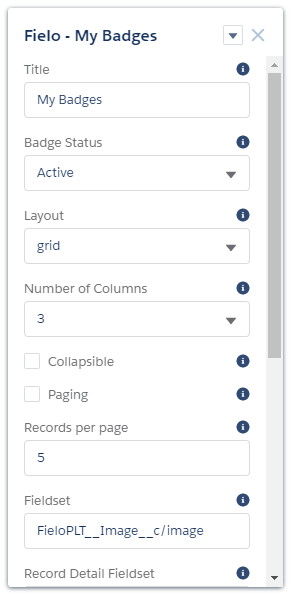
Properties
My Badges can be configured via the following properties:
- Title: Enter the title you want displayed at the top of the component.
- Badge Status: Choose the Status of the Badges you want to display: Active for Badges that are a reward in an active Incentive, All for all Badges, Expired for expired Badges, Achievable for Badges that are part of Incentives for which the Member is eligible or Lost for Badges that the Member no longer has.
- Layout: Choose Table to view Badges in list format or Grid to view them in tile format.
- Number of Columns: If using Grid layout, choose the number of columns to be displayed.
- Collapsible: Tick this box if you want the Badges view to be expandable and retractable.
- Paging: Tick this box to allow Badges to be displayed on more than one page.
- Records per Page: If Paging is , enter the number of Badges to be displayed per page.
- Fieldset: Enter the API names of fields that you want to be displayed in the Badges list, separated by commas. The Badge Image field (
FieloPLT__Image__c/image) is already included. - Record Detail Fieldset: Enter the API names of fields that you want to be displayed in Badge detail view, separated by commas. The Name and Badge Image fields (
Name, FieloPLT__Image__c/image) are already included. - Rule Related List: Tick this box if you would like Rules to be displayed in detail view.
- Rule Related List Fieldset: If Rule Related List is , enter the API names of Rule fields that you want to be displayed in detail view, separated by commas. For example. you could include the Rule Name and Description fields by entering
Name, FieloPLT__Description__c.
- Rule Related List Fieldset: If Rule Related List is , enter the API names of Rule fields that you want to be displayed in detail view, separated by commas. For example. you could include the Rule Name and Description fields by entering
- Badge Member Related List: Tick this box if you would like Badge Members to be displayed in detail view.
- Badge Member Related List Fieldset: If Badge Member Related List is , enter the API names of Badge Member fields that you want to be displayed in detail view, separated by commas. For example, you could include the Quantity and Expiration Date fields by entering
FieloPLT__Quantity__c, FieloPLT__ExpirationDate__c.
- Badge Member Related List Fieldset: If Badge Member Related List is , enter the API names of Badge Member fields that you want to be displayed in detail view, separated by commas. For example, you could include the Quantity and Expiration Date fields by entering
- Challenge Reward Related List: Tick this box if you would like Challenge Rewards to be displayed in detail view.
- Challenge Reward Related List Fieldset: If Challenge Reward Related List is , enter the API names of Challenge Reward fields that you want to be displayed in detail view, separated by commas. For example, you could include the Challenge Name field by entering
FieloPLT__Challenge__c.Name.
- Challenge Reward Related List Fieldset: If Challenge Reward Related List is , enter the API names of Challenge Reward fields that you want to be displayed in detail view, separated by commas. For example, you could include the Challenge Name field by entering
My Badges Properties
My Transactions
My Transactions lists all of the Transactions through which a Member has earned Points or has had them deducted (via Adjustment, Expiration or Reversion).
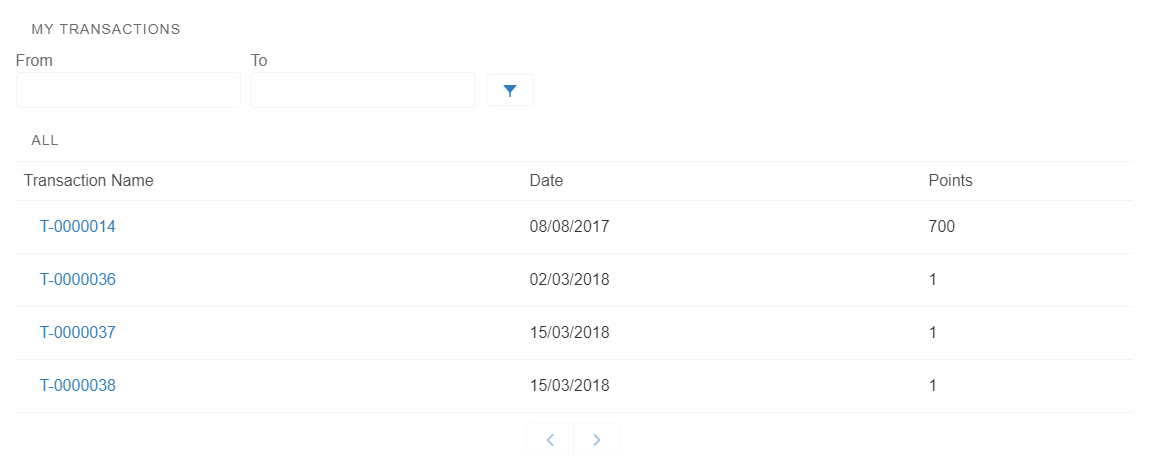
My Transactions Component
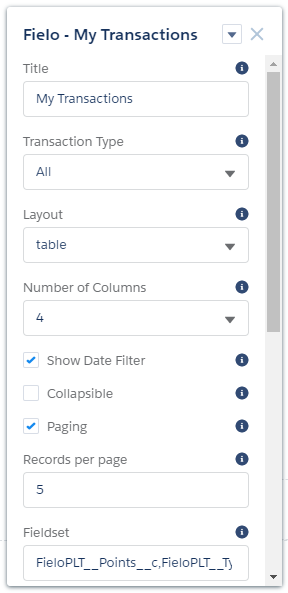
Properties
My Transactions can be configured via the following properties:
- Title: Enter the title you want displayed at the top of the component.
- Transaction Type: Choose the Type of Transactions you want to display.
- Layout: Choose Table to view Transactions in list format or Grid to view them in tile format.
- Number of Columns: If using Grid layout, choose the number of columns to be displayed.
- Show Date Filter: Tick this box to allow Members to filter Transactions by date.
- Collapsible: Tick this box if you want the Transactions view to be expandable and retractable.
- Paging: Tick this box to allow Transactions to be displayed on more than one page.
- Records per Page: If Paging is , enter the number of Transactions to be displayed per page.
- Fieldset: Enter the API names of fields that you want to be displayed in the Transaction list, separated by commas. For example. you could include the Date and Points fields by entering
FieloPLT__Date__c/date, FieloPLT__Points__c. - Record Detail Fieldset: Enter the API names of fields that you want to be displayed in Transaction detail view, separated by commas. For example. you could include the Name and Processed fields by entering
Name, FieloPLT__IsProcessed__c/checkbox. - Point Related List: Tick this box if you would like Points to be displayed in Transaction detail view.
- Point Related List Fieldset: If Point Related List is , enter the API names of Point fields you want to be displayed in Transaction detail view, separated by commas. For example, you could include the Expiration Date and Status fields by entering
FieloPLT__ExpirationDate__c/date, FieloPLT__Status__c.
- Point Related List Fieldset: If Point Related List is , enter the API names of Point fields you want to be displayed in Transaction detail view, separated by commas. For example, you could include the Expiration Date and Status fields by entering
- Badge Member Related List: Tick this box if you would like Badge Members to be displayed in Transaction detail view.
- Badge Member Related List Fieldset: If Badge Member Related List is , enter the API names of Badge Member fields you want to be displayed in Transaction detail view, separated by commas. For example, you could include the Badge Image and Expiration Date fields by entering
FieloPLT__Badge__r.FieloPLT__Image__c/image, FieloPLT__ExpirationDate__c/date.
- Badge Member Related List Fieldset: If Badge Member Related List is , enter the API names of Badge Member fields you want to be displayed in Transaction detail view, separated by commas. For example, you could include the Badge Image and Expiration Date fields by entering
- Redemption Related List: Tick this box if you would like Redemptions to be displayed in detail view.
- Redemption Related List Fieldset: If Redemption Related List is , enter the API names of Redemption fields that you want to be displayed in detail view, separated by commas. For example, you could include the Name and Status fields by entering
Name, FieloPLT__Status__c.
- Redemption Related List Fieldset: If Redemption Related List is , enter the API names of Redemption fields that you want to be displayed in detail view, separated by commas. For example, you could include the Name and Status fields by entering
- Use Advanced Configuration Only: Tick this box if you want to use only the Advanced Configuration property to configure this component.
- Advanced Configuration: If Use Advanced Configuration Only is , enter your advanced configuration JSON string here. See our Advanced Configurations doc for details.
My Transactions Properties
Updated over 1 year ago
Did this page help you?