
Missions
Create and manage Missions in a Challenge
Missions are series of tasks that Members need to accomplish in order to win a Challenge. Missions leverage Fielo Platform's powerful Multi-Action Engine, which tracks and assesses Member activities in order to drive targeted behaviors.
Types of Missions
The behaviors, or Actions, tracked by the Multi-Action Engine can be measured differently depending on how you want your Members to behave. For this reason, there are two different types of Missions.
Mission with Objective
Missions with Objective specify a quantifiable goal that your Members must reach in order to accomplish the Mission.
For example, let's say you want to reward all of your sales execs that close over $100,000 in opportunities. You can do this by establishing a Mission that sums up the Amount field from Opportunity and checks to see if that sum is greater than 100,000.

Mission with Objective
Mission without Objective
Missions without Objective encourage your Members to compete with one another to maximize a desired behavior. Rewarding is determined based on the relative performance of the participating Members at the conclusion of the Challenge.
For example, rather than define a fixed total sales objective, you may want your sales execs to sell the most that they can while comparing their sales figures with those of their colleagues. In this case, you can set Objective Type to Summary and Field to Aggregate to Amount just like before, but leave the Operator and Objective Value fields blank.

Mission without Objective
Instead of a fixed objective value, you can drive a behavior using a Performance Leaderboard that shows Members how their peers are doing in the Mission. We'll explore Mission creation, including Objective Type and Leaderboard, in the next section.
Creating a Mission
Before creating a Mission, make sure you've set up the Action you'll use to define the behavior you want to incentivize, as well as the Challenge that will contain your Mission.
With those tasks complete, you can start creating your Mission. From Incentives, navigate to a Challenge you've created and, on the Missions card, click New.
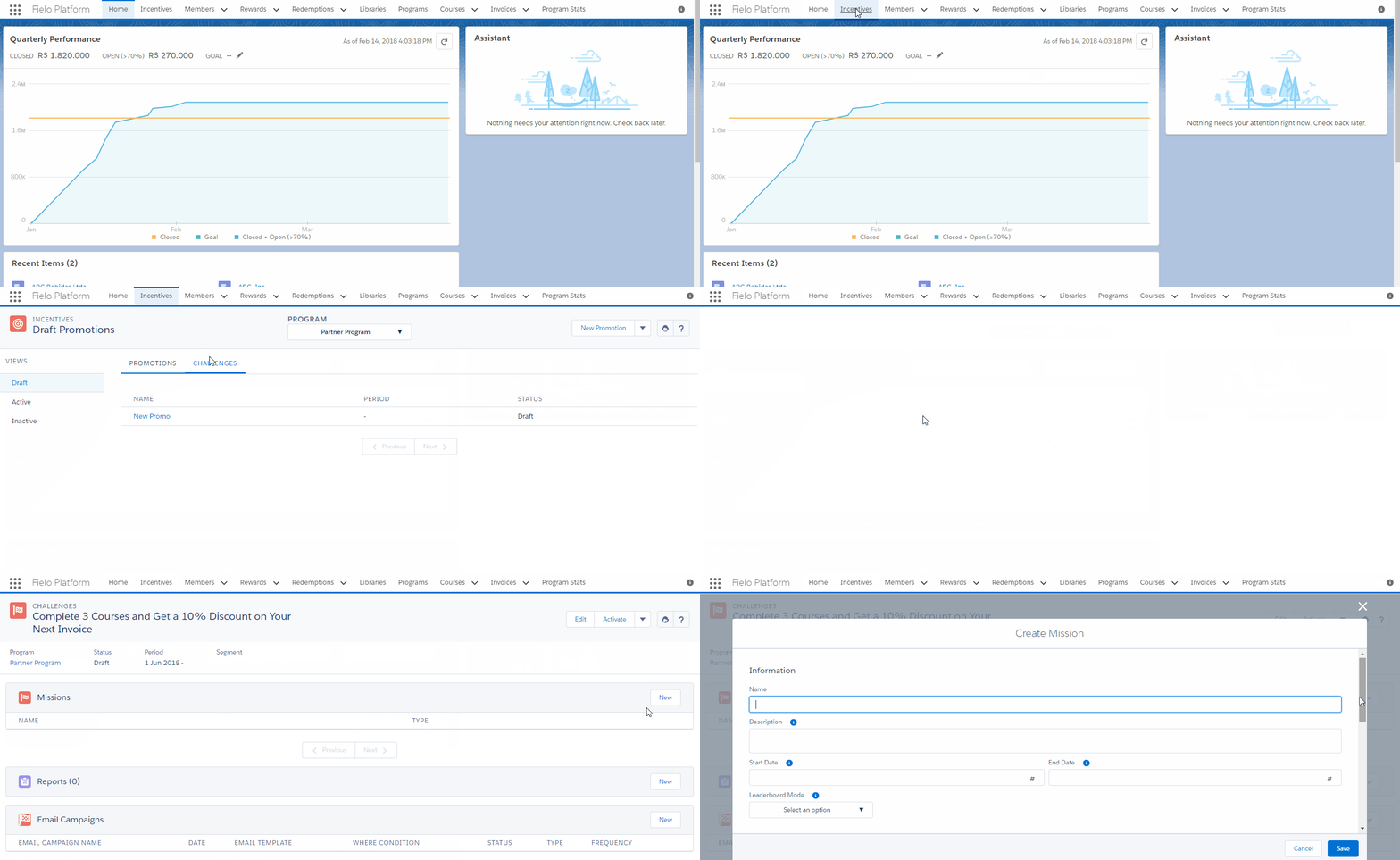
Enter a Name and Description
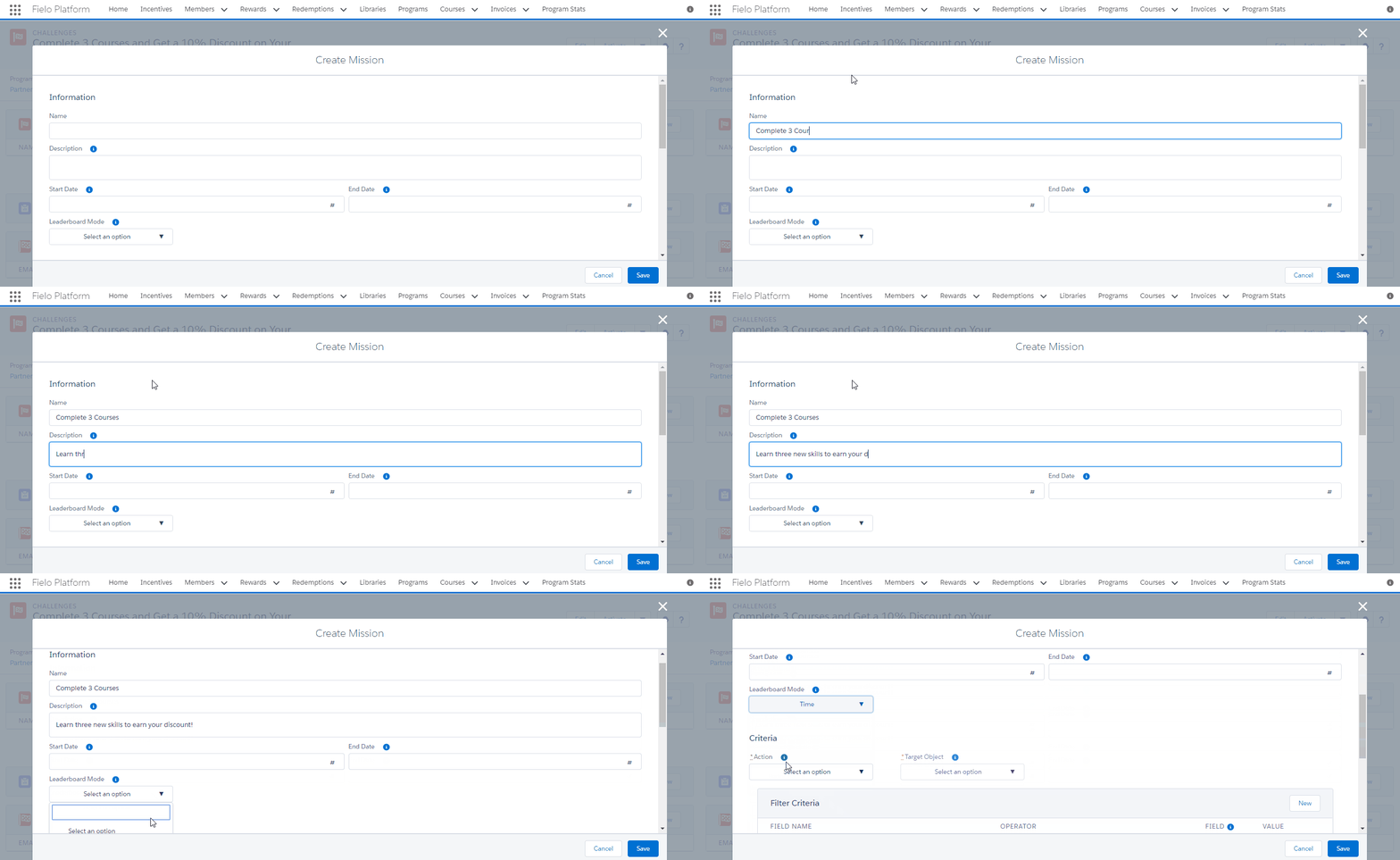
Enter a name and description for your Mission. Your Members will see these, so make sure they're friendly and illustrative!
Set a Period (Optional)
You can choose start and/or end dates for your Mission. Missions that don't have start and/or end dates will be processed as long as the Challenge that they're a part of is Active.
Mission dates must always fall within the period of the Challenge that they're in. For instance, a Challenge that starts on May 6 and ends on May 20 can only have Missions that start on or after May 6 and end on or before May 20.
Choose a Leaderboard Mode (Optional)
Leaderboard is a scorecard that displays the ranking of Members who are part of a Mission. You can use a Leaderboard to foster competition among Members, making their progress visible to one another. Platform includes two Leaderboard modes:
- Time: Only for Missions with Objective. Time mode shows the chronological order in which each Member has accomplished the Mission objective.
- Performance: Available for both Mission types. Performance mode shows how well a Member is doing in the Mission compared to the other participating Members.
Leaderboard CalculationLeaderboard rankings are calculated by a Batch Process which updates Members' positions in each Mission. By default, Batch Processes run daily at midnight.
Define Behavior Criteria
Criteria are the conditions that evaluate Member activity on a Target Object to define the behavior your Mission will incentivize. When a Member performs an activity that meets these criteria, Fielo's Multi-Action Engine records it as incentivized behavior and counts it toward the Mission.
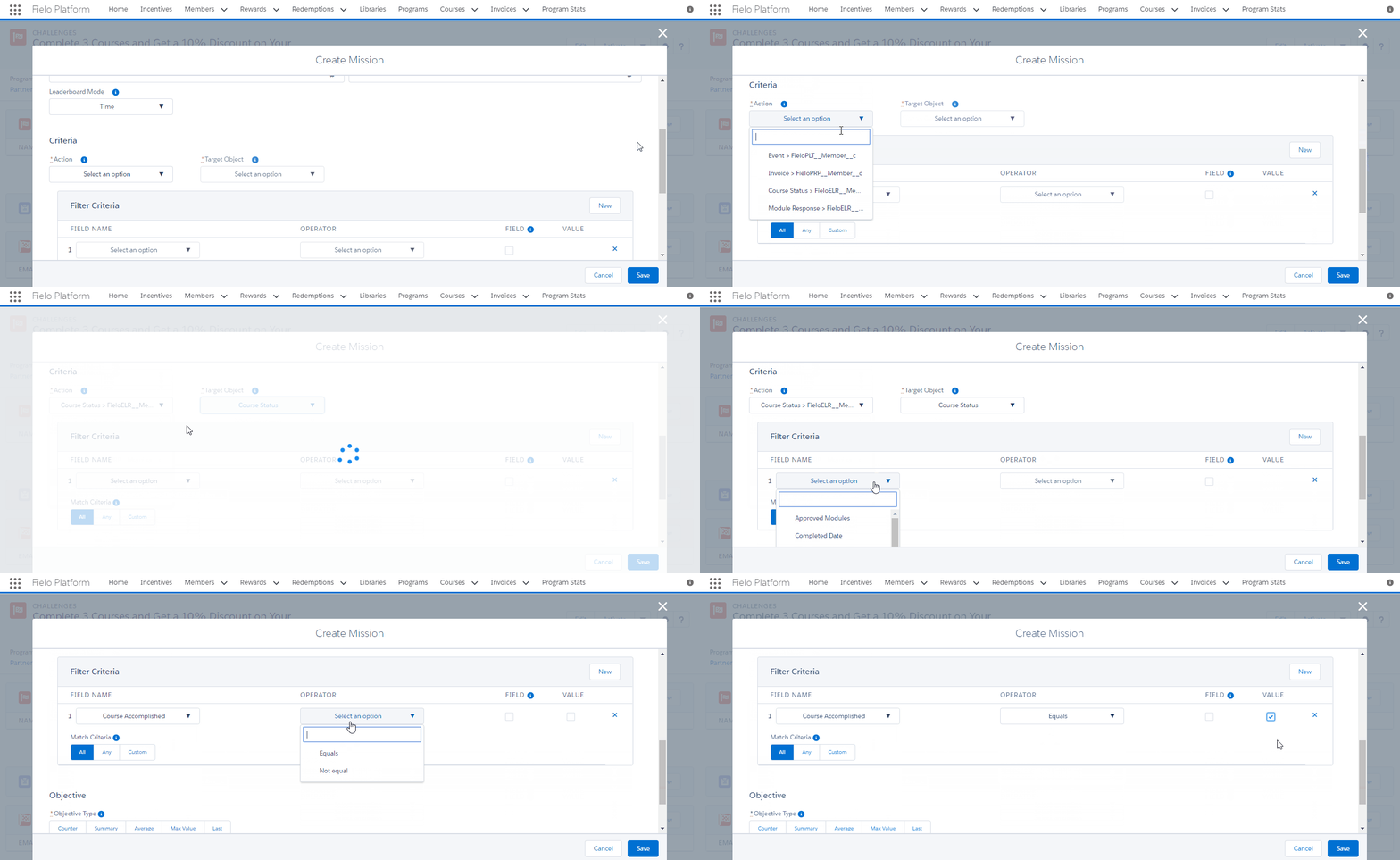
First, choose the Action and Target Object on which you'll base your incentivized behavior.
Actions and Target ObjectsAn Action comprises an object (either Salesforce standard or custom) and a Member. The Target Object can be the Action object or any object related to it.
For example, if your Action object is Transaction, you can choose Transaction or any its related objects, like Transaction > Point, as your Target Object.
Next, in Filter Criteria, we'll define the behavior by setting criteria on one or more fields in your Target Object. Each criterion takes the form of a logical or mathematical comparison between the value of a field and either a fixed value or the value of another field. For example, you could compare a Point Balance with either a fixed value like 10000 or some other field, like Used Points.
In the case of text, the comparison can be to see if the values are the same ("Equals") or different ("Not equal"), or if the second value contains the first value ("Contains") or not ("Not contains"). For numerical values, comparison operators include "Equals", "Greater than", "Less than", "Greater or equal", etc.
Let's walk through how to apply this:
- Under Field Name, select the object or lookup relevant to your criterion. If you choose a lookup, select the field from that object that relates to your criterion.
- Under Operator, choose the operator that will compare the field with your criterion value.
- If you want to compare the value of the field in Field Name with the value of another field, tick Field. Otherwise, leave unticked .
- Under Value, enter the number or text value you want to compare with the field in Field Name or, if Field is , choose the field whose value you want to compare with the field in Field Name.
To add another criterion, click New and follow the same process to define it. You can remove a criterion by clicking .
When you've finished adding and defining criteria, you can then specify how they are evaluated via Match Criteria:
- All means that all of your criteria will need to meet for an activity to count toward the Mission.
- Any means that a Member activity meeting any one of your criteria will count toward the Mission.
- Custom allows you to specify more complex criteria prioritization. If selected, you must enter a formula with logical operators and your criterion numbers. For example, if you enter
(1 AND (2 OR 3)), a Member activity that meets your first criterion and your second or your third criterion (or both) will count toward the Mission.
Define a Behavioral Goal
Now, it's time to specify how the Multi-Action Engine will aggregate behavioral data to determine when a Member has accomplished the Mission.
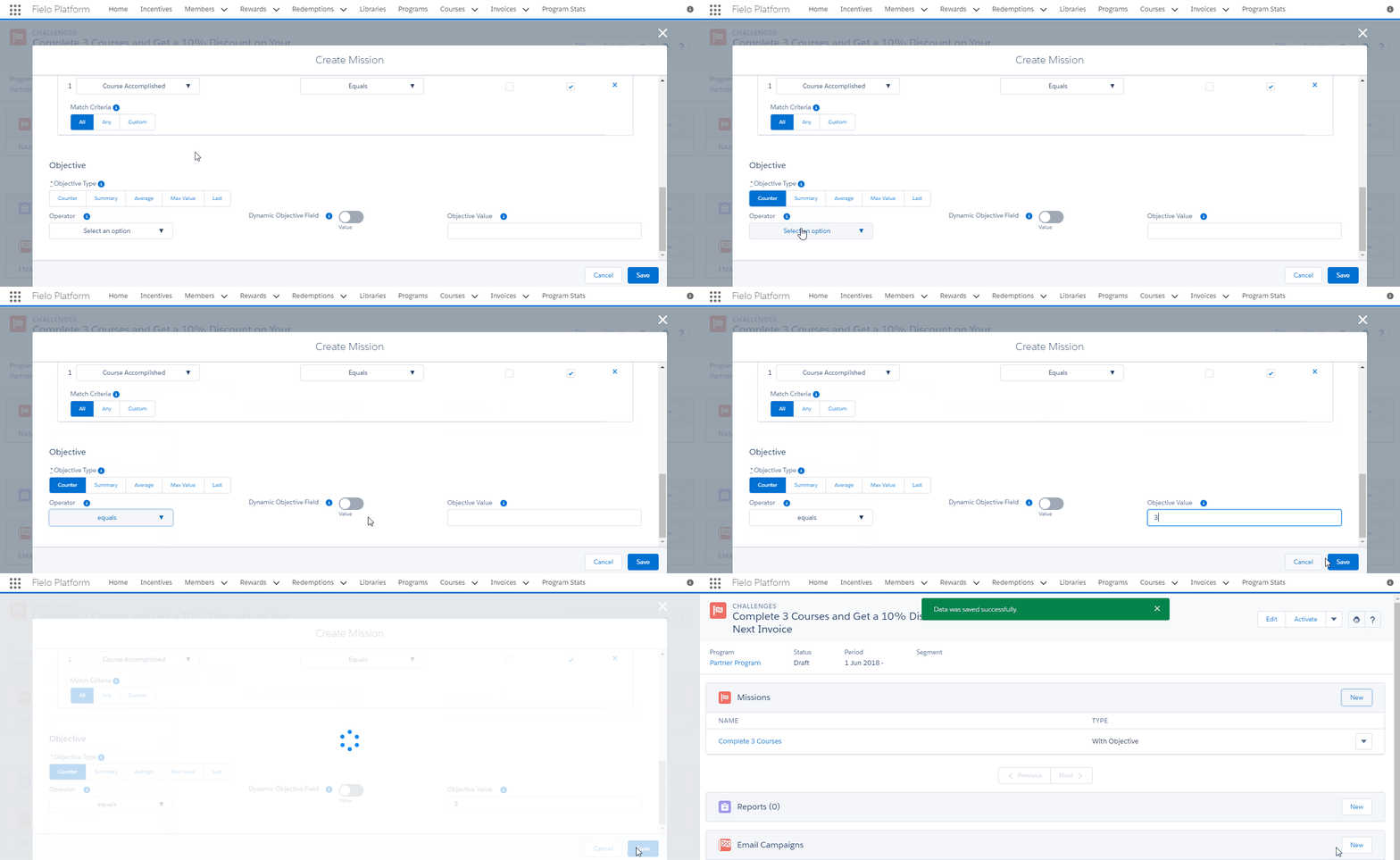
First, choose an Objective Type and, if prompted, the Field to Aggregate from your Target Object:
- Counter counts the number of times the behavior has been performed.
- Summary sums up the Field to Aggregate over all instances of the behavior.
- Average maintains a running average of the Field to Aggregate over all instances of the behavior.
- Max Value calculates the maximum value of the Field to Aggregate over all instances of the behavior.
- Last is the value of the Field to Aggregate from the most recent instance of the behavior.
Mission without ObjectiveIf your Mission is a Mission without Objective, you can go ahead and click Save now. You don't need to specify an Operator or Objective Value because the behavioral data will be used to calculate relative performance among participating Members, rather than compared to a fixed objective.
If your Mission is a Mission with Objective, continue on.
Next, enter an Objective Value with which to compare the aggregated behavioral data and choose the Operator to use for that comparison. Alternatively, you can enable Dynamic Objective Field and define a numerical field from Member as the Objective Field.
When you're ready, click Save.
Mission Management Tools
You can edit or delete a Mission when the Challenge it's in is in Draft or Inactive.
Edit
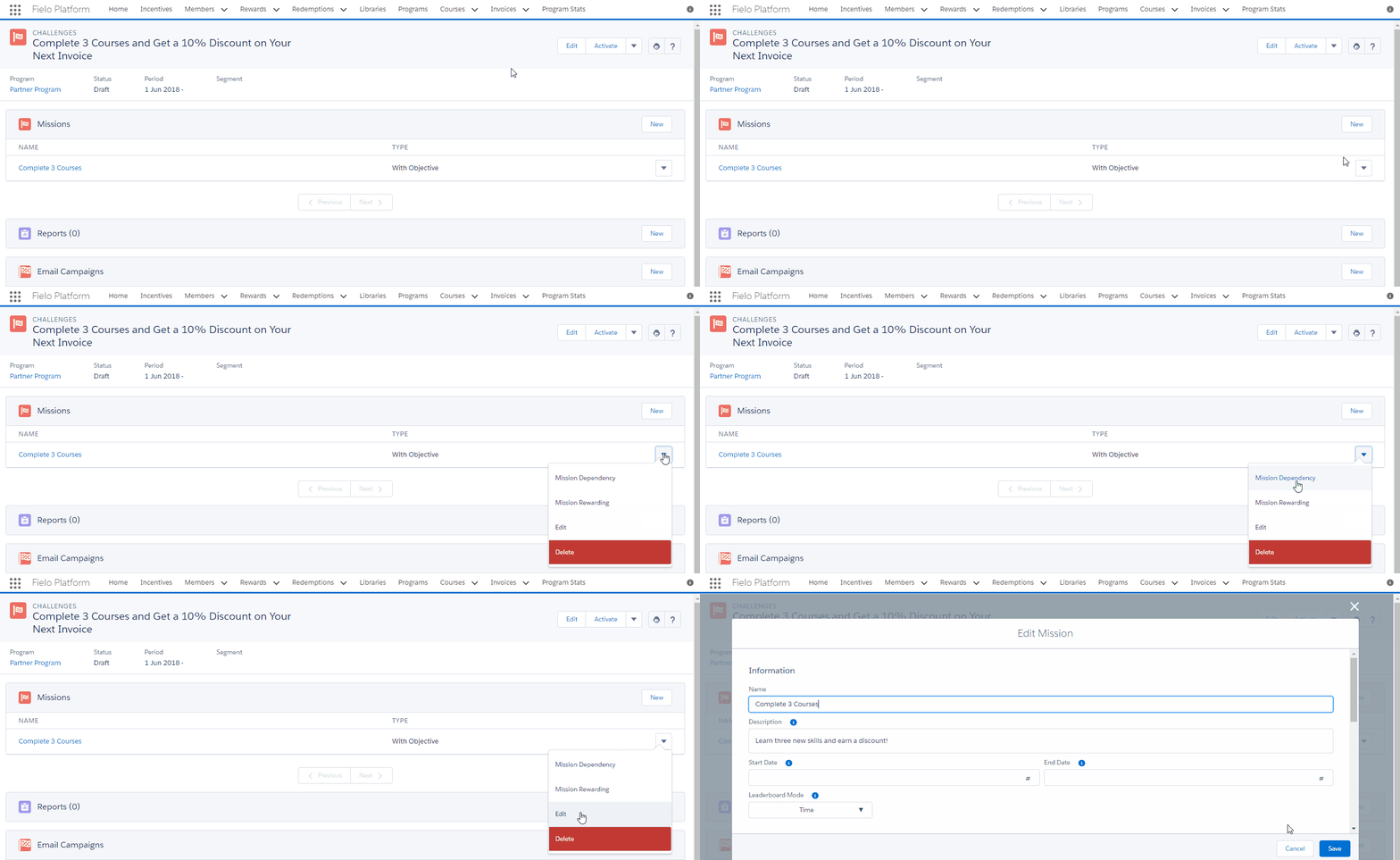
To edit a Mission, click in the row corresponding to the Mission and select Edit.
Delete
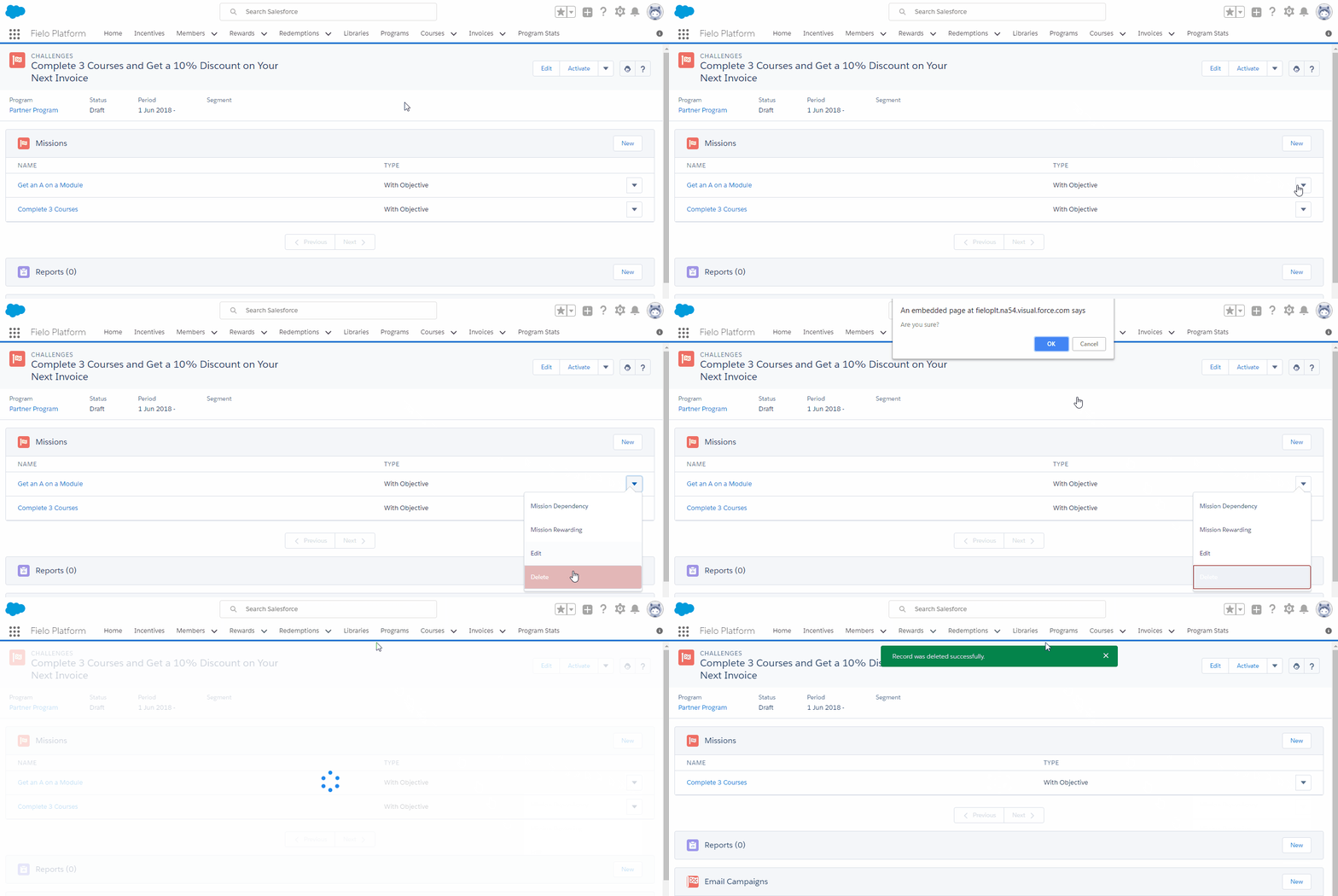
To delete a Mission, click in the row corresponding to the Mission and select Delete.
Mission Dependency (Missions with Objective Only)
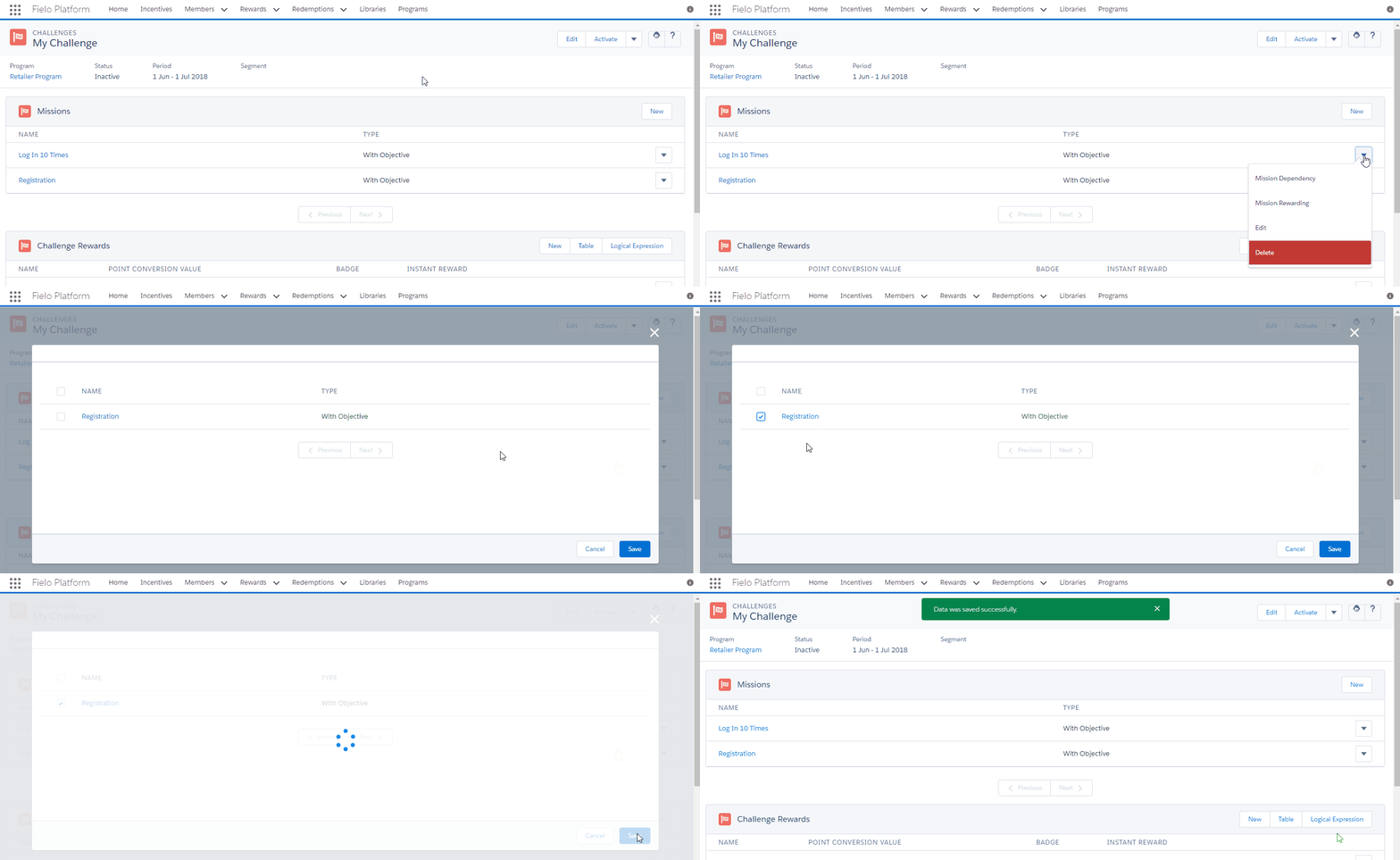
You can require one or more Missions with Objective to be accomplished before allowing participation in the next. That is, you can specify one or more prerequisites (dependencies) for a Mission with Objective.
To do so, click in the row corresponding to the Mission for which you want to specify a dependency, and select Mission Dependency. Tick the name(s) of the Mission(s) you want to set as prerequisite and click Save.
Mission Rewarding
Updated over 1 year ago