
Actions
Create and set Actions to drive Member behavior
Actions let you decide which behavior and participants to drive in your incentive and loyalty Program.
You can choose to drive a particular behavior by using Single Action Engine- for example, award your Members every time they log in to your loyalty portal - or you can encourage your Members to carry out a set of activities in certain order, time frame or number by means of Multi-Action Engine - e.g. you award your Members after logging into your portal 5 times.
Single Action Engine is externalized in Promotions and Rules, the same way Multi-Action Engine does so in Challenges and Missions.
Using Event Action
Platform package comes with a default Action: Event. This means that, when installing Platform, the object Event and the Member that performs it, come already incentivized by default.
Action: EventEvent can be used as example to create other Actions as well as to see how Promotions and Challenges work.
From Libraries, click Fielo PLT. The Actions card already includes Event:
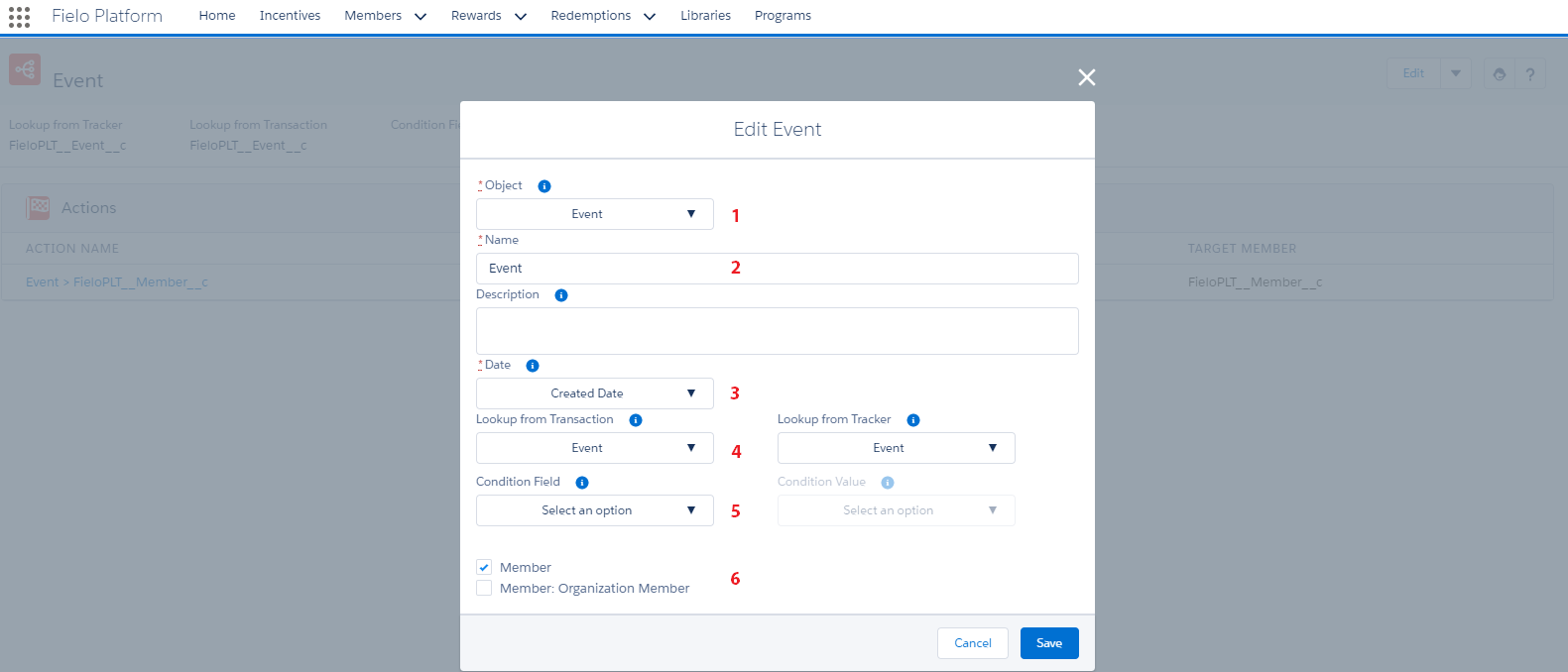
Action: Event
1. Object: In this case we want our Members to perform an Event, which can be either Register, Login, or Redeem Points.
2. Name: We choose to name the Action "Event" as it's a generic name that can be applied to any type of Event.
3. Date: We want the Engine to process all Events depending taking into account the date when their were created.
4. Lookup from Transaction and Lookup from Tracker: Transaction and Tracker already contain a 🔎 field to Event which allows a relationship between those fields. When Event is used as the Action of a Rule or Mission, a Transaction (if Event is used in Rules) or a Tracker (if Event is used in Missions) record is generated as a result of processing Event.
5. Condition field and Condition value: In this case there is no specific condition and value.
6. Member: . Only the Member who generates the Event is incentivized.
Building Actions on Any Object
Platform lets you create an Action Trigger (a.k.a Rule Trigger) for any object representing the behavior you wish to drive. You can create an Action using your own custom object, a Platform object or any Salesforce standard object.
Object Relationships
First, you must create a relationship between your Members in Platform and the object to incentivize. To do so, you need to link the object to incentivize (in this case, we're using our own custom object, Loyalty Card) with Member. From Setup, go to your object and create a new Lookup Relationship field. Choose Member as Related object and go through all the steps entering the required information.
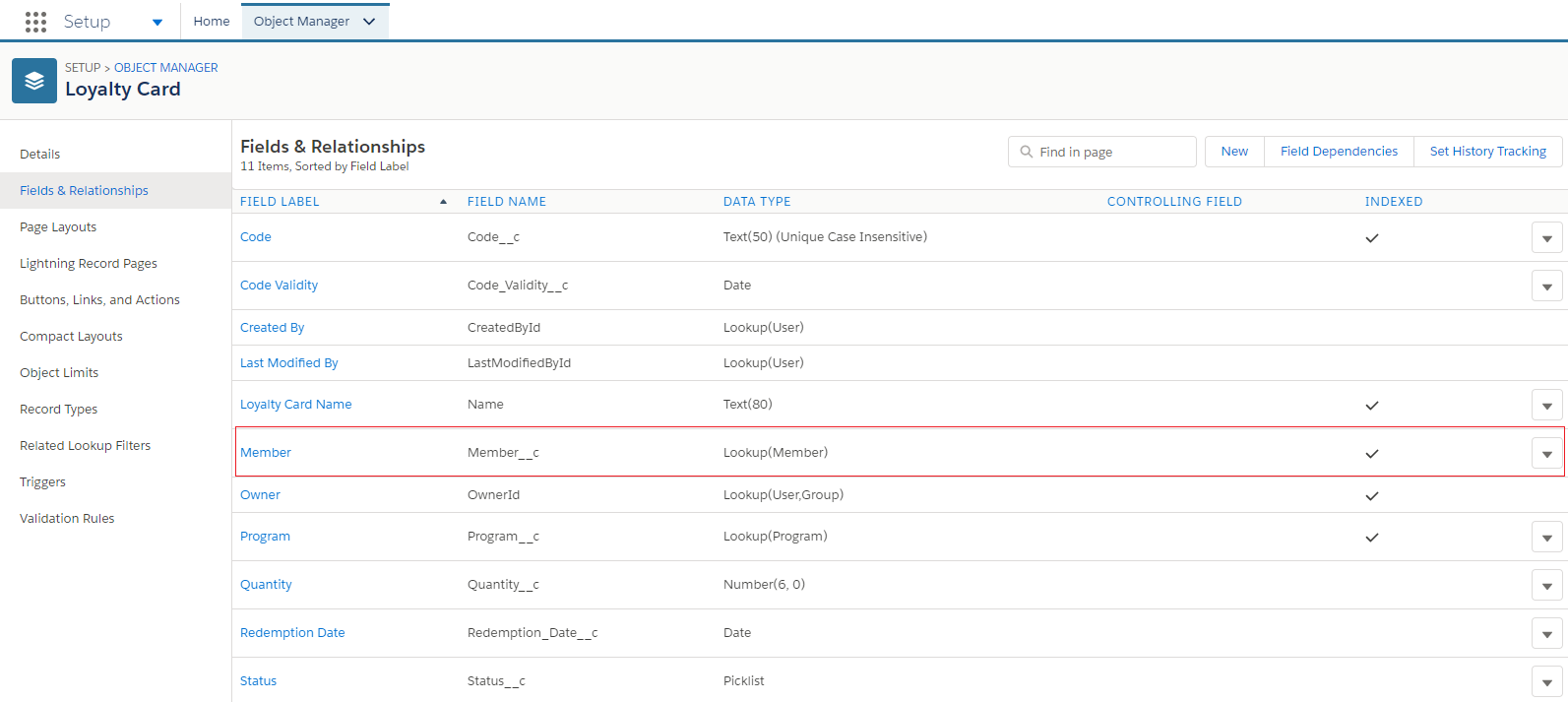
New Lookup Relationship: Loyalty Card <> Member.
Once you've finished, you can create a Lookup Relationship between the object (Loyalty Card) and:
- Transaction, if you're using the Single Action Engine in a Promotion & Rule.
- Tracker, if you're using the Multi Action Engine in a Challenge & Mission.
- Both, if you're using the Action for Single and Multi Action Engine.
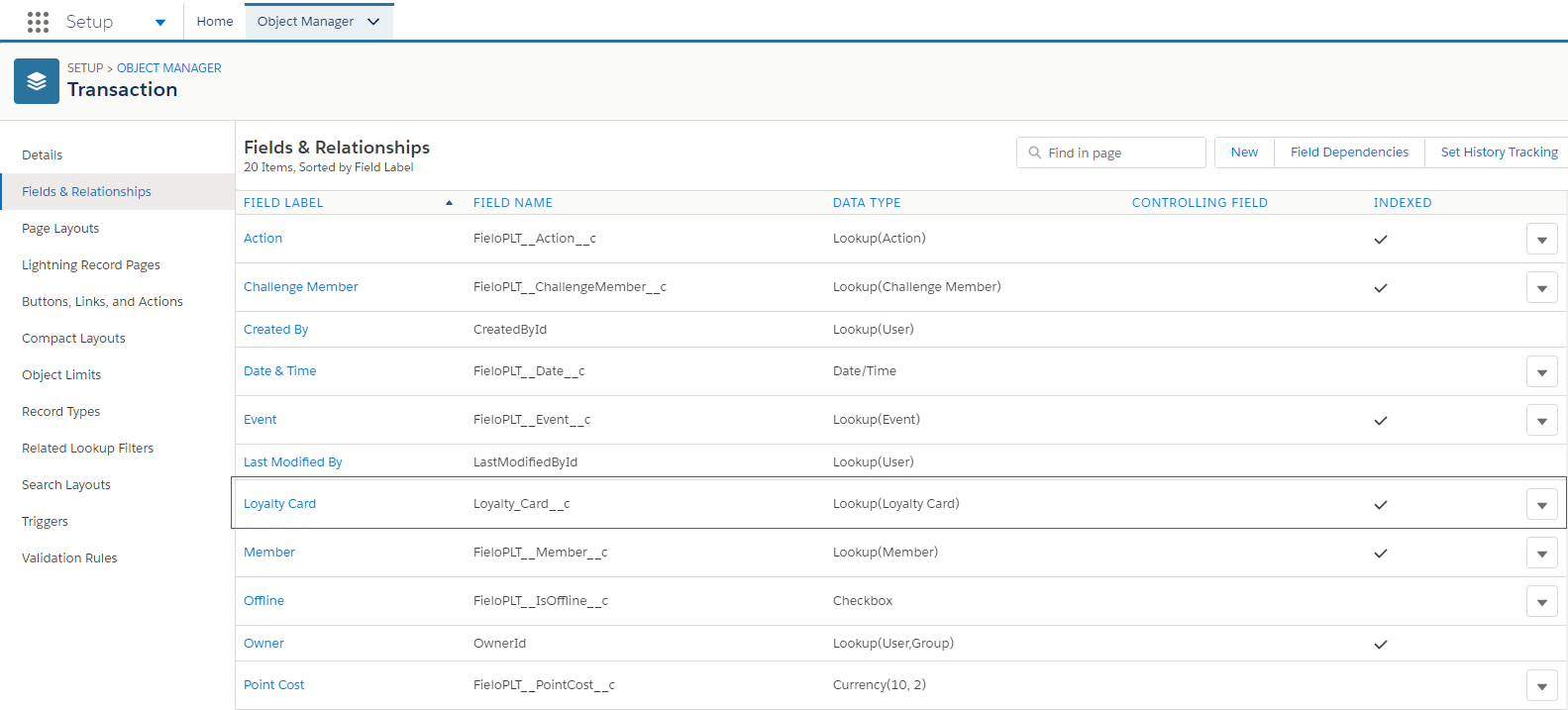
Transaction <> Loyalty Card
Triggers
After creating the relationship between Members and the object to incentivize (i.e. Loyalty Card), you need to create a Trigger so that the Single or Multi Action Engine can process your incentivized object every time a Member performs the Action.
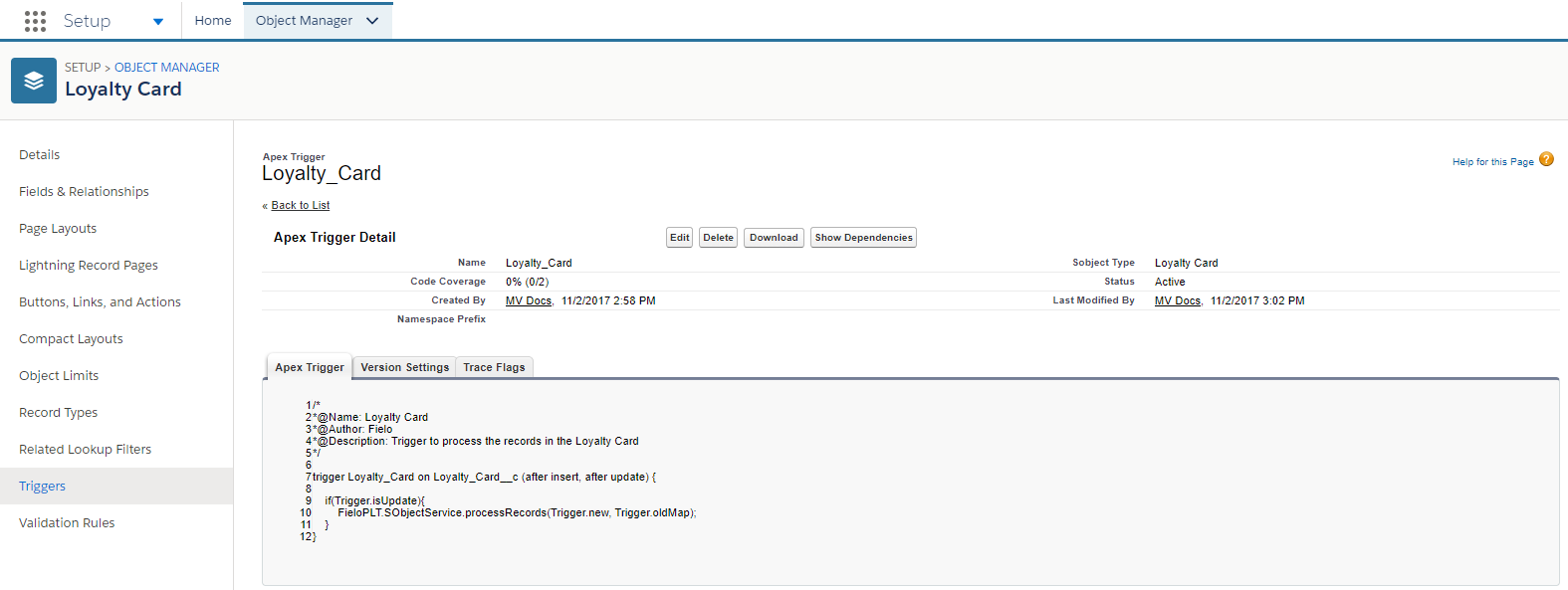
Trigger
From Setup, go to your object and scroll down to Triggers. Click New and copy the following code snippet replacing ObjectPluralName with the name of your Action object:
//ObjectPluralName is the Action Object name. ObjectAPIName is the API Name of the object to process.
trigger ObjectPluralName on ObjectAPIName (after delete, after insert, after update, before delete, before insert, before update){

  if(Trigger.isAfter){
  	if(Trigger.isInsert){
  		FieloPLT.SObjectService.processRecords(Trigger.new, null);
  	}else if(Trigger.isUpdate){
  		FieloPLT.SObjectService.processRecords(Trigger.new, Trigger.oldMap);
  	}
  }

}
Action
After creating the Action Trigger, it's time can create the Action. Let's start!
Creating Actions
Actions are made up of an Object (either a Salesforce standard or any custom object), which represents the behavior you want to encourage, and a Member (either an Individual, Organization or Organization Contributor), which represents the participants of your Program.
Actions also include an Action Trigger (a.k.a Rule Trigger), which underlies an Action and evaluates the conditions that the chosen Object (behavior) must fulfill for the Engine to process it.
Define Action (Rule) Trigger
The first thing you must do is to define the Action Trigger. From Libraries, click Local Development> Create on the Action card.
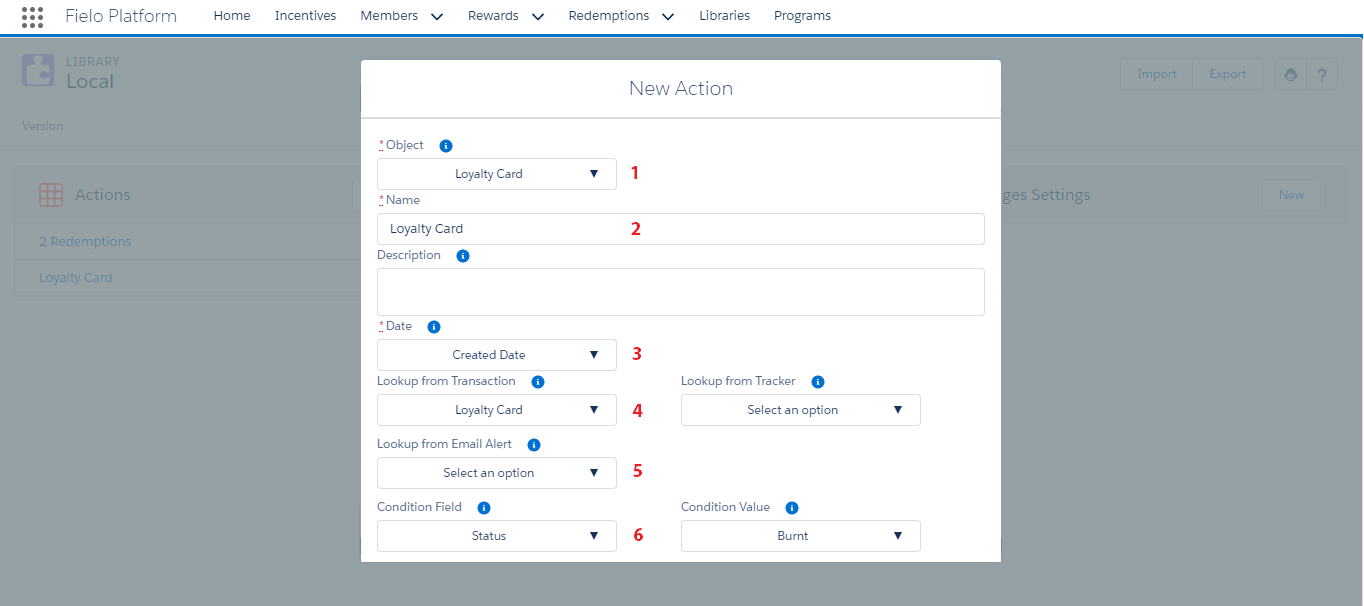
Action: Action (Rule) Trigger
From this screen, you can set up an Action Trigger by defining the following:
1. Object: It represents the behavior you want to encourage in your Members, that is, what your Members must do to obtain a result. By default, available Objects are those which include 🔎 relation to Members, that is, all Platform objects which are already linked to Members: Badge Member, Challenge Member, Event, Level Member, Member Segment, Member, Point, Redemption, Tracker and Transaction.
2. Name: This is to choose a name for your Action in the open text box, visible on the Actions card. Make sure you include a distinctive
3. Date: Here you would select any field from the Object whose type is Date (e.g. CreatedDate, Last Modified Date). This tells the Action Engine if the record falls within the Promotion or Challenge period and so, it's valid to process. In most cases, you'll use CreatedDate, as it's the date on which the record was created, however sometimes you may use other Date. Take the example of Opportunities: Action Engine should process Opportunities when they're closed, not when they were created.
4. Lookup from Transaction: 🔎 field in Transaction that connects the Object of the Action and Transaction when using Single Action Engine in Promotions & Rules. Transaction is the result of processing an Action used in a Rule.
Lookup from Tracker: 🔎 field in Tracker that connects the Object of the Action and Tracker when using Multi-Action Engine in Challenges & Missions. Tracker is the result of processing an Action used in a Mission.
5. Lookup from Email Alert: 🔎 field in Email Alert that connects the Object of the Action and Email Alert when using Messaging Transactional Emails. You can set this field if you want your Members to receive an e-mail when the Action is completed.
6. Condition field: Any entry condition the Object of the Action must meet for the Engine to process it.
Condition value: Any value from the Condition field the Object of the Action must meet for the Engine to process it.
Multi-Member Action
Platform Actions are multi Member, which means that you can choose to encourage more than one Member Type by using the same Action.
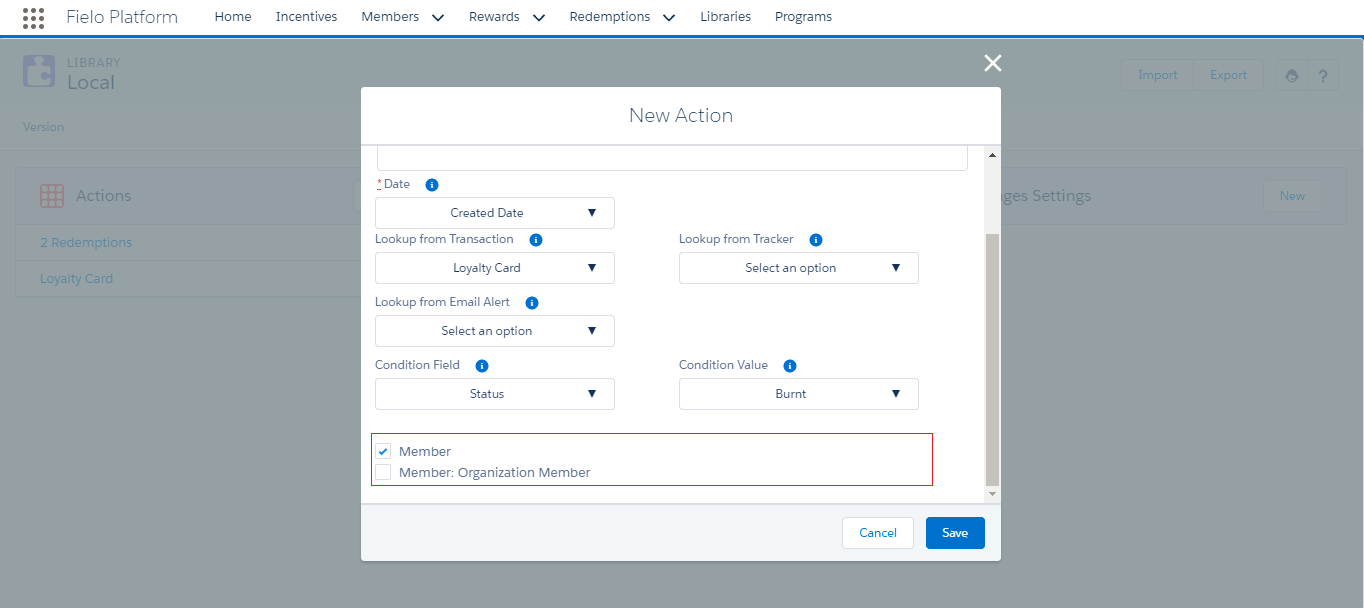
Action: Members
- If Member is , it means that the same Member that generates the Action is incentivized. *Member Type can be either an Individual or an Organization Member.
- If Member: Fielo Organization Member is , the Organization Member that the Member is associated with is incentivized. This works when the Member generating the Action is an Organization Contributor Member or when using a Hybrid Membership Model.
You can choose to encourage the Member that generates the Action, the Organization Member s/he belongs to or both of them.
Encouraging Member Registration
If you wish to incentivize Member activities such as Registration or Redemption, the best way to do it is to create an Action and Action Trigger on Event - either of Registration or Redemption type. This will prevent performance issues connected to Members. Let's walk you Registration case.
From Setup, choose the Members object and scroll down to Triggers. Click New and copy the following code snippet:
trigger Members on FieloPLT__Member__c (after insert){

    List<FieloPLT__Event__c> registrationEvents = new List<FieloPLT__Event__c>();
    for(FieloPLT__Member__c m : Trigger.new){
        registrationEvents.add( new FieloPLT__Event__c(FieloPLT__Member__c = m.Id, FieloPLT__Type__c = 'Registration') );
    }

    insert registrationEvents;
}
This snippet generates an Event whose type is Registration after a Member registers, that is, when a record is inserted in Member object.
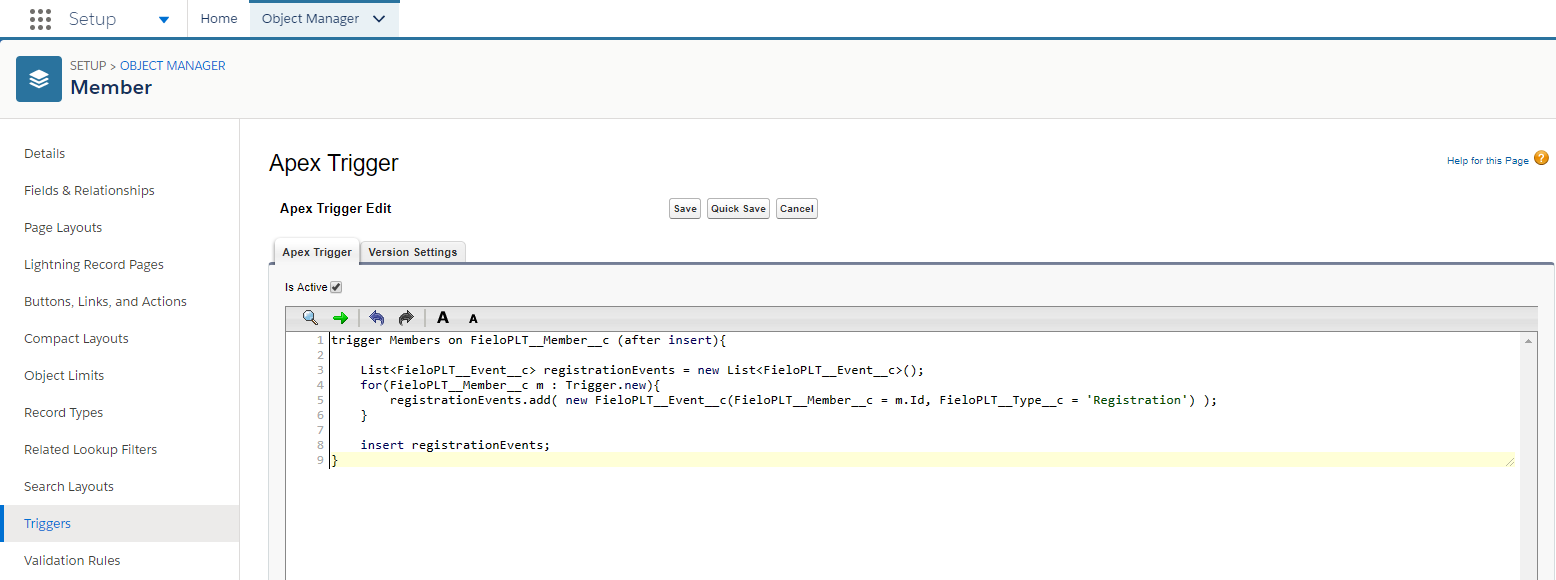
Event Trigger
Now, you can move on creating the Action and Action Trigger. From Libraries, click Local Development> New on the Action card.
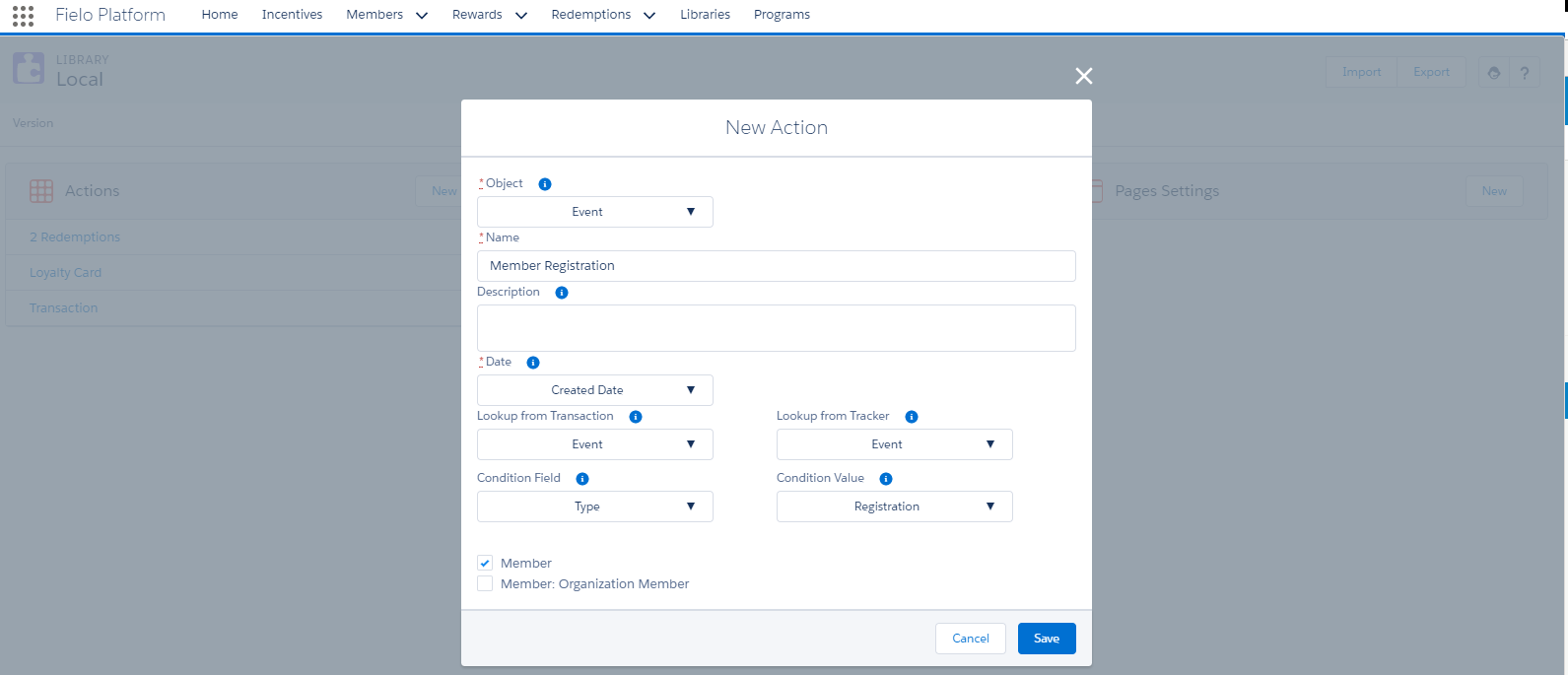
Action: Member Registration
- Lookup from Transaction: Choose Event only if you are using the Action in Promotions and Rules.
- Lookup from Tracker: Choose Event only if you are using the Action in Challenges and Missions.
- Date: Date in which the Event record is created.
- Condition field: Type.
- Conditon value: Registration.
- Member - only the Member that registers is the one incentivized.
Guest User Profile: Event and Transaction PermissionsIf your Members register through Community Cloud or Fielo CMS, set the following permissions for Guest User Profile:
Objects Permission Event Read, Create and Edit. Transaction Read, Create and Edit.
Editing an Action
Once you've created the Action you need for your Incentives, you can edit any section within the Action.
Action Management Tools
Several tools are part of Actions to help you manage Promotions.
Delete
It deletes the current Action as long as it is not used in a Rule or Mission.
Page Settings Management
It allows you to customize Actions and Action Trigger View, Detail, Related List and Edit page design by using the applicable Page Settings configuration.
Updated over 1 year ago