
Managing Members
Once you've added Members to your Program(s), you can make changes to those Members as circumstances evolve.
Editing a Member
You can edit Individual Members right from a Member record page. Simply click Edit, make the necessary changes and Save.
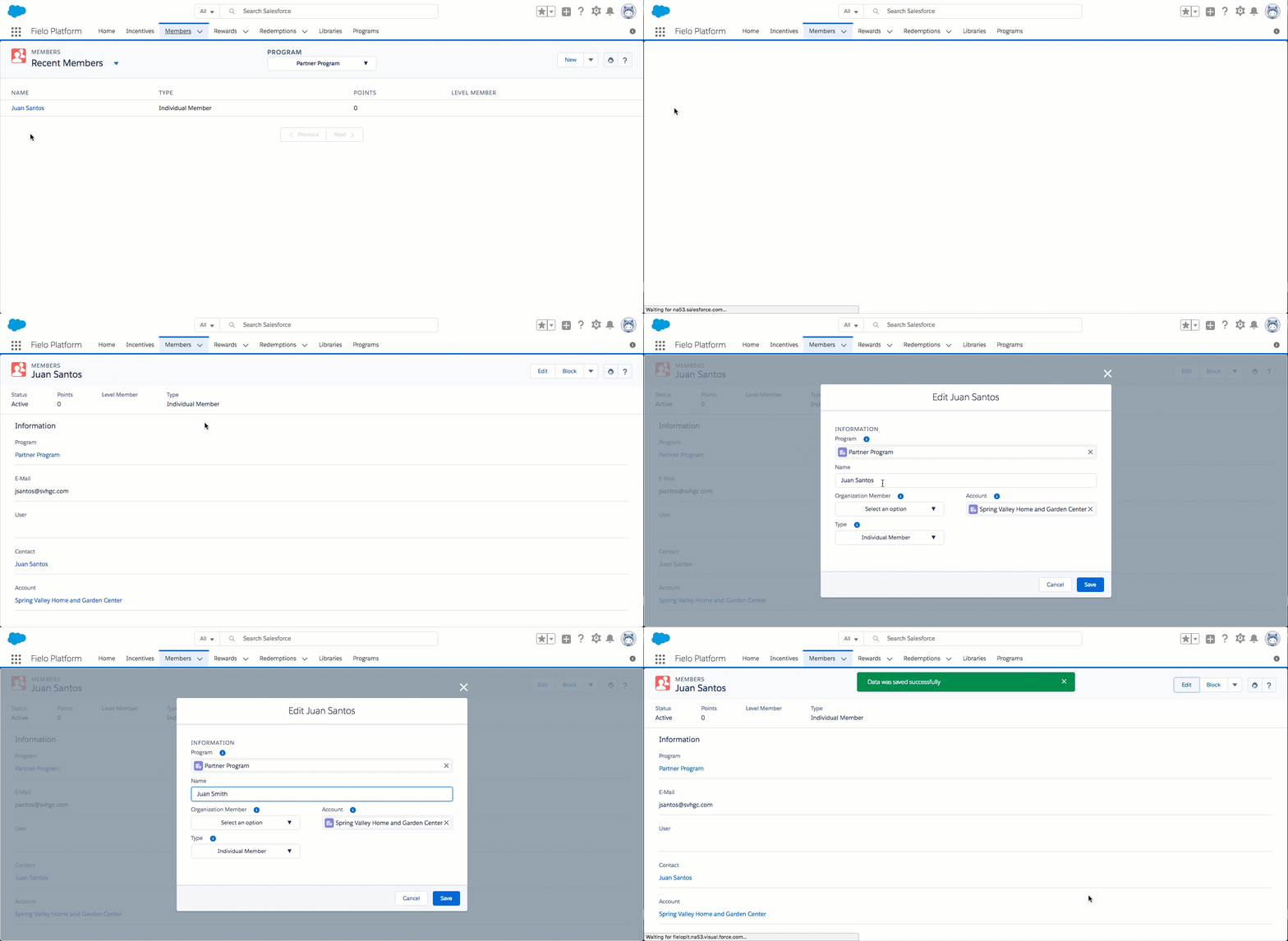
Editing a Member's Email AddressTo edit a Member's email address, you'll have to add the E-mail field to your Member > Edit page settings. See Page Settings for details.
Currently, Organization Members and Organization Contributor Members cannot be edited or deleted.
Blocking a Member
If necessary, you can block a Member from participating in a Program. When blocked, a Member cannot participate in any Incentives or earn any Points, Rewards or Badges.
To block a Member, click Block on the Member's record page.
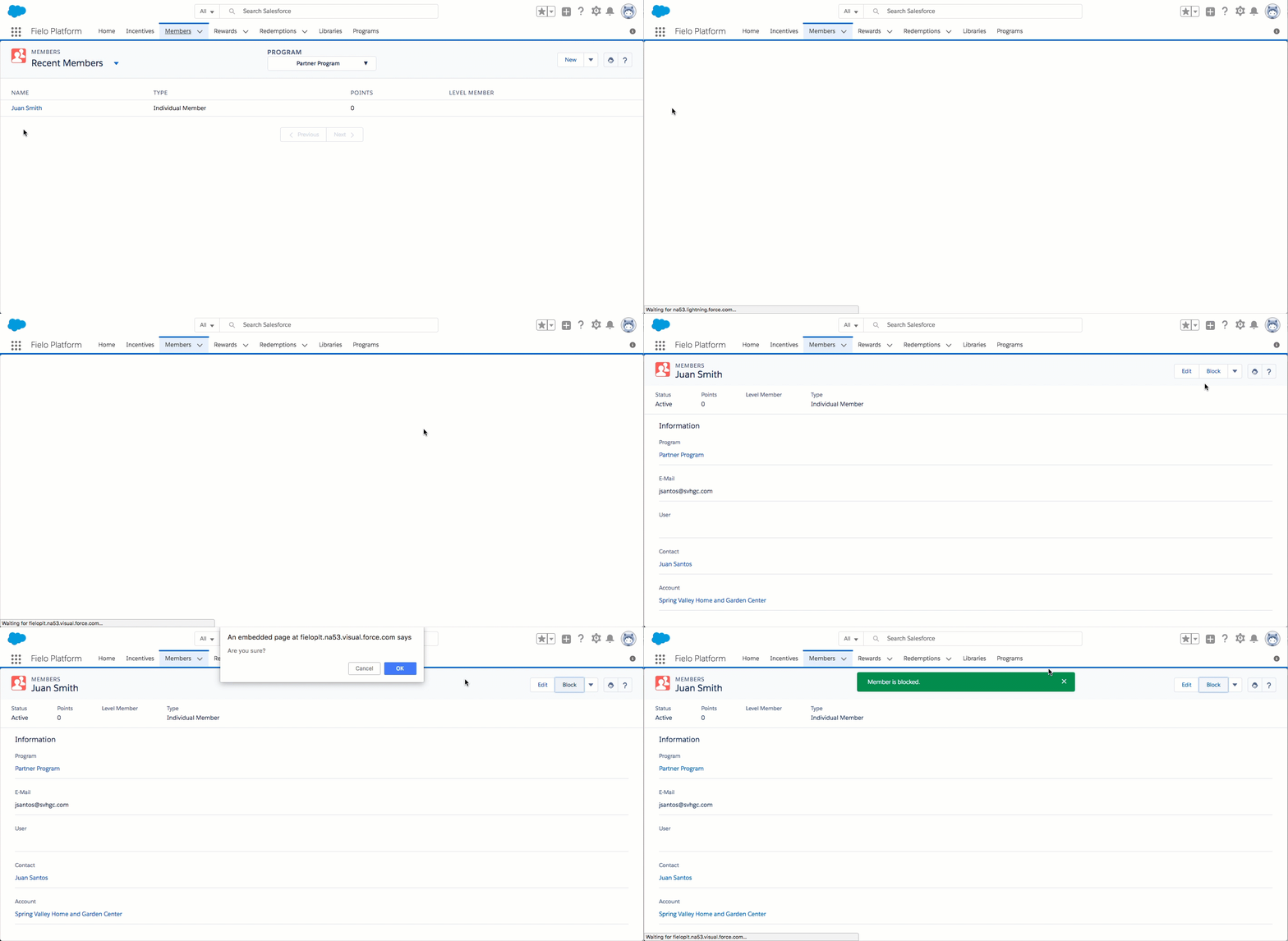
Similarly, you can unblock a Member by clicking Unblock on the Member's record page.
Setting an Organization Contributor Member as Manager
You can designate one or more Organization Contributor Members as managers of their Organization Member. When set as manager, an Organization Contributor Member can redeem Points on behalf of his or her Organization Member.
To set an Organization Contributor Member as manager, click Set Manager on the Member's record page.
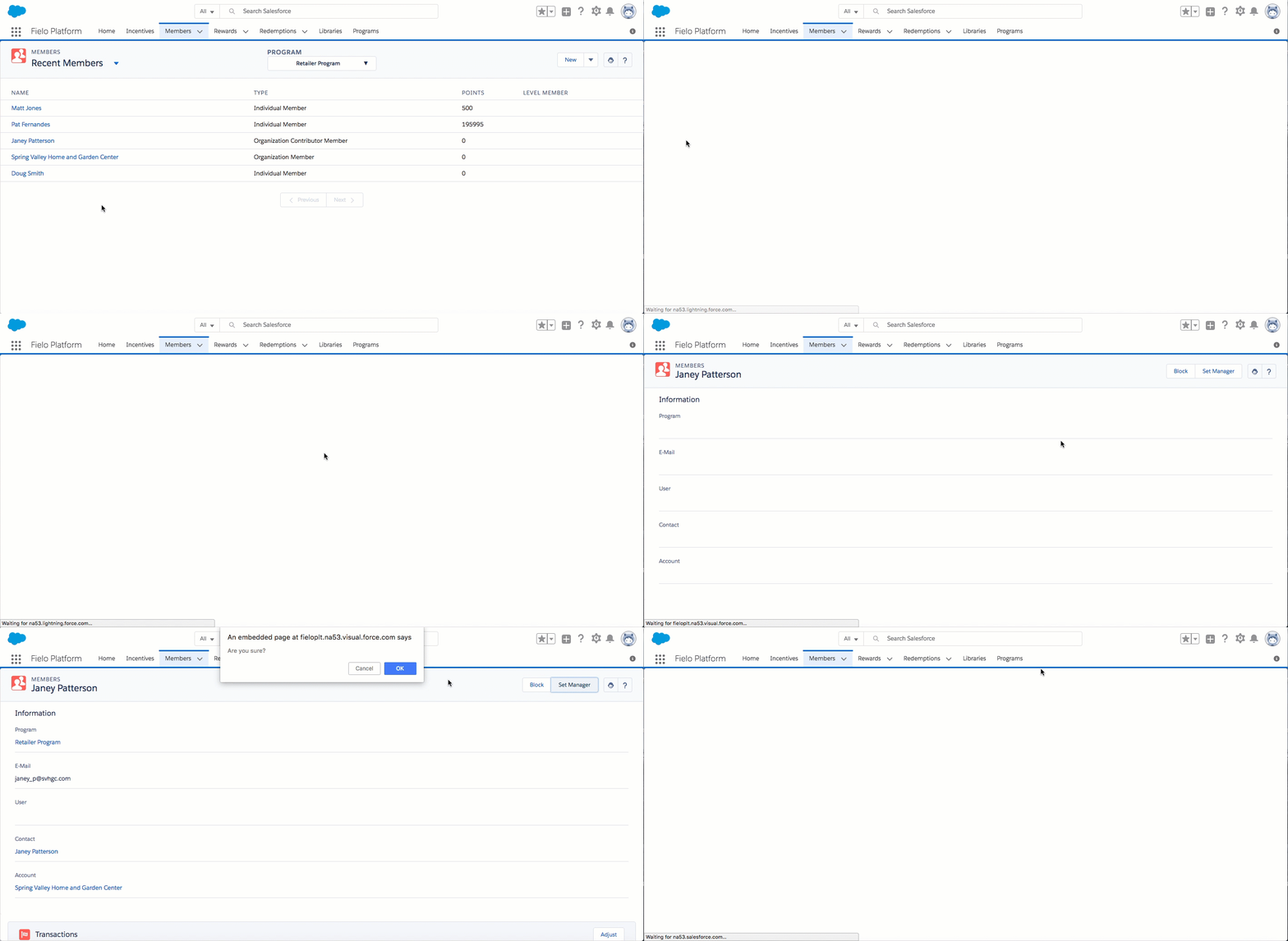
To remove the Member from the manager position, click Unset Manager.
Deleting a Member
To delete an Individual Member, first navigate to the Member's record page. Click and then select Delete.
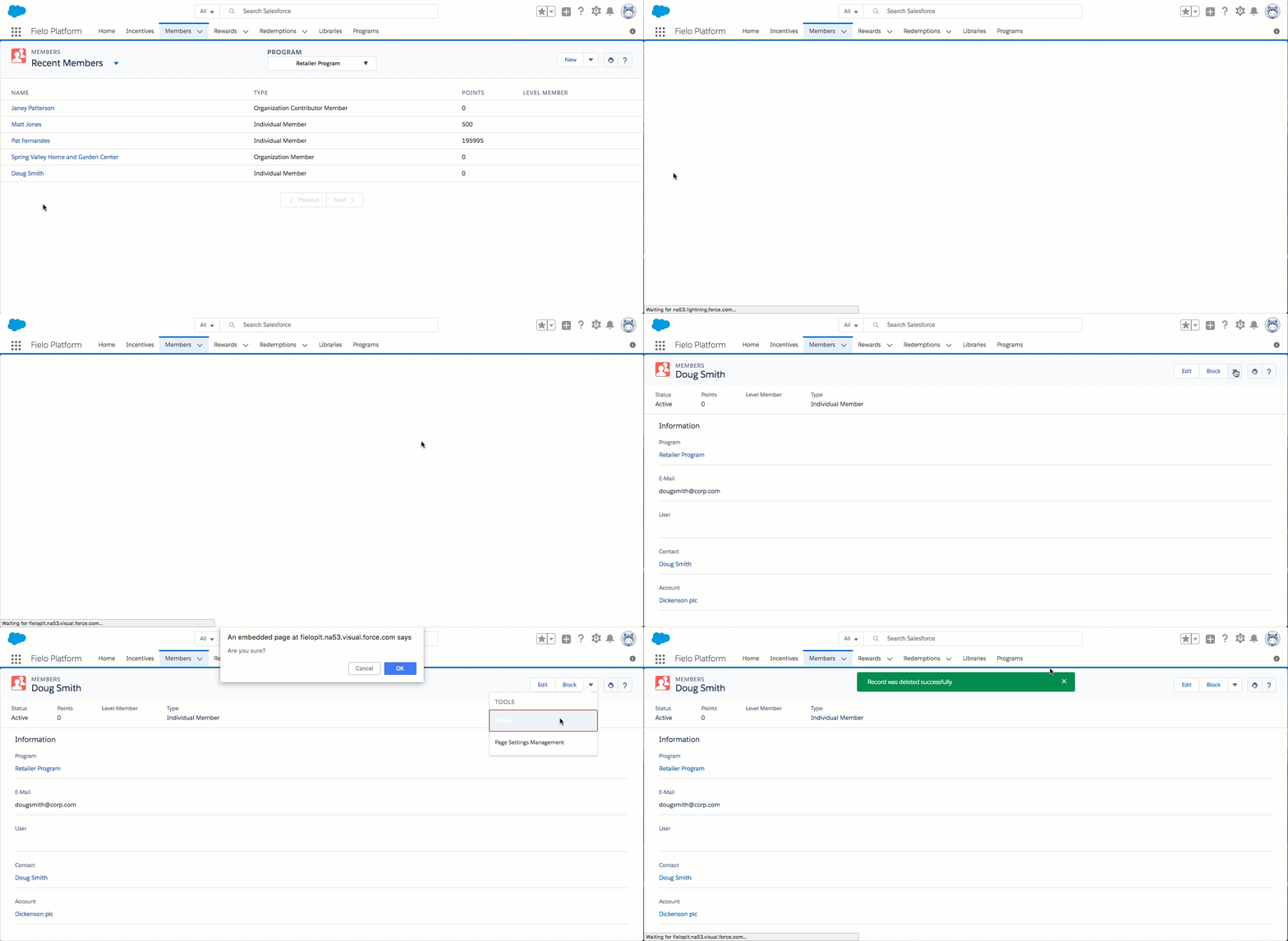
Currently, Organization Members and Organization Contributor Members cannot be edited or deleted.
Member Status
Every Member has a status which indicates whether the Member can participate in a Program or is encumbered in some way.
- Active Members are those who are fully enabled to participate in a Program. When a Program has neither Request Member Authorization nor Request User enabled, newly added Members are automatically Active.
- Members with a Submitted for Approval status are those who have been added to a Program that has Request Member Authorization enabled. Once the associated Approval Workflow has been completed, a Member who is Submitted for Approval becomes either Active (if approved) or Rejected (if denied).
- Members with a Pending User status are those who have been added to a Program that has Request User enabled. Once the associated Approval Workflow has been completed, a Member who is Pending User becomes Active.
Loyalty Portals on Salesforce Community CloudThe Pending User status is not applicable to Members of Programs that use a loyalty portal in Community Cloud. See Member Settings for details.
- Members who have been Blocked by an admin cannot participate further in their Program until they are unblocked.
Updated over 1 year ago